English
 Random Dice 2 has attracted plenty of tower defense fans with its randomly generated defense setups and constantly changing enemy routes. The game currently does not offer an official PC client, so remotely connecting a physical smartphone is a practical way to enjoy it on a larger screen. This guide walks through the entire setup process, covering the key steps and common settings you should check, so you can play Random Dice 2 smoothly on your computer.
For players who want to experience this tower defense strategy game on PC, OSLink is a convenient option for remotely controlling a physical smartphone from a computer. A USB cable is all you need to establish the connection, helping avoid many of the compatibility issues that can come with emulators. Playing on a larger screen also makes it easier to keep an eye on the battlefield and quickly manage your defenses.
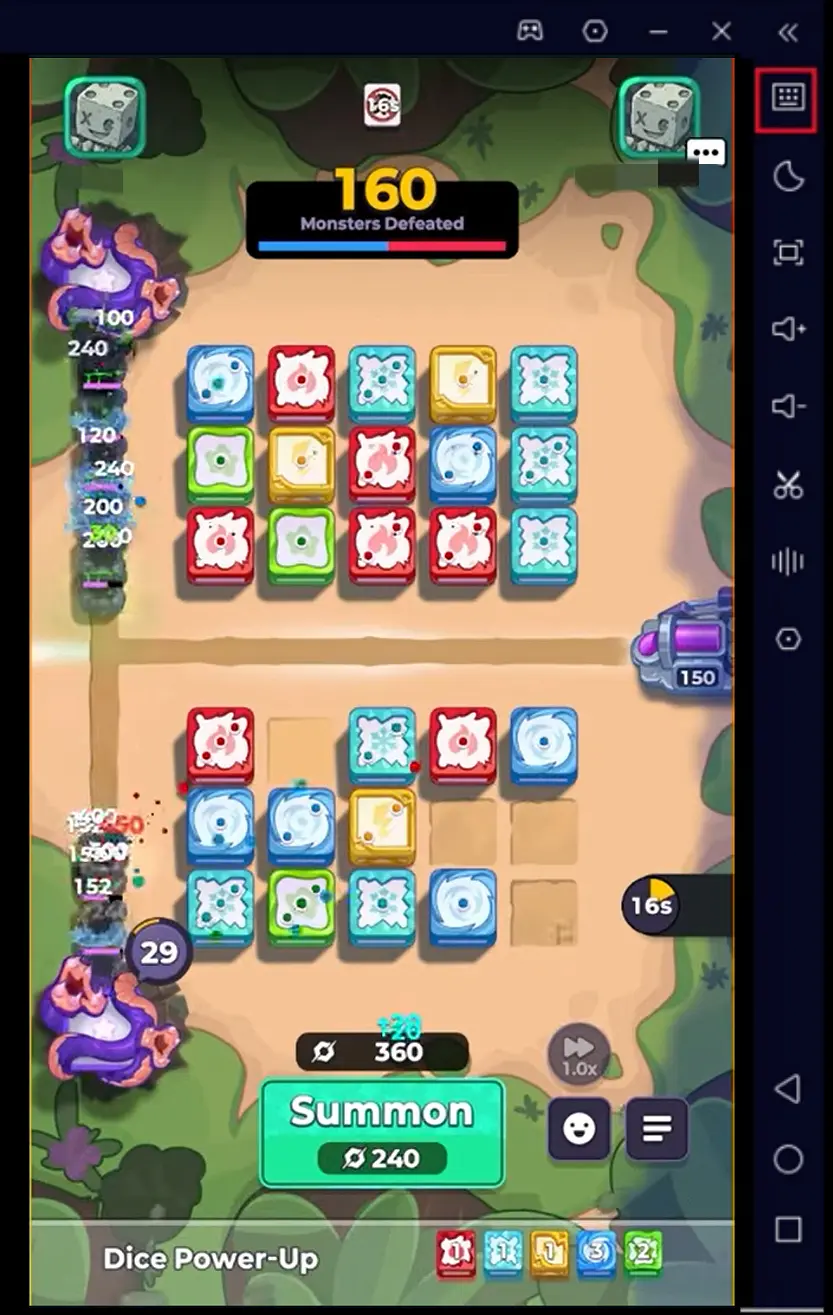
1. Get Random Dice 2
On your phone, open Google Play and search for Random Dice 2. Find the official version of the game, then download and install it. Once the installation is complete, launch the game briefly to make sure it loads normally and that you can log into your account without any issues such as a corrupted installation files or missing game resources.
2. Install OSLink on Your PC and Phone
Download and Install OSLink on Both Devices
Download the appropriate version of OSLink for both your computer and smartphone.
On your computer, choose the installer that matches your operating system and complete the standard installation process.
On Android devices, search for OSLink in the Google Play Store and download it. For iOS devices, open the App Store, search for the same client, and install it.
After installation, do not launch the program just yet. Prepare a good-quality USB cable first, as it will be used to connect the two devices.
Enable Developer Options and USB Debugging
Before using the connection feature for the first time, you need to enable the necessary developer permissions on your phone.
Open your phone's Settings and find the About Phone section. Tap the Build Number seven times in a row. When the system displays a notification, Developer Mode has been enabled successfully. Return to Settings, find USB Debugging, and turn it on.
You can also enable Developer Mode directly through the OSLink interface on your computer. The software will provide step-by-step instructions. Follow the prompts to complete the required permission settings. If a lock-screen password verification window appears, enter your phone's lock-screen password to confirm the changes.
3. Full Process for Launching Random Dice 2 with OSLink on PC
Step 1: Use a USB cable to physically connect your phone to the computer. Make sure both ends of the cable are firmly plugged in to prevent the connection from dropping during use.
Step 2: Launch OSLink on your computer. The software will automatically detect the connected phone. Select the phone you want to connect from the device list.
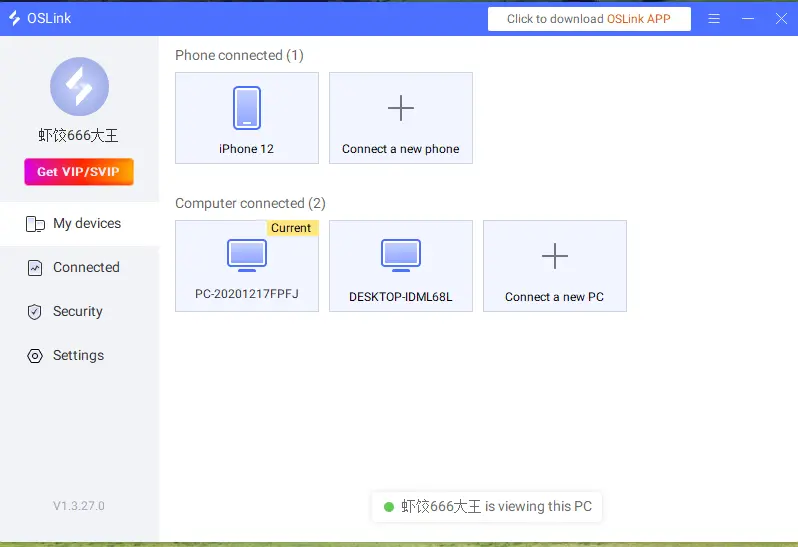
Step 3: The software will display two operating modes: Normal Mode and Game Mode. When playing mobile games, Game Mode is recommended. It is optimized for lower visual latency and faster input response, but the USB connection must remain active throughout the session.
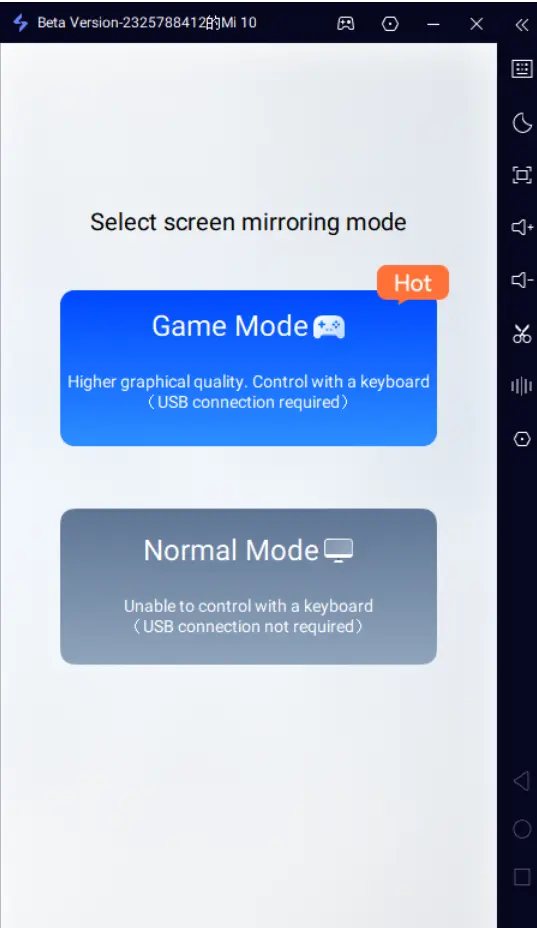
Step 4: After selecting the mode, a mirroring window will appear on your phone. Tap Start Mirroring, and your phone's screen will be displayed on the computer monitor.
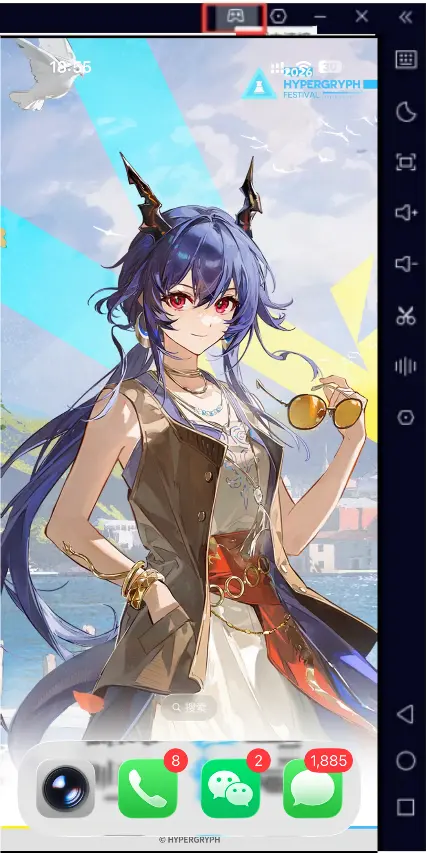
Step 5: From the mirrored phone screen shown on your computer, find the Random Dice 2 icon and launch the game. The game continues to run through the phone's native environment, while the visuals and audio are transmitted to your computer. If you receive a permission prompt during the connection process, tap "Allow USB Debugging" on your phone. Denying the permission will prevent screen mirroring from working.
4. Customize Keyboard and Mouse Controls for Random Dice 2
Once mirroring is working and the game is open, the default touch controls may not make full use of the keyboard and mouse. You can manually adjust the control layout instead. In the OSLink Game Mode panel, click the keyboard icon on the right side of the toolbar and find the key settings option.
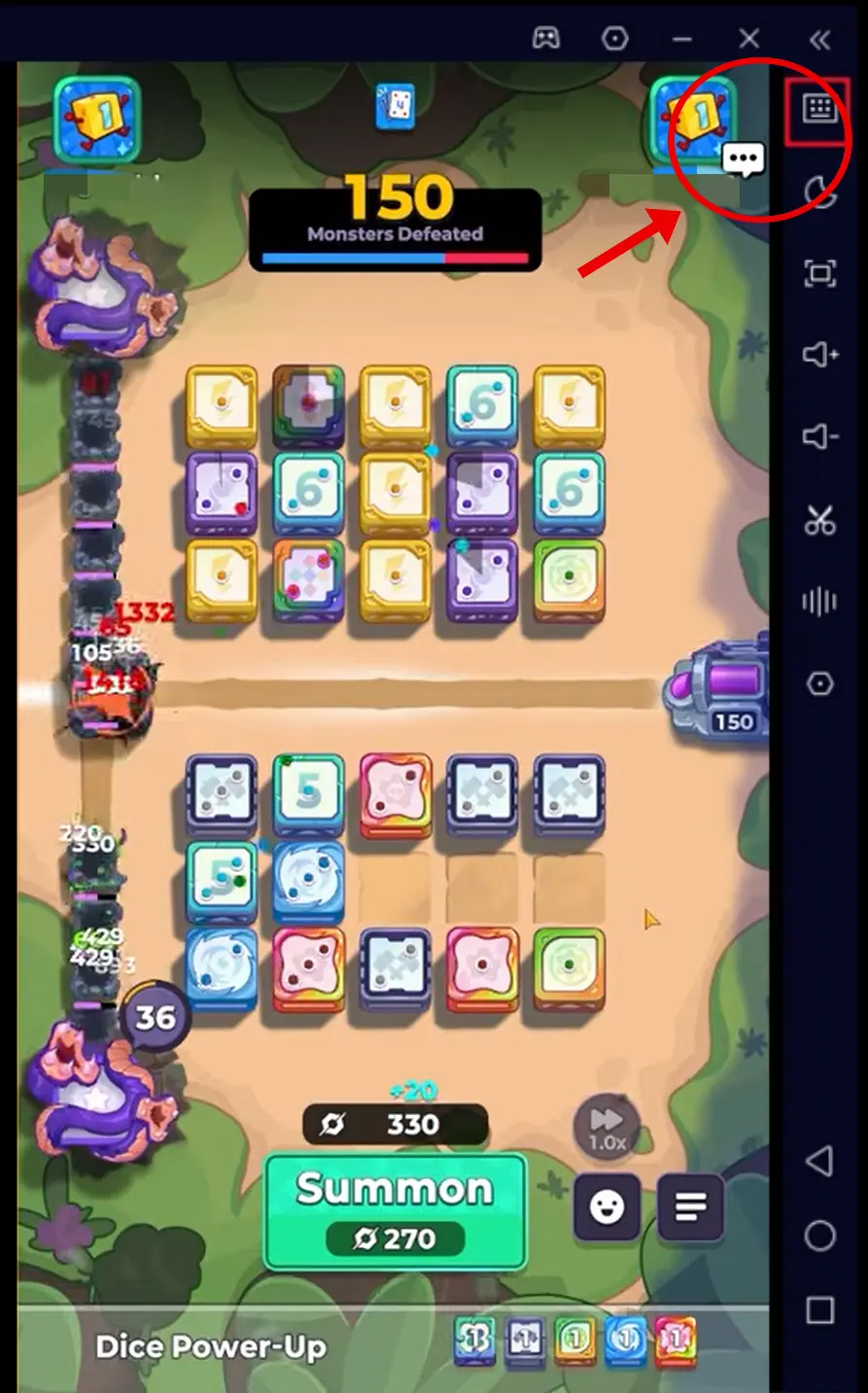
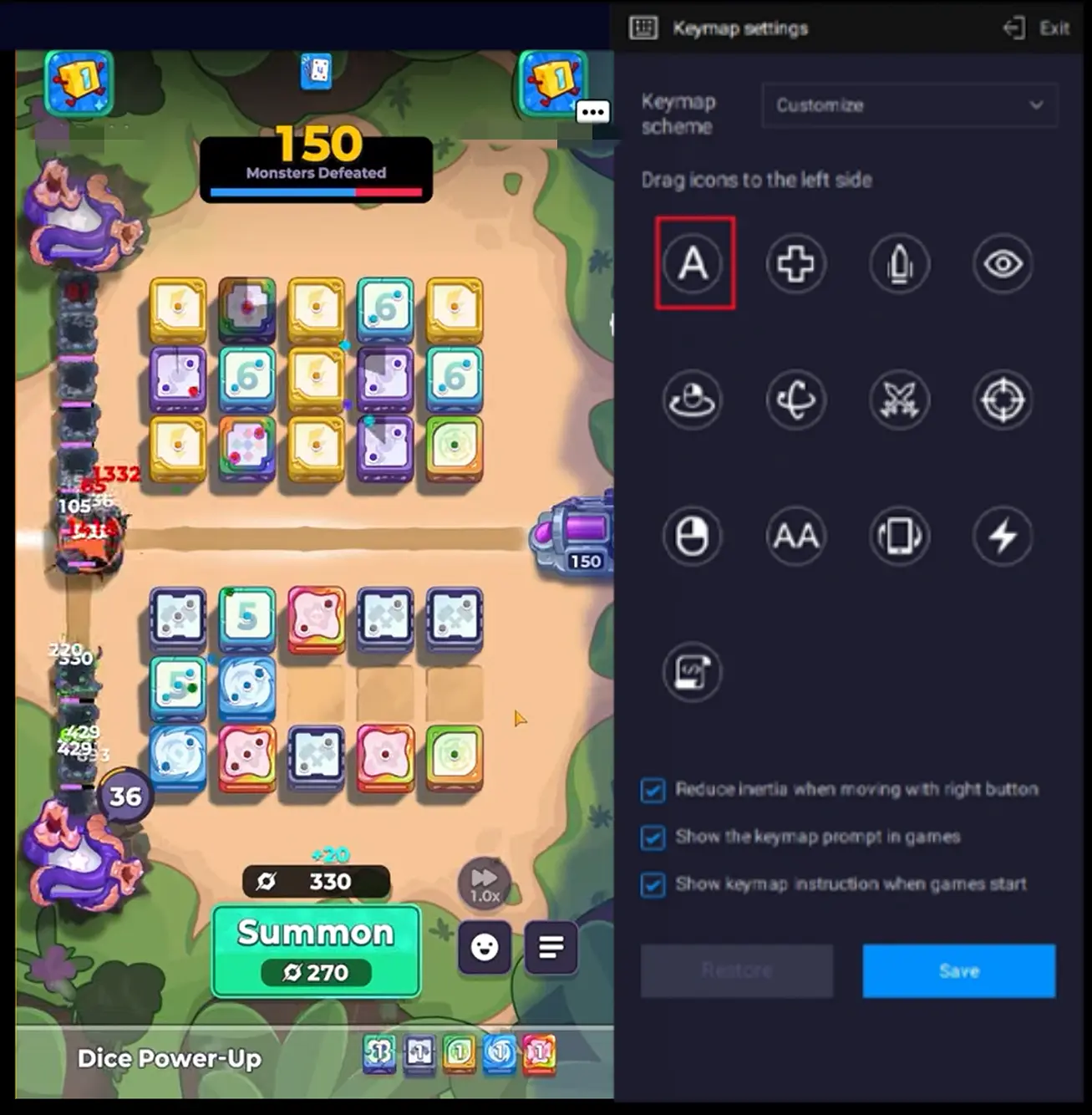
Open the key editor to assign keyboard keys to frequently used actions. Drag the control icons in the editor and line them up with the corresponding buttons in the game. Once everything is positioned correctly, save the customized control layout.
5. Choosing the Right USB Cable
This entire remote-play setup relies on a USB cable to for data transmission, so cable quality can directly affect your gaming experience.
Basic cables that only support charging cannot reliably transfer data. They may cause screen stuttering, input delays, or frequent disconnections. It is recommended to use the original cable that came with your device or another reliable cable that supports data transfer.
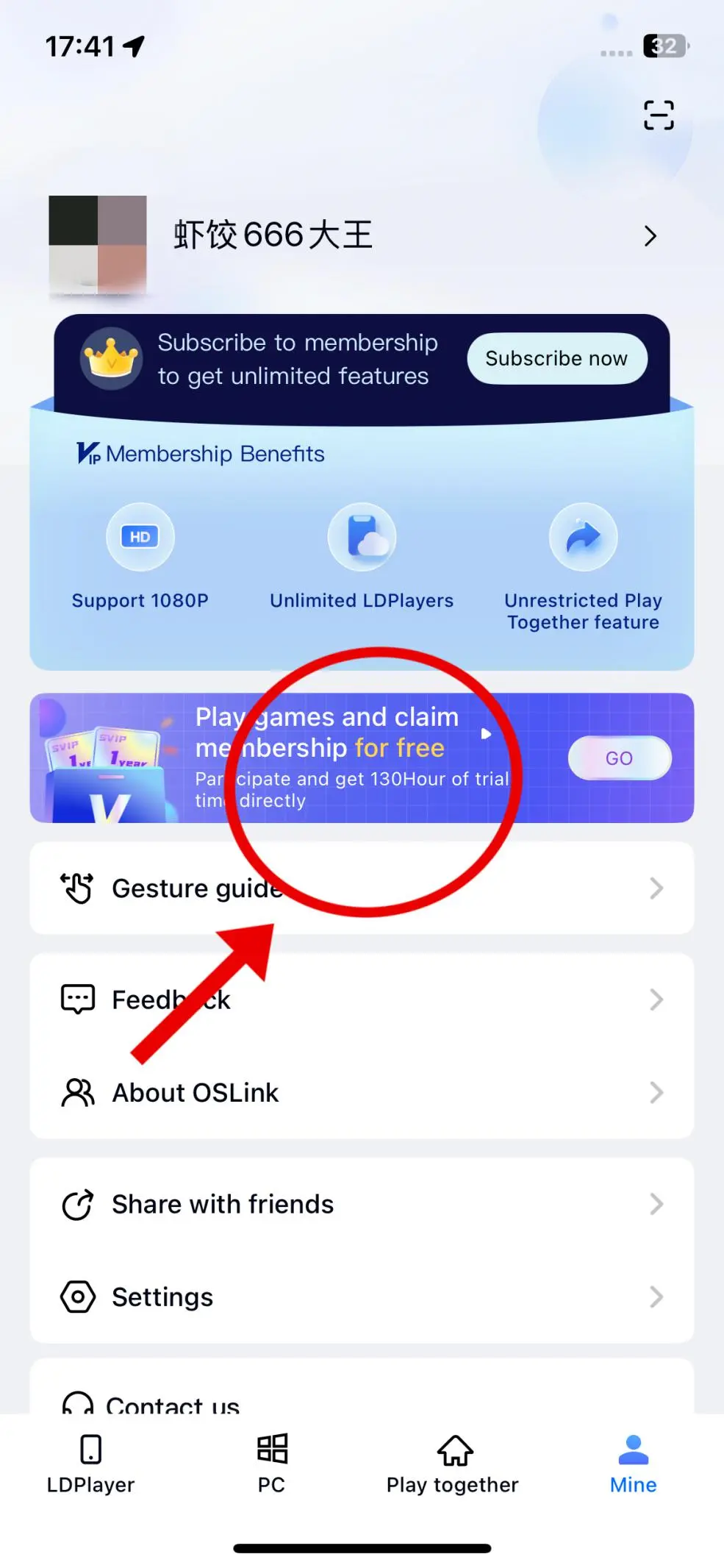
In the My section of the OSLink mobile app, you can earn free usage time by watching ads or completing tasks.
Conclusion
Using OSLink to play Random Dice 2 on a computer can make the overall experience much more comfortable. The larger screen provides a wider view of the battlefield and makes it easier to keep track of your entire defense setup. Combined with customized keyboard and mouse controls, deploying defenses and adjusting your strategy become more responsive and convenient, especially during longer play sessions.
Once your devices are connected and the settings are configured, you can enjoy Random Dice 2 on a large PC screen with keyboard and mouse controls.
 Download