English
Can 'Em All is a first-person incremental factory game. Deliveries bring creatures to your workshop; you clear the floor, feed bodies into a crusher, send cans to the sales tube, and reinvest the proceeds in weapons, a vacuum, machines, and conveyors. The cycle rewards quick action and frequent upgrades, which can be difficult to manage when you're away from your PC.
OSLink lets you control the game running on your own Windows PC from an Android phone or iPhone. This guide covers downloading the game from Steam, testing it locally, pairing devices, setting up touch controls, and using an optional controller or keyboard and mouse.
1. Download Can 'Em All on PC
Get the Game and Test It Locally
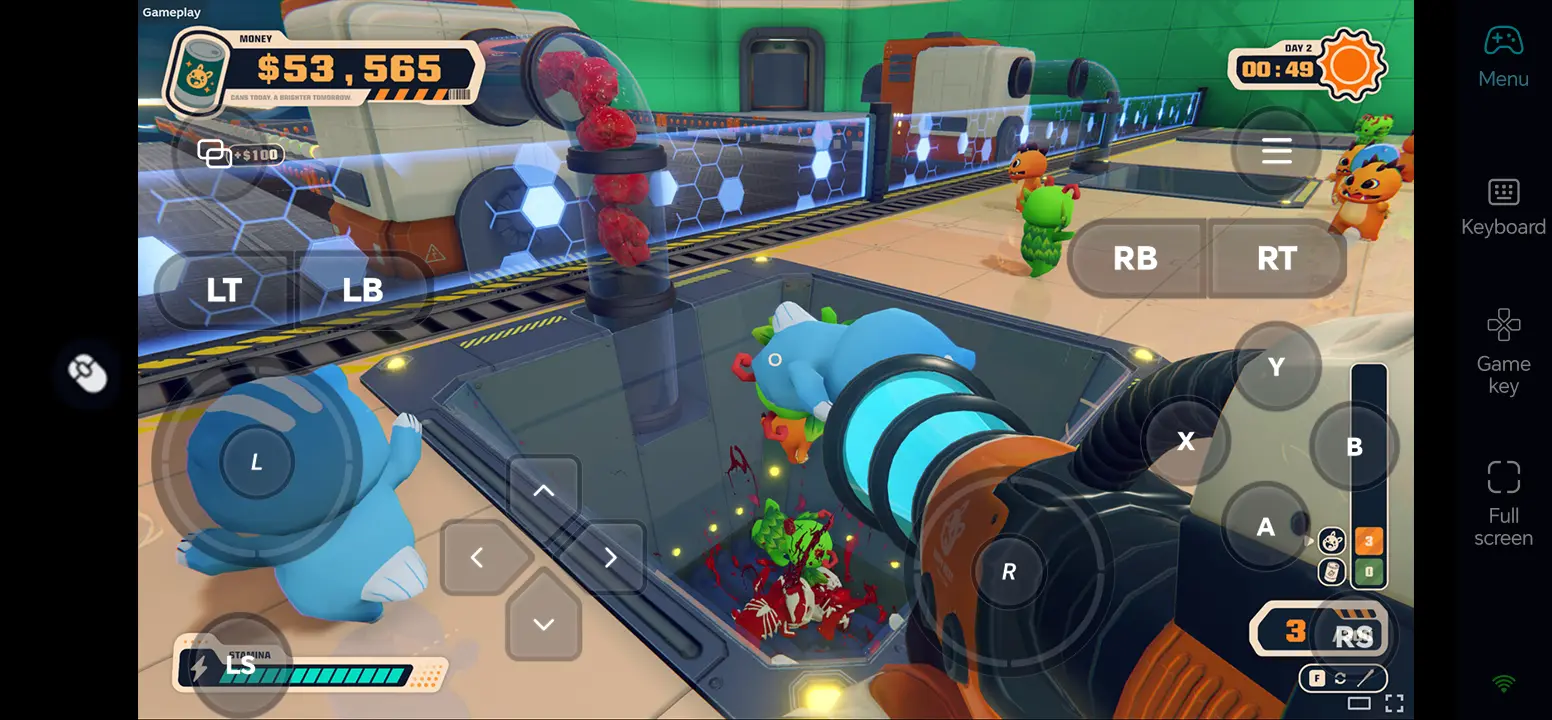
Search for Can 'Em All on Steam, confirm the LuisDev listing, and install the purchased game or its free demo. Launch it on your Windows PC first. Test movement, aiming, item collection, crushing, can sales, and saving before setting up remote access.
Once the game runs smoothly on your PC, use OSLink to stream its display to your phone and control it remotely.
2. Play Can 'Em All Remotely on Your Phone
Step 1: Install OSLink on Both Devices
Install OSLink on the Windows PC
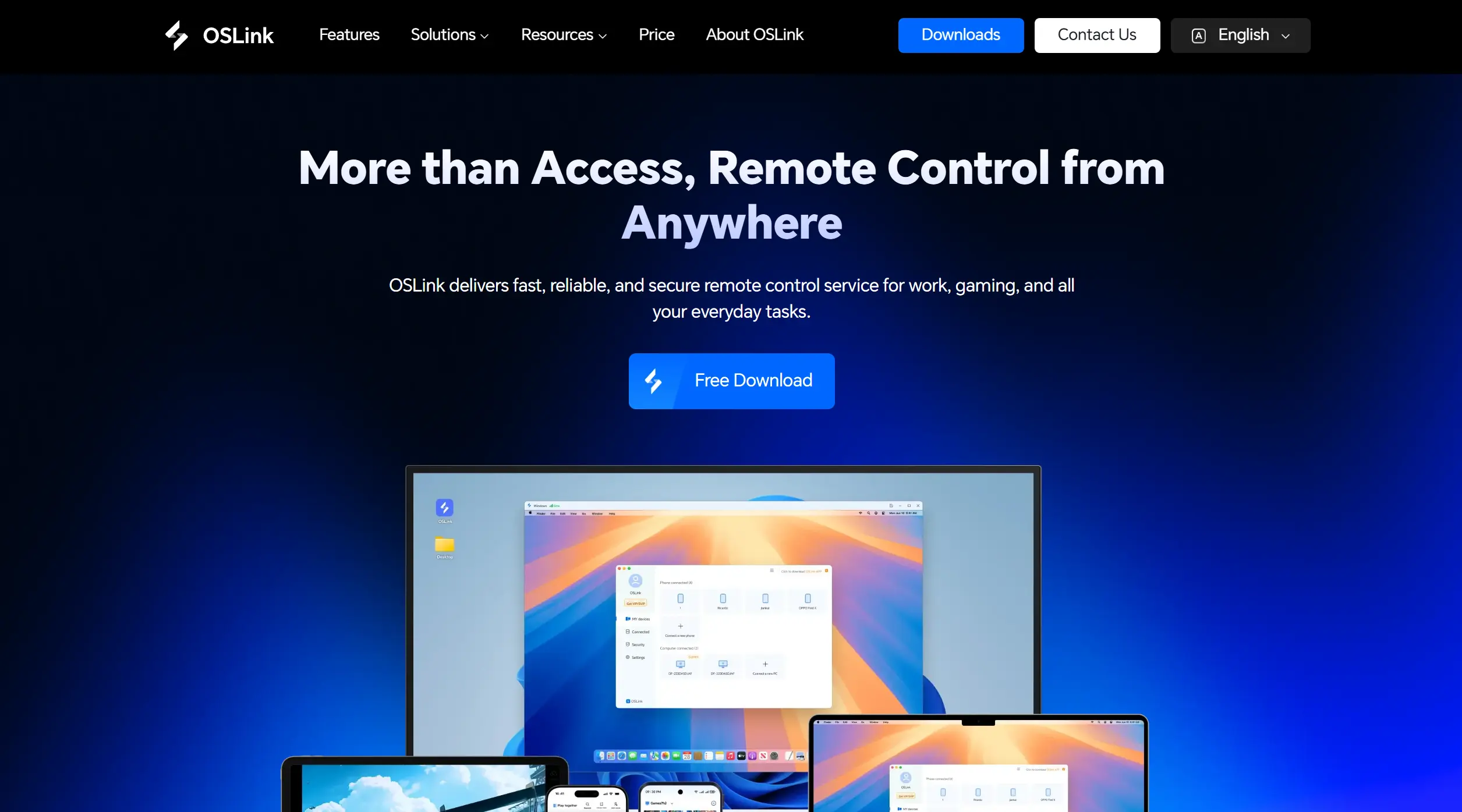
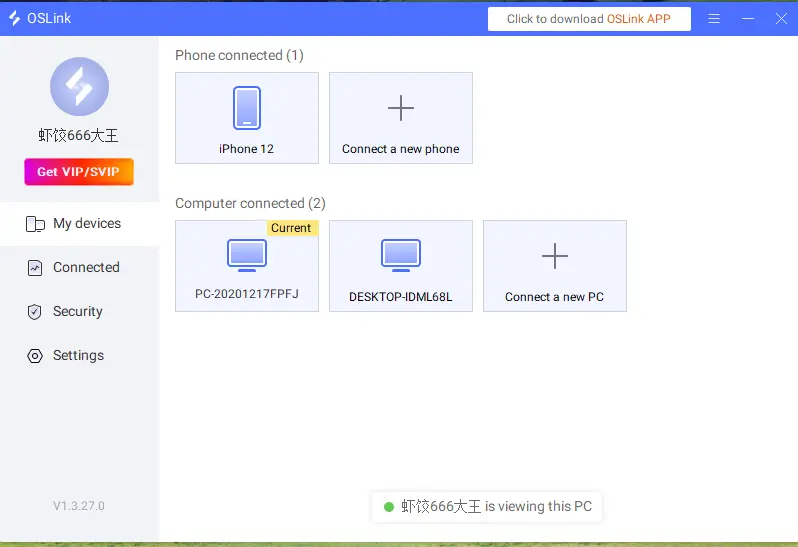
Get the Windows client from the OSLink website and sign in on the PC where Can 'Em All is installed. Keep the computer powered on, signed in, and connected to the internet while you play remotely.
Install OSLink on the Phone
Install OSLink from Google Play on Android or the App Store on iPhone. Sign in with the same account used on the PC, then select that online computer in the device list.
Step 2: Set Up the Remote Controls
1. Launch the Game on the PC
Start Can 'Em All from Steam on the host PC. Enter the factory and lower the graphics settings if your PC struggles to maintain smooth gameplay.
2. Pair the Devices and Test Input
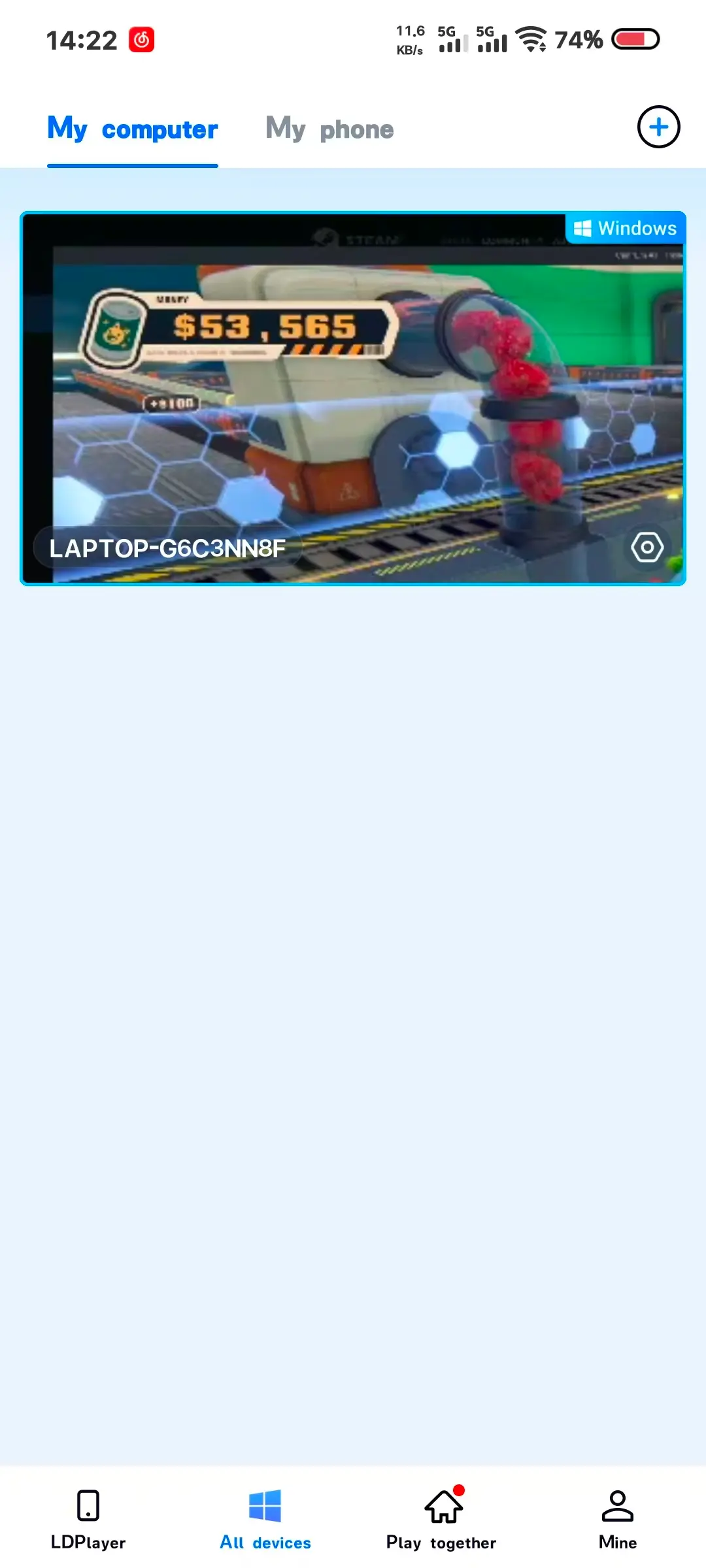
Open the remote desktop on your phone. Test movement, camera, attacks, collecting, the crusher, and the sales tube. Check that your taps reach the intended controls.
3. Enable 60 FPS PC Gaming Mode
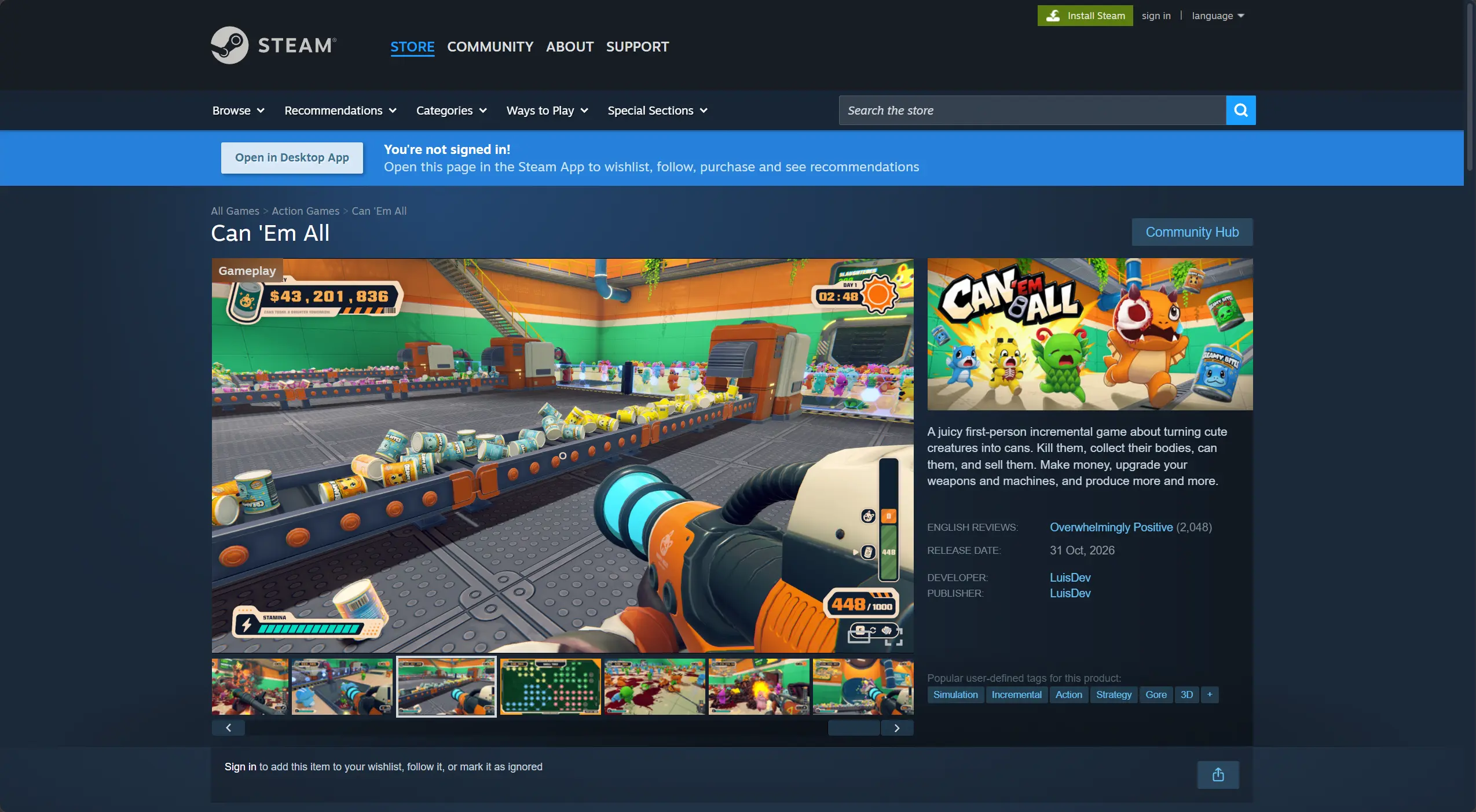
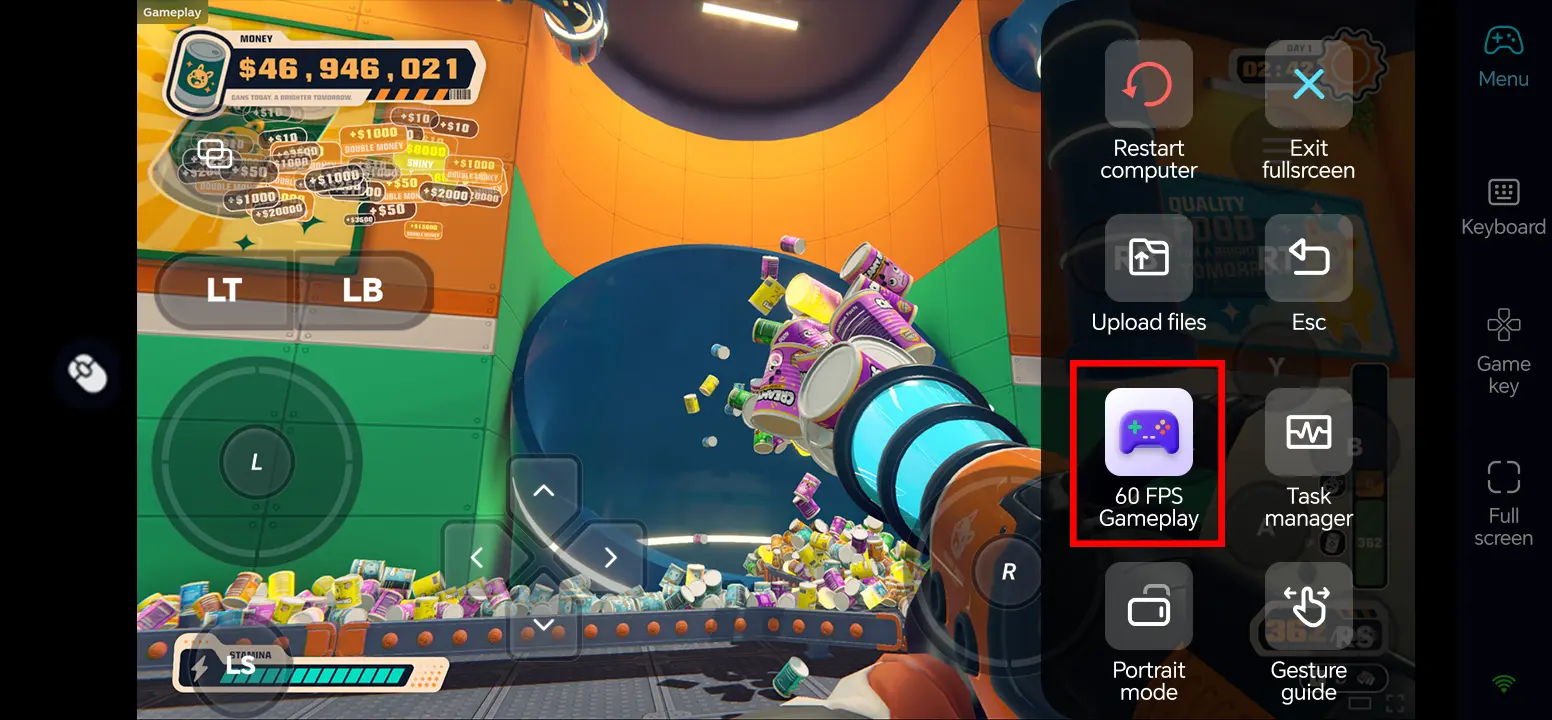
In the full-screen remote desktop, choose Tools > Play PC games at 60 frames. This enables PC gaming mode; the actual frame rate depends on the PC, game, and connection.
4. Customize Touch Controls
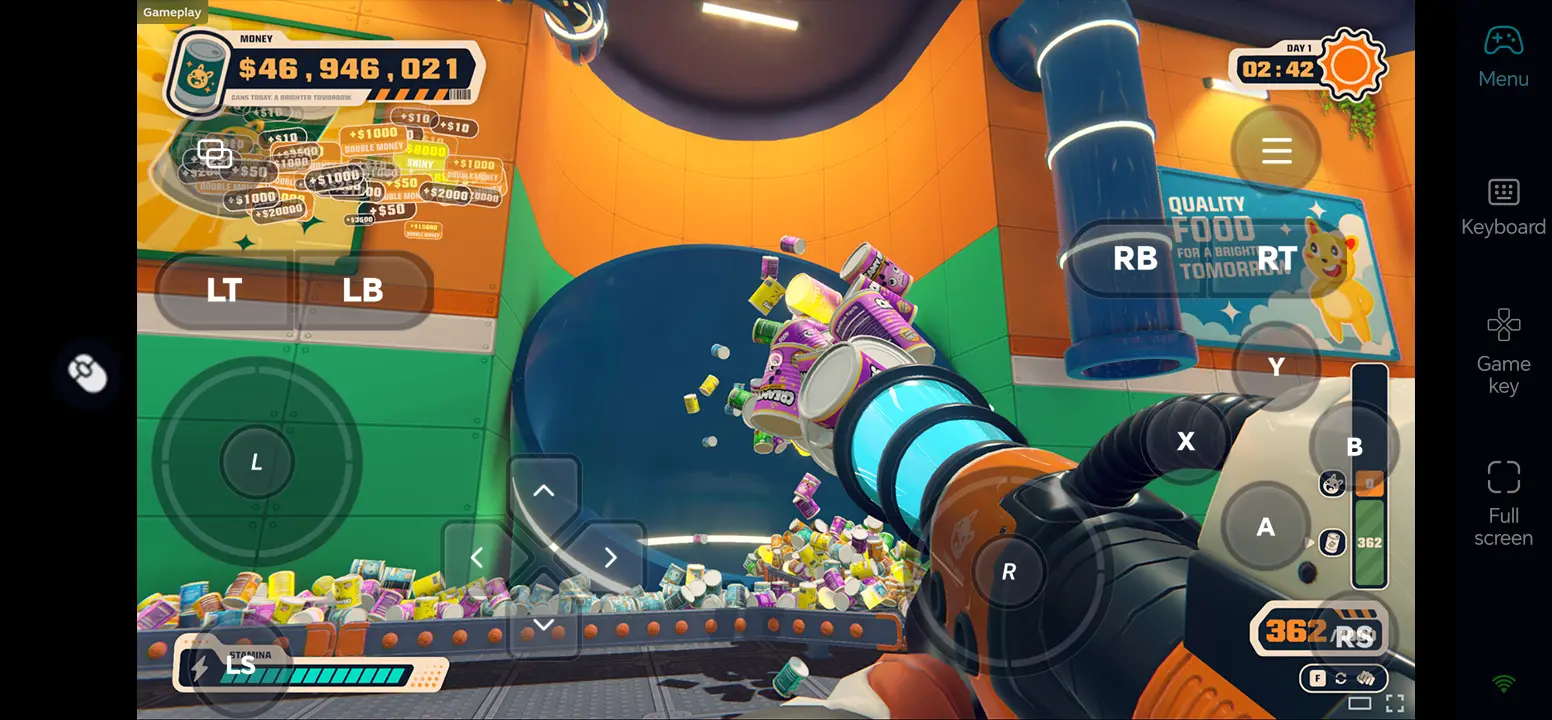
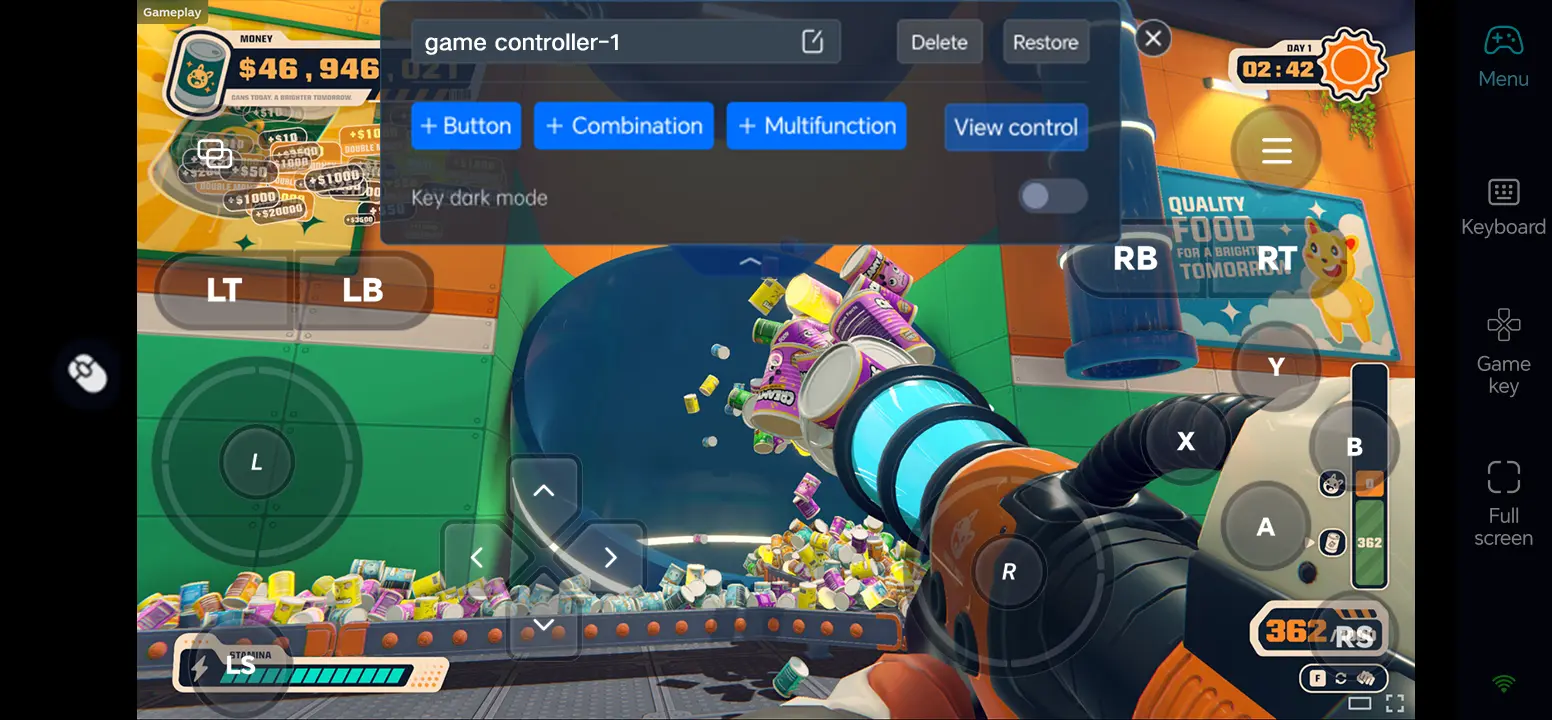
Open Game Button and its edit icon. Position the movement and camera controls separately from the buttons for interacting, attacking, picking up items, and confirming actions.
5. Connect External Controls
If the touch controls feel crowded during aiming or repeated interactions, try a compatible Bluetooth controller or a keyboard and mouse connected to your phone. Test every binding before a longer session.
What You Can Do After Setup
Clear incoming creatures, collect them, and feed them into the crusher while away from your desk.
Move cans into the sales tube and spend earnings on stronger weapons, a better vacuum, and new machines.
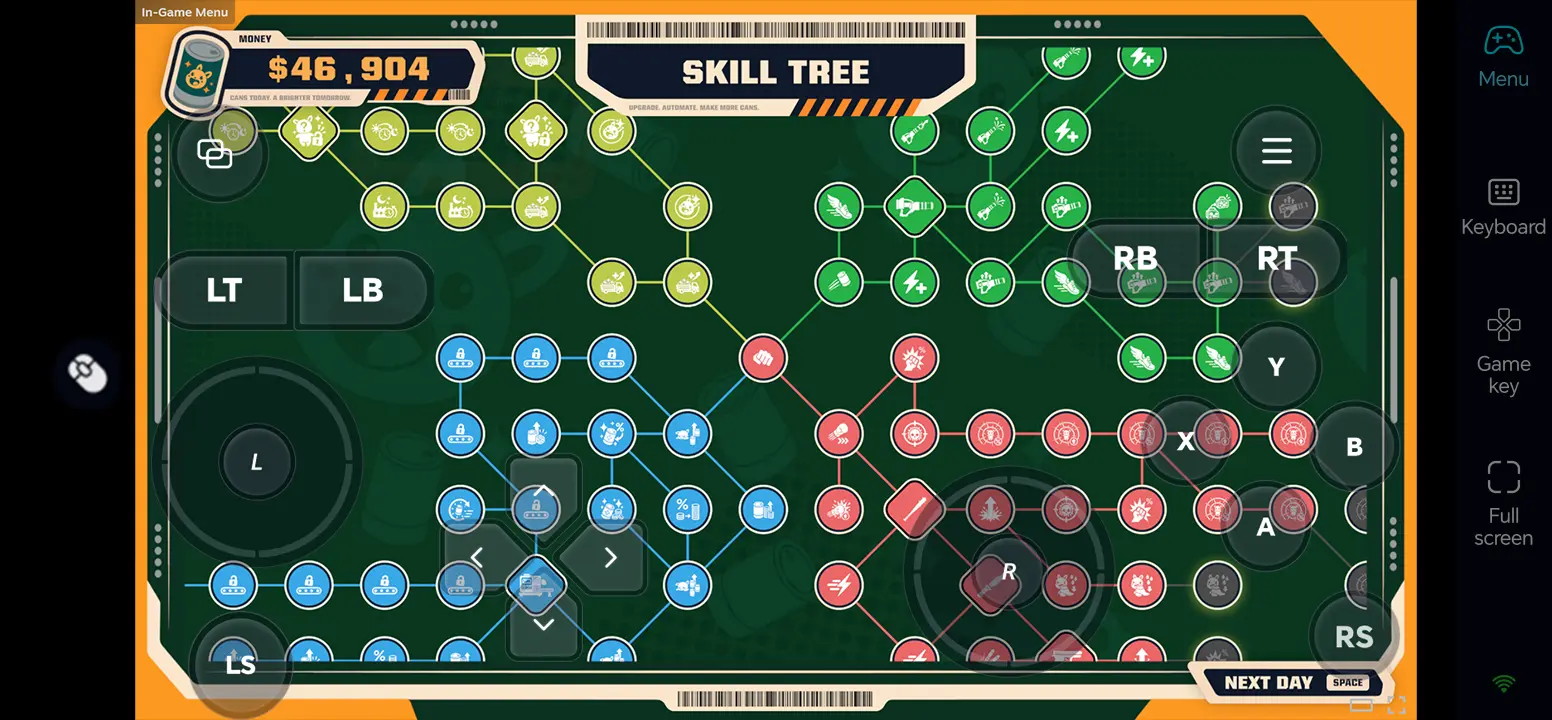
Build conveyors and expand automation, then check whether the production line keeps up with deliveries.
3. Three OSLink Benefits for Can 'Em All
1. Keep the production loop moving
Remote access makes it easier to handle a delivery, process cans, and buy an upgrade during a short break.
2. Separate aiming from factory actions
A custom touch layout can keep movement and attacks distinct from pickup, crushing, and sales interactions.
3. Use familiar input for repeated tasks
A compatible controller or keyboard and mouse can make aiming and interacting with machinery more comfortable when playing on your phone.
4. Frequently Asked Questions
Q1: What is the release date of Can 'Em All?
The release date of Can 'Em All is October 30, 2026, according to its Steam page.
Q2: Can I play Can 'Em All directly on Android?
Steam lists Can 'Em All as a Windows PC game, with no native Android version listed. To use the PC game on Android, run it on your own Windows computer and connect through OSLink.
Q3: Can I play Can 'Em All directly on iOS?
Steam does not list a native iOS edition. On an iPhone, you can use OSLink to stream and control the Windows PC version running on your computer without installing the game directly on iOS.
Q4: What PC specifications does Can 'Em All require?
Steam's minimum is Windows 10 64-bit, an AMD Ryzen 3 1200 or Intel Core i3-7100, 8 GB RAM, an AMD Radeon RX 460 or NVIDIA GTX 950, DirectX 11, and 1 GB of available storage.
Conclusion
Install and test Can 'Em All on your PC, then connect your phone with OSLink. Set up PC gaming mode and a clear control layout so you can process deliveries and grow the factory away from your desk.
 Download