English
PUBG MOBILE FLASH is a lightweight mobile app in the PUBG MOBILE ecosystem. Its smaller initial download includes Erangel and the core Classic Battle Royale experience, while other maps and resources can be added later. Looting, moving, and aiming during a match demand constant attention, and a small phone screen can feel restrictive during a long session.
OSLink displays and controls the game running on your physical Android phone from a Windows PC. The game stays on the phone. This guide covers game installation, USB Game Mode setup, and keyboard control configuration.
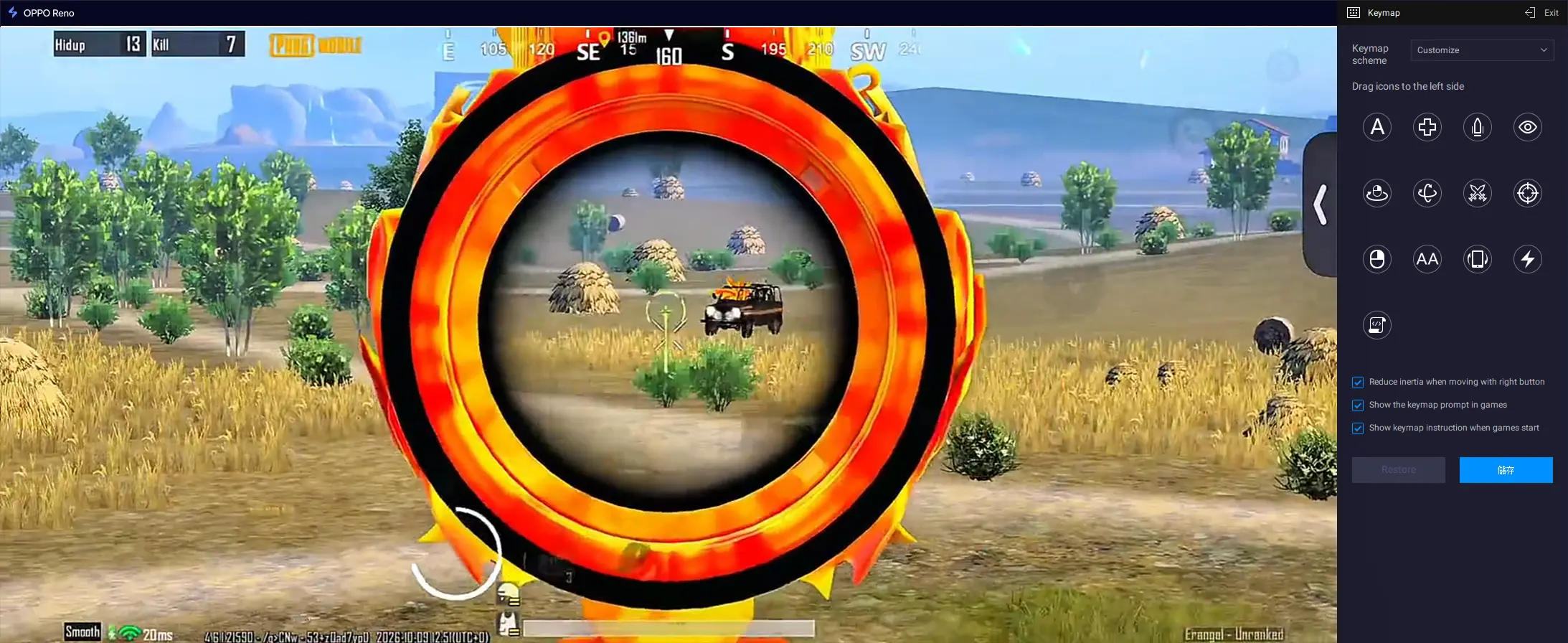
Play PUBG MOBILE FLASH on PC with OSLink
Step 1: Install and Connect OSLink
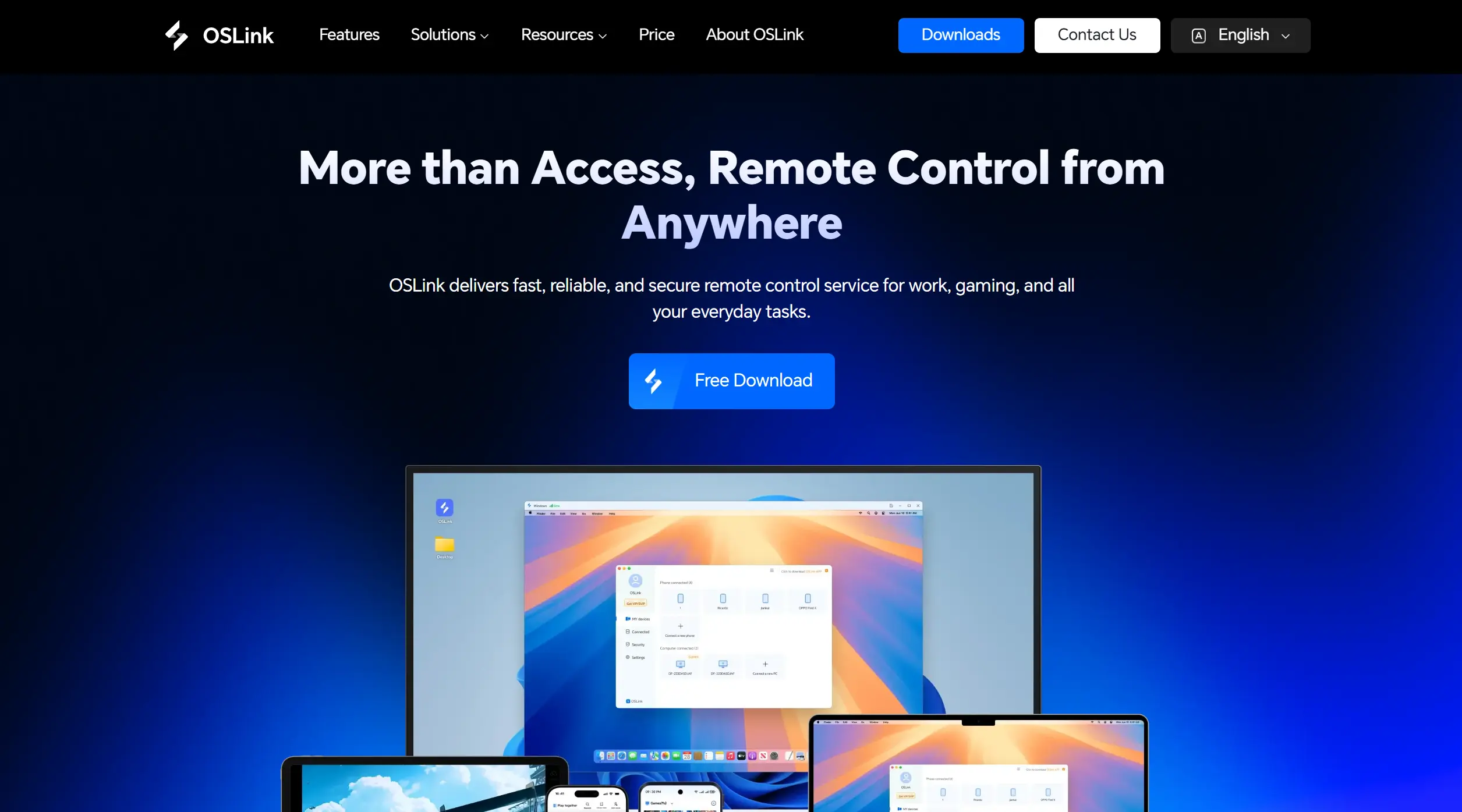
1. Install OSLink on the PC
Download and install the OSLink Windows client, then sign in. The PC handles display and input; it does not run a native PC copy of the game.
2. Install OSLink on the Android Phone
Install OSLink on the Android phone that will run the game. Sign in with the same account and grant the connection and mirroring permissions when prompted.
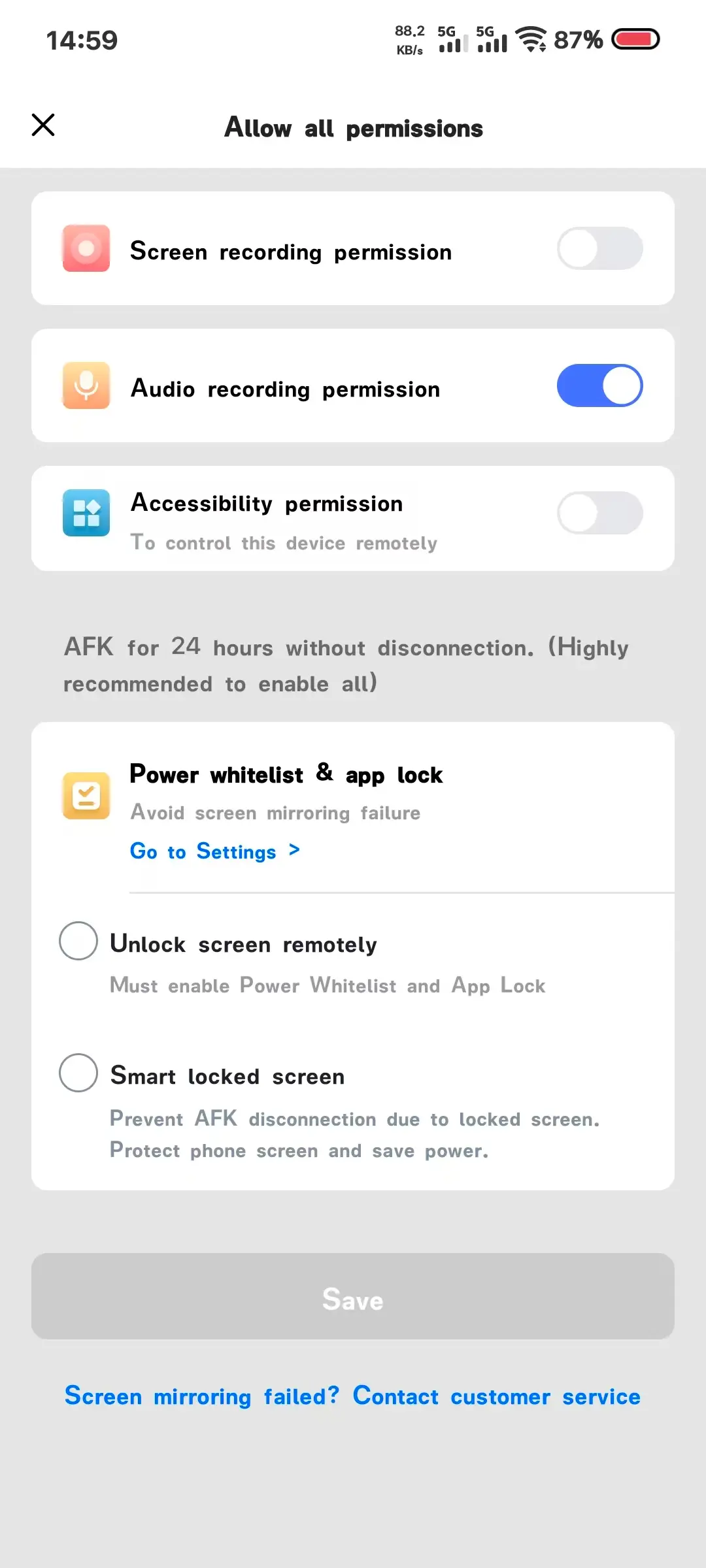
Step 2: Use USB Game Mode
1. Choose the Phone and Game Mode
In the Windows client, select the Android device under My Phone and choose Game Mode. Accept the screen mirroring request on the phone.
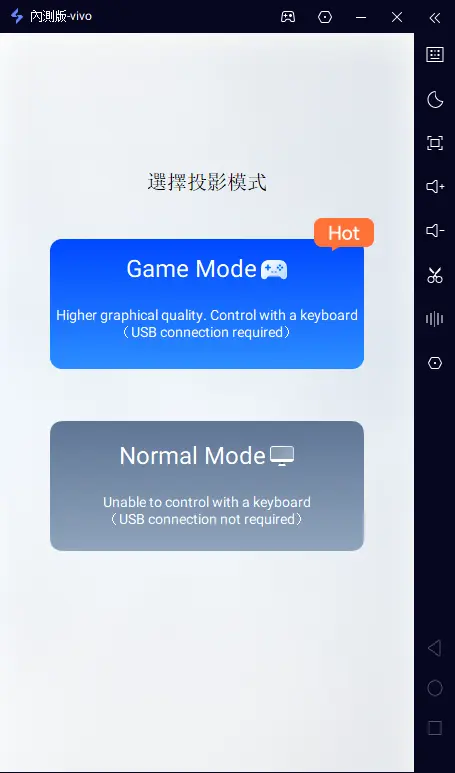
2. Connect Your Phone via USB and Start Mirroring
Follow the prompts to enable Developer options and USB debugging. Connect a data-capable USB cable, allow USB debugging, and start mirroring on the phone. Keep USB connected during Game Mode.
3. Launch the Game and Test Keys
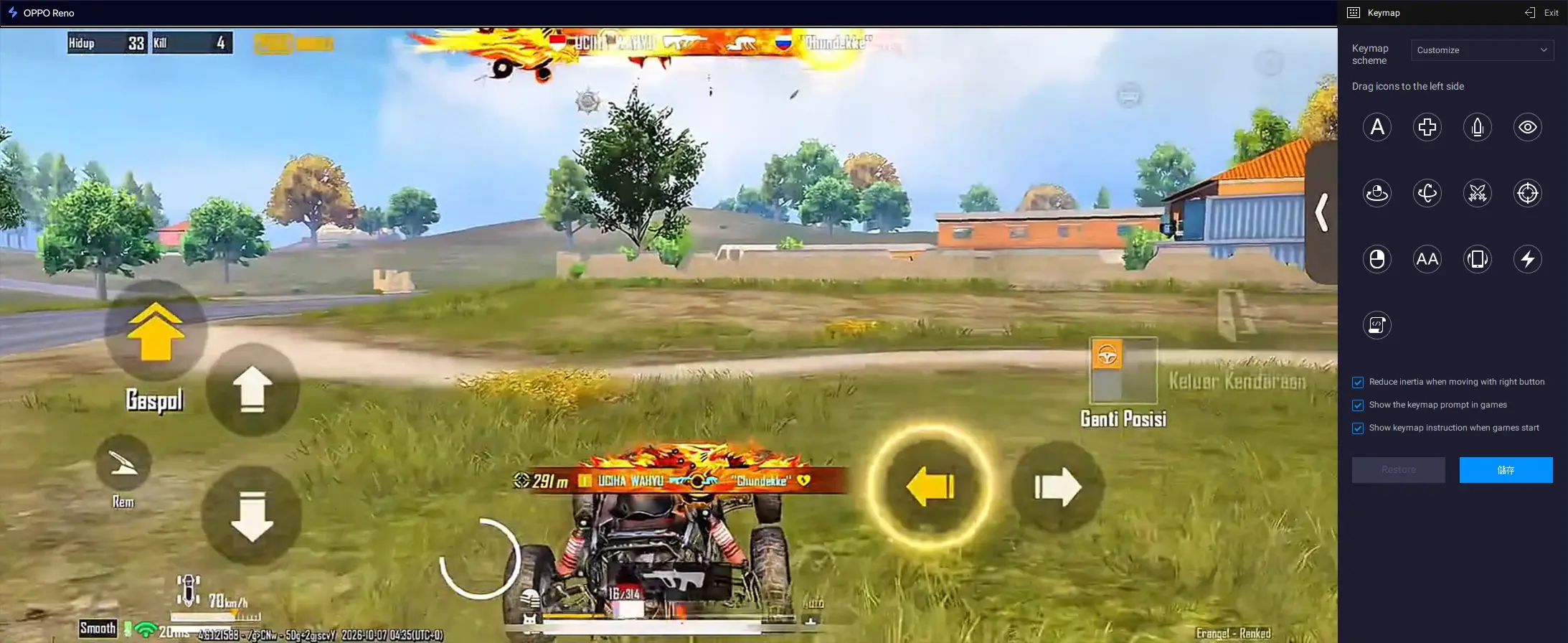
After the game is available in your region, launch PUBG MOBILE FLASH on the Android phone. In the PC view, test movement, camera, aim, fire, pickup, and inventory. Adjust any mapped keys that do not line up with the on-screen buttons.
What You Can Do After Connecting
Enter the pre-installed Erangel Classic Battle Royale mode to drop, loot, move with the zone, and fight.
Download additional maps, modes, or resources only when you want them to limit initial storage use.
Use your PUBG MOBILE account and friends across the two apps and squad up where supported; available content depends on region and release version.
Three OSLink Benefits for PUBG MOBILE FLASH
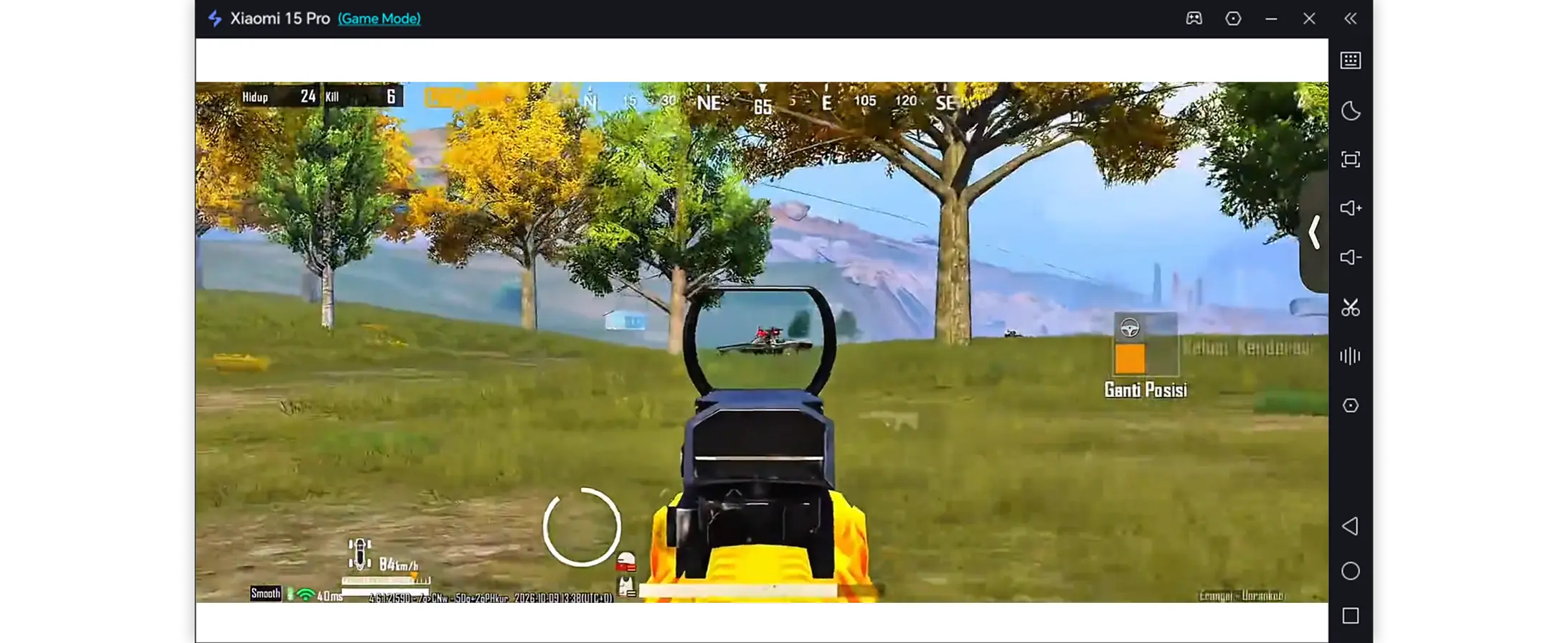
1. See the battlefield on a larger display
A PC monitor can make terrain, distant movement, and loot easier to inspect.
2. Map keys to shooting actions
Map movement, camera, aiming, firing, and inventory controls to the corresponding on-screen buttons so key areas remain visible.
3. Keep the game on a physical phone
The Android phone still runs the mobile app while the PC handles display and input; response depends on the device, USB, and network.
Frequently Asked Questions
Q1: What is the release date of PUBG MOBILE FLASH?
The release date of PUBG MOBILE FLASH is November 13, 2026.
Q2: Can I play PUBG MOBILE FLASH directly on PC?
PUBG MOBILE FLASH is available on Android and iOS, with no native PC version. However, you can use OSLink to play PUBG MOBILE FLASH on a bigger screen by remotely controlling your phone from your PC.
Q3: Will aiming in PUBG MOBILE FLASH feel delayed when controlled from a PC?
Keep the USB cable connected for Game Mode and test aim, fire, and pickup keys before a match. Response still depends on phone performance, connection quality, and the current game version.
Conclusion
Download and install PUBG MOBILE FLASH on your Android phone, then connect it to your Windows PC through OSLink Game Mode. Customize the controls and get ready to enjoy Erangel on a larger screen.
 Download