English
 Pokémon Champions focuses on online turn-based strategy battles, including ranked matches, casual games and private friend battles. It also supports syncing with Pokémon HOME to import your Pokémon teams. When playing on mobile, small screens and touch controls can hinder precise move selection, team arrangement and tactical adjustments.
Table of Contents
By mirroring your phone screen to PC via OSLink, you can enjoy a wider view with a large display. Customize controls with keyboard, mouse or gamepads to improve reaction speed and accuracy for a more immersive gaming experience. Below is the full setup tutorial.
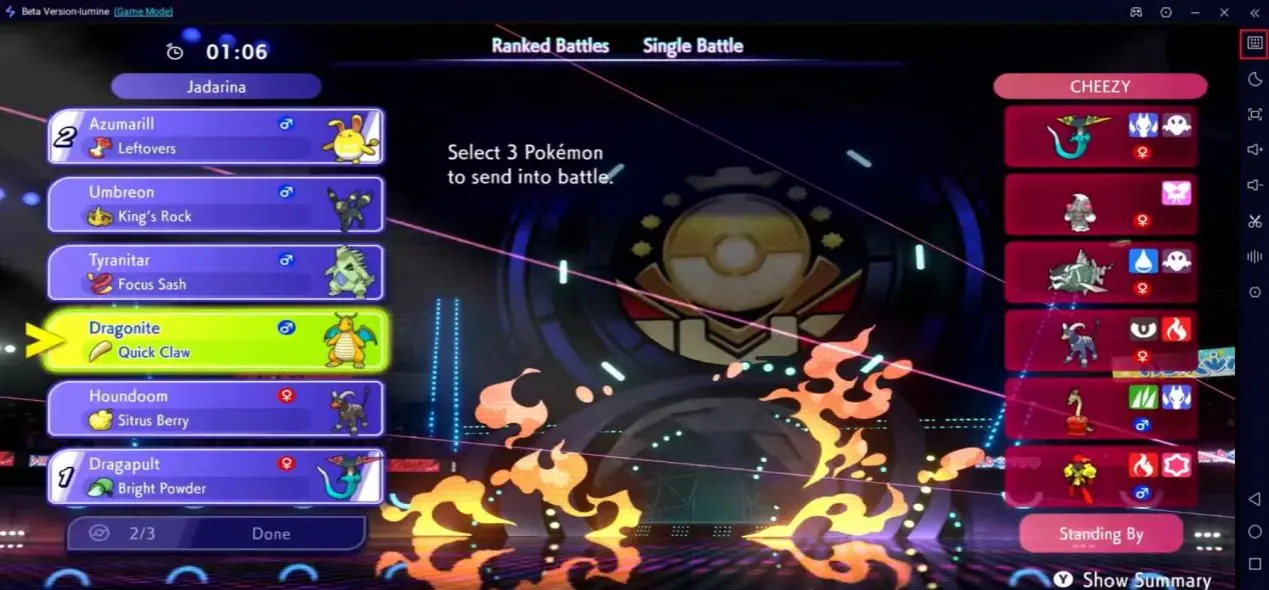
How to Play Pokémon Champions on PC
1. Install Pokémon Champions on Your Mobile Device
This game supports Android and iOS. Please download and install it according to your device:
iOS: Open App Store and search for Pokémon Champions. Your device needs to run iOS 16.0 or above.
Android: Download the game from Google Play. If the official store is unavailable in your region, download the official APK from a trusted source if available.
The game installer is about 2.2 GB. Reserve at least 3 GB of storage space to avoid crashes caused by updates and cache files.
2. Install OSLink on PC and Mobile
OSLink is a screen mirroring and remote control tool optimized for mobile games. It supports key mapping and multiple connection modes.
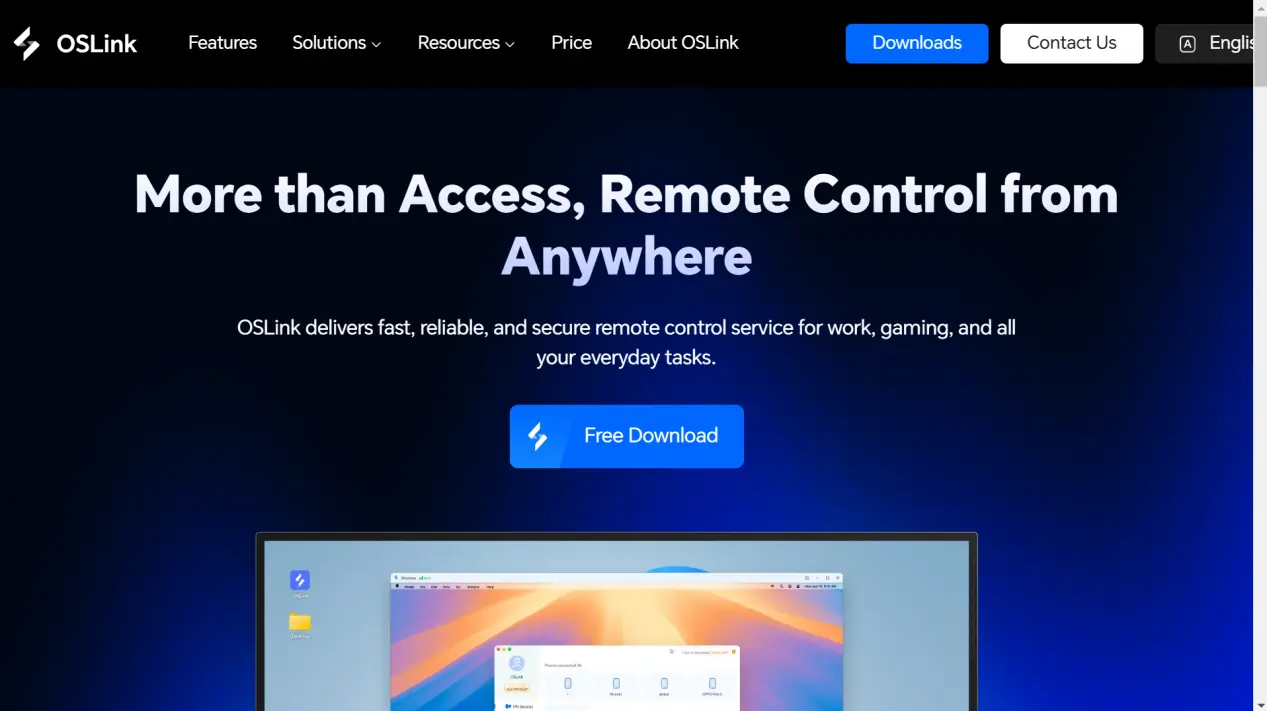
Open your PC browser and visit the official OSLink website (https://www.oslink.io). Download and install the Windows version. Search for OSLink in your mobile app store and install it. It works well with both Android and iOS.Do not launch the app yet and prepare for device connection.
3. Pair and Connect Your Phone to PC
For stable mirroring and low latency, connect devices with a USB cable:
Launch OSLink on both PC and mobile, and log in with the same email account.
Use a high-quality USB cable (USB 3.0 or higher recommended) to connect your phone to the PC.
Tap Allow this computer to access your device on the pop-up window of your phone.
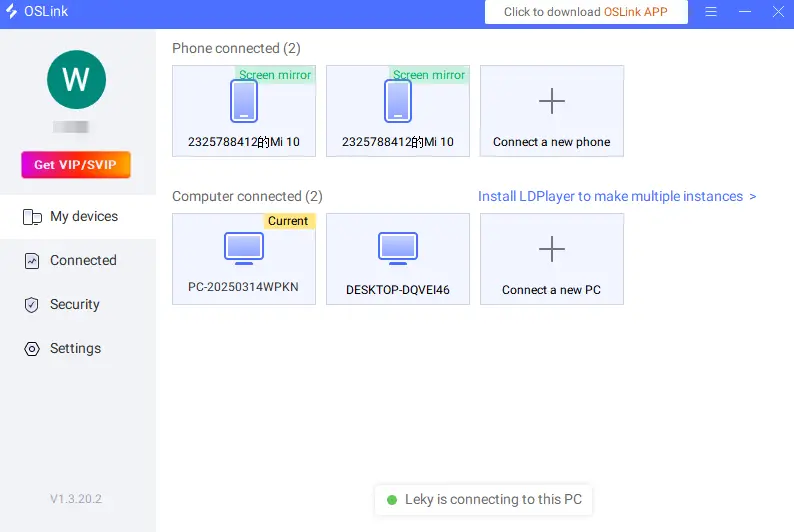
Select your connected phone from the My Devices list in the OSLink PC client to finish pairing.
4. Enable Game Mode for Low-Latency Mirroring
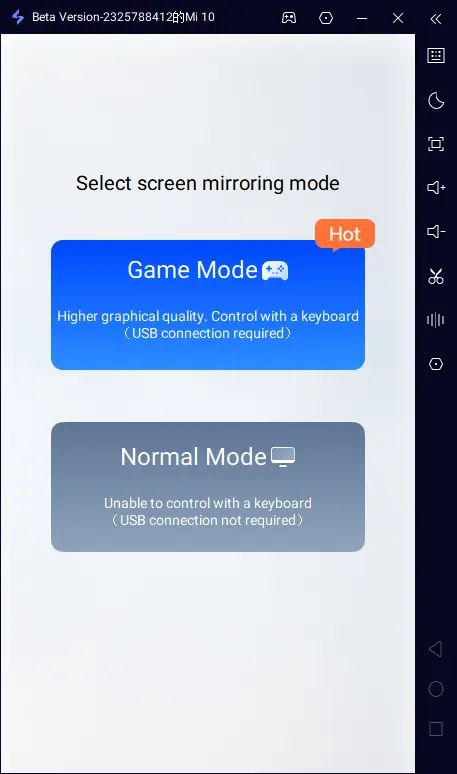
OSLink offers two projection modes. Game Mode optimizes image quality and reduces latency, and supports custom key settings. This mode requires a USB connection.
Select your device on PC and choose Game Mode.
Tap Start Mirroring on your phone.
Follow on-screen prompts to enable required permissions for first-time use.
5. Enable Developer Options & USB Debugging (First-time Use Only)
Permission settings differ between Android and iOS devices.
Android Devices: Go to Settings > About Phone.Tap the build number 7 times to activate Developer Mode. Enter your lock screen password if required.Return to Settings, find and turn on USB Debugging. Enabling USB Installation is also recommended.Go back to OSLink and tap Confirm to continue.
iOS Devices:No developer options or USB debugging are needed. Simply tap Trust This Computer on your iPhone or iPad after connecting via USB. If mirroring fails, enable the iOS Assist feature in PC OSLink.
6. Start Screen Mirroring & Launch the Game
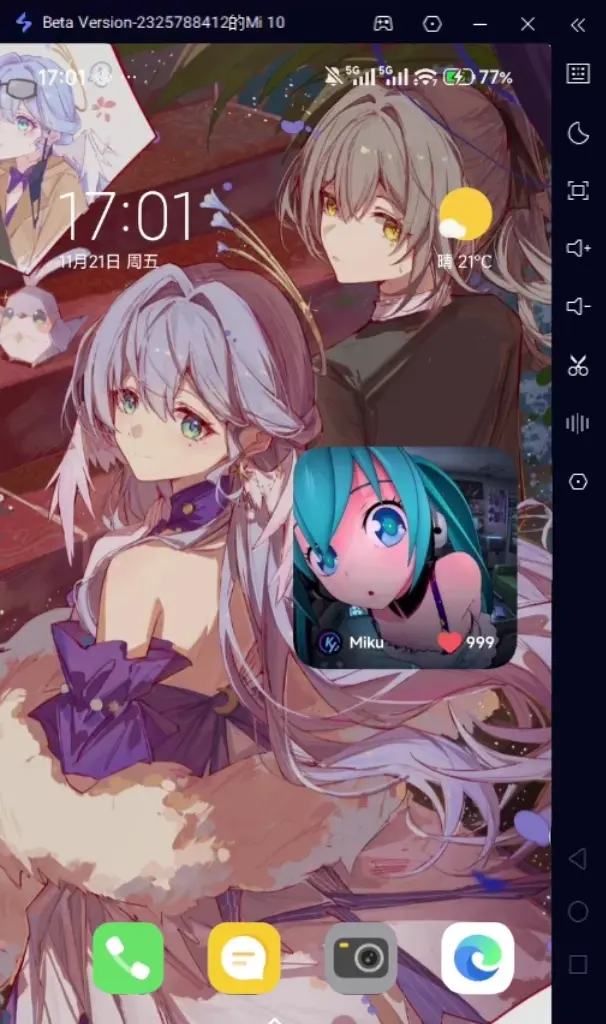
Once permissions are set, your phone screen will be displayed in real time on PC, which means mirroring is successful.
Adjust resolution and screen ratio in OSLink. 1080P full-screen mode is recommended for the best visual experience.
Launch Pokémon Champions on the mirrored screen. The game runs on your phone while the display is projected to PC.
Customize Keyboard, Mouse & Gamepad Controls
Adjust key mapping after mirroring to replace touch controls and fit battle operations:
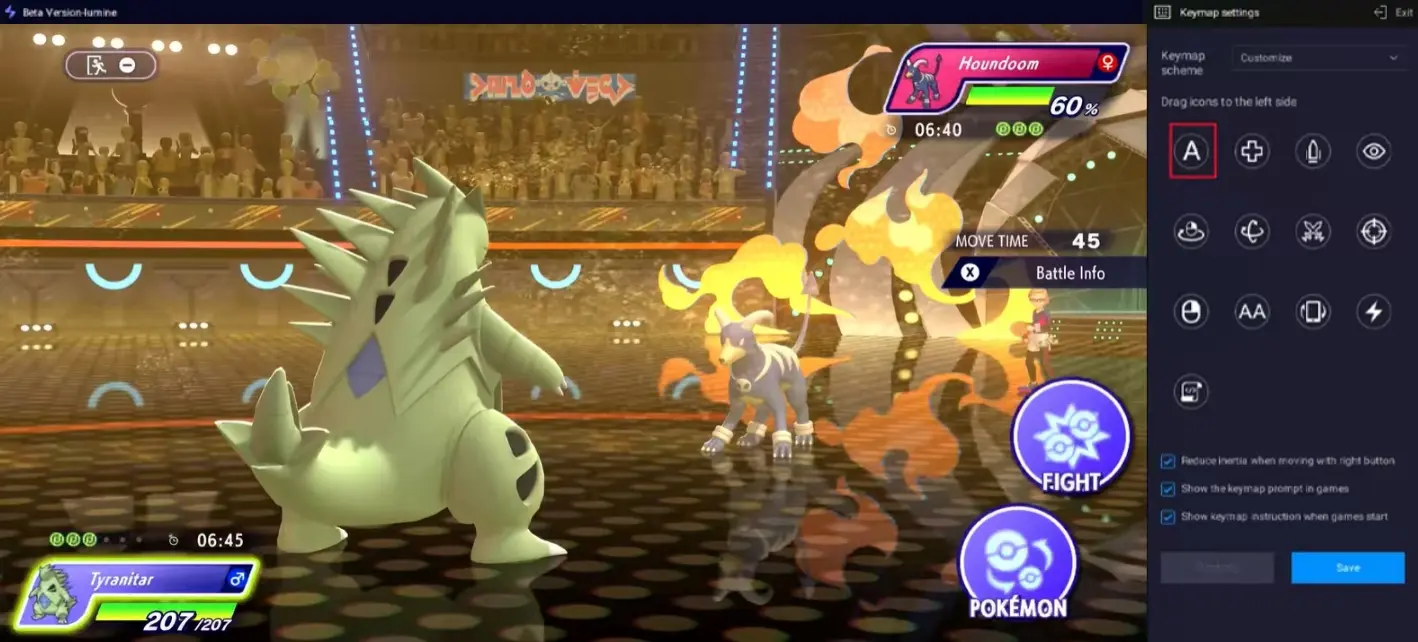
Click the keyboard icon on the sidebar of PC OSLink to open the key mapping editor.
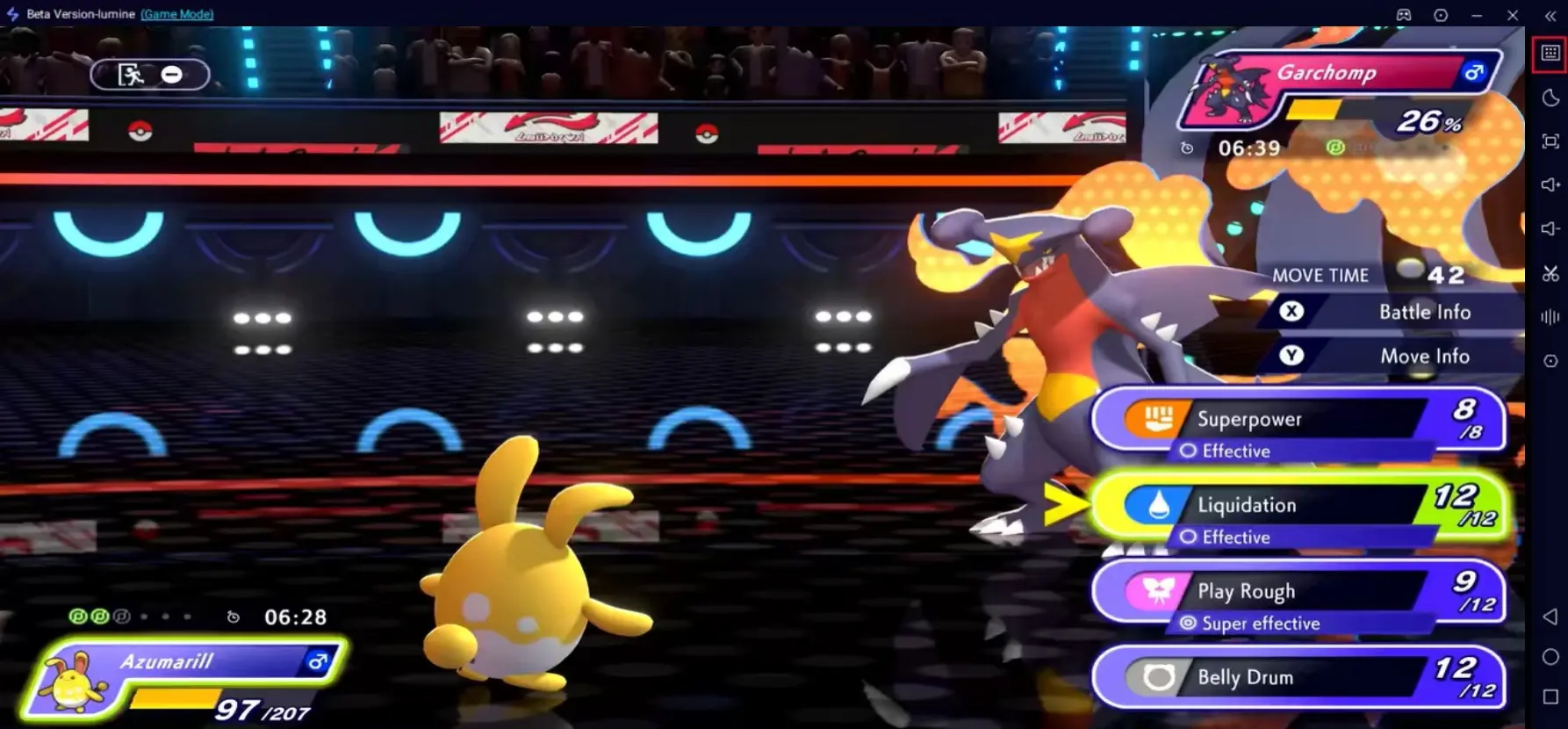
Drag virtual buttons to align with in-game functions: Pokémon switch, move selection, item usage, retreat, confirm/cancel and menu toggle.
Add new buttons by clicking blank areas. Bind frequently used moves and quick team switches to number keys and arrow keys for higher efficiency.
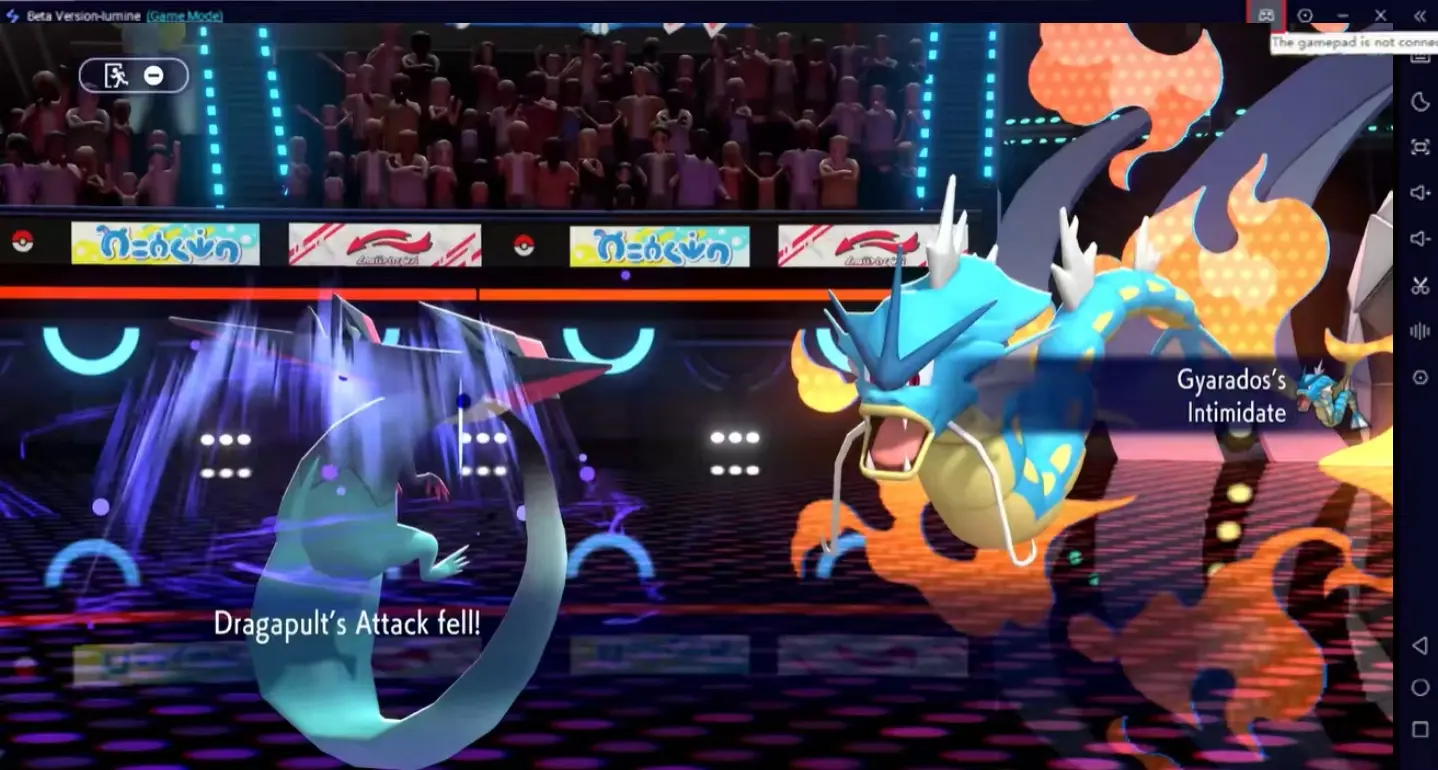
Connect an external gamepad to your PC, switch to Controller Mode in OSLink and remap buttons for console-like gameplay.
Set the frame rate to 60 FPS for smoother visuals and more responsive controls.
Tips for Better Performance
Cable Selection: Use original or USB 3.0 high-quality cables. Avoid cheap charging-only cables, which cause lag and disconnection.
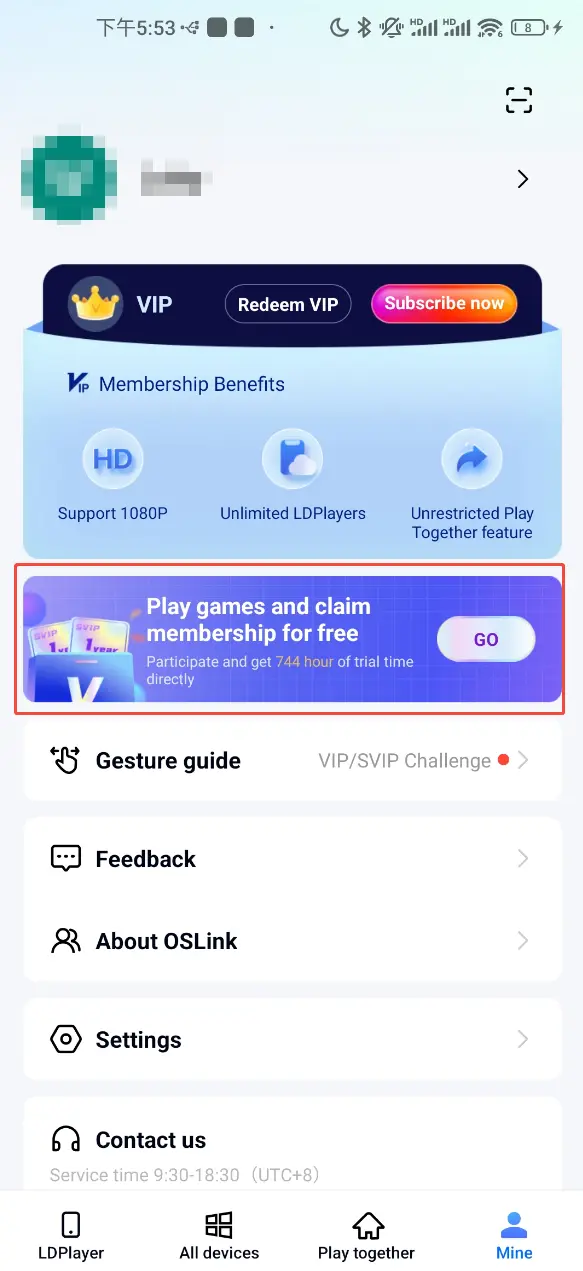
Free Usage Time: Watch ads or complete simple tasks in the Me section of the OSLink mobile app to get free service hours.
Network: Use stable Wi-Fi or 5G for this online game to prevent disconnection during battles.
Heat Dissipation: Place your phone in a well-ventilated area during long play sessions. Use a cooling accessory to avoid performance drops from overheating.
Frequently Asked Questions
Q1: When was Pokémon Champions released on each platform?
A: The Nintendo Switch version launched on April 8, 2026. The iOS and Android mobile versions go live on June 17, 2026. The game is free-to-play with optional in-app purchases.
Q2: Minimum system requirements for mobile devices?
A:Android: Android 6.0 or above, at least 3 GB RAM. Most mid-range processors can run the game smoothly. Reserve over 3 GB storage.
iOS: iOS 16.0 or above, compatible with all recent iPhone and iPad models.
High-spec mobile devices are recommended for stable performance while running the game and screen mirroring simultaneously.
Q3: Is there an official PC version of Pokémon Champions?
A: There is currently no official PC version. You can play the mobile version on PC via OSLink screen mirroring for a larger screen and better controls.
Conclusion
With OSLink, you can easily play Pokémon Champions on a PC monitor. The customizable key mapping makes move selection and team management much easier. This simple setup lets you get rid of the limitations of small mobile screens and touch controls, and fully enjoy the fun of Pokémon strategic battles in ranked matches, friend duels and casual gameplay.
 Download