English
 The 2026 FIFA World Cup will take place from June 11 to July 19, 2026, across the United States, Canada, and Mexico. As excitement for the world's biggest football tournament continues to grow, many fans are turning to football games to enjoy the thrill of competition and team management.
eFootball is Konami's flagship football game, loved by fans worldwide for its realistic stadium atmosphere and deep team-building systems. In the game, you can compete in intense online matches against players from around the world while building your own dream squad. Collect legendary football stars, customize tactical formations, and develop player abilities to create the ultimate team.
Many players face this problem: you have a well-developed team save on PC, but you can't carry your computer around. You end up missing daily tasks during spare time. Or you want to experience the high-quality matches of the PC version, but don't want to be tied to your desk. Don't worry! With the OSLink remote control tool, you can use just your phone to remotely launch the PC version of eFootball. You can start your football journey anytime, anywhere, with no worries about save file sync issues.
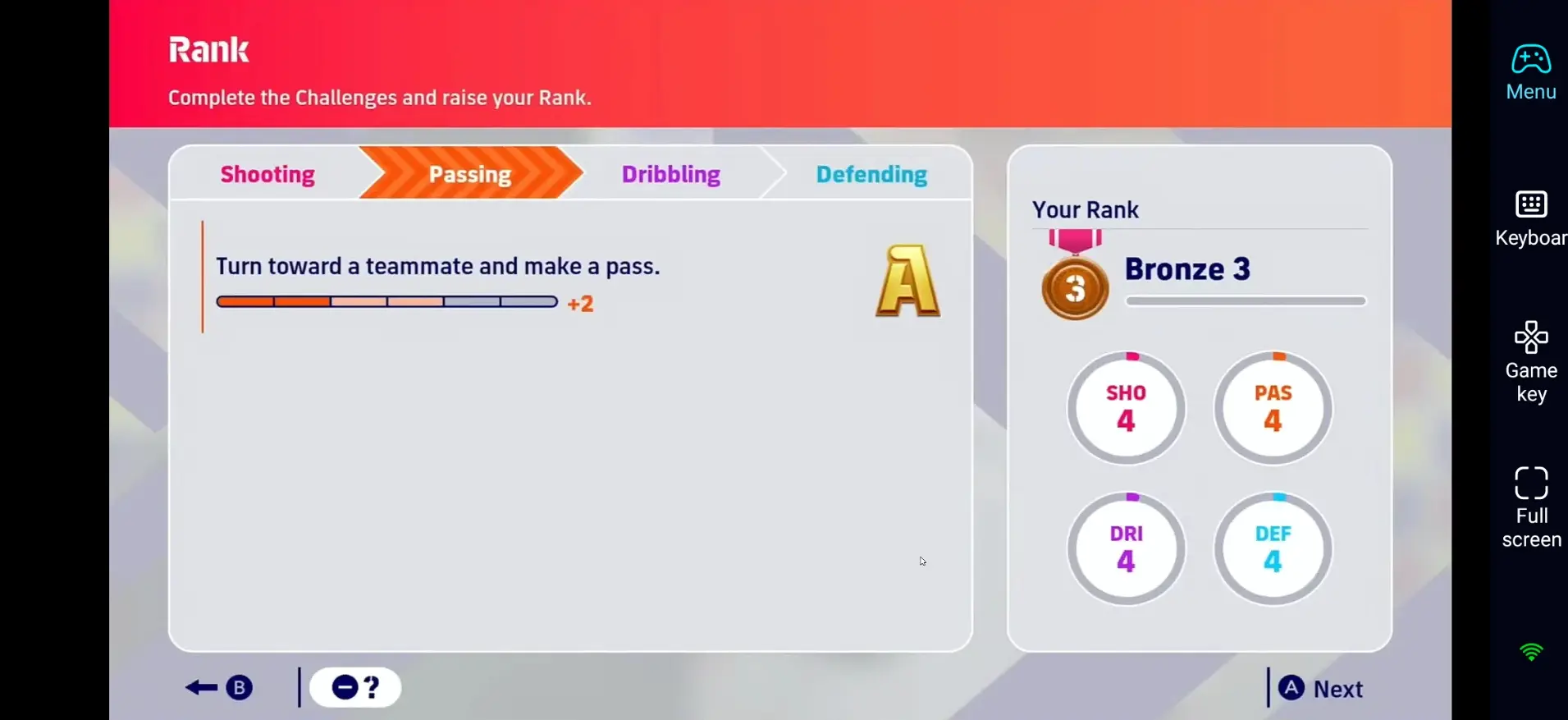
Quick Setup Guide for Playing eFootball on Mobile
Step 1: Download OSLink and Pair Your Devices
PC Side:
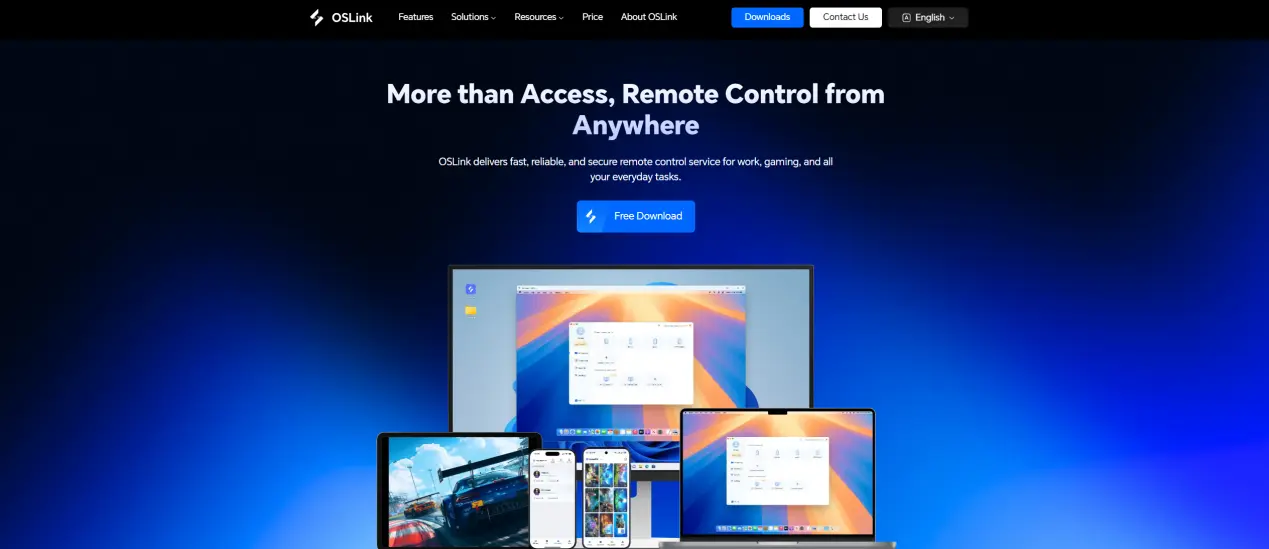
Go to the official OSLink website (https://www.oslink.io) to download the main program. Follow the instructions to complete the installation.
Mobile Side:
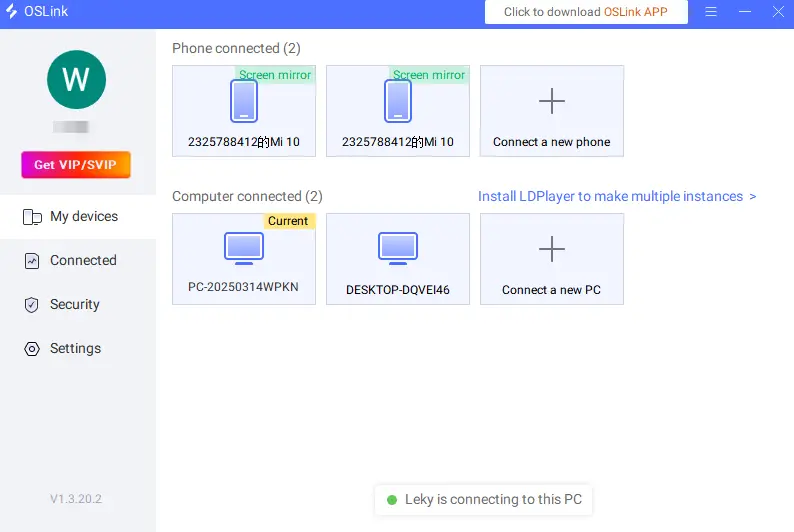
On your mobile device, search for "OSLink" on Google Play or the App Store to download the app. Log in with the same account, and your devices will be paired automatically.
Step 2: Control Optimization
1. Launch the Game
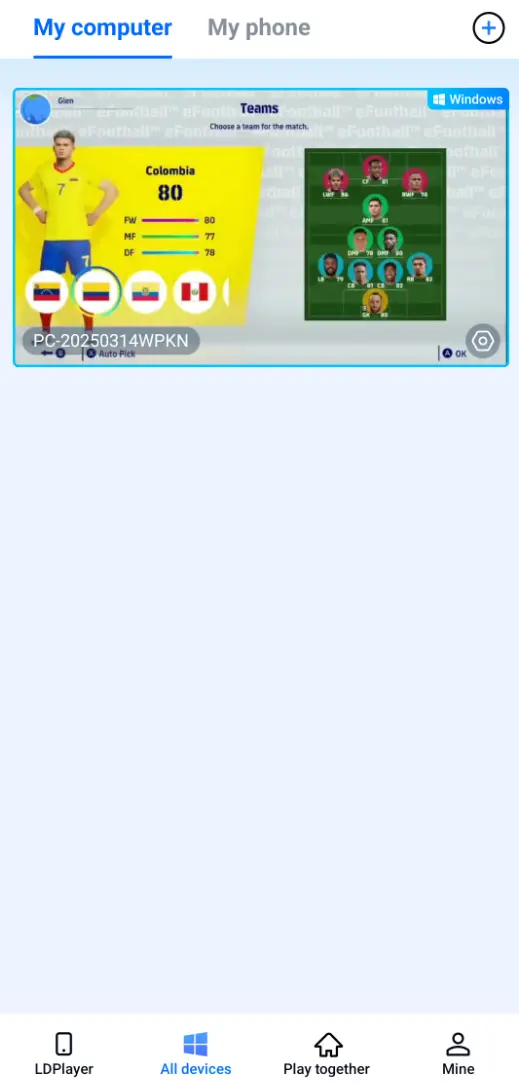
Open eFootball on your PC desktop. Your mobile device will automatically display your PC's game screen through the remote connection. You can start playing right away.
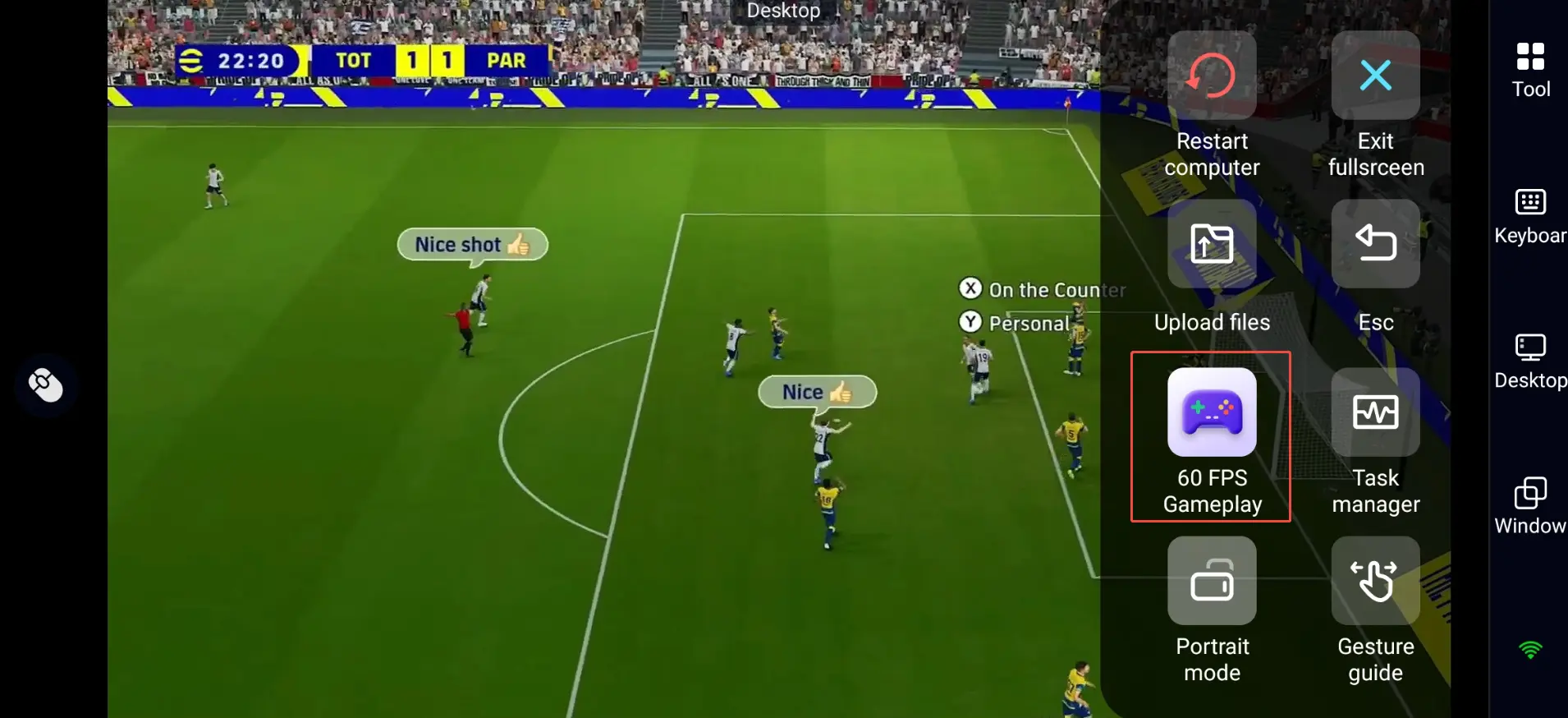
2. Switch Game Mode
Tap the toolbar on the right side of your mobile screen. Enter the exclusive "60fps PC Game" mode. This mode is optimized for PC games to bring you a smoother operation experience. You can choose the virtual button mode based on your habits, or connect a physical controller.
3. Customize Key Bindings
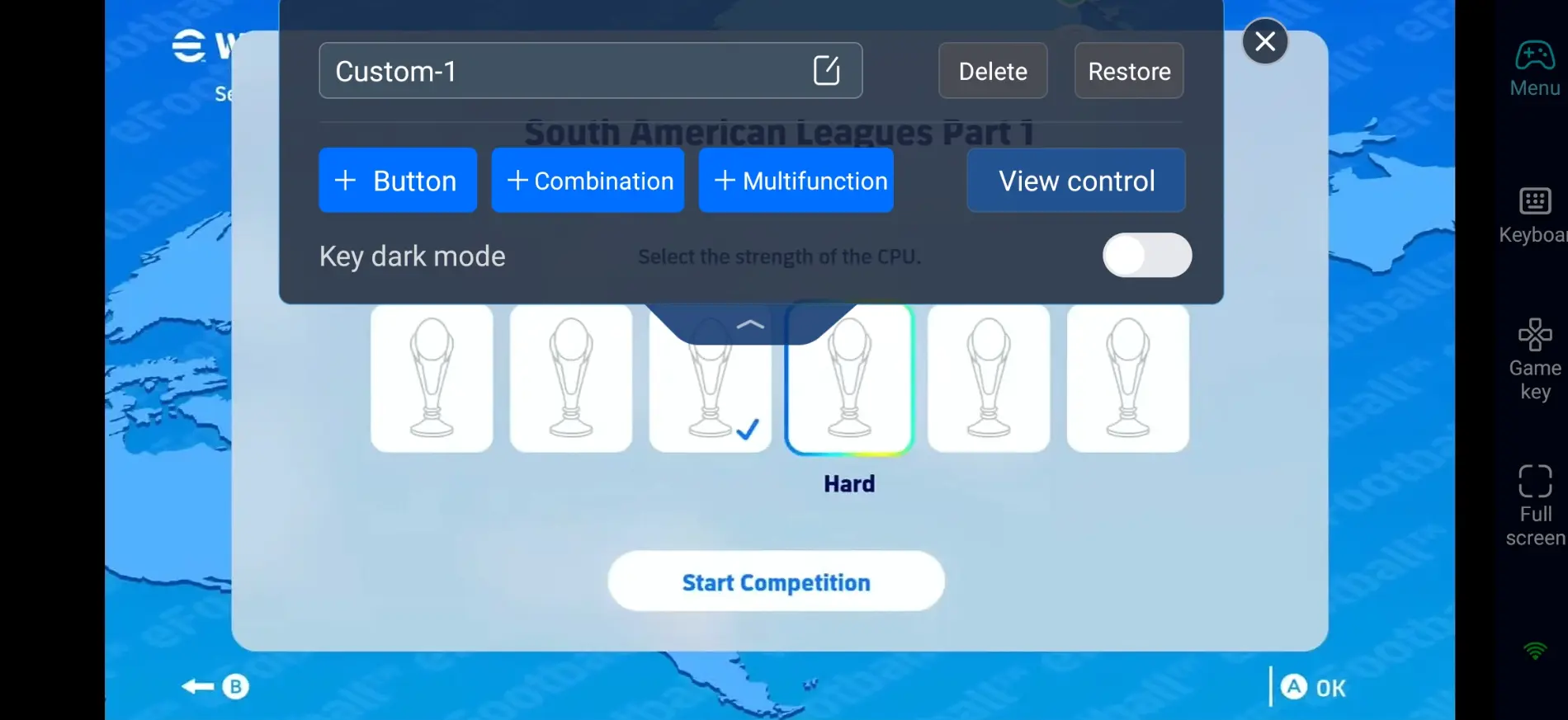
As a fast-paced football competitive game, eFootball has many operation commands. Proper key bindings can help you perform better in matches. We recommend that you configure these core controls first:
Player movement and camera angle switching.
Core operation commands like short pass, long pass, and shot.
Tactical calls, teammate switching, and skill move triggers.
Shortcuts for team management and formation adjustments.
4. Connect External Devices
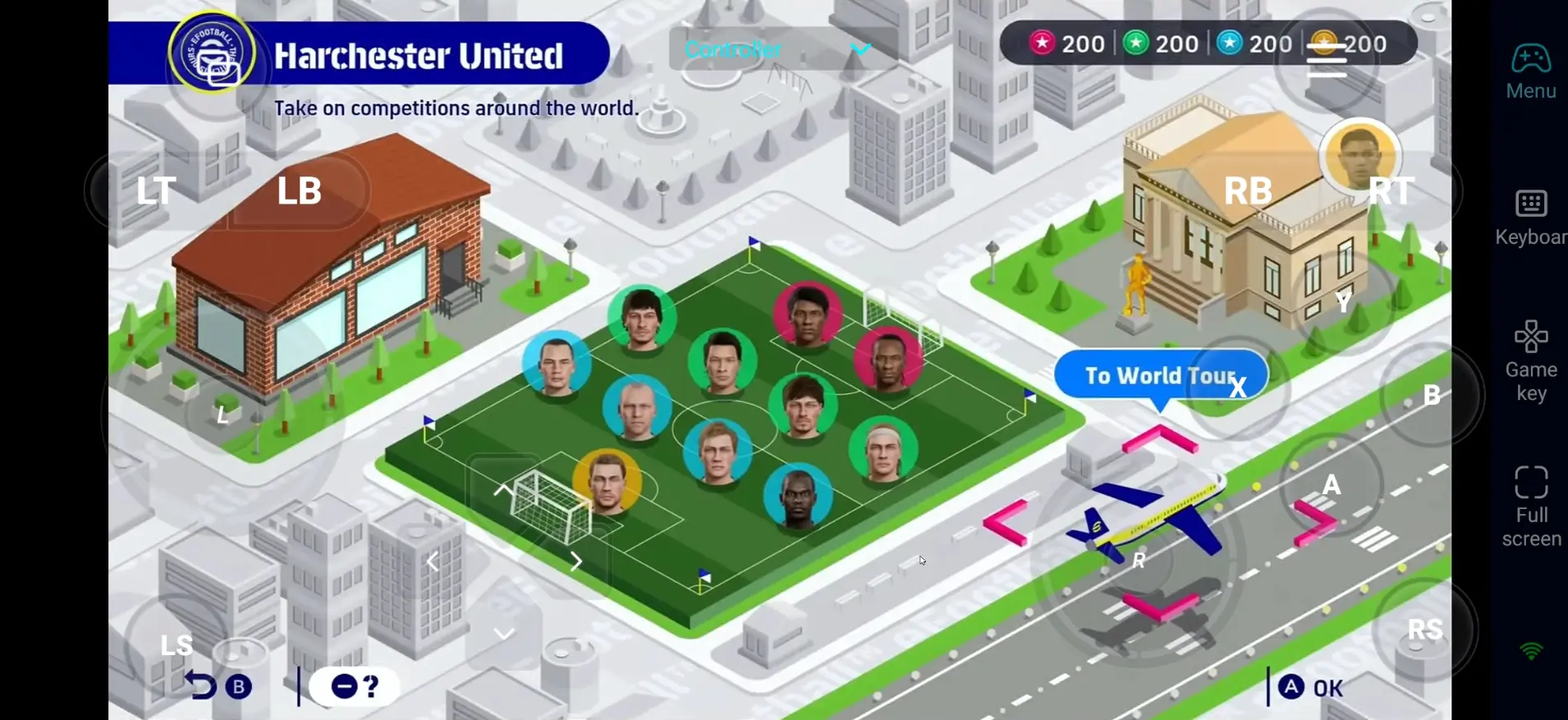
If touch controls don't feel satisfying enough, OSLink supports various external devices. These include Bluetooth gamepads and mobile-specific controllers. You can connect your familiar gamepad to control the game. This lets you break free from touch screen limits. You can enjoy precise operation that feels close to console gaming, and gain an edge in matches.
Step 3: Start Football Matches Anytime, Anywhere
After finishing all settings, your phone or tablet becomes your exclusive mobile gaming device! With OSLink, no matter where you are, you can easily do these things:
Daily Tasks: Use spare time during commutes or waiting in line to quickly finish daily tasks. Claim rich game rewards and never miss any resources.
Team Management: Open the game in your free time to adjust your player lineup, upgrade player abilities, and plan development directions. Optimize your dream team at any time.
Ranked Climbing: Start a ranked match whenever you are free. Climb the ranked ladder anytime, no need to wait until you get home to turn on your PC.
Why Choose OSLink to Play eFootball?
1. Break Location Limits, Play Anytime
You don't need to stay in front of your computer all the time. Whether you are relaxing on your couch at home, or on the go during your commute, you can enter the world of eFootball anytime. You won't miss any exciting match, and won't waste any spare time for gaming.
2. No Quality Loss, Full PC Experience Restored
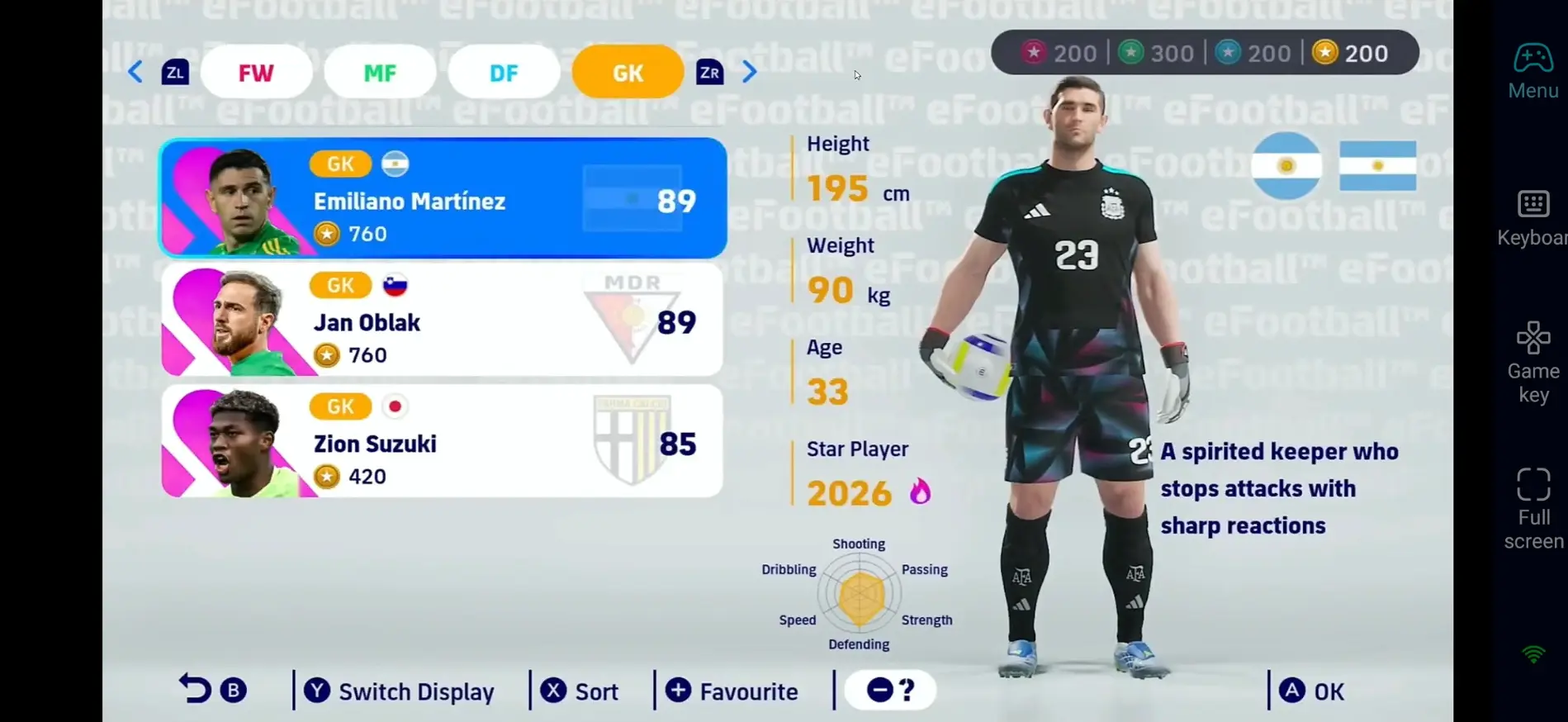
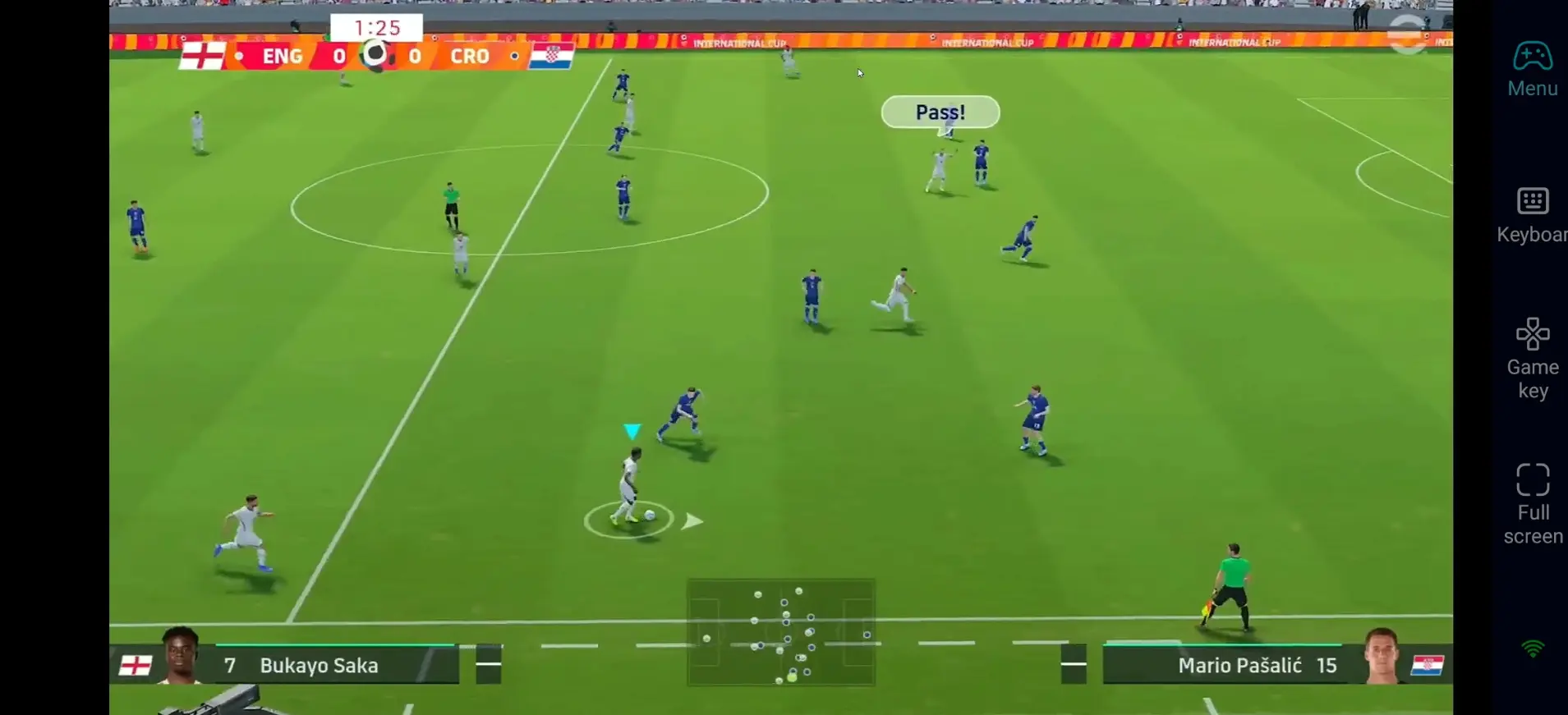
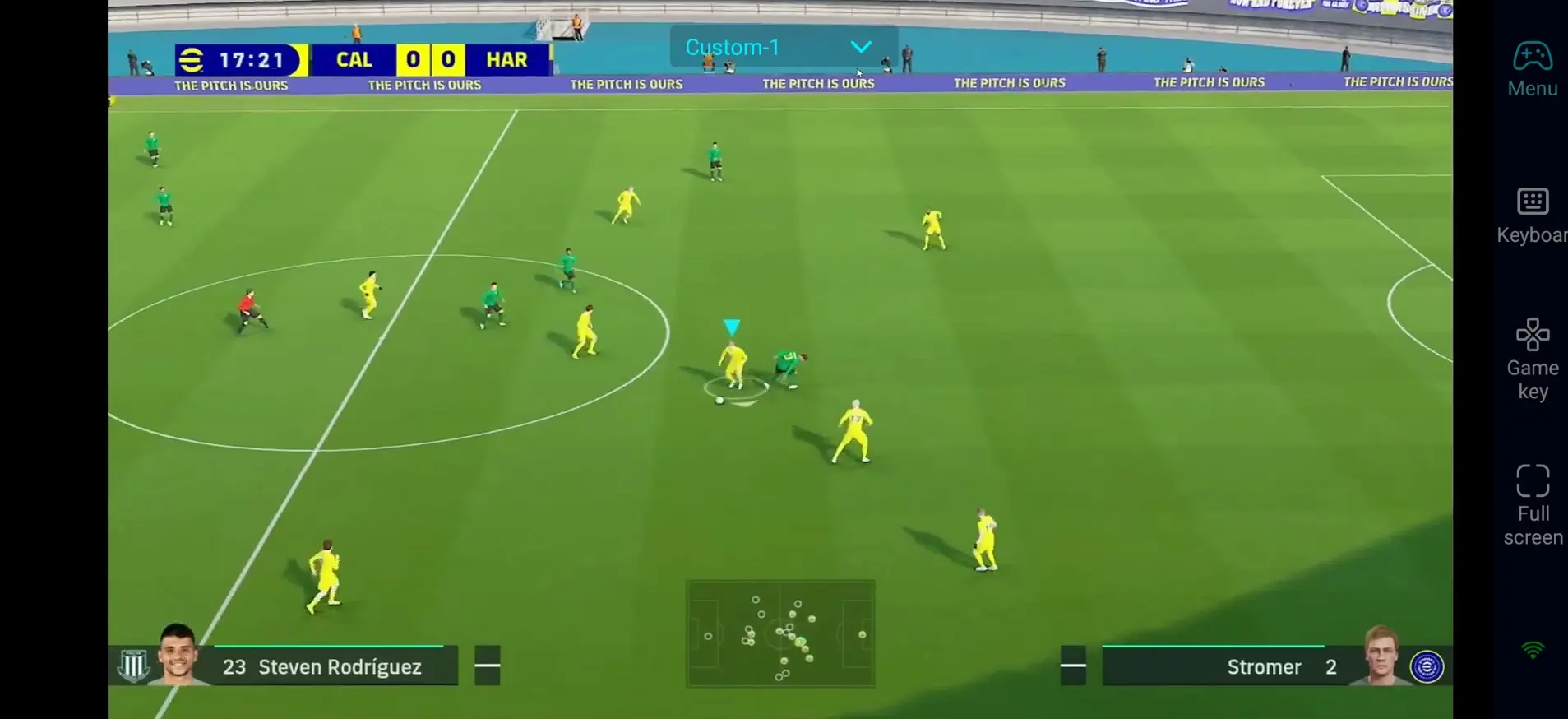
The official mobile version of eFootball does exist, but its graphics are not as good as the PC version. Also, the save files cannot be shared between the two versions. With OSLink, you use your PC's powerful performance to run the game remotely. You can fully restore the high-quality graphics of the original PC version. The screen has no compression or quality loss throughout. Player detail textures and stadium lighting effects are all perfectly presented. This brings you the authentic top-tier visual experience. At the same time, you can keep using your PC save file, no need to rebuild your team from scratch!
3. Smooth Operations, More Precise Matches
With custom key bindings and 60fps screen optimization, you can have a smooth operation experience even on mobile. Whether it's precise passing routes, fancy dribbles, or crucial last-minute shots, you can control everything accurately. The operation delay is extremely low, and the experience is just as good as playing on PC.
FAQ Frequently Asked Questions
Q: The official eFootball already has a mobile version. Why use this method?
A: The official mobile version and PC version are two separate versions. The mobile version has simplified game content and lower graphics quality. Some account data may be linked through your KONAMI ID, but the mobile and PC versions provide different gameplay experiences. If you have already built your dream team on PC, using OSLink to play the PC version remotely lets you keep using your original save on mobile. You can also enjoy the high graphics and full content of the PC version, no need to start over.
Q: Does the PC version of eFootball have high system requirements?
A: The minimum system requirements for the PC version are as follows. Most common computers can meet these:
Operating System: Windows 10/11 64-bit
Processor (CPU): Intel Core™ i5-2300 / AMD FX™-4350
Memory (RAM): 8GB RAM
Graphics Card (GPU): NVIDIA GeForce™ GTX 660 Ti / AMD Radeon™ HD 7790
Download Size: 50GB
We recommend using a higher-spec device to get a more stable 1080p high-quality 60fps experience.
Q: Can I play the PC version of eFootball on an Android phone?
A: Yes. With OSLink remote operation, you can play the PC version of eFootball directly on your Android phone. The game actually runs on your computer. Your phone only acts as the display and control terminal. You don't need to worry about your phone's performance being insufficient. You can continue playing using the same PC game session remotely.
Q: Can iOS devices use this method to play the PC version?
A: Yes. Both iPhone and iPad are supported. Whether you have an iPhone or an iPad, you can easily connect to your computer via OSLink. You can play the PC version of eFootball anytime, anywhere. Also, since the game runs on your computer, your phone only handles display and control. You don't need to worry about your phone overheating while playing.
Conclusion
With OSLink, you can easily turn your phone or tablet into a portable gaming platform for eFootball. Whether you are managing your team, finishing daily tasks, or having exciting football matches with players worldwide, you can break the limits of devices and locations. Your football journey will no longer be restricted by time and space. You can enjoy the fun of football anytime, anywhere!
 Download