English
 MMORPGs often come with plenty of repetitive dungeons and daily gathering tasks, and Yulgang W is no exception. Farming materials for character progression and gear, as well as completing guild tasks, can take a fair amount of time. Managing a single account manually can quickly eat into your free time. Below, we'll walk through a practical multi-instance AFK setup, covering software installation, cross-device connection, AFK operation, and common questions. The goal is to reduce repetitive dungeon runs and leave you with more time to focus on gameplay and character builds.
OSLink makes playing Yulgang W more convenient by combining remote connectivity with an emulator for multi-instance AFK farming. You can keep farming dungeon materials around the clock, and even when you’re away from your PC, you can use your phone to check the emulator’s status.
1. Set Up the PC Tools
Download and Install the Emulator and Tools
Visit the official LDPlayer website to download the Windows version. After installation, close unnecessary background programs and make sure you have enough free disk space.
Next, download the OSLink desktop client, then register and sign in to your account.
Install the Game in the Emulator
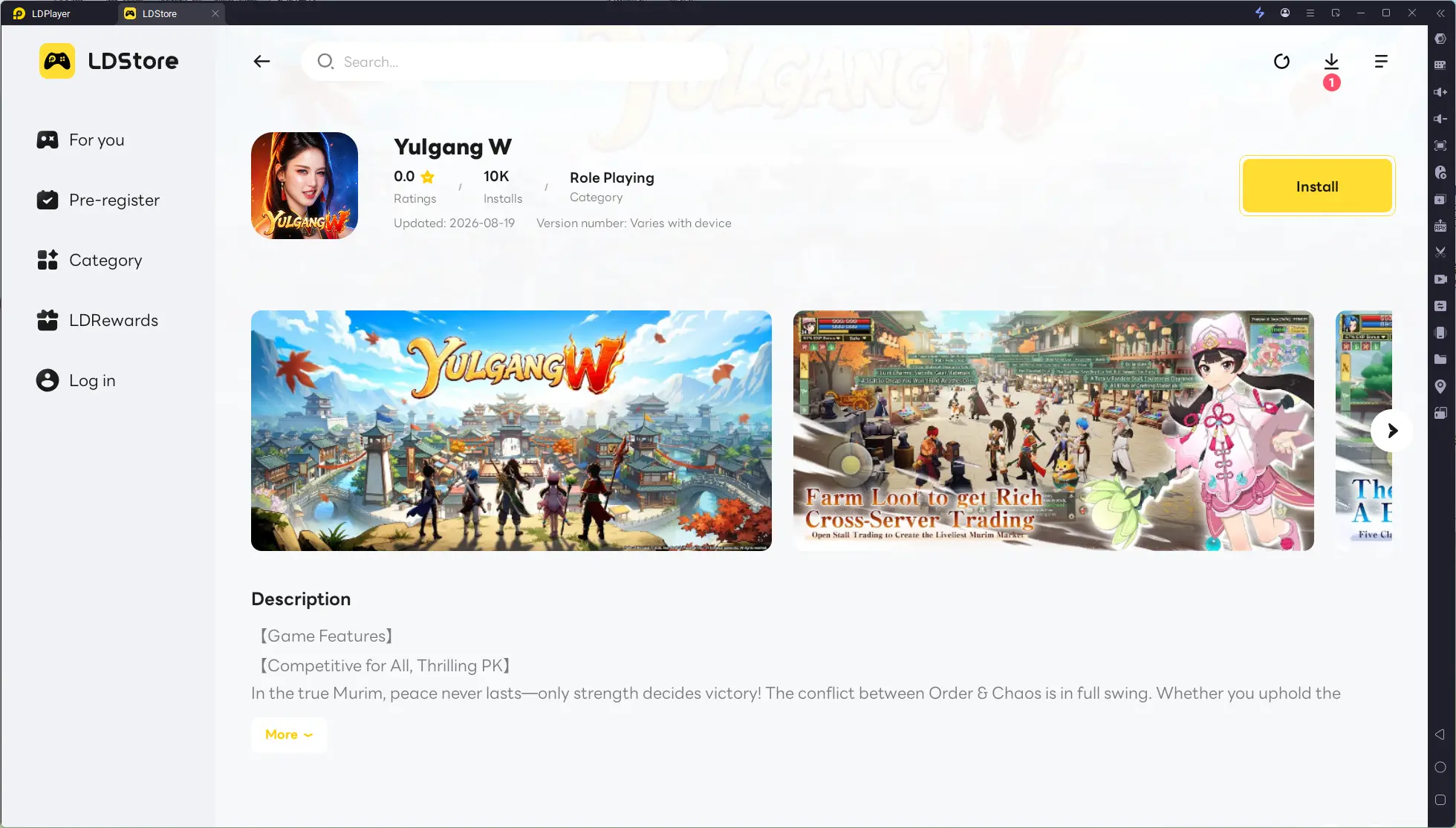
Launch LDPlayer and open its built-in Game Center. Search for Yulgang W and complete the download and installation. Wait for the game resources to finish unpacking, then launch the game and make sure basic features such as login and dungeon access work properly before moving on to the multi-instance setup.
2. Set Up the Mobile App
Android users can search for OSLink in their app store and install it.
iOS users can open the App Store and search for the corresponding client.
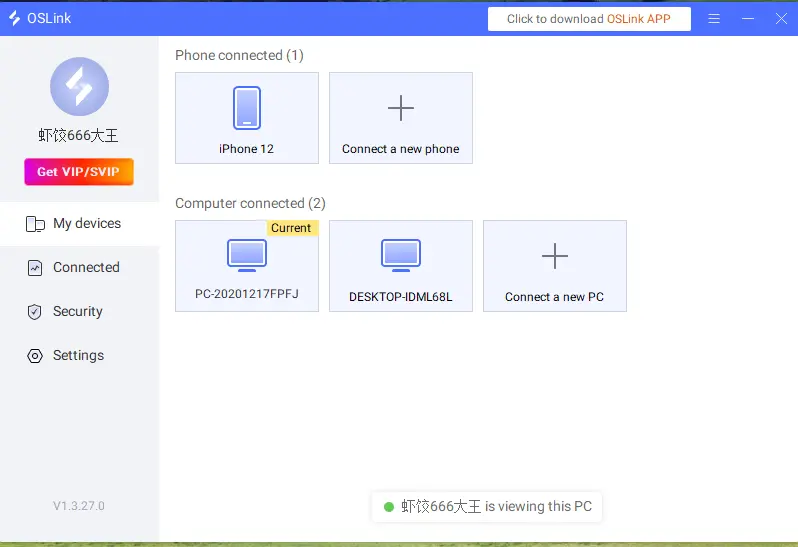
Sign in to the same OSLink account on both your phone and PC. The system will automatically detect the connected PC, so there's no need to pair the devices manually.
3. Run the Game Across PC and Mobile
Open LDPlayer and launch Yulgang W, while keeping OSLink running in the background on your PC.
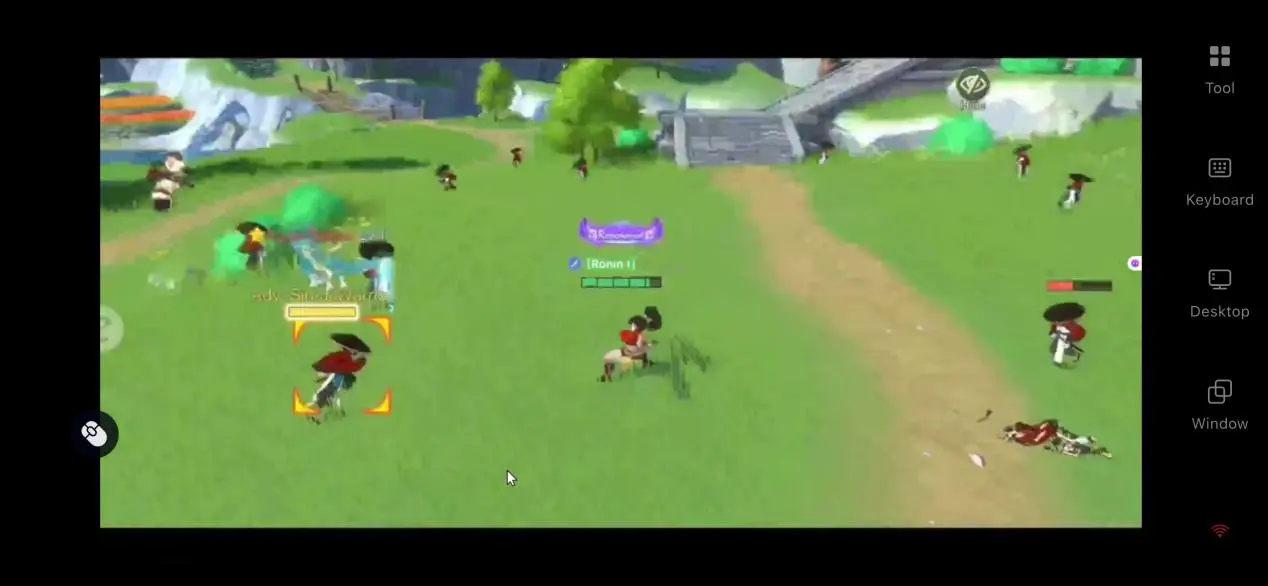
Open OSLink on your phone, select the PC running LDPlayer from the device list, and tap Connect. The emulator's game screen will then be streamed directly to your phone.
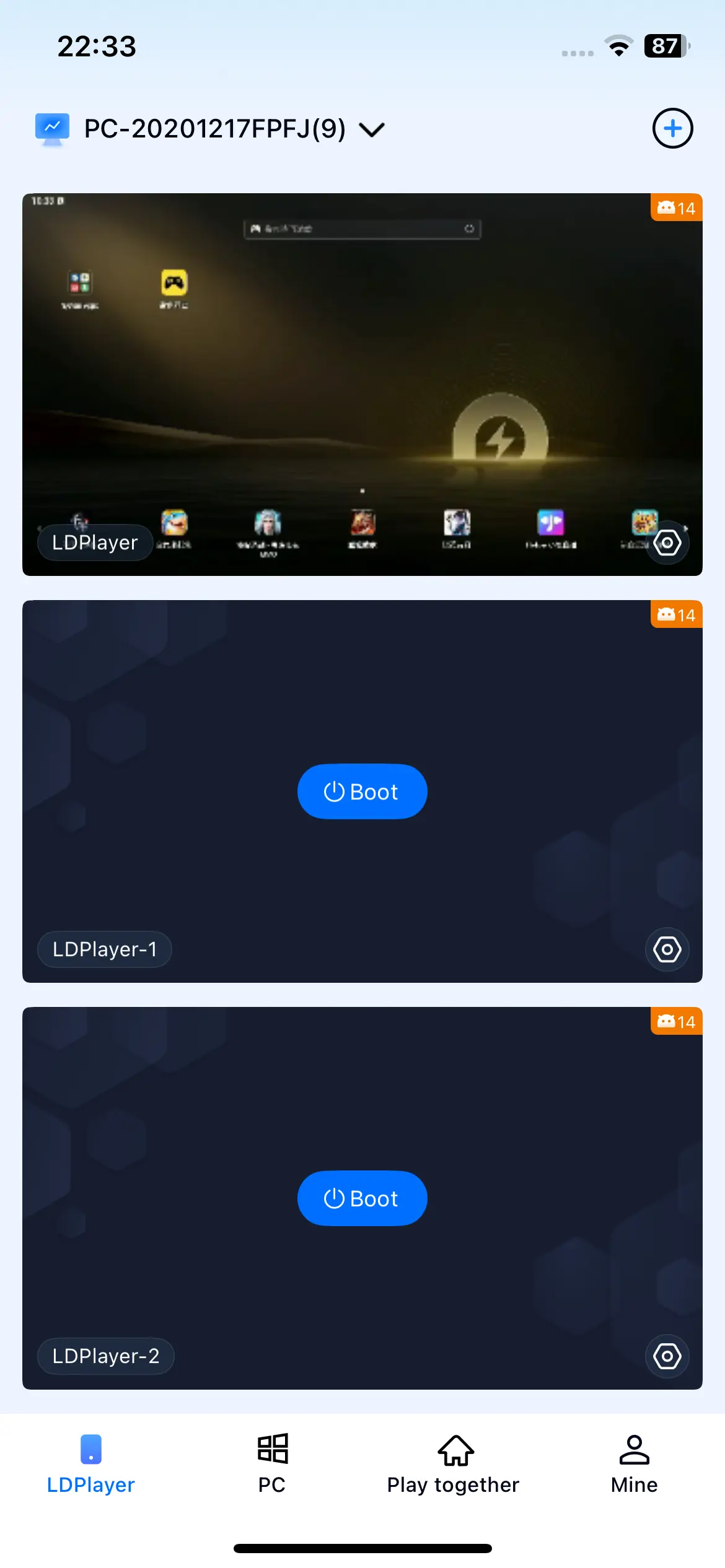
Once the screen is mirrored, you can adjust the display ratio as needed until it fits your phone properly. Touch controls on your phone can also be mapped to the PC, allowing you to switch between different emulator windows and manage each instance separately.
4. OSLink Mobile AFK and Multi-Instance Setup
Play Multiple Accounts at the Same Time
Open LDPlayer's Multi-Instance Manager, create new emulator instances, and log in to each game account one by one. Get each account ready for its daily tasks.
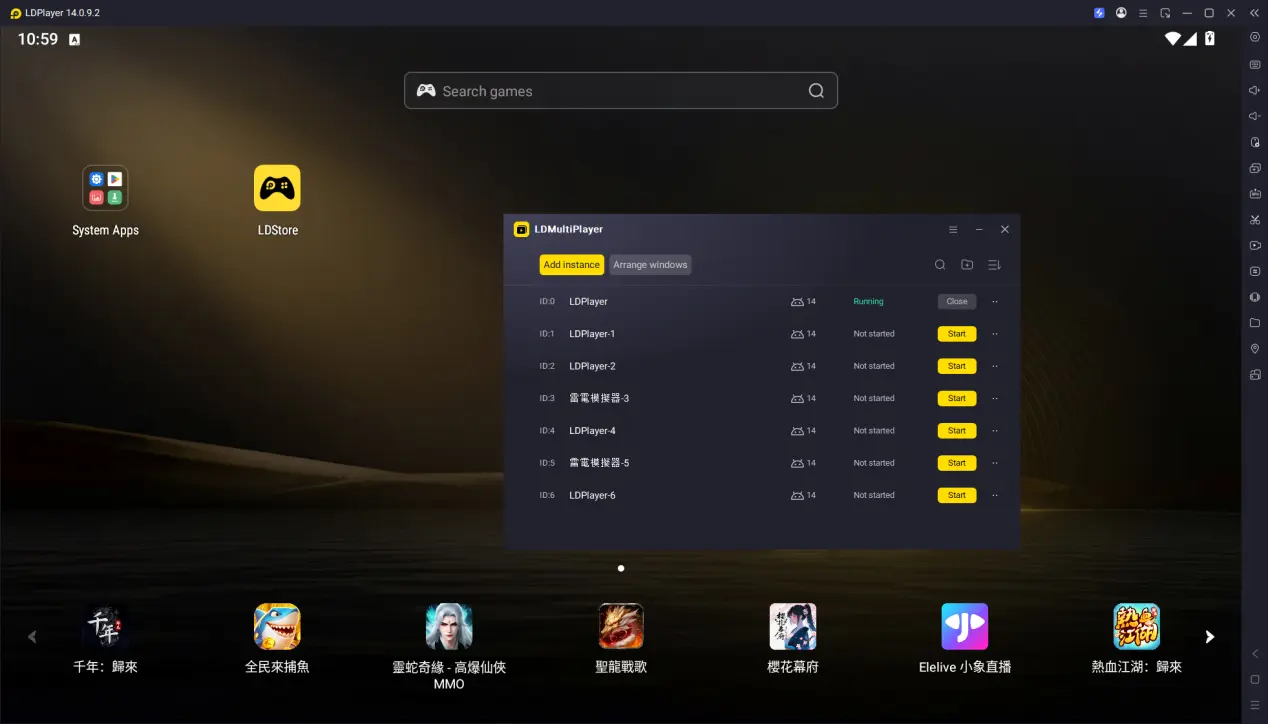
After connecting your phone to the PC through OSLink, enable synchronized controls and select all emulator windows. You can then handle batch actions such as claiming rewards and entering dungeons across multiple accounts at once. If one account reaches the desired progress, you can stop that instance separately while letting the others continue running.
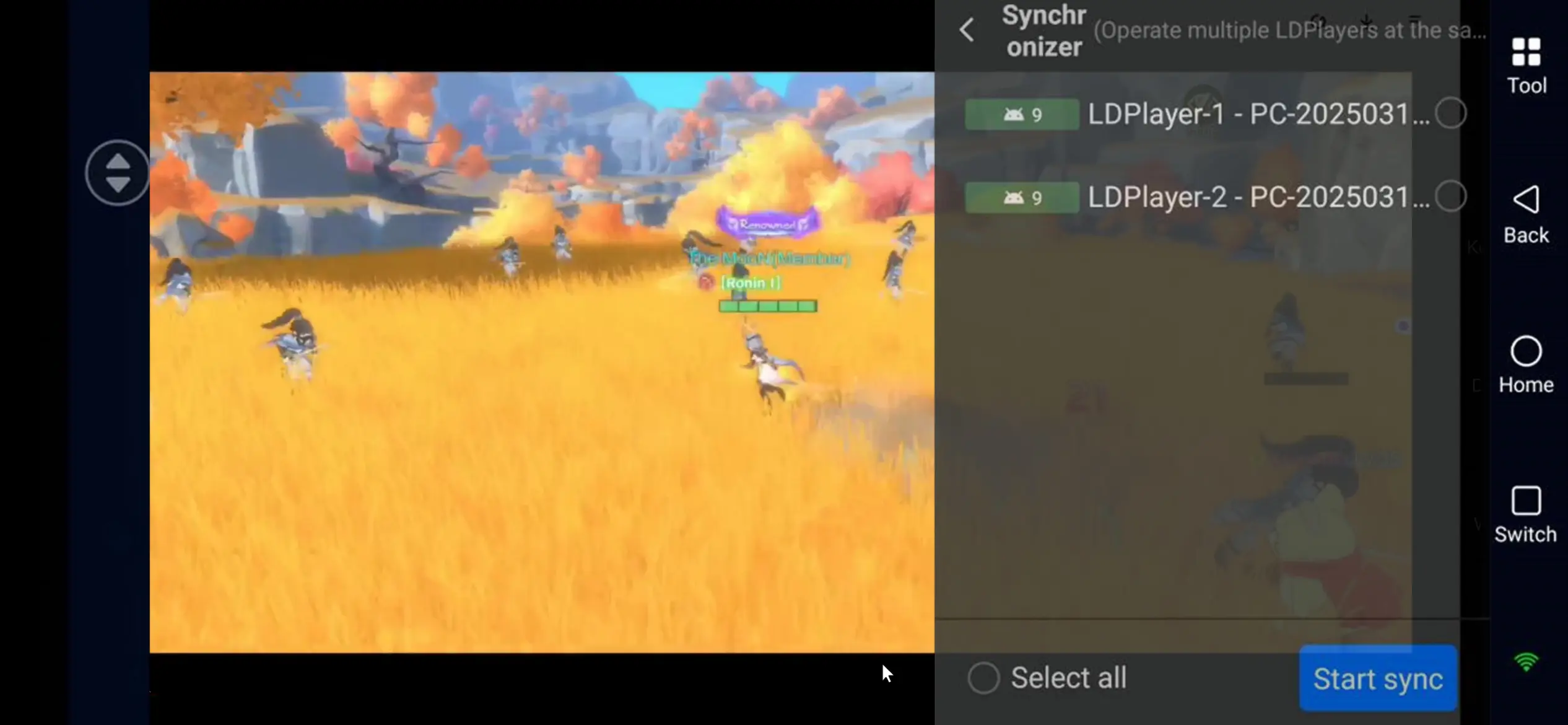
Loop Dungeon Runs for Resource Farming
Once your accounts are ready, enable OSLink's recording feature and record the full dungeon routine, including entering the dungeon, completing combat, collecting the results, and starting another run.
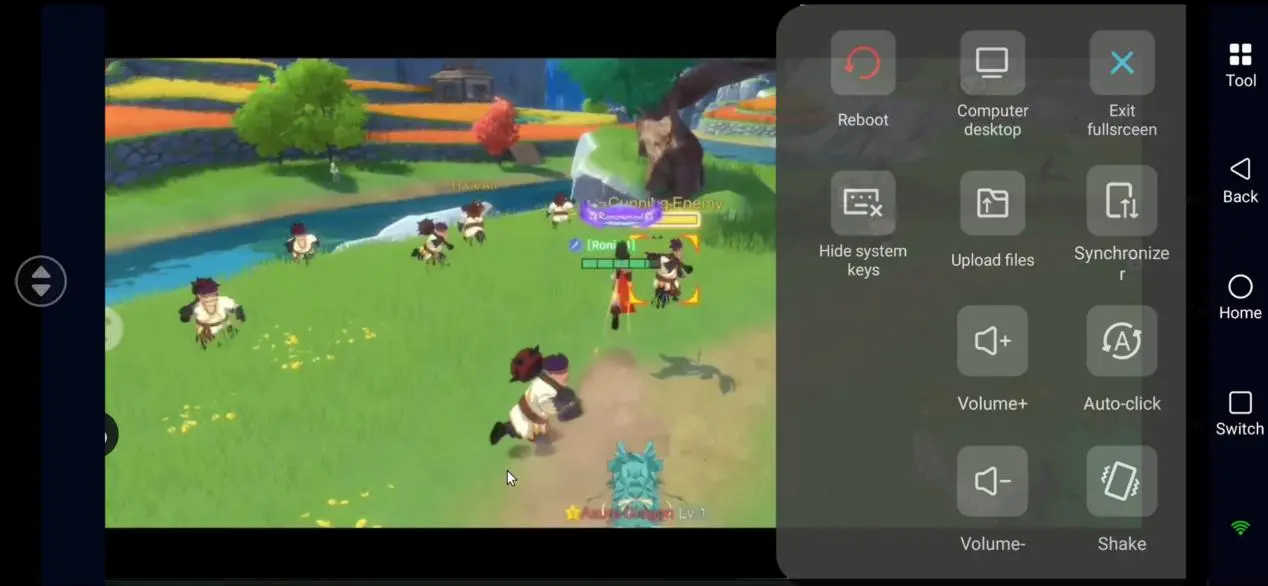
Save the recorded script, set the number of loops and running time, then start it with the auto-click feature. The script will repeat the dungeon routine automatically to farm progression materials. You can also check your AFK progress from your phone at any time.
5. Frequently Asked Questions
Q: When will Yulgang W officially launch?
A: Yulgang W is expected to officially launch on August 28, 2026, with downloads available on Android and iOS at the same time.
Q: What PC specs are required to run the game through an emulator?
A: The minimum hardware requirements are 4 GB of RAM and 10 GB of free disk space. For smoother multi-instance play, 16GB of RAM is recommended, along with an SSD to reduce the chance of stuttering.
Q: Can I run multiple Yulgang W accounts directly on an iPhone?
A: iOS does not normally allow the same app to be installed multiple times, so you cannot directly run multiple accounts locally on one device. Instead, you can use OSLink to remotely control the PC emulator and manage multiple accounts.
Conclusion
This setup uses LDPlayer to create the game environment and OSLink to connect your phone to your PC, making remote control, multi-account management, and automated dungeon farming possible. It's a practical option for players managing several accounts or those with limited free time throughout the day. Let the tools handle repetitive dungeon farming while you spend more time on Yulgang W's PVP, guild activities, and other core gameplay.
 Download