English
 Dragon's Dogma 2: Dark Arisen has drawn plenty of attention from fantasy game fans with its vast map, randomly generated Pawn companions, and varied combat classes. The game continues the series' signature sense of adventure through exploration, combat, and the discovery of ancient ruins, making it well suited to shorter play sessions. If you want to keep your adventure going while you're away from your PC, this guide walks you through the remote streaming setup, from getting the game and installing the software to adjusting your settings and dealing with common issues. The entire setup is practical and gives you a more flexible way to enjoy the game.
Looking for a reliable way to stream the full Dragon's Dogma 2: Dark Arisen experience to your mobile device? OSLink lets you stream your PC games to mobile devices, while its dedicated game optimization helps reduce input delay. Even during large-scale battles against multiple enemies or massive monsters, you can still enjoy relatively smooth and responsive controls.
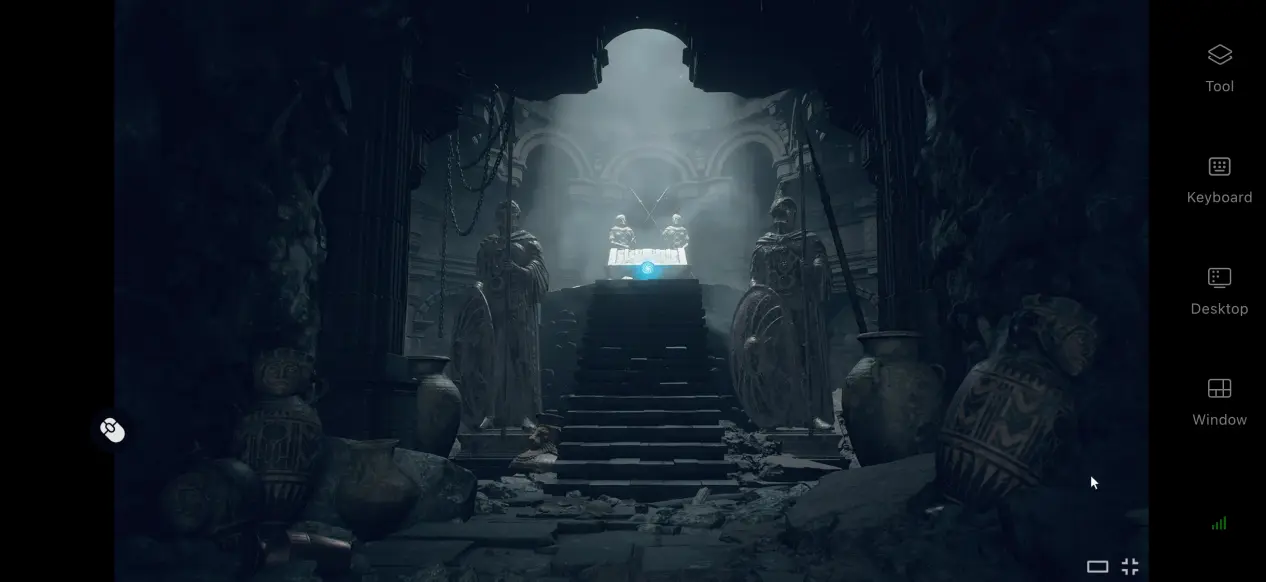
1. How to Play Dragon's Dogma 2: Dark Arisen
Getting the Game
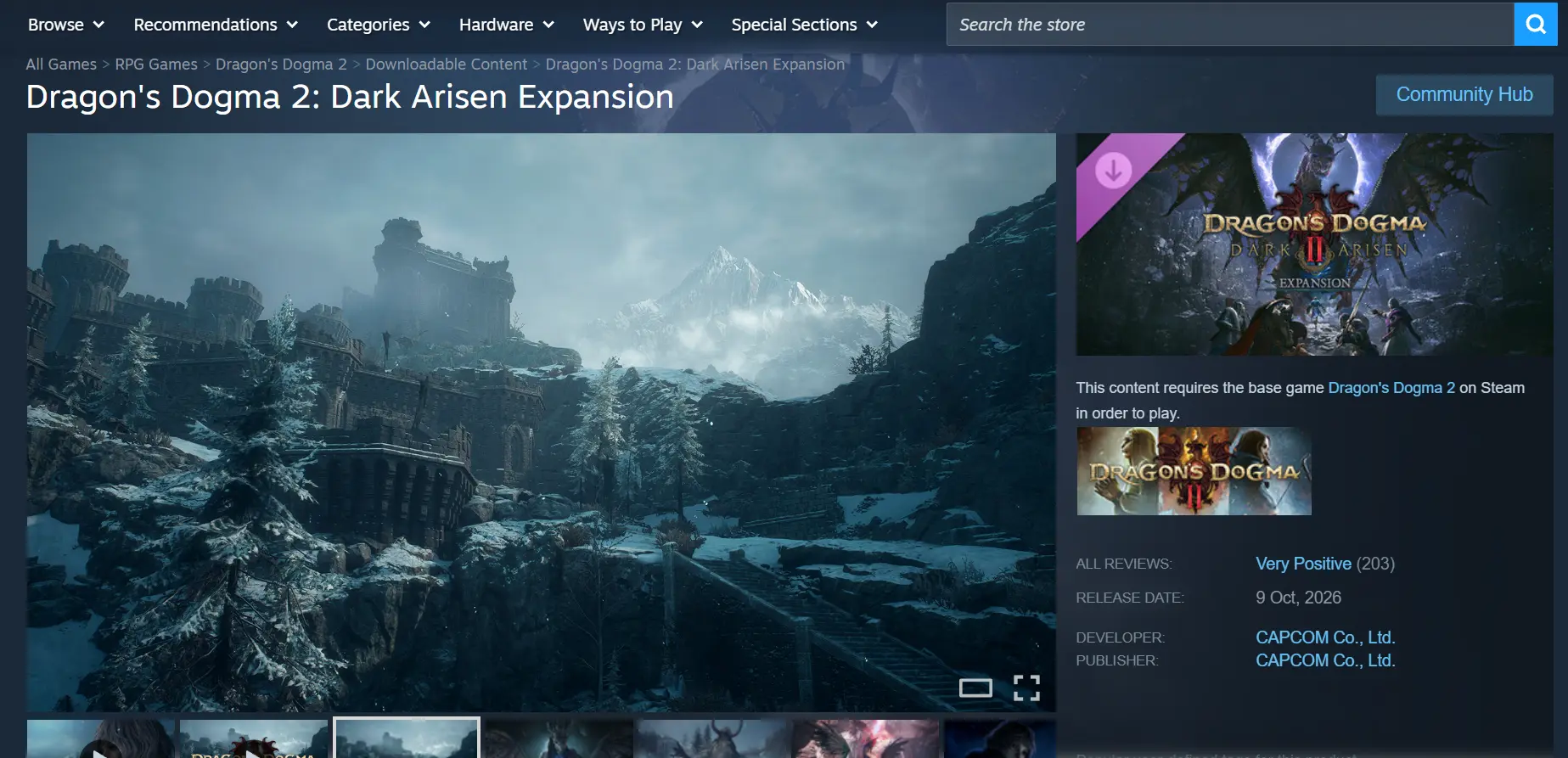
The PC version of Dragon's Dogma 2: Dark Arisen is available on both Steam and the Epic Games Store. Open either store, search for the full game title, purchase it, and download it from your game library. Your save data is synchronized through the platform's cloud storage, so you can switch between different PCs using the same account and access your previous adventure saves.
After the download is complete, we recommend launching the game manually once. Enter the main menu and make sure the game runs properly without issues such as visual glitches or unexpected crashes before moving on to the remote streaming setup.
2. How to Install OSLink on PC and Mobile
Installing OSLink on Windows
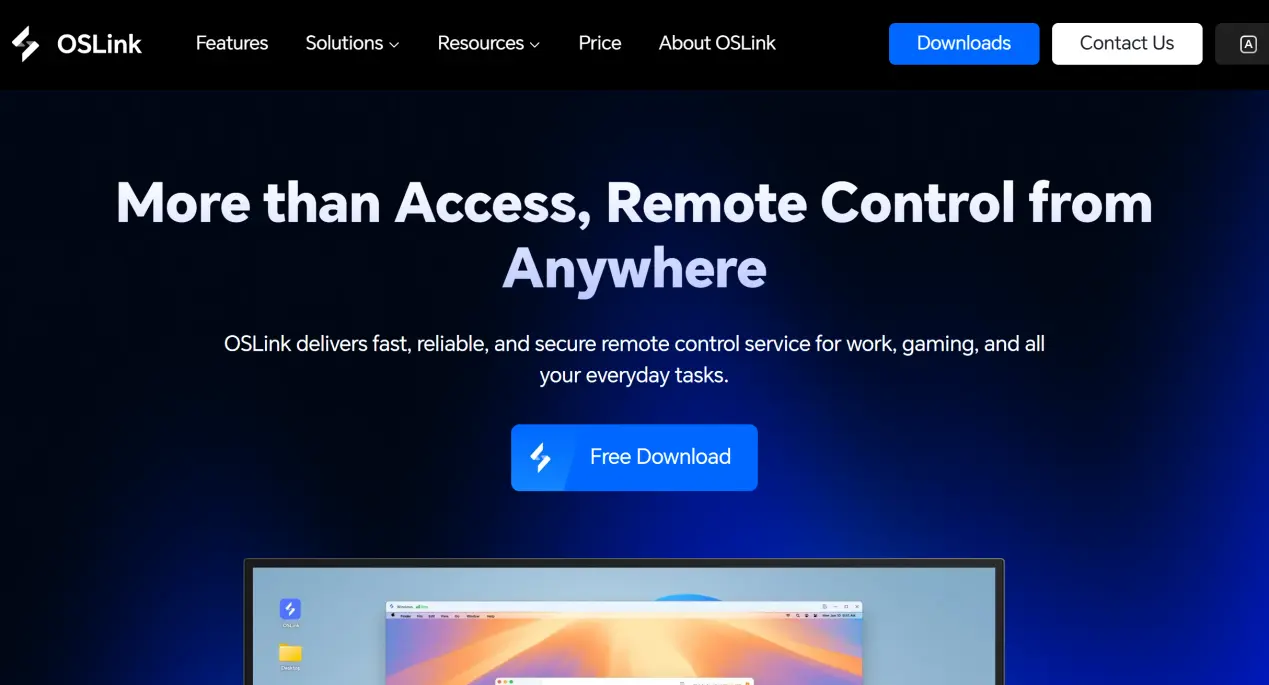
Open the official OSLink website in your browser and download the Windows installer. Once the installation is complete, launch the program, create an account, and sign in. OSLink needs to remain running in the background, so turn off automatic system sleep and network adapter sleep in your PC's power settings. This prevents the connection from dropping while the PC is idle and allows your mobile device to connect whenever you need it.
Installing and Setting Up on Mobile
Android users can search for OSLink on the Google Play Store and install it.iOS users can open the App Store, search for OSLink, and download the corresponding client.
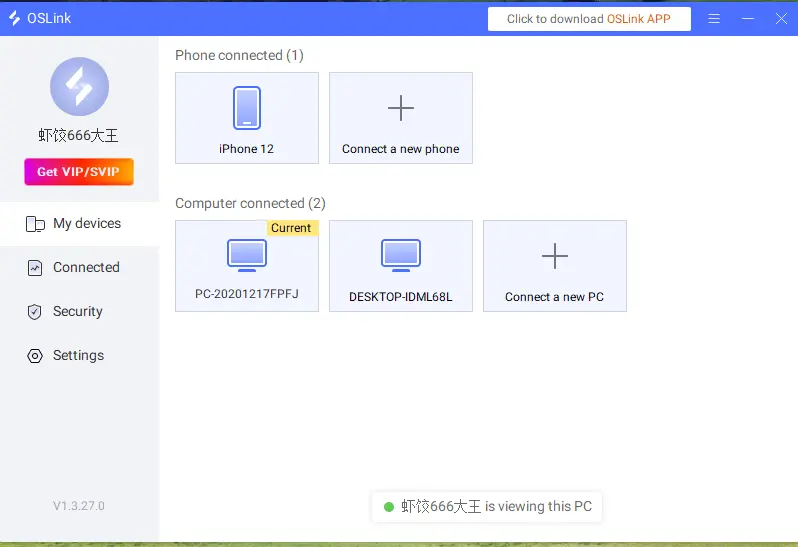
Make sure the account you use on your phone is the same one signed in on your PC. The software can automatically detect PCs on the same local network, and pairing can also be completed over the internet without manually entering a long device ID.
3. How to Run Dragon's Dogma 2: Dark Arisen on Mobile with OSLink
Step 1:
Open Steam or the Epic Games client on your PC and launch Dragon's Dogma 2: Dark Arisen. Stay on the game's main menu and keep the game window in the foreground. Do not minimize it.
Step 2:
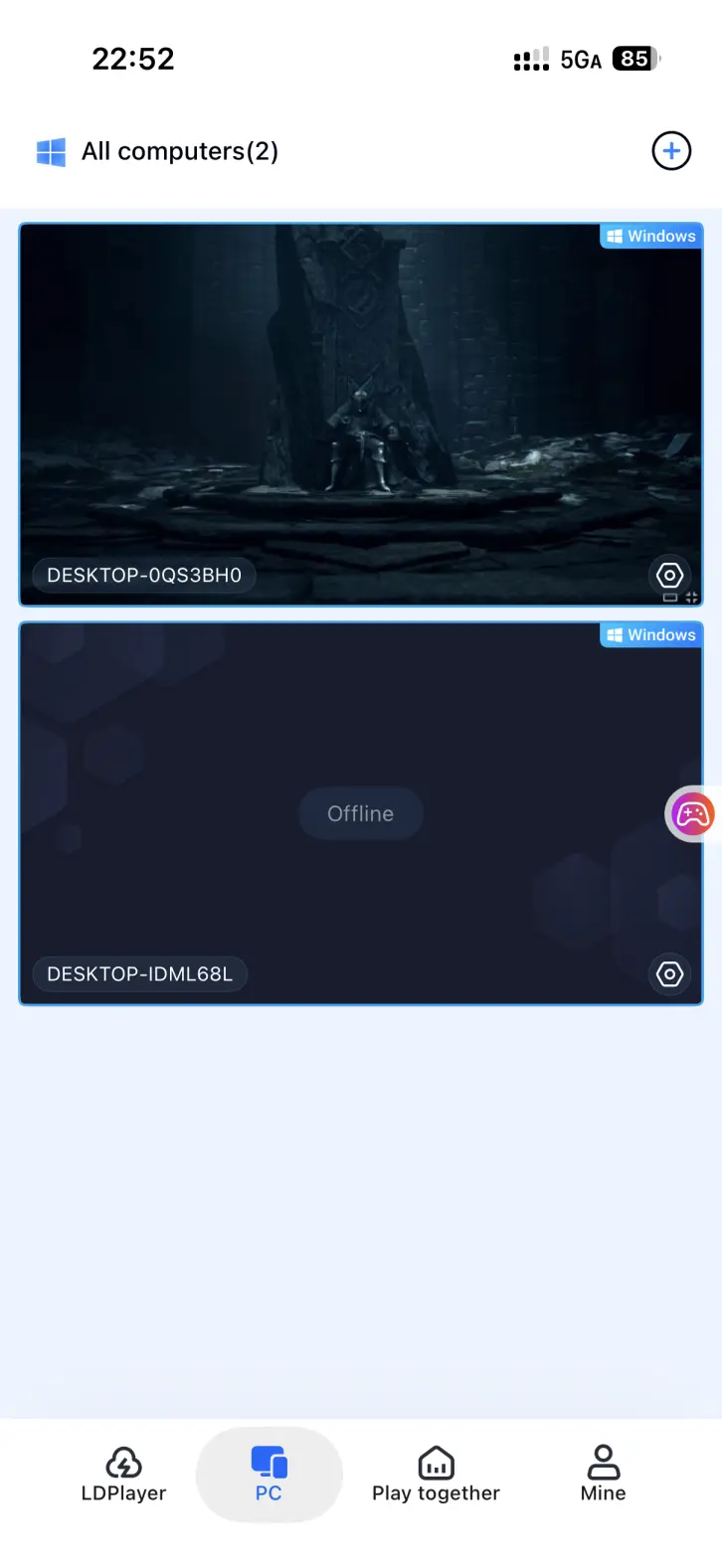
Open OSLink on your phone. The device list will show PCs under the same account that are currently online. Tap the target PC to establish a streaming connection.
Step 3:
Once the PC screen is successfully streamed to your phone, open the side toolbar and switch to Game Mode. Load the preset virtual controls for open-world action games, then fine-tune the button layout according to your preferences. You can also connect an external gaming device. Once everything is set up, you can continue exploring the open world and fighting enemies directly from your phone.
4. Benefits of Playing Dragon's Dogma 2: Dark Arisen on Mobile
Continue Your Adventure During Free Time
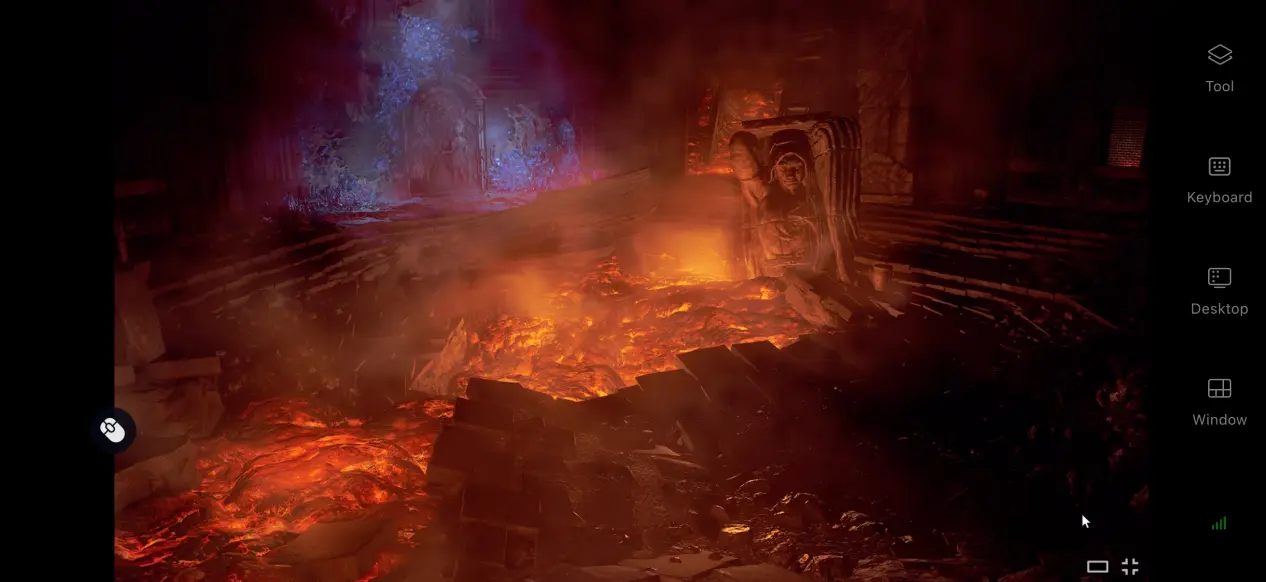
As long as your PC stays powered on and connected to the internet, you can connect from your phone over either Wi-Fi or mobile data. Whether you're waiting for a ride or taking a short break, you can pick up where you left off, complete side quests, and take on powerful monsters without having to stay in front of your PC.
No Need to Use Your Phone's Storage
The game's large files are stored entirely on your PC's hard drive. Your phone only receives the game stream and sends back your control inputs, so you don't need to download tens of gigabytes of game data. Even older phones with limited storage can still be used to play the game.
Support for Multiple External Devices
OSLink supports wired and Bluetooth connections for controllers, keyboards, and mice. Once a controller is connected, you can enjoy more comfortable and precise controls while playing PC games remotely on your phone. Even during intense battles, you can enjoy precise and responsive controls.
5. How to Optimize Your OSLink Gaming Experience
Customize Your Controls
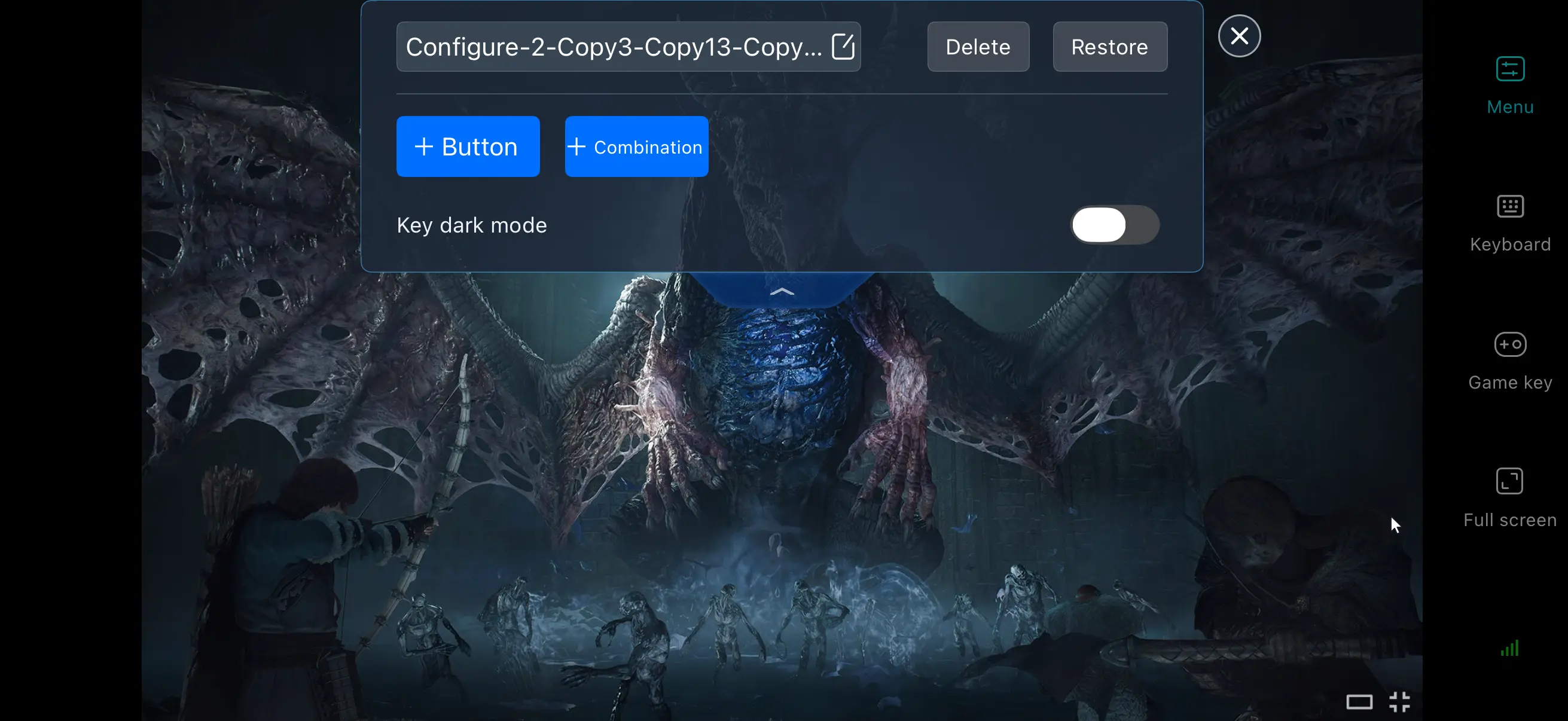
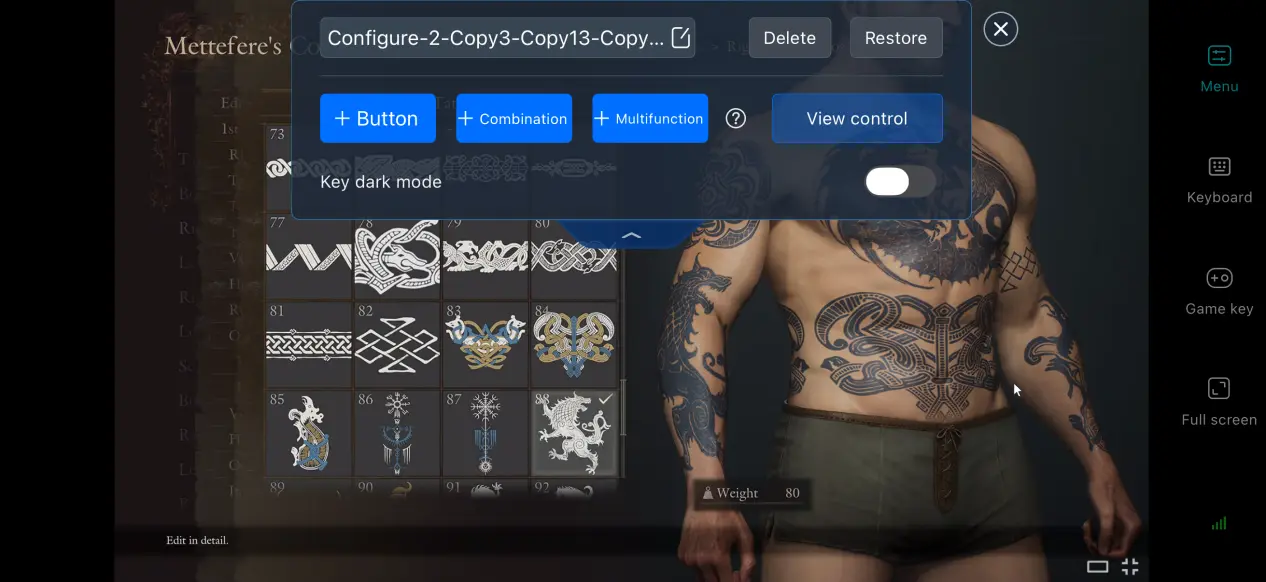
OSLink lets you freely add or remove virtual touch buttons and adjust their size, transparency, and position. For the game's open-world exploration, we recommend placing frequently used actions such as skill activation, the item wheel, and dodge rolls within easy reach. You can also save multiple control layouts and quickly switch between them when exploring the map or fighting bosses.
Streaming History
The software automatically saves records of previously connected devices, so you don't have to search for your PC every time. Simply tap a device in your history to start streaming and save time on repeated pairing. If you notice an unfamiliar device connection, you can immediately disconnect and block it to help keep your account secure.
High Frame Rate, Low-Latency PC Gaming Mode
After enabling OSLink's built-in 60 FPS PC gaming mode, the software adjusts its encoding strategy to reduce motion blur when turning the camera in large areas or fighting multiple enemies at once. It also shortens the delay between your inputs and the on-screen response, making combat feel more responsive.
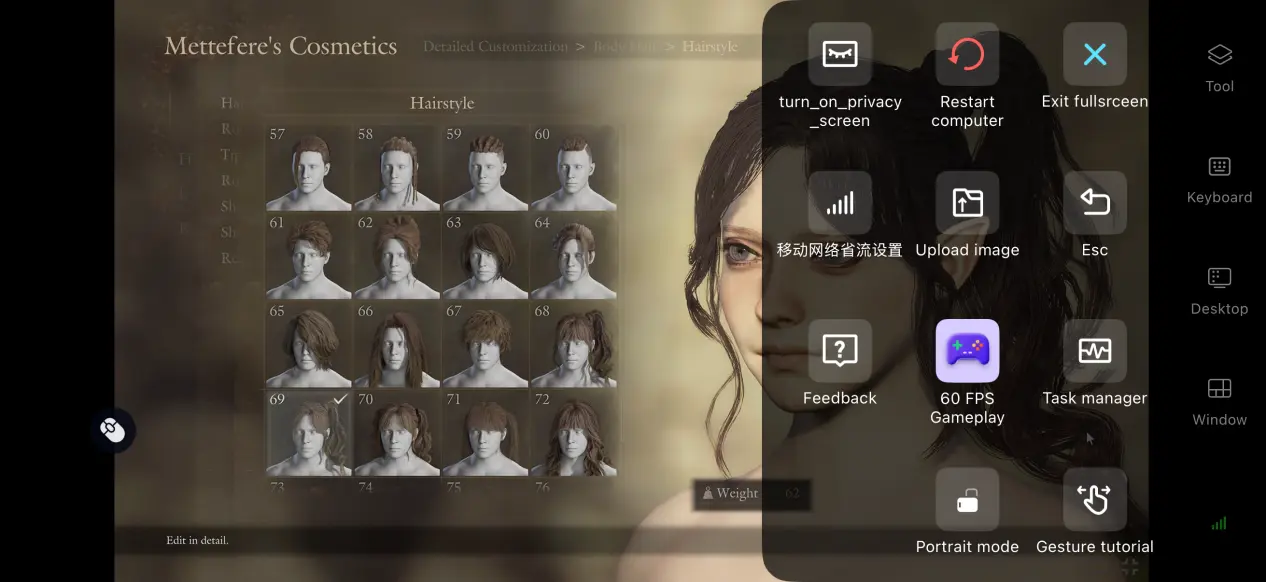
Optimize the Game Display for Mobile Screens
If the game's PC resolution does not match your phone's screen ratio, you can enable full-screen mode. The system will automatically hide the toolbar and adjust the display ratio so the game fills the entire screen. You can also select “Fit to Screen” in the settings to stretch the image automatically, or keep the original aspect ratio with black bars to prevent characters and UI elements from appearing distorted.
6. Frequently Asked Questions
Q: What is Dragon's Dogma 2: Dark Arisen release time?
A: Dragon's Dogma 2: Dark Arisen release date is October 9, 2026. It launched on PC through Steam and Epic, as well as on PS5, Xbox Series X|S, and Switch 2. There is no native mobile version.
Q: What are the PC system requirements for Dragon's Dogma 2: Dark Arisen?
A: Minimum requirements: Windows 11, an i5-8500/Ryzen 5 3500 processor, 16 GB of RAM, a GTX 1660 8 GB graphics card, and a 50 GB SSD. Recommended requirements: Windows 11, an i5-10400/R5-3600 processor, 16 GB of RAM, an RTX 2060 Super graphics card, and a 50 GB SSD. Running the game from a mechanical hard drive is not recommended.
Q: Can I Play Dragon's Dogma 2: Dark Arisen on iOS or Android?
A: There is no official native iOS or Android version. On iOS, the game can be played by remotely streaming the PC version through OSLink, as the game installer cannot be installed directly.
Conclusion
Dragon's Dogma 2: Dark Arisen is an open-world action RPG built around freedom of exploration. The game is available only on PC and home consoles and does not offer a native mobile version. For players who want to take this fantasy adventure with them, OSLink provides a practical way to stream the game remotely, allowing you to continue exploring the map, completing quests, and hunting monsters during spare moments wherever you are.
 Download