English
 Survival games demand a wide field of view and precise controls. As an open-world island survival game, Rust Mobile requires players to constantly monitor their surroundings while gathering resources, building bases, and dealing with threats in the wild. The game does not offer a native PC client, and the limited screen space of mobile devices can make it harder to spot resources or judge distant targets. This guide walks you through the complete process of playing Rust Mobile remotely on a computer, bringing the mobile survival experience to a larger display and making small-screen controls much easier to handle.
If you're looking for an alternative to a traditional emulator, OSLink lets you remotely control a physical phone directly from your computer. The game itself continues to run on your phone, while your existing account and save data remain unchanged. With a USB connection carrying the screen signal, OSLink helps reduce latency and better handle the fast movement, aiming, and interactions common in survival games.
1. Get Rust Mobile
Official Game Download
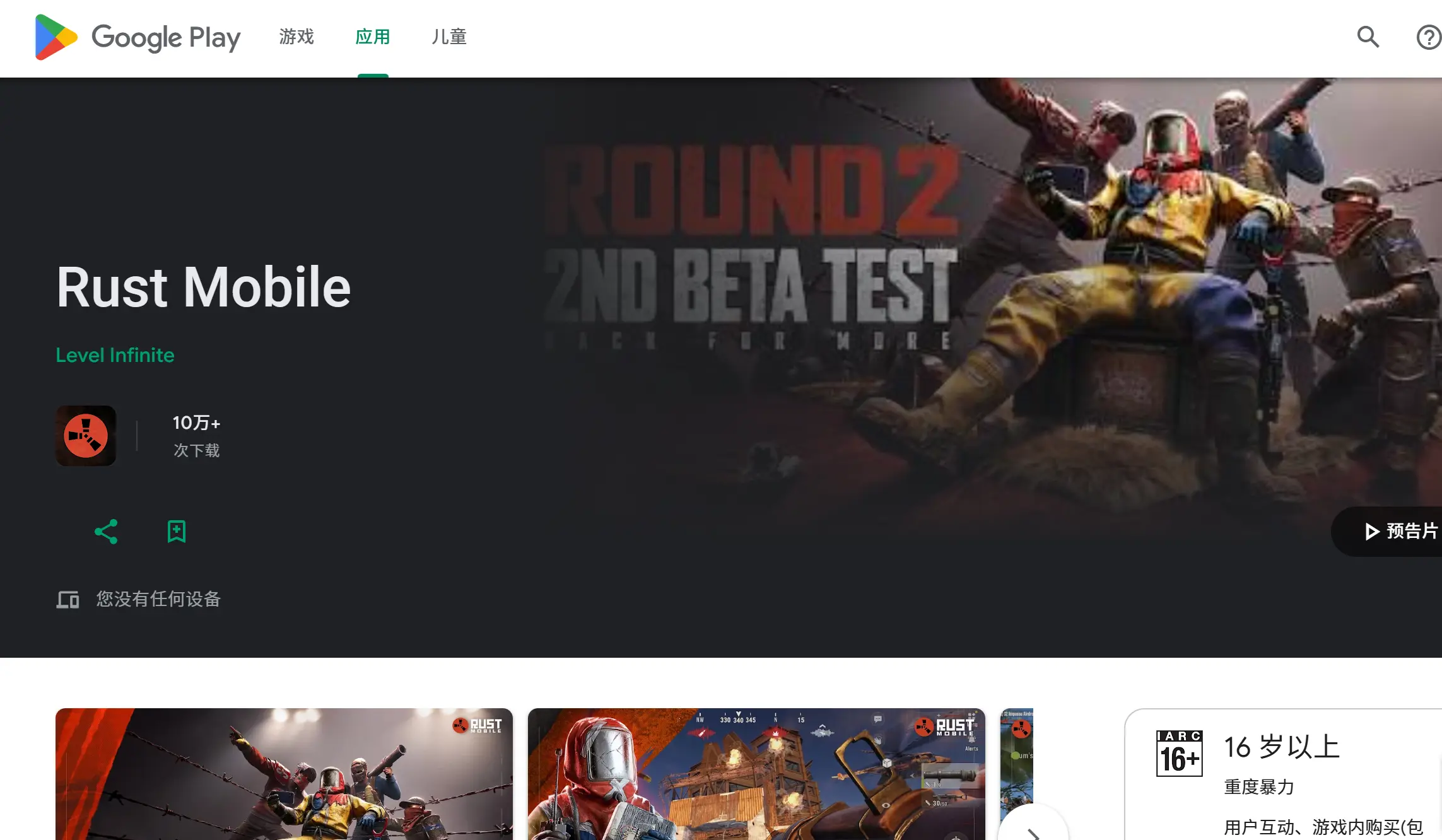
Rust Mobile needs to be installed on a physical mobile device rather than on your computer. Use your phone to open the relevant official app store, search for Rust Mobile, and download the game. Once the installation is complete, launch the game at least once to make sure all required resources are installed, you can log in to your account normally, and the game loads without crashes, missing textures, or other installation issues.
2. Install OSLink on Your PC and Phone
Install OSLink on Both Devices
You need to install the appropriate version of OSLink on both your computer and mobile device.
On your computer, search for “OSLink” in your browser and visit the official download site. Download the installation package that matches your operating system and complete the basic installation.
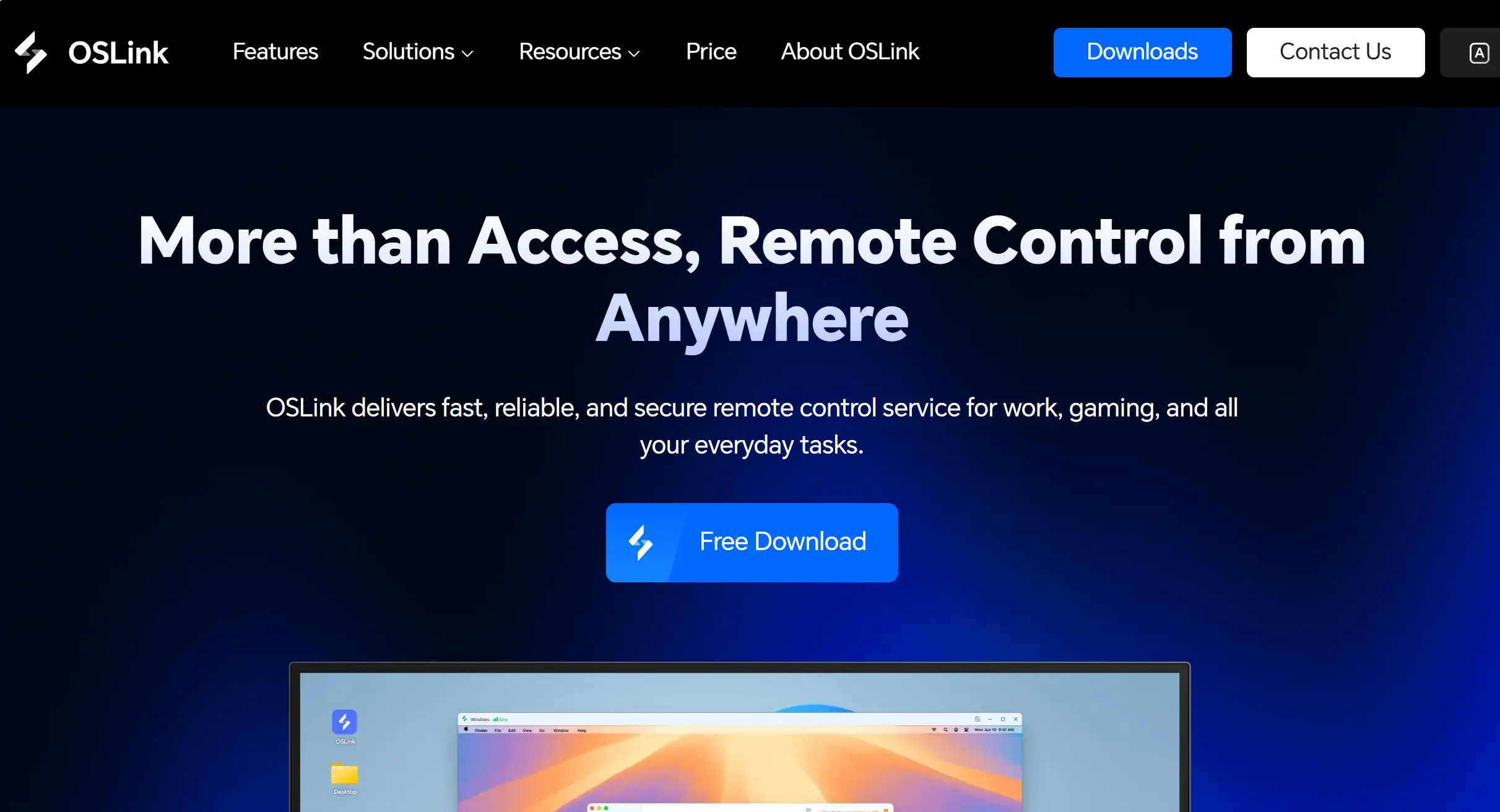
On an Android phone, open Google Play and search for OSLink to download the app. On iOS, open the App Store and search for the same client. After installing the mobile version, sign in with the same account used on the PC so the two devices can be paired.
Once the installation is complete, don't start screen mirroring just yet. Prepare a USB cable that supports data transfer.
Enable Required Permissions
When setting up a wired connection for the first time, you'll need to enable the necessary developer permissions on your phone. From the OSLink interface on your computer, click the option to enable Developer Mode, and the software will provide step-by-step instructions.
Follow the instructions to open Settings > About Phone, then tap Build Number seven times in a row. A system notification will appear once Developer Mode has been enabled. If your phone asks for the lock screen password, enter it to confirm the change. Then return to Settings, find USB Debugging, and turn it on.
Tip: On some customized Android systems, Developer Options may be disabled automatically after the phone is locked or restarted. If the connection fails later, check whether these permissions are still enabled.
3. Launch Rust Mobile on Your PC with OSLink
Step 1
Use a USB data cable to physically connect your phone to the computer. Make sure both ends are firmly plugged in to prevent the connection from dropping during use. Once screen mirroring is established, your computer monitor will display the full interface of your phone.
Step 2
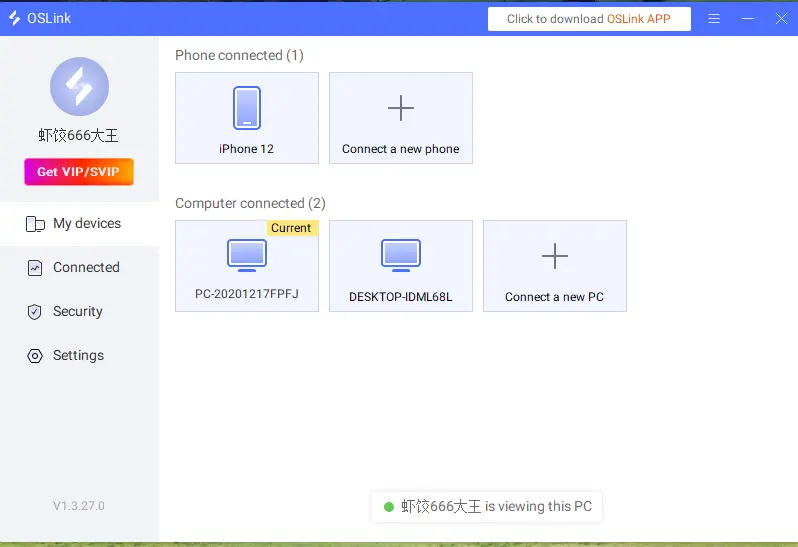
Launch OSLink on your computer. The software will automatically detect the connected phone. Select the target phone from the device list.
Step 3
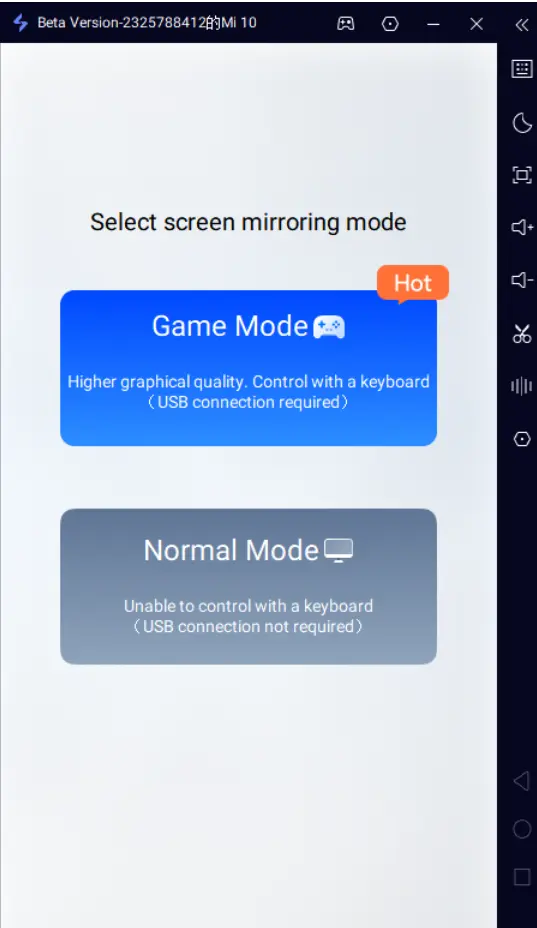
OSLink will provide two mirroring options: Normal Mode and Game Mode. For mobile gaming, Game Mode is recommended. It is designed to optimize visual latency and input response, but the USB cable needs to remain connected throughout gameplay.
Step 4
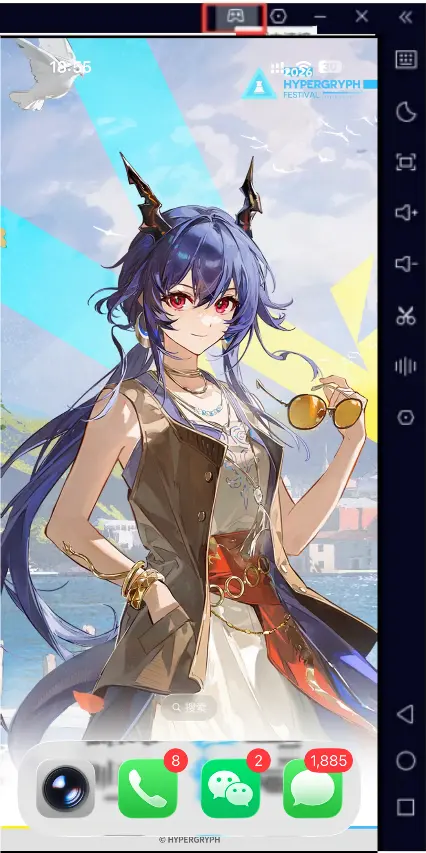
After selecting the mirroring mode, a mirroring prompt will automatically appear on your phone. Tap Start Mirroring, and the phone's screen will be displayed on your computer monitor.
Step 5
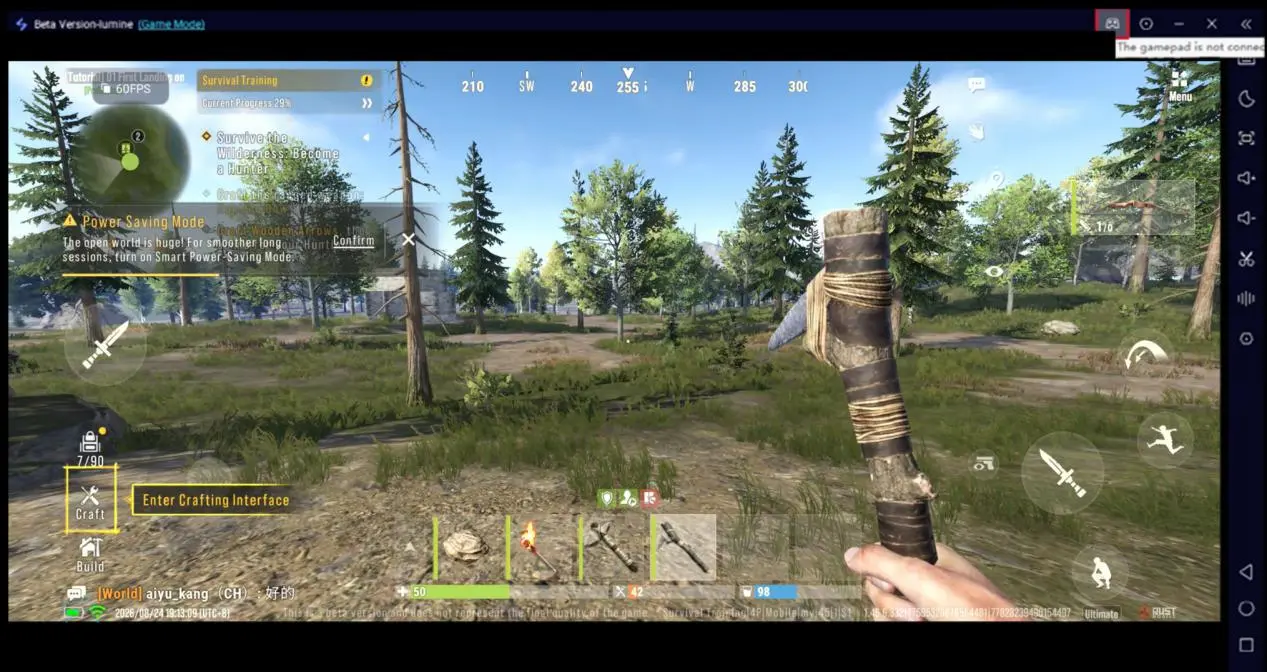
From the mirrored phone screen on your computer, find the Rust Mobile icon and launch the game. Rust Mobile continues to run in the phone's native environment, while its visuals and audio are streamed to the computer.
If the screen freezes during the connection, first check whether USB Debugging has been disabled or revoked by the system in the background. Some Android models may automatically reset this permission, in which case you'll need to enable it again and allow the connection.
4. Optimize Rust Mobile Controls on PC
Customize Keyboard and Mouse Controls
When you first enter the game, the default touch mapping doesn't make full use of keyboard and mouse controls. Survival games involve plenty of actions, including movement, camera control, gathering, building, and other interactions, so the key layout may need to be adjusted manually. In the OSLink Game Mode toolbar, click the keyboard icon to open the key mapping editor.
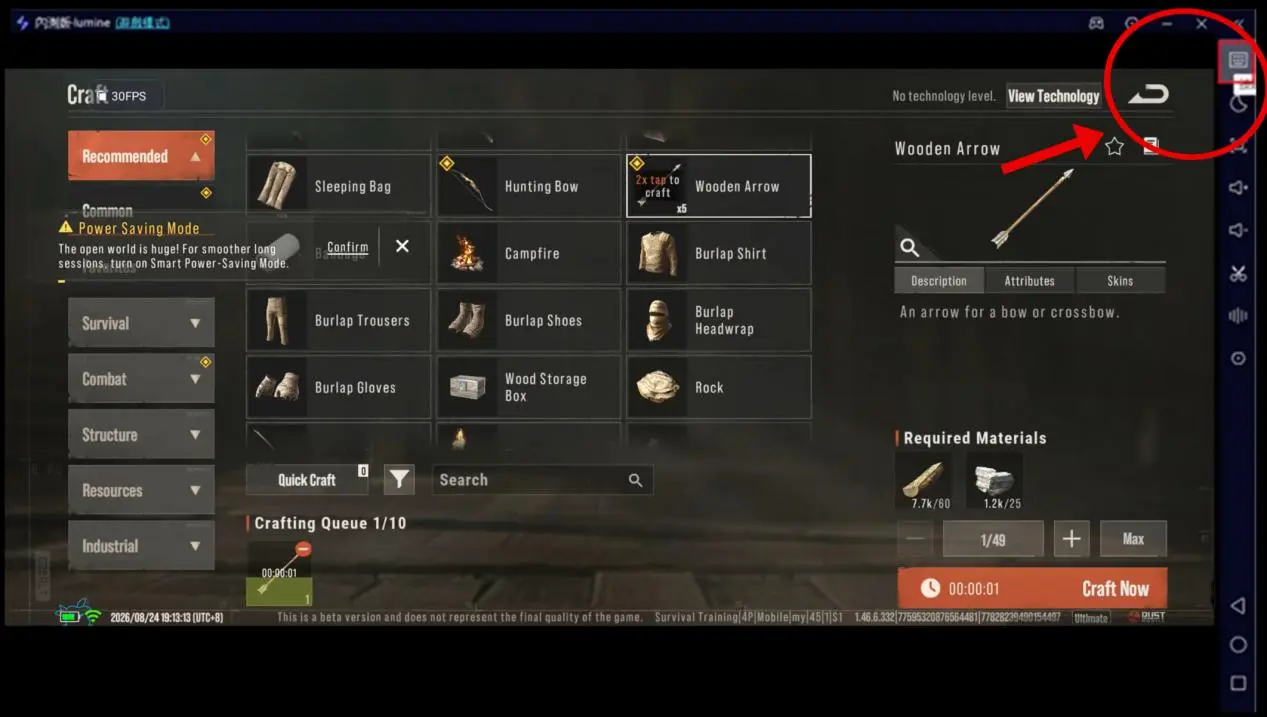
The editor provides draggable key components. Move each key onto the corresponding interaction area in the game interface, such as character movement, camera control, gathering, building, and inventory access. Once the layout is finished, save it as a custom control profile. The next time you use Game Mode, you can load the saved configuration directly instead of setting everything up again.
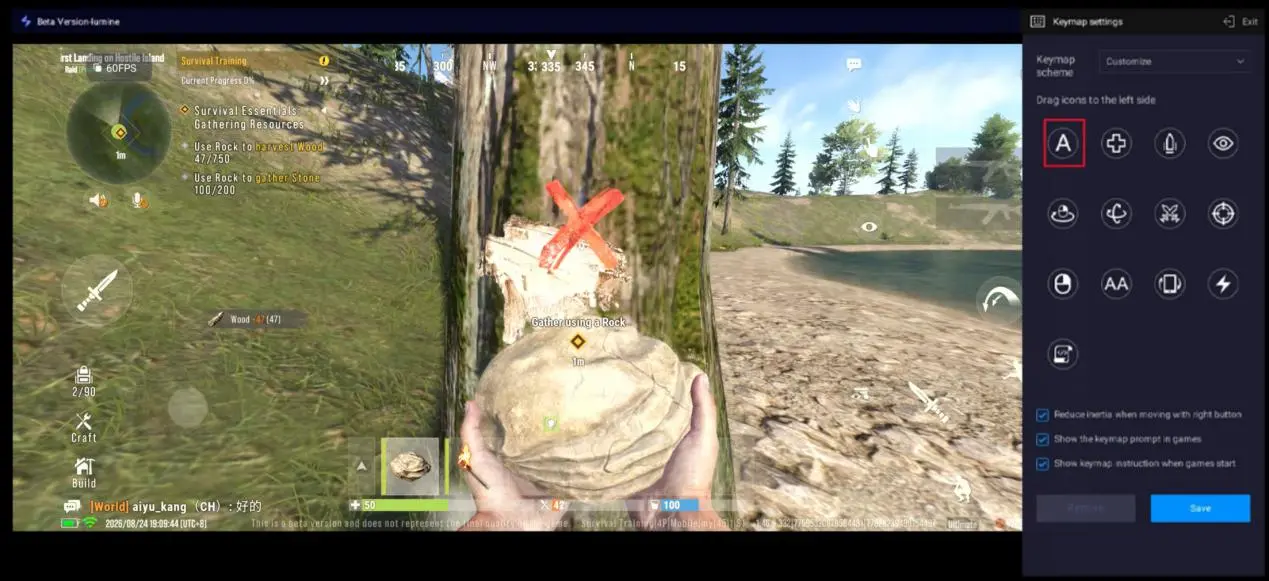
Practical tip: Rust Mobile requires frequent inventory access and tool switching. Consider assigning the inventory and quick-bar controls to the side buttons on your mouse to reduce unnecessary mouse movement.
5. Choose the Right USB Cable
The entire remote-play setup relies on the USB cable to transmit the signal, so cable quality has a direct impact on connection stability. Basic cables that only support charging cannot transfer data and may cause stuttering, delayed controls, or random disconnections.
It's best to use the original data cable that came with your device, or a reliable cable clearly labeled as supporting data transfer. Worn or aging connectors can also cause intermittent disconnects. If you experience frequent connection drops, replacing the cable should be one of the first troubleshooting steps.
Another thing to check: whenever possible, connect the cable directly to a rear USB port on the computer. Front-panel ports generally provide weaker power delivery and signal performance than rear ports, which can sometimes lead to connection problems.
Conclusion
With OSLink's remote screen mirroring, you can run Rust Mobile on a large PC display while continuing to use your physical phone as the actual gaming device.
This setup does not modify the game's files, and your existing save data and account remain exactly as they are on your phone. You can adjust the game's graphics settings according to your phone's hardware capabilities. If you run into problems, check the cable, permissions, and background system restrictions first. These checks can help maintain a stable Rust Mobile survival experience on your PC.
 Download