English
 Want to play Permafrost on the go instead of being tied to your gaming setup? This guide walks you through how to remotely play the post-apocalyptic survival sandbox on mobile, so you can keep exploring its frozen world wherever you are. Permafrost throws players into a frozen post-apocalyptic wasteland, with resource gathering, base building, and survival in extreme cold at the heart of its gameplay. It also supports both solo play and multiplayer co-op, making it a popular new survival sandbox title. However, the game currently only has a PC client, with no native Android or iOS version available. Many survival fans want to keep their progress going without being tied to their computer. The following guide covers the full setup for remotely running Permafrost on mobile, including the complete setup process, key settings, and important things to keep in mind.
OSLink lets you stream PC games to your mobile device and control them remotely, making it a great fit for survival sandbox games like Permafrost. The entire setup requires no major system changes. Once your account is linked, you can gather supplies, maintain your shelter, or deal with blizzards directly from your phone for a smooth remote gaming experience.
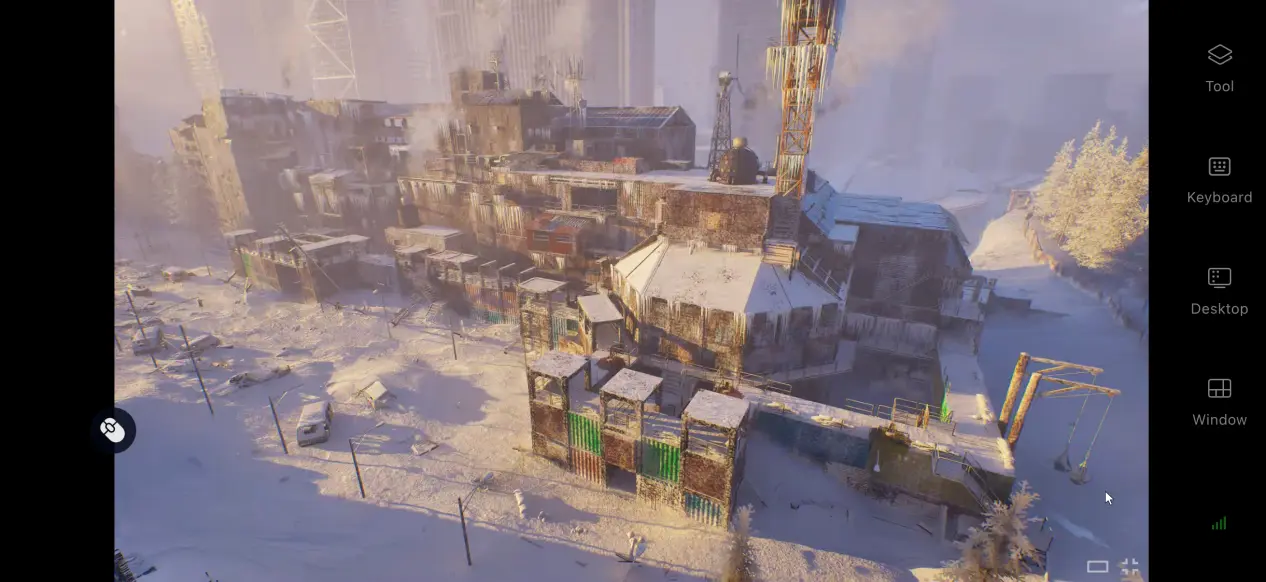
1. Get the Permafrost Game
Before you can play remotely, you first need a legitimate copy of the game installed on your local PC.
Buying and Downloading the Game
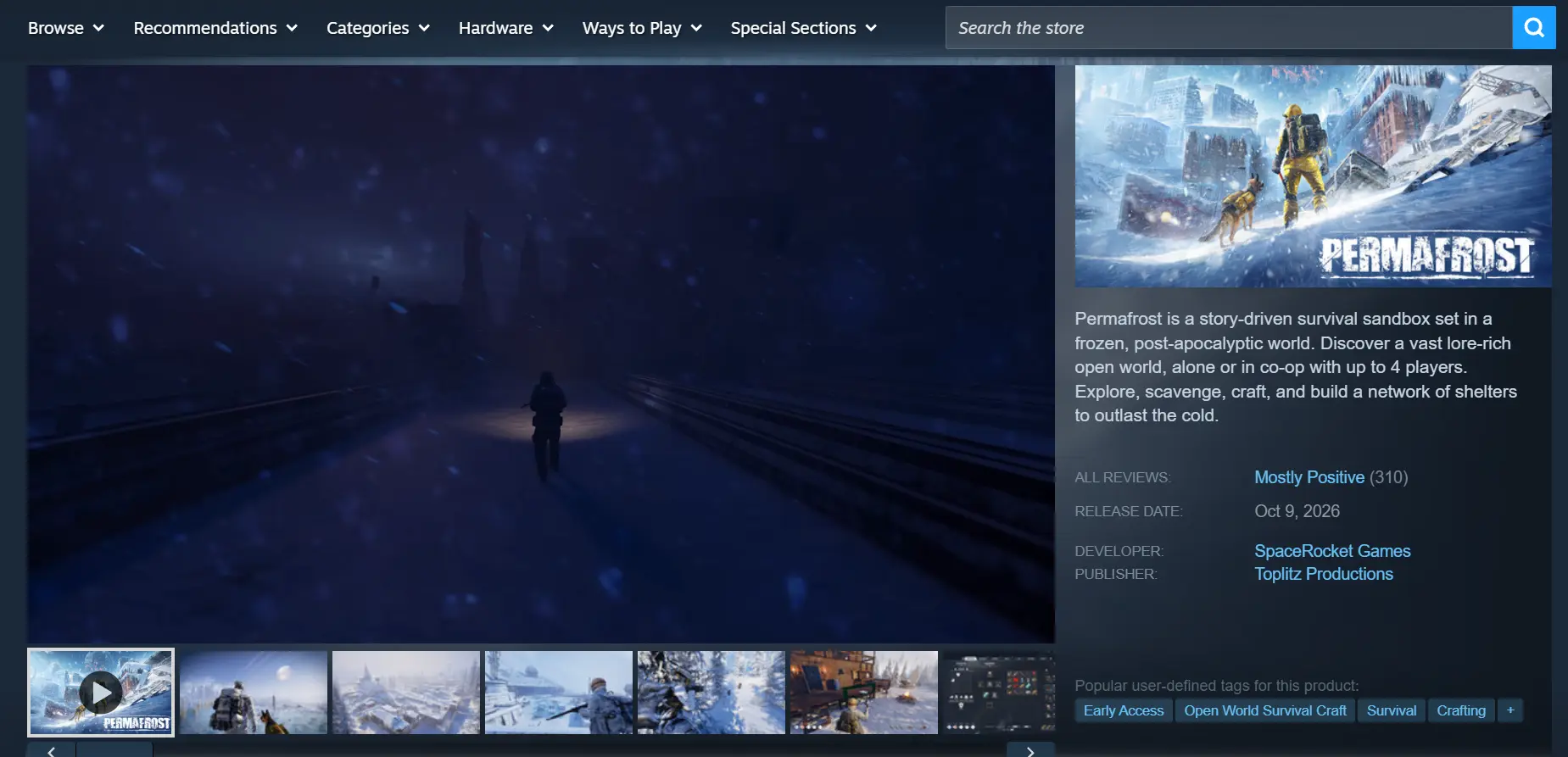
The game is available on Steam. Open the Steam client, search for Permafrost in the store, and start the download from your library after completing the purchase.
Initial Launch Check
Once all game files have finished downloading, it is recommended that you launch the game manually at least once. Make sure you can load an existing save or create a new sandbox world, then check that resource interactions, environmental simulation, and character animations work properly without crashes or visual issues. Once everything is confirmed to be working normally, you can move on to the streaming setup.
2. Set Up OSLink on PC and Mobile
PC Installation and Setup
Visit the official OSLink website through your browser and download the installer for your Windows system. Complete the installation, then register an account and sign in to the software.
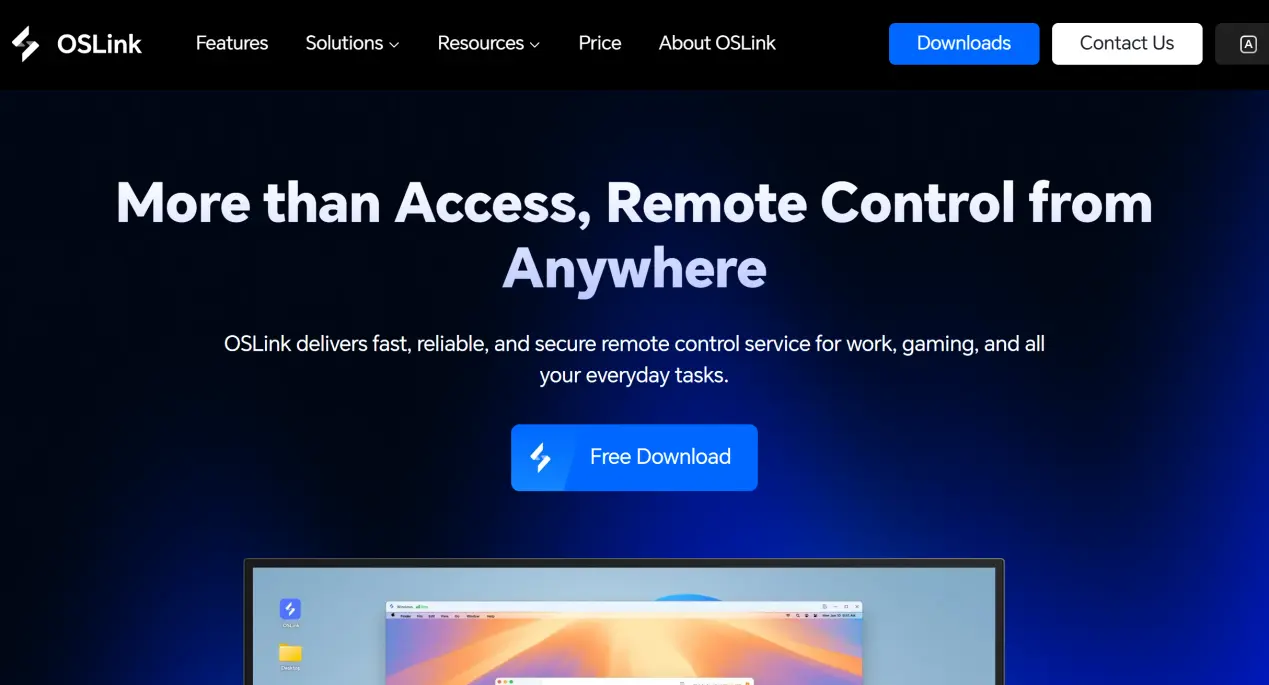
The software needs to remain running in the background. It is recommended that you open your PC's power management settings and disable system sleep and network adapter sleep. This prevents the network connection from being interrupted while the computer is idle, allowing your phone to connect whenever needed.
Mobile Installation and Setup
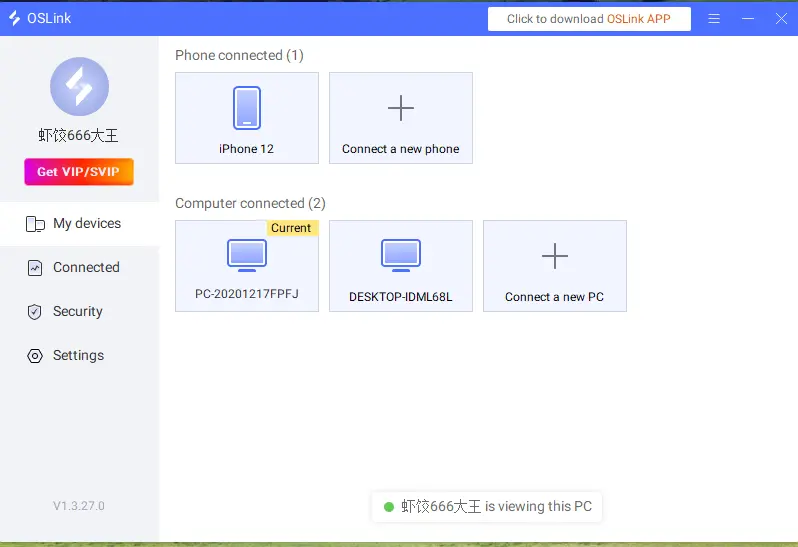
Android users can search for OSLink on the Google Play Store and download the app. iOS users can search for the same client on the App Store and install it. Make sure you're signed in to the same OSLink account on both your phone and PC. OSLink will automatically detect devices signed in to the same account on the local network, so you do not need to enter a device ID manually. The devices will be paired automatically.
3. How to Launch Permafrost with OSLink on Mobile
1. Open Steam on your PC, launch Permafrost, and load into your saved world. Keep the game window running in the foreground and do not minimize it to the background.
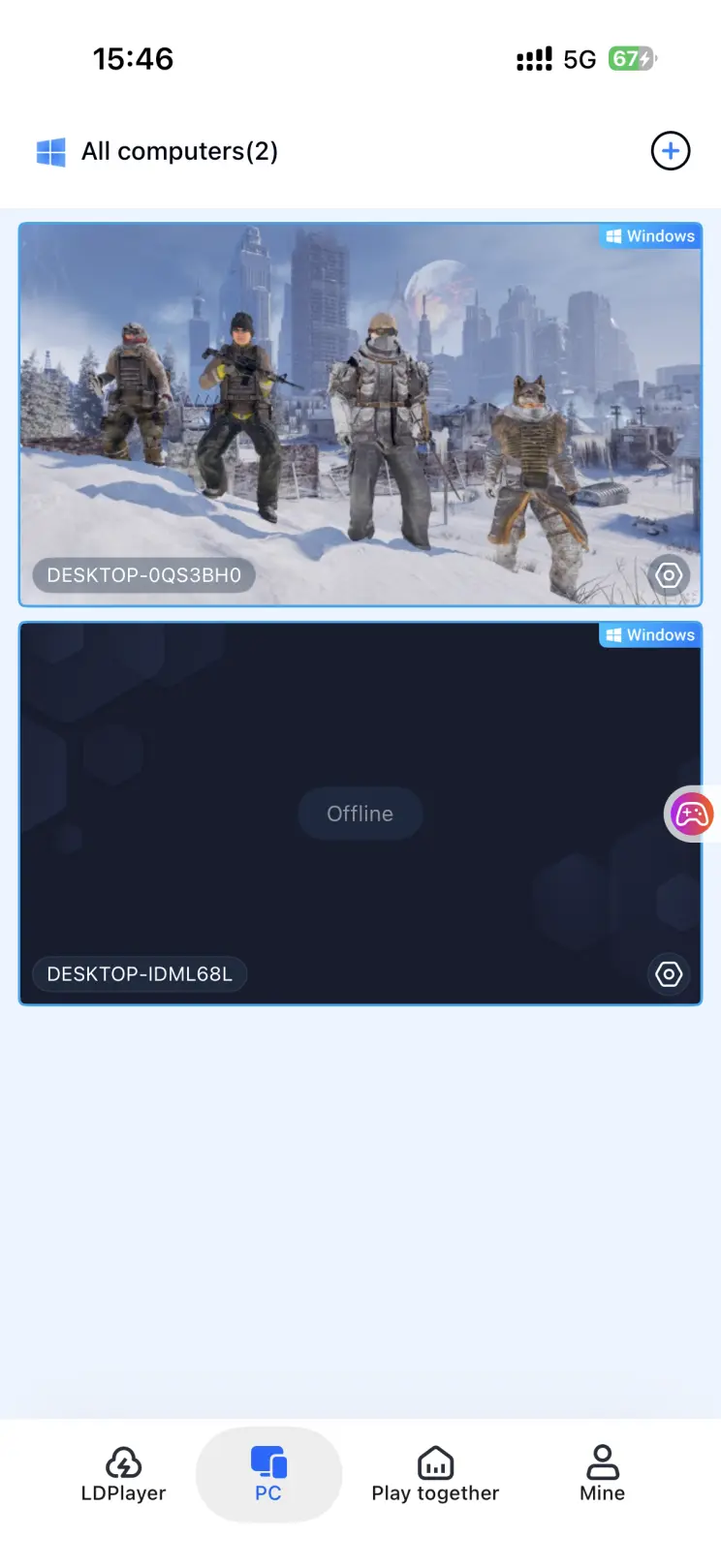
2. Open OSLink on your phone. The device list will show PCs currently online under the same account. Tap the target PC to establish a streaming connection.
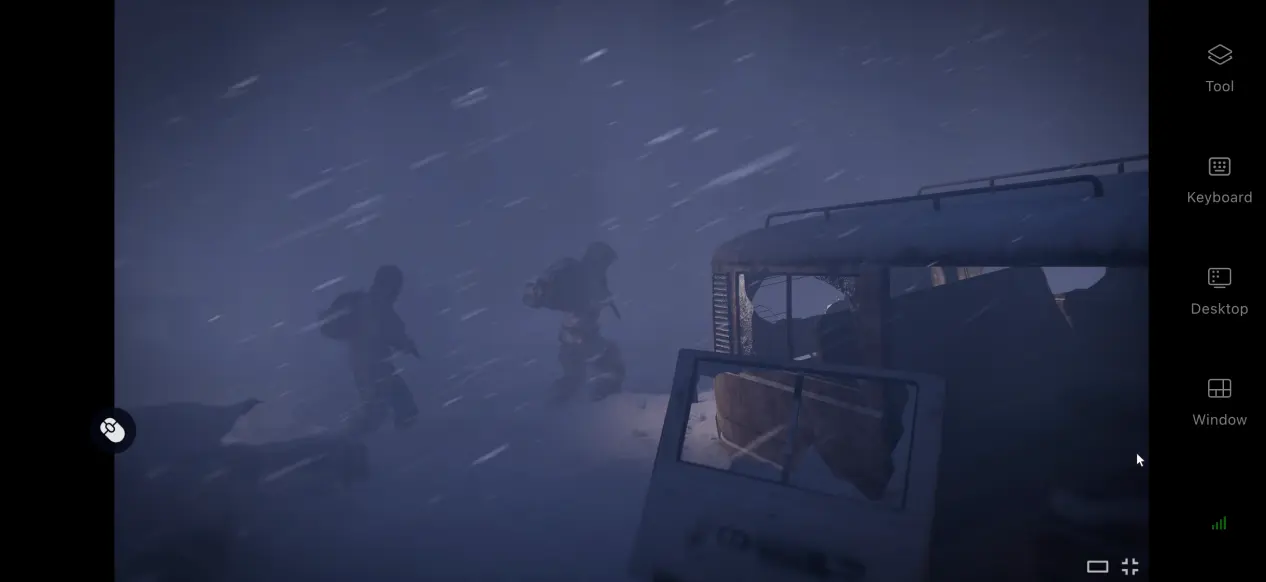
3. Once the PC desktop is successfully displayed, it is recommended that you open the sidebar toolbar and enable the dedicated Game Mode. You can load the preset virtual controls for survival games or connect an external controller. After finishing the setup, you can directly control your character from your phone to gather resources, build shelters, and handle various survival situations.
4. Benefits of Playing Permafrost Remotely on Mobile
Multiplayer Co-op Rooms
The software includes a room-sharing feature that lets you share an active PC game session in a room, allowing multiple members to connect. This makes it possible for several players to enjoy Permafrost's multiplayer co-op gameplay together, making it especially useful when managing a frozen-world survival base with friends.
Break Free from Location Restrictions
Your PC only needs to stay powered on with a stable internet connection. Whether your phone is connected through Wi-Fi or mobile data, you can establish a streaming connection. During spare moments while you're out, you can check your base's fuel supplies or inspect the status of various defensive structures without having to stay at your computer.
Low Storage Requirements on Mobile
The game files and all save data remain stored on your PC's hard drive, while your phone only handles receiving the game display and sending control inputs. Even phones with limited storage or modest hardware can still play the game normally through remote streaming.
5. How to Optimize Your Gaming Experience with OSLink
Customizable Control Layout
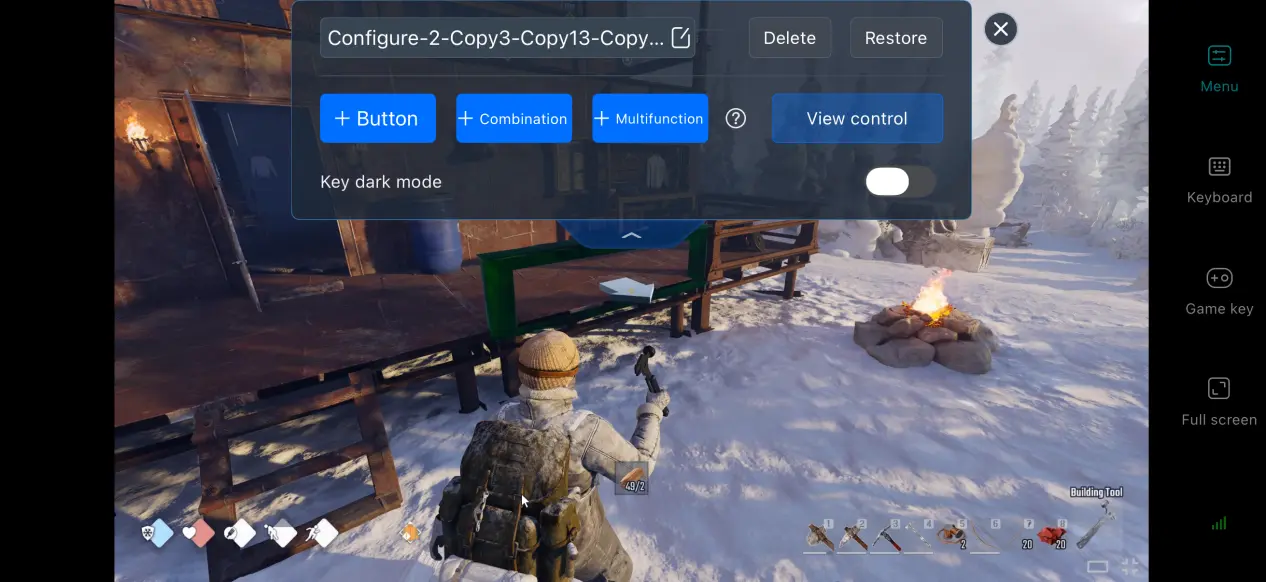
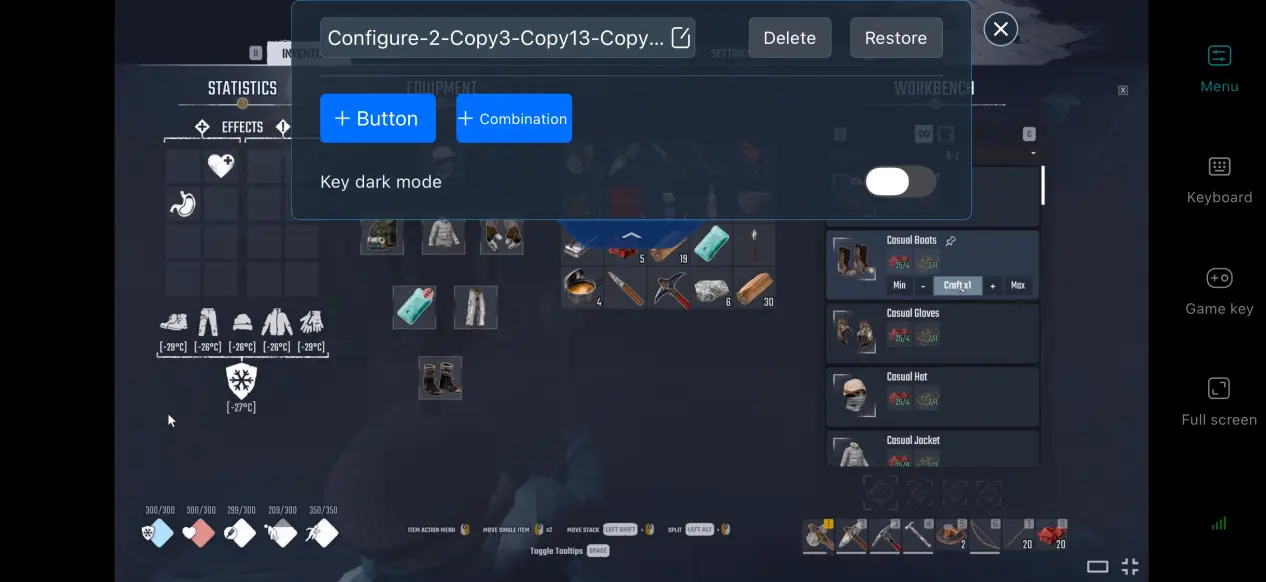
OSLink lets players freely add or remove virtual touch controls and adjust their size, transparency, and position. For Permafrost, you can place frequently used actions such as opening the inventory, building, and using items in areas that are easy to reach. You can also save multiple control layouts and switch between them freely when exploring the wilderness or building at your base.
Support for Multiple Controllers and Peripherals
OSLink supports mainstream wired and Bluetooth game controllers. Once a controller is connected, the software automatically adapts the input controls, helping reduce accidental touches on the screen. When working on detailed construction or exploring over long distances, the overall control experience becomes even more comfortable.
Dedicated Mobile Game Mode
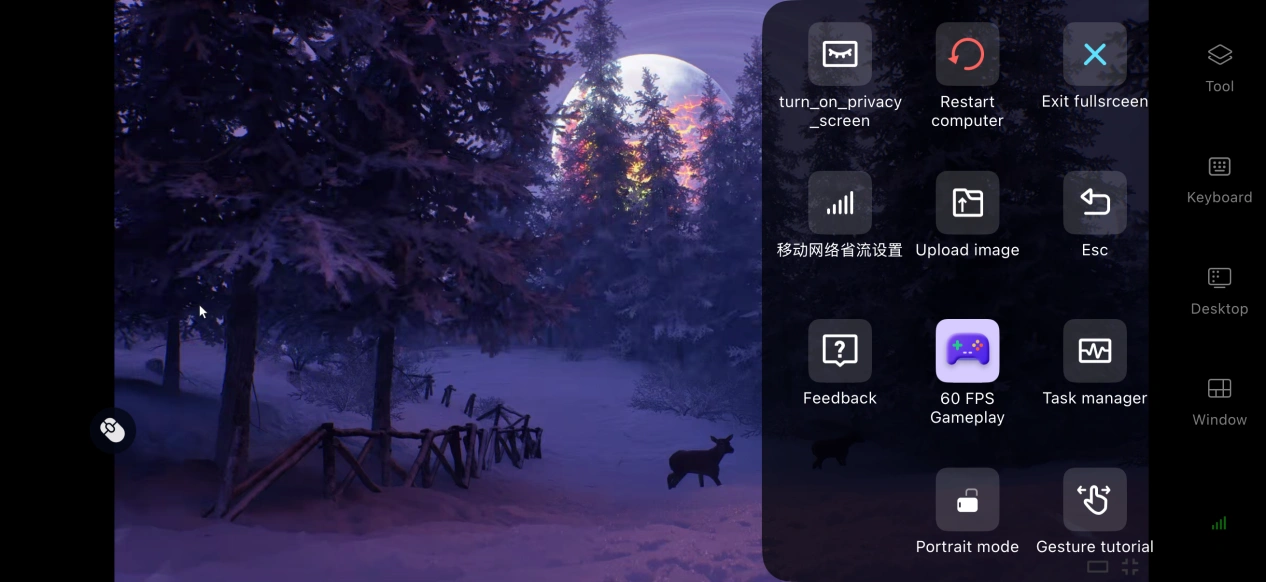
Enable 60 FPS PC Game Mode, and the software will optimize the encoding of PC game footage specifically for remote play. When rotating the camera across large areas or rendering many environmental objects at once, this can reduce motion blur and shorten the delay between tapping a control and seeing the result on screen. Character movement and camera controls will feel smoother as a result.
Streaming History
The system saves your previous streaming sessions. When you want to play again, simply open the software and select a previous session from the history to quickly reconnect, saving you the trouble of searching for and pairing the device again.
6. Frequently Asked Questions About Remote Play
Q: What is Permafrost release time?
A: Permafrost release date is October 9, 2026. There are currently no plans announced for an official native mobile version.
Q: What PC hardware is required to run Permafrost?
A: Minimum requirements: Windows 10 64-bit, an i5-8600K/R5 3500 processor, 16GB RAM, a GTX 1060 6GB/RX 590 graphics card, and 30GB of available hard drive space.
Recommended requirements: Windows 10 64-bit, an i5-12400/R5 5600X processor, 16GB RAM, an RTX 3070 Ti/RX 6750 XT graphics card, and 30GB of available SSD storage.
Q: Can I Play Permafrost on Android or iOS?
A: The official version does not have a native Android or iOS client. You can use OSLink to remotely stream the PC version of the game. The game itself cannot be directly downloaded and installed as an APK.
Conclusion
Permafrost is a survival sandbox game set in a harsh frozen apocalypse, with resource gathering, base building, and surviving extreme cold as its core gameplay. It is currently available only on PC. If you want to experience the full game on a mobile device, OSLink remote streaming provides a practical solution. All game processing is handled by your PC hardware, while your phone is responsible only for displaying the game and sending control inputs. With this setup, you can make better use of your spare time to keep progressing in your survival world and enjoy the game without being tied to your PC.
 Download