English
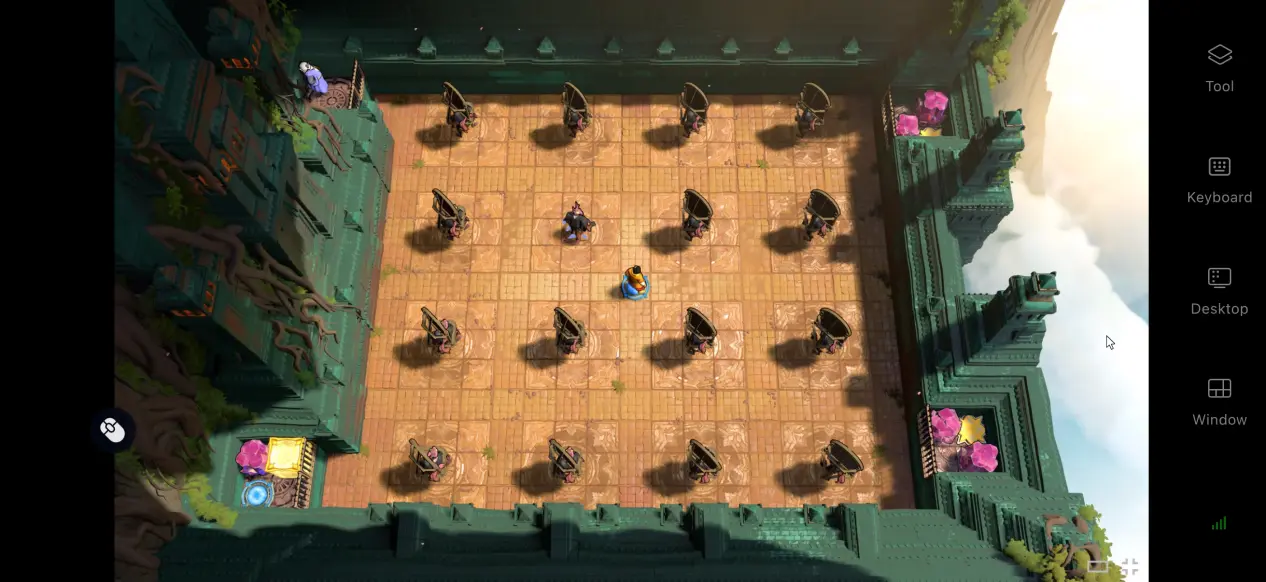
 Order of the Sinking Starhas drawn plenty of attention with more than a thousand handcrafted puzzles and an expansive story that unfolds across four interconnected worlds. However, the game is currently available only on PC. If you want to continue your progress without being tied to your computer, remote streaming is a convenient option. This guide walks you through the full setup process, including device configuration, downloading and installation, launch testing, and performance optimization. If you're interested, follow along and get everything ready step by step.
OSLink can stream your PC game to a mobile device while sending all your touch and controller inputs back to the computer, making it a good fit for a puzzle-heavy PC title like Order of the Sinking Star. You don't need to make changes to your system's core settings. Once your devices are paired and you're signed in to your account, you can connect from your phone while commuting or taking a break, allowing you to solve puzzles and read story dialogue wherever you are.
1. Get 《Order of the Sinking Star》
Get the Game from an Official Source
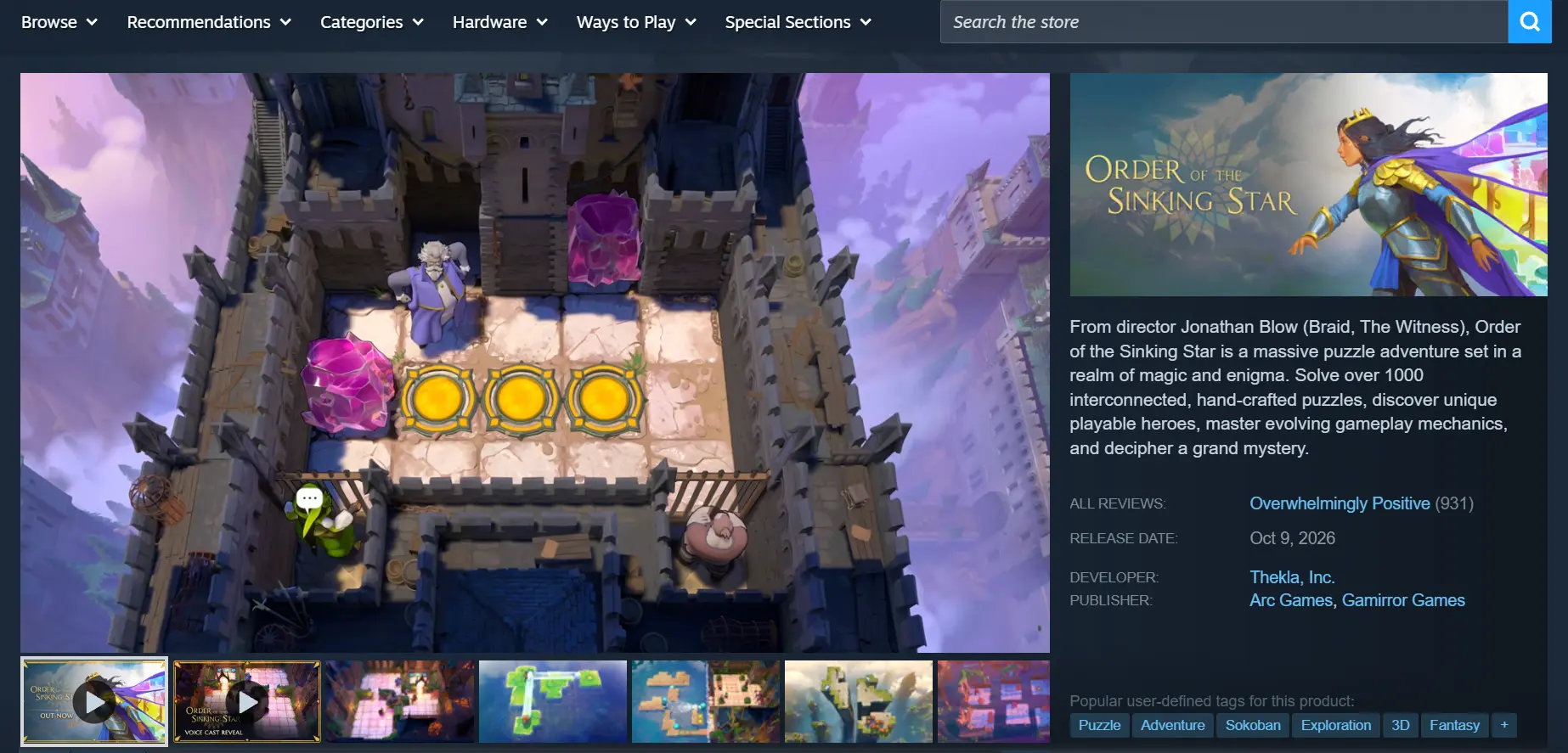
The game is available on Steam. Open the Steam client on your computer and search for the game's official title, 《Order of the Sinking Star》. After purchasing it, add the game to your personal library and start the download. Before downloading, make sure your PC has enough free storage space for the game.
Test the Game Locally
Once all the files have finished downloading, launch the game on your computer at least once before setting up remote streaming. Try creating a new save or loading an existing one, then check whether puzzle interactions, scene transitions, and story dialogue work properly. This is also a good time to look for crashes, visual glitches, or other issues. Once the game runs reliably on your PC, you can move on to the remote streaming setup.
2. Set Up OSLink on Your PC and Mobile Device
Install and Configure OSLink on Windows
Open your browser and visit the official OSLink website to download the Windows installer. Once installation is complete, create an account and sign in. OSLink needs to keep running in the background.
Open your computer's power settings and disable automatic system sleep as well as network adapter sleep. Your computer needs to stay powered on and connected to the internet so the network connection doesn't drop while the device is idle. This allows your phone to connect whenever you want to start a remote session.
Install and Pair the Mobile App
Android users can search for and download OSLink from Google Play, while iOS users can find the same app on the App Store and install it.
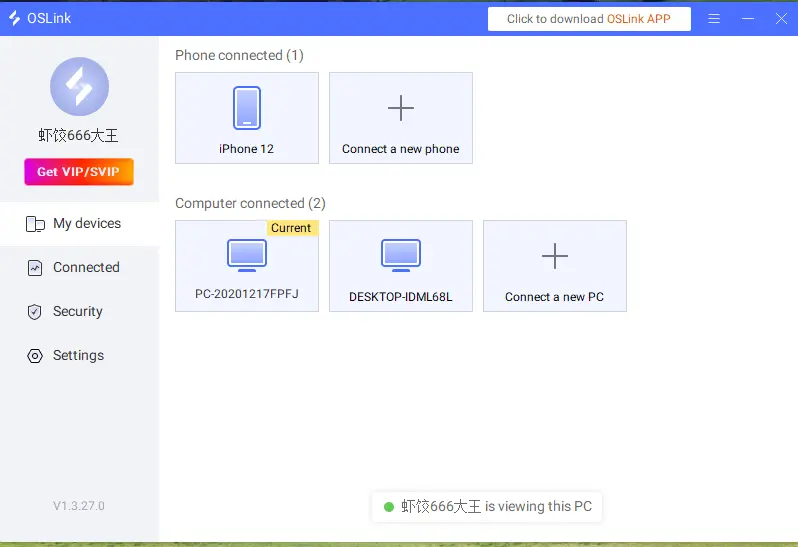
Sign in to the same account on your phone as the one used on your computer. OSLink automatically detects computers that are online under the same account, so you don't need to enter a device ID manually. The two devices will be paired automatically.
3. How to Launch Order of the Sinking Staron Mobile with OSLink
1. Open the Steam client on your computer and launch 《Order of the Sinking Star》. Load your save and enter the game. Keep the game window running in the foreground. Do not minimize it or move it to the background, as this may cause the streamed image to appear black.
2. Open the OSLink app on your phone. The device list will show computers currently online under your account. Tap the target computer to establish the streaming connection.
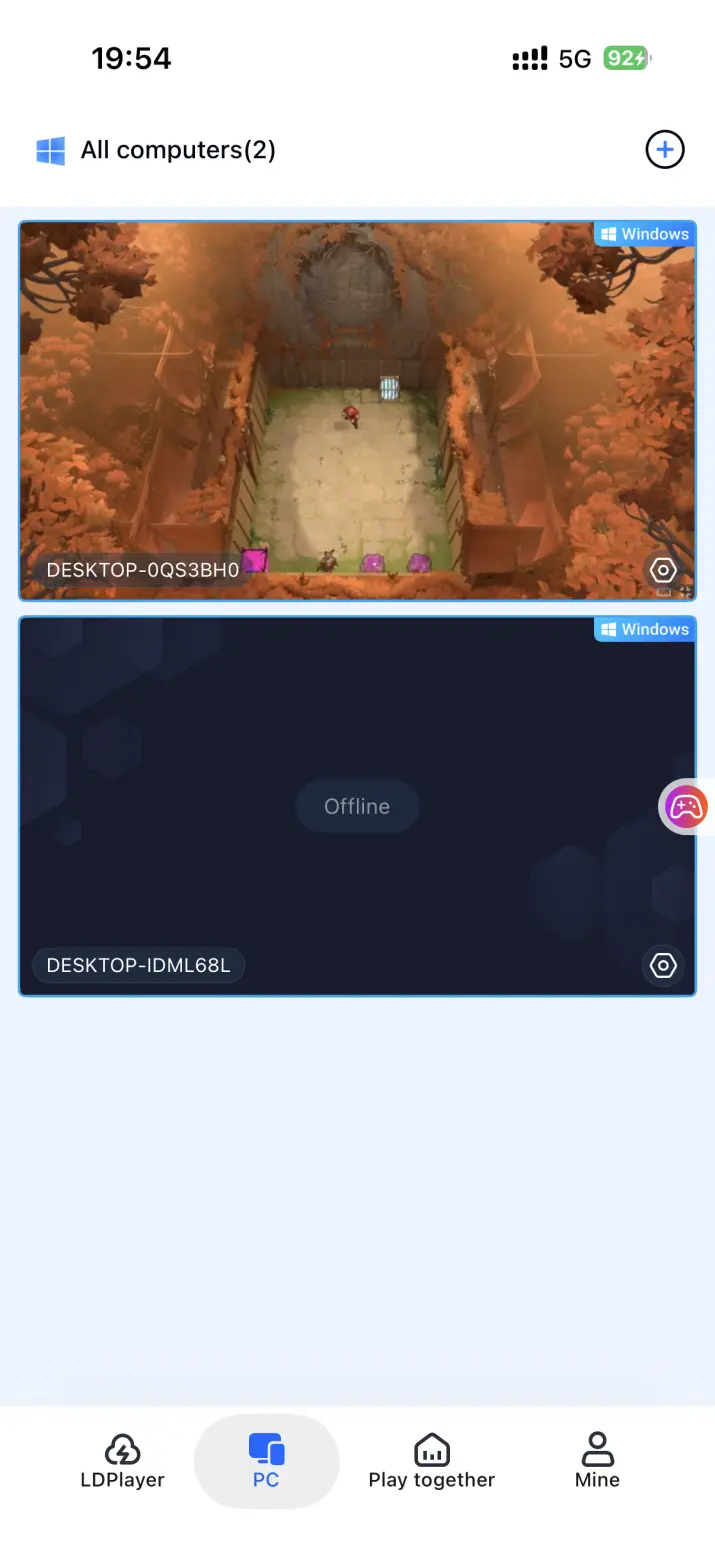
3. Once your computer's desktop appears on your phone, open the side toolbar and switch to the dedicated game mode. You can use the preset virtual controls designed for puzzle games or connect a game controller directly. After finishing the control setup, you can play through puzzles, read story dialogue, and access the rest of the game's content from your phone.
4. Why Play This Game Remotely on Mobile?
No Longer Tied to Your PC
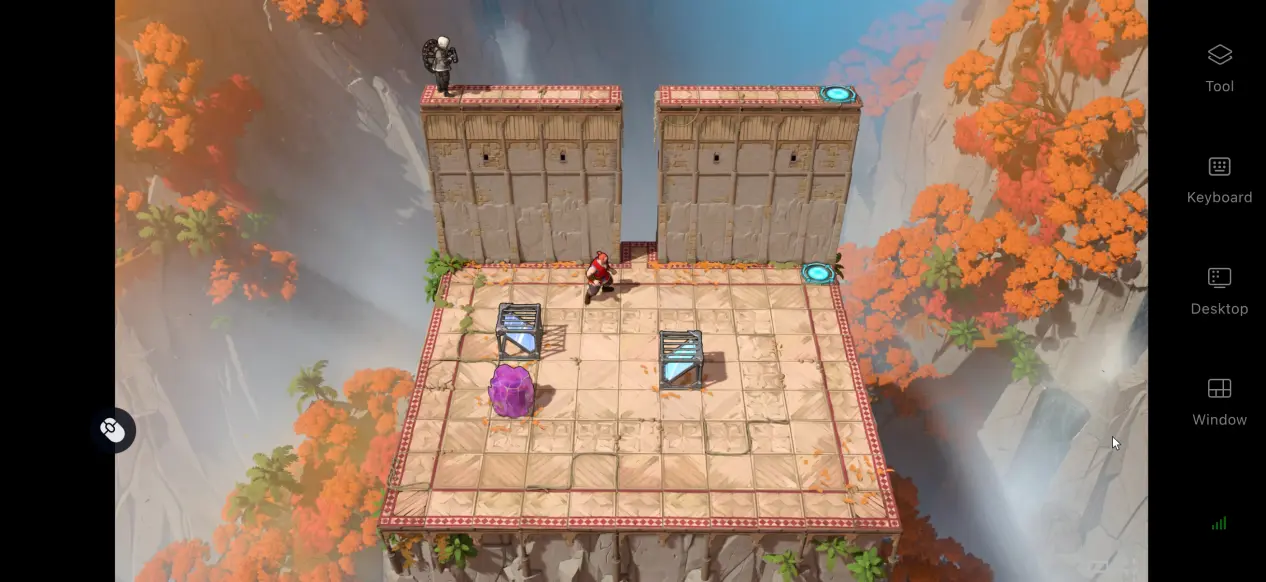
As long as your computer stays powered on and connected to the internet, you can establish a streaming connection from your phone over either local Wi-Fi or a mobile network. This means you can use spare moments while you're out to keep working through difficult puzzles and check story clues without needing to stay near your computer.
No Need to Use Your Phone's Storage
The game files and all save data remain stored on your computer's hard drive. Your phone only receives the game stream and sends your control inputs back to the PC. Even phones with limited storage or modest hardware can connect and play normally, without downloading a large game package locally.
Share Sessions in a Room
OSLink includes a session-sharing feature that lets you stream an active PC game session to a shared room. Multiple people can view the game screen, making it useful for discussing tricky puzzles with friends and working together to analyze clues.
5. Improve Your Experience with OSLink
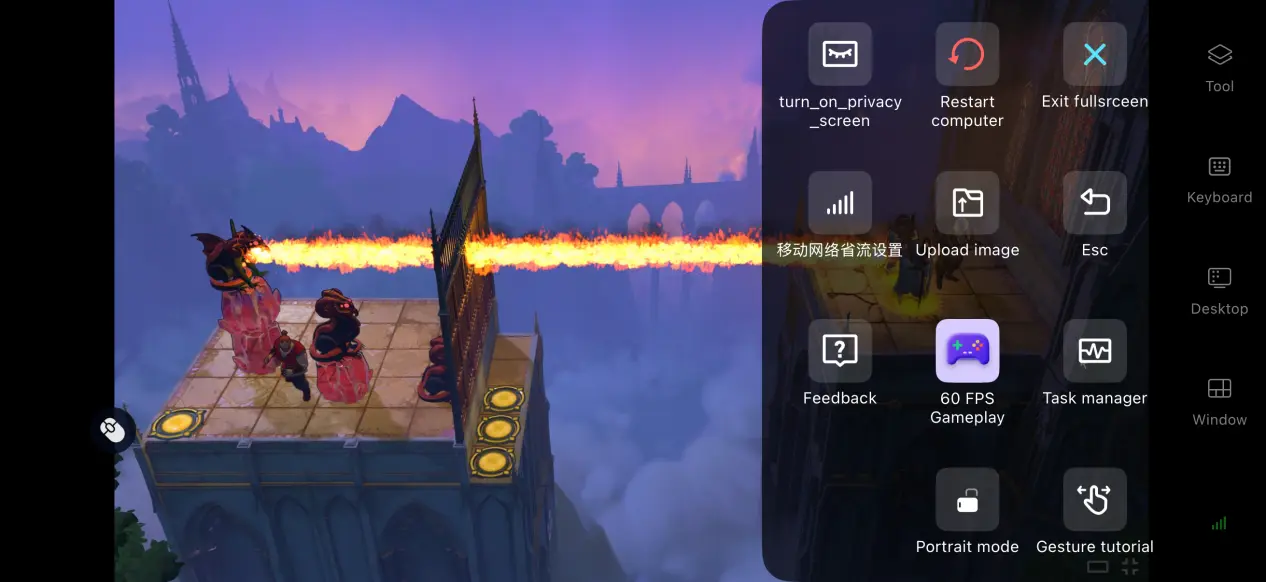
Enable 60 FPS PC Game Mode
Once enabled, this feature applies dedicated encoding adjustments for PC games. When large areas load or many puzzle objects are rendered at once, it helps reduce motion blur and shortens the delay between your input and the on-screen response. Turning the camera or selecting puzzle objects also feels more responsive.
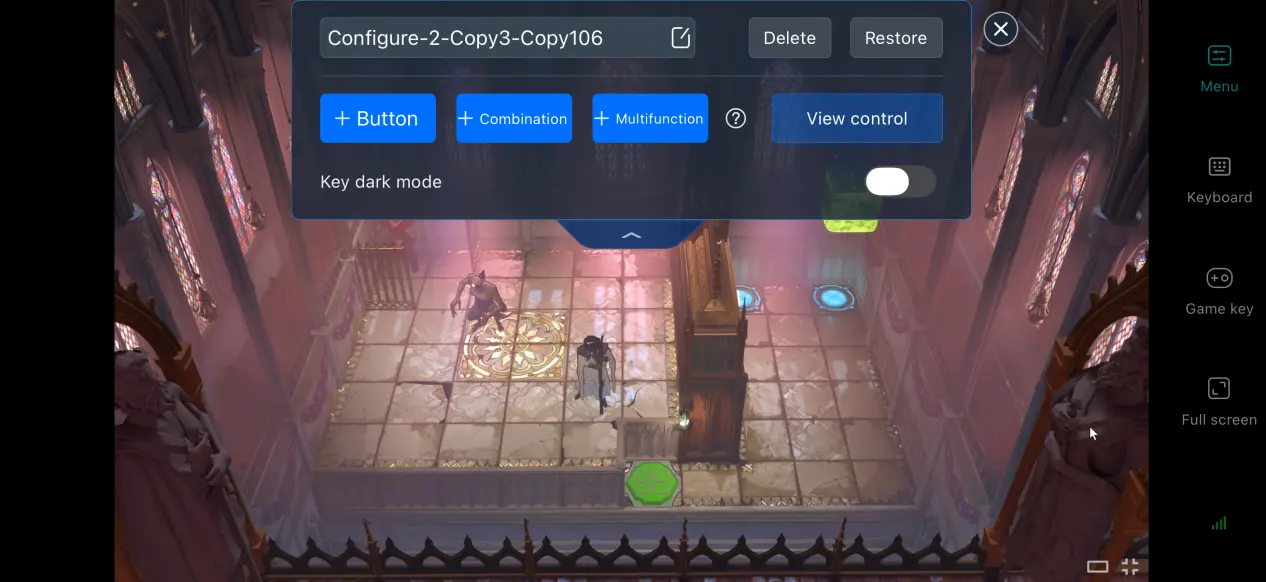
Customize Virtual Touch Controls
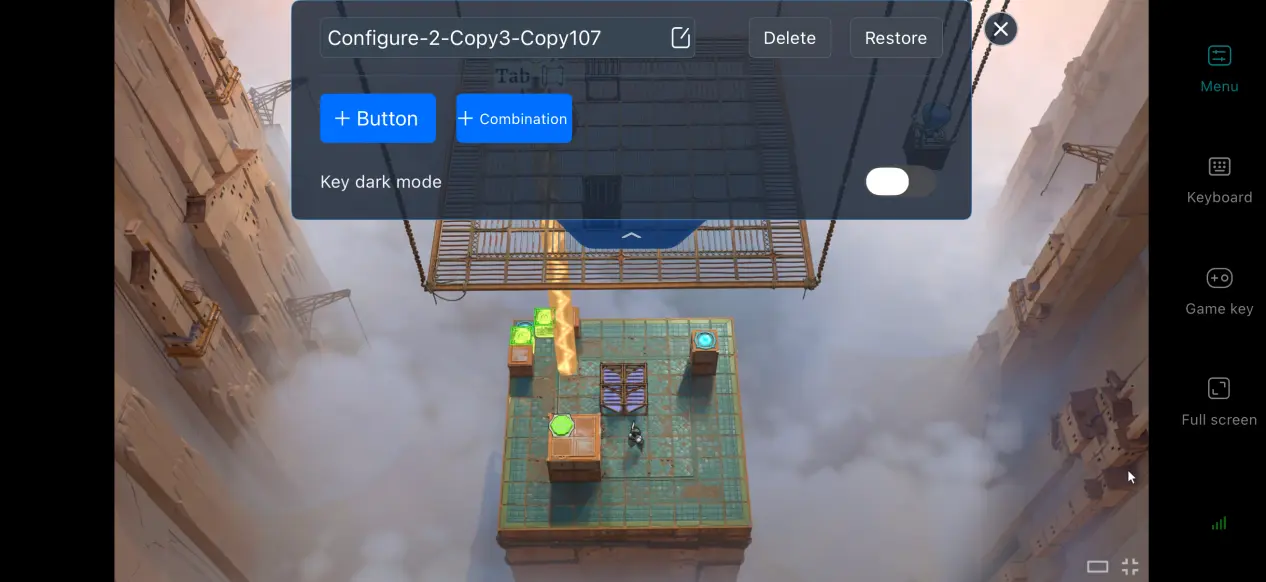
You can freely add or remove touch buttons and adjust their size, transparency, and position. For this game, place frequently used actions such as selecting objects, scrolling through dialogue, and resetting the camera within easy reach. You can also save multiple control layouts and quickly switch between them when exploring, solving puzzles, or reading story content.
Adjust Screen Mapping for Mobile
The screen mapping feature lets you adjust how the PC screen fits your phone's display. You can choose a suitable display mode to keep important puzzle elements and dialogue text visible.
Support for a Wide Range of External Devices
OSLink supports mainstream wired and Bluetooth game controllers. Once a controller is connected, its inputs are automatically mapped for the game, reducing accidental touches on the screen. For puzzle sections that require precise selections, using an external controller can make overall control noticeably more accurate.
6. Frequently Asked Questions About Remote Streaming
Q: What is Order of the Sinking Star release time?
A: Order of the Sinking Star release date is October 8, 2026. There is currently no official plan for a native mobile version.
Q: What PC hardware is required to run the game?
A: Minimum requirements: Windows 10 64-bit, an i5-8600K/R5 3500 processor, 16 GB of RAM, a GTX 1060 6 GB/RX 590 graphics card, and 30 GB of available storage space.
Recommended requirements: Windows 10 64-bit, an i5-12400/R5 5600X processor, 16 GB of RAM, an RTX 3070 Ti/RX 6750 XT graphics card, and 30 GB of available SSD storage.
Q: Can I Play Order of the Sinking Star on iOS or Android?
A: The official version does not include a native iOS or Android client. You can run the game remotely through OSLink by streaming it from a PC. The game cannot be installed and played locally on an iPhone.
Summary
Order of the Sinking Staris a narrative puzzle adventure centered around a huge collection of interconnected puzzles and a multi-world story. It is currently available only on PC, with no native Android or iOS version. If you want to experience the full game on a mobile device, OSLink provides a convenient remote streaming solution, allowing you to continue solving puzzles in your spare time without being tied to your PC.
 Download