English
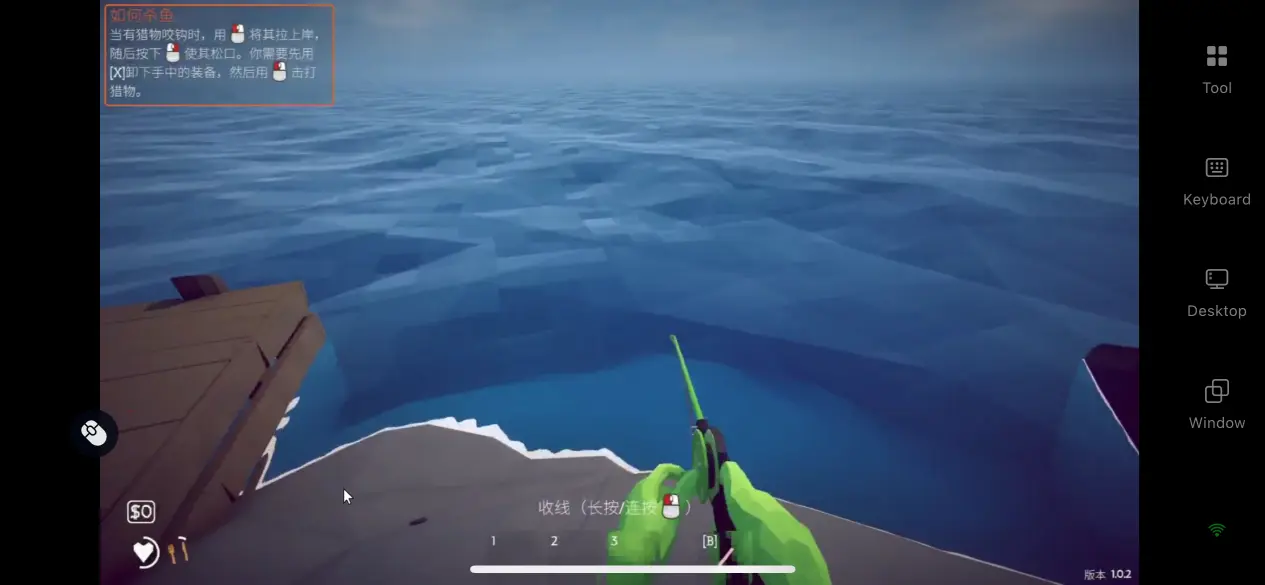
 Many players are drawn to How to Fish for its mix of lighthearted fun and challenging survival gameplay on a deserted island. Built around physics-based gameplay, the game combines fishing, gear upgrades, boss fights, and multiplayer co-op. For players who want to keep making progress on the island without being tied to their PC, remote play makes it possible to continue the adventure during spare moments away from home. This guide walks through the full process, from getting the game and setting up the software to connecting your devices, adjusting the streaming settings, and handling common questions, so you can keep your island survival adventure going from your phone.
If you want to control the PC version of How to Fish from your phone, OSLink makes the setup much easier. Once the software is installed and you sign in on both devices, the game can be streamed remotely without having to manually configure complicated network forwarding settings.
1. Get How to Fish
Official Client Download
The official PC client is available exclusively through Steam. Open the Steam client, search for How to Fish by its English title, and visit the game's store page to purchase it.
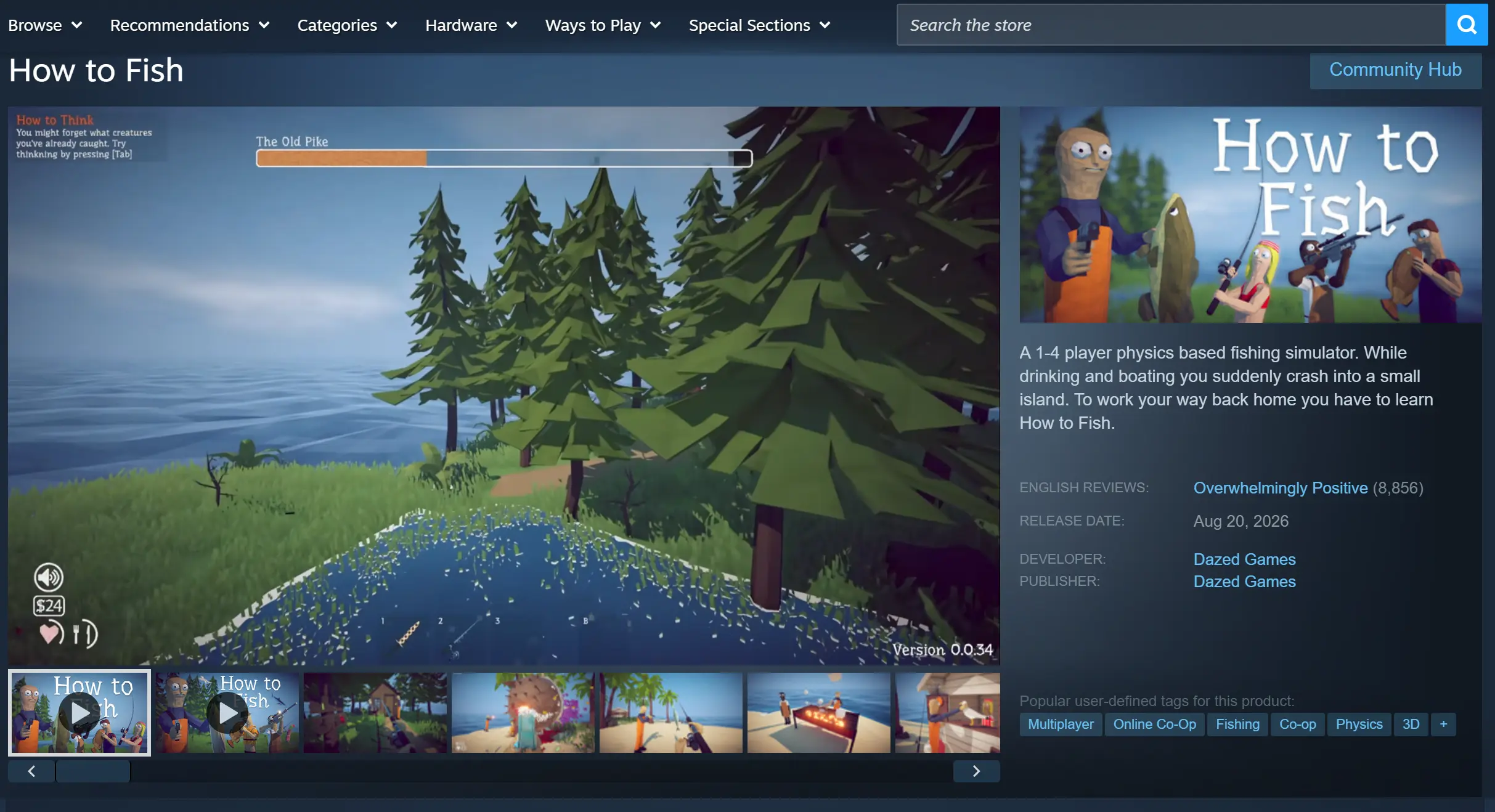
After the download is complete, it is recommended that you launch the game manually once and make sure it reaches the main menu normally without crashing or showing a black screen. This helps prevent issues with the game itself from being mistaken for a remote streaming problem later.
2. Set Up OSLink on PC and Mobile
PC Installation
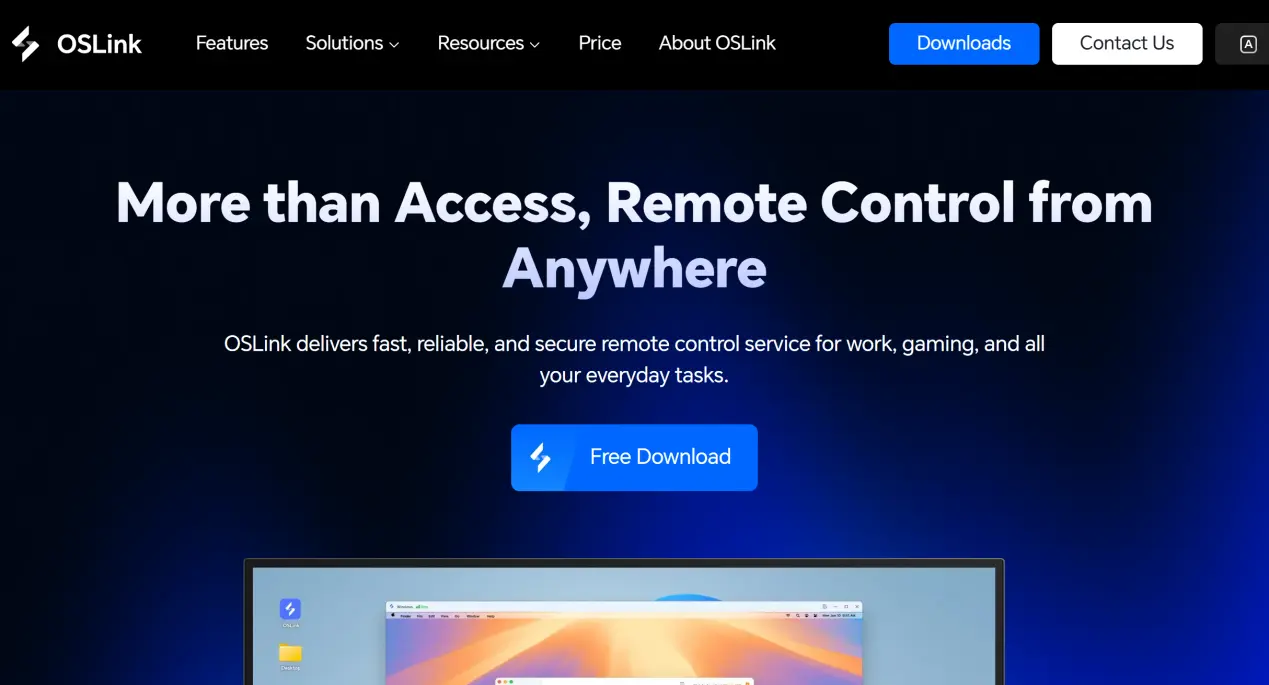
Search for “OSLink” in your browser, find and open the official OSLink website, then download the Windows installer. Follow the installation instructions to complete the setup. After launching the client, you can register and sign in with an email address or phone number. Your computer will be automatically linked to the account, and its name will appear in the device list.
Mobile Installation
Android users can search for OSLink on Google Play and install the app.
iOS users can search for the same app in the App Store and download it.
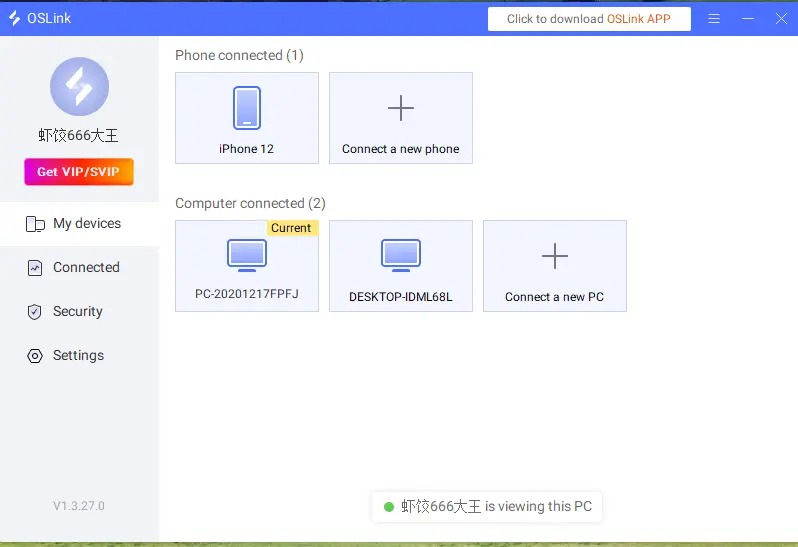
After installation, open the app and sign in with exactly the same account used on your computer. The system will automatically pair the devices, and the computer linked to your account will appear on the mobile device page.
3. How to Launch How to Fish with OSLink on Mobile
Step 1: Check Everything Before Connecting
Make sure your computer is powered on and OSLink is running in the background. You can also launch the game beforehand and leave it on the main menu. Connect your phone to the internet, preferably through 5 GHz Wi-Fi or a fast mobile network. Public networks can have unstable bandwidth and may cause stuttering, so they are best avoided when possible.
Step 2: Start the Remote Connection
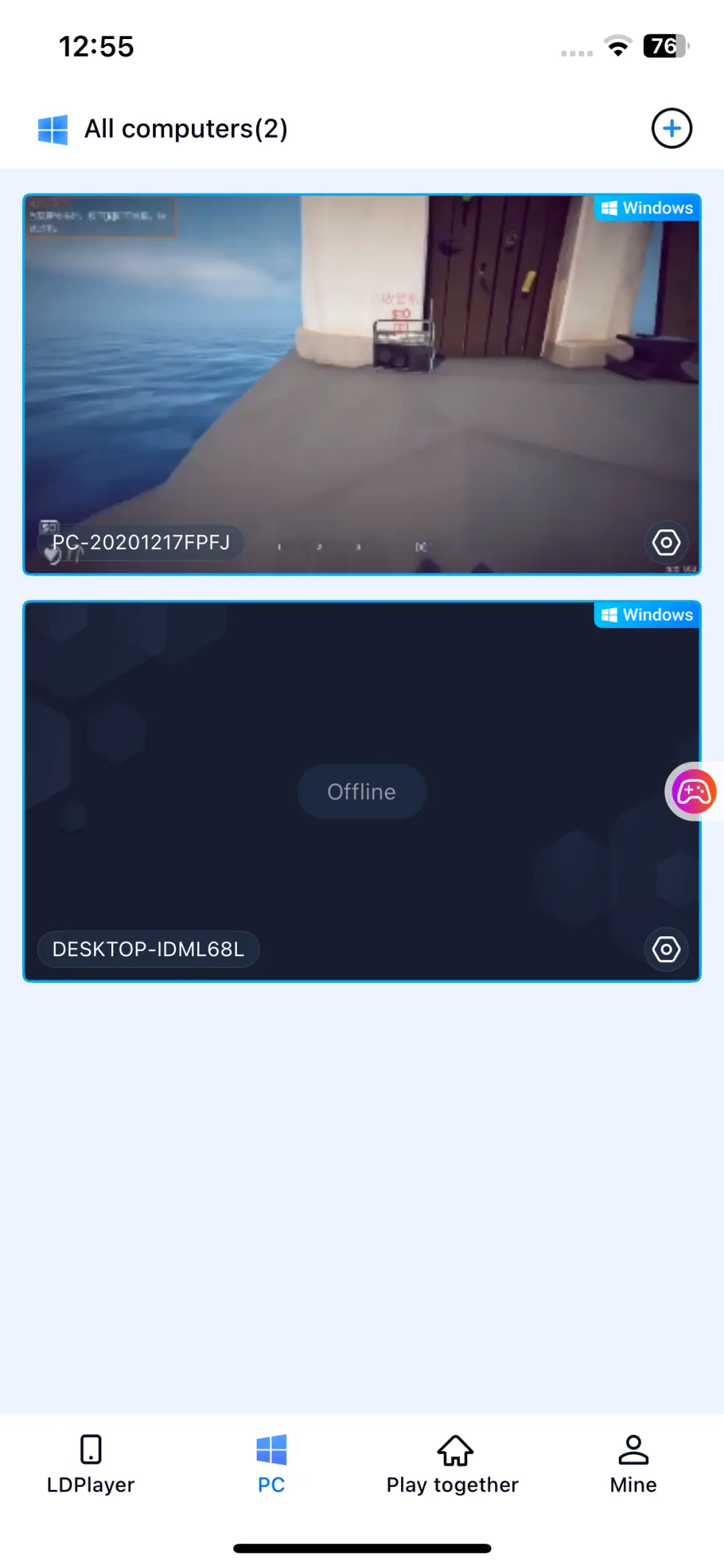
In the OSLink device list on your phone, tap the paired computer, then tap the computer icon at the bottom to enter the remote desktop mirroring interface. Your phone will display the computer's desktop in real time. Find the How to Fish window and bring the game to the foreground.
Step 3: Adjust the Initial Settings
For your first connection, it is recommended to enable the game-specific streaming mode. This helps optimize encoding for scenes with a lot of movement and reduce input delay. You can also switch to fullscreen so the game fits your phone's display. Once everything is ready, use the touchscreen or your configured virtual controls to start fishing and surviving on the island.
4. Benefits of Playing How to Fish on Mobile
Break Free from Location Restrictions
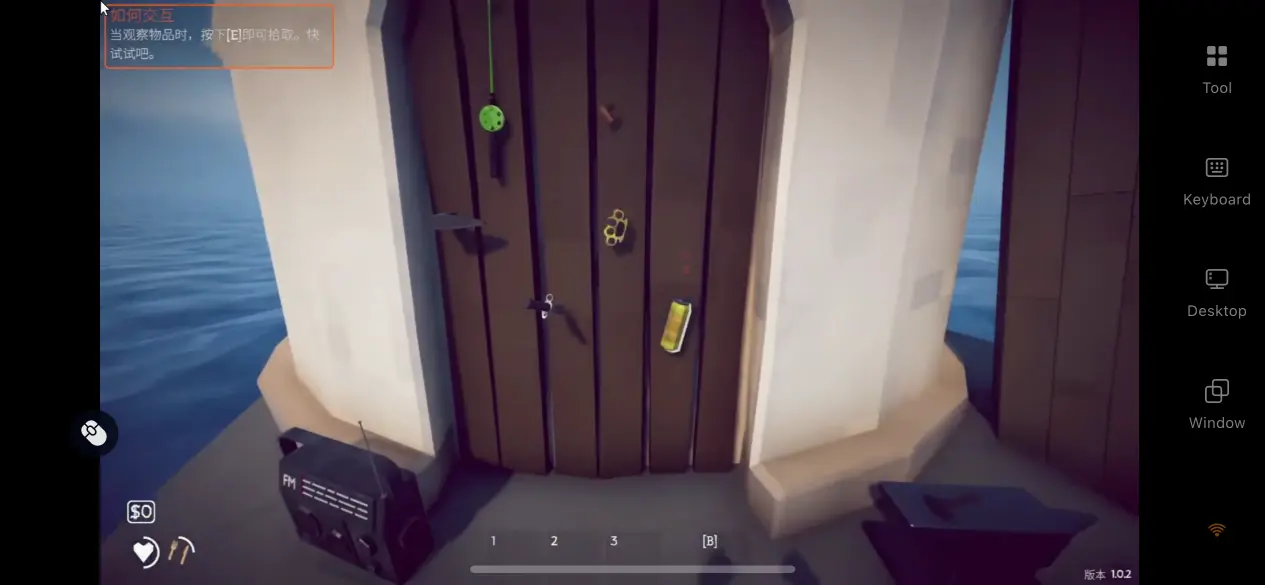
You no longer have to stay in front of your computer to play. Spare moments can be used to manage your island progress, such as sorting out fishing gear during your commute, handling fish sales during a break, or taking on fish bosses while you're out.
No Need to Store the Game on Your Phone
All game files remain on your computer's storage drive, while your phone only needs the lightweight OSLink client installed.
Even devices with limited storage can connect to the game normally, since all the computing and rendering work is handled by the PC.
Co-op Room Support
OSLink's room-sharing feature lets you share your computer desktop through an online room so multiple friends can connect. Others can help manage island activities, take turns fishing and fighting bosses, and work together on survival strategies.
5. Built-in OSLink Features
High-FPS, Low-Latency Streaming Mode
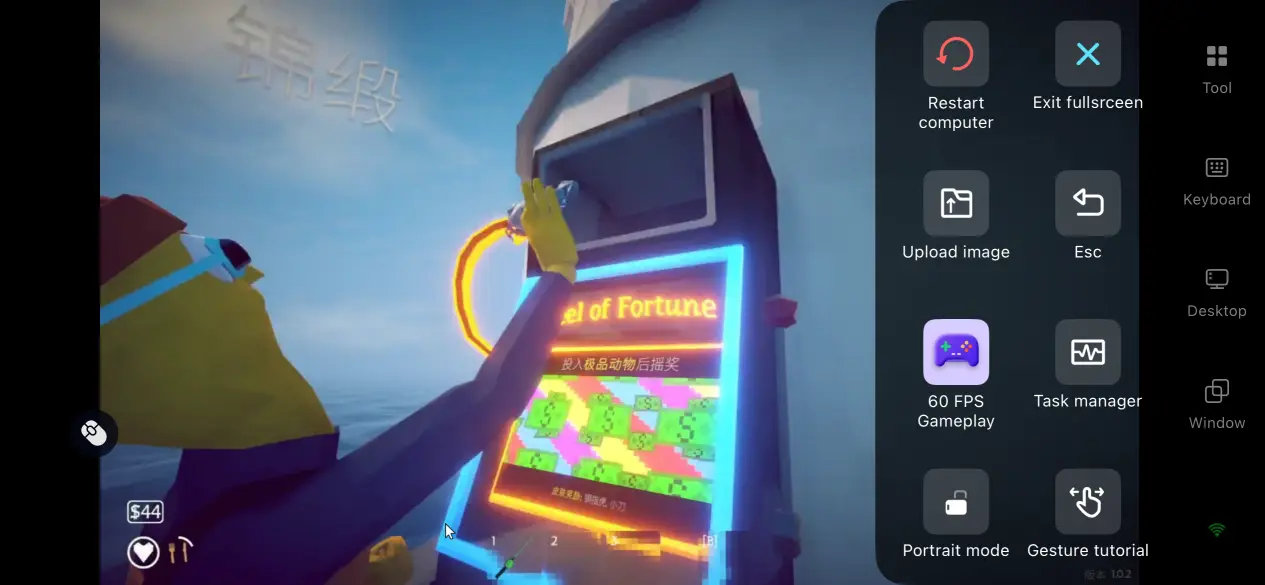
The toolbar includes several streaming presets. When the network connection is stable, enabling 60 FPS PC Game Mode increases the frame rate for smoother fishing and combat. If the network signal becomes unstable, switch to the Balanced preset to automatically adjust the bitrate and keep the stream running smoothly.
Complete Streaming Activity Log
OSLink keeps a complete record of remote streaming sessions, including connection times, connected devices, network IP addresses, and activity related to room sharing. If you notice an unfamiliar device connecting to your account, you can immediately end the current session to help keep your account secure.
External Game Controller Support
Your phone can pair with Xbox and PlayStation Bluetooth controllers. OSLink can automatically detect the controller hardware, so you do not need to map every button manually. Using the analog sticks for camera movement and fishing actions provides more precise control than relying entirely on touchscreen input.
Custom Display Settings
You can enable fullscreen mode and hide the system status bar. If the PC game's resolution does not match your phone's aspect ratio, you can choose to stretch the image to fit the screen or preserve the original aspect ratio with black bars. This helps prevent the UI and in-game objects from looking stretched or distorted.
Default Virtual Controls
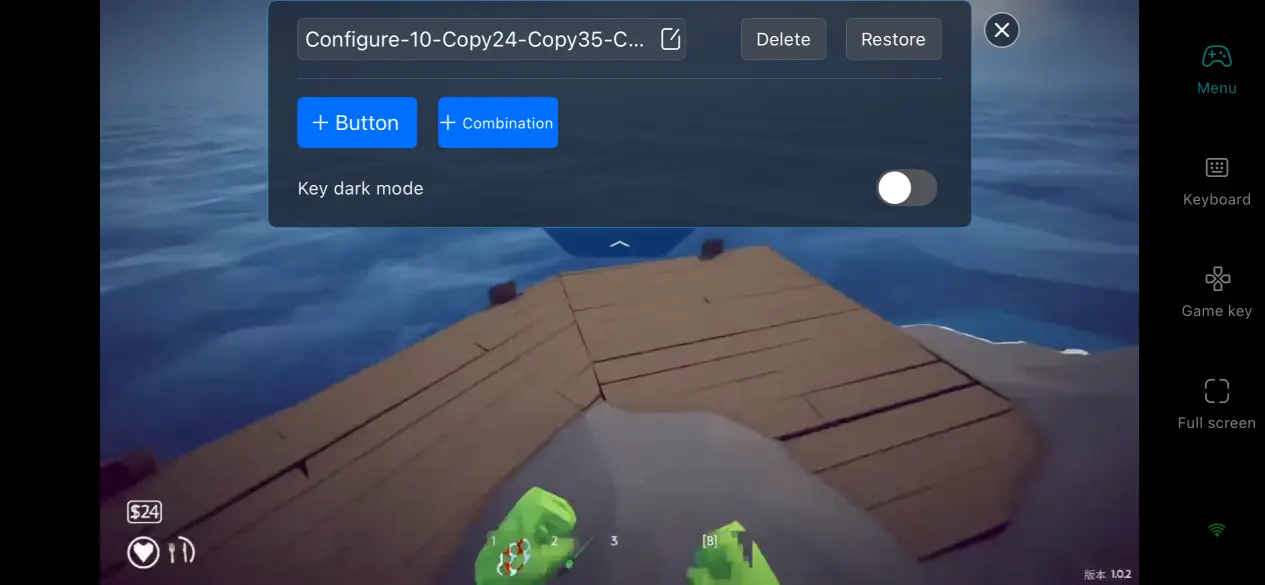
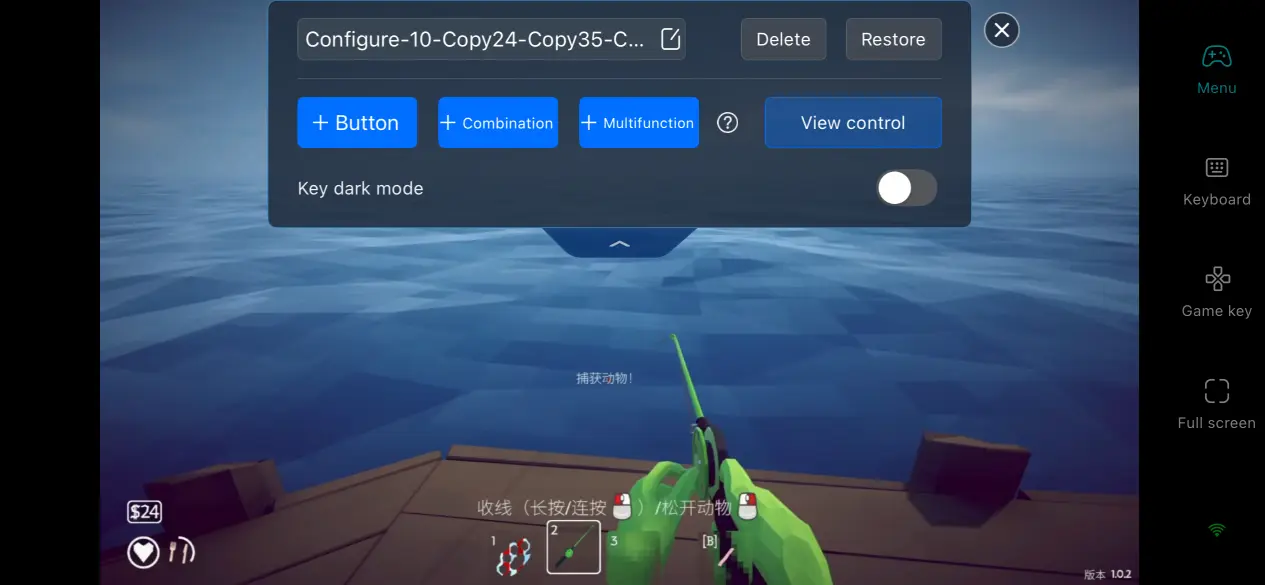
Open the key mapping editor to add touch buttons and bind them to keyboard or mouse commands on the PC. You can adjust the size, transparency, and position of each button. It is recommended to place movement and fishing controls within easy thumb reach, while putting trading and weapon-switch shortcuts on the opposite side to keep the game view clear.
6. Frequently Asked Questions
Q: When was How to Fish officially released?
A: The game officially launched on Steam on August 20, 2026. The full content is currently available, and the development team plans to add more islands, fish species, and equipment over time.
Q: What PC hardware is required to run How to Fish?
A: Minimum requirements: Windows 10 or later, an Intel i5-5257U or AMD Ryzen 3 1200 processor, 8 GB of RAM, a GTX 1050 or RX 460 graphics card, and 1 GB of available hard drive space. Recommended requirements: Windows 10 or later, an Intel i5-9400F or equivalent AMD processor, 16 GB of RAM, a GTX 1660 or better graphics card, and 2 GB of available hard drive space. The game uses a relatively simple visual style, so most standard home PCs should be able to meet the requirements.
Q: Can How to Fish be played on Android devices?
A: The game does not have a native Android version. Android phones need to install OSLink and remotely stream the game from a Windows PC where How to Fish has already been installed. This allows Android devices to access the full PC version remotely.
Conclusion
By using remote streaming, the PC-only How to Fish experience can be brought to mobile devices, giving players a way to keep playing without being tied to a desktop setup. If you often spend time away from home but do not want to pause your fishing and survival progress, follow the steps above and keep your island adventure going wherever you are.
 Download