English
 As a first-person Soulslike action game, Valor Mortis has drawn plenty of attention from hardcore action game fans with its tense close-quarters combat, alternate-history setting, and oppressive monster designs. The game is currently available only on PC and home consoles. If you don't want to interrupt your progress, you can follow the remote play setup guide below to enjoy the full game on your phone. We'll cover game access, software setup, settings, and common troubleshooting tips so you can play wherever you are and keep making progress.
OSLink can stream PC games to mobile devices. For a Soulslike game like Valor Mortis, which relies heavily on quick dodges and precise parries, OSLink is optimized to reduce input delay during transmission. It also works across different network environments, allowing connections over both local networks and the internet, making it easy to play PC games on your phone.
1. How to Play Valor Mortis
Getting the Game
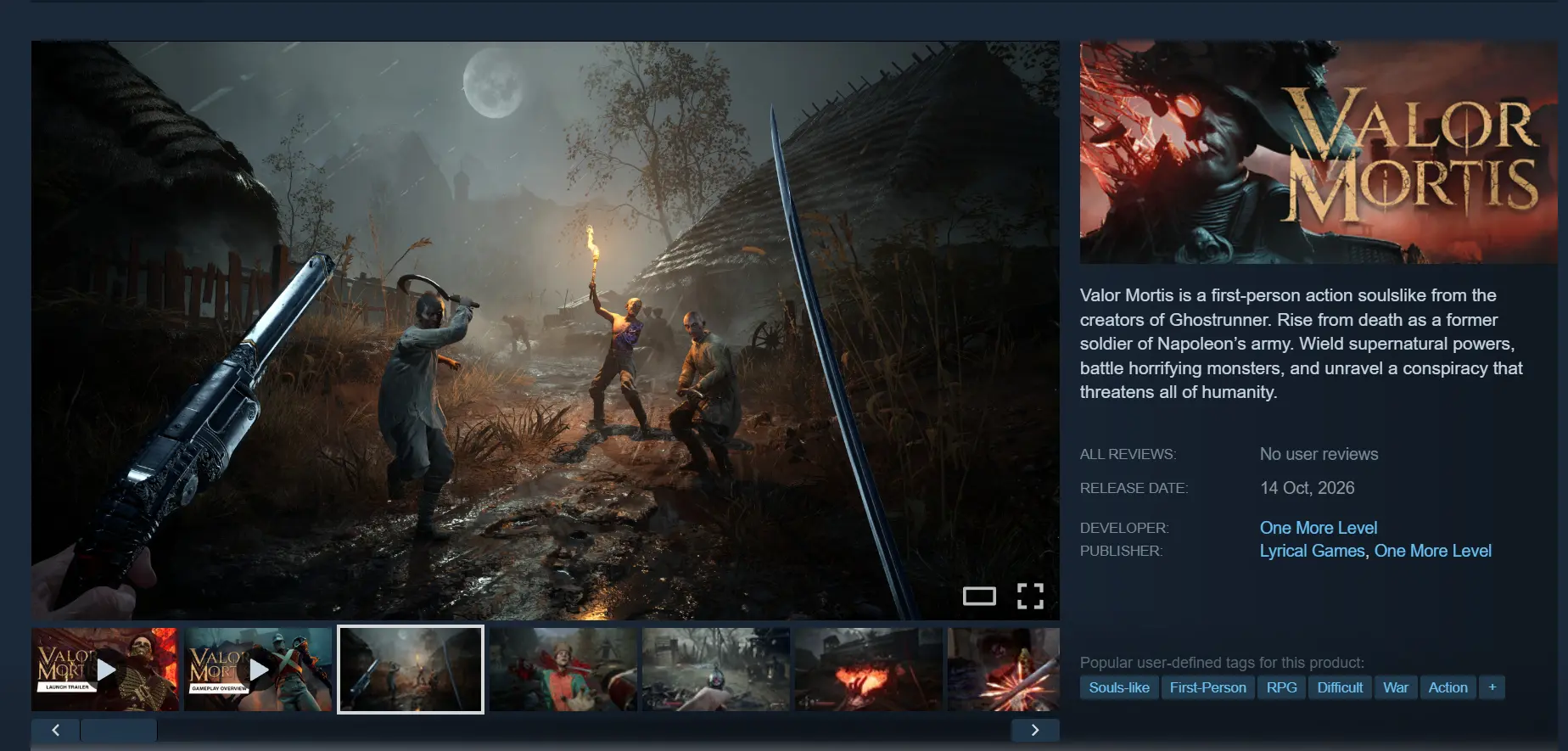
Valor Mortis is available on the Steam Store. There is no native Android or iOS version, so the game itself cannot be downloaded and run directly on a phone. Open the corresponding client, search for the full game title, and complete the purchase. You can then download and install it from your game library.
Once the download is complete, launch the game on your PC first and enter an actual combat section for a quick test. Make sure the game runs smoothly without crashes, texture issues, or other problems before moving on to the remote play setup.
2. How to Install OSLink on Your PC and Phone
Windows PC Setup
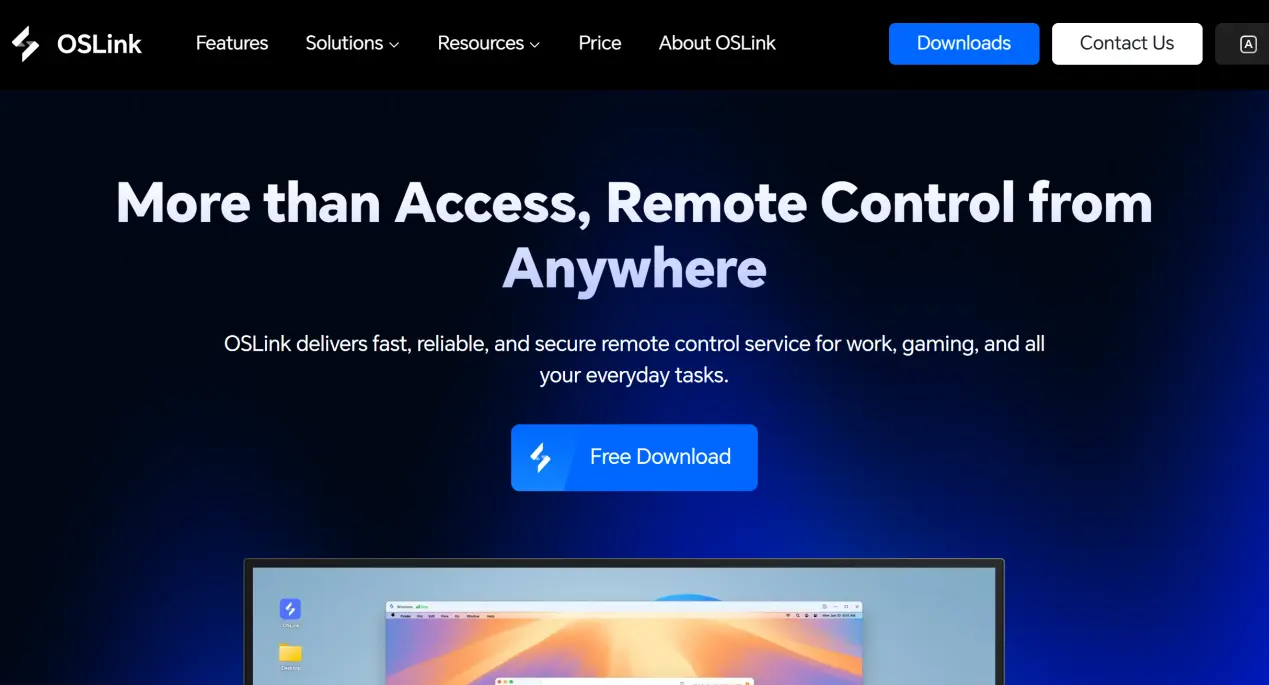
Visit the official OSLink website through your browser and download the Windows installer. Once the installation is complete, launch the software, create an account, and sign in.
OSLink needs to keep running in the background. You can open your PC's power settings and disable automatic system sleep and network adapter sleep to prevent the connection from dropping while the computer is idle. This allows your phone to send connection requests whenever you need to access the PC.
Mobile Setup
Android users can search for OSLink on the Google Play Store and install it. iOS users can download the same app from the App Store.
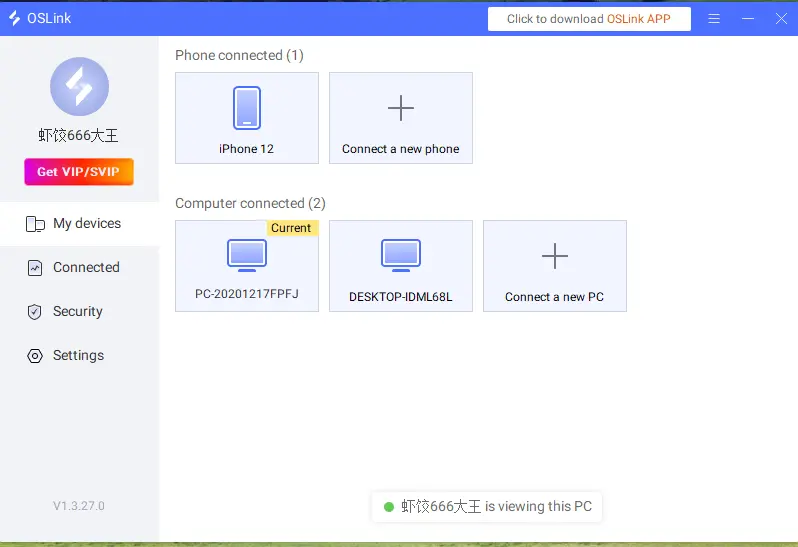
Note: Make sure you sign in to the mobile app with the same account used on the PC. The software can automatically detect PCs signed in to the same account on the local network. Pairing can also be completed over the internet without manually entering complicated device identification codes.
3. How to Run Valor Mortis on OSLink
Open the Steam client on your PC and launch Valor Mortis. Leave the game on the main menu and keep its window open in the foreground. Do not minimize it to the background.
Open the OSLink app on your phone. The device list will show online PCs linked to the same account. Tap the corresponding PC name to start the streaming connection.
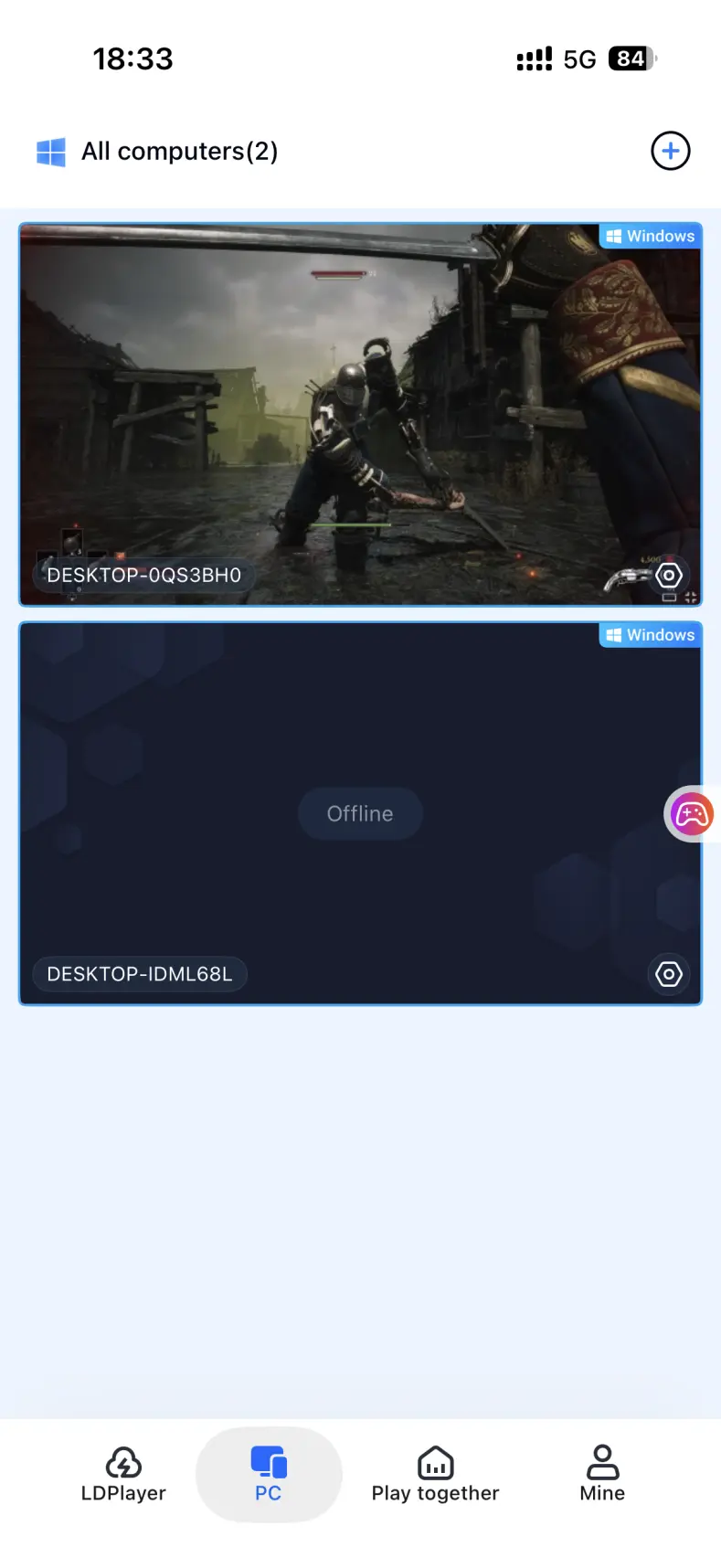
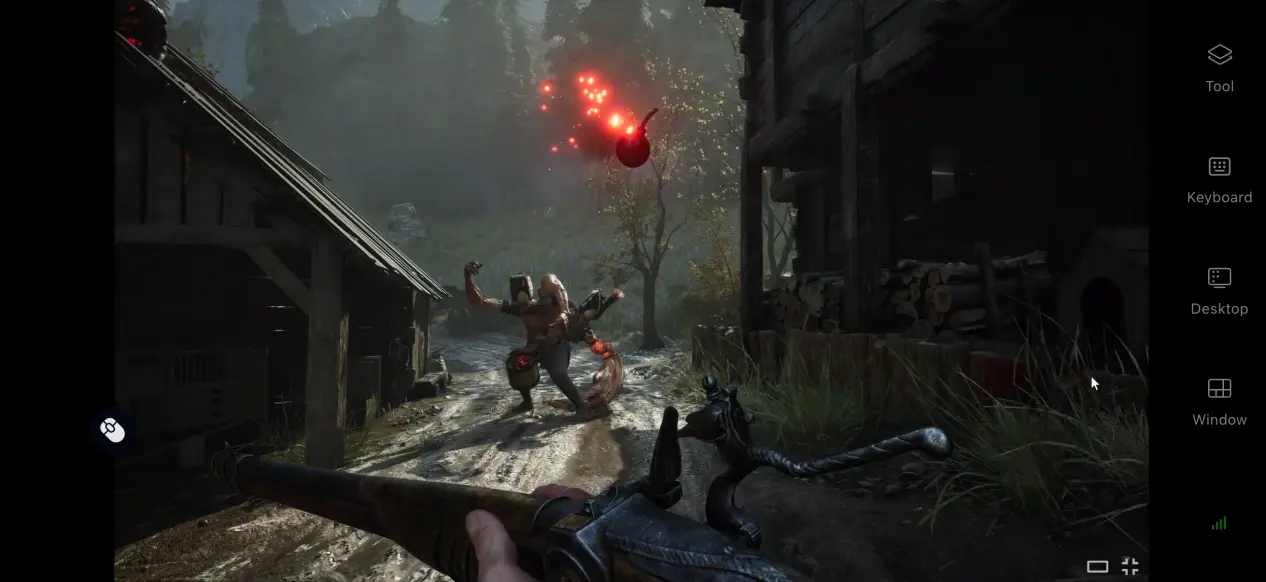
Once the PC screen is successfully streamed to your phone, open the side toolbar and switch to Game Mode. Load the preset virtual controls for action games, then adjust the button layout to match your preferences. You can also connect an external controller. Once everything is set up, you can play through the game, take on bosses, and experience the full game directly on your phone.
4. Benefits of Playing Valor Mortis on Your Phone
Continue Your Progress in Your Free Time
As long as your PC stays powered on and connected to the internet while the game is running, you can access it from your phone over Wi-Fi or mobile data whenever you want. This removes the usual time and location restrictions. Whether you're waiting around or taking a break while out, you can pick up where you left off and take on tough enemies without being tied to your PC.
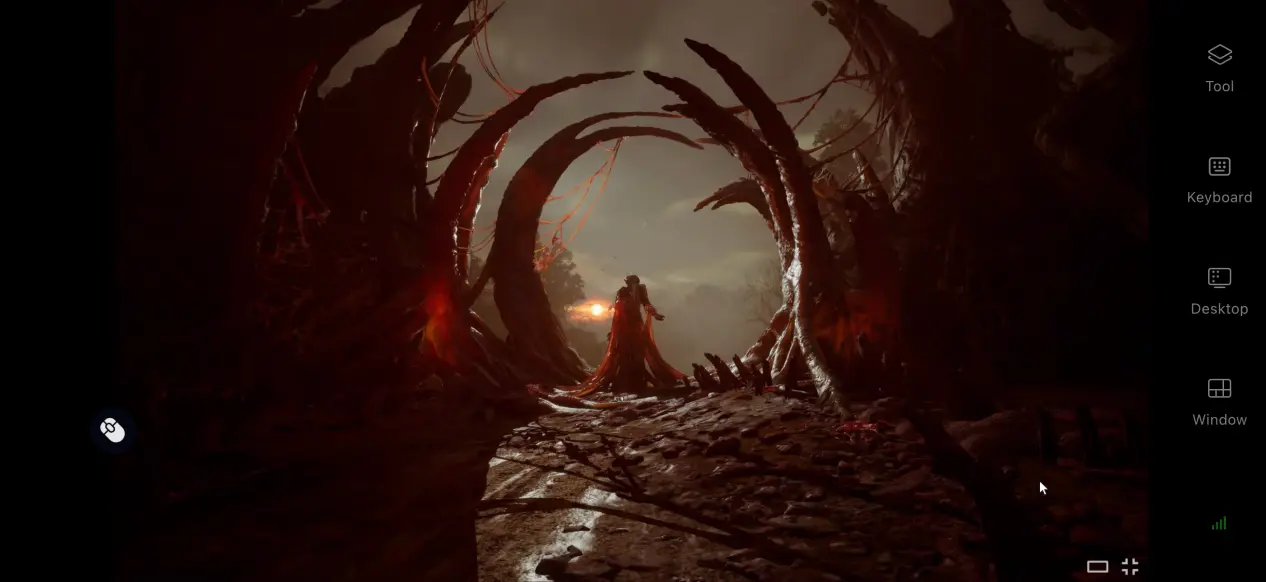
Supports a Variety of External Controllers
OSLink supports both Bluetooth and wired connections for controllers, keyboards, and mice. Once a controller is connected, its inputs can be mapped to the game's controls, providing more precise control during demanding Soulslike combat. This gives you more precise control over frequent actions such as parrying, dodging, and weapon combos.
No Need to Install the Game on Your Phone
All of the game's large resource files remain stored on your PC's hard drive. Your phone only receives the game display and sends control inputs back to the PC, so there is no need to download tens of gigabytes of game data. Even older phones with limited storage can be used to play.
5. How to Optimize Your Valor Mortis Experience on OSLink
Customize the Control Layout
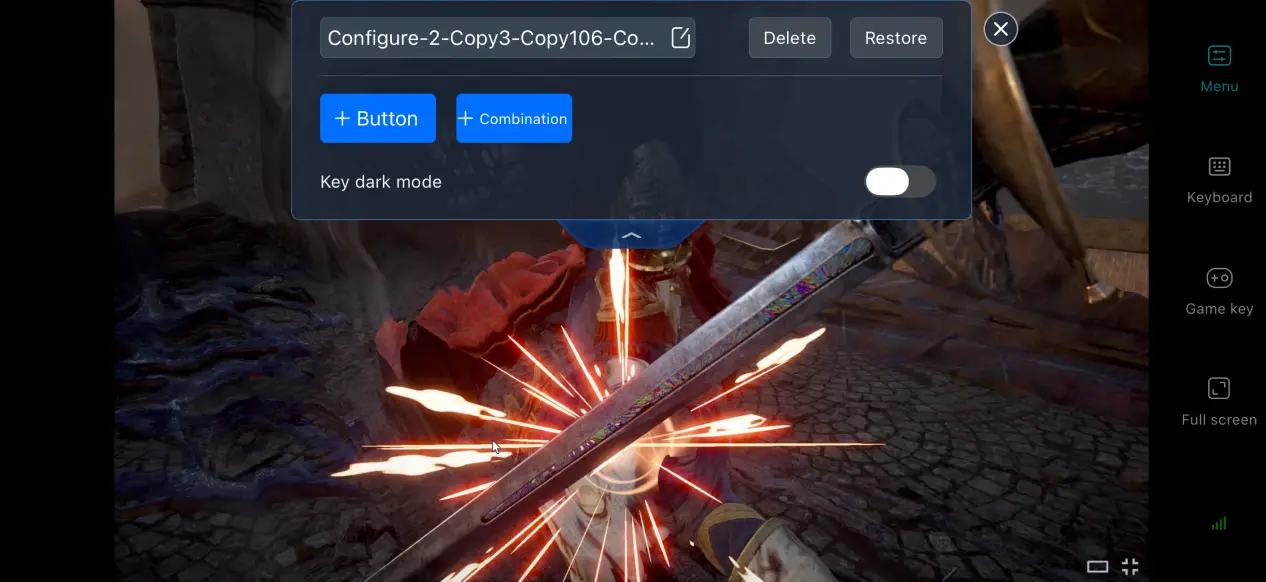
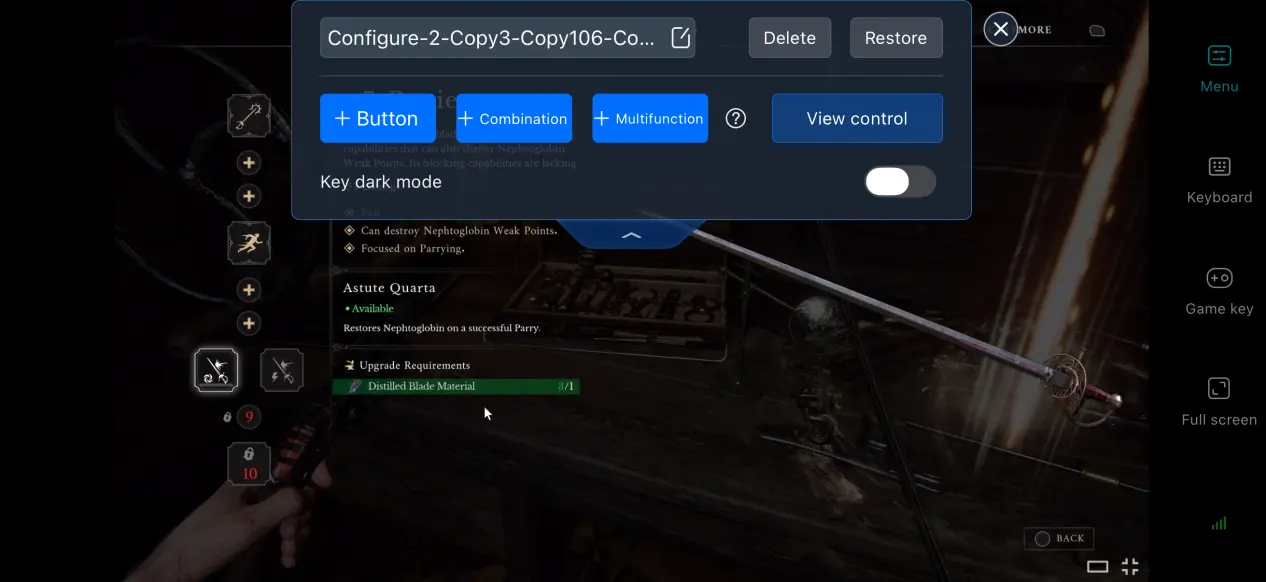
OSLink lets you add or remove virtual touch buttons and adjust their size, transparency, and position. Since Valor Mortis requires frequent parries, rolls, and skill usage, you can place the corresponding controls where they're easy to reach. You can also save multiple control layouts and quickly switch between them for boss fights and exploration.
Connection History
The system automatically saves records of previously connected devices, so you don't have to search for your PC every time you open the app. Simply select a device from your connection history to start streaming quickly. If you notice an unfamiliar connection, disconnect it immediately to help protect your account.
Remote PC Gaming Mode
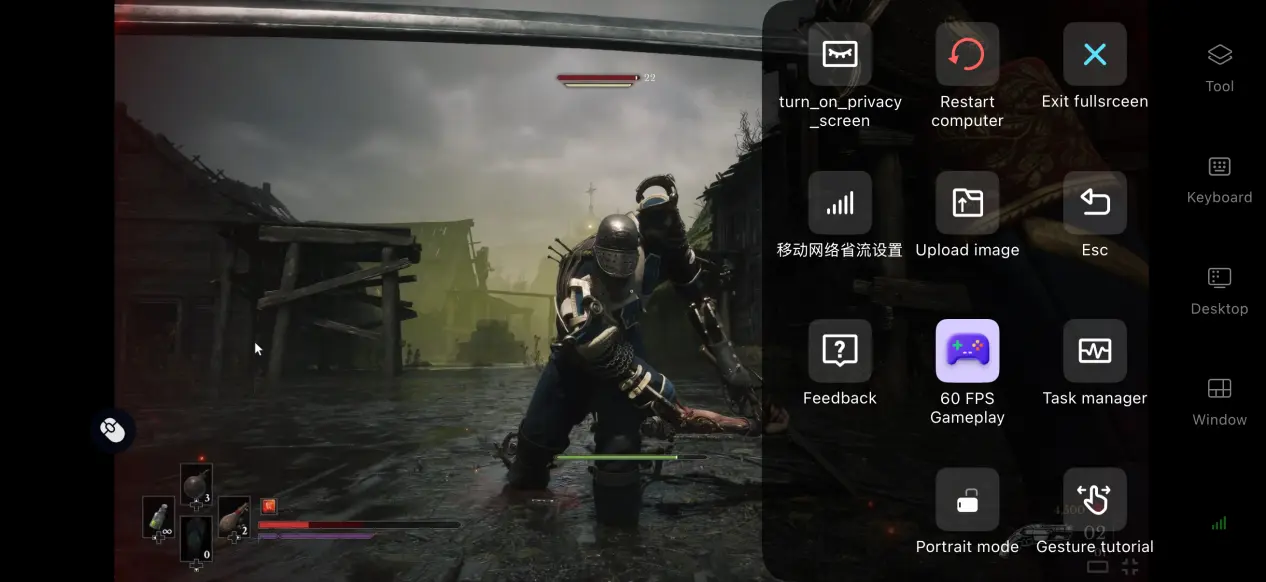
After enabling the built-in 60 FPS PC Gaming Mode, the software automatically adjusts its encoding strategy to reduce motion trails during fast camera movements and fights against multiple enemies. It also shortens the gap between input and on-screen feedback, making combat feel more responsive and fluid.
Adjust the Display for Mobile Screens
When the PC game's aspect ratio doesn't match your phone's screen, you can enable OSLink's Fullscreen Mode. The system will automatically hide the toolbar and adjust the display to fit your screen. You can either stretch the image to fill the screen or keep the original aspect ratio with black bars to prevent the UI and character models from being distorted.
6. Frequently Asked Questions About Playing Valor Mortis on OSLink
Q: What is Valor Mortis release time?
A: Valor Mortis release date is October 13, 2026. It launched on PC via Steam, as well as on PS5 and Xbox Series X|S. There is no native mobile version.
Q: What PC specifications are required for Valor Mortis?
A: Minimum requirements: Windows 11, an i5-10600K/Ryzen 5 3600 processor, 16 GB of RAM, a GTX 1660 Ti/RX 5600 XT graphics card, and a 60 GB SSD. Recommended requirements: Windows 11, an i5-13400/Ryzen 7 5800X processor, 16 GB of RAM, and an RTX 3070/RX 6800 graphics card. Running the game from a mechanical hard drive is not recommended.
Q: Can I Play Valor Mortis on iOS?
A: There is no official native iOS version of the game. You can play Valor Mortis by remotely streaming it from a PC through OSLink.
Q: Can I Play Valor Mortis on Android?
A: While Valor Mortis doesn't have a native Android version, you can use OSLink to stream the PC game to your Android phone or tablet and enjoy the full experience remotely.
Conclusion
Valor Mortis is a first-person Soulslike action game built around challenging combat. The official release is limited to PC and home consoles, with no native mobile version. If you want to break free from the limitations of playing at your usual setup, OSLink provides a practical remote streaming solution. With this tool, you can stream the PC version to your phone, make use of spare moments throughout the day, continue the story, and take on challenging bosses.
 Download