English
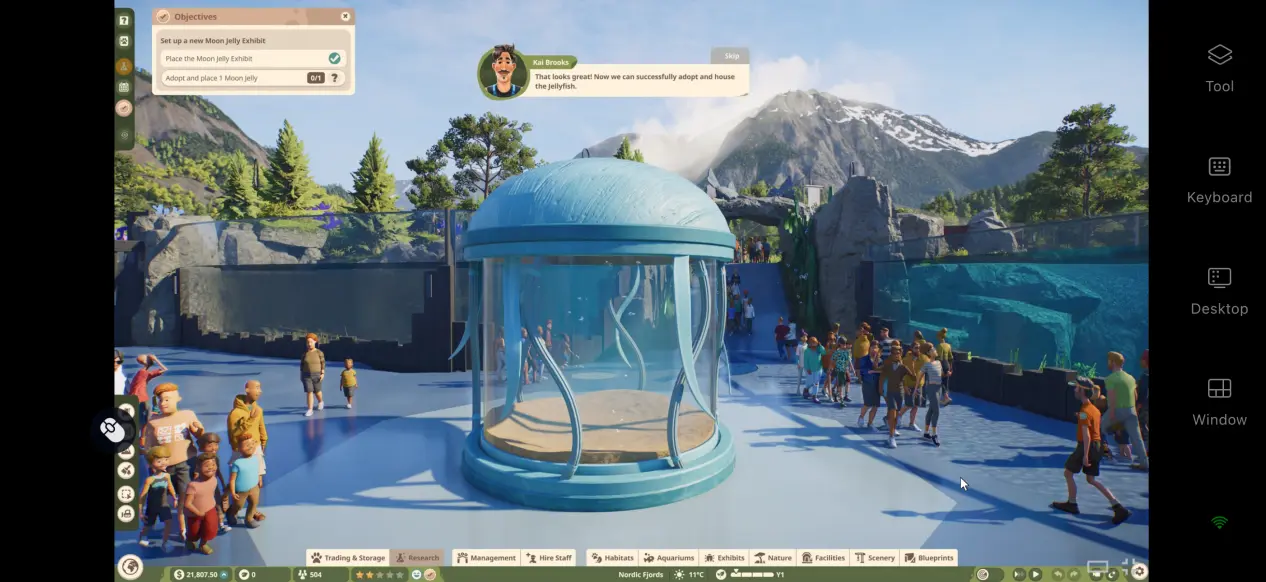
 Planet Zoo 2 is a deep management simulation that lets you care for land, aquatic, and flying animals. Players need to plan habitat layouts, keep animals healthy and happy, manage the visitor experience, and build a zoo of their own. The full game is mainly designed for PC and console platforms, with no native mobile version available. If you want to play Planet Zoo 2 on your phone without a native mobile version, this guide walks you through purchasing the game, installing OSLink, connecting your devices, and optimizing your remote play experience. Follow the steps below to get started.
OSLink works well for remote play with management sims like Planet Zoo 2, and the whole setup can be completed without making any system-level changes to your computer or phone. Once everything is configured, the full game screen from your PC is streamed to your phone in real time, letting you handle everything from building habitats to taking care of your animals directly on mobile.
1. How to Get Planet Zoo 2
Main Purchase Options
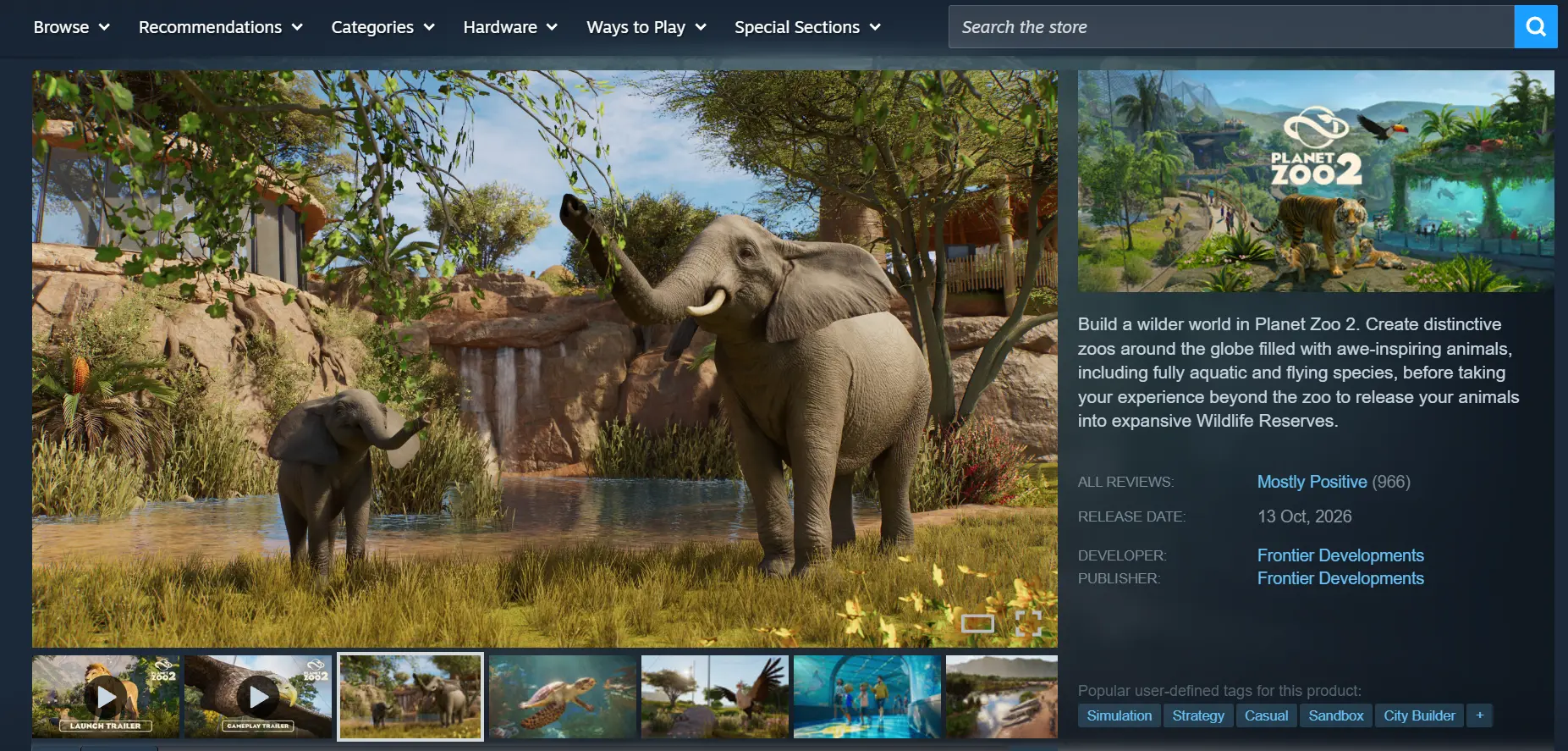
The PC version is available on both Steam and the Epic Games Store. Open the corresponding client, search for the game by name, confirm that you have selected the correct version, and complete the purchase. Once the order is processed, open your library and download the game.
Launch and Initial Check
Planet Zoo 2 requires around 40 GB of available storage. After downloading it, launch the game directly on your PC first and make sure everything works properly. Confirm that you can load a save and enter the zoo-building interface without crashes or texture issues before moving on to the streaming setup.
2. Install OSLink on Your PC and Phone
Windows
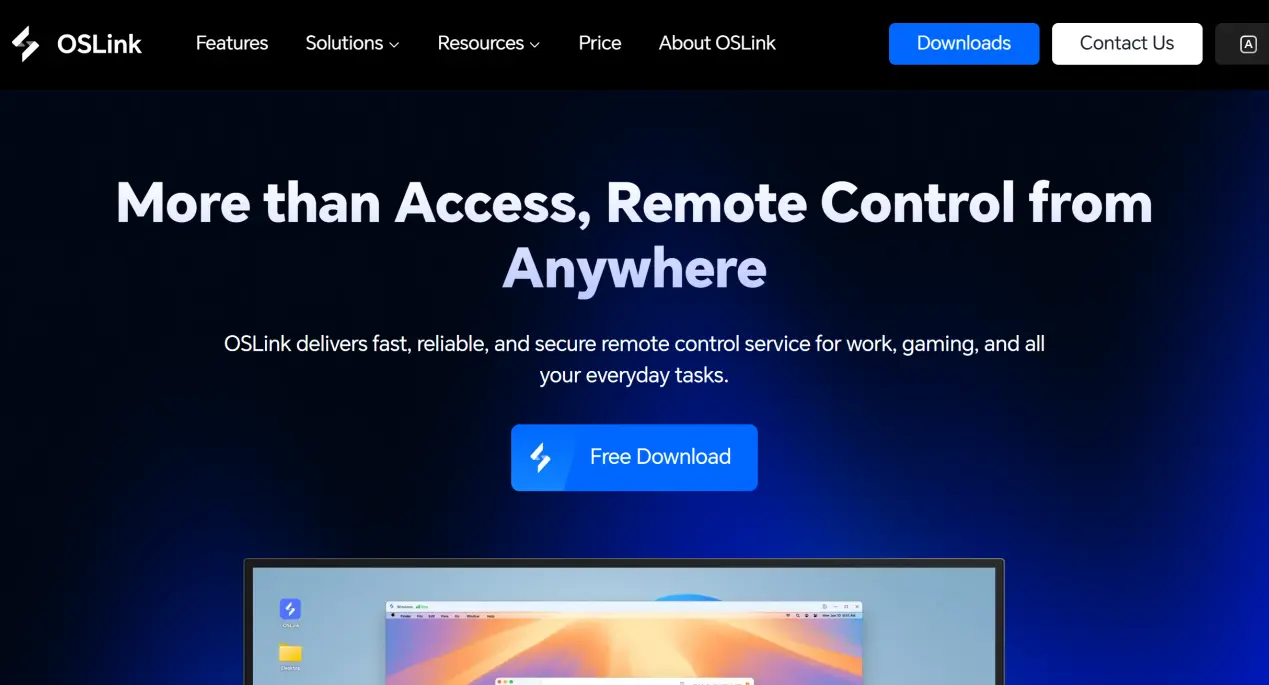
Open a browser and visit the official OSLink website. Download the Windows installer and follow the on-screen instructions to complete the installation. If necessary, add OSLink to your security software's allowlist to prevent it from being blocked or closed during remote play.
Mobile
Android users can download the APK from the official website or search for OSLink in an app store. iOS users can simply search for OSLink in the App Store and download it.
Pair Your Devices
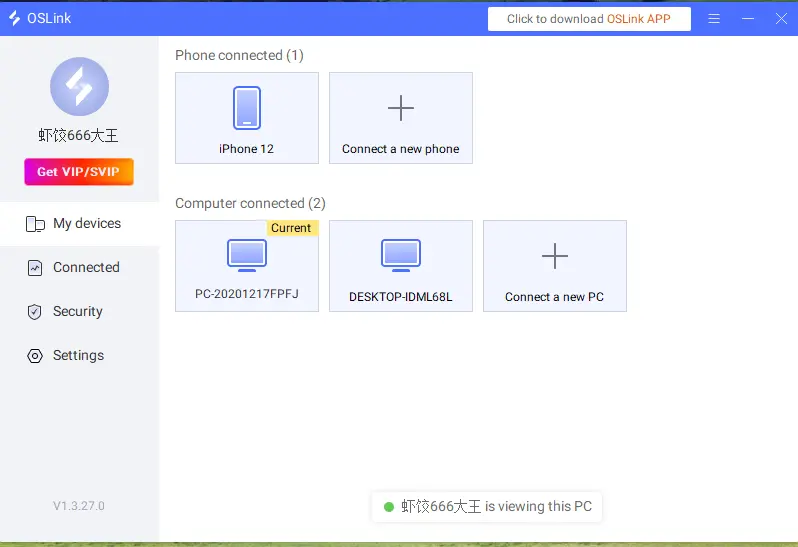
Once OSLink is installed on both devices, sign in to the same account on your phone and computer. After your account is verified, the software will automatically establish an encrypted connection between the two devices, completing the initial pairing setup.
3. How to Play Planet Zoo 2 on Mobile with OSLink
Prepare Your PC
Keep OSLink running in the background on your computer. Disable automatic system and hard-drive sleep, then launch Planet Zoo 2 through Steam. Wait for the game to finish loading, then leave it on the main menu or load an existing save.
Start a Remote Connection
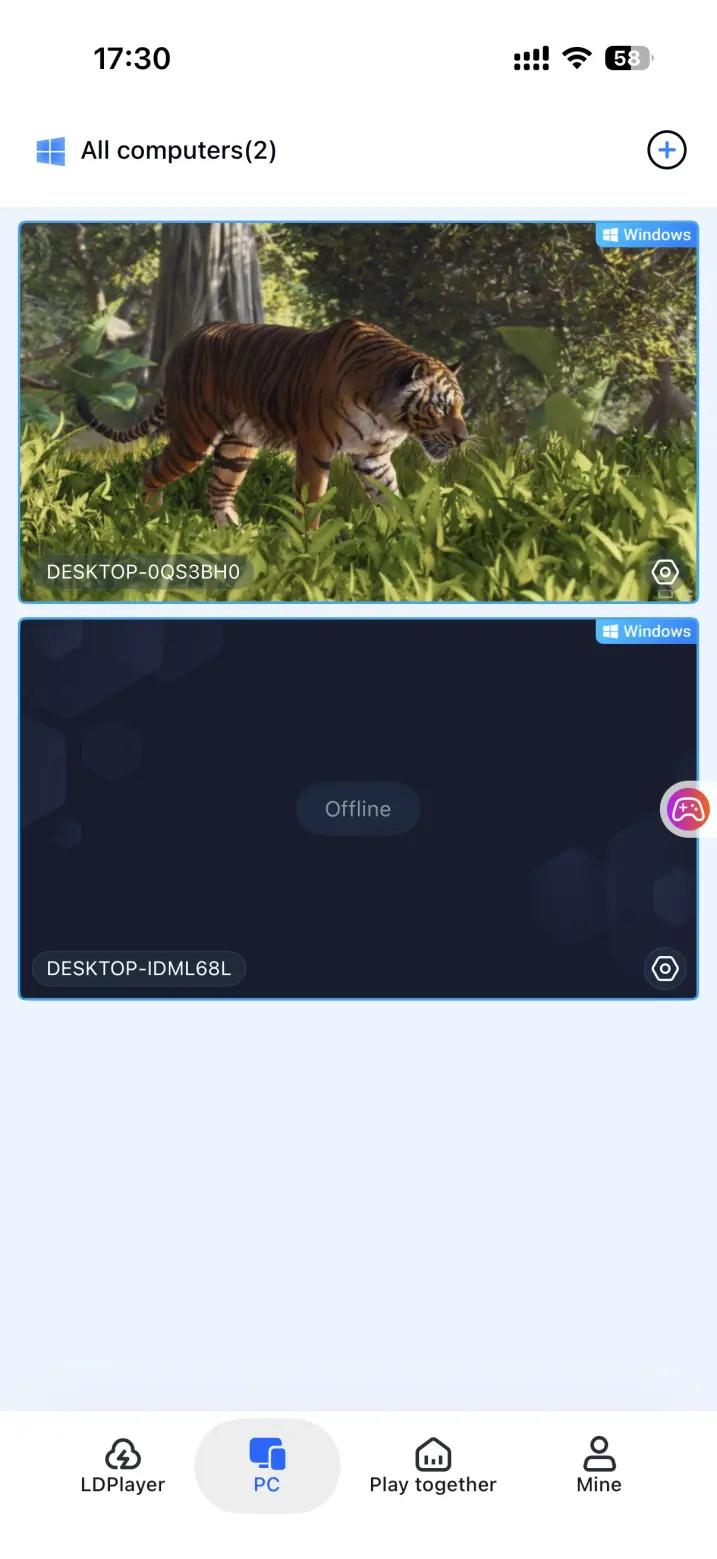
Open OSLink on your phone. The device list will show computers that are signed into the same account and currently online. Select the computer you want to connect to and start the remote session. Once the connection is established, switch the preview window to full screen, and your PC display will be mirrored to your phone.
Start Managing Your Zoo
Once the screen is mirrored, open the toolbar on the side of your phone and enable the streaming mode suited for management and simulation games. After that, you can expand habitats, trade animals, schedule staff shifts, and handle other day-to-day zoo management tasks directly from your phone.
4. Benefits of Playing Planet Zoo 2 on Your Phone
Manage Your Zoo Anywhere
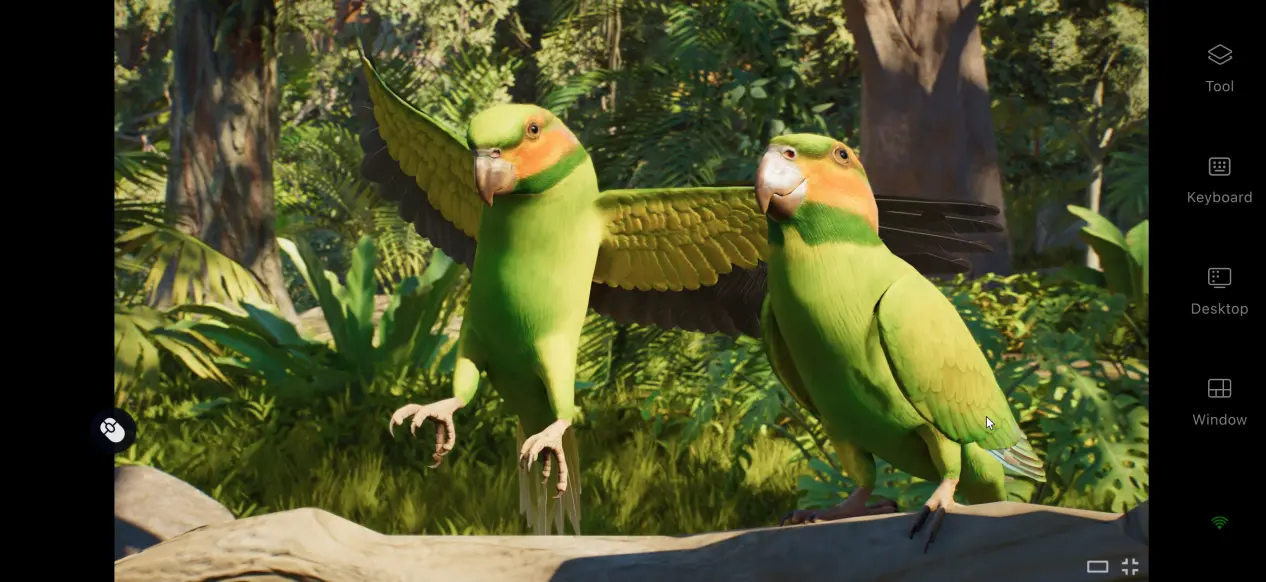
As long as your network connection is good enough, your phone and PC don't need to be on the same local network. You can pick up where you left off while waiting for someone, commuting, or taking a break, adjust habitat budgets, and plan conservation tasks without being tied to your desk.
No Storage Burden on Your Phone
The game itself takes up around 40 GB, but all of those files stay on your computer's hard drive. Your phone only receives the game footage and sends back your input commands, so there's no need to download a huge game package or put extra rendering load on your phone. Even phones with limited storage or older hardware may be able to stream the game smoothly, provided they have a stable network connection.
Manage the Same Zoo Together
The software includes a "Play Together" room feature that lets you share an active Planet Zoo 2 session with others. Invite other accounts into the room, and multiple players can work together using the game screen on the same computer. It's useful for discussing habitat layouts together or splitting up animal care tasks.
5. Optimize Your OSLink Remote Play Experience
Customize Your Controls
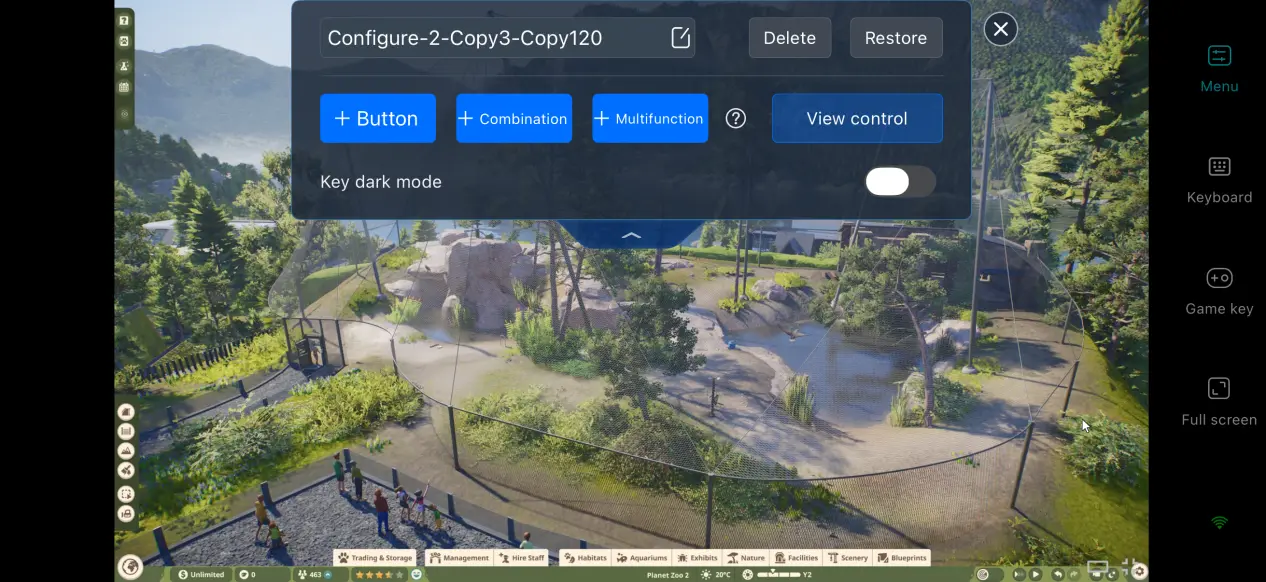
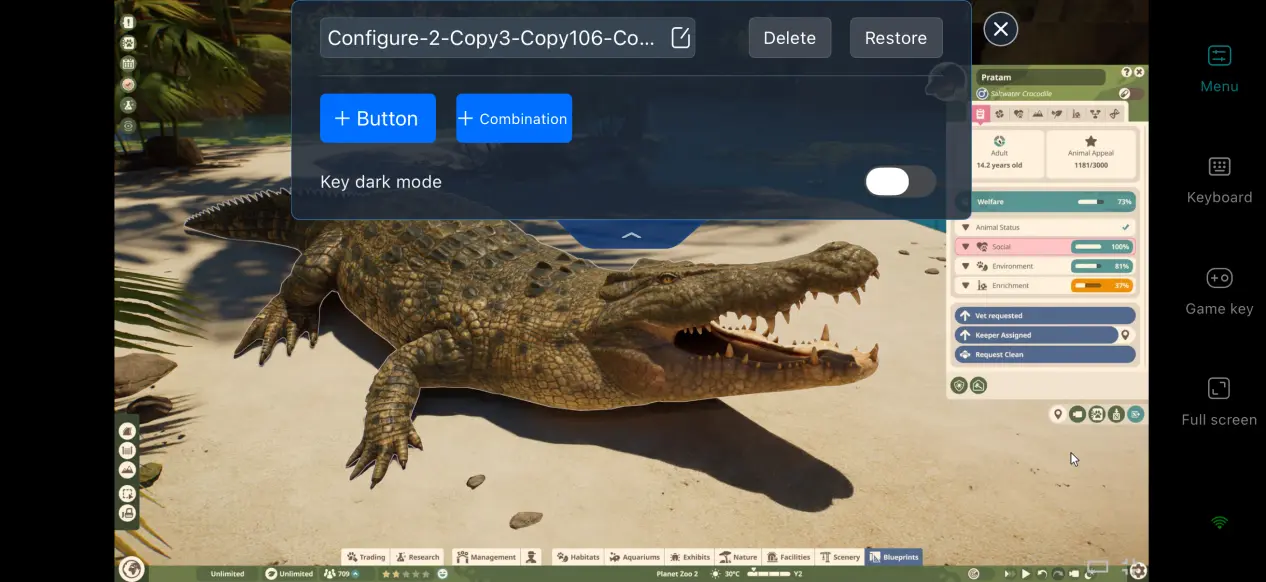
Management games frequently involve navigating habitat menus, animal information panels, and other interface screens. For these common actions, you can use OSLink's custom control feature to add virtual buttons and shortcut combinations. Position the controls wherever they feel most natural to you, making mobile controls feel closer to the original experience and reducing accidental taps.
High Frame Rate, Low Latency Mode
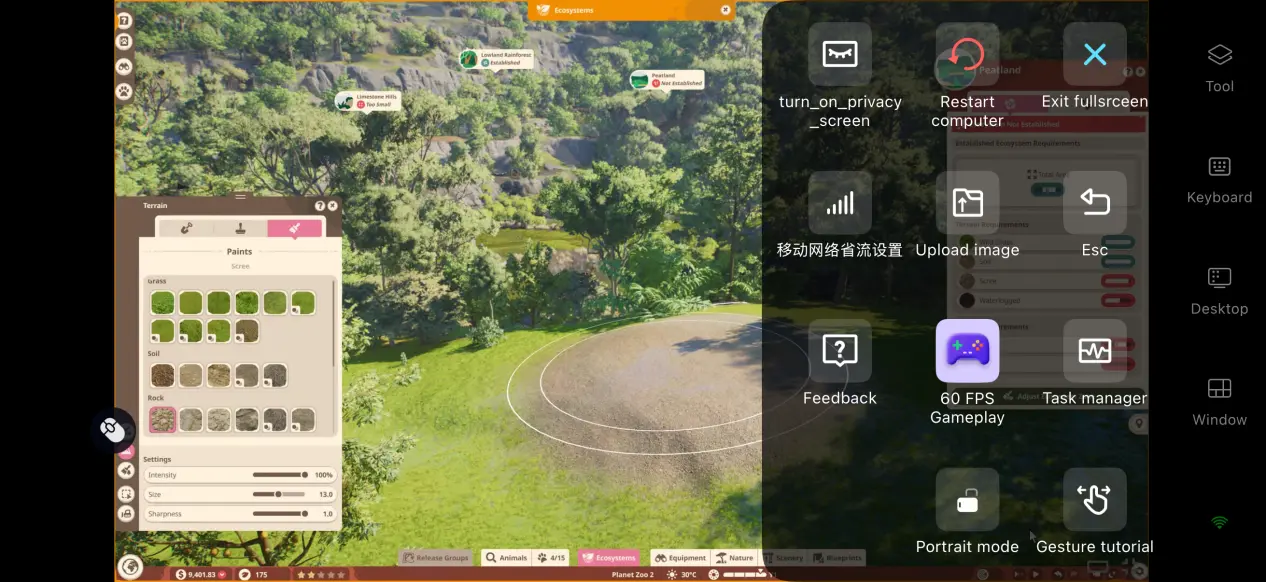
After enabling the 60 FPS PC gaming mode, the software reallocates bandwidth to prioritize input commands. This helps reduce stuttering and input delay when rotating the view or zooming in to check animal details. If your network connection becomes unstable, you can lower the video bitrate slightly in exchange for smoother controls.
Mobile Screen Scaling
After switching to full screen, OSLink automatically hides your phone's status bar and gesture area. When the game's resolution doesn't match your phone's screen ratio, the mirrored image is automatically scaled while keeping black bars to a minimum. This preserves the original aspect ratio and keeps the interface and menus fully readable.
Wide Peripheral Compatibility
OSLink on mobile supports most Bluetooth controllers, keyboards, and mice currently available. Connecting a keyboard and mouse lets you replicate the PC control scheme, making it easier to position things accurately when planning habitats or handling detailed construction work. For controllers, it's best to customize the menu shortcuts in advance. Controllers can be convenient for navigating around the zoo and checking on animal conditions.
6. Frequently Asked Questions About Playing Planet Zoo 2 with OSLink
Q: What iS Planet Zoo 2 release time?
A: Planet Zoo 2 release date is October 13, 2026. There is currently no native mobile version.
Q: What are the PC system requirements for Planet Zoo 2?
A: The minimum requirements are Windows 10/11, an Intel i7-8700K or AMD Ryzen 5 3600, 16 GB of RAM, an RTX 2060 6 GB, RX 5600 XT, or Arc A750 graphics card, and 40 GB of available storage. An SSD is recommended.
The recommended configuration requires Windows 11, an i7-10700K or Ryzen 7 5800X, an RTX 3070 8 GB, RX 6700 XT, or Arc A770 graphics card, with an SSD required.
Q: Can I play Planet Zoo 2 on Android?
A: There is no official native Android installation package, so the game cannot be installed and run directly on Android. You can play Planet Zoo 2 on Android by streaming the PC version from a computer with the game installed using OSLink.
Q: Can I play Planet Zoo 2 on iOS?
A: While Planet Zoo 2 doesn't have a native iOS version, you can use OSLink to stream the PC game to your iOS device and enjoy the full experience remotely.
Summary
Planet Zoo 2 is a management simulation sequel centered around habitat building, aquariums, and bird conservation. Although there is still no official mobile client, OSLink can bring the full PC game experience to your phone without complicated setup. With just a few simple steps, you can jump back into the PC version remotely and manage animal welfare, visitor routes, and conservation budgets right from your phone.
 Download