English
 Warhammer 40,000: Boltgun 2 delivers fast-paced combat, gritty retro visuals, and hard-hitting weapon feedback that brings the brutal battlefields of the Warhammer 40K universe to life. However, playing on PC means being tied to your desk. If you want to take the game on the go, remote streaming offers a practical solution. This guide walks you through the entire process, from installing the required software and pairing your devices to configuring controls and troubleshooting network issues, helping you bring the full hardcore FPS experience to your phone. If you're ready to give it a try, follow the steps below.
Want to play Warhammer 40,000: Boltgun 2 smoothly on your phone? OSLink provides reliable streaming support. The entire setup is straightforward and requires no additional hardware modifications. Once your account is paired, you can launch the game and bring the complete PC gaming experience to your mobile device.
1. How to Play Warhammer 40,000: Boltgun 2
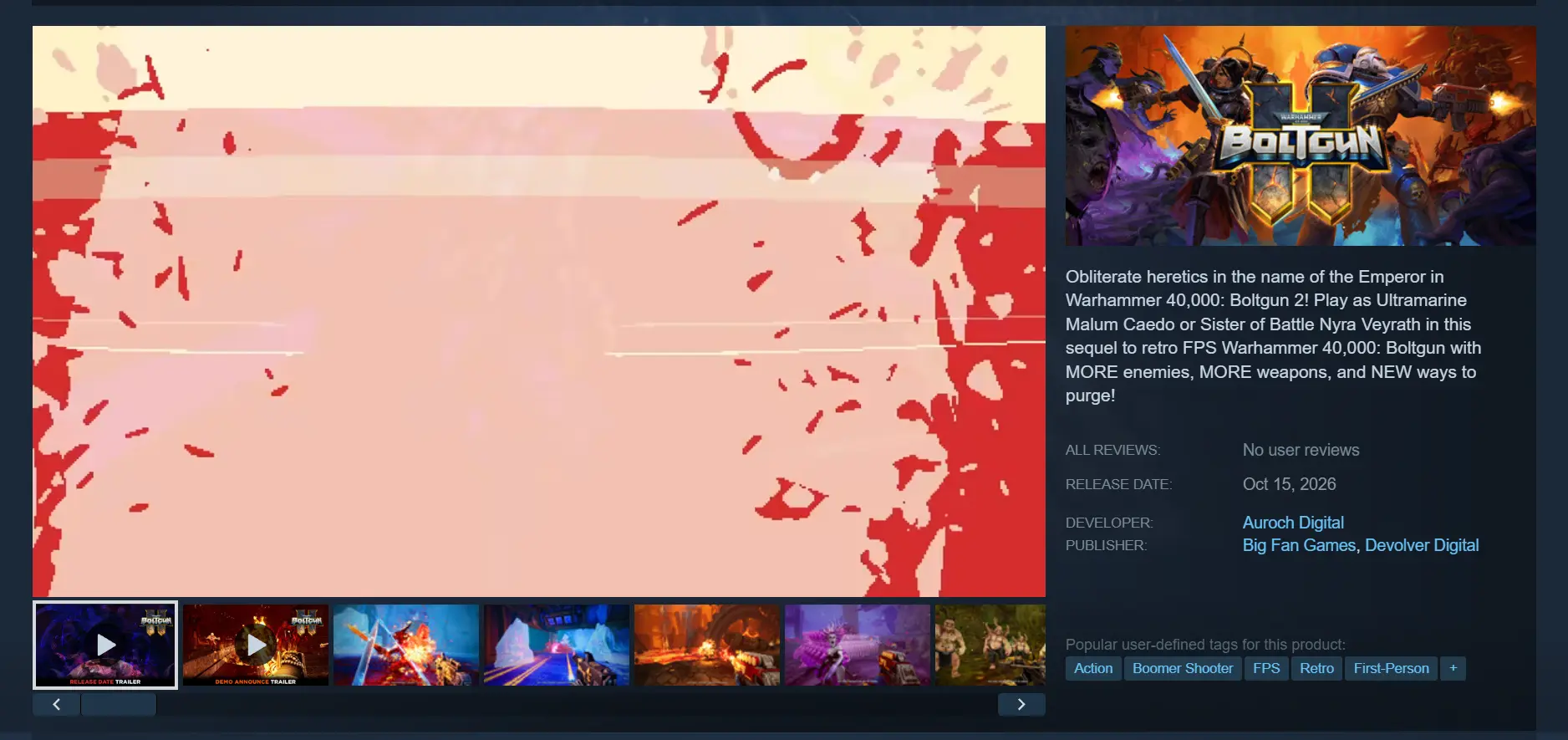
Open the Steam client on your PC and search for Warhammer 40,000: Boltgun 2 in the store. After purchasing the game, open your Steam library, select Warhammer 40,000: Boltgun 2, and click Install. Make sure you have enough available storage space before starting the download.
2. Install OSLink on Your PC and Phone
Install OSLink on PC
Visit the official OSLink website and download the Windows client. Run the installer to complete the setup. Once installation is finished, launch the software, register or sign in to your account, and keep OSLink running in the background on your PC.
Install OSLink on Your Phone
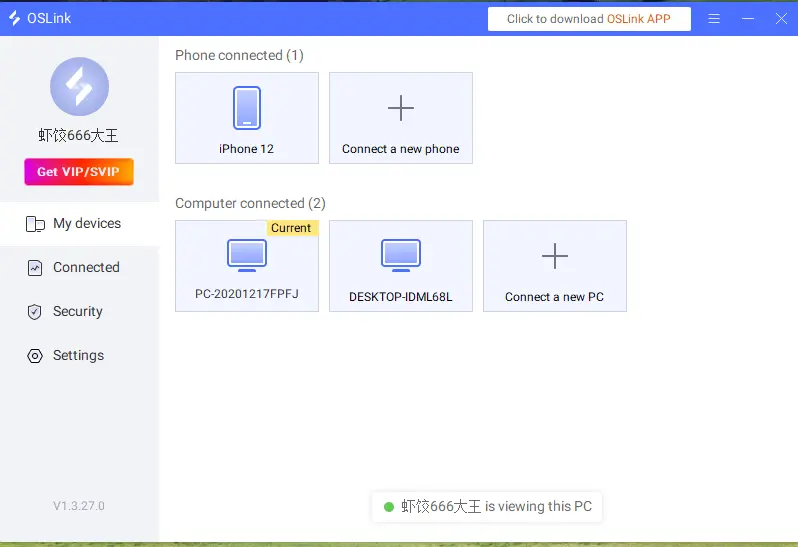
On iOS, open the App Store and search for OSLink. On Android, search for OSLink on Google Play, or use the APK installer provided on the official website. Once installed, sign in with the same account used on your PC. Your devices will be paired automatically after a successful login.
3. How to Run Warhammer 40,000: Boltgun 2 on Mobile with OSLink
First, make sure both your phone and PC are connected to the internet. Adjust your PC's power settings to prevent it from entering sleep mode and interrupting the remote connection. Open Steam and launch Warhammer 40,000: Boltgun 2 from your library. Wait for the game to finish loading until you reach the main menu.
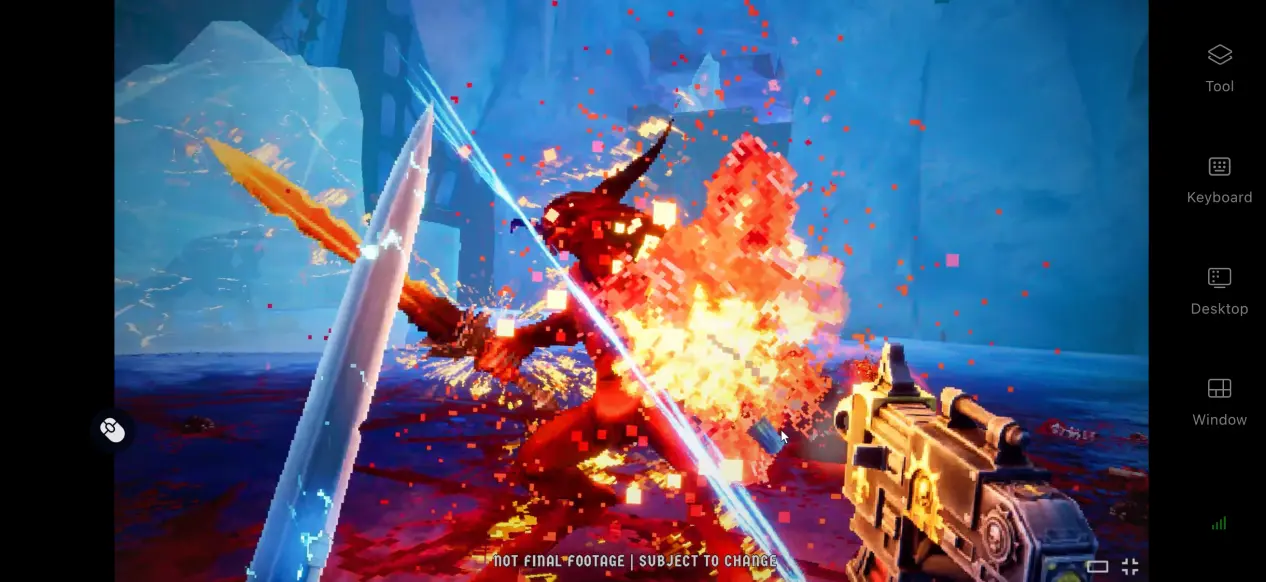
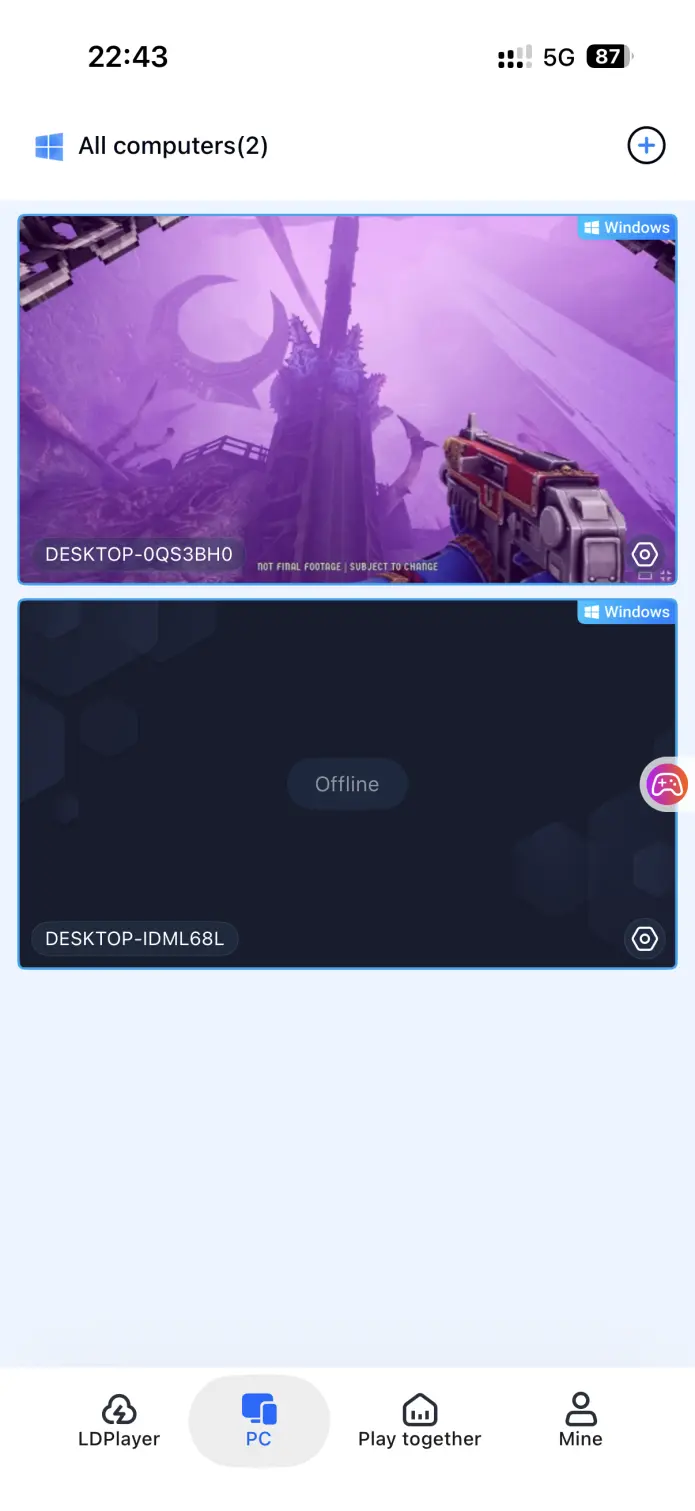
Open OSLink on your phone. The PC device list will show the names of available computers. Tap the target PC to enter the remote desktop streaming interface. Your phone will then mirror the game screen from your PC.
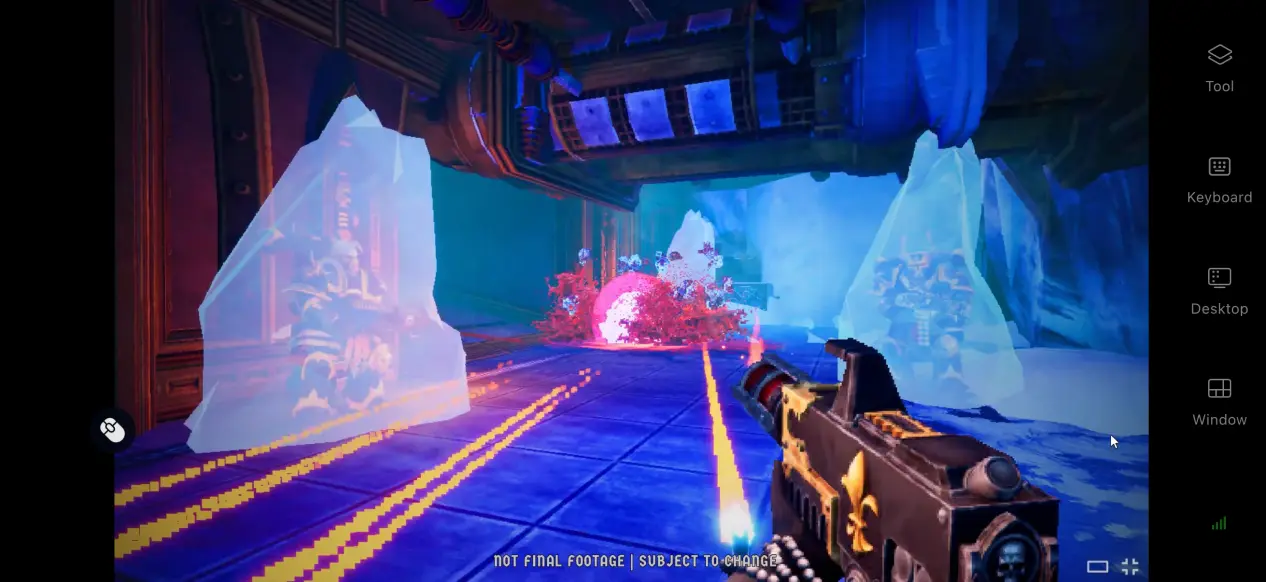
Once connected, open the OSLink sidebar and enable 60 FPS PC Game Mode. You can also adjust the streaming bitrate or connect external devices. After that, you're ready to play using touch controls or compatible peripherals.
4. Benefits of Playing Warhammer 40,000: Boltgun 2 on Mobile
Play Anywhere, Anytime
The game is rendered on your PC using its graphics settings, while OSLink streams the resulting video to your phone. This means your phone doesn't need to run the game locally, although streaming quality still depends on your network connection and streaming settings. Whether you're waiting in line or taking a lunch break, you can pick up where you left off using your existing save. Even when you're away from your desk, your progress stays with you.
No Need to Use Your Phone's Storage
All game files remain stored on your PC's hard drive, so there's no need to download tens of gigabytes of game data to your phone. Your mobile device only needs to store the OSLink app, meaning the game itself takes up virtually no additional phone storage.
Support for Multiple Peripheral Devices
The software supports mainstream Bluetooth controllers as well as Bluetooth keyboards and mice. You can connect a controller for a more console-like experience, making it more comfortable for longer gaming sessions.
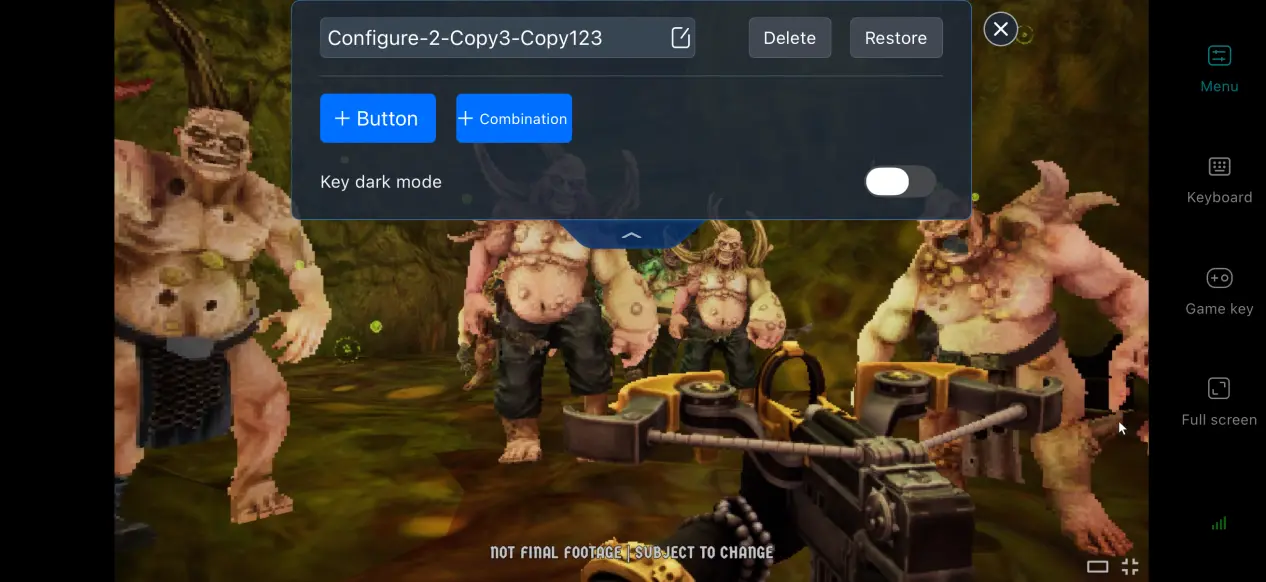
5. How to Optimize Your OSLink Gaming Experience
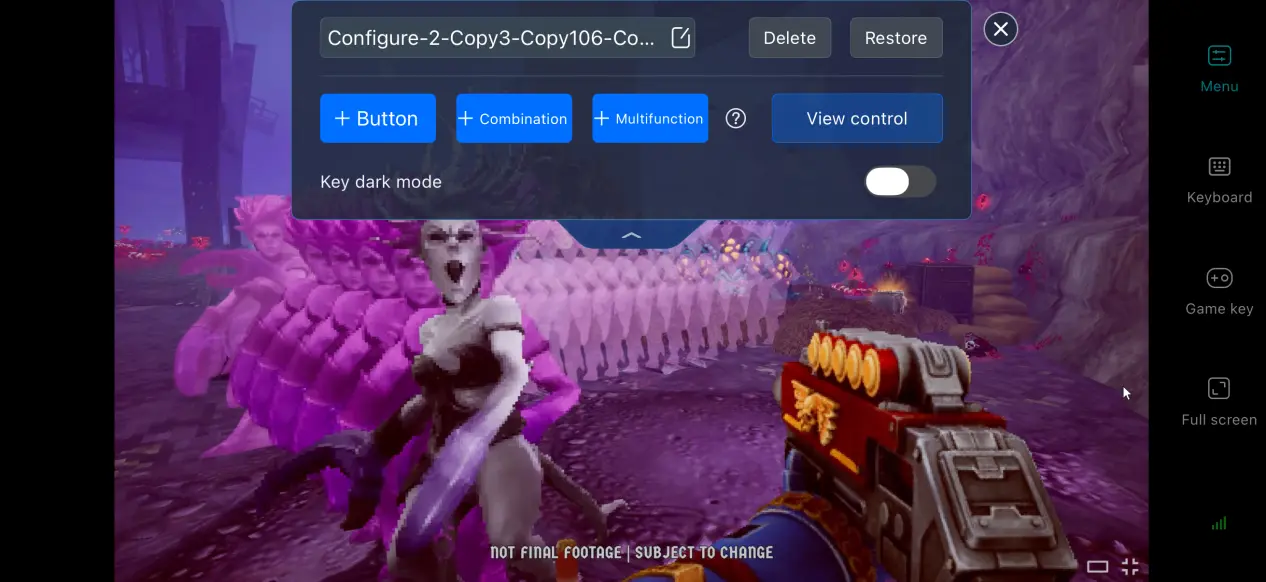
Customize Virtual Controls
Open the control editor to freely adjust the position, size, and transparency of buttons for shooting, dodging, reloading, and other actions. Place frequently used controls within easy reach of your thumbs, and create combination buttons to simplify chained actions such as firing while dodging. This also helps keep virtual controls from blocking your crosshair.
Adjust the Mobile Screen Mapping
Adjust the streaming aspect ratio to match your phone's display and prevent stretching or distortion. This ensures that the HUD and crosshair remain fully visible and that UI elements are not cut off by the edges of the screen.
Enable 60 FPS Game Mode
Open the 60 FPS PC Game option from the toolbar to improve visual smoothness. During intense battles with large numbers of enemies or when quickly turning and tracking targets, the higher frame rate can reduce motion blur and make it easier to aim accurately.
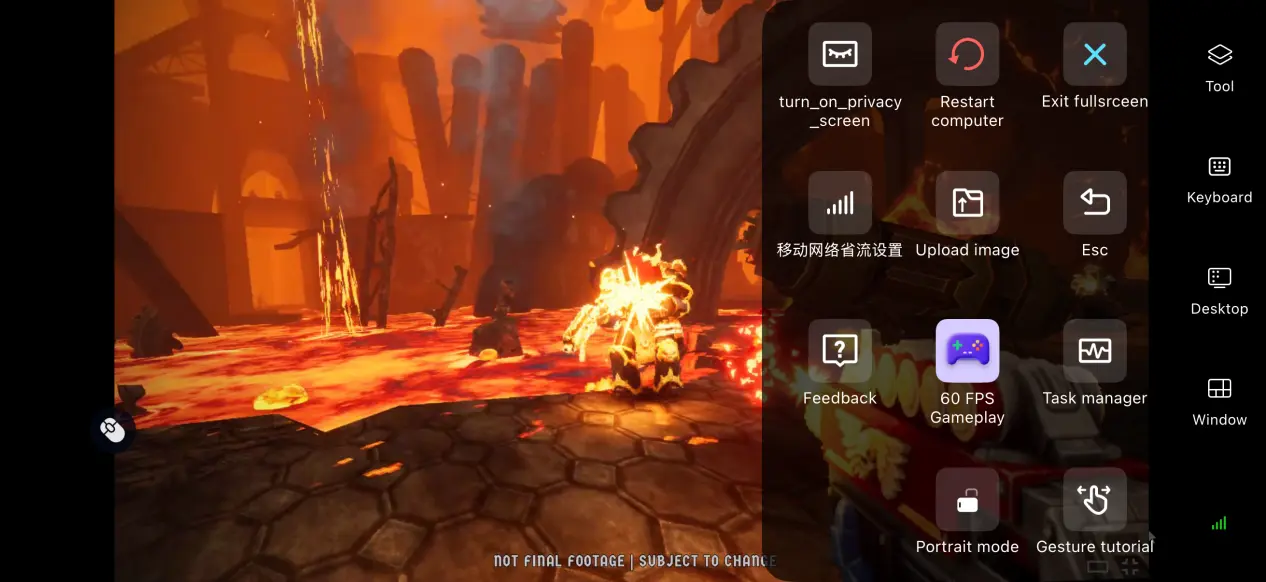
60 FPS PC Game Mod6. Frequently Asked Questions About Playing Warhammer 40,000: Boltgun 2 on OSLink
Q: What is Warhammer 40,000: Boltgun 2 release time?
A: Warhammer 40,000: Boltgun 2 release date is October 14, 2026, for PC, PS5, and Xbox Series X|S.
Q: What are the PC system requirements for Warhammer 40,000: Boltgun 2?
A: Minimum requirements: Windows 10 64-bit, 8 GB RAM, an i5-8600K processor, a GTX 980 graphics card, and 13 GB of available SSD storage. Recommended requirements: Windows 11 64-bit, 16 GB RAM, an i7-10700 processor, an RTX 2070 Super graphics card, and at least 13 GB of available NVMe SSD storage.
Q: Can I play Warhammer 40,000: Boltgun 2 on Android?
A: There is no official native Android version of the game, so it cannot be installed and run directly on Android devices. You can only play it through OSLink by streaming the game from a PC where Warhammer 40,000: Boltgun 2 is already installed.
Q: Can I play Warhammer 40,000: Boltgun 2 on iOS?
A: While Warhammer 40,000: Boltgun 2 doesn't have a native iOS version, you can use OSLink to stream the PC game to your iOS device and enjoy the full experience remotely.
Conclusion
Warhammer 40,000: Boltgun 2 is a retro FPS built around fast-paced combat. Since there is no official native mobile version, the game cannot be run directly on mobile devices. With OSLink, however, you can stream the complete PC game and its controls to your phone, letting you break free from your desk and enjoy the game wherever you are.
 Download