English
 Castlevania: Belmont's Curse is an action game that carries on the classic Castlevania aesthetic, featuring carefully designed maps, smooth melee combat, and a range of sub-weapons. It has attracted plenty of players who enjoy Metroidvania-style gameplay. However, there is currently no official native mobile version. With remote streaming, you can bring the full PC game to your mobile device instead. This guide covers everything from getting the game and setting up the required software to connecting your devices and fine-tuning the experience, so you can follow the steps and get everything ready.
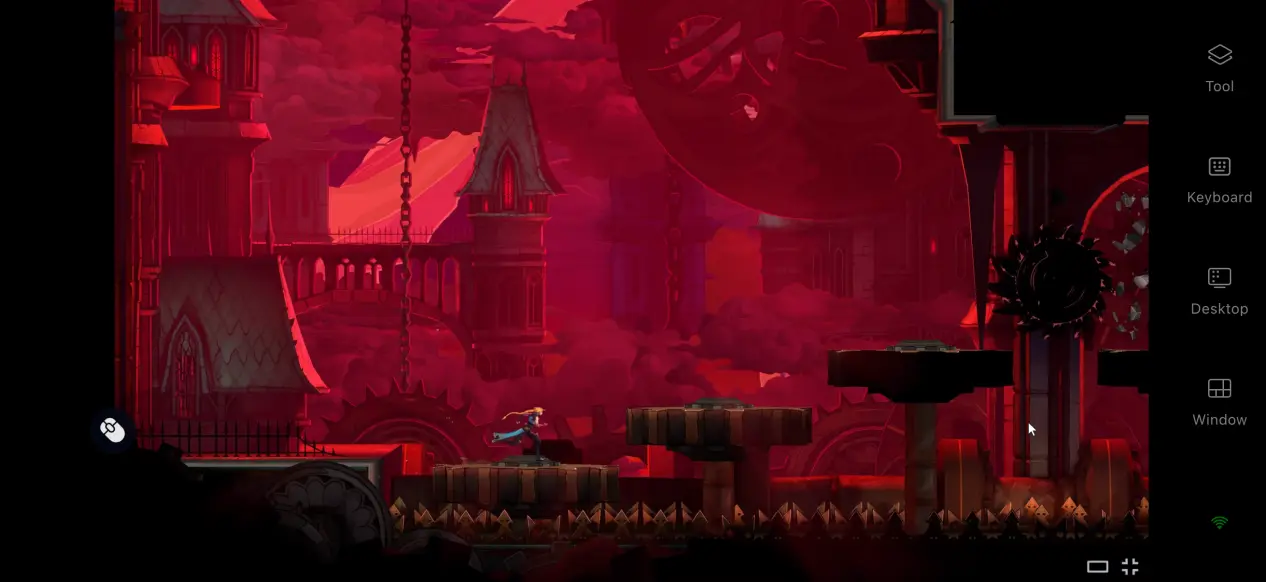
For an action game like Castlevania: Belmont's Curse, where positioning and well-timed blocks are important, OSLink can stream your PC screen to your phone in real time while sending touch inputs back to the computer with minimal delay. The entire connection process is quick and straightforward, with smooth input and stable performance throughout combat.
1. How to Play Castlevania: Belmont's Curse
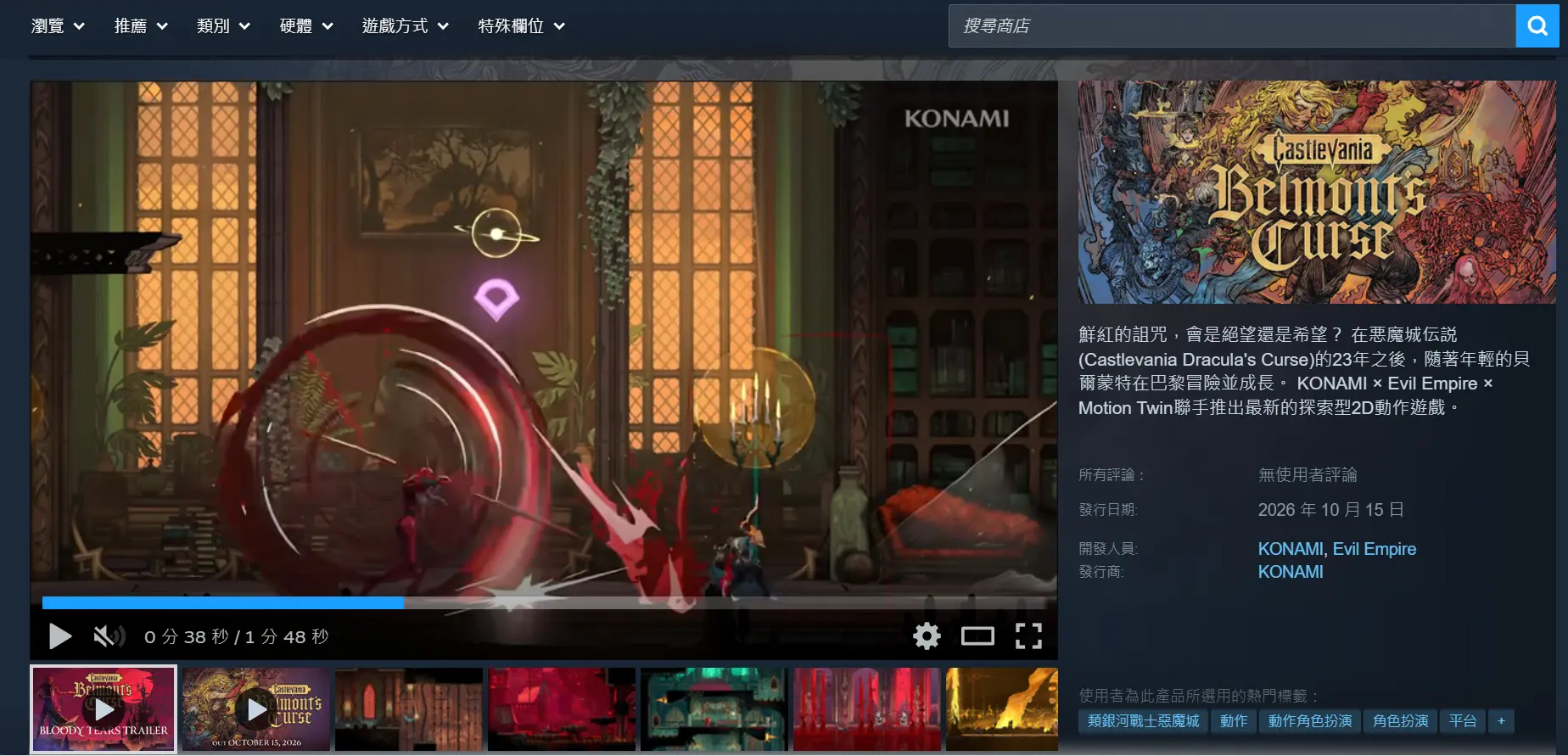
The basic requirement for remote streaming is that the full, legitimate version of the game is already installed on your computer. The game is available on Steam. Open the Steam client on your PC, search for the full game title in the store, purchase it, add it to your library, and download and install it.
Once the installation is complete, launch the game locally on your computer at least once. Enter a level and test basic attacks, dodging, and jumping. If possible, try a boss fight as well to make sure the game runs smoothly without stuttering or crashing. Once the game runs normally on the PC, you can move on to configuring the streaming software. This makes it much easier to troubleshoot any issues later.
2. Install OSLink on Your Computer and Phone
Windows PC Setup
Open a browser and visit the official OSLink website to download the installer for Windows. Complete the installation, then register and sign in to your account. To keep the connection stable, adjust your PC's power settings and disable automatic sleep for the hard drive and network adapter. This helps prevent the network connection from dropping while the computer is idle, allowing your phone to connect whenever you need it.
Mobile App Setup
Android users can search for OSLink on Google Play and install the app. iOS users can find the same app through the App Store.
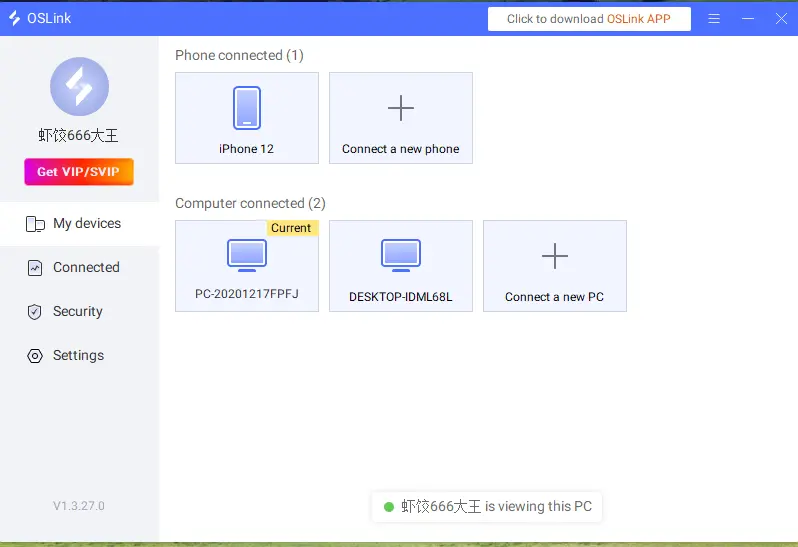
Make sure the account signed in on your phone is the same one you use on your PC. The software will automatically detect online devices under the same account, so there is no need to manually enter a pairing code. Your devices can be linked in just a few steps.
3. How to Play Castlevania: Belmont's Curse on Your Phone with OSLink
1. Open Steam on your PC and launch Castlevania: Belmont's Curse. Enter a game level or stay on the main menu, and keep the game window running in the foreground. Do not minimize it to the background.
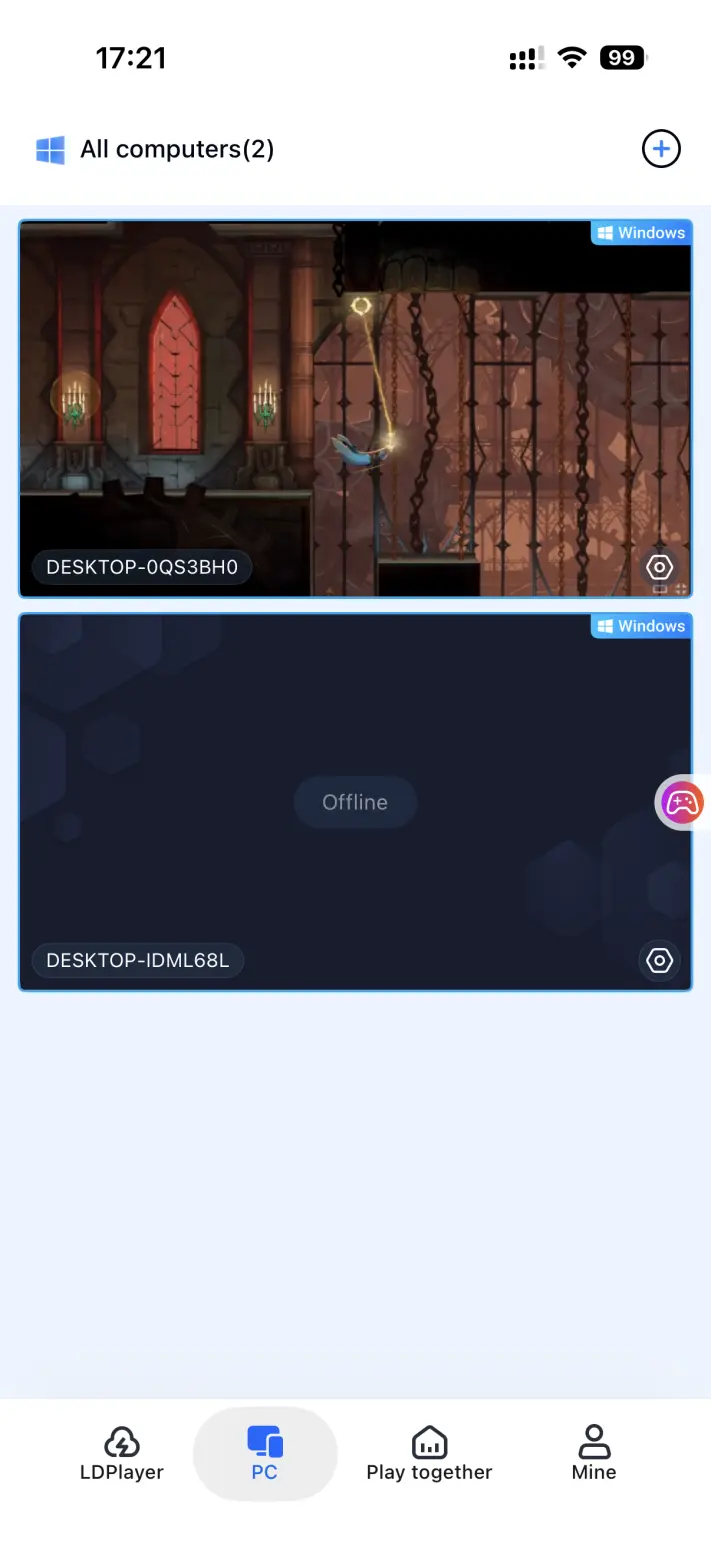
2. Open the OSLink app on your phone. The device list will show the online PC devices connected to the same account. Tap the computer you want to connect to and start streaming.
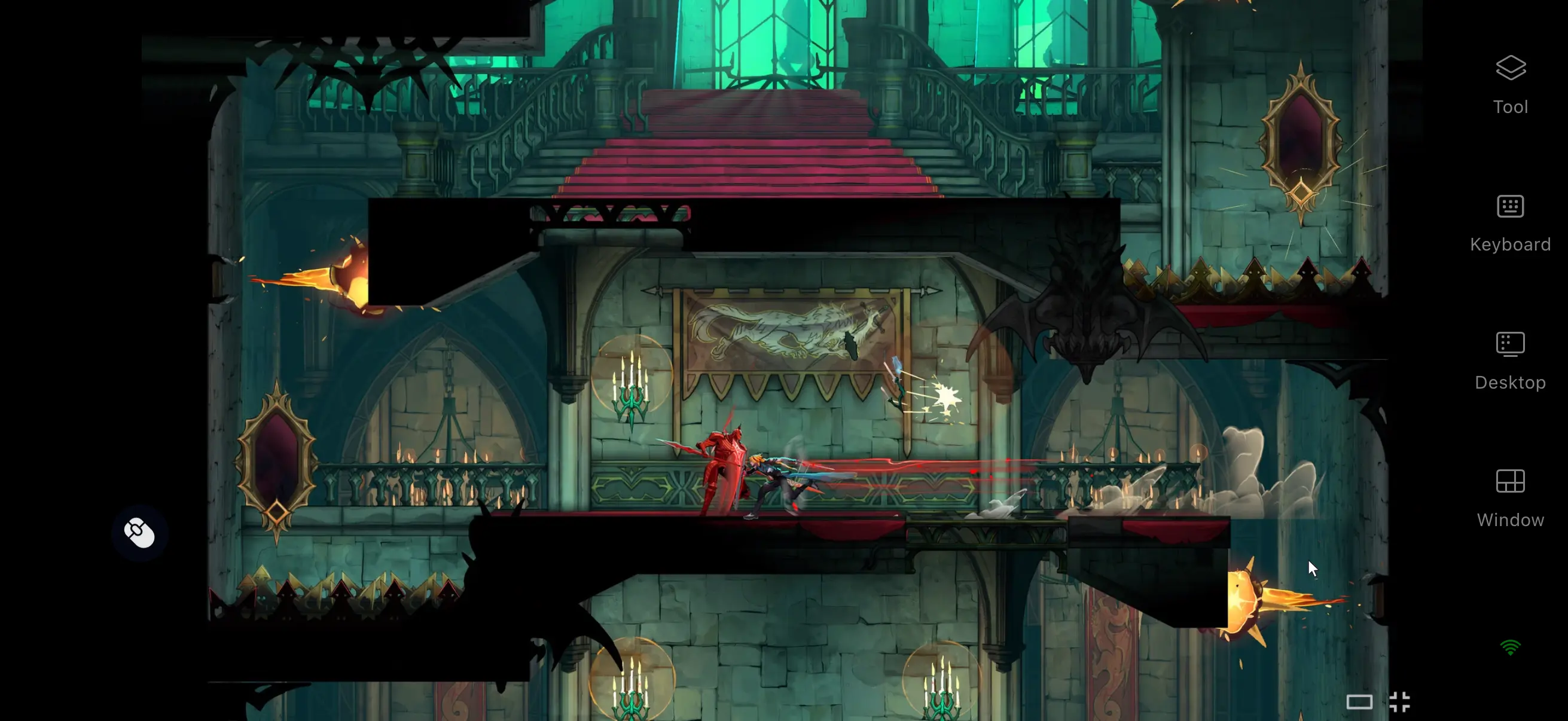
3. Once your PC screen appears on your phone, open the side toolbar and switch to Game Mode. You can apply a preset control layout designed for action games or connect an external controller. After adjusting the settings, you can control the game from your phone, including jumping, blocking, and using sub-weapons.
4. Benefits of Playing Castlevania: Belmont's Curse on Mobile
Play Anytime, Anywhere
As long as your computer stays powered on and connected to the internet, you can stream to your phone over home Wi-Fi or mobile data. Whether you're waiting for a ride or taking a break, you can keep exploring the castle without being tied to your PC.
No Need to Use Your Phone's Storage
The game installation files, updates, and all save data remain on your computer's hard drive. Your phone only receives the streamed game screen and sends your input commands back to the PC. Even phones with limited storage or modest hardware can stream the game without running it locally, provided the network connection is stable.
Supports a Wide Range of External Devices
OSLink supports mainstream wired and Bluetooth game controllers, as well as external keyboards and mice. Once a controller is connected, input mapping is handled automatically. During challenging boss fights, using a controller can give you more precise control and help reduce mistakes caused by touch controls.
5. How to Optimize Your OSLink Gaming Experience
Customize Your Controls
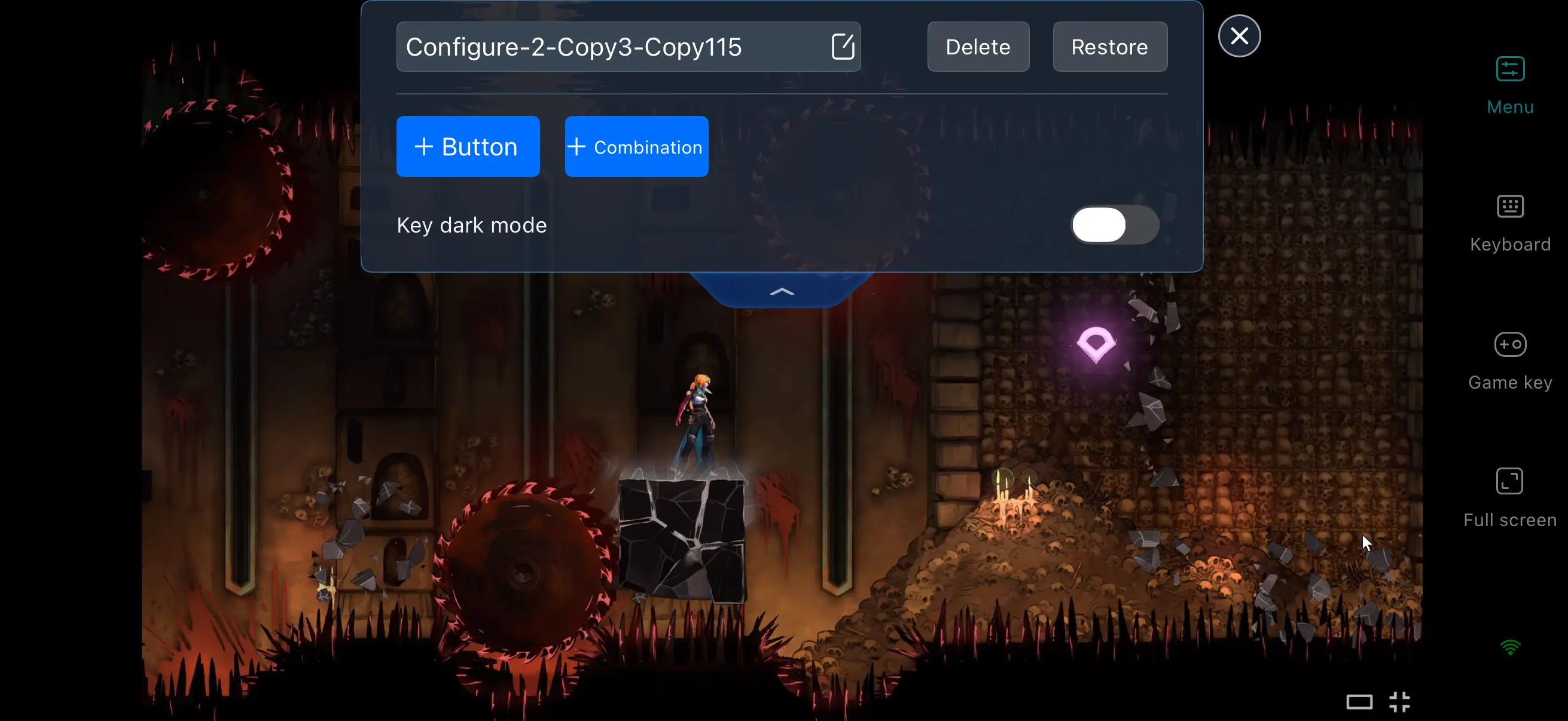
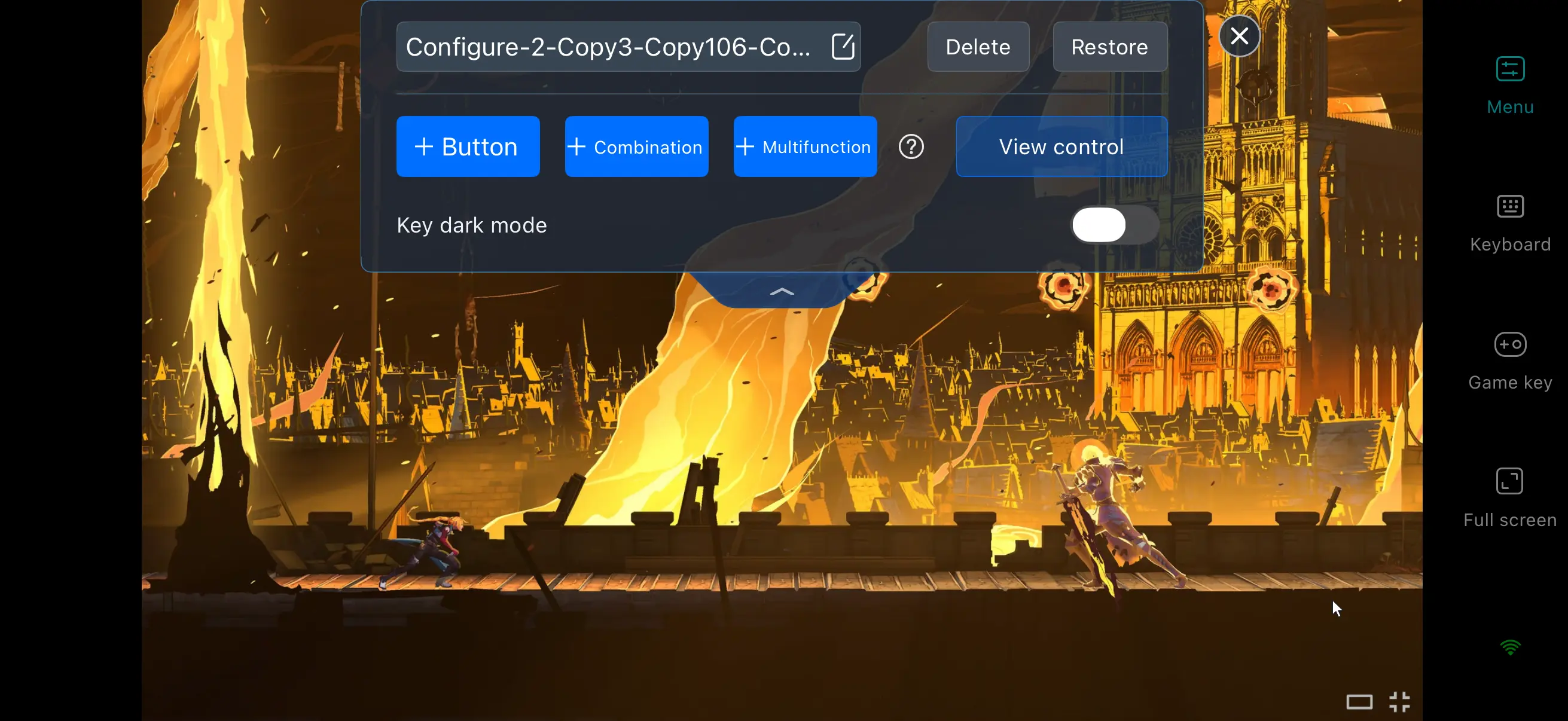
OSLink lets you freely add or remove virtual touch buttons and adjust their size, transparency, and position. For this game, you can place frequently used controls such as dodge, block, and item switching within easy reach. You can also save multiple control layouts to suit different levels and combat situations.
Stream History
The software keeps a record of previous streaming connections, so you don't have to search for your paired devices every time. When you want to continue playing, simply select a device from your history to reduce setup time. If an unfamiliar device attempts to connect, you can disconnect it immediately to help keep your account data secure.
Dedicated PC Game Mode
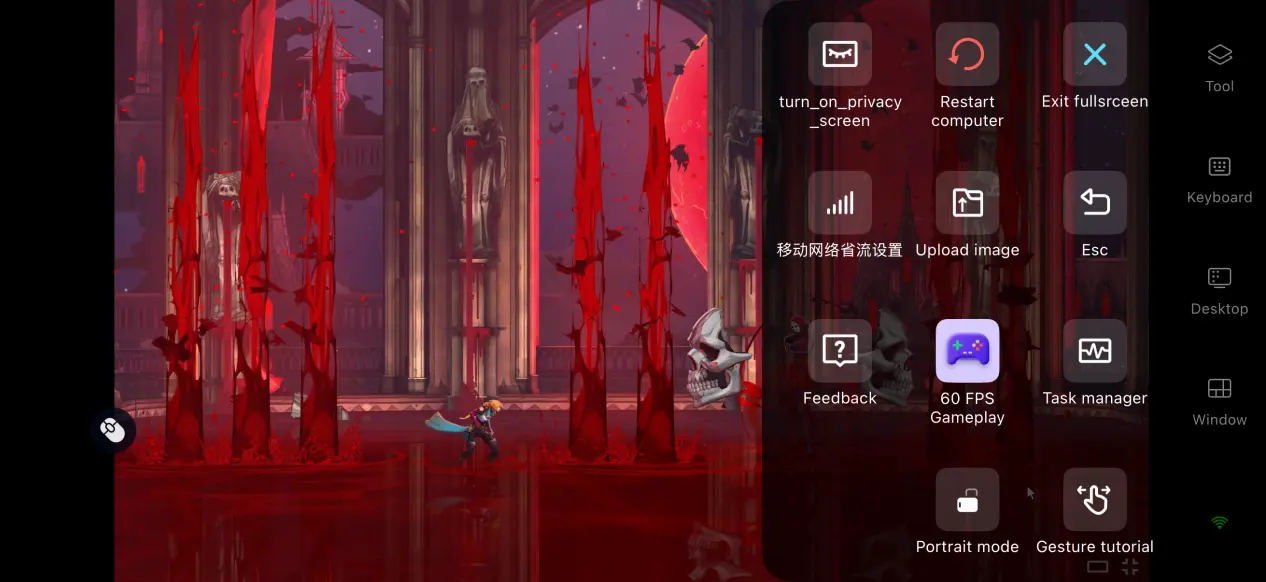
After enabling the 60 FPS PC Game Mode, the software optimizes encoding for PC games. This helps reduce motion trails during fast camera movement and effects-heavy combat while shortening the delay between your inputs and the on-screen response. As a result, blocks and dodges feel more responsive.
Adjust the Mobile Screen Mapping
If the image appears stretched or the UI looks distorted, use the screen mapping feature to adjust the cropping and aspect ratio to fit your phone's screen. This helps the game interface, health bar, and item bar fit the display more naturally, making longer play sessions more comfortable.
6. Frequently Asked Questions About Playing Castlevania: Belmont's Curse on OSLink
Q: What is Castlevania: Belmont's Curse release time?
A: Castlevania: Belmont's Curse release date is October 15th, 2026. At the moment, there is no announced plan for a native mobile version.
Q: What are the PC system requirements for Castlevania: Belmont's Curse?
A: Minimum requirements: Windows 10 64-bit, an i5-8400 / R5 2600 processor, 16GB of RAM, a GTX 1050 Ti / RX 570 graphics card, and 35GB of available storage space.
Recommended requirements: Windows 10 64-bit, an i5-12400 / R5 5600 processor, 16GB of RAM, an RTX 3060 / RX 6600 graphics card, and 35GB of available SSD storage.
Q: Can I play Castlevania: Belmont's Curse on iOS?
A: There is no native iOS game client, but you can use OSLink to remotely stream the game from your own computer and play the full version on an iPhone or iPad.
Q: Can I play Castlevania: Belmont's Curse on Android?
A: While Castlevania: Belmont's Curse doesn't have a native Android version, you can use OSLink to stream the PC game to your Android phone or tablet and enjoy the full experience remotely.
Conclusion
Castlevania: Belmont's Curse is a PC action-adventure game built around a classic Metroidvania experience. Its atmospheric Gothic castle environments, varied combat mechanics, and hidden content have made it popular with many players. If you want an easy way to play on mobile, OSLink provides a reliable remote streaming solution. You don't need to modify the game at all—just use your existing computer and phone to bring the full game to your mobile device and enjoy the Belmont family's monster-hunting adventure wherever you play.
 Download