English
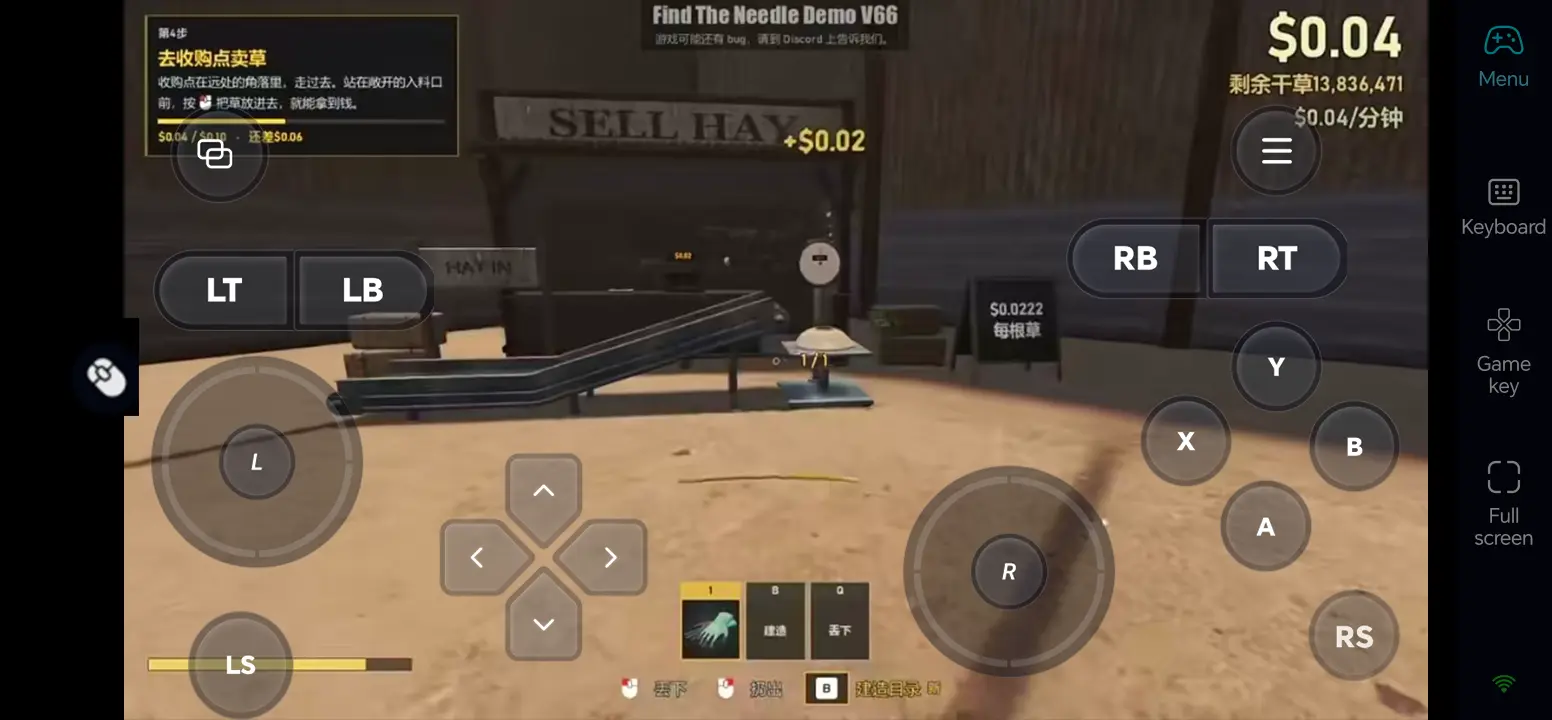
Find The Needle is a first-person simulation and automation game: the player is trapped in an unfamiliar warehouse, facing a haystack made of roughly six million pieces of hay, and must find the needle hidden inside it. Starting with a shovel and a metal detector, you can sell hay to earn money and gradually purchase conveyor belts, scanners, and robotic arms to automate the search for the needle. Digging, hauling, and configuring machines all require access to your PC, so once you leave your desk, it can be difficult to check the production line or deal with new haystacks whenever you want.
OSLink lets you remotely connect your Android or iOS phone to your Windows PC, so you can keep digging through hay, adjusting machines, and checking production progress. The sections below cover, in order, downloading the game from Steam, connecting both devices, 60 FPS mode, touch key mapping, and external device setup.
1. How to Get the Find The Needle Game
How to Download the Game
Search for Find The Needle on Steam. A free demo is currently available to try; the full game is scheduled to enter Early Access on November 6, 2026, so once it unlocks in your region, get it from the store and install it.
First, launch the demo or the unlocked full game on your PC and test the graphics, save functionality, digging mechanics, and machine controls. Once everything runs normally, move on to setting up OSLink remote play.
2. Play Find The Needle Remotely on Your Phone with OSLink
Step 1: Download OSLink and Connect Both Devices
1. Download OSLink on Your PC
On the Windows PC where the game is installed, open the official OSLink website (https://www.oslink.io), download and install the Windows version, then sign in to your account. While playing remotely, keep the PC powered on, signed in to Windows, and connected to a stable network.
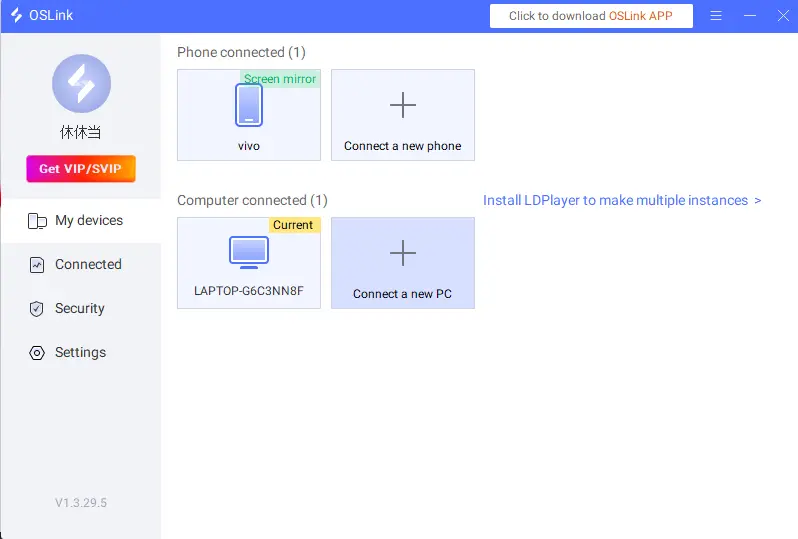
2. Download OSLink on Your Phone
On Android, install OSLink from Google Play; on iPhone or iPad, install it from the App Store. Sign in on the mobile app with the same account, then select the PC that is already online from the device list and connect.
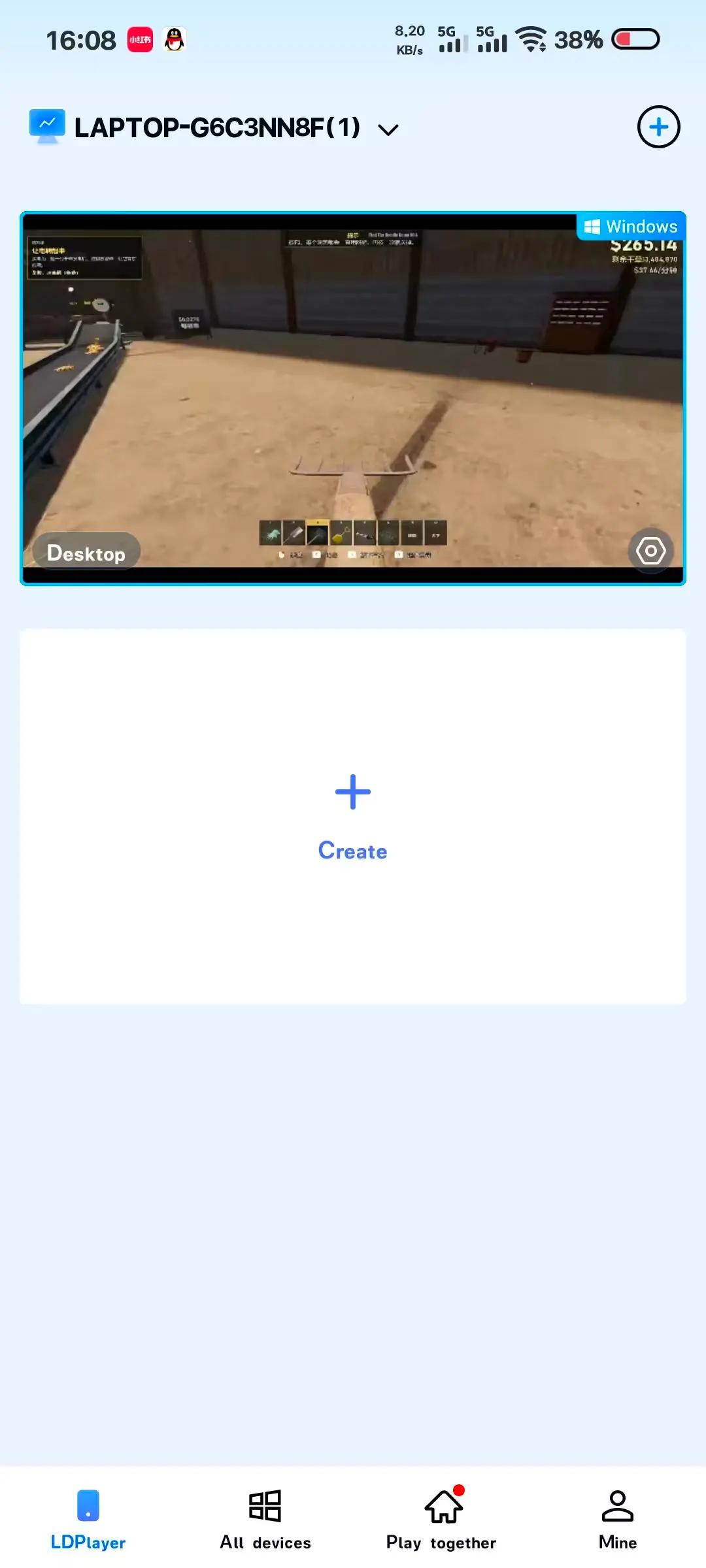
Step 2: Optimize Your Control Settings
First, launch Find The Needle on your PC and make sure the game runs properly while keeping OSLink open. Then, open OSLink on your phone and select the paired PC from the device list to establish a connection. Once the connection is successful, you can view your PC screen on your phone.
3. Turn On 60 FPS PC Game Mode
Tap the toolbar in the top right corner of the remote screen and choose “Tools – 60 FPS PC Game” to enable PC game mode. If the host PC or the network cannot keep the picture stable, lower the in-game resolution or the streaming quality and test again.
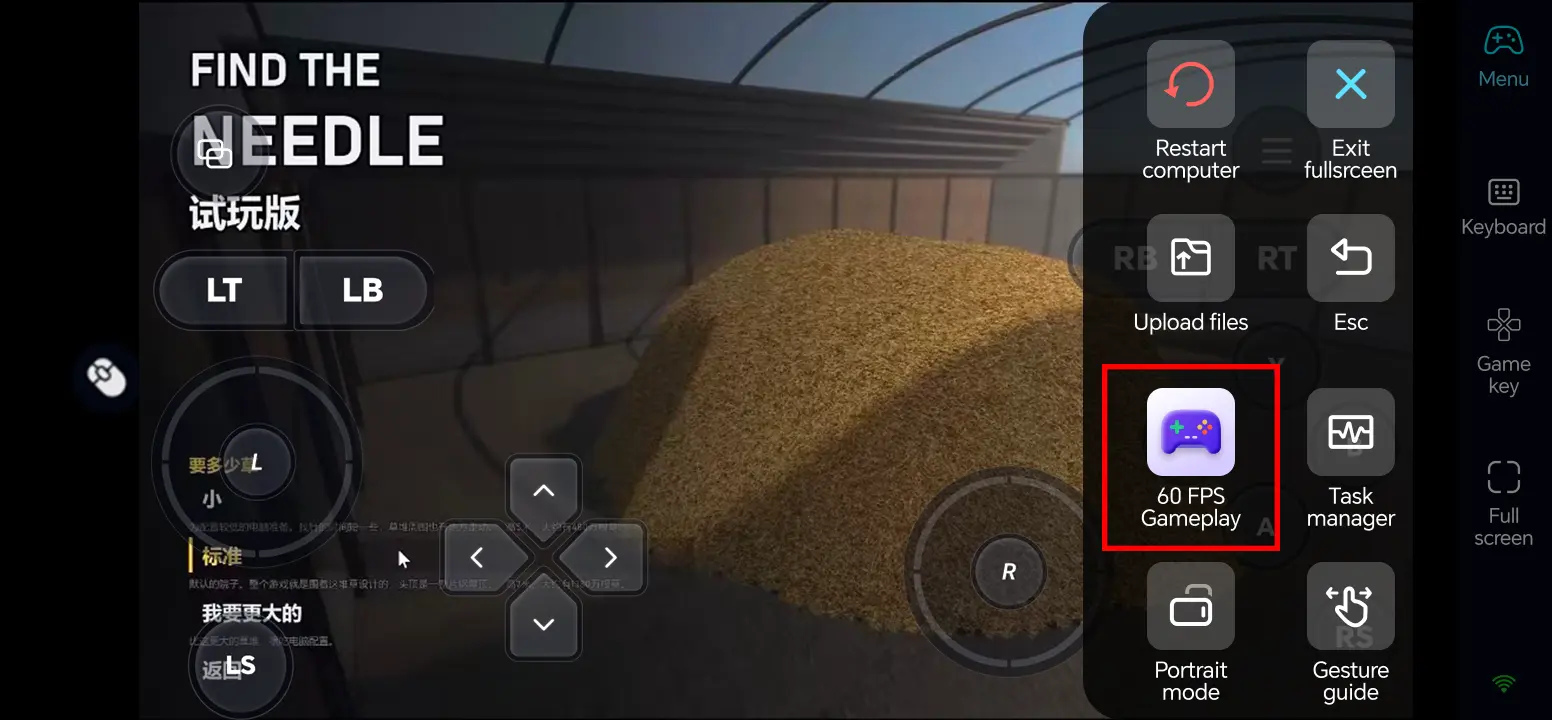
4. Customize Your Mobile Key Mapping
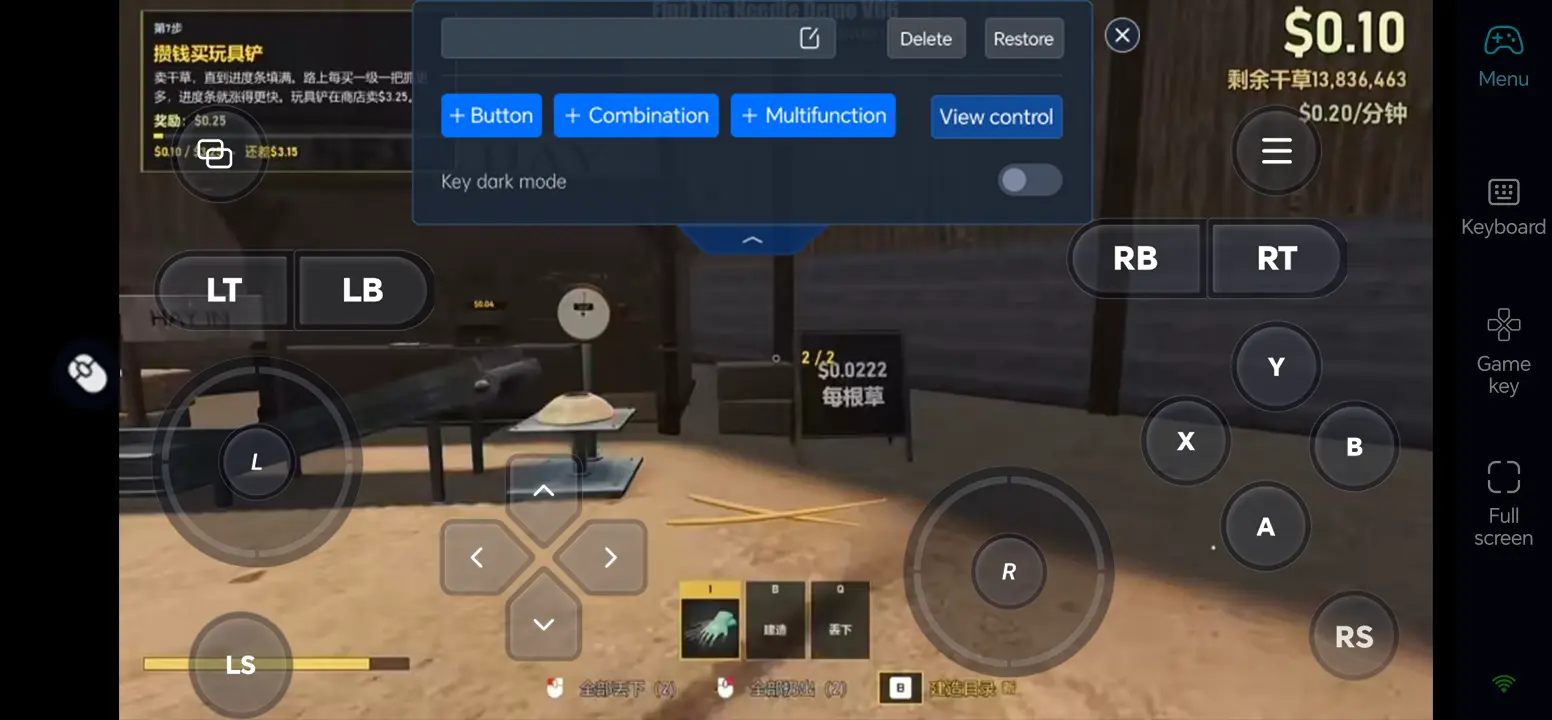
Tap “Game Keys” in the toolbar, then tap the edit icon. Arrange the controls for movement, camera, interaction, picking up and placing objects, switching tools, and opening the build menu in positions that feel comfortable to use. Test digging and installing conveyor belts, then save the layout.
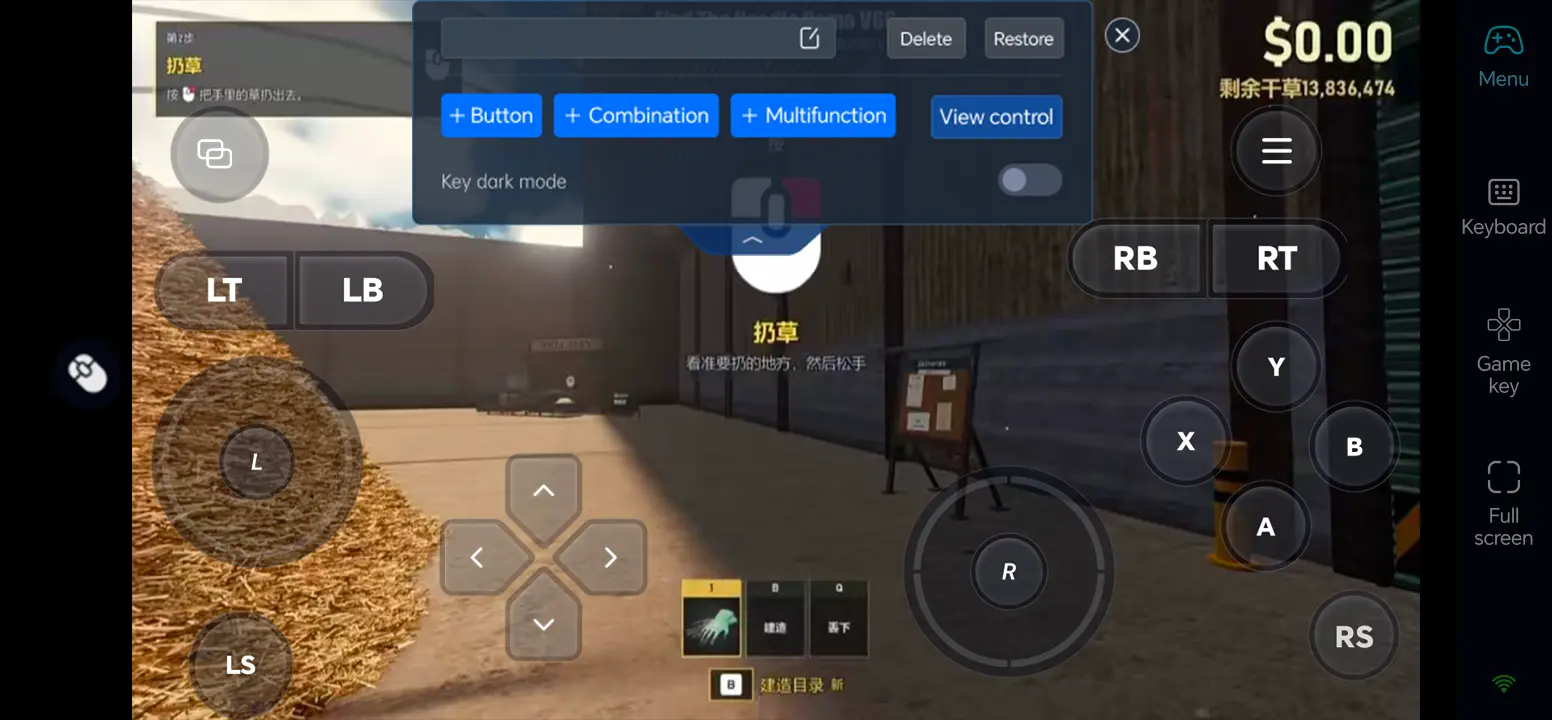
5. Connect an External Keyboard, Mouse, or Controller
If you need to place conveyor belts, pipes, or robotic arms precisely, connect a compatible external keyboard and mouse, or a Bluetooth controller, to your phone and test each input in-game. Which keys actually work still depends on what the game and the device support.
3. Find The Needle FAQ
Q1: What is Find The Needle's release time?
Find The Needle's release date is November 6, 2026.
Q2: What PC specs does Find The Needle require?
Steam's minimum requirements are Windows 10 64-bit, an Intel i5-8400 or Ryzen 5 2600, 8 GB of RAM, and a dedicated graphics card at the level of a GTX 1050 Ti or RX 570 with 4 GB of VRAM that supports Vulkan 1.3; the recommended specs are Windows 11, a Ryzen 5 5600 or i5-12400, 16 GB of RAM, and a GTX 1660 Super or RTX 2060 6GB. Both call for 3 GB of storage space, and integrated graphics are not supported.
Q3: Can Android and iOS phones play Find The Needle directly?
The Steam page currently lists only the PC version and has not announced native Android or iOS releases. You can run Find The Needle on your own Windows PC and then play it remotely on your phone through OSLink.
Q4: Is it hard to manage the Find The Needle production line on a phone?
You can assign dedicated keys for movement, camera, picking up, placing, and the build menu; connect a keyboard and mouse or a controller when placing pipes or conveyor belts. Test the control layout with simple equipment first to make expanding into a larger factory much easier.
Conclusion
Try Find The Needle, then connect your phone through OSLink, set up key mapping and 60 FPS mode, and you can dig hay, hunt for the needle, and expand your factory remotely. Download OSLink and take your production progress with you.
 Download