English
Trees Hate You is a trap-filled comedy adventure in which a walk home from a picnic becomes a hostile forest hike. Trees mislead and ambush you across several biomes; dying and retrying are part of the challenge. Short gameplay sessions are well suited to mobile play, but sudden hazards require precise movement and a clear view of the path.
OSLink lets your Android or iOS phone control your own Windows PC while Trees Hate You runs there. This guide covers downloading the game, connecting both devices, enabling PC gaming mode, and customizing the game controls.
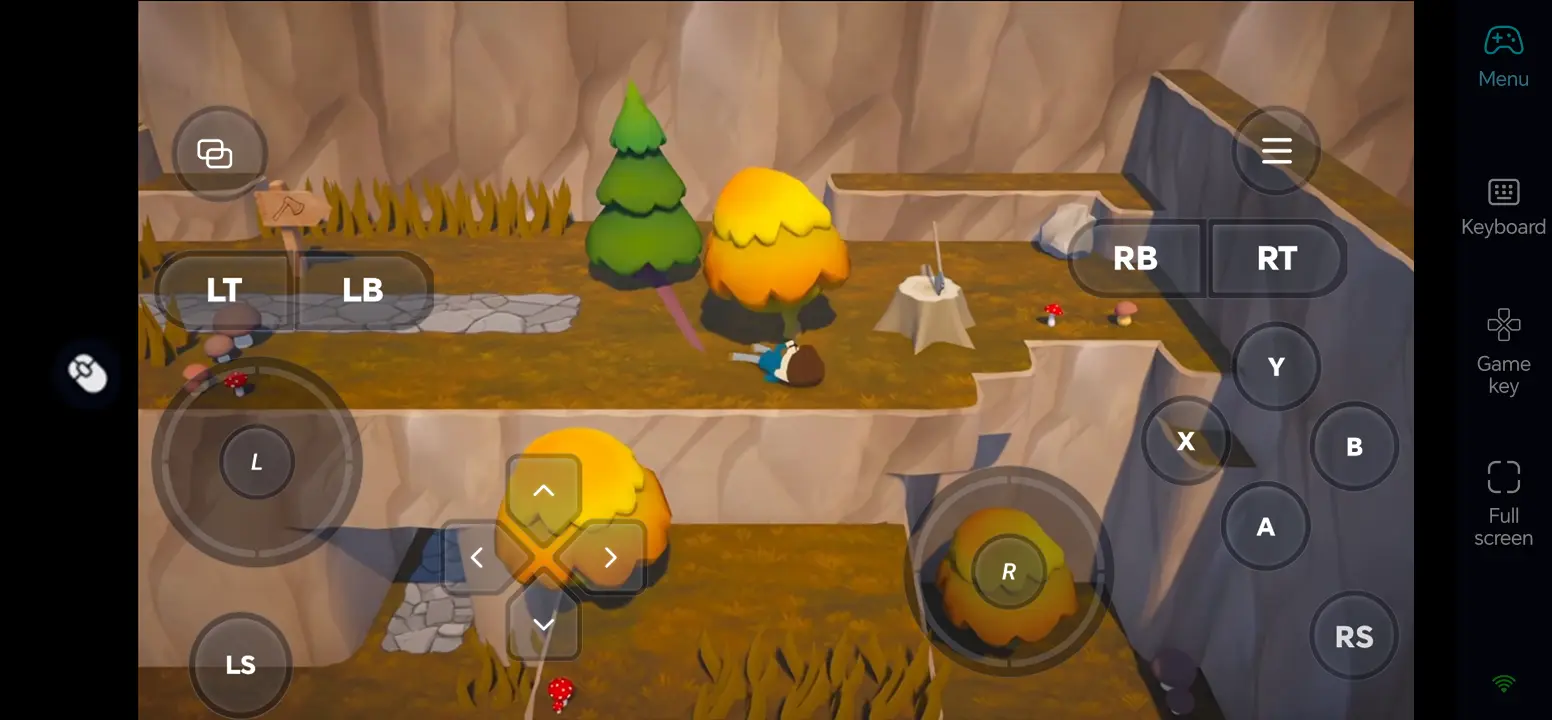
Play Trees Hate You Remotely with OSLink
Step 1: Install OSLink on Both Devices
1. Install OSLink on the PC
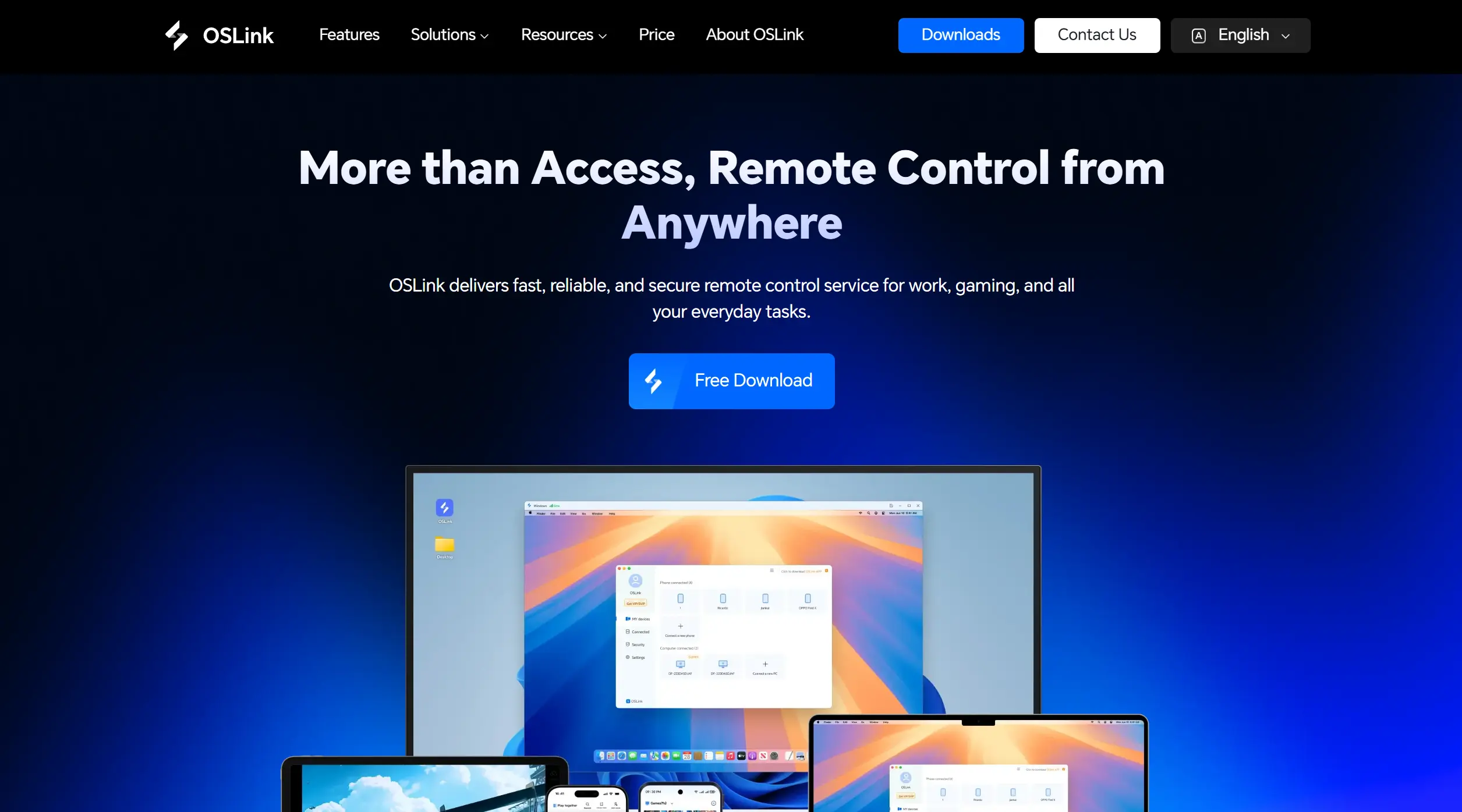
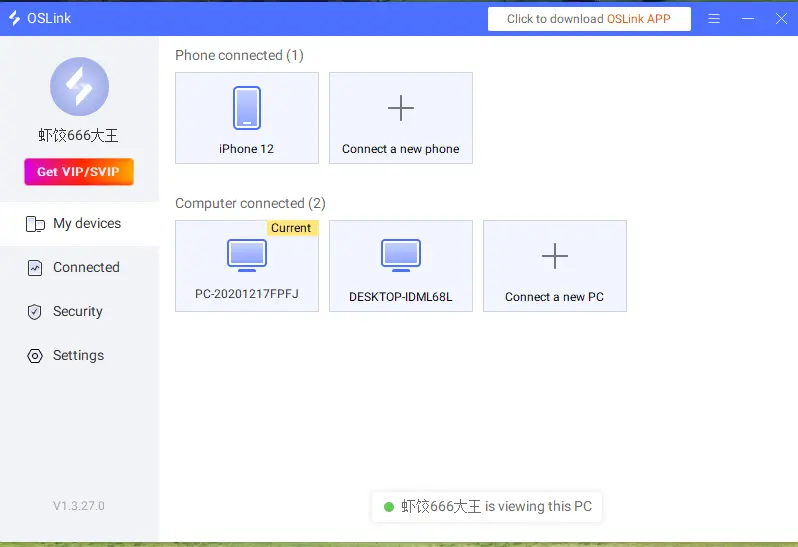
Download the Windows client from the official OSLink website and sign in to your OSLink account on the PC where the game is installed. Keep that PC powered on, signed in, and connected to a stable network.
2. Install OSLink on the Phone
Install OSLink from Google Play on Android or the App Store on iPhone. Sign in with the same account, then select your online PC from the device list.
Step 2: Optimize the Controls
1. Launch the Game on the Host PC
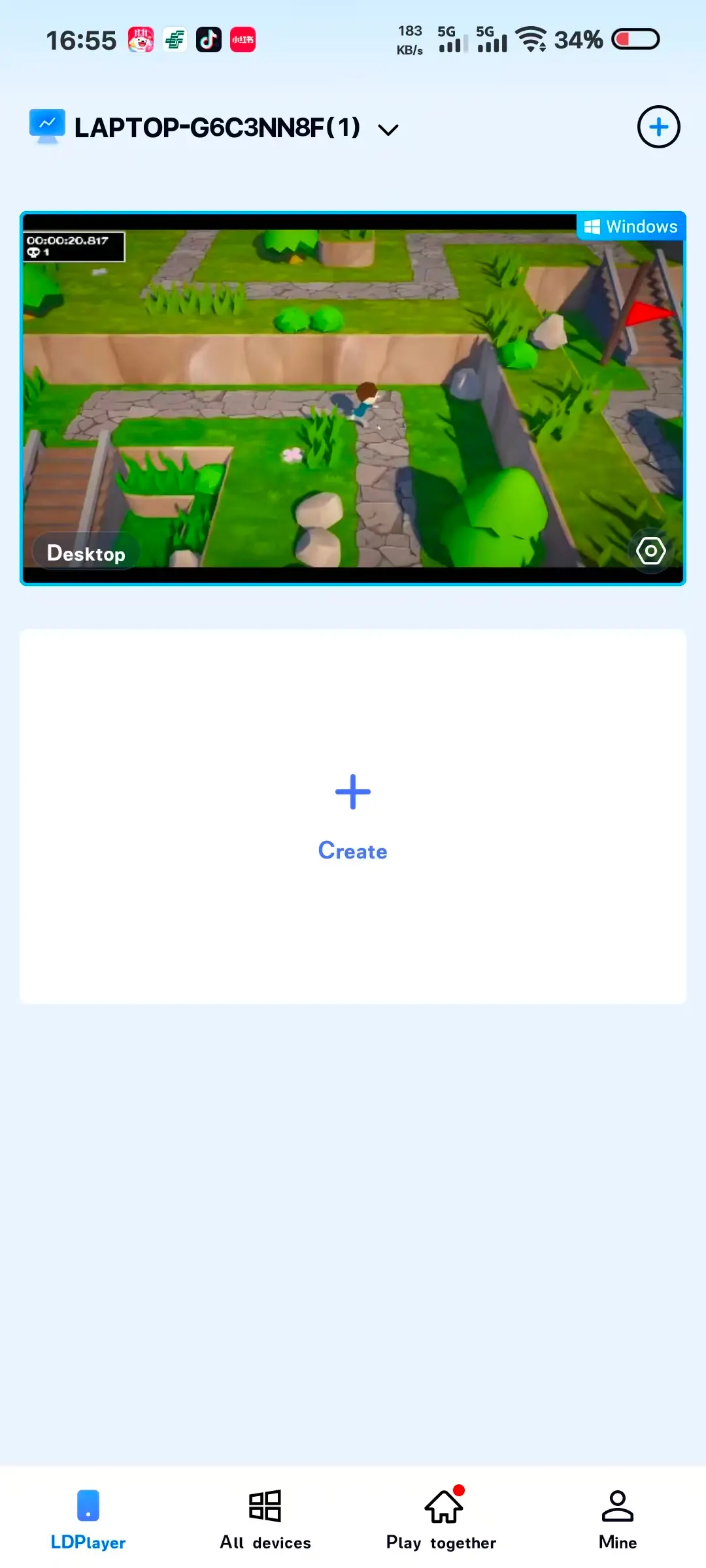
Open Steam on the host PC and launch the available version of Trees Hate You. Start in a safe area and check that the PC can run it smoothly before controlling it from your phone.
2. Connect and Test Both Devices
Open the PC’s remote desktop in OSLink. Check the video and audio quality, then test movement, camera controls, interactions, and the restart function before starting a longer session.
3. Turn On 60 FPS PC Gaming Mode
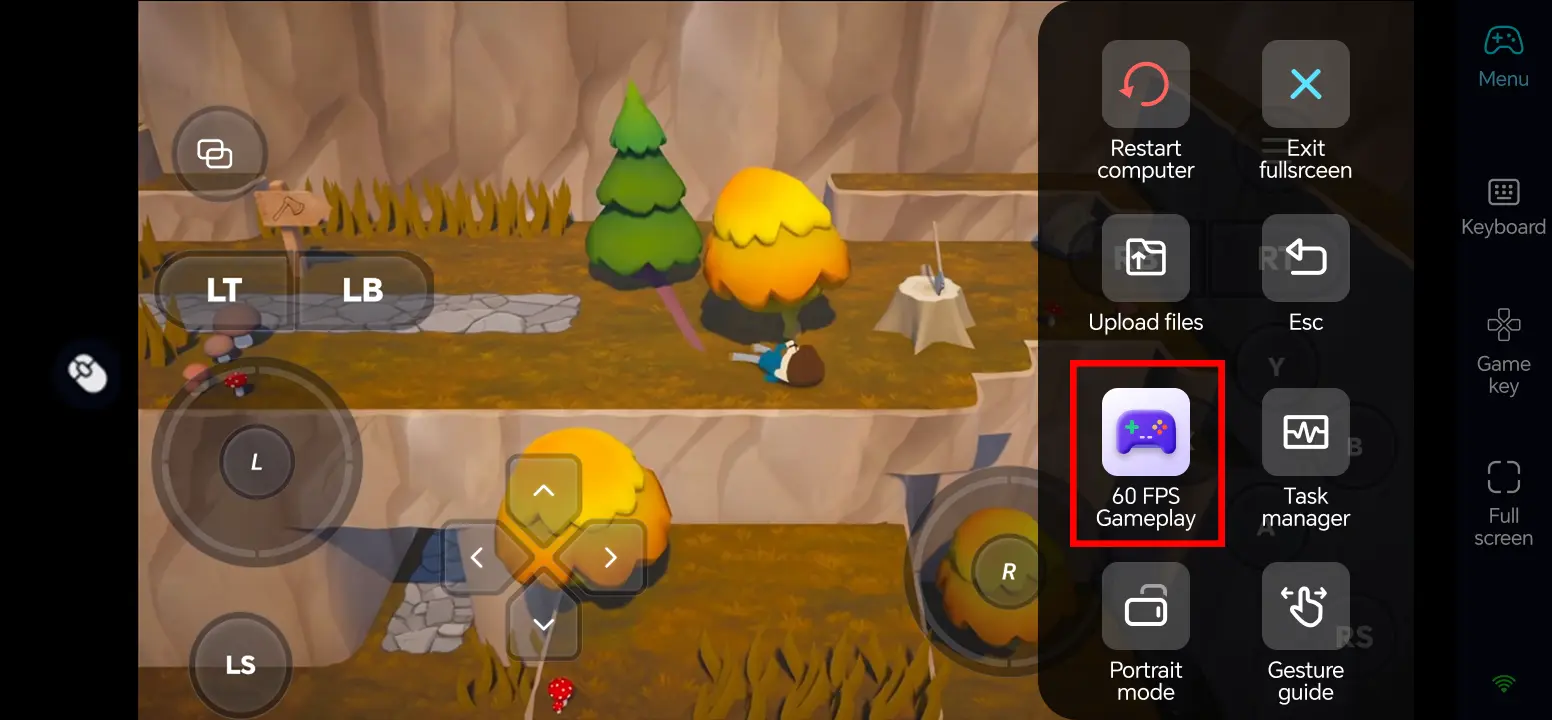
In the full-screen remote desktop, open the top-right toolbar and choose Tools > Play PC games at 60 frames. If the PC or network struggles, lower the game resolution or streaming quality and retest.
4. Customize the On-Screen Buttons
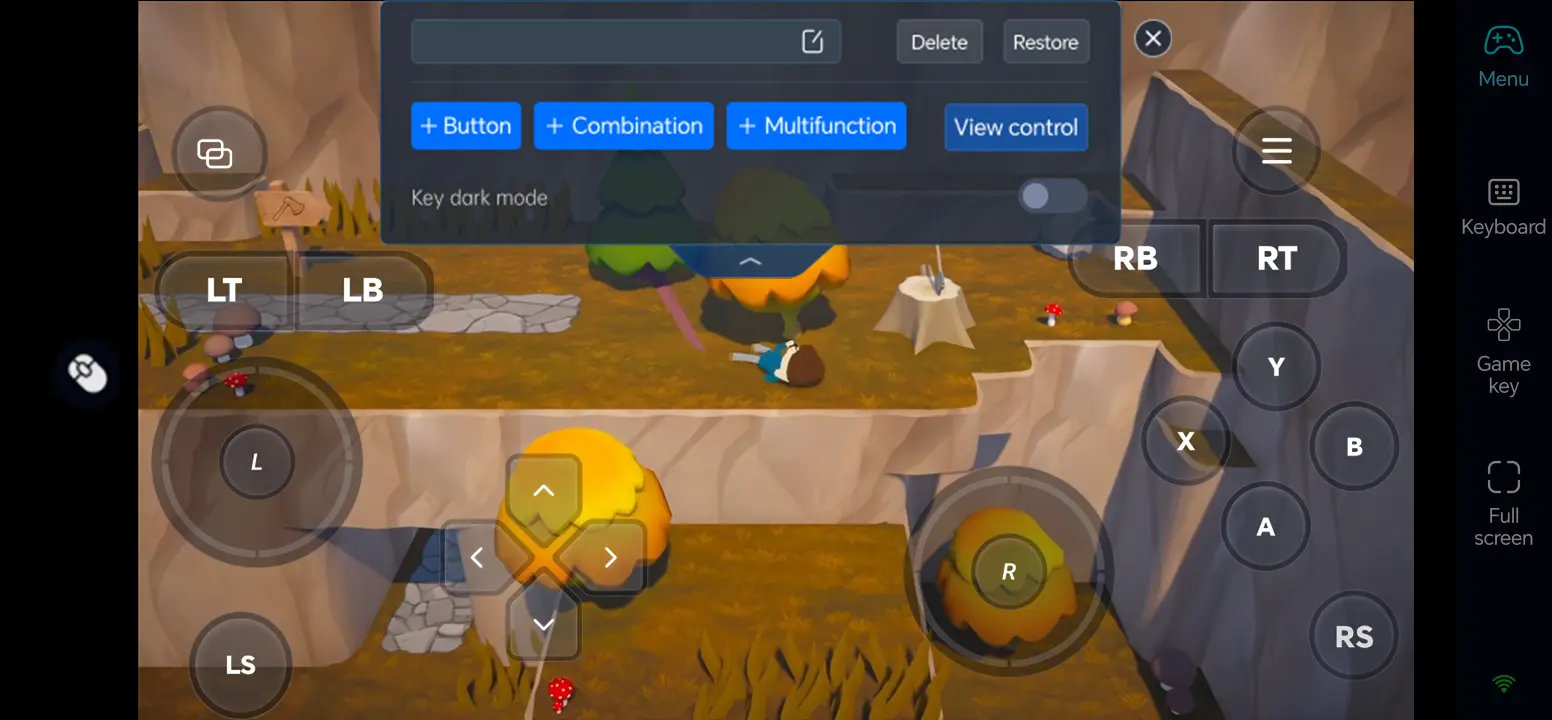
Open Game Button and its edit control. Arrange keys for movement, camera, interaction, and restart; leave the center of the game view clear, then save and test the layout.
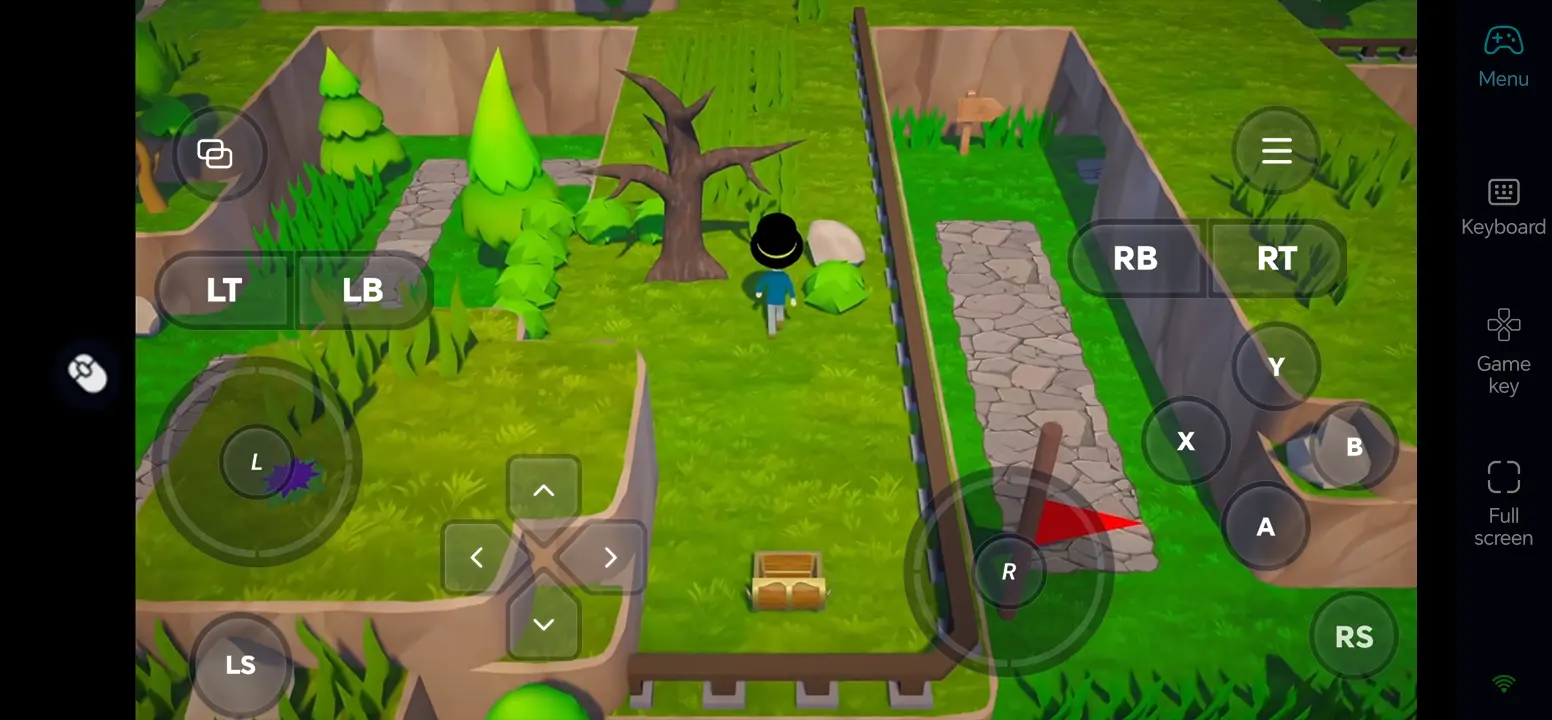
5. Connect an External Input Device
If touch controls feel cramped, connect a compatible Bluetooth controller or external keyboard and mouse to your phone. Check how each input behaves in the game; support can vary by device and title.
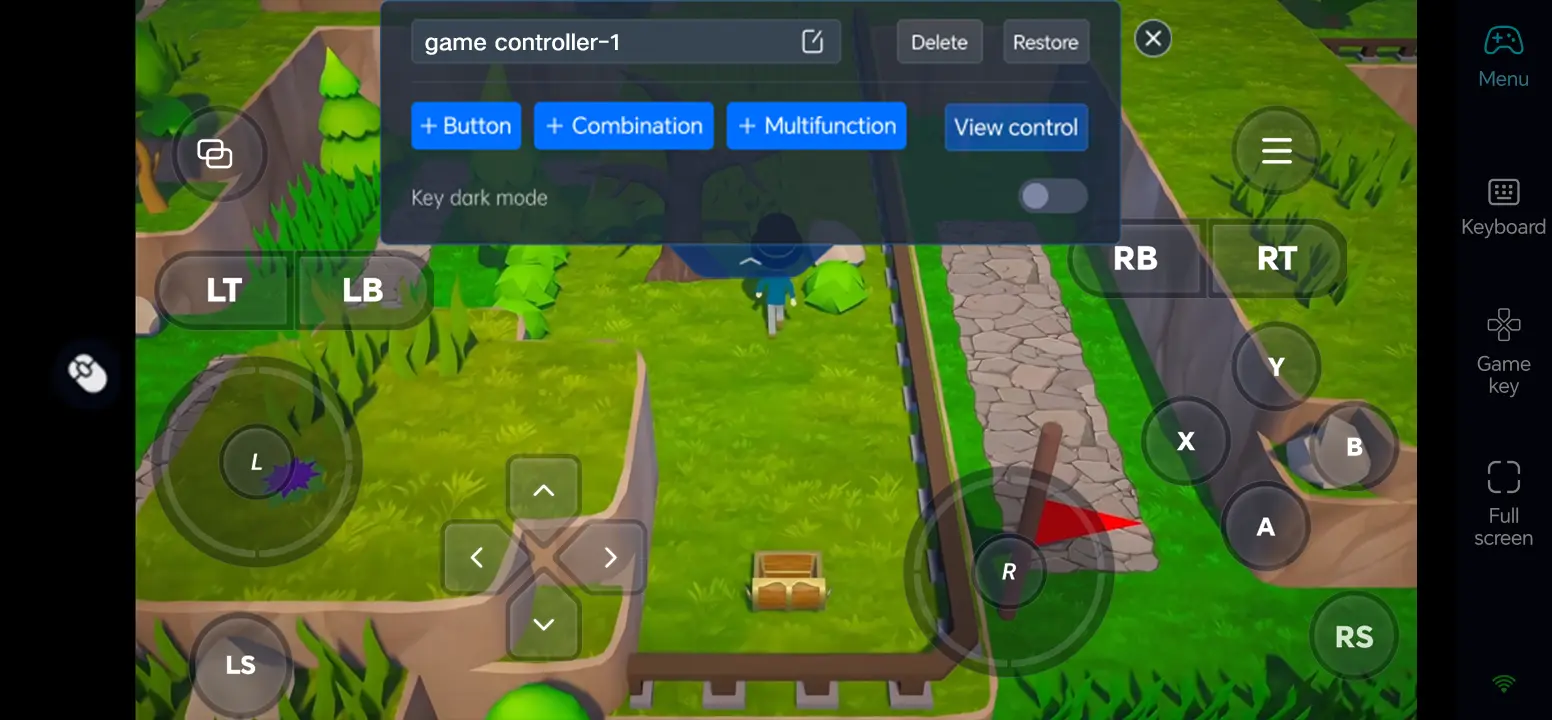
Three OSLink Benefits for Trees Hate You
1. Keep the path visible
Position the touch controls away from areas where hazards are likely to appear, making sudden traps easier to spot.
2. Make retries quick
Put movement, interaction, and restart controls in consistent positions for repeated attempts.
3. Choose precise input
A compatible controller or external keyboard can help with tight movements; connection quality still affects timing.
Frequently Asked Questions
Q1: What is the release date of Trees Hate You?
The release date of Trees Hate You is November 16, 2026, according to Steam’s planned release listing.
Q2: Can I play Trees Hate You directly on Android?
Steam lists a Windows version, not a native Android release. Run Trees Hate You on your own Windows PC and use OSLink to control that PC from an Android phone.
Q3: Can I play Trees Hate You directly on iOS?
No native iOS version is listed on the Steam page. You can access the Windows version running on your own PC from an iPhone with OSLink.
Q4: What PC specifications does Trees Hate You require?
Steam currently lists Windows 10 or later and 1 GB free storage as the Windows minimum. It does not publish CPU, RAM, GPU, or recommended specifications, so check the store page again before installing.
Q5: Can I react to traps in Trees Hate You when playing remotely?
Use a clear touch layout or compatible controller and test the demo on a stable connection. Remote input may introduce network latency, so lower the streaming quality if movement feels delayed.
Conclusion
Test Trees Hate You locally when it is available on Steam, then connect your phone with OSLink. Tune the touch layout or pair a controller to enjoy the game from another room or on the go while your PC stays on.
 Download