English
 ANOMALITH draws survival game fans in with its dangerous environments, resource-gathering decisions, and ever-changing map mechanics. While the game has no native mobile client, remote streaming through OSLink lets you play from almost anywhere with just a few taps. This guide covers everything from getting the game to setting up and fine-tuning the software, helping you break free from your PC and build your own mobile setup.
We recommend using OSLink to play ANOMALITH on your phone. The setup is straightforward and does not require complicated network tuning. Whether you need to switch items in an emergency or dodge a sudden threat, controls stay smooth and responsive.
1. How to Play ANOMALITH
The ANOMALITH PC client is available through major digital game stores. Open the relevant store client, search for the full game title, complete the purchase, and add the game to your library before starting the download.
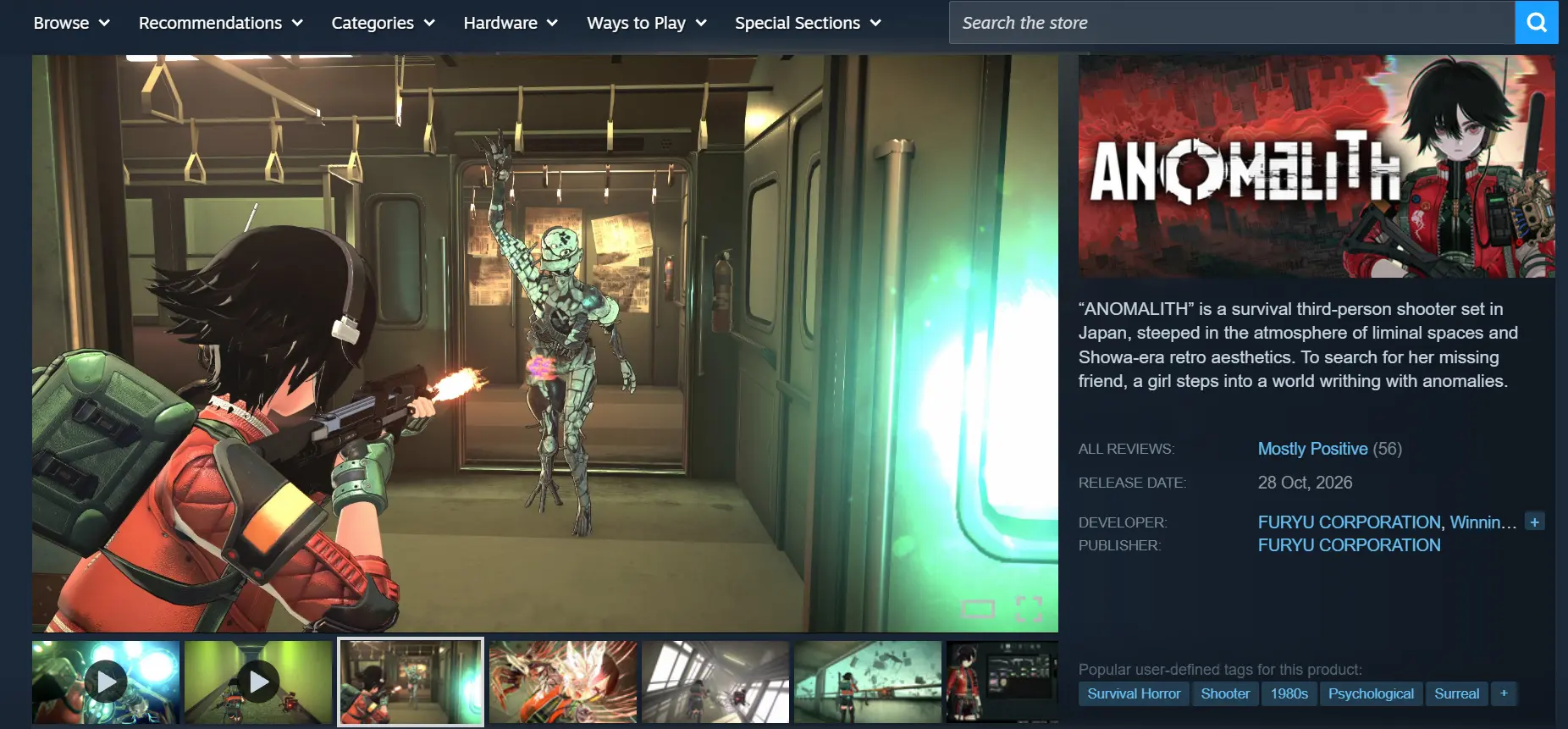
Once all files have finished downloading, we recommend launching the game locally on your PC first. Make sure it loads into the main menu normally without crashes, missing textures, or other issues before setting up the streaming tools. This makes it easier to identify the source of any problems later.
2. How to Install OSLink on Your Computer and Phone
Windows PC Setup
Open your browser and visit the official OSLink website. Download the installer for Windows and follow the setup wizard. Once installation is complete, open the software, create an account, and sign in.
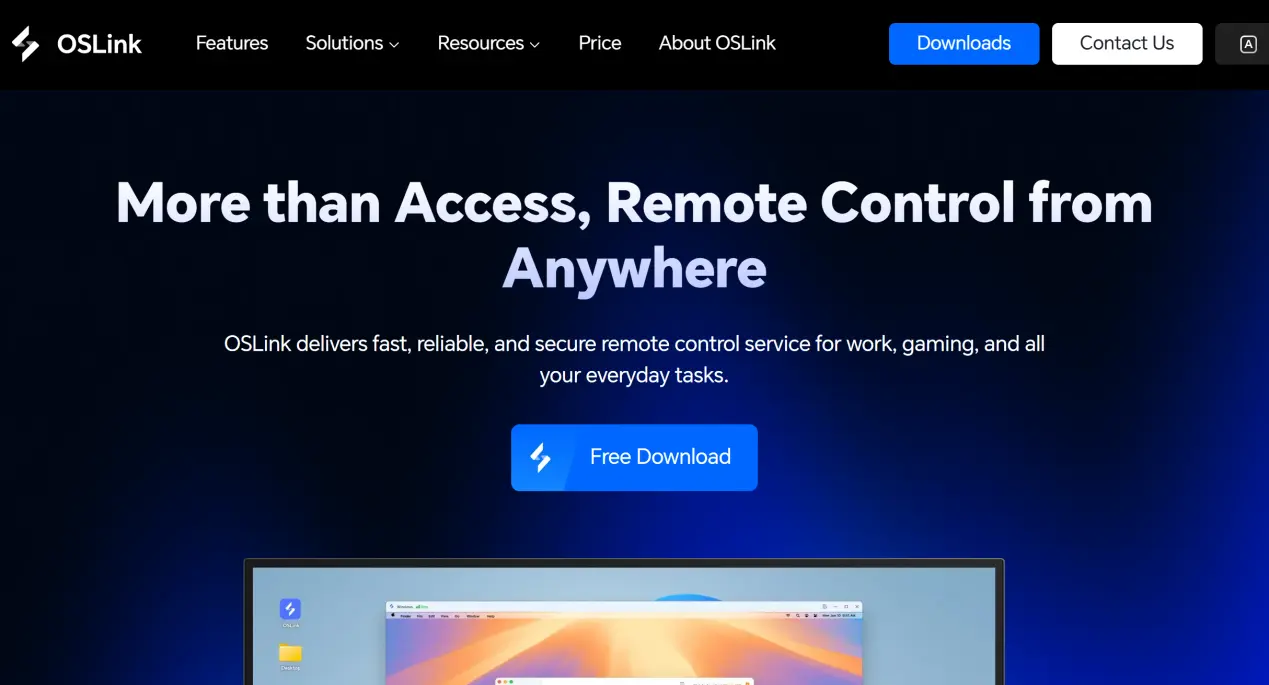
OSLink needs to keep running in the background. At the same time, adjust your PC's power settings to disable automatic system sleep and network adapter sleep. This prevents the connection from dropping while the host PC is idle, so your mobile device can connect whenever needed.
Mobile Setup
Android users can search for OSLink through the relevant app distribution platform and install it. iOS users can search for the OSLink app on the App Store and download it.
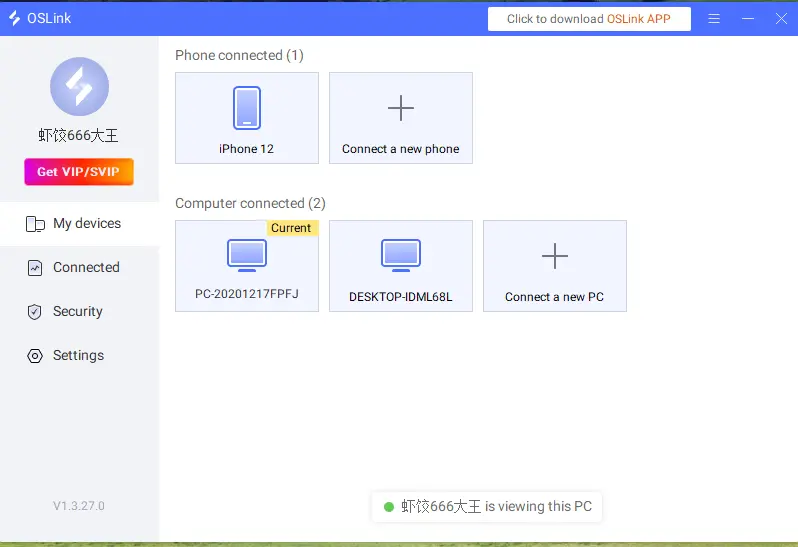
Sign in on your phone with exactly the same account used on the computer. OSLink can automatically detect PCs on the same network, and it can also pair devices automatically over the internet, so there is no need to enter long device verification codes manually.
3. How to Run ANOMALITH on OSLink Mobile
On the PC, open the game store client and launch ANOMALITH. Stay on the game's main screen and keep the game window in the foreground rather than minimizing it.
Open OSLink on your phone. The device list will show online PCs linked to the same account. Tap the target PC to establish the streaming connection.
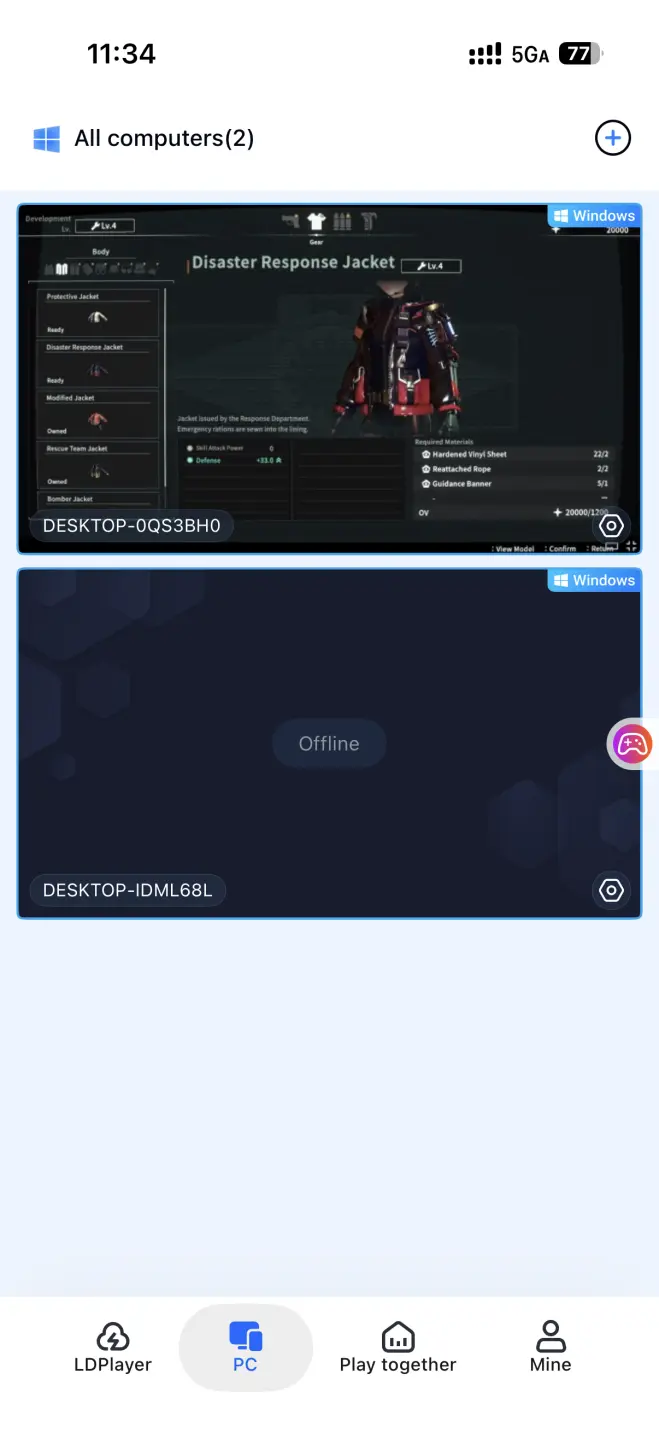
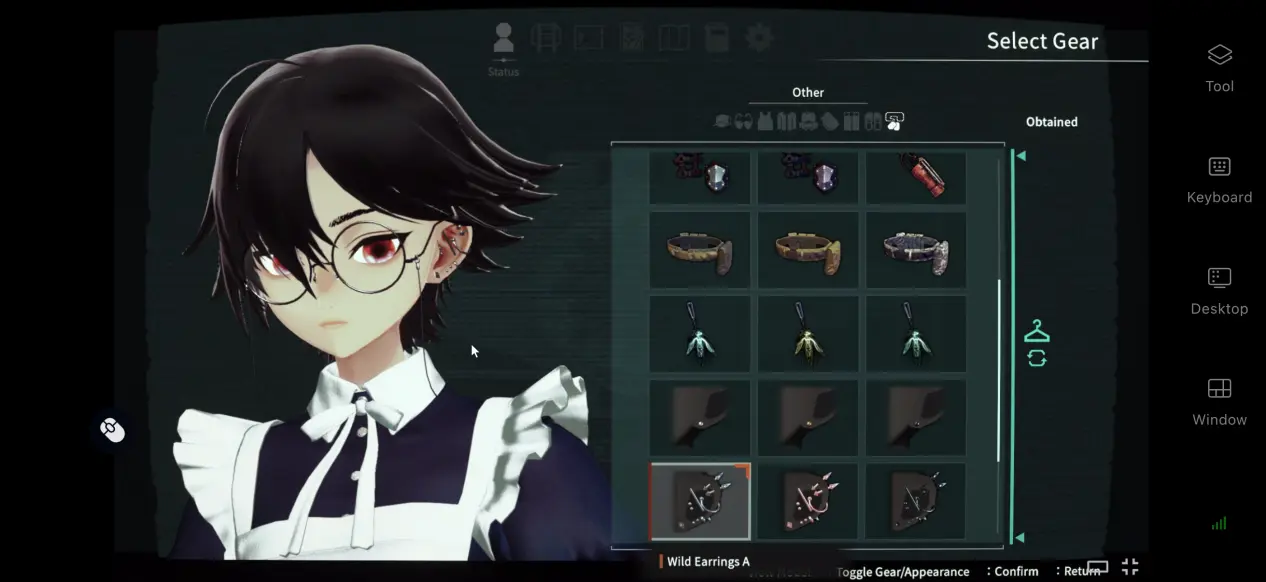
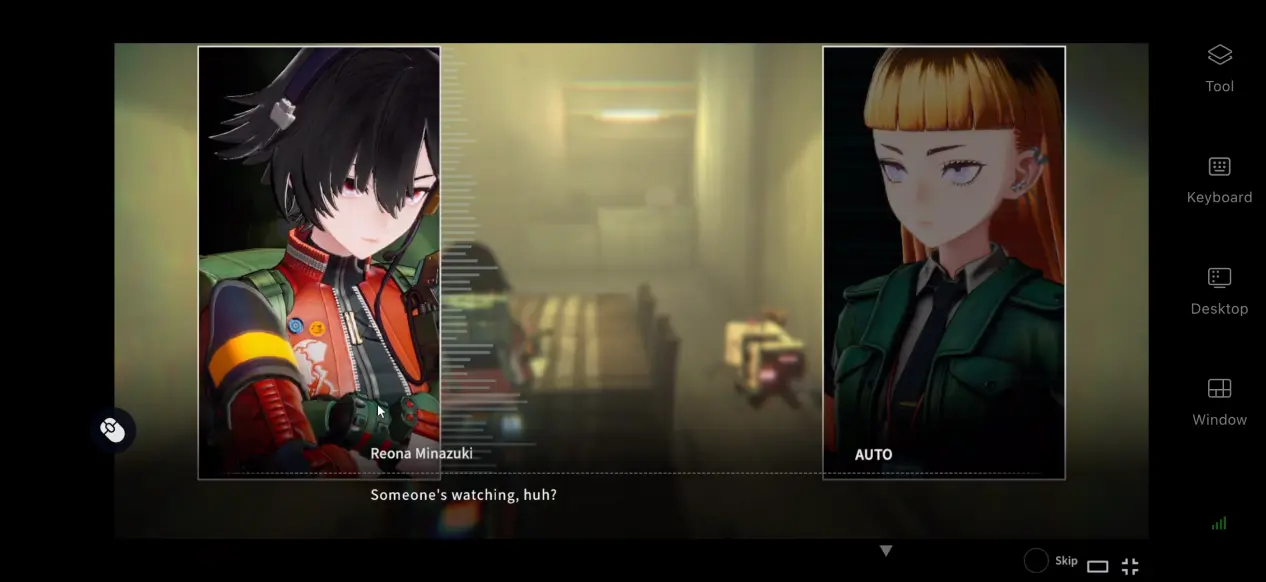
Once the PC screen is successfully displayed, open the side toolbar and switch to Game Mode. Once everything is set up, you can enjoy the full gaming experience on your phone, including exploring the map, gathering resources, and dealing with threats.
4. Benefits of Playing ANOMALITH on Mobile
Play Anywhere, Anytime
As long as your computer stays powered on and connected to the internet, your phone can connect through local Wi-Fi or mobile data. Whether you're on the go or waiting in line, you can pick up an existing survival save, gather supplies, or deal with sudden attacks.
No Need to Use Your Phone's Storage
All of the game's large resource files stay on your computer's hard drive, while your phone only receives the video feed and sends back control inputs. You do not need to download tens of gigabytes of game files to your mobile device, so even a mid-range phone can handle the streaming experience without requiring you to delete other files to free up storage space.
Support for Multiple Peripherals
OSLink supports wired and Bluetooth connections for controllers, keyboards, and mice. Once a controller is connected, the software automatically maps the inputs. Time-sensitive actions such as quickly switching supplies or making an emergency escape can feel close to playing locally, helping overcome the limits of touchscreen controls.
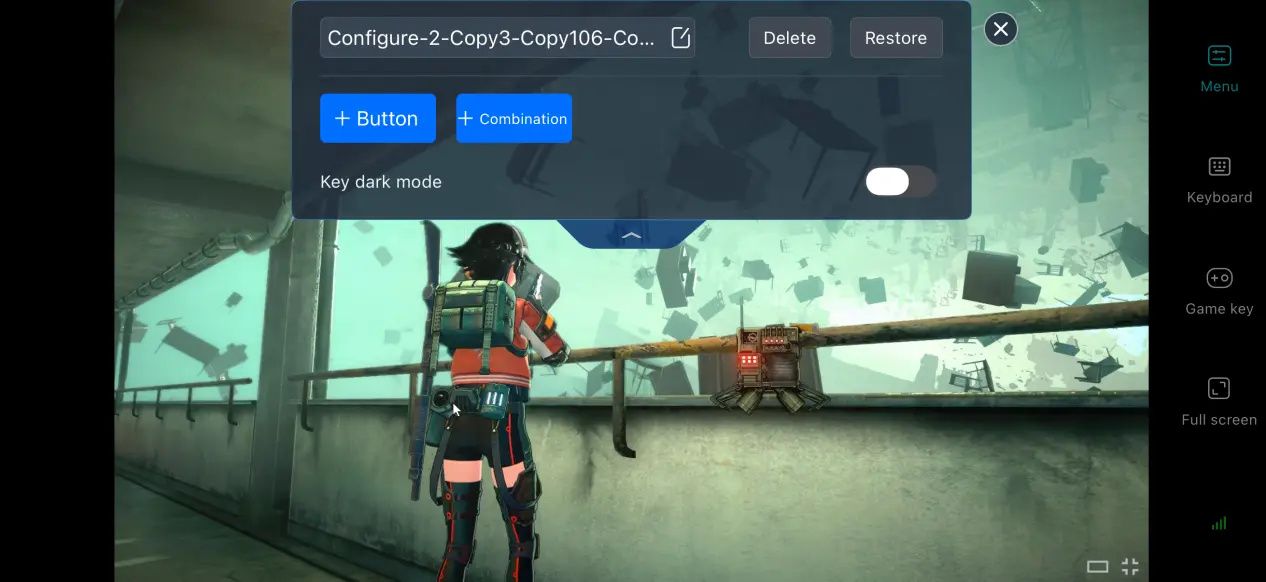
5. How to Optimize Your OSLink Gaming Experience
Customize the Control Layout
You can add or remove virtual touch buttons and freely adjust their size, transparency, and position. For ANOMALITH, place frequently used controls such as item switching and emergency dodges where your fingers can reach them easily. You can also save multiple layouts and switch quickly between setups for resource gathering and combat.
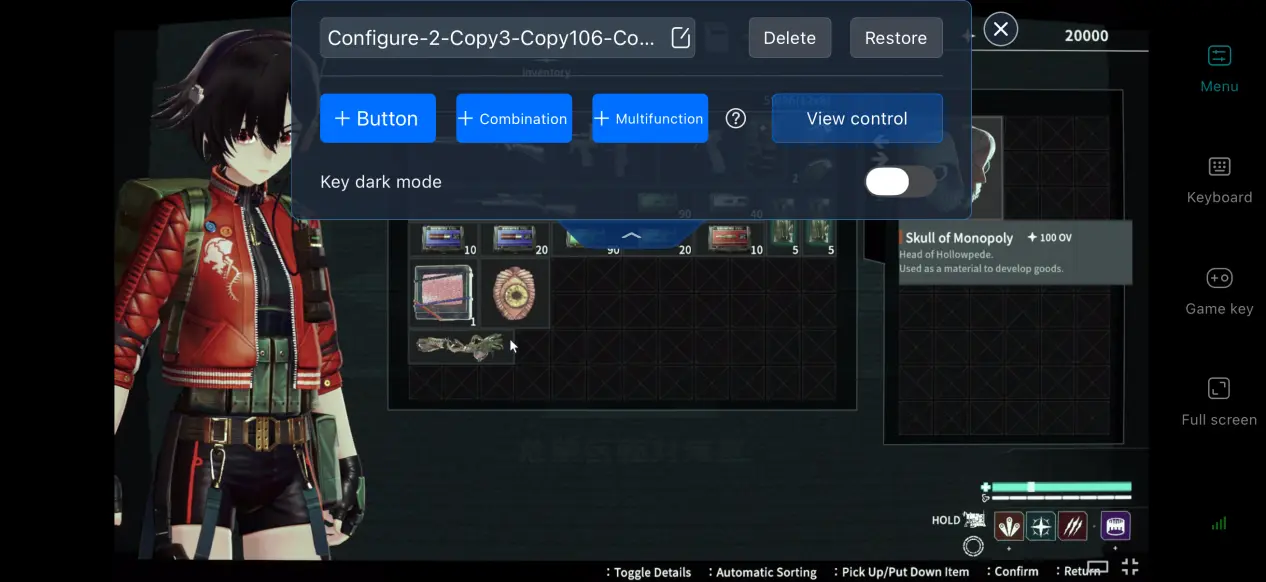
Streaming History
OSLink saves your previous device connection records, so you do not have to search for the host PC every time. Simply select a previous record to start streaming. If an unfamiliar device attempts to connect, you can also block the connection promptly to help keep your account secure.
60 FPS Gaming Mode
Enabling OSLink's built-in 60 FPS PC Gaming Mode optimizes the video encoding process, reducing motion trails during fast camera turns or when many units appear on screen. It also shortens the delay between input and on-screen feedback, making it easier to react when danger strikes.
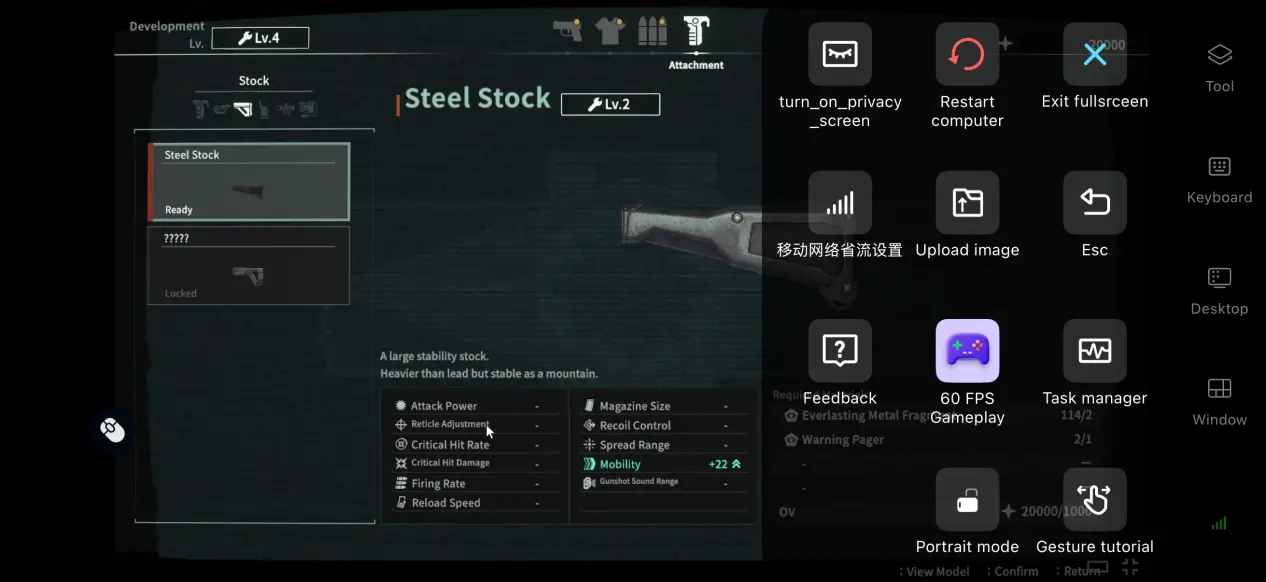
Mobile Screen Scaling
You can keep the original aspect ratio or crop the edges so the image fills the entire phone screen. This adjustment only affects the receiving device and does not require changing your computer monitor settings, helping resolve display issues caused by different screen ratios.
6. Frequently Asked Questions
Q: what is ANOMALITH release time?
A: ANOMALITH release date is October 28, 2026. It launched on major PC game stores as well as home console platforms, and there is no official native mobile version.
Q: What are the PC system requirements for ANOMALITH?
A: Minimum requirements: Windows 11, i5-9400/Ryzen 5 3500 CPU, 16 GB RAM, GTX 1660 6 GB GPU, and a 50 GB SSD; Recommended requirements: Windows 11, i5-11400/R5 5600 CPU, 16 GB RAM, RTX 2070 GPU, and a 50 GB SSD. A mechanical hard drive is not recommended for running the game.
Q: Can ANOMALITH be played on Android devices?
A: There is no official native Android package. Android users need to stream the game remotely from a PC through OSLink, as the game cannot be installed and run locally on a phone.
Q: Can ANOMALITH be played on iOS devices?
A: The native version of ANOMALITH is not available on the App Store. iOS users need to connect remotely to a PC through OSLink to play, as the game cannot be installed and run locally on an Apple mobile device.
Conclusion
ANOMALITH is a survival PC game built around high-pressure environments and resource management, with randomly generated areas and sudden survival threats forming much of its appeal. However, the game has no native mobile support. For players who want to keep a survival run going away from their computer, OSLink remote streaming is a practical solution. The computer handles all rendering and processing, while your phone serves as the display and input device. This allows you to enjoy the full gaming experience during your spare time without being tied to one location.
 Download