English
 As a PC game built around fast-paced combat and highly interactive environments, Moon Sweepers requires precise controls and constant awareness of your surroundings. So, how can you bring the full game experience to mobile without spending a lot? This guide walks you through a remote-play solution for playing PC games on your phone, covering everything from software installation and connection steps to streaming adjustments. If you're interested, just follow the steps below to complete the setup.
OSLink is designed to handle the remote-play needs of fast-paced action PC games like Moon Sweepers. The complete game screen from your computer can be streamed to your phone in real time, while all in-game actions, including movement, shooting, and skill usage, can be performed directly on your mobile device.
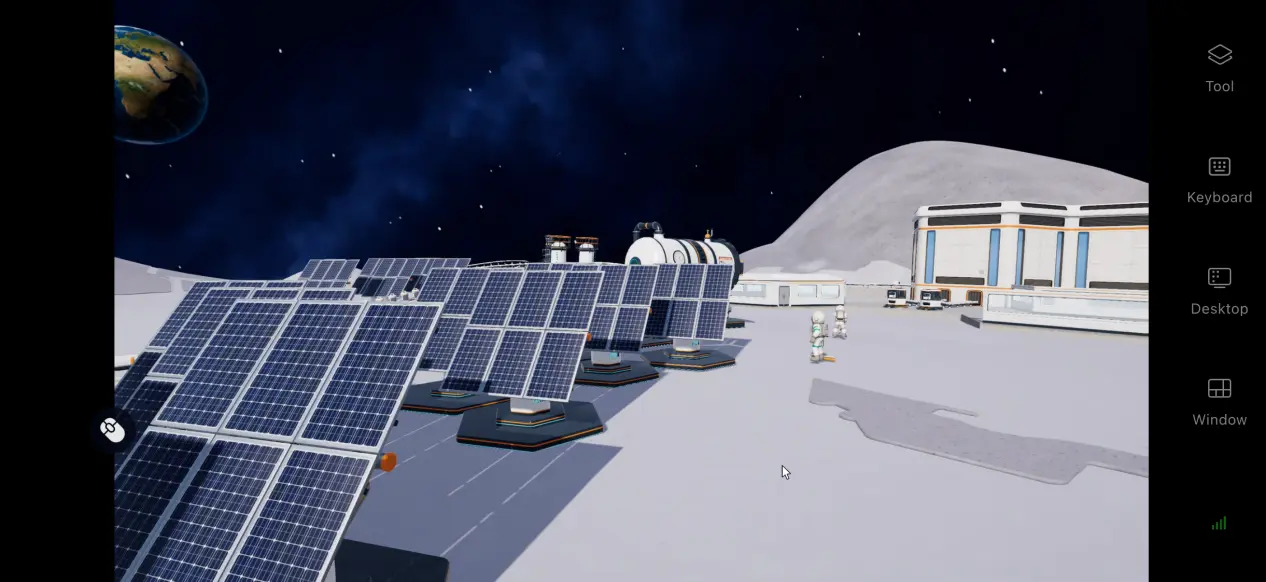
1. Moon Sweepers Installation Guide
Getting the Game
Before starting remote play, you need to download the game to your computer. The PC version is available on the Steam store. Open the Steam client, search for the game by name, check that you have the correct version, purchase it, and the download will be added to your library.
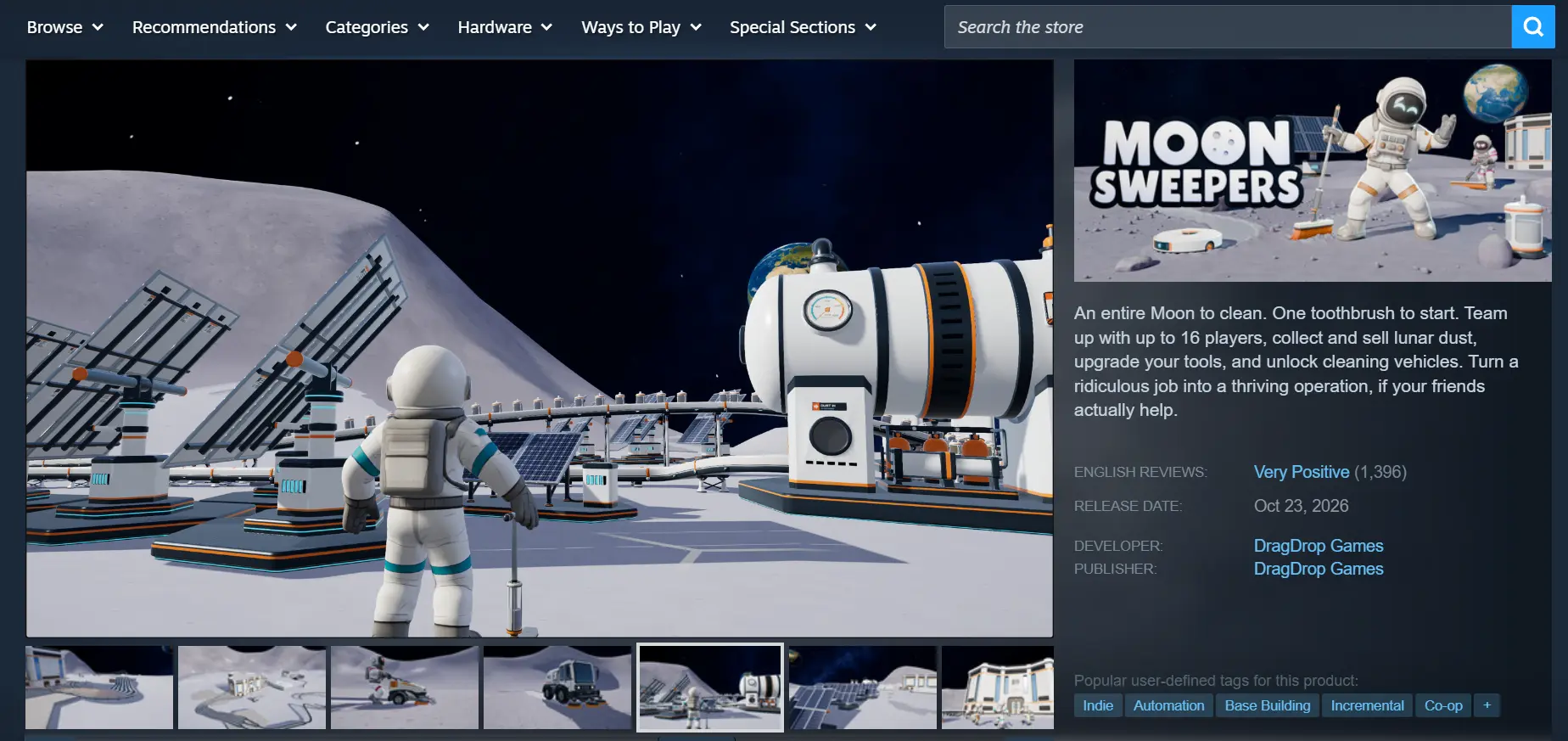
Test the Game Locally First
The game requires a certain amount of storage space, so make sure your computer has enough free disk space. Once all the game files have finished downloading, launch the game directly on your computer first and enter a match to test it. Make sure the game loads properly and that there are no issues such as crashes or broken textures. Once everything works normally on the computer, you can move on to the remote-play setup.
2. Installing OSLink on Both Devices
Installing and Setting Up the Windows Version
Open your browser and visit the official OSLink website to download the Windows installation package. Follow the installation wizard to complete the setup. After installation, it is recommended to add the program to your firewall's allowlist to prevent the firewall from blocking the connection and causing unexpected streaming disconnections.
Installing the Mobile Version
Android users can download the installation package from the official website or search for OSLink in the official app market to install it. iOS users can simply search for the corresponding software in the App Store and download the app.
Pairing the Two Devices
Once OSLink has been installed on both the computer and phone, sign in to the exact same account on both devices. After the account verification is completed, the program will automatically establish an encrypted transmission channel, completing the preparation for device pairing.
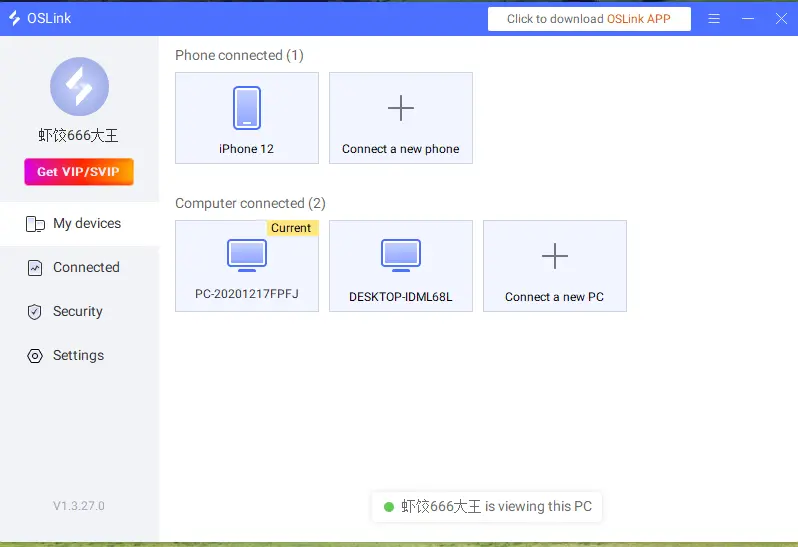
3. How to Run Moon Sweepers on OSLink Mobile
Preparing the Computer
Keep OSLink running in the background on your computer. Disable the operating system's automatic sleep and hard-drive sleep options. Launch Moon Sweepers from the game client, wait until all game resources have finished loading, and leave the game at the main menu or the matchmaking waiting screen.
Establishing the Remote Connection
Open the OSLink app on your phone. The device list will show computers that are online under the same account. Tap the target computer to start the connection. Once the connection is established, switch to full-screen mode, and the computer's display will be streamed directly to your phone screen.
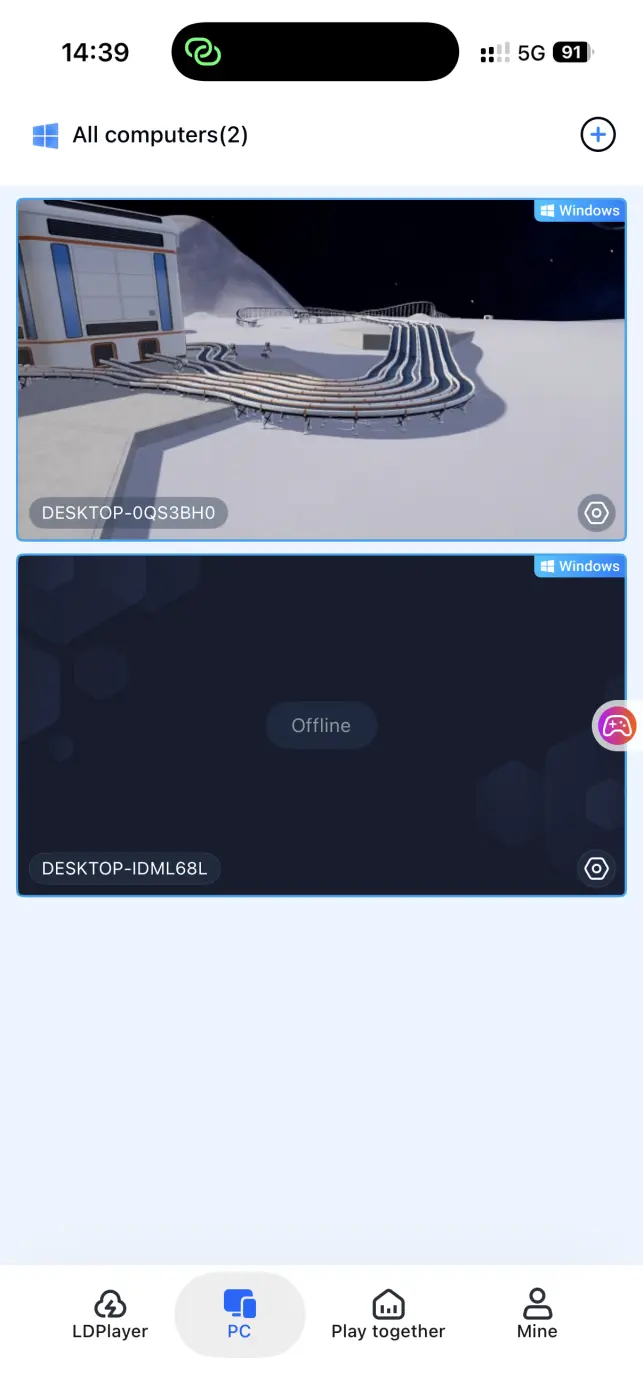
Starting a Game
Once the screen has been successfully mirrored, open the mobile side toolbar and select the streaming mode suited to action-shooting games. After adjusting the mode, you can perform all the necessary combat actions on your phone, including movement, aiming, and using skills.
4. Benefits of Playing Moon Sweepers on Mobile
Jump Into a Match Whenever You Have Time
As long as your network connection meets the requirements, your phone and computer do not need to be on the same local network. As long as both devices maintain a stable internet connection, you can continue your game while waiting outside or during spare moments instead of being tied to your computer desk.
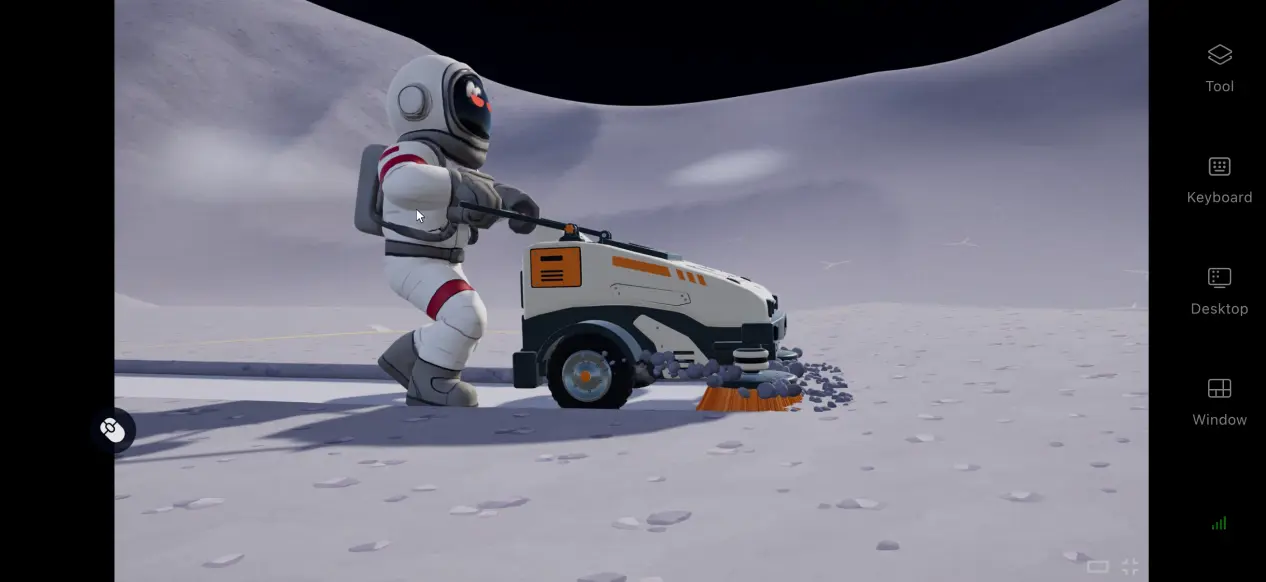
No Need to Use Your Phone's Storage
All game resources remain stored on your computer's hard drive. Your phone only receives the streamed screen data and sends control commands back to the computer. You do not need to download large game files to your phone, and the phone does not have to handle the game's graphical rendering. Even older mobile devices can be used to play.
Share the Same Game Session with Other Players
The software includes a dedicated room-sharing feature that allows you to stream the Moon Sweepers game session currently running on your computer into a room and invite other accounts to join. Multiple players can interact with the same game session, making this feature suitable for friends who want to plan a base layout and divide up moon-sweeping tasks.
5. OSLink Built-in Features
Enable 60 FPS Game Mode
Enable the dedicated 60 FPS PC game mode to let the program reallocate network bandwidth and prioritize the transmission efficiency of control commands. During scenes with rapid camera movement or frequent precise inputs, this can reduce screen stuttering and input delay. If the network connection is unstable, you can lower the video bitrate slightly to improve control responsiveness.
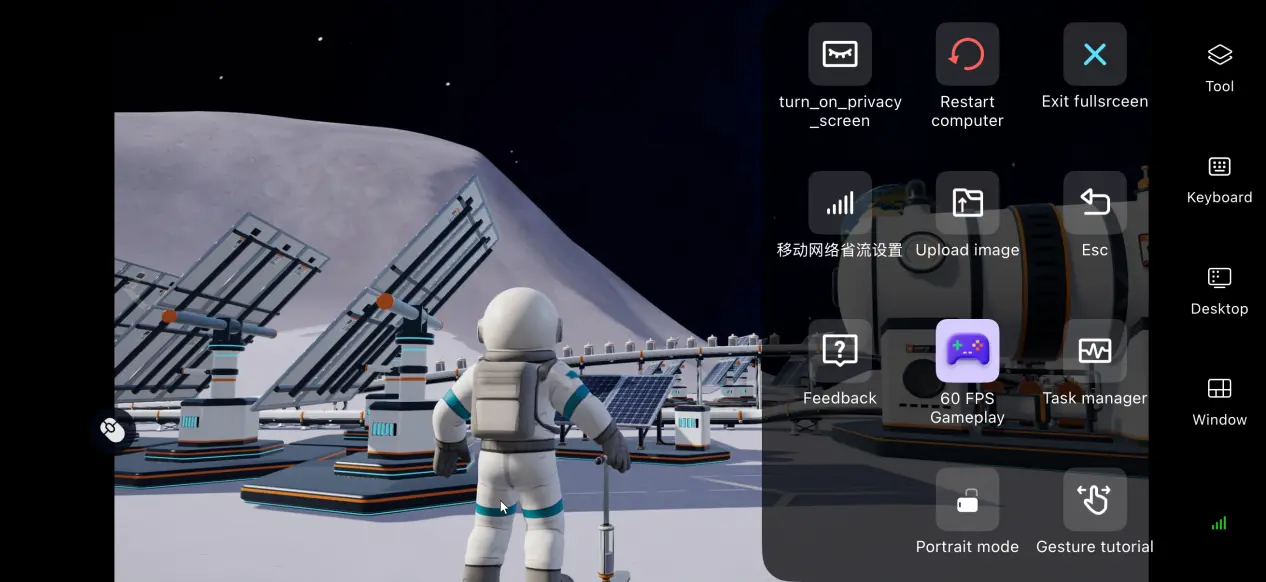
Customize the Controls
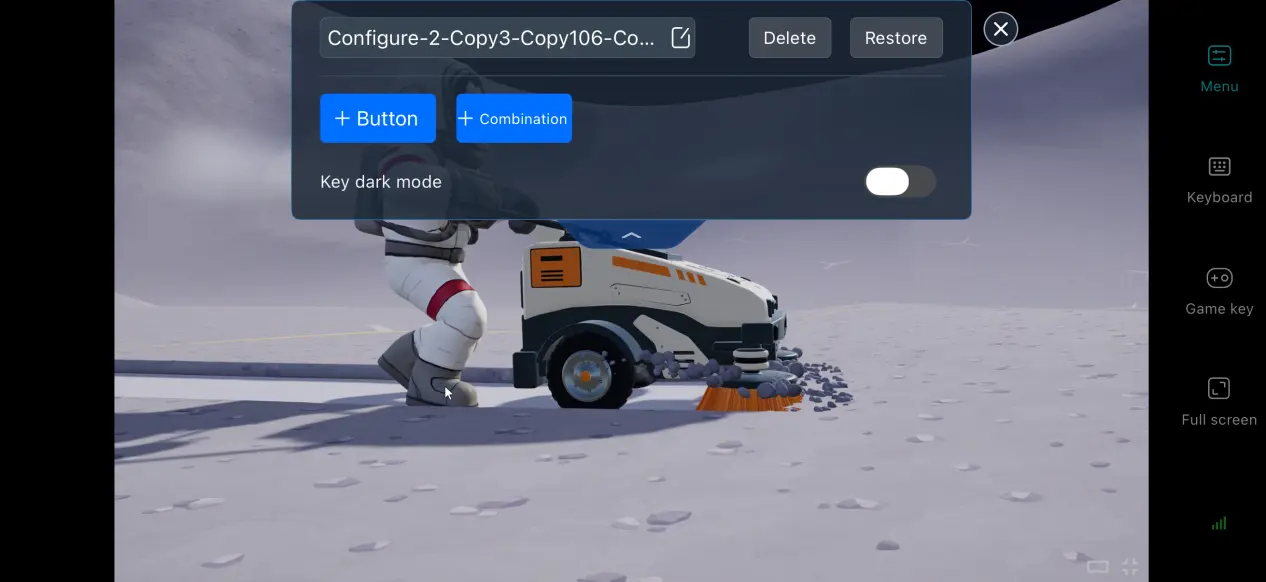
Simulation and management gameplay often requires you to open menus and switch tools frequently. With the custom control feature, you can add virtual buttons and combination shortcuts, then arrange their positions according to your personal preferences. You can also set shortcuts for actions such as one-tap cleaning and tool switching to make the game more comfortable to play on your phone.
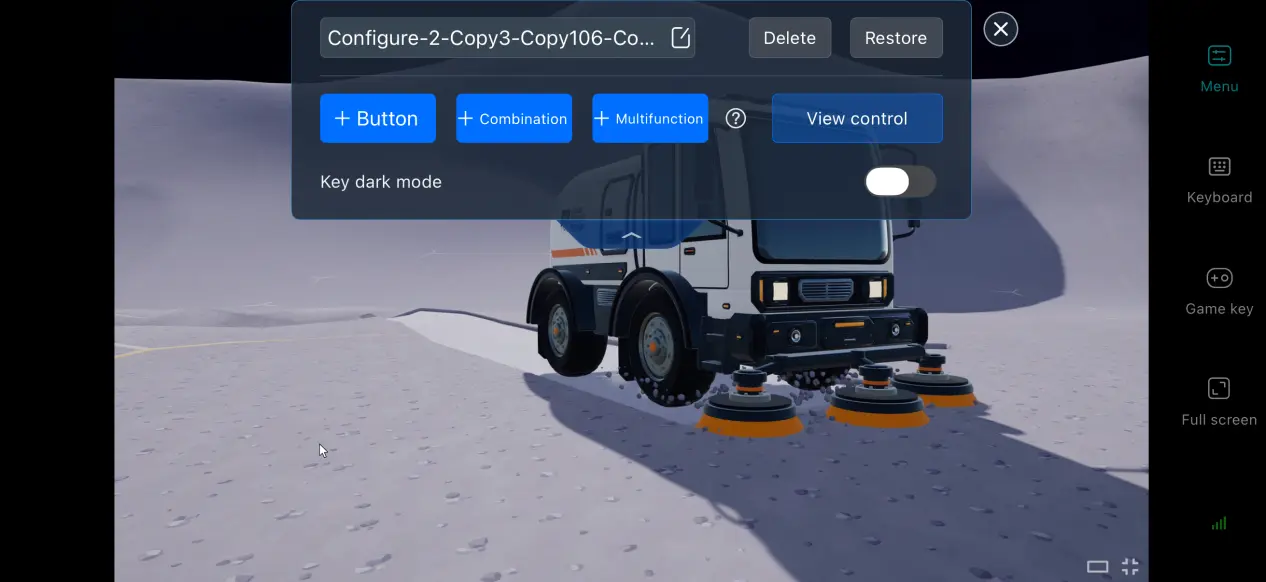
Adjust the Mobile Screen Display
After switching to full-screen mode, OSLink automatically hides the phone's status bar and gesture area. When the game's aspect ratio differs from your phone's, the display is automatically scaled to minimize black borders while keeping all UI elements visible.
Support for Various External Devices
The software supports mainstream Bluetooth controllers, keyboards, and mice. Connecting a keyboard and mouse can reproduce the control logic used on a computer, making base building and precise placement more accurate. A controller requires button mapping to be configured in advance and is suitable for large-scale exploration of the moon's surface and checking resource distribution.
6. Frequently Asked Questions About Playing Moon Sweepers on OSLink
Q: What is Moon Sweepers release time?
A: Moon Sweepers release date is October 23, and there is currently no native mobile version.
Q: What computer specifications does Moon Sweepers require?
A: The minimum requirements include Windows 10 or later, a compatible processor, 16 GB of RAM, and a compatible dedicated graphics card. An SSD is also recommended, along with enough available storage space. For a stable experience at higher graphics settings, you need a CPU and graphics card that meet the recommended specifications, while an SSD is required.
Q: Can I play Moon Sweepers on an Android device?
A: There is no official native installation package for Android, so the game cannot be installed and run directly on the platform. It is recommended to use OSLink for streaming and connect to a computer where the game is already installed for remote play.
Q: Can I play Moon Sweepers on an iOS device?
A: There is likewise no official native game client for iOS, so the game cannot be installed and run directly. Players can use streaming through an emulator to connect to a computer running the game and play it indirectly.
Conclusion
With OSLink's remote-streaming solution, you can stream the complete PC game screen to your phone without making major changes to your hardware or system. This setup lets you make use of spare moments throughout the day to join matches. Combined with customizable controls, high-frame-rate mode, and support for external devices, it helps overcome the control limitations of mobile devices and gives you a gaming experience that comes close to playing on a computer.
 Download