English
 Many players have been keeping an eye on Roco Kingdom, this new open-world title. With plenty of pets to collect, maps to explore, and side stories to discover, it's easy to see why players want to enjoy the PC game wherever they are. This guide walks you through the complete setup for remote play on your phone, along with answers to common questions. Even if you're new to game streaming tools, you can follow the steps below to get everything set up with ease.
If you want to play the PC version of Roco Kingdom smoothly on your phone, OSLink is a great option.Once your account is linked, OSLink connects your computer and phone, keeping controls responsive during pet battles and map exploration so you can continue your Roco Kingdom adventure right from your phone.
1. How to Get Roco Kingdom
Get the Game Client
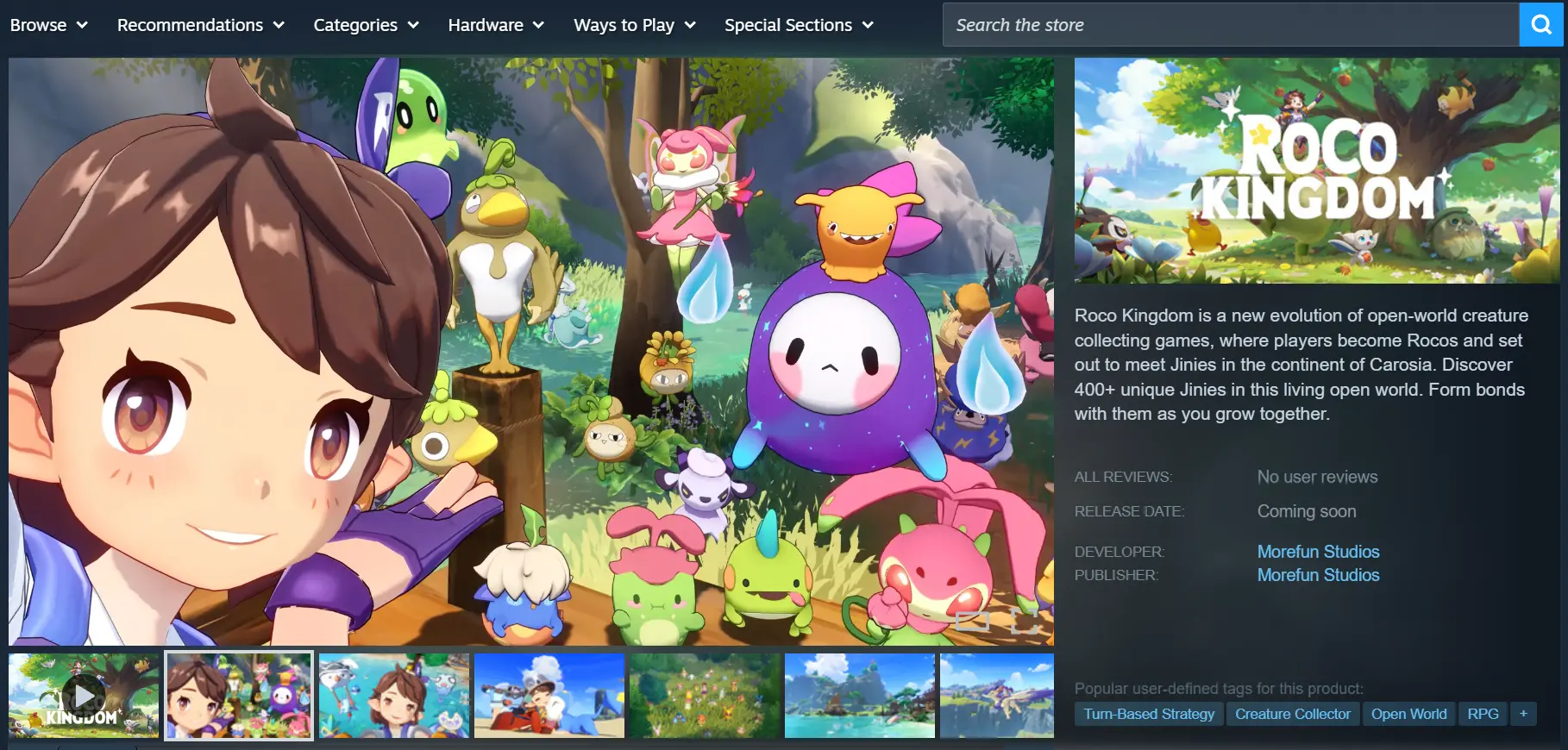
The official game client is currently available only on Steam for PC. Open the Steam client and search for Roco Kingdom in the store. Open the game's product page, claim the game, then go to your Library and choose where to install it on your hard drive before starting the download.
Check the Game After Installation
Once the download is complete, make sure to verify the game files to check for missing or corrupted resources. Launch the game manually once and make sure it reaches the title screen normally without crashing or showing a black screen. After that, you can configure the remote streaming settings to reduce the chance of connection issues later.
2. OSLink Installation Guide
PC Setup
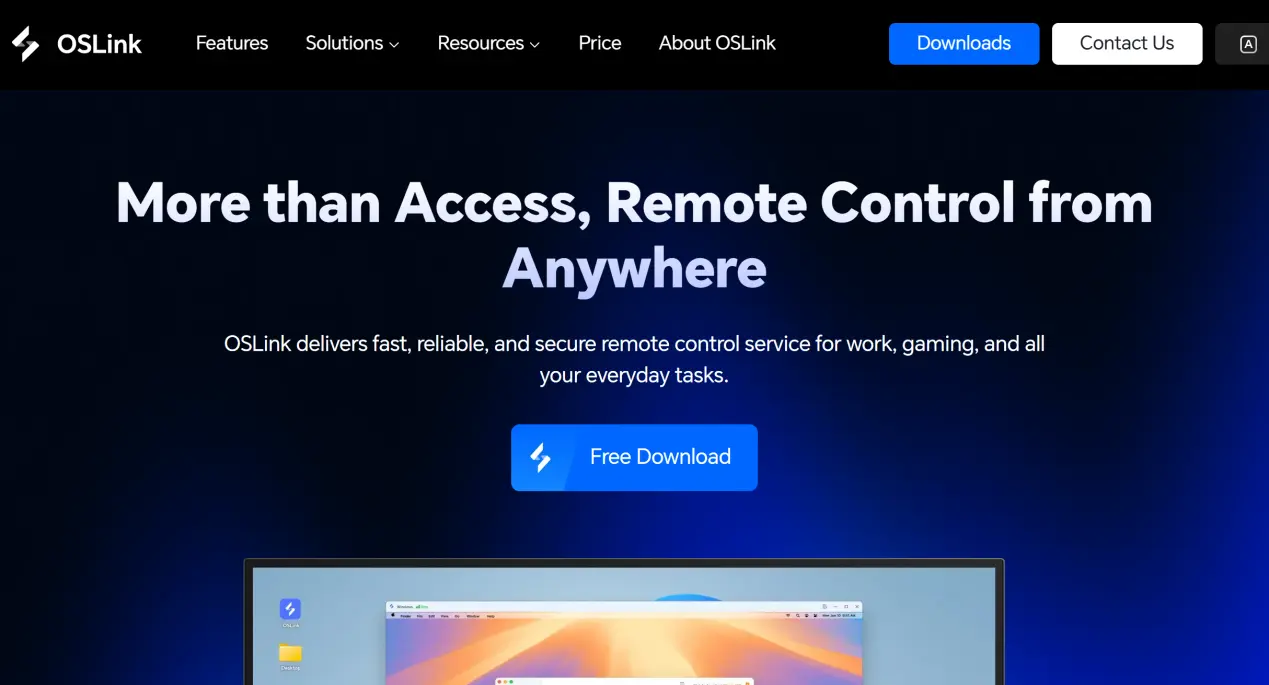
Visit the official OSLink website through your browser and download the Windows installer. Follow the installation wizard to complete the setup. After opening the software, register and sign in to your account using your email address or phone number.
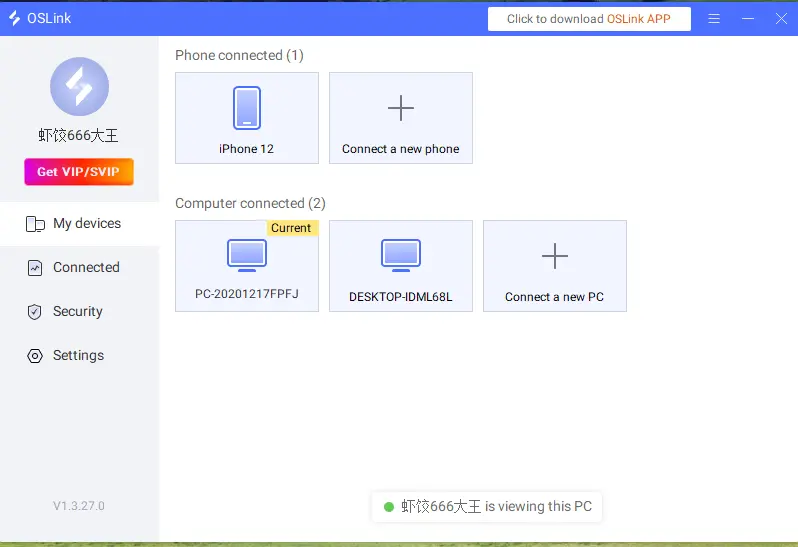
After signing in successfully, your computer will automatically be linked to your account. You can find the computer's name in the device list.
Mobile Setup
Android users can search for OSLink in the relevant app store and download the app. iOS users can open the App Store and search for OSLink. Once installation is complete, open the app and sign in with the same account used on your computer. The system will automatically pair the devices, and the computer you linked will appear on the mobile device page.
3. How to Run Roco Kingdom on OSLink Mobile
Check Your Setup Before Connecting
Make sure your computer is powered on and OSLink is running in the background. It's recommended to launch Roco Kingdom in advance and leave it on the main screen. Your phone should be connected to a stable network, preferably a 5 GHz Wi-Fi connection or a 5G mobile network. Public networks can be unstable and may cause stuttering or input lag, so it's best to avoid them whenever possible.
Start the Remote Streaming Connection
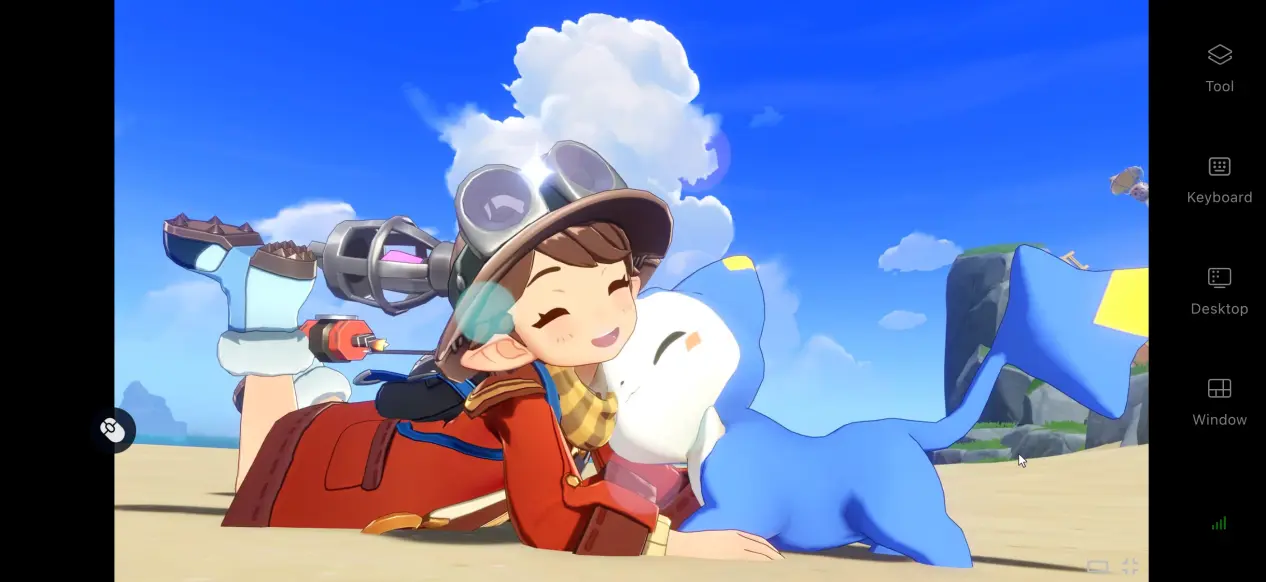
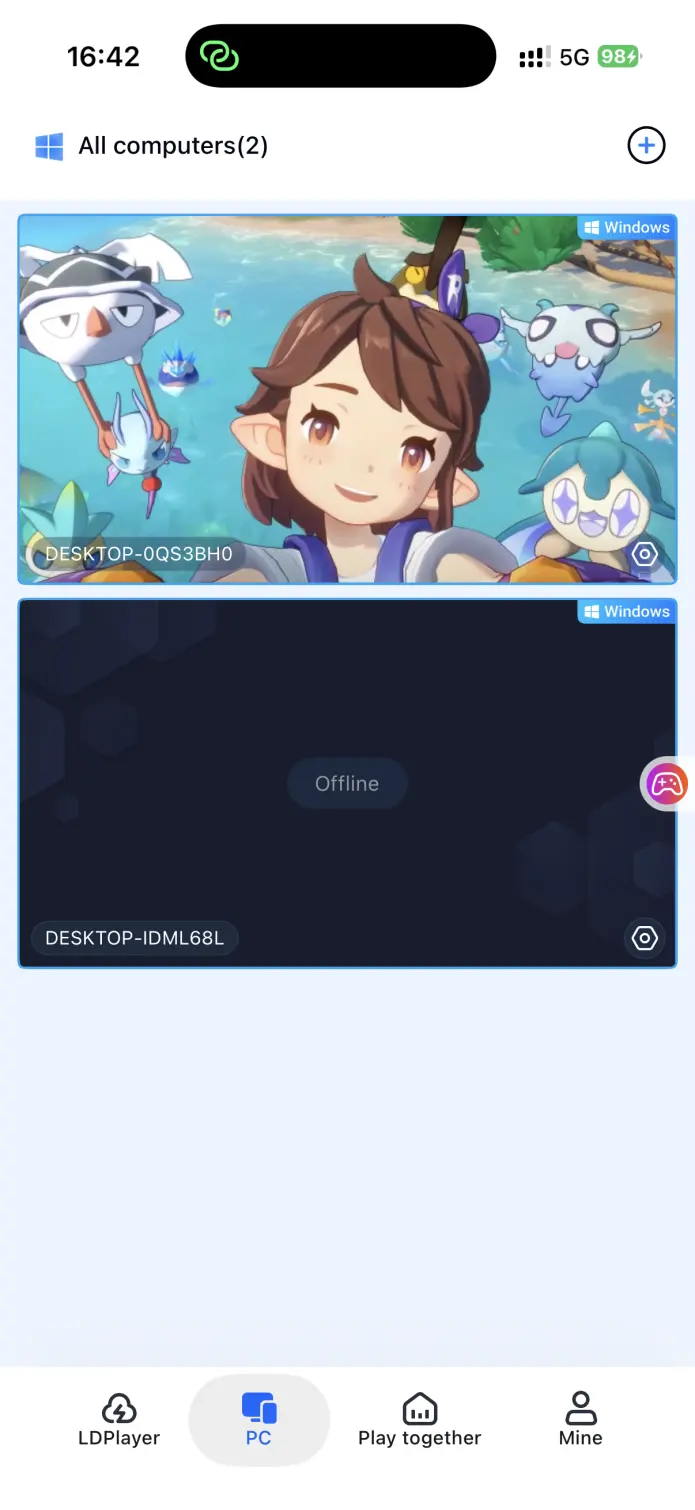
Open OSLink on your phone and tap the linked computer in the device list to bring up the remote desktop view. Your phone will then mirror the computer screen, and the Roco Kingdom game window will be displayed on your phone.
Make a Quick Adjustment After Connecting
After the connection is established for the first time, check the display to make sure the entire game screen is shown properly. Once everything looks right, you can start playing using the touchscreen.
4. Benefits of Playing Roco Kingdom on Your Phone
Play Without Being Tied to Your PC
You don't have to stay at your computer. You can log into the game while waiting outside, taking a lunch break, or whenever you have a little free time. Use those spare moments to train pets, explore the map, and complete daily tasks instead of setting aside a large block of time at your PC. Your progress doesn't have to be interrupted by your daily schedule.
Low Storage Usage on Your Phone
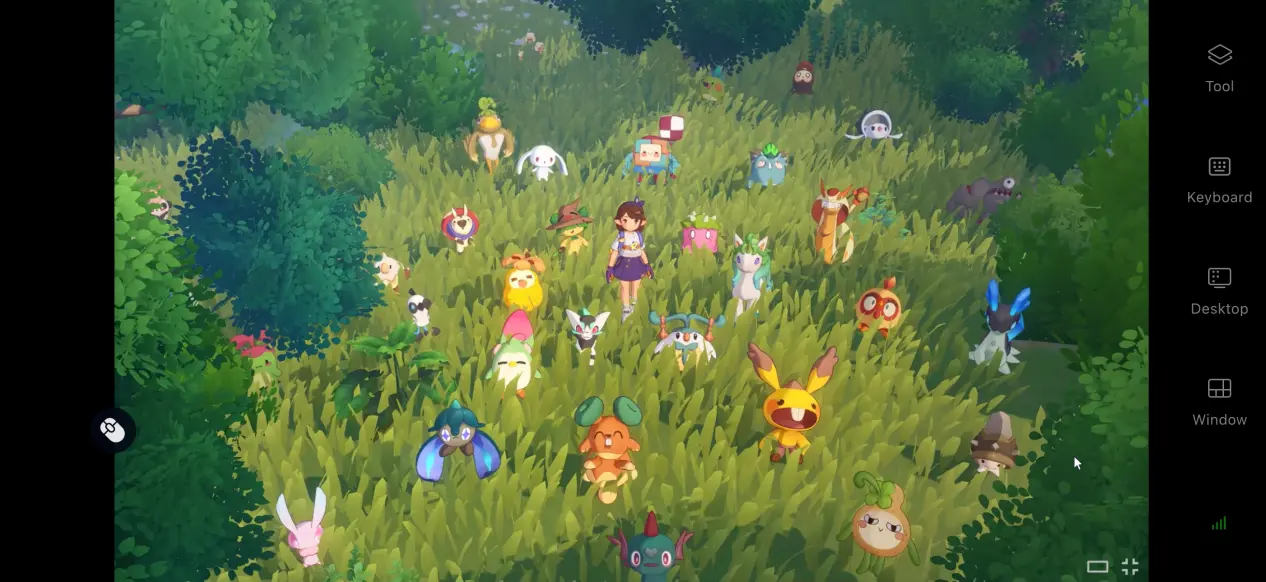
All of the game's resource files remain on your computer's hard drive, so your phone only needs the relatively small OSLink app. Even an older phone with limited storage can connect to the game smoothly, while the computer handles all the rendering and data processing.
Support for Various External Devices
The software works with most mainstream Bluetooth controllers. Once you connect a controller to your phone, OSLink can recognize it automatically. You can use the controller for map exploration and pet battles, giving you more precise control than using touchscreen taps alone.
5. How to Improve Your OSLink Gaming Experience
Enable 60 FPS Game Mode
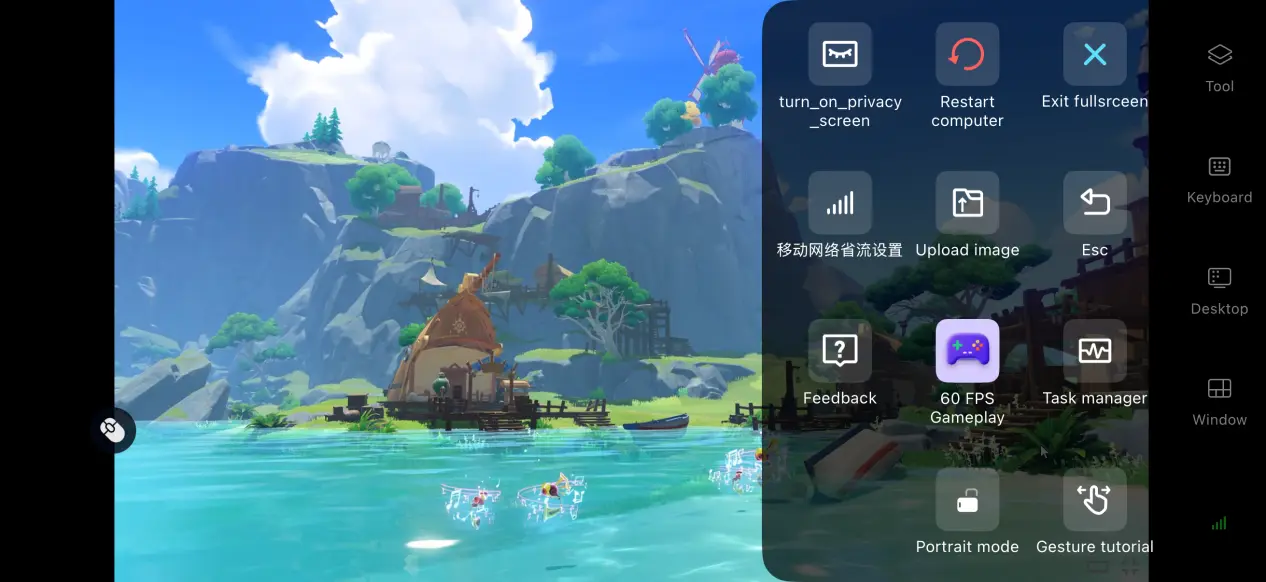
For a better gaming experience, open the toolbar on the right and enable the dedicated 60 FPS game mode. The software optimizes the encoding of the game screen, making exploration and in-game interactions feel smoother and more responsive. When your network connection isn't strong enough, switch to the Balanced setting to lower the video bitrate slightly and keep the stream stable.
Check Your Streaming History
The software keeps a record of your streaming connections, allowing you to review information about previously connected devices. If you run into connection issues, you can also check these records to help troubleshoot the problem and reconnect more quickly.
Customize the Button Layout
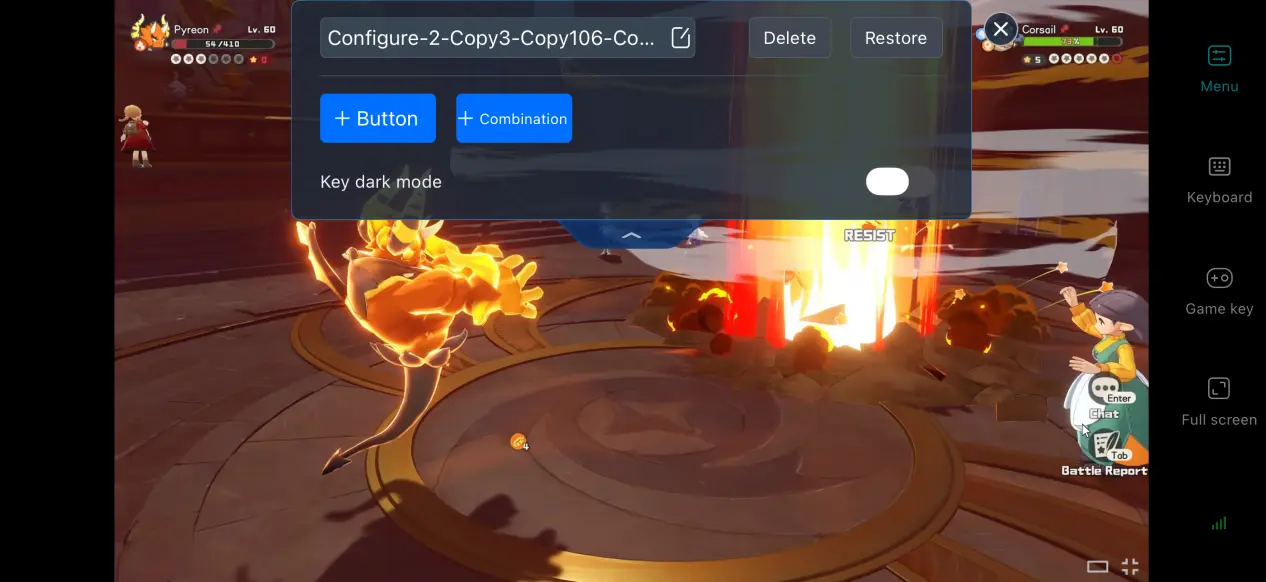
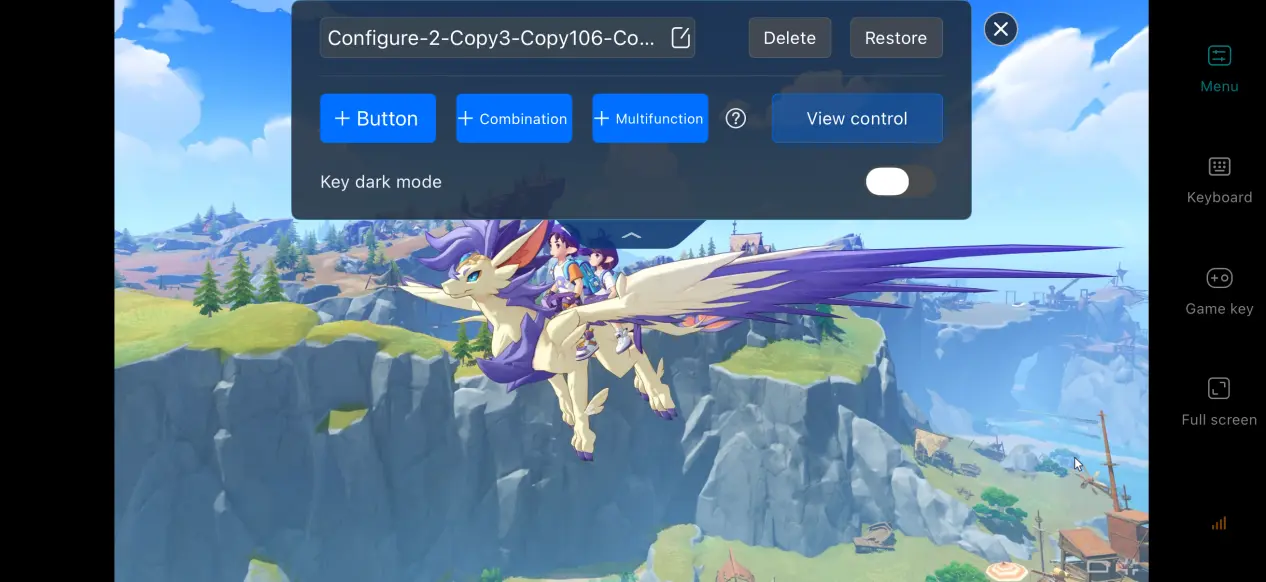
Turn on OSLink's built-in button editor to add virtual buttons and assign keyboard and mouse commands from your computer. You can freely adjust the size, position, and transparency of each button based on your preferred controls, making the game easier to play on mobile.
Adjust the Screen Fit
If the PC game's resolution doesn't match your phone's aspect ratio, you can use the screen-fitting options. You can either stretch the image to fill the screen or preserve the original aspect ratio with black bars. This helps prevent characters and UI elements from appearing distorted.
6. Frequently Asked Questions About Roco Kingdom
Q: What is Roco Kingdom release time?
A: Roco Kingdom release date is not yet announced. The Steam store page currently does not list an official release date, and the developers have not released a confirmed launch date. For testing opportunities, follow the official community announcements for registration details.
Q: What are the PC system requirements for Roco Kingdom?
A: The minimum requirements include Windows 10, an i5-9400F or equivalent AMD processor, 8GB of RAM, a GTX 1050 Ti-class graphics card, and 12GB of available storage. For the recommended setup, use an i5-12400F or equivalent AMD CPU, 16GB of RAM, an RTX 2060 or better, and 16GB of available storage. Most mainstream home PCs should be able to run the game.
Q: Can I play Roco Kingdom on Android devices?
A: The game has a native Android client, but the installation package is quite large and can take up a lot of storage space on your phone. With OSLink, you can remotely stream the game from your own PC, so the game runs on your computer and you don't need to download the large game files to your phone. This saves storage space on your Android device while still letting you enjoy the full PC version of the game.
Q: Can I play Roco Kingdom on iOS devices?
A: The game also has an iOS version, but the full resource package can take up a significant amount of storage space. If you want to enjoy all the content available on the PC version, you can use OSLink to stream the game from a PC where it is already installed. This way, you don't need to install the game on your phone, saving a considerable amount of storage space.
Summary
Roco Kingdom is an adventure game focused on open-world exploration and pet development. It currently only has a PC client. For players who want to explore the world and train pets during their spare time, OSLink provides a simple and practical remote streaming solution. The computer handles all the processing, while the phone receives the game video stream and sends control inputs. This means you don't need to upgrade to a high-performance mobile device, while still being able to break free from location restrictions and explore the fantastical world of Roco Kingdom whenever you want.
 Download