English
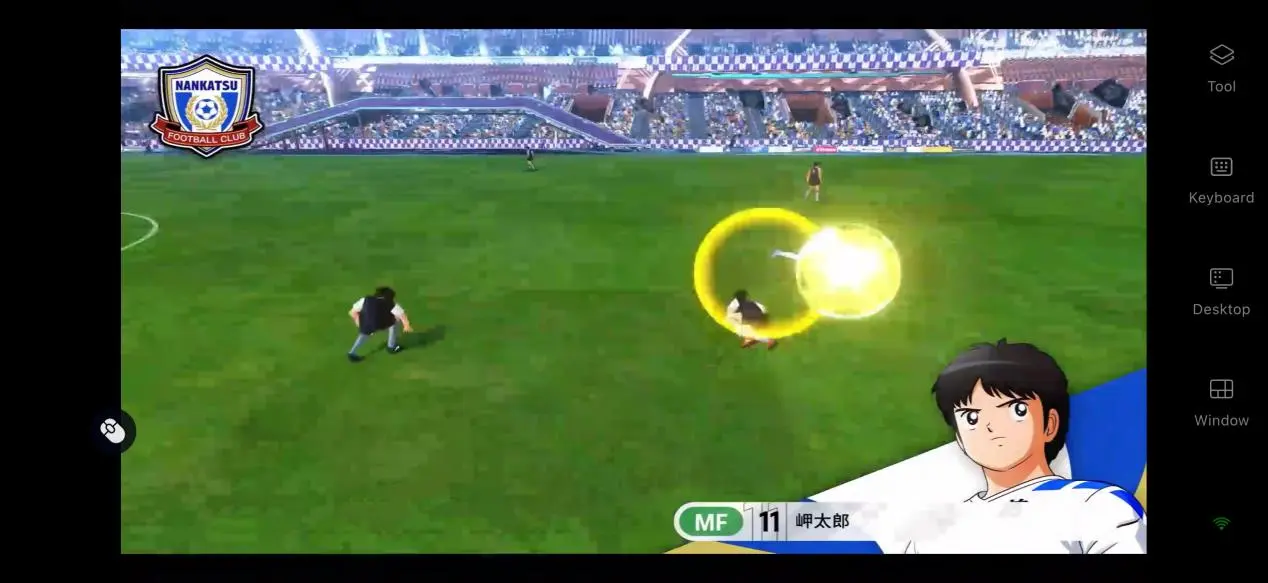
 As a new soccer game based on the original manga, CAPTAIN TSUBASA 2: WORLD FIGHTERS has drawn plenty of attention from soccer fans and longtime series followers with its faithful special-move animations and matches between national teams from different countries. However, the game is only available on PC and consoles, with no native mobile version. If you want to get around this limitation, the remote streaming method below covers everything from getting the game and setting up the software to connecting remotely and fine-tuning the experience. Even if you have never used remote streaming before, you can get started quickly.
Want to play CAPTAIN TSUBASA 2: WORLD FIGHTERS smoothly on mobile? You can use OSLink for cross-device streaming. Soccer games require responsive controls, and the service can maintain a stable picture while keeping input delay and stuttering to a minimum during special moves, dribbling, and passing. When you are away from home, simply pick up your phone and continue playing from where you left off on your PC.
1. Get CAPTAIN TSUBASA 2: WORLD FIGHTERS
How to Get the Official PC Version
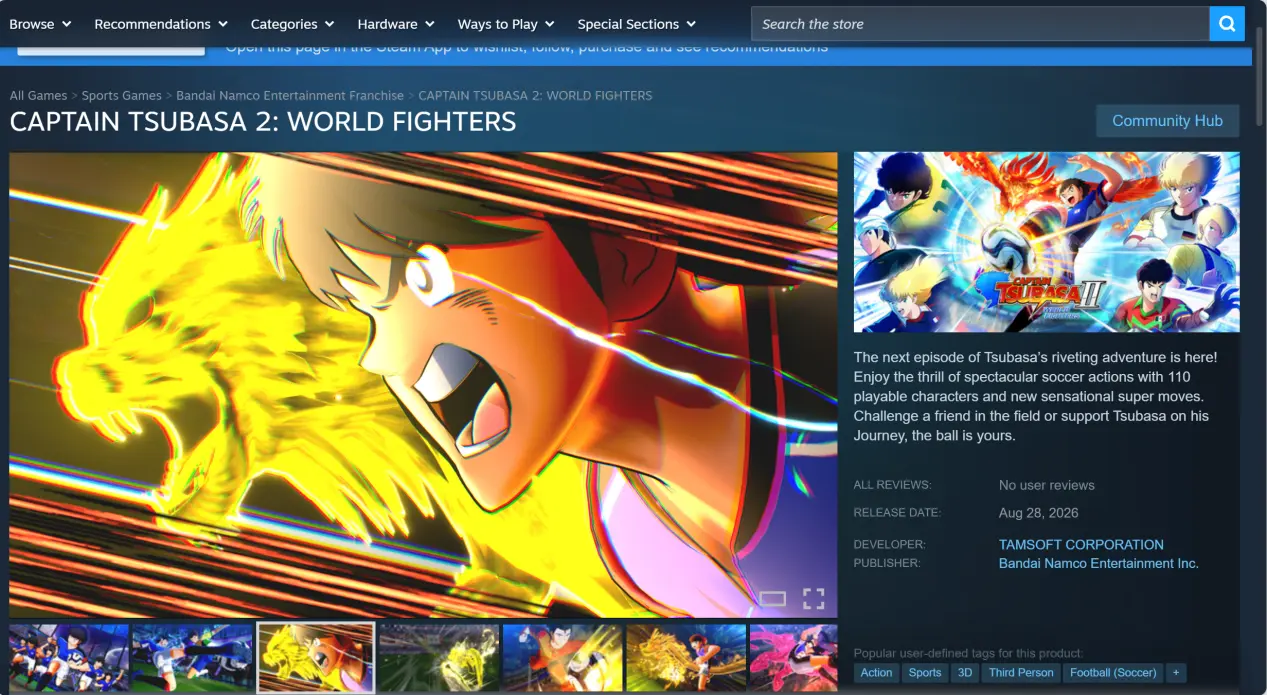
This game is only available on Steam for PC. Open the Steam client on your computer, enter the full game title, CAPTAIN TSUBASA 2: WORLD FIGHTERS, in the store search bar, and open the game's store page to purchase and download it.
Once the download is complete, it is recommended that you launch the game manually once and make sure the main menu loads normally without crashes or display issues. Confirm that the game runs properly before setting up the remote connection. This helps prevent situations where you only discover a problem with the game after starting the streaming setup.
2. Install OSLink on Your PC and Mobile Device
PC Installation
Search for OSLink in your browser and visit the official website. Choose the installer that matches your computer, then follow the on-screen instructions to complete the installation. After launching the program, register and sign in with your phone number or email address. Your current computer will automatically be linked to the account you are signed in with, and its device name will appear in the device list.
Mobile Installation
Android users can search for OSLink in the Google Play Store and install the app.
iOS users can open the App Store, search for the same app, and download it.
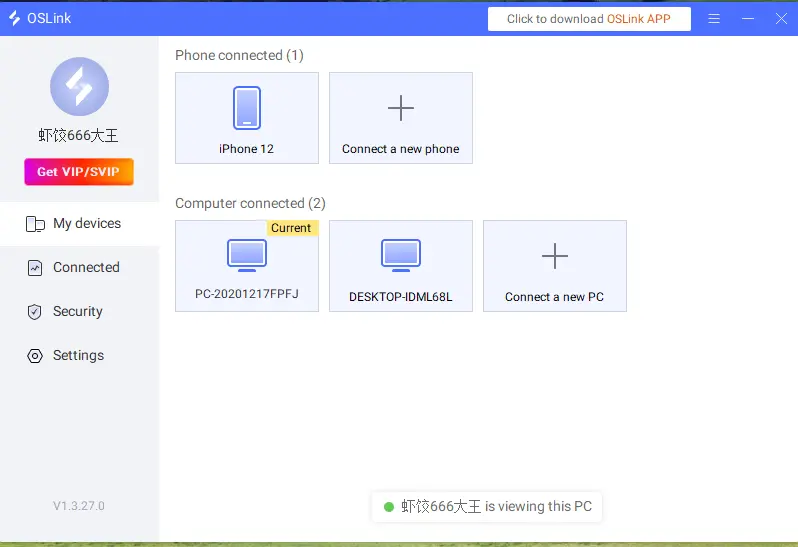
After installation, open the app and sign in with the exact same account used on the PC. The system will automatically pair the devices, and the mobile device page will show the computer that has been linked successfully.
3. How to Run CAPTAIN TSUBASA 2: WORLD FIGHTERS Remotely
Step 1: Check the Setup Before Playing
Keep the computer powered on, enable OSLink's anti-sleep mode, and leave the program running in the background. Then launch the game and leave it on the main menu. For the phone's internet connection, a 5GHz Wi-Fi network or a stable mobile data connection is recommended to help prevent dropped frames and input lag.
Step 2: Connect Remotely
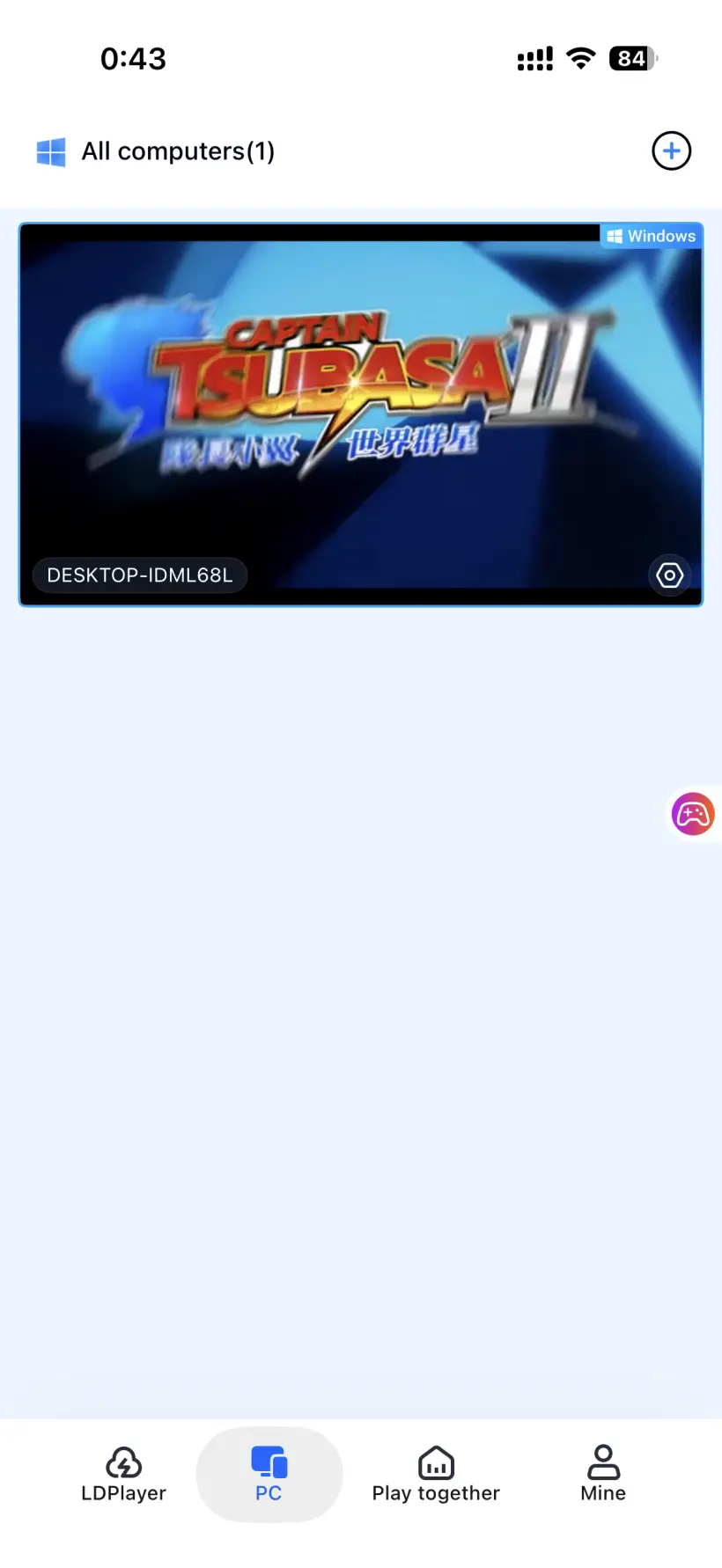
On the OSLink device list on your phone, tap the computer that has already been paired to enter the remote desktop mirror interface. The phone will display the computer's desktop in real time. Find the game window and switch CAPTAIN TSUBASA 2: WORLD FIGHTERS to the foreground.
Step 3: Basic Setup
For your first connection, it is recommended to enable the game-specific streaming mode to optimize video encoding for fast-paced match scenes and reduce input response time. Turn on full-screen mode to better fit the phone's aspect ratio. You can then use touch controls or a configured external controller to start a soccer match.
4. Benefits of Playing CAPTAIN TSUBASA 2: WORLD FIGHTERS on Mobile
No More Limits on Where You Play
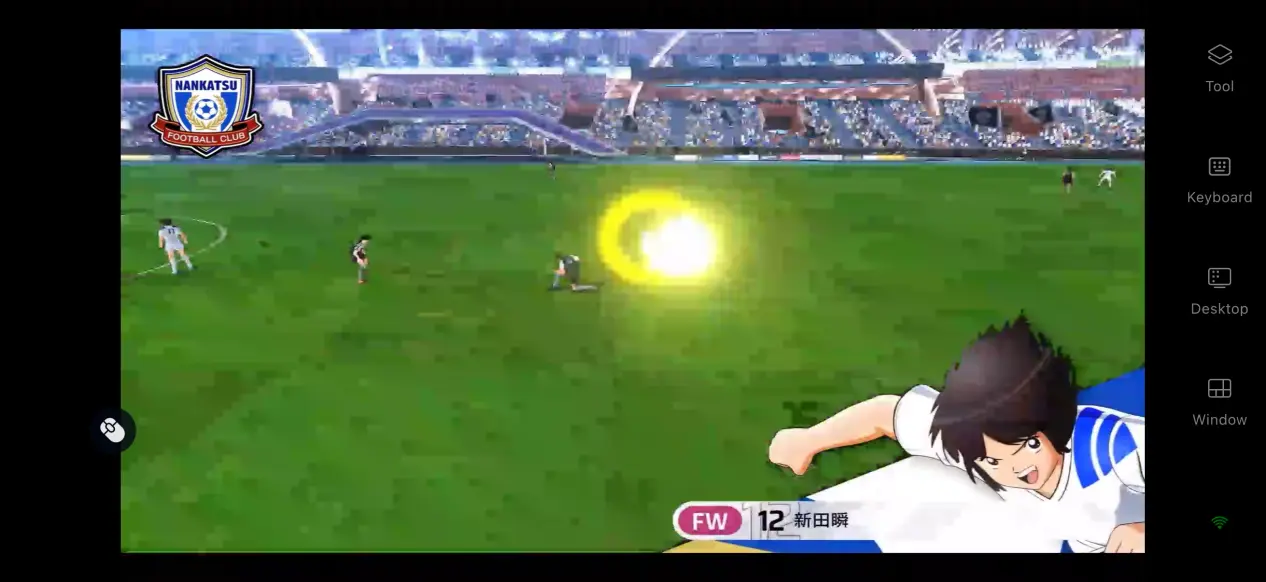
With OSLink remote streaming, you no longer need to stay at your computer all day. You can make use of spare moments to play as well. Play a friendly match during a commute, adjust your team lineup when you have some free time, or experience the World Youth arc while you are out. Your gaming experience no longer has to be tied to your desk at home.
Low Storage Requirements on Your Phone
All of the game's resource files stay on your computer's hard drive, while your phone only needs the compact OSLink client installed.
Even if your phone has limited free storage or older hardware, you can still enjoy the full game. Rendering and processing are handled entirely by the computer.
Multiplayer Room Support
With OSLink's room-sharing feature, you can stream your computer desktop to an online room and generate an invitation code for multiple friends to join at the same time. Participants can help adjust the lineup, take turns controlling players, and enjoy matches together.
5. How to Optimize Your Game Experience with OSLink
Custom Controls
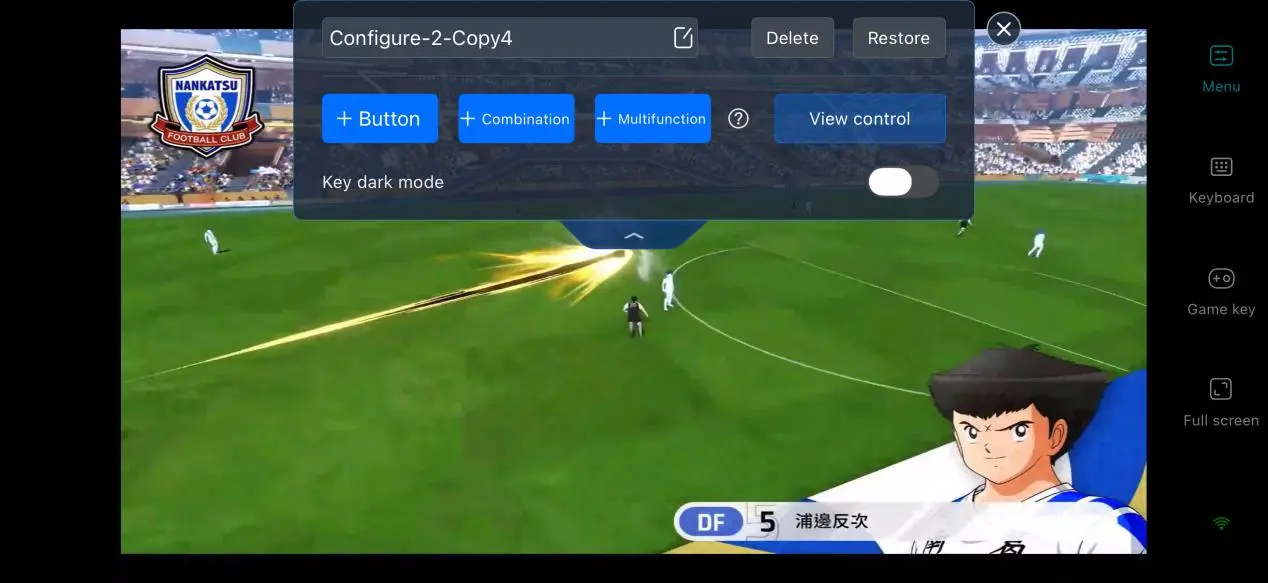
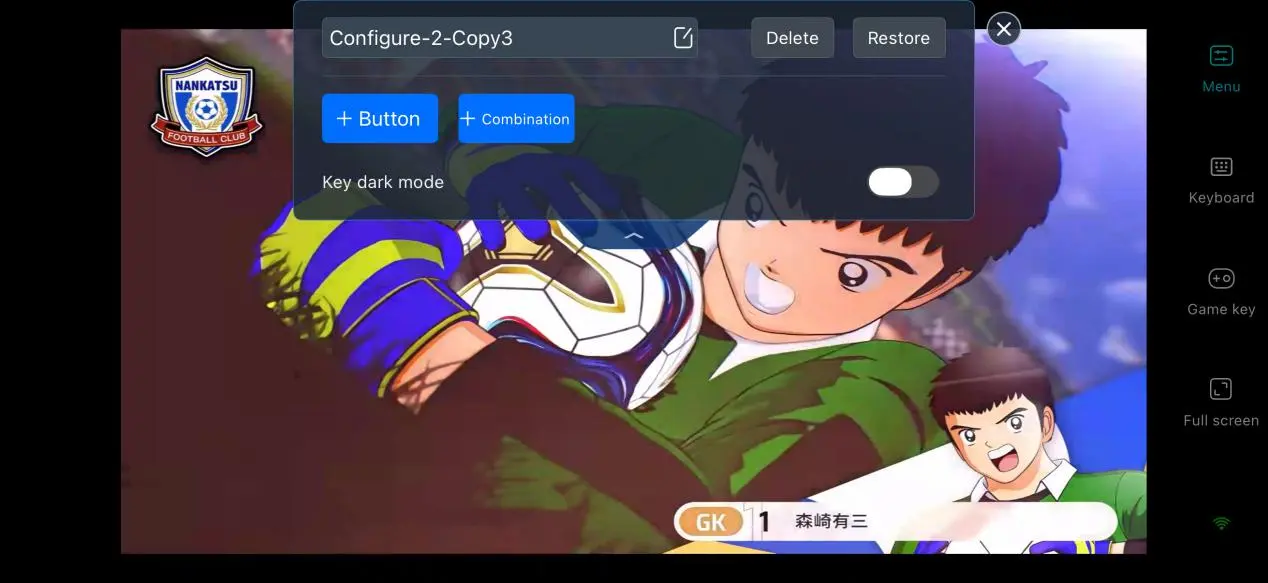
If the default control layout does not suit your play style, open the control editor and adjust the button size, transparency, and position. Frequently used actions such as passing, shooting, and dribbling can be placed within easy thumb reach, while secondary controls such as lineup adjustments can be moved to the sides of the screen to reduce the amount of gameplay covered by buttons.
Keep a Full Access History
OSLink records the access history of each remote streaming session, including the connection time, connected devices, IP address, and room-sharing activity. If you notice a connection from an unfamiliar device, you can end the session immediately to help keep your account secure.
Enable 60 FPS PC Game Mode
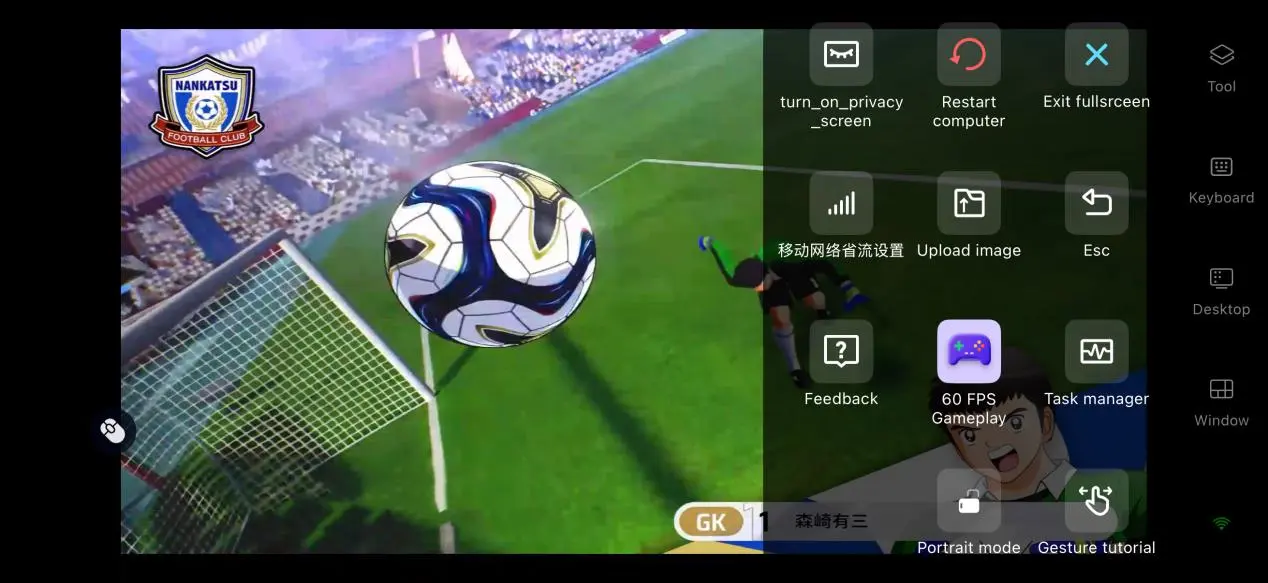
Turn on 60 FPS PC Game Mode from the toolbar on the right for smoother gameplay. Player sprints and special-move animations will look smoother. Even when the network connection is unstable, the bitrate is adjusted automatically to help keep the match connected.
Support for Multiple Types of Controllers
Your phone can pair with Xbox and PlayStation Bluetooth controllers. OSLink can automatically recognize the connected Bluetooth hardware, so there is no need to map every button manually. Using an analog stick for movement and passing provides more precise control during matches than relying entirely on touch controls.
6. Frequently Asked Questions
Q: When was CAPTAIN TSUBASA 2: WORLD FIGHTERS be released?
A: The console version officially unlocked on August 27, 2026, while the Steam PC version was released on August 28, 2026. The full game is available, and the official team is expected to add more players and match-related content in future updates.
Q: Can I play CAPTAIN TSUBASA 2: WORLD FIGHTERS on Android or iOS?
A: The game does not have a native Android or iOS installation package. You can install OSLink and remotely stream the game from a Windows PC that already has the game installed. This allows you to access the complete PC version.
Q: What PC hardware is required to run the game?
A: The minimum requirements are a 64-bit Windows system, an i5-9600K or equivalent processor, 8GB of RAM, a GTX 970 or RX 570 graphics card, and 22GB of available storage space. The recommended setup is Windows 11, an i7-13700K or equivalent processor, 16GB of RAM, an RTX 4060-class graphics card, and 22GB of available storage. Most mainstream home PCs should be able to meet these requirements.
Conclusion
CAPTAIN TSUBASA 2: WORLD FIGHTERS is an action soccer game built around faithfully recreating the original series, but it does not have a native mobile version. With OSLink's remote streaming solution, you can bring the PC game to your mobile device. For players who want to enjoy the series' high-energy matches wherever they go without being tied to a computer, this setup is worth trying.
 Download