English
 BOMBANANA! is a fast-paced indie PC game with a creative gameplay style. Its compact level design and fun interaction mechanics have drawn plenty of players in. The game is scheduled to launch exclusively on PC, so many players may want a way to break free from their desk and keep making progress during commutes, breaks, or other spare moments. This guide introduces a way to remotely play the PC version on your phone, covering everything from getting the game and setting up the software to the actual connection process and gameplay optimization. If you want to give it a try, just follow the steps below to complete the setup.
When running BOMBANANA!, OSLink can improve the experience of playing a PC game on your phone. Once the devices are paired, you can customize the controls based on the game's input requirements and arrange virtual touch buttons to match your preferred layout, giving you a control experience similar to using a keyboard and mouse.
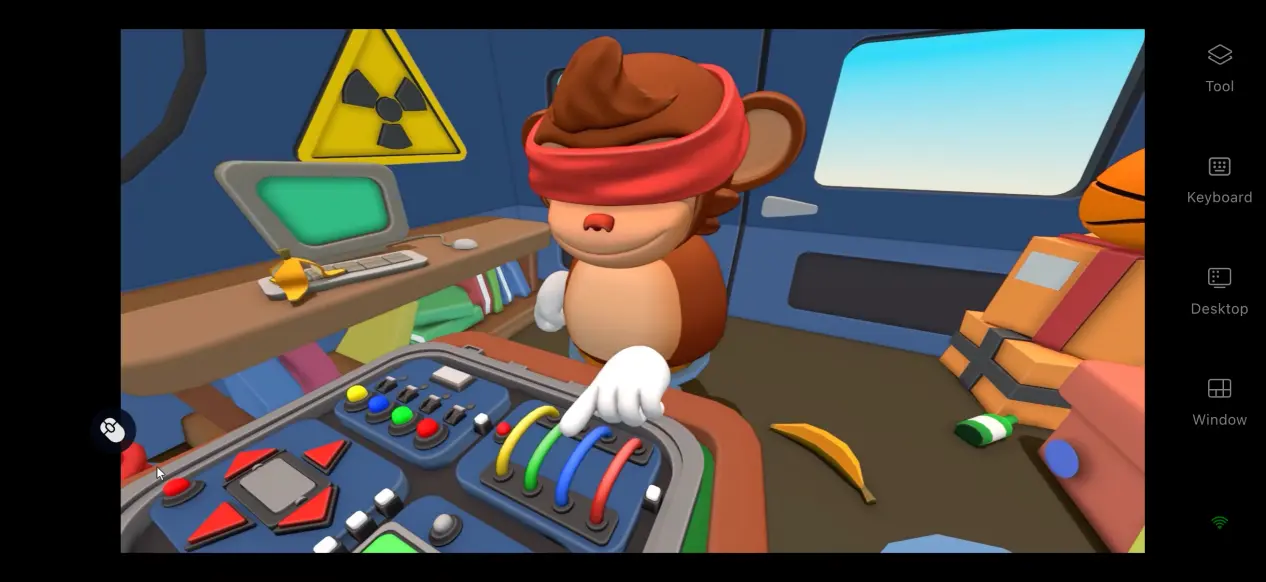
1. How to Play BOMBANANA!
Getting the Game and Checking the Setup
Before you can play remotely, you need a working copy of BOMBANANA!. Get the game through the Steam client by searching for its name in the store. After purchasing it, select the game from your library and download and install it.
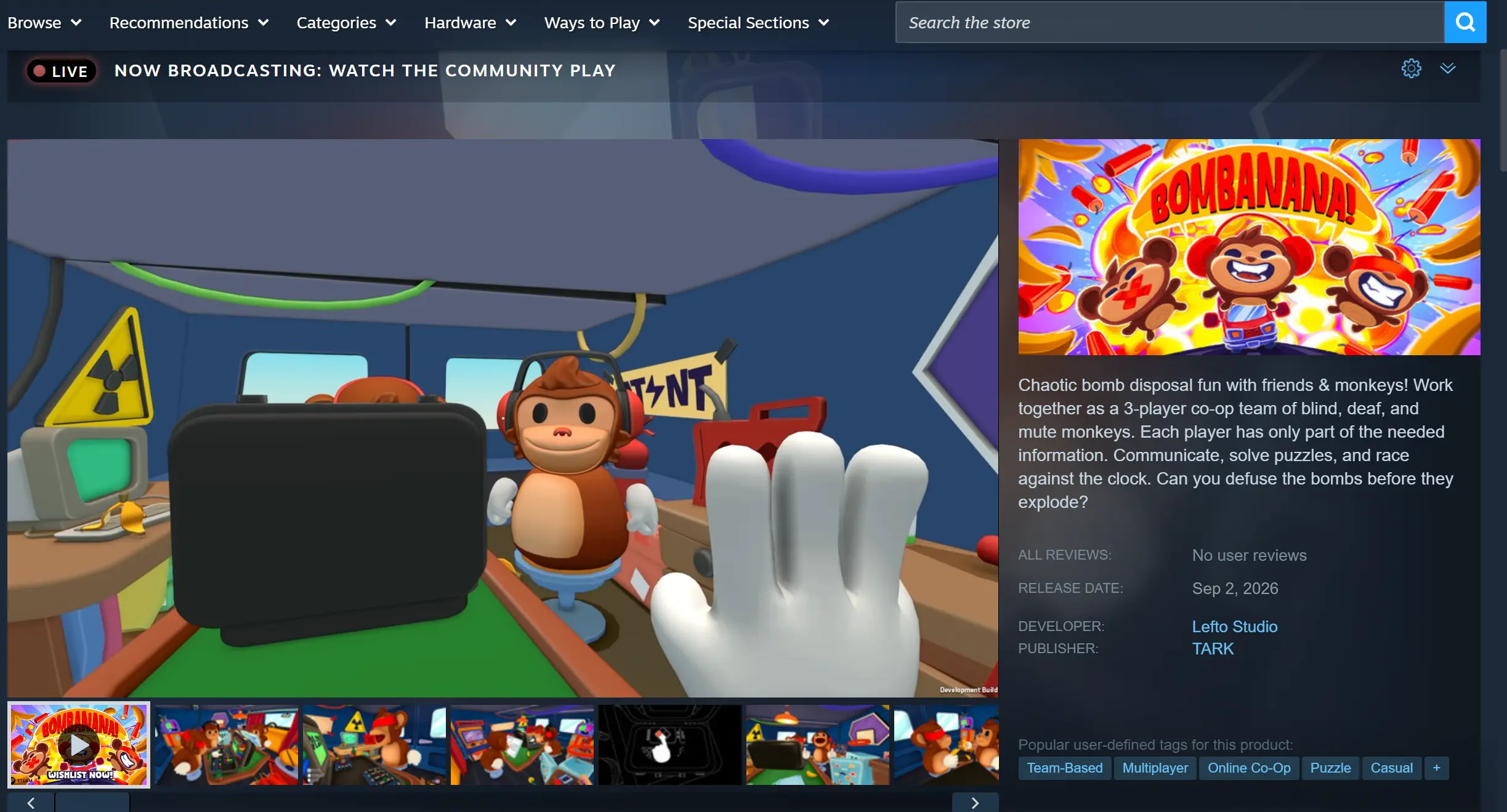
Once the game has finished downloading, launch it on your PC at least once. Check whether the game loads properly, whether scene transitions work normally, and whether the controls respond as expected before moving on to the streaming setup. If the game already has problems running locally, you will not get a stable experience when streaming it to your phone.
2. How to Install OSLink on Your PC and Phone
Installing the Windows Client
Visit the official OSLink website and open the download section to get the installer for Windows. Follow the on-screen instructions to complete the installation. Once installation is finished, add the program to the list of applications allowed to keep running in the background.
Installing the Mobile Client
On Android devices, you can download the APK installer from the official website or search for the app by name in the app store.
For iOS devices, simply open the App Store, search for the app, and install it.
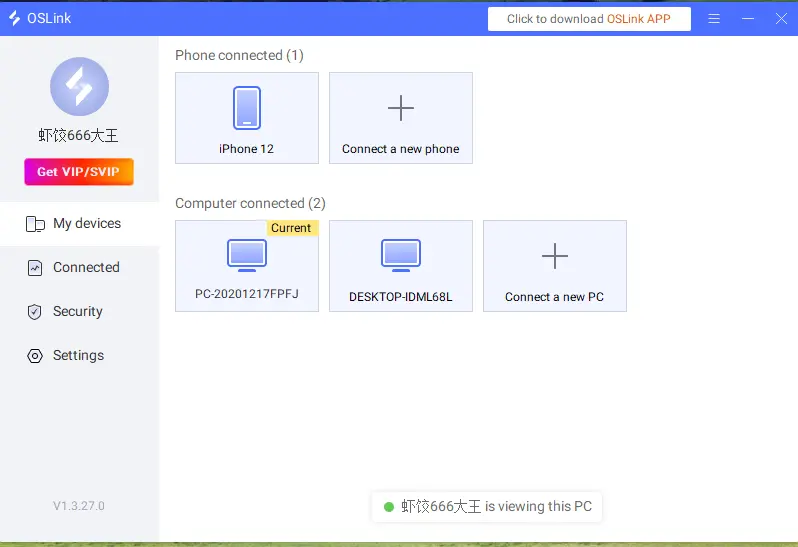
After installing the software on both devices, sign in to the same account on your PC and phone. Once the account verification is complete, the software will automatically establish an encrypted connection. This completes the device pairing setup.
3. How to Run BOMBANANA! on Your Phone with OSLink
Keep OSLink running in the background on your PC and disable the computer's sleep function to prevent the connection from being interrupted. Launch BOMBANANA! on your PC, wait for the game to finish loading, and leave it on the main menu.
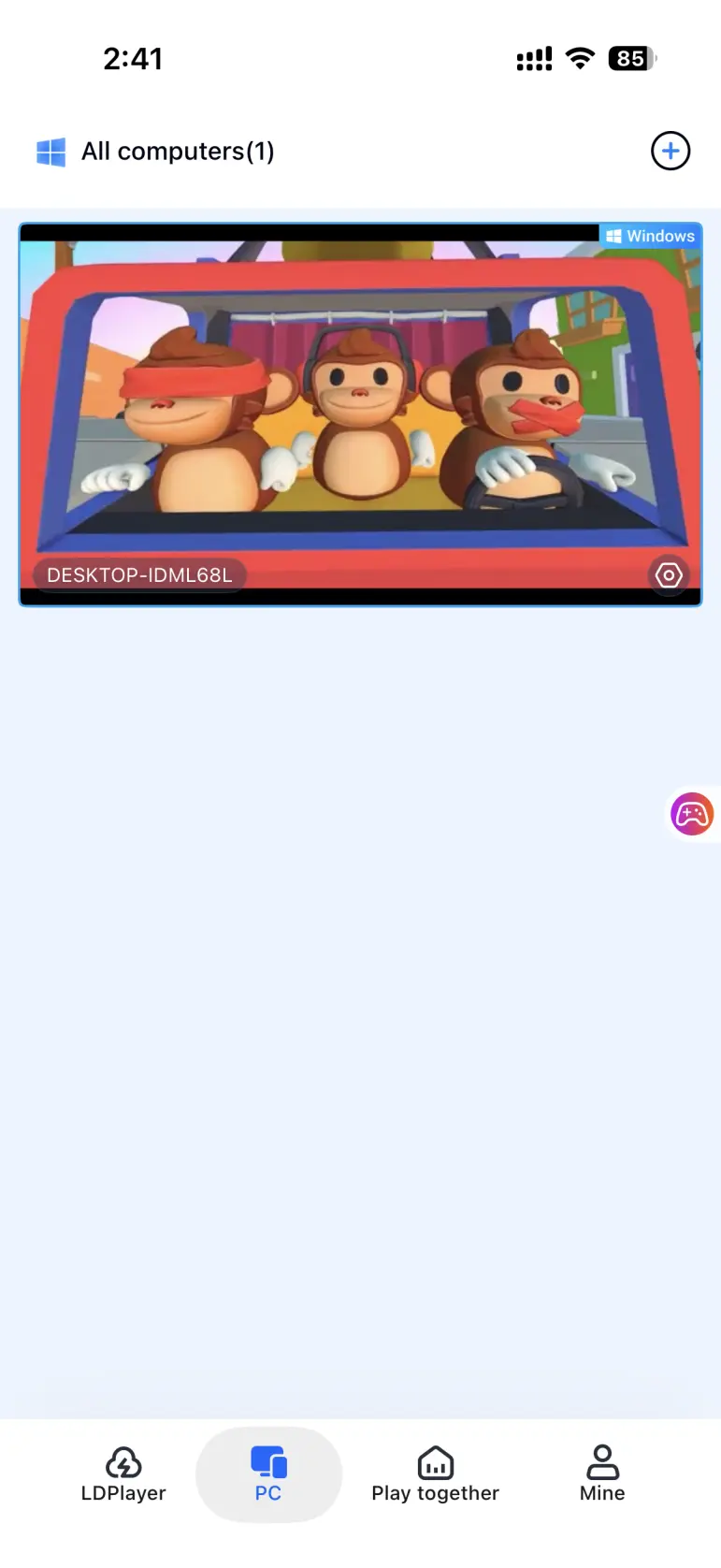
Open the OSLink app on your phone. The device list will show PCs signed in to the same account. Tap the target PC to send a connection request. Once the connection is established, tap the screen preview window and switch to full-screen mode. Your PC screen will then be streamed to your phone.
Open the side toolbar on your phone and switch to the dedicated game streaming mode. This mode adjusts the encoding and prioritizes signal transmission to reduce input delay and better match the fast pace of BOMBANANA!. You can then control the game directly from your phone.
4. Benefits of Playing BOMBANANA! on Your Phone
Break Free from Time and Location Restrictions
No matter where you are or what time it is, as long as your network connection is good enough, your phone can connect to your home PC even when the two devices are not on the same local network. During a break or while you're away from home, you can pick up where you left off and continue playing without being tied to your desk.
No Need to Use Your Phone's Storage
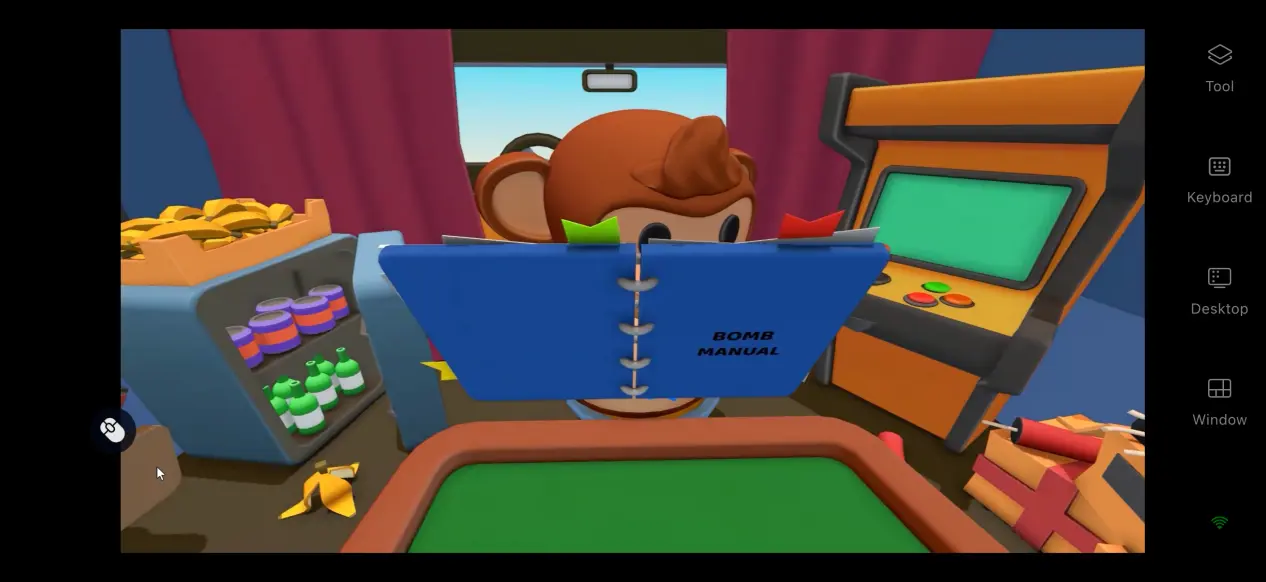
All of the game's files remain stored on your PC's hard drive. Your phone only receives the streamed video signal, so it does not need to download the game's data files. Even a regular smartphone can be used to play the game without putting the burden of rendering the game graphics on the phone's hardware.
Room Sharing
The software includes a room-sharing feature that lets you share the game screen currently running on your PC with everyone in the room. Other people who join the room can watch the gameplay in real time, making it possible for multiple people to follow the same session and share the fun of defusing bombs together.
5. How to Optimize Your OSLink Gaming Experience
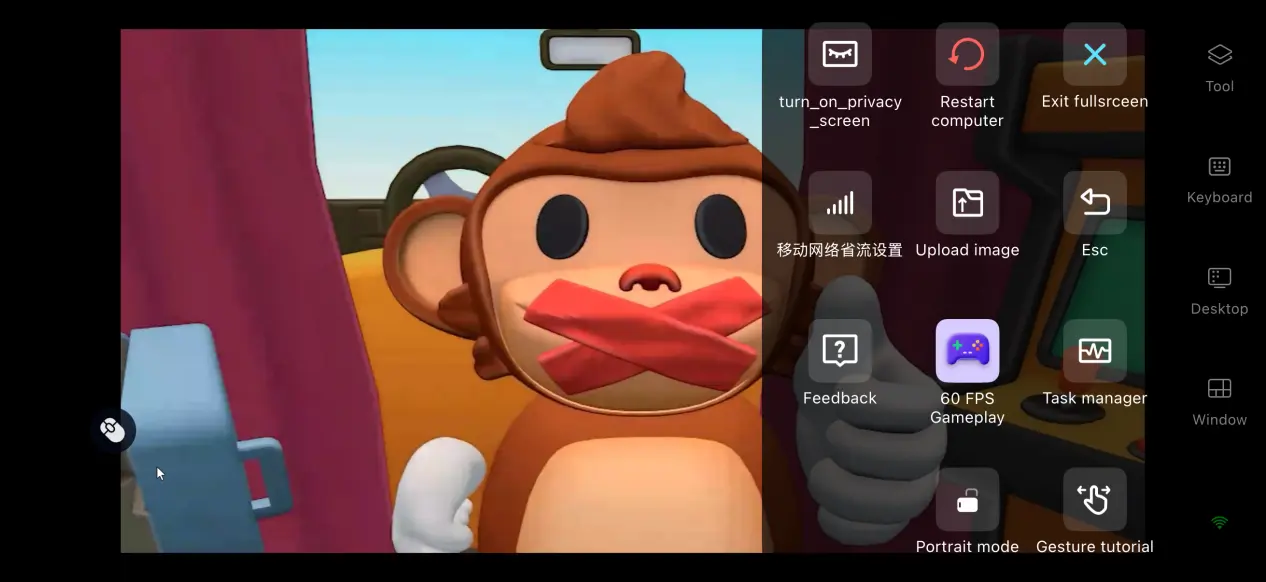
60 FPS Gaming Mode
After enabling this feature, the software reallocates bandwidth resources and prioritizes the delivery of input commands. When the game screen changes rapidly, this helps reduce delays in input response. If the network connection is unstable, you can also lower the video bitrate slightly to keep the overall stream smooth.
Custom Control Layout
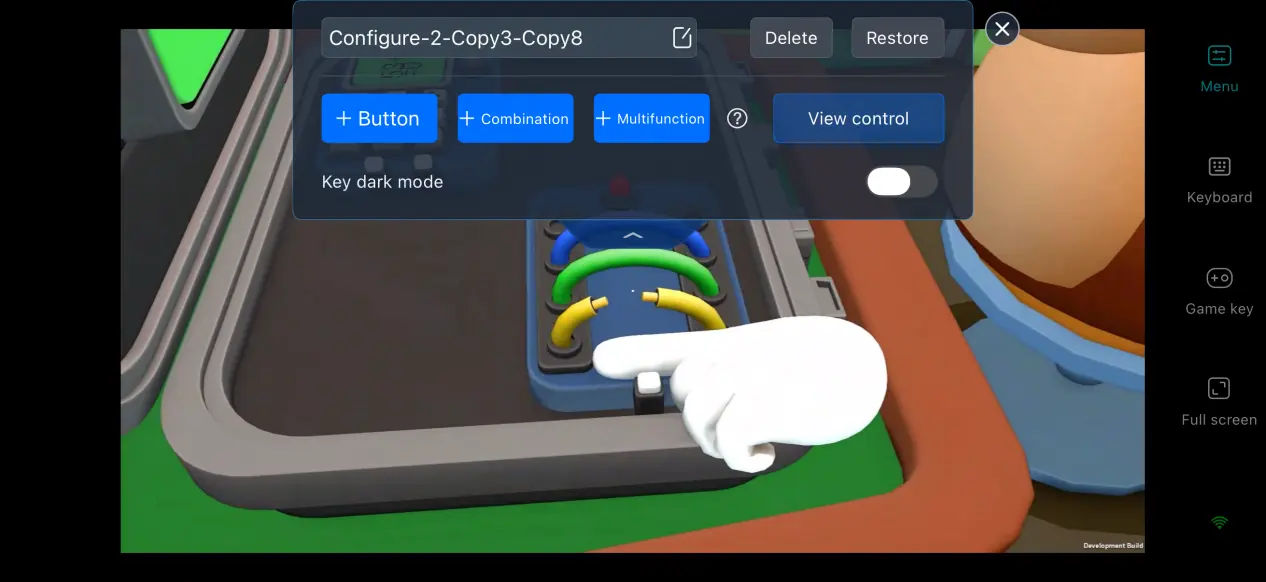
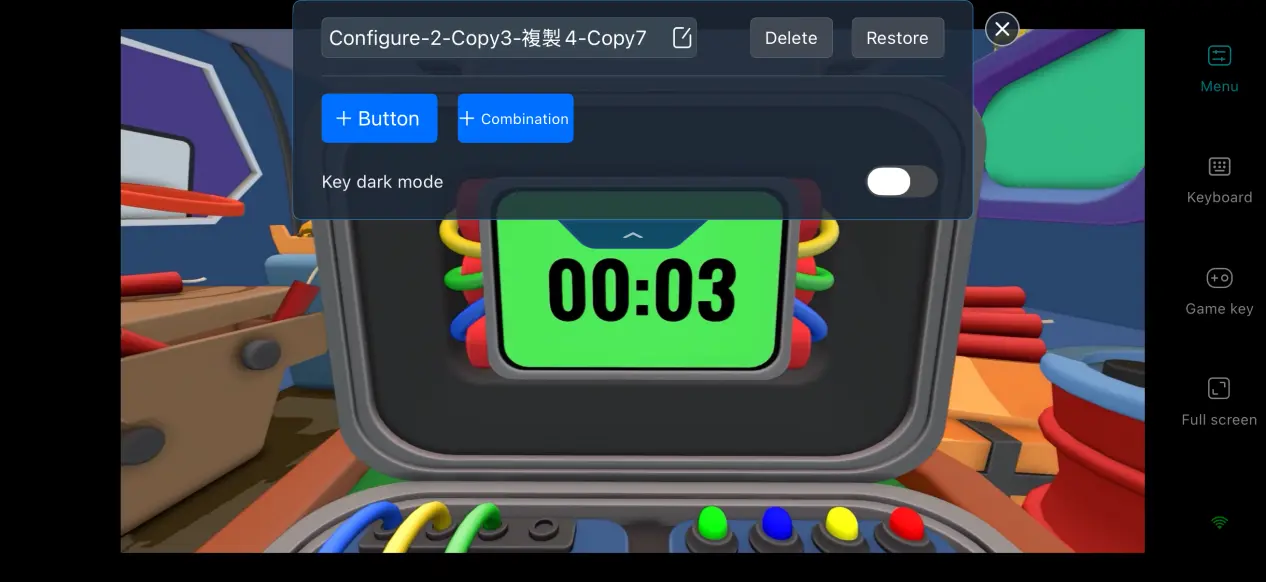
For the frequent actions involved in cooperative bomb-defusing gameplay, you can add or modify virtual buttons and combination controls and adjust their positions. Setting up the controls to match your preferences can make the transition between PC and mobile controls feel more natural.
Complete Streaming History
The software keeps previous connection records, including device information and session times. When you use it again, there is no need to search for the PC again. Simply select a previous record to start the connection quickly and skip the repeated pairing process.
Support for Multiple Types of Peripherals
In addition to touchscreen controls, the mobile client supports external controllers, keyboards, and mice. Connecting a controller can provide a control feel closer to a console, while a keyboard and mouse can reproduce the familiar PC control setup. You can choose whichever peripherals suit your needs.
Mobile Screen Mapping
After enabling full-screen mode, the software hides the phone's system status bar and gesture area. If the PC game's resolution does not match the phone's aspect ratio, the display automatically adjusts while maintaining the original aspect ratio, reducing the visual impact of black bars.
6. Frequently Asked Questions About Playing BOMBANANA! with OSLink
Q: When will BOMBANANA! be released?
A: The game is scheduled to officially launch on September 2, 2026, and will be available only on PC.
Q: What are the PC system requirements for BOMBANANA!?
A: Minimum requirements: Windows 10 64-bit, 12 GB of RAM, GTX 1050 Ti graphics card, i5-8400 processor, and at least 45 GB of available storage space on an SSD.
Recommended requirements: Windows 11 64-bit, 16 GB of RAM, RTX 3060 graphics card, i5-11400 processor, and at least 45 GB of available SSD storage.
Q: Can I play BOMBANANA! on iOS or Android?
A: There is no official native game installer for iOS or Android, so the game cannot be installed and run directly on mobile. You can use OSLink's remote streaming solution to connect to a PC running the game and play it remotely.
Conclusion
BOMBANANA! offers a unique gameplay experience, but the official version does not currently include a mobile release, meaning the PC game cannot be run directly on a phone. With OSLink, you can stream the game from your PC to your phone without a complicated setup. If you want to play on the go, follow the steps above to complete the setup and start playing.
 Download