English
 As a sandbox business simulation game, Big Ambitions has attracted plenty of management-sim fans with its detailed path from starting small to building a business empire. However, the game is currently available only on PC, with no official mobile version. If you want to keep running your businesses from your phone, the remote streaming setup below walks you through everything from preparation to performance tweaks, so you can get the whole setup running and enjoy a more convenient way to play.
When playing a business simulation game like Big Ambitions, OSLink provides a reliable way to remotely access the PC version. Once your devices are paired, you can customize the controls around the frequent tapping and camera-dragging used in management games. The mobile layout can closely match the controls on your PC, making the game feel much more natural to play remotely.
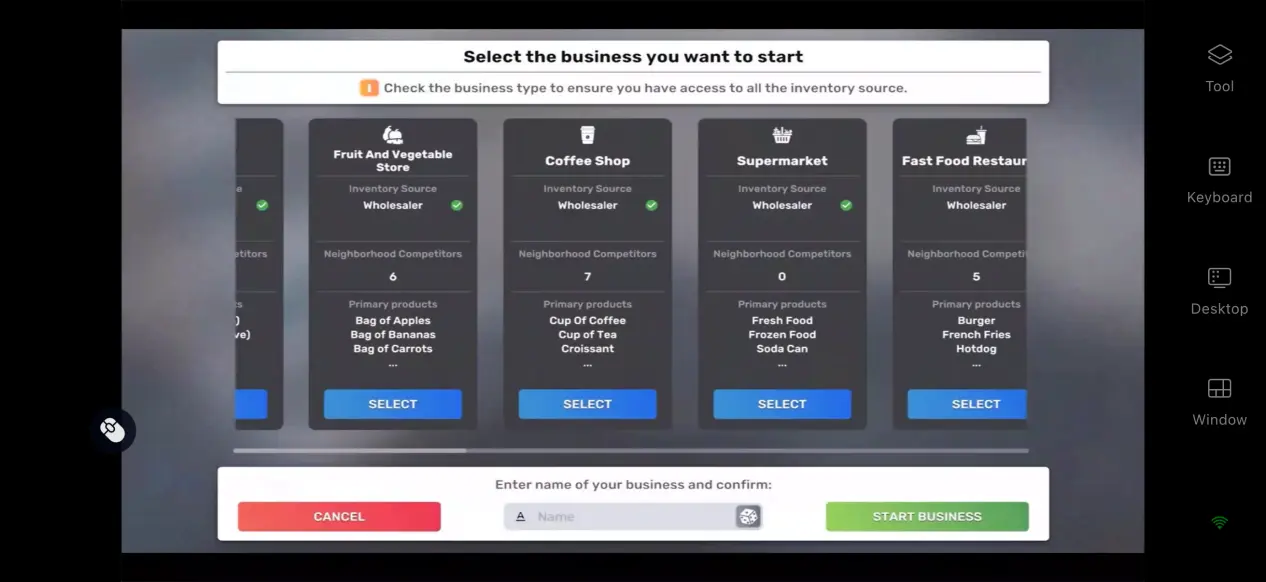
1. Get Big Ambitions
How to Get the Game
The first requirement for remote streaming is having Big Ambitions installed on your local PC. Open the Steam client, search for the game in the store, and purchase it. Once the payment is complete, select the game from your Steam library and download and install it.
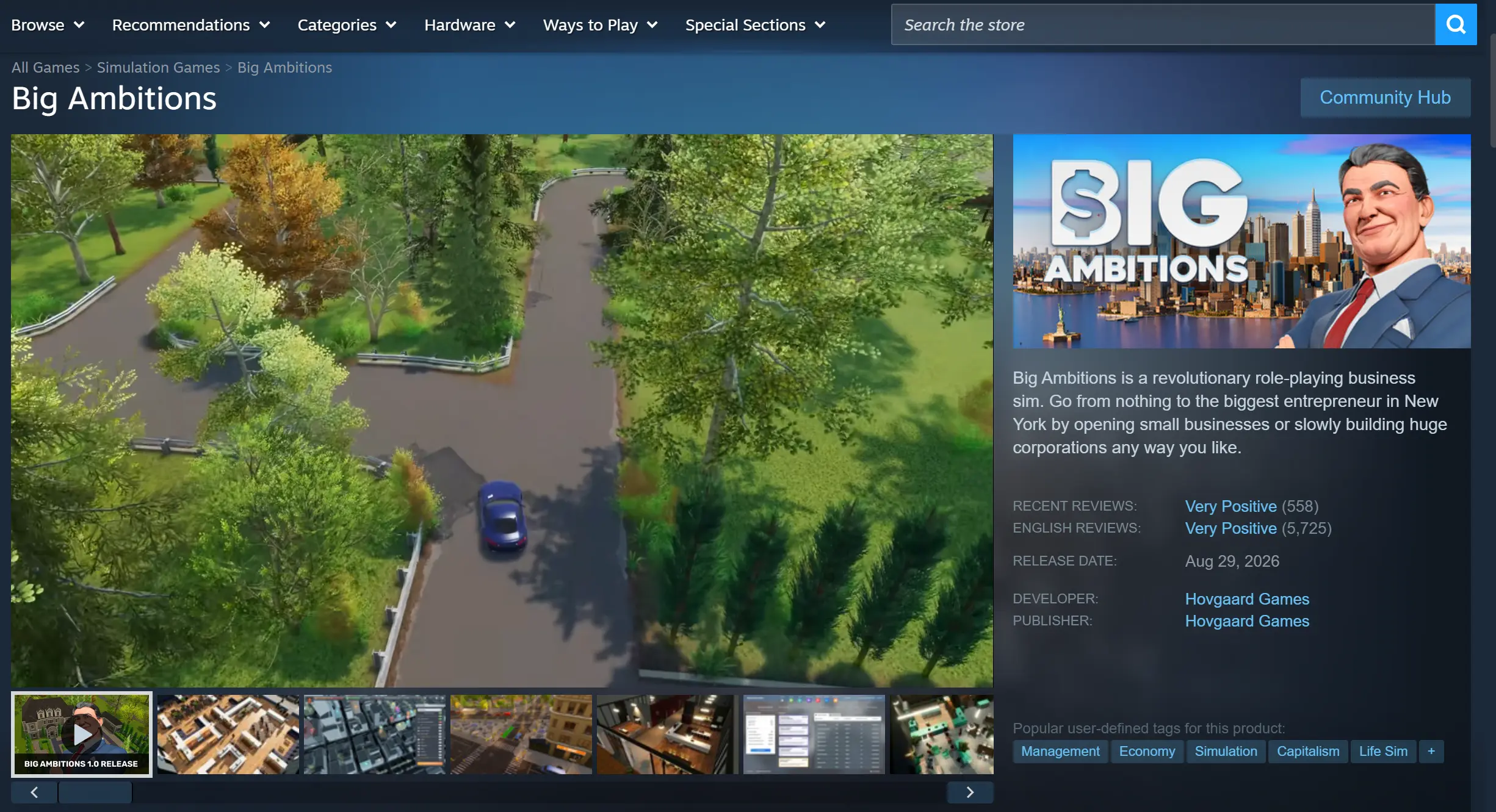
After installation, it is recommended to launch the game directly on your PC first. Make sure your save loads correctly and that scene transitions, store management, and other in-game interactions all work as expected before setting up remote streaming.
2. Install OSLink on Your PC and Phone
PC Client Setup
Visit the official OSLink website through your browser and download the installer for your computer. Follow the on-screen instructions to complete the installation. Once installed, create an account and sign in. Then add the application to your system's background-running or allowed-app list to prevent the system from shutting down the process during sleep or power management, which could interrupt the connection.
Mobile Client Setup
Android users can download the APK from the official website or search for the app by name in an app store.
iOS users can open the App Store and search for the corresponding app to install it.
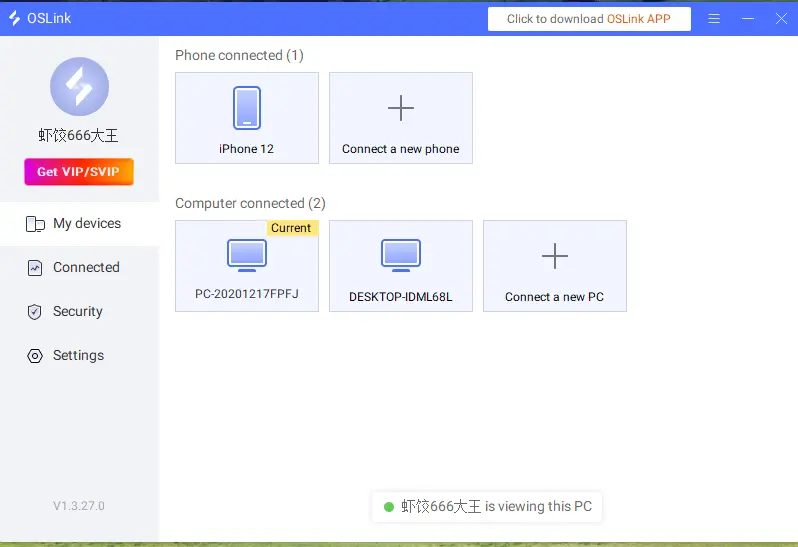
Once the software has been installed on both devices, sign in to the same account on your PC and phone. After the account is verified, the software automatically establishes an encrypted connection between the two devices, completing the initial pairing process.
3. How to Play Big Ambitions with OSLink on Mobile
Launch Big Ambitions on your PC and wait for your save to finish loading. Stay on the game's main interface while keeping OSLink running in the background. It is also recommended to disable automatic system sleep on your PC to prevent the connection from being interrupted.
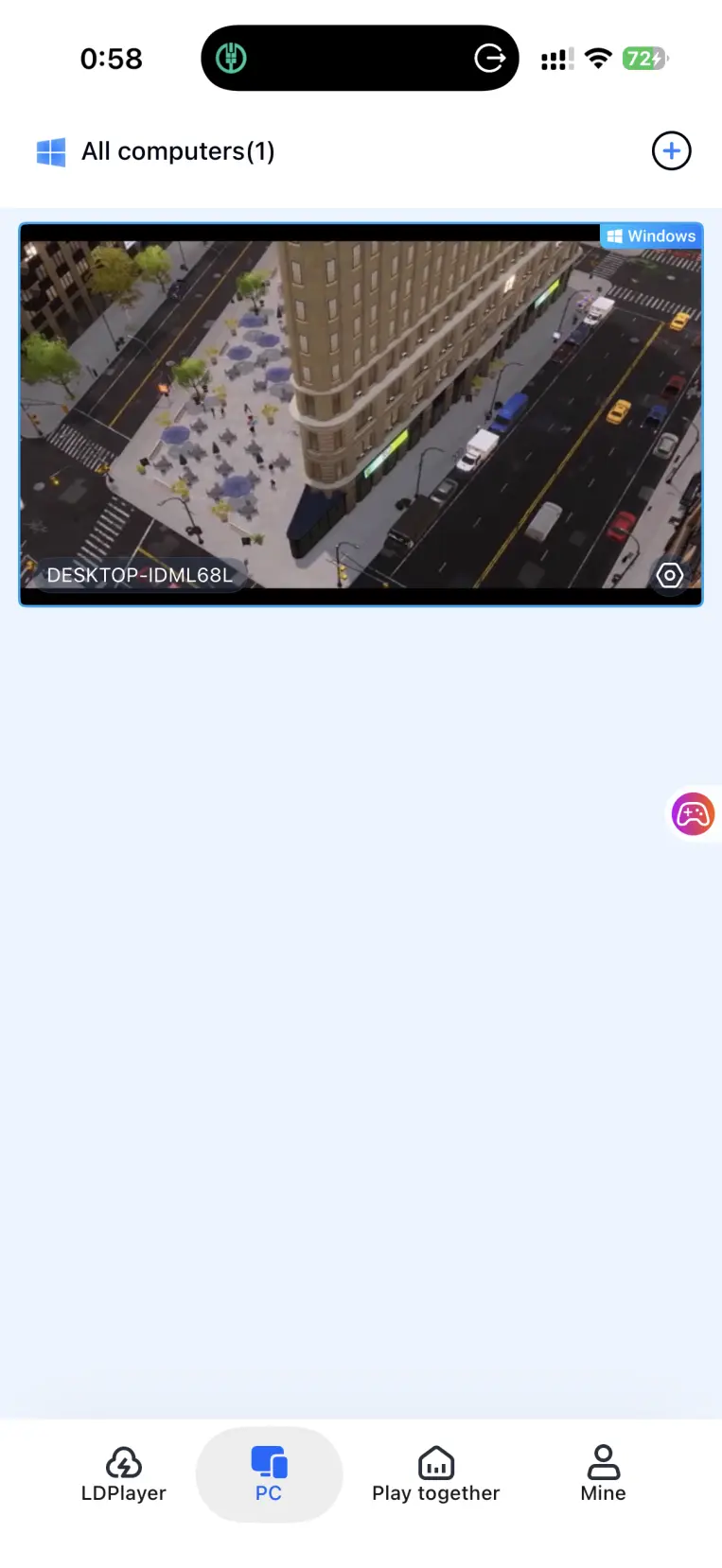
Open the OSLink app on your phone. The device list will show computers signed in to the same account. Select the target PC, and the preview window will display the computer screen on your phone.
For your first streaming session, open the side toolbar on your phone and enable the dedicated game streaming mode. This mode adjusts encoding priorities to reduce input delay and better suit the frequent tapping and camera-dragging common in management games. Once everything is set up, you can manage stores, assign staff, and handle other in-game tasks directly from your phone.
4. Why Play Big Ambitions on Mobile?
Break Free from Your Desk
With a stable network connection, your phone is not limited to the same local network and can remotely connect to your home PC. Even during short breaks or your commute, you can quickly resume an existing save and continue expanding your business empire wherever you are, with an experience that stays close to playing on the original PC client.
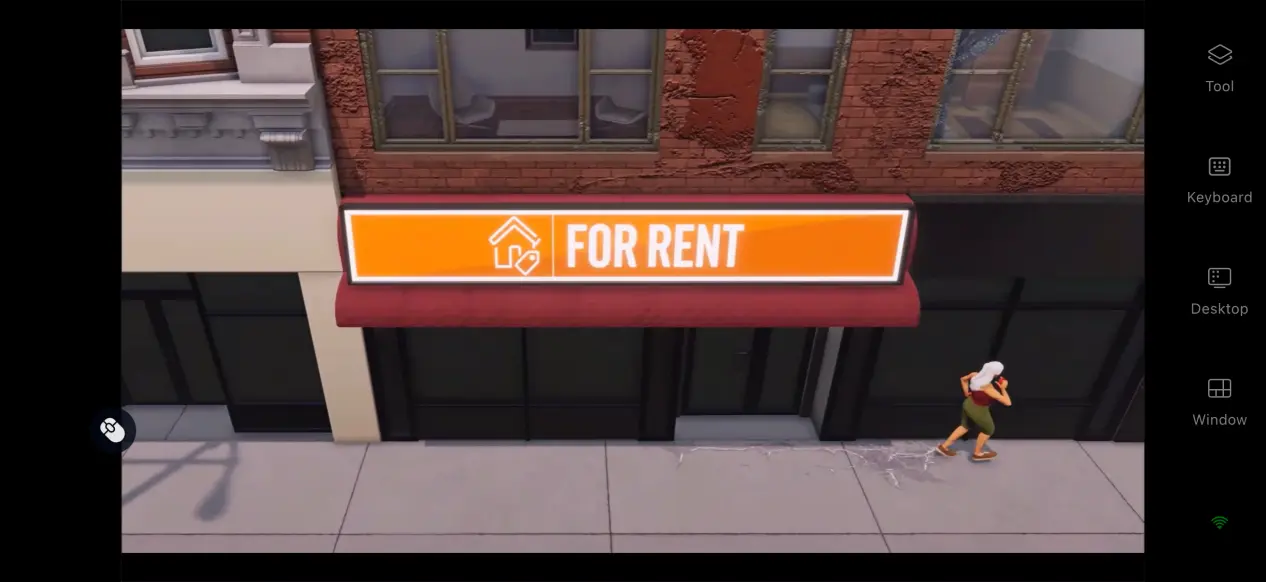
No Need to Store the Game on Your Phone
All 12 GB of the game's resources remain stored on your computer's hard drive. Your phone only receives the streamed video feed, so it does not need to handle the game's storage requirements. Even phones with modest hardware or limited storage can enjoy a smooth and convenient way to play.
5. OSLink Features
Dedicated PC Game Streaming Mode
After enabling 60 FPS PC Game Mode, the software reallocates bandwidth resources with priority given to input commands. When the game screen changes frequently during business management, this helps reduce input response delays. If the network becomes unstable, you can lower the bitrate appropriately to prioritize overall streaming smoothness.
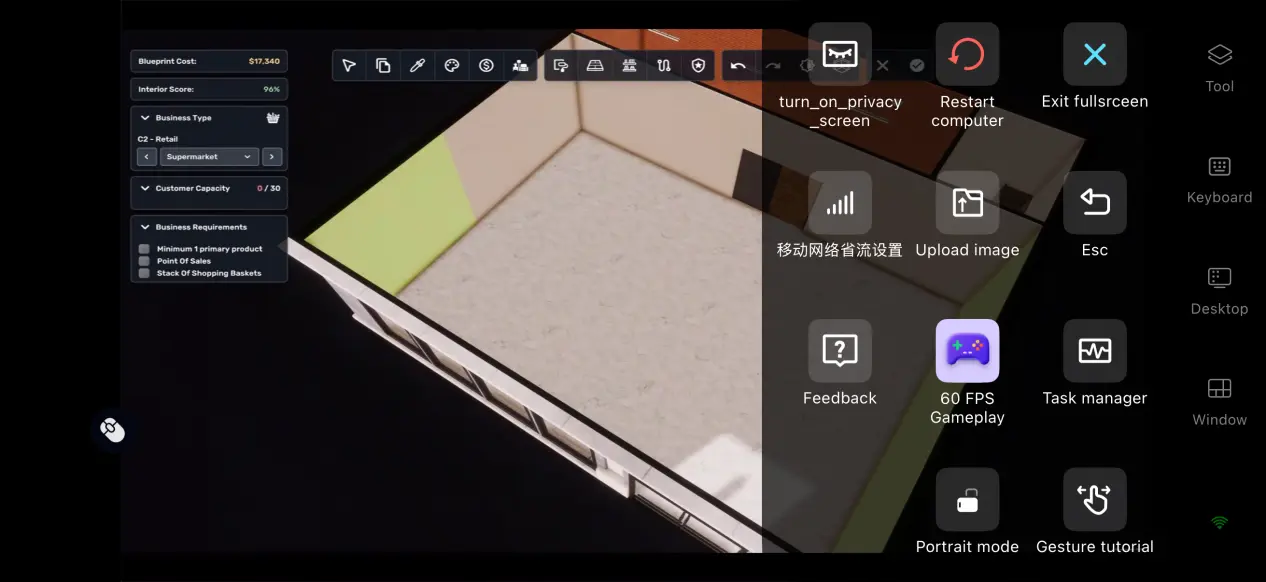
Complete Streaming History
While streaming, the OSLink PC client displays connection notifications in real time and keeps a history of previous sessions, including device information and session times. For frequent use, there is no need to search for and pair the same device again. Simply open OSLink on your phone to quickly reconnect without repeating the setup process.
Customizable Controls
For frequent actions such as opening stores, assigning staff, and dragging the camera, OSLink lets you add or modify virtual buttons and key combinations based on your preferred controls. You can also adjust the button layout to make remote play more comfortable. Different control presets can be created for different situations, allowing you to switch layouts with a single tap and manage your businesses more efficiently.
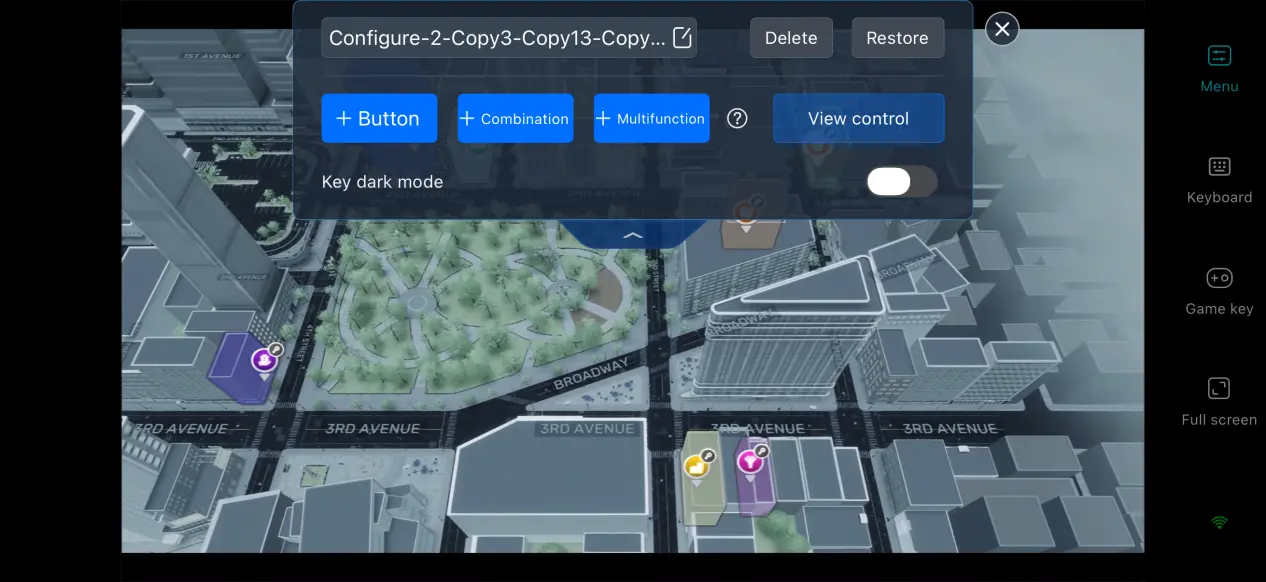
Mobile Screen Mapping
When full-screen mode is enabled, the software automatically hides the phone's status bar and gesture area. If the PC game's resolution does not match your phone's aspect ratio, the image automatically scales to fit the screen while maintaining a balanced display. This helps reduce the visual distraction caused by black bars and provides a cleaner viewing experience.
6. Frequently Asked Questions About Playing Big Ambitions on OSLink
Q: When was Big Ambitions officially released?
A: The game's Early Access version launched in March 2023, while the full 1.0 release arrived on PC via Steam on August 28, 2026.
Q: What are the PC system requirements for Big Ambitions?
A: Minimum requirements: Windows 10 64-bit, 8 GB RAM, GTX 960 graphics card, an i5-equivalent processor, and 12 GB of available storage space.
Recommended requirements: Windows 10 64-bit, 12 GB RAM, RTX 2060 graphics card, an i7-equivalent processor, and 12 GB of available storage space.
Q: Can I play Big Ambitions directly on an iOS or Android device?
A: The game is not currently available on mobile. You can use OSLink to connect remotely to a PC with the game installed and play it on your phone.
Conclusion
Big Ambitions is a sandbox business simulation game where you start from scratch and gradually build your own business empire. Although the game is currently available only on PC, OSLink's remote streaming solution lets you play remotely. Whether you're commuting or taking a break while out, you can keep managing and expanding your businesses wherever you go.
 Download