English
 Moonlighter 2: The Endless Vault carries over the dual day-and-night gameplay of its predecessor, blending roguelike dungeon exploration with running a shop in town. It has attracted plenty of roguelike fans, but the official release is currently limited to PC and consoles, with no native Android or iOS version available. That leaves many players looking for a way to manage their shop inventory or tackle another dungeon run while away from their computer. This guide walks through the entire setup, covering game access, software installation, controls, optimization, and common questions, so you can get around the hardware limitations and jump back into the game whenever you have time.
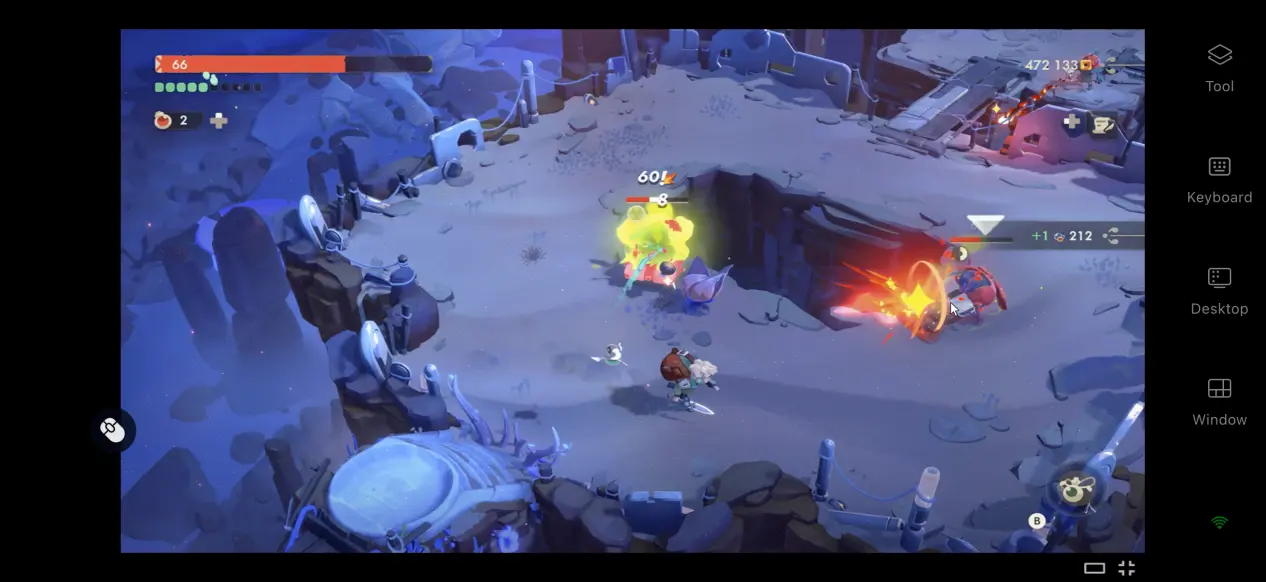
Want the full Moonlighter 2: The Endless Vault experience on your phone? OSLink lets you stream the game screen and controls from your PC to a mobile device. The setup is quick and straightforward, without complicated parameter adjustments. Once connected, your phone can handle all game inputs, from dungeon combat and arranging shop items to breaking down and rebuilding equipment, giving you a smooth way to play on the go.
1. Moonlighter 2: The Endless Vault Installation
Getting the Game
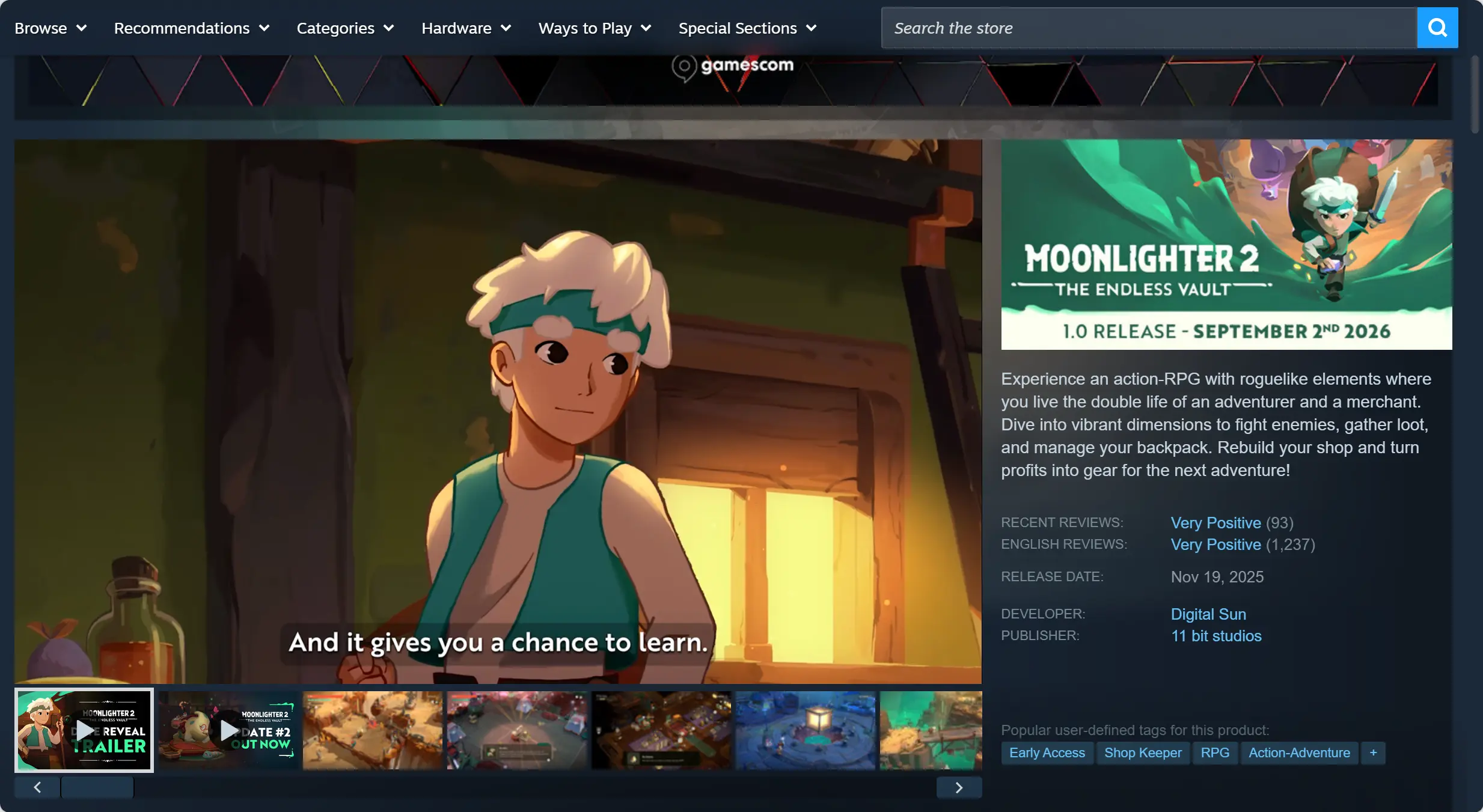
The PC version of Moonlighter 2: The Endless Vault is mainly available through Steam and the Microsoft Store. Open the relevant client, search for the full game title in the store, and complete the purchase. You can then start the download from your game library.
After installation, it is recommended that you launch the game manually once to make sure it reaches the main menu normally. Check that the shop system and dungeon combat work without crashes or visual issues before moving on to the streaming setup.
2. OSLink Setup on Both Devices
PC Setup
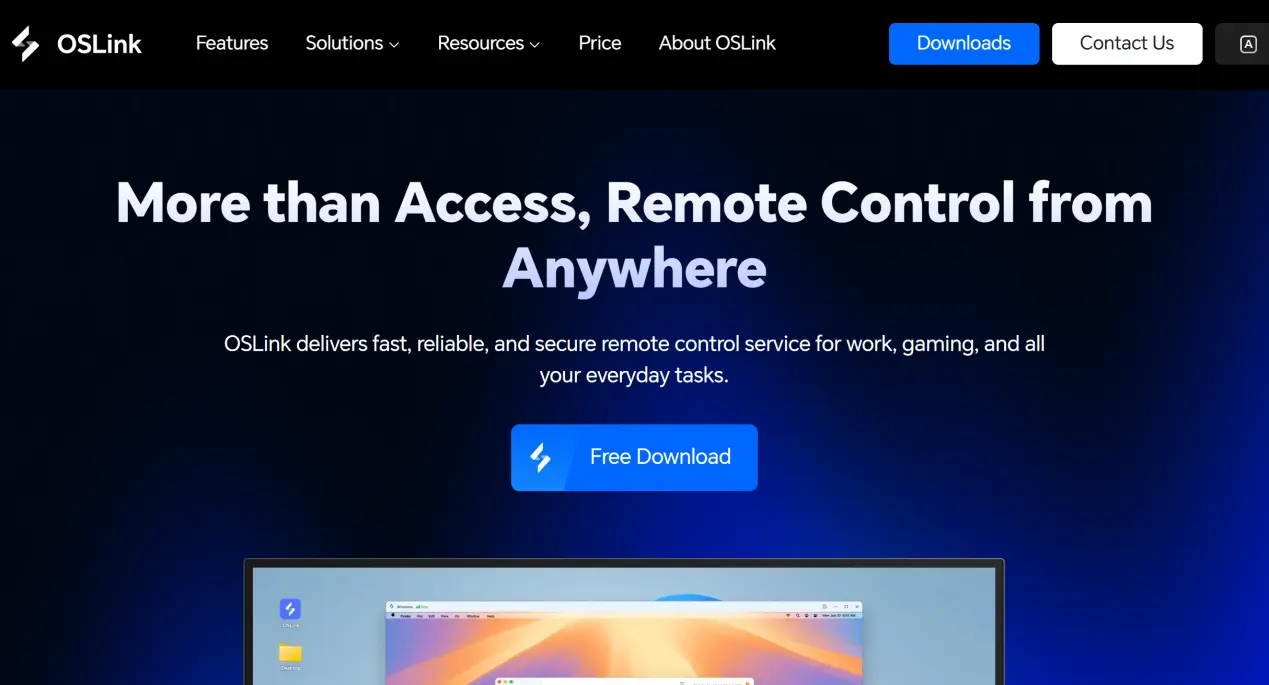
Open a browser and visit the official OSLink website. Select and download the installer that matches your computer's operating system. Complete the installation, launch the program, register an account, and sign in.
The program needs to keep running in the background. It is recommended that you open your computer's power management settings and disable automatic sleep and network adapter sleep. This helps prevent the network connection from being interrupted while the computer is idle, allowing your phone to connect whenever needed.
Mobile Setup
Android users can search for OSLink in the Google Play Store and install it.
iOS users can open the App Store and download the corresponding client.
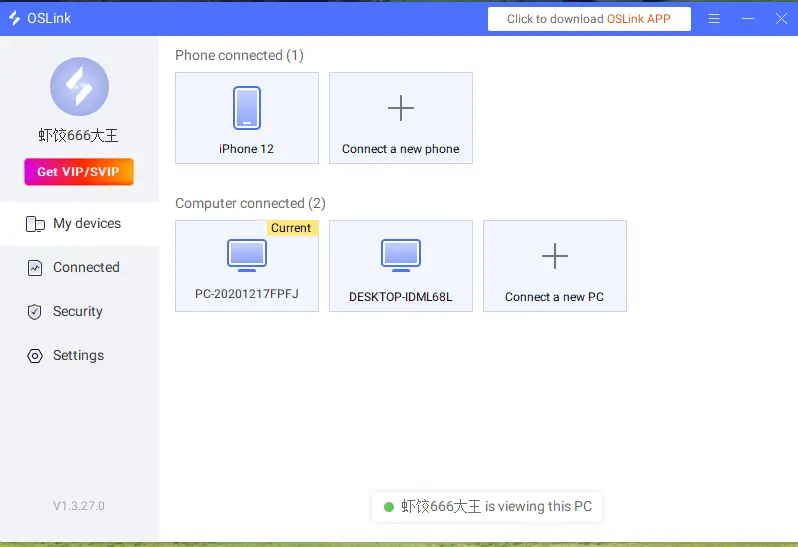
Note: Make sure the account signed in on your phone is the same one used on the PC. The software can automatically detect devices on the same local network, so there is no need to enter a device ID manually. Pairing can be completed automatically.
3. How to Run Moonlighter 2 on Your Phone with OSLink
Step 1:
Open the corresponding game client on your PC, launch Moonlighter 2: The Endless Vault, and stay on the main menu. Keep the game window running in the foreground rather than minimizing it to the background.
Step 2:
Open the OSLink client on your phone. The device list will show computers that are online under the same account. Tap the target computer to establish the streaming connection.
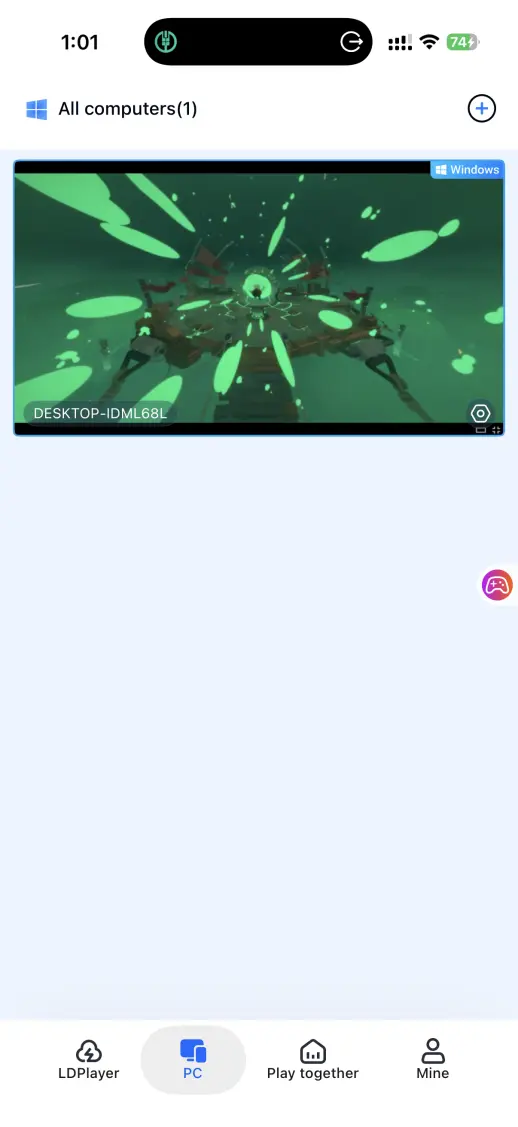
Step 3:
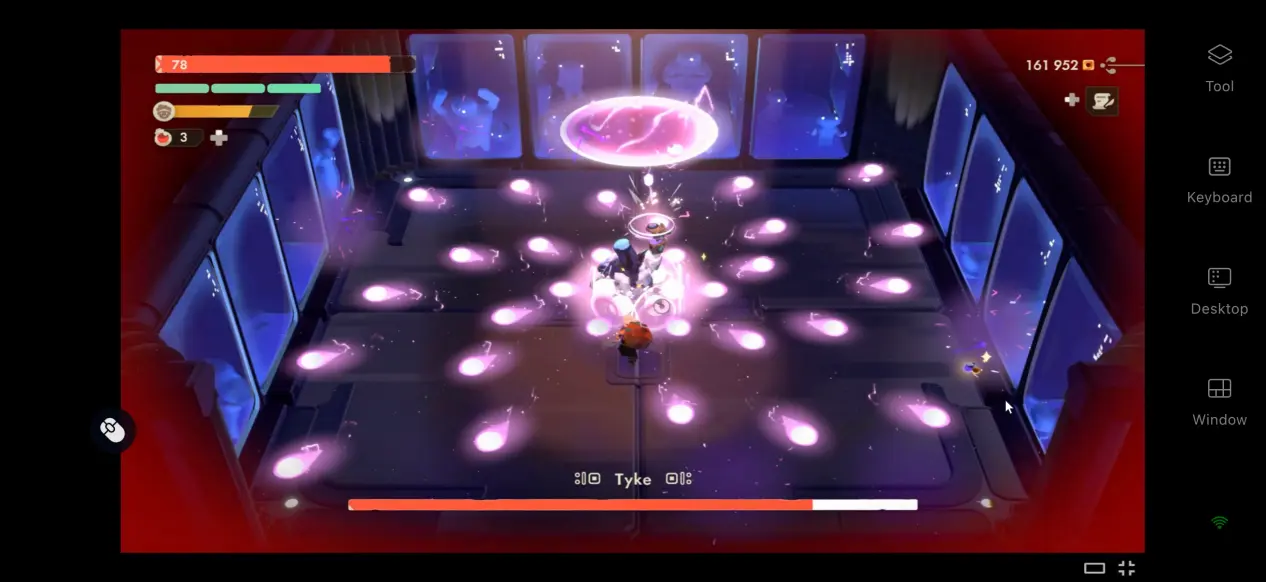
Once the PC screen loads successfully, open the side toolbar, switch to Game Mode, and load the preset virtual controls for action RPGs.
Step 4:
You can fine-tune the button positions to match your preferred controls or connect an external controller. Once everything is adjusted, you can manage your shop and venture into dungeons directly from your phone.
4. Benefits of Playing Moonlighter 2 on Mobile
Start Your Adventure Anytime
As long as your computer remains powered on and connected to the internet, your phone can establish a streaming connection over either Wi-Fi or mobile data. Even when you're away from home, you can pick up where you left off without staying in front of your PC.
No Need to Use Mobile Storage
There is no need to download the full game installation package to your phone. Game files and save data stay on the computer's hard drive, while the phone only receives the game screen and sends back control inputs. Even phones with older hardware or limited storage can still be used to play.
5. How to Improve Your OSLink Gaming Experience
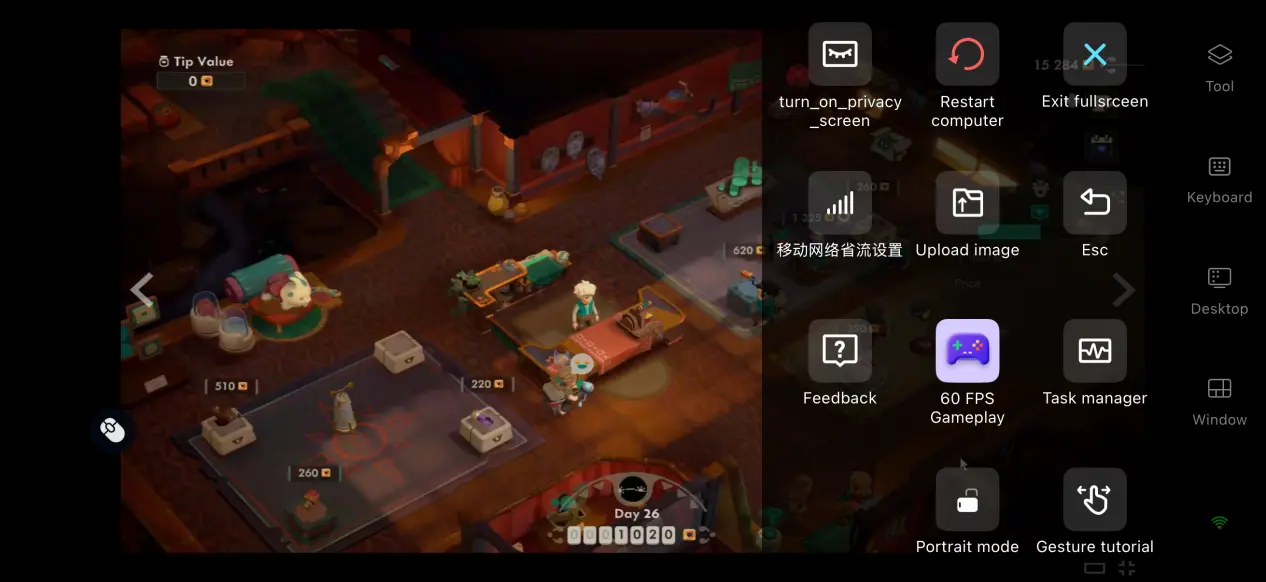
60 FPS Game Mode
After enabling 60 FPS PC Game Mode, OSLink optimizes its encoding strategy for action RPGs. This helps reduce motion trails during crowded enemy encounters and rapid scene transitions while shortening the delay between control inputs and on-screen feedback. Dodging and attacking during dungeon fights feel more responsive and fluid.
Custom Controls
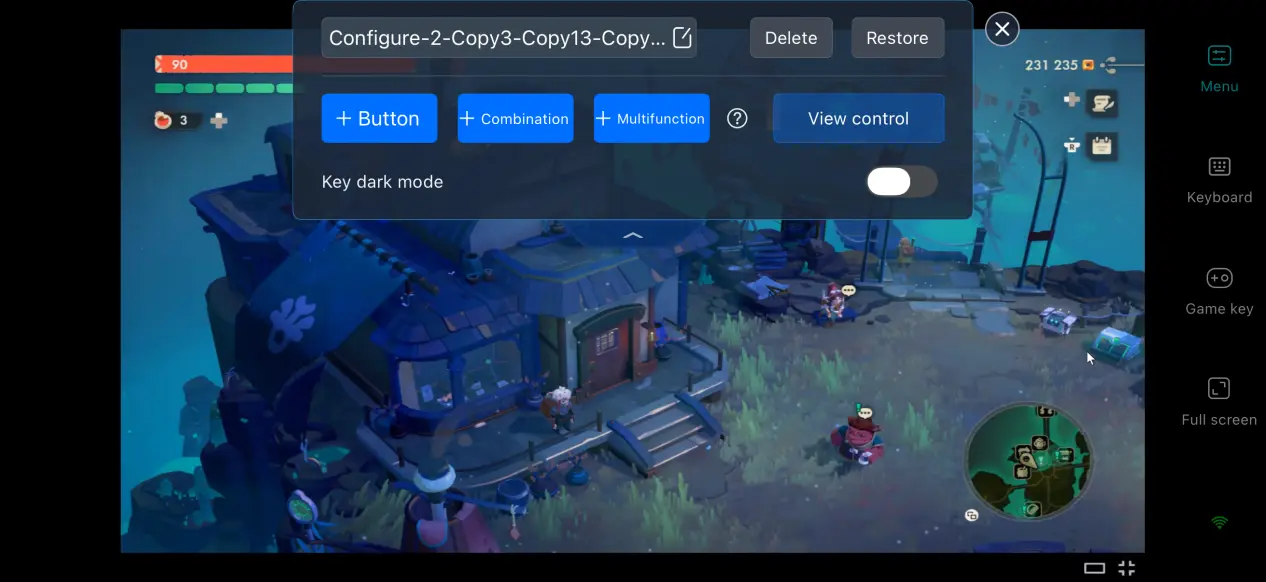
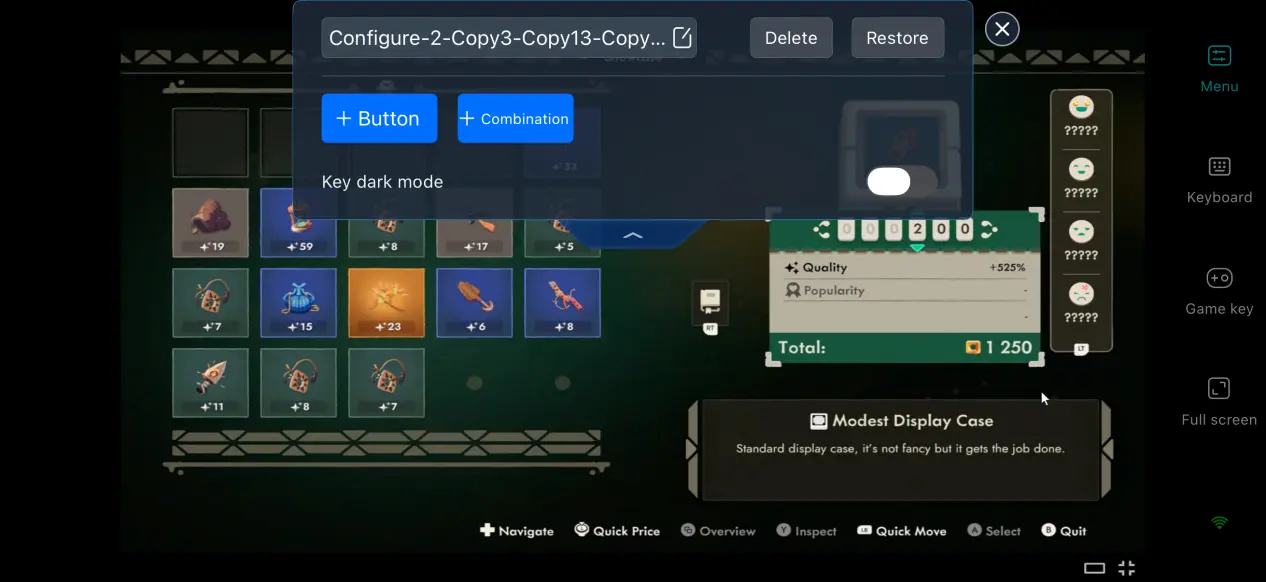
OSLink lets players add or remove virtual touch buttons and freely adjust their size, transparency, and position. For this game, frequently used actions such as dodging, attacking, interacting, and putting items up for sale can be placed within easy reach. Multiple control layouts can also be saved, making it easy to switch between dungeon combat and shop management.
Support for Various Peripherals
OSLink supports most Bluetooth and wired controllers, keyboards, and mice on the market. Once a controller is connected, the system automatically adapts to the game's input system, greatly reducing accidental touches and making the controls better suited to intense dungeon combat.
6. Frequently Asked Questions
Q: What's the release date of Moonlighter 2: The Endless Vault?
A: The full version launches on September 2, 2026. On PC, it is available through Steam and the Microsoft Store, while PS5, Xbox Series X|S, and Switch 2 will also receive releases. There is no native mobile version.
Q: What PC specifications are required for Moonlighter 2: The Endless Vault?
A: Minimum requirements: Windows 10 64-bit, i5-10400F/R7-2700 processor, 16 GB RAM, GTX 1650 or RX 5500 XT graphics card, and 5 GB of available SSD space. Recommended requirements: Windows 10 64-bit, i5-12500/R5-3600 processor, 16 GB RAM, RTX 3060 or RX 5700 graphics card, and 5 GB of SSD space. An SSD is recommended for running the game.
Q: Can I play Moonlighter 2: The Endless Vault on Android or iOS?
A: There is no native Android or iOS version. You can run the game by remotely streaming the PC version through OSLink; the game itself cannot be downloaded and installed directly.
Conclusion
Moonlighter 2: The Endless Vault combines roguelike dungeon adventures with shop management, sending players back and forth between dangerous dungeons and their town shop to collect loot and turn a profit. The game is currently available on PC and home consoles. For players who want the full experience on a phone, OSLink provides a remote streaming option that lets them continue their progress during spare moments, freeing them from being tied to a specific location while keeping both sides of the adventure within reach.
 Download