English
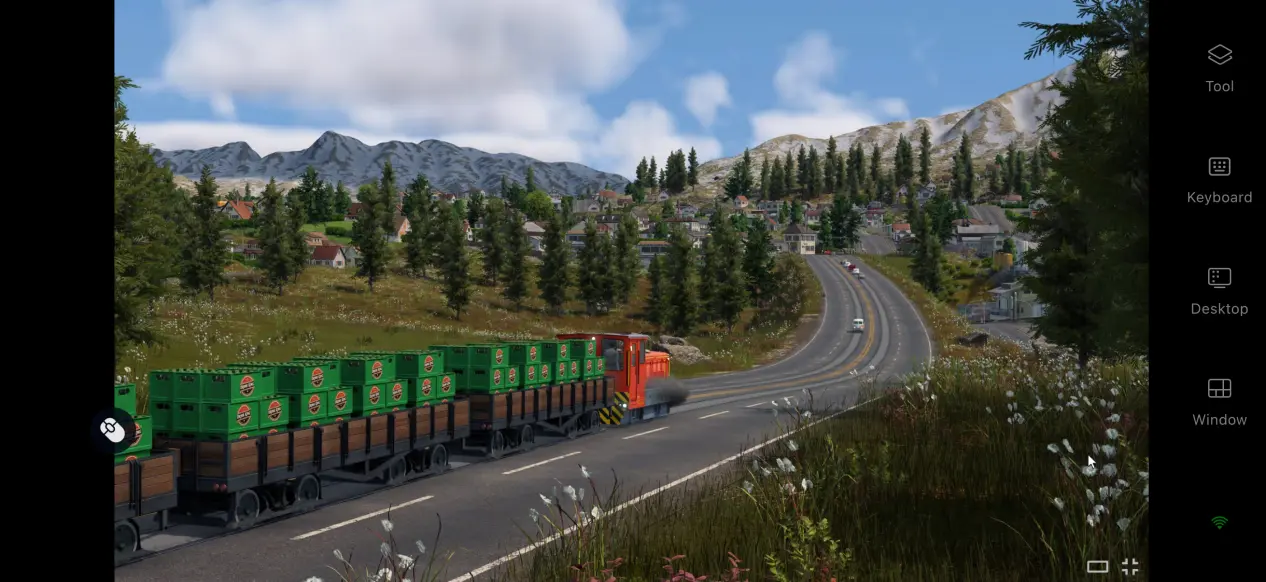
 Want to manage your transportation empire in Transport Fever 3 anytime, anywhere? This guide covers a practical way to remotely play the PC version, letting you get around the limitations of being tied to a computer and manage your growing transport network right from your phone. As a new entry in the transportation management simulation genre, Transport Fever 3 combines route planning, vehicle management, and city development into one connected experience. It offers plenty for fans of management sims to explore. However, the full game is only available on PC and does not have a native Android or iOS version. This can be inconvenient when you're away from your computer, especially if you need to adjust routes or deal with traffic bottlenecks during a commute or other spare moments. The following guide walks you through the complete setup for remotely playing the PC version on your phone.
OSLink can stream the PC game's display to a mobile device while sending your controls back to the computer, making it a good fit for management games like Transport Fever 3. The setup does not require complicated parameter adjustments. Once your devices are paired, you can plan railway routes, manage traffic congestion, and handle other tasks directly from your phone for a smoother remote-play experience.
1. How to Get Transport Fever 3
To play the game remotely, you first need to own a legitimate copy on your computer. The PC version of Transport Fever 3 is available through Steam and the Epic Games Store. Open the relevant client, search for the full game title in the store, purchase it, and then start the download from your library.
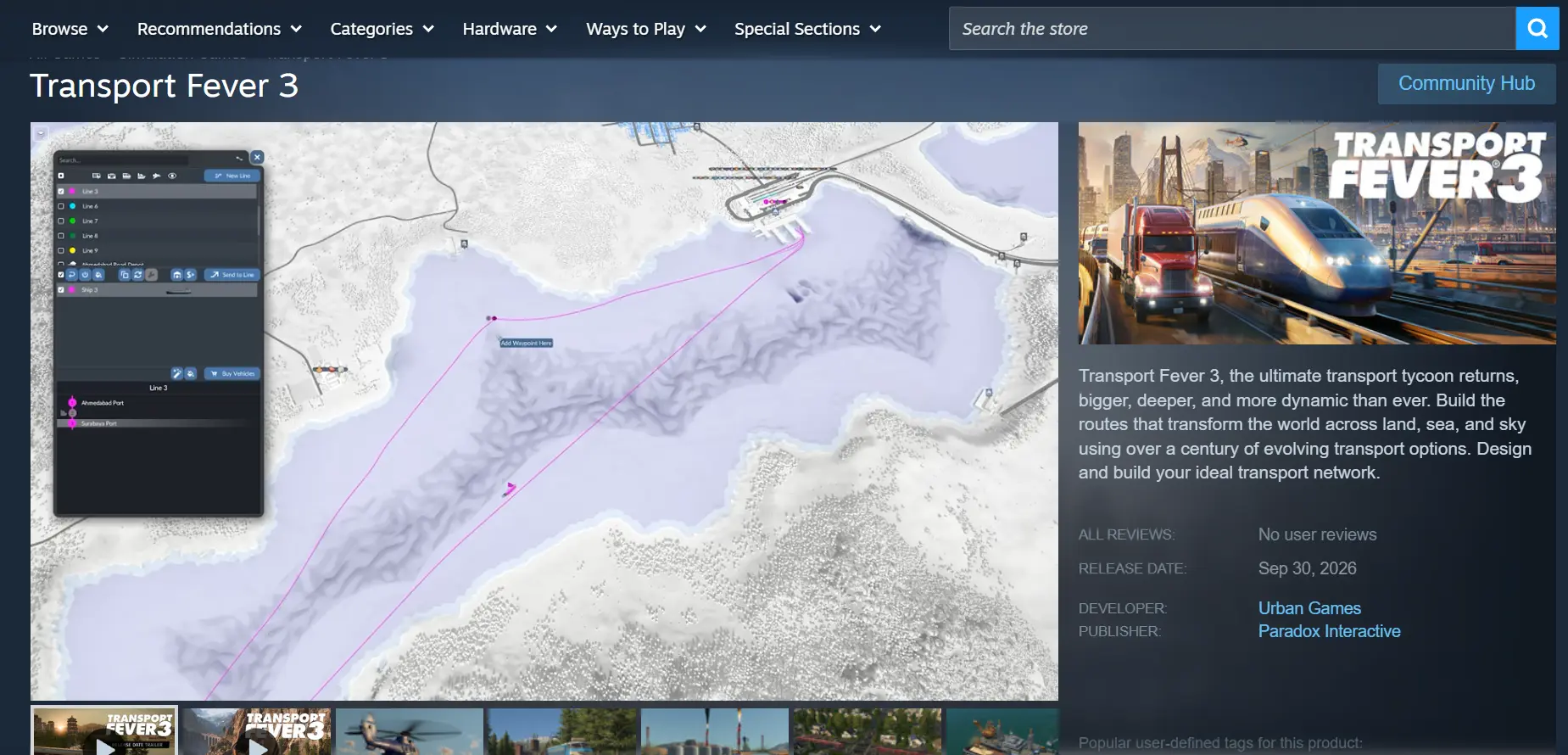
Once the download is complete, it is recommended that you launch the game manually at least once. Make sure you can enter the main menu normally and check that route editing, vehicle management, and simulation systems run without crashes, screen tearing, or other issues. Once everything is working properly, you can move on to the streaming setup.
2. Install OSLink on Both Devices
Install and Set Up OSLink on PC
Open your browser and visit the official OSLink website to download the version compatible with your computer's operating system. After installation, create an account or sign in to your existing account.
OSLink needs to remain running in the background. It is recommended that you open your computer's power settings and disable automatic sleep and network power-saving settings. This prevents the network connection from being interrupted while the computer is idle, allowing your phone to connect whenever needed.
Install and Set Up OSLink on Mobile
Android users can search for OSLink on Google Play and download the app. iOS users can open the App Store and install the corresponding client.
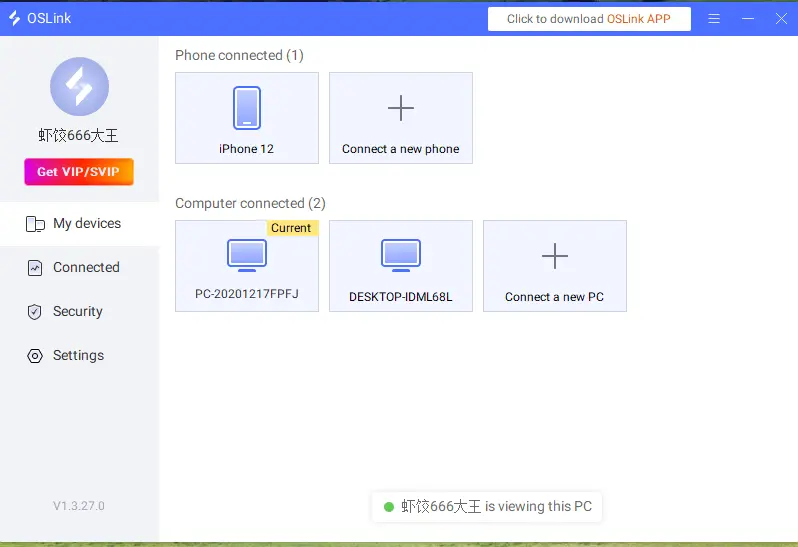
The account signed in on your phone must be the same one used on your computer. OSLink will automatically detect computers signed in to the same account on the local network. There is no need to manually enter a device ID, as the devices can be paired automatically.
3. How to Play Transport Fever 3 with OSLink on Mobile
Step 1: Launch the game client on your computer and open Transport Fever 3. Leave the game on the main menu with the game window open in the foreground. Do not minimize the game window.
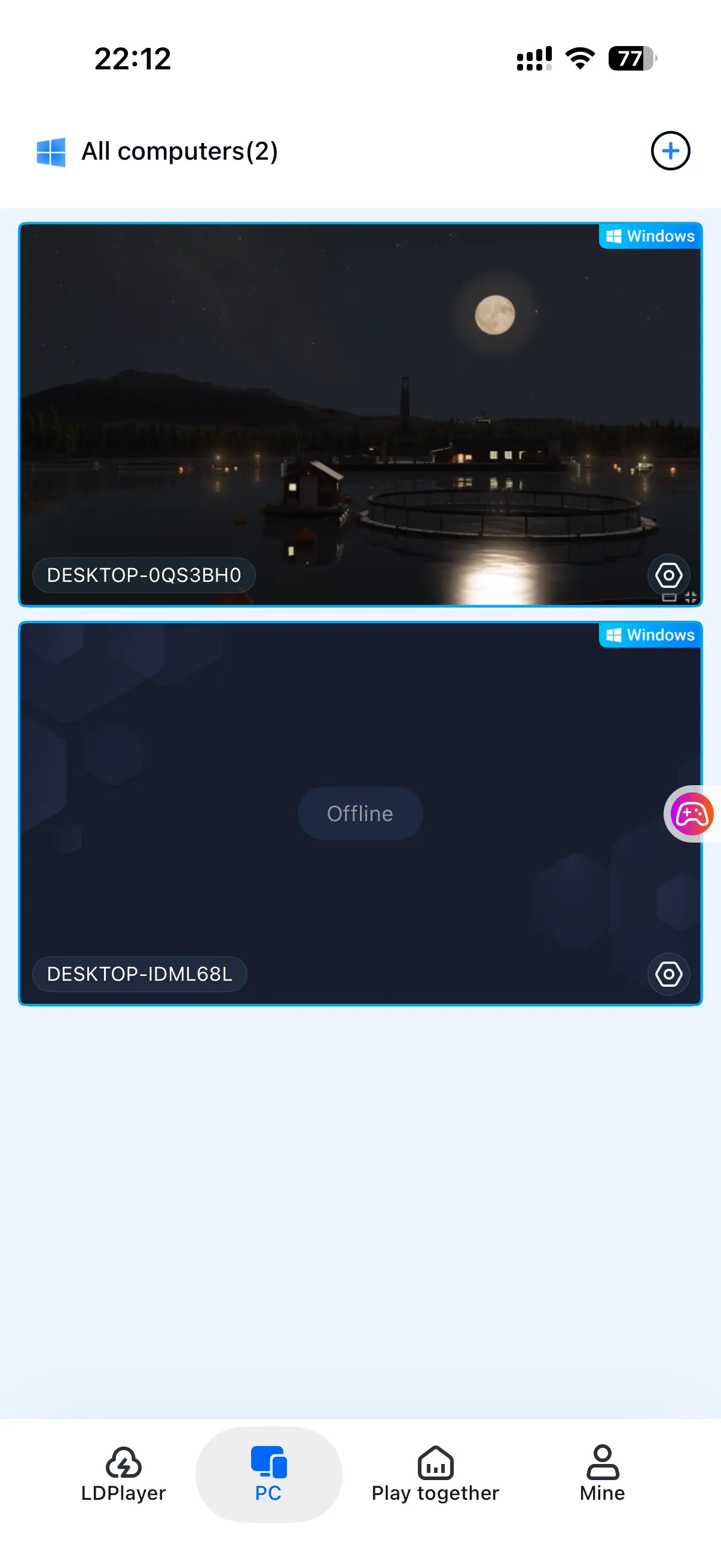
Step 2: Open OSLink on your phone. The device list will show computers under the same account that are currently online. Tap the target computer to establish a streaming connection.
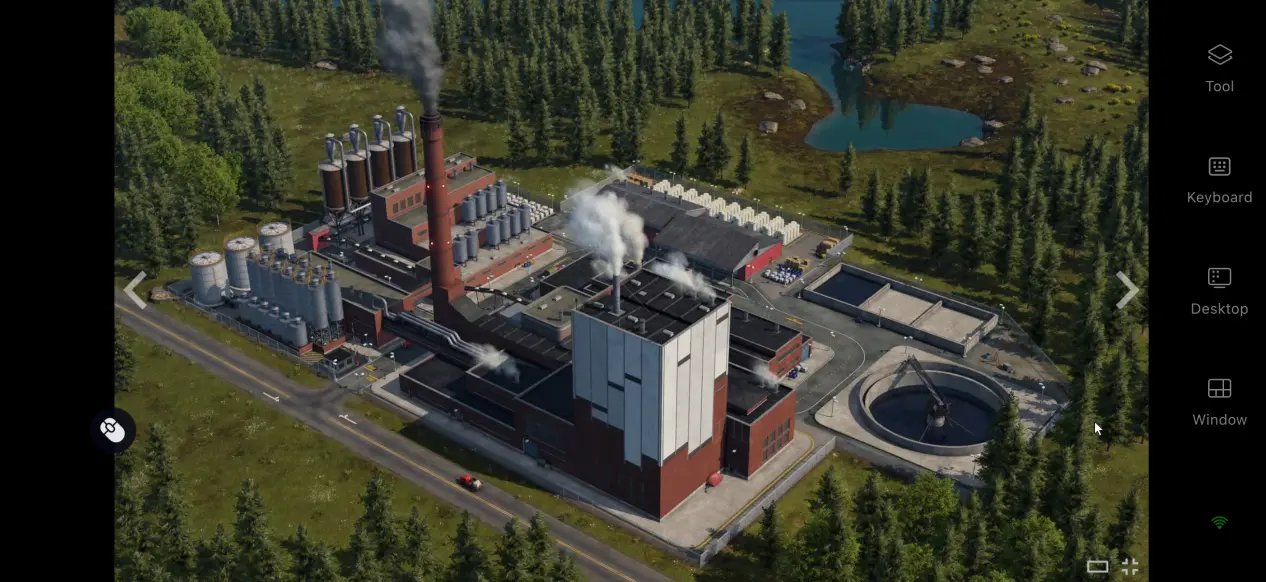
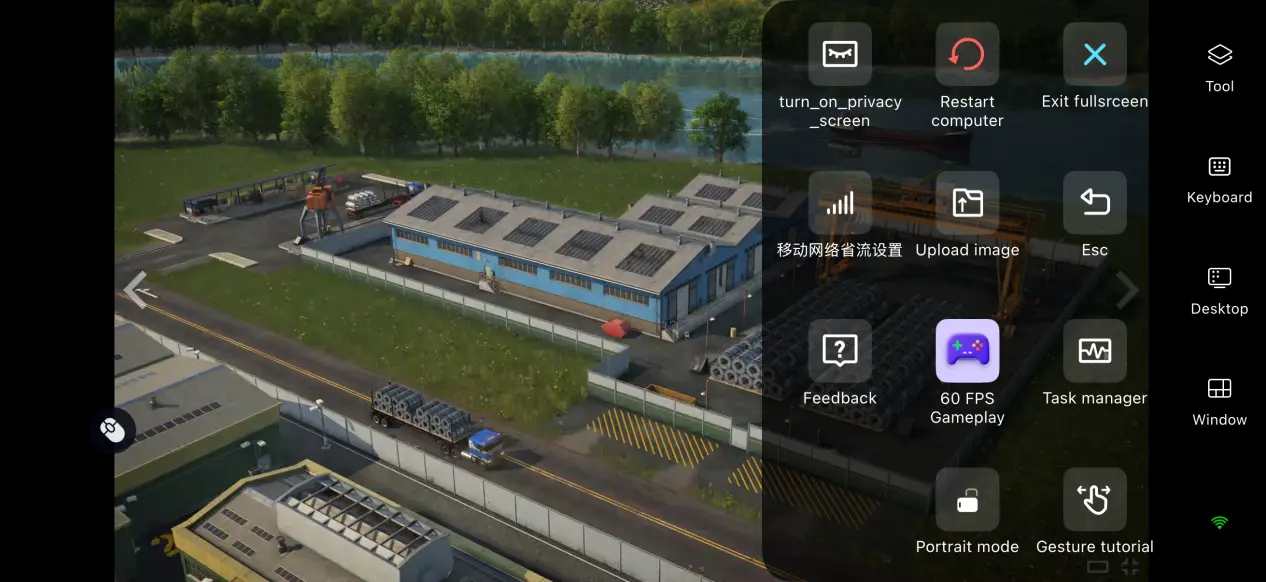
Step 3: Once the PC screen has loaded successfully, open the side toolbar and enable 60 FPS PC Game Mode. You can also apply the virtual control layout designed for management games or connect an external controller. Once everything is configured, you can plan routes and manage different types of transport vehicles directly from your phone.
4. Benefits of Playing Transport Fever 3 on Mobile
Play Anywhere Without Being Tied to Your Desk
As long as your computer stays powered on and connected to the internet, your phone can start a streaming connection over either Wi-Fi or a mobile network. When you're out, you can use spare moments to check route income, look for congestion at stations, and manage your transport network without having to sit in front of your PC.
No Need to Use Your Phone's Storage
The game files and save data remain stored on your computer's hard drive. Your phone only receives the game display and sends control inputs back to the PC. Even phones with limited storage or modest hardware can still handle the game through remote streaming.
Compatible with a Range of External Controllers
OSLink supports many mainstream wired and Bluetooth controllers. Once a controller is connected, the system automatically matches the input controls. This can reduce accidental touches when using the touchscreen and make large-scale map navigation, dragging, and precise route planning more comfortable.
5. Ways to Optimize Your Transport Fever 3 Remote-Play Experience
60 FPS Game Mode
Enable 60 FPS PC Game Mode to let the software optimize encoding for PC games. During large-scale map zooming or scenes with many vehicles being simulated at once, this can reduce motion blur and shorten the delay between your input and the on-screen response. Route adjustments and map dragging will feel more responsive.
Streaming History
OSLink keeps a record of previous streaming connections, so you do not have to search for your computer every time. When you open the app later, simply select a device from the connection history to quickly establish a connection without going through the pairing process again.
Custom Control Layouts
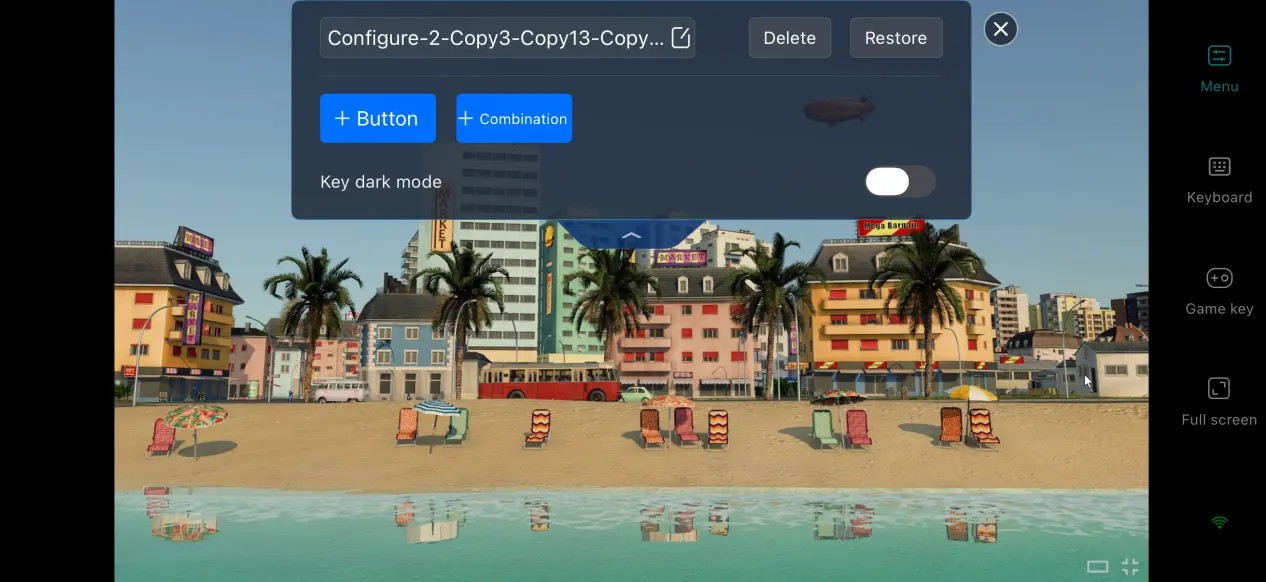
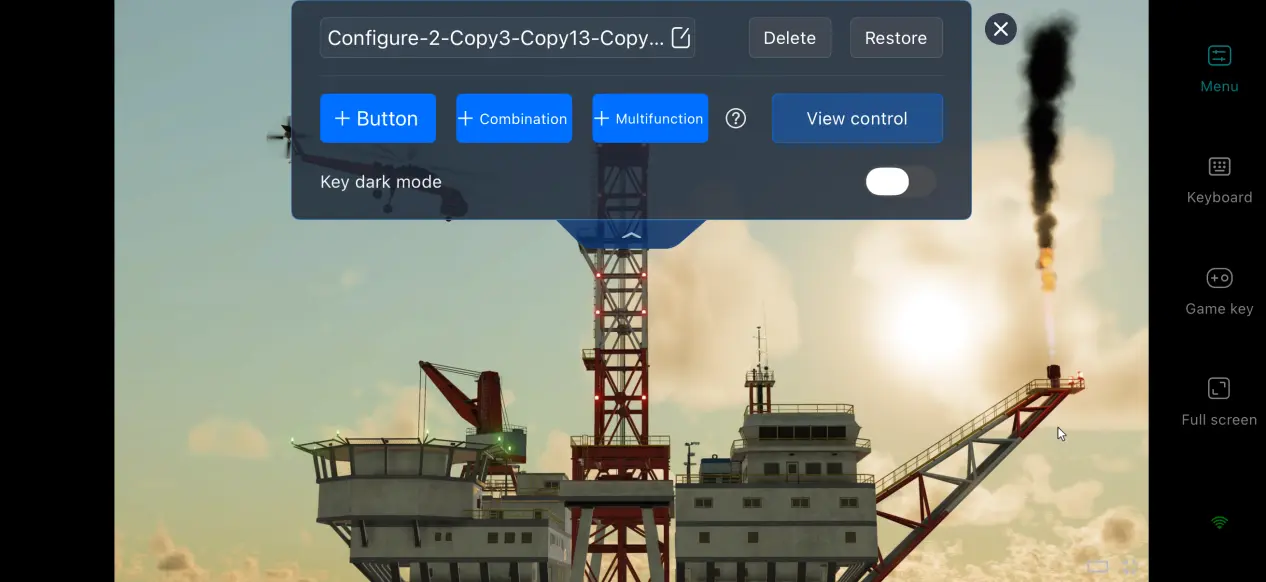
You can add or remove virtual touch buttons and adjust their size, transparency, and position. For Transport Fever 3, frequently used functions such as map zooming, undoing construction, and checking routes can be placed within easy reach. You can also save multiple control layouts and switch between them when browsing the larger map or working on detailed route adjustments.
Mobile Screen Mapping Adjustments
You can manually adjust the streaming bitrate. When the network connection is strong, increasing the bitrate helps preserve map textures and building details. When the connection becomes unstable, lowering the bitrate can help maintain smoother gameplay. The system can also automatically detect network conditions and adjust the output quality dynamically, balancing image clarity and connection stability.
6. Frequently Asked Questions
Q: What is Transport Fever 3 release time?
A: Transport Fever 3 release date is September 29, 2026. It is only releasing on PC, and there is no official native mobile version.
Q: What PC specs are required for Transport Fever 3?
A: Minimum requirements: Windows 10 64-bit, an i5-8400/R5-2600X processor, 8 GB of RAM, a GTX 1060/RX 480 graphics card, and 90 GB of available SSD storage.
Recommended requirements: Windows 11, an i7-13700K/R7-7800X3D processor, 16 GB of RAM, an RTX 3070/RX 6800 graphics card, and 90 GB of available SSD storage. The game must be installed and run through Steam on an SSD.
Q: Can I play Transport Fever 3 on an iOS or Androiddevice?
A: There is no official native iOS or Android version. You can play the game through OSLink's remote streaming connection to a PC; the game itself cannot be directly downloaded and installed on the device.
Conclusion
Transport Fever 3 is a management simulation focused on building transportation networks and connecting them with the development of cities. Players need to coordinate land, sea, and air transport, plan routes, control costs, and gradually build their own transportation empire. The game is currently available only on PC and does not have an official native mobile version. For players who want to experience the full game on a phone, OSLink remote streaming provides a practical way to do so.
The PC handles all of the game's processing using its own hardware, while the phone only handles the display and input. This allows players to manage their transport networks during commutes, while waiting, or whenever they are away from their computer, without being tied to their PC.
 Download