English
 Kingdom Rush 6: Genesis TD continues the series' signature tower defense gameplay, with strategic defensive placement and hero management at its core. It also introduces several new tower mechanics and level designs, offering plenty of room for different strategies and team setups.
The game does not currently have an official mobile client, but many players want to get around device limitations and keep planning their defenses during spare moments away from home. This guide walks through the entire remote streaming process, including getting the game, setting up both devices, launching the game, and optimizing the experience. Follow the steps below to complete the setup.
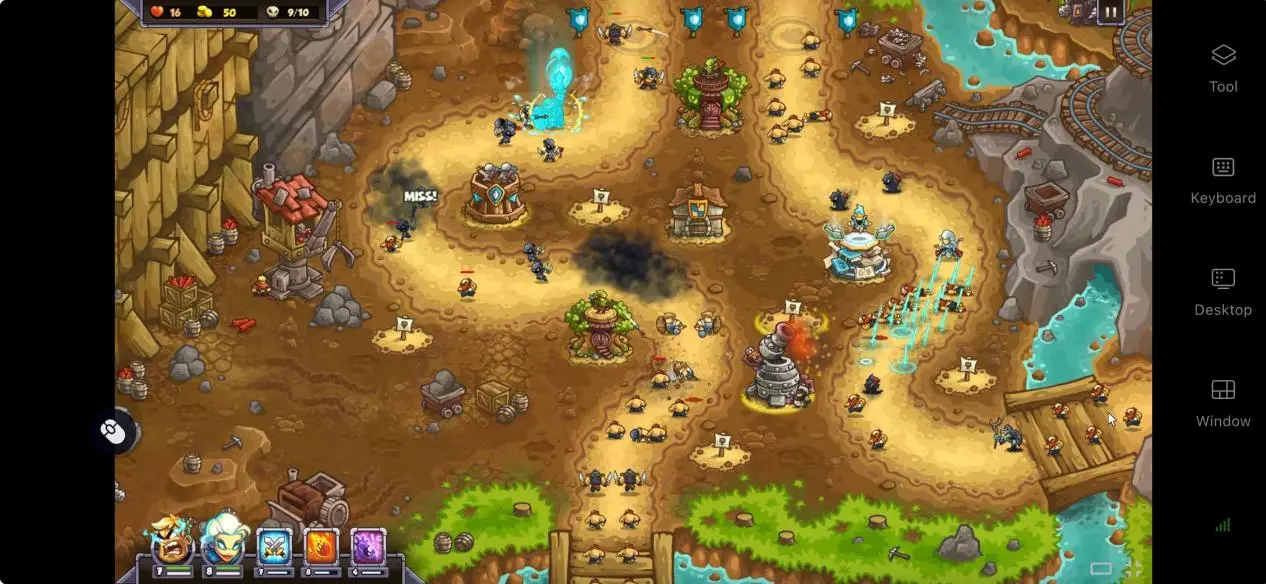
OSLink lets you stream Kingdom Rush 6: Genesis TD from your PC to your mobile device without modifying any game files. Actions such as placing towers and using hero abilities remain responsive during remote play. Whether you're clearing a short stage or taking on a long, difficult challenge, the streaming connection provides a stable way to play across devices.
1. How to Get Kingdom Rush 6: Genesis TD
The PC version of Kingdom Rush 6 is available on Steam. Open the Steam client, search for the full game title in the store, and complete the purchase. Once purchased, you can download and install the game from your Steam library.
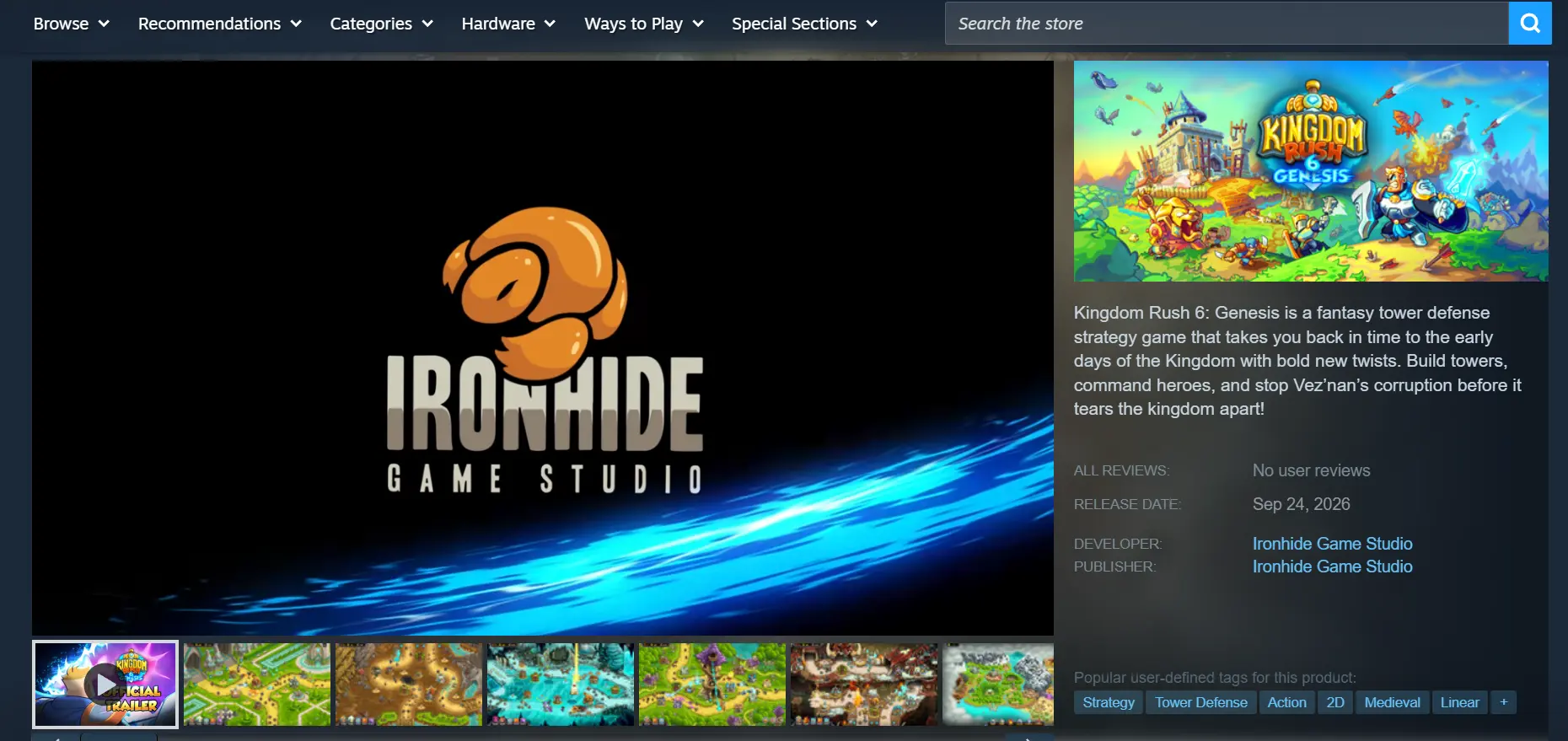
After installation, it's recommended that you launch the game once and make sure it runs properly on your PC before moving on to the streaming setup.
2. How to Install OSLink on PC and Mobile
PC Setup
Search for OSLink in your browser and visit the official website to download the Windows installer. Once installation is complete, launch the program, create an account, and sign in.
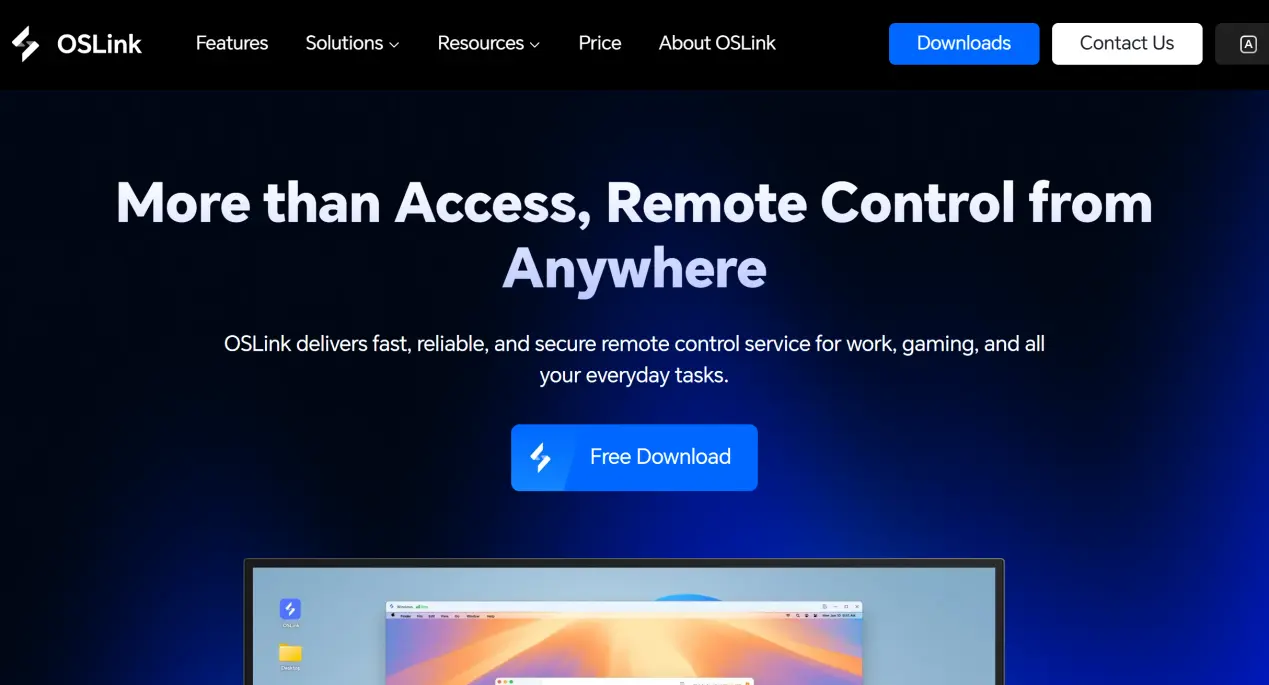
OSLink needs to keep running in the background. It's recommended to open your PC's power settings and disable automatic sleep and network adapter sleep options. This helps prevent the connection from dropping while the computer is idle, allowing your mobile device to connect whenever needed.
Mobile Setup
Android users can download OSLink from their app store or install it using the official installation package. iOS users can search for and download the corresponding app from the App Store.
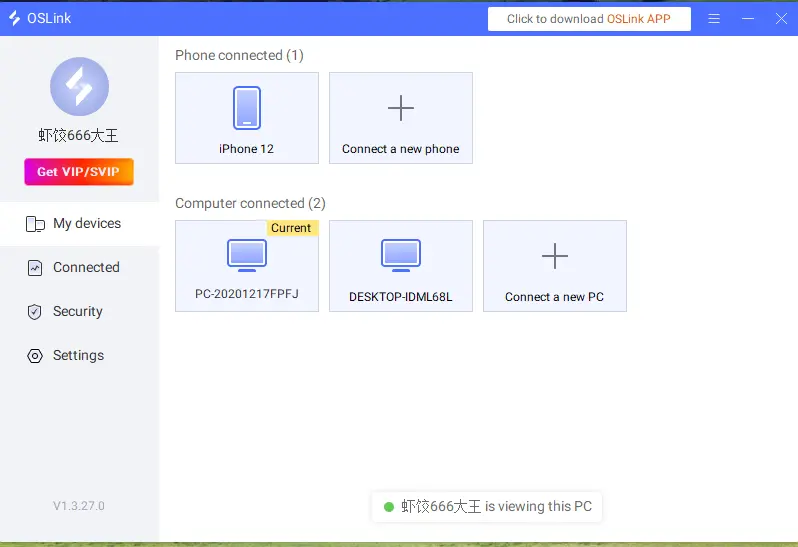
When signing in to OSLink on your phone, make sure you use the same account as the one signed in on your PC. OSLink can automatically detect devices using the same account on the local network. It also supports automatic pairing over the internet, so there's no need to manually enter a device ID.
3. How to Play Kingdom Rush 6 on Mobile with OSLink
Step 1: Make sure OSLink is set to stay running in the background on your PC. Then launch Steam and open Kingdom Rush 6. Stay on the stage selection screen and keep the game window open in the foreground. Do not minimize the game window.
Step 2: Open OSLink on your phone. The device list will show online PC hosts connected to your account. Tap the target PC to quickly establish the streaming connection.
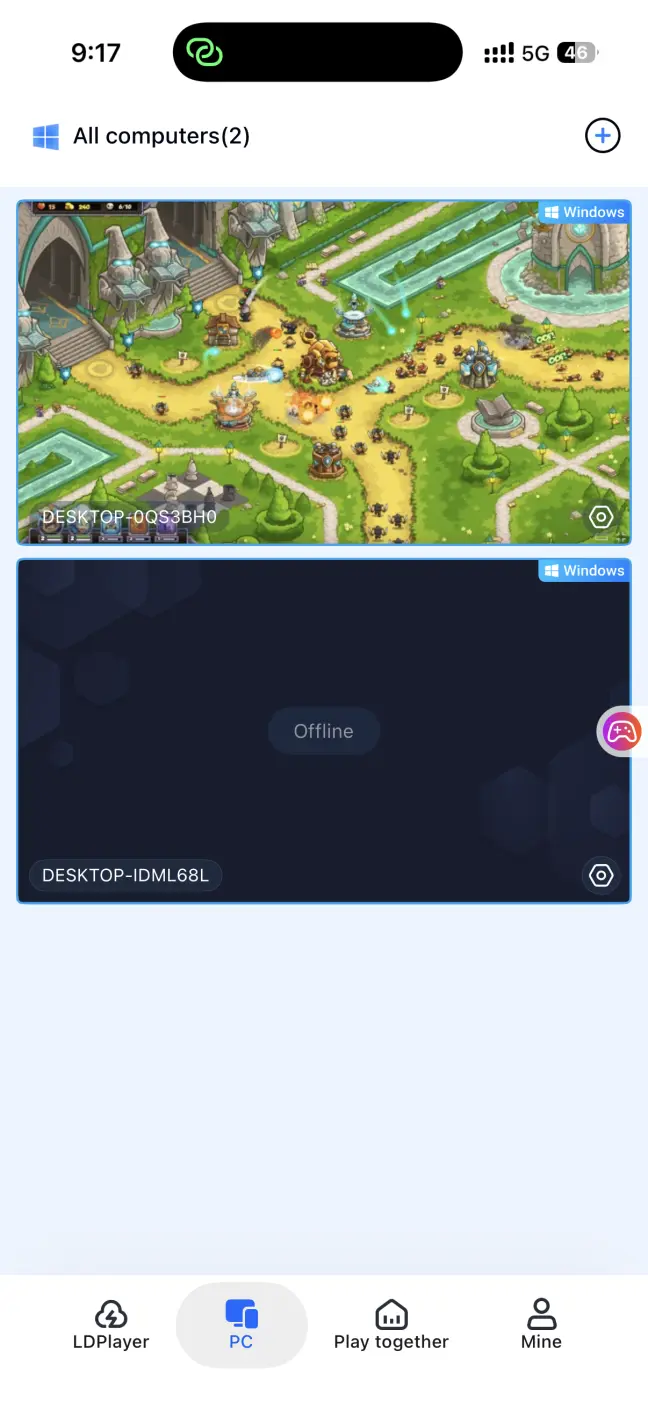
Step 3: Once the screen streaming connection is established, open the side toolbar, switch to the dedicated game mode, and load the preset virtual control layout for strategy games. After finishing the control setup, you can use your phone to build defensive towers, summon heroes, cast spells, and progress through the stages.
4. Benefits of Playing Kingdom Rush 6 on Mobile
Play Anytime During Short Breaks
As long as your PC stays powered on and connected to the internet, your phone can connect through Wi-Fi or mobile data. During short breaks, while waiting, or on your commute, you can pick up where you left off, adjust your defensive layout, and take on later waves of enemies without being tied to your desktop setup.
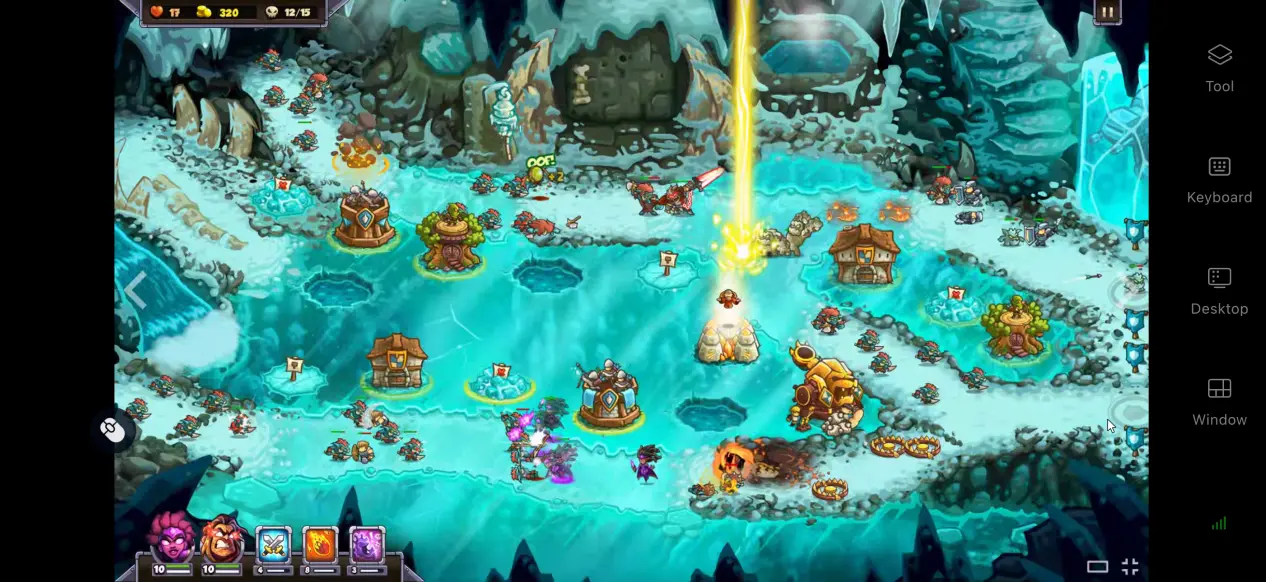
Minimal Storage Usage on Your Phone
All game files and save data remain on your PC's hard drive. Your phone only receives the streamed video and sends your control inputs back to the PC.Even older phones or devices with limited storage can be used to play the game, so you don't need to clear local storage to make room for the game installation.
Support for Multiple Controller Types
OSLink supports mainstream wired and Bluetooth controllers. Once a controller is connected, the input layout is automatically adapted. Tower placement, hero management, and spell casting can all be handled with a controller, reducing accidental touchscreen inputs and making longer sessions more comfortable.
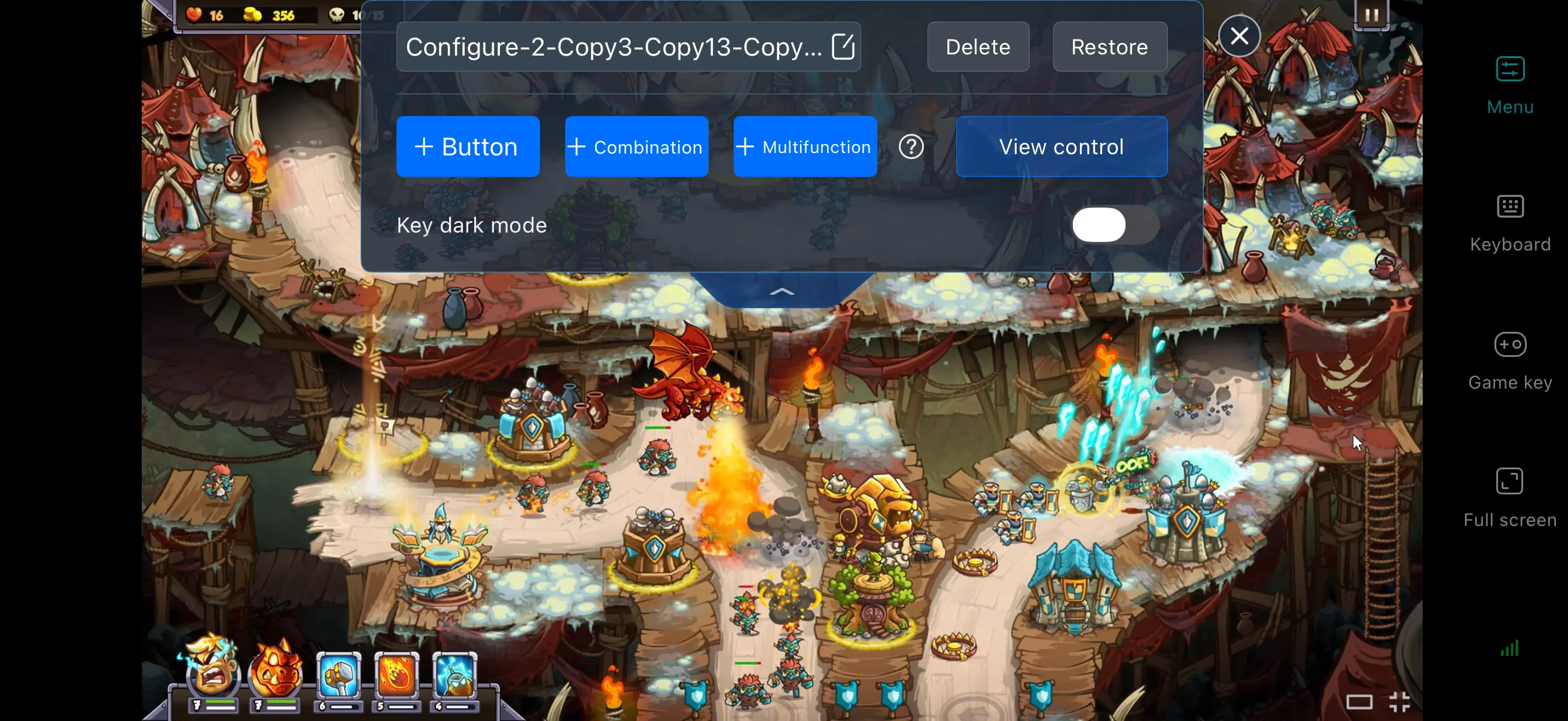
5. How to Optimize Your OSLink Gaming Experience
Dedicated PC Game Mode
Enable 60 FPS PC Game Mode. OSLink will automatically adjust its encoding settings to improve image quality when many units are on screen or multiple waves of enemies are attacking. This helps reduce motion blur and improves input response, making gameplay smoother.
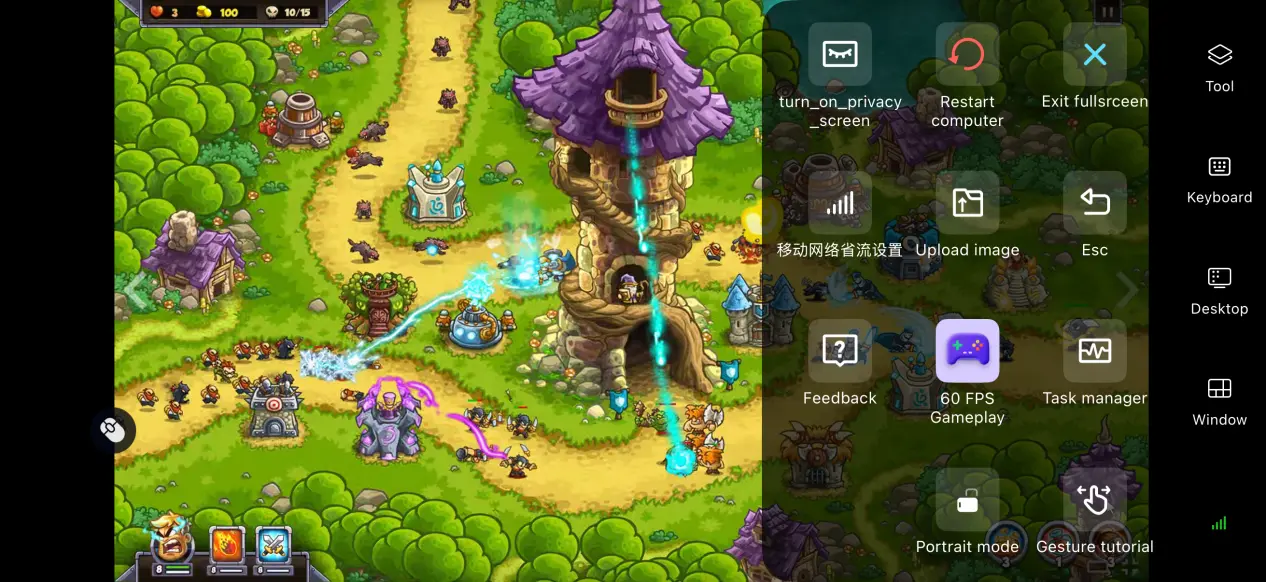
60 FPS PC Game Mode
Streaming History
OSLink automatically saves your previous device connection history, so you don't have to search for your PC every time. Simply select a device from your history to start streaming quickly.
If an unfamiliar device attempts to connect, you can also quickly freeze the connection to help protect your account.
Custom Control Layout
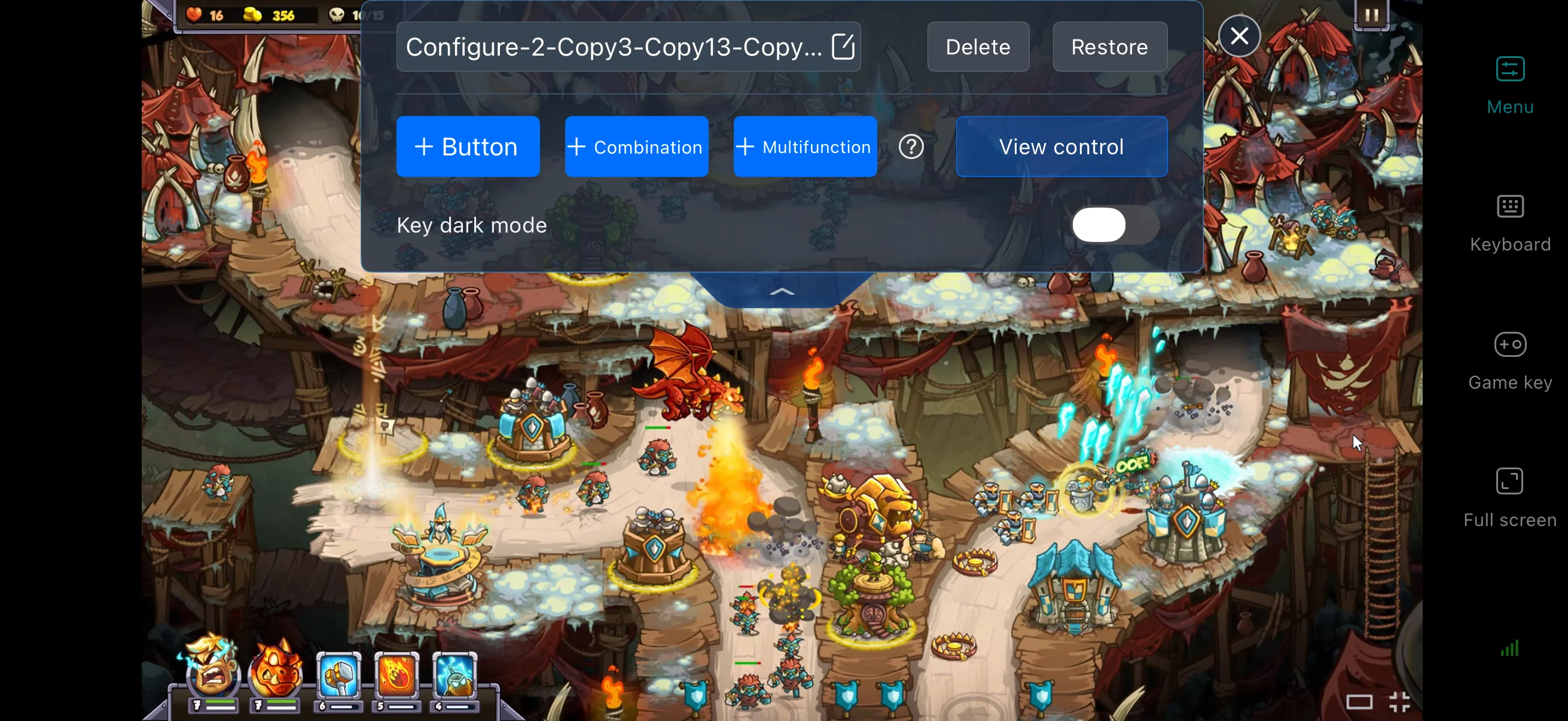
OSLink includes a customizable control feature that lets you add or remove virtual touch buttons and adjust their size, transparency, and position.
For tower defense games with frequent inputs, it's recommended to place the buttons for building towers, upgrading them, and using hero abilities within easy reach. You can also save multiple control layouts and switch between them depending on whether you're playing a regular stage or a high-pressure battle.
Full-Screen and Aspect Ratio Support
On mobile, you can enter full-screen mode with one tap to hide the top status bar and bottom gesture bar, allowing the game to fill the entire screen.
If the PC game's resolution doesn't match your phone's screen ratio, you can select Fit to Screen in the settings to stretch the image automatically, or keep the original aspect ratio with black bars. This prevents characters and UI elements from being stretched or distorted.
6. Frequently Asked Questions About Playing Kingdom Rush 6 on OSLink
Q: What is Kingdom Rush 6: Genesis TD release time?
A: Kingdom Rush 6: Genesis TD release date is September 24, 2026. The PC version will launch on Steam, and the official release does not include a native mobile client for the PC version.
Q: What are the PC system requirements for Kingdom Rush 6?
A: Minimum requirements: Windows 10 or later, a quad-core processor, 8 GB of RAM, integrated Intel UHD 600 graphics, and 3 GB of available storage space.
Recommended requirements: Windows 10/11, an equivalent or better processor, more than 8 GB of RAM, and an SSD installation to help improve stage loading times.
Q: Can I play Kingdom Rush 6 on iOS or Android?
A: The game does not have a native mobile version for iOS. You can only play through OSLink by remotely streaming the game from a PC. The PC version itself cannot be downloaded and run directly on an iOS device.
Conclusion
The PC version of Kingdom Rush 6 includes the full game, but there is no official native mobile client. For players who want to step away from their computers and enjoy the game during spare moments, OSLink remote streaming provides a practical way to do so.With this setup, the PC handles the game's rendering and processing while the phone acts as the display and control device. No changes are made to the original game files. This lets you move beyond the limits of a desktop setup and continue planning your defenses in more situations while enjoying the strategic challenge of tower defense.
 Download