English
 Top-down ARPGs with loot and dungeon crawling have long been popular with casual action gamers. As the latest entry in the series, Minecraft Dungeons II expands its maps, gear system, and multiplayer features. However, the game is only available on PC and consoles, with no native mobile version. Many players want to break free from being tied to a fixed gaming setup and continue clearing dungeons and collecting rare gear during their commute or spare time. This guide walks through everything from getting the game and setting up the software to connecting your devices and optimizing the experience.
OSLink lets you stream your PC games to mobile devices and map controls remotely. The setup is straightforward, with no complicated parameter tuning required. Once both devices are signed in with the same account and paired, you can control the PC game directly from your phone. You can smoothly handle dungeon combat, swap gear, pick up items, send party invites, and more.
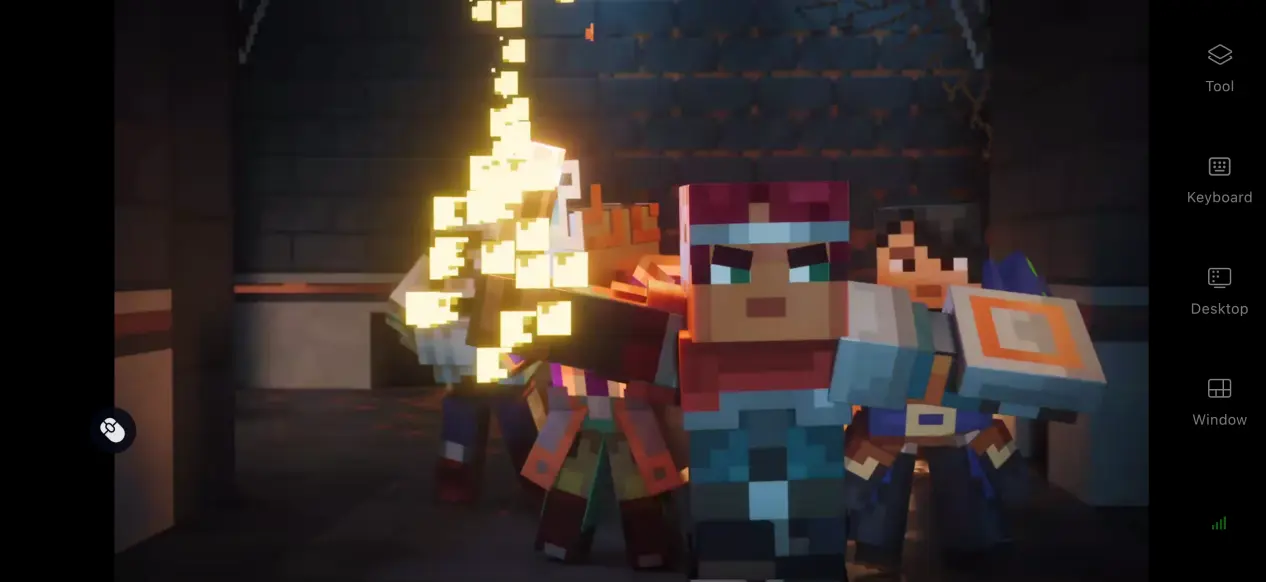
1. Get Minecraft Dungeons II
The PC version of Minecraft Dungeons II is available through two major platforms: Steam and the Microsoft Store. Open the corresponding client, search for the full game title, and start the download from your game library after completing the purchase.
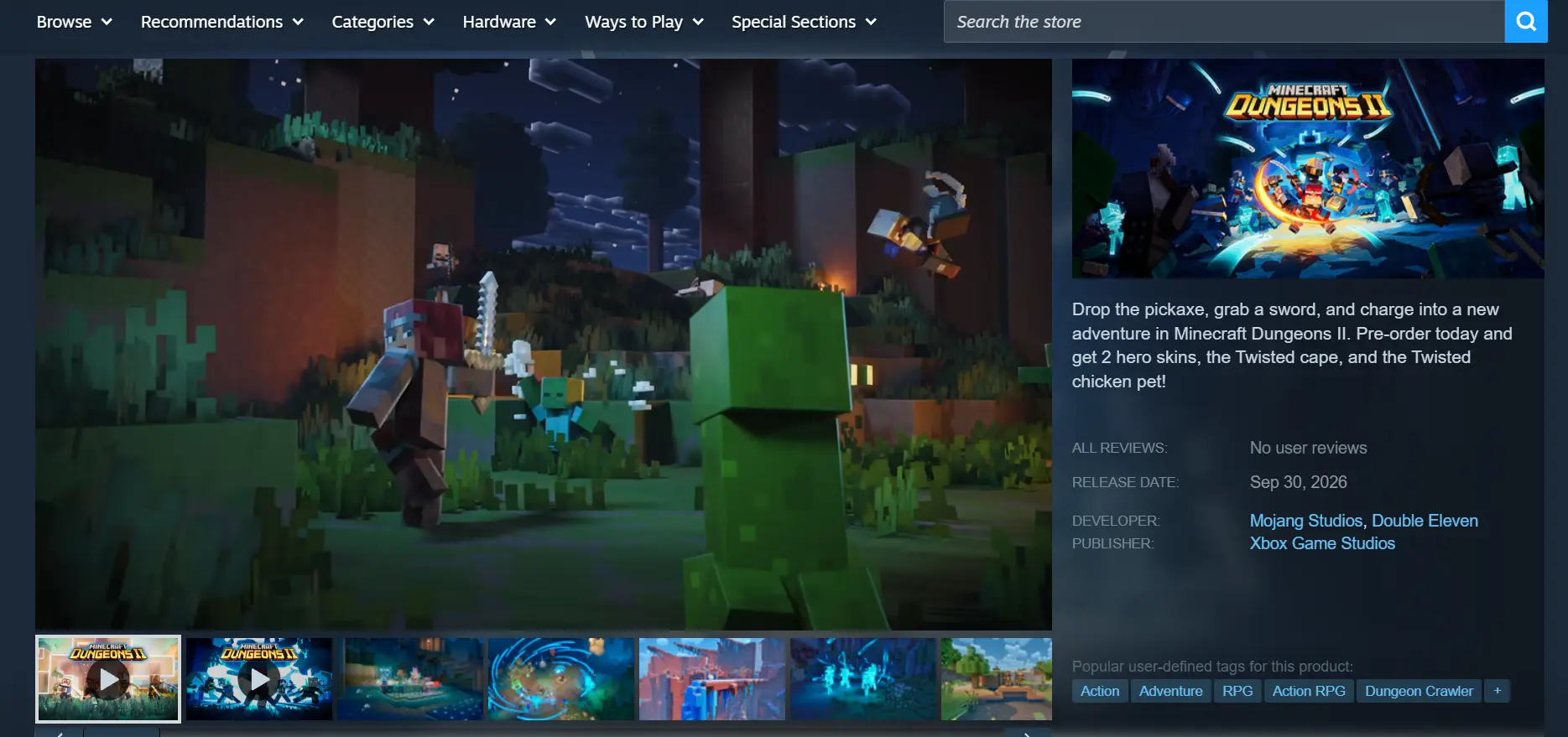
Once the installation is complete, it is recommended to launch the game manually once to make sure it runs properly on your PC before setting up remote streaming.
2. Install OSLink on Your PC and Mobile Device
Install on Windows PC
Open a browser and visit the official OSLink website to download the installer for Windows. Run the installer, launch the software, then create an account or sign in to your existing account.
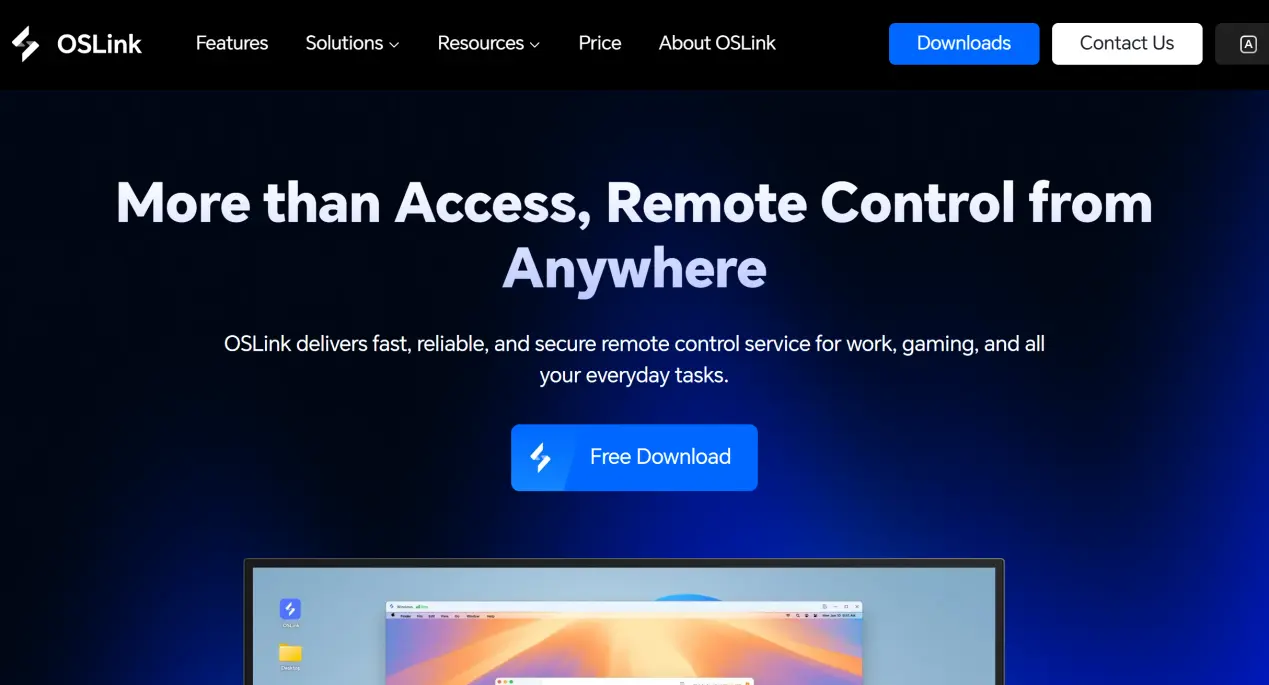
The software needs to keep running in the background. It is recommended to open your PC's power management settings and disable automatic sleep and network adapter sleep options. This helps prevent the network connection from dropping while the device is idle, allowing your phone to connect whenever needed.
Install on Mobile
Android users can search for OSLink in their app store and install it. iOS users can download the mobile client from the App Store.
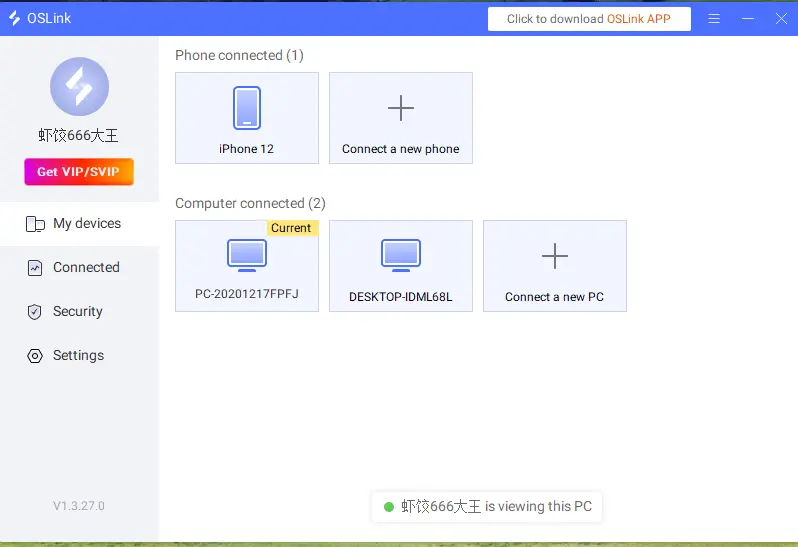
Sign in to the same OSLink account on your phone and PC. The software automatically detects devices signed in on the same local network, so there is no need to manually enter a long device ID. The devices can be paired directly.
3. How to Play on Mobile with OSLink
Step 1: Open the game client on your PC and launch Minecraft Dungeons II. Keep the game window in the foreground instead of minimizing it to the background, as doing so may cause streaming issues.
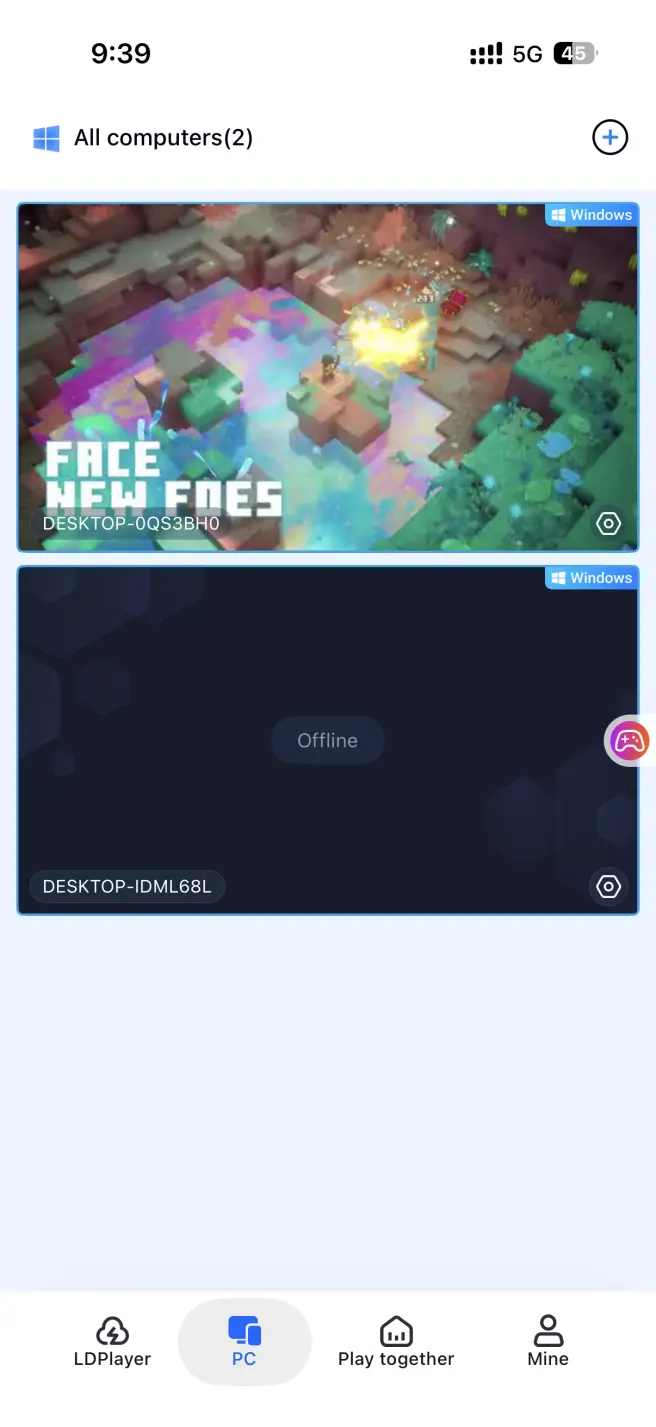
Step 2: Open the OSLink mobile client. The device list will show PCs under the same account that are currently online. Tap the target PC to establish a streaming connection.
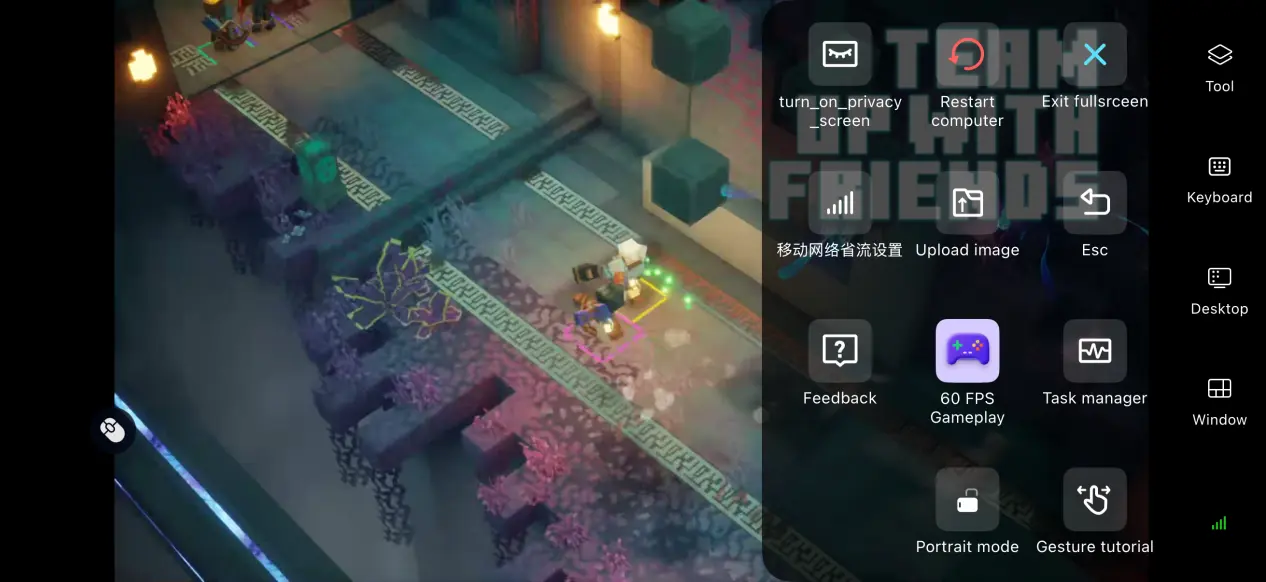
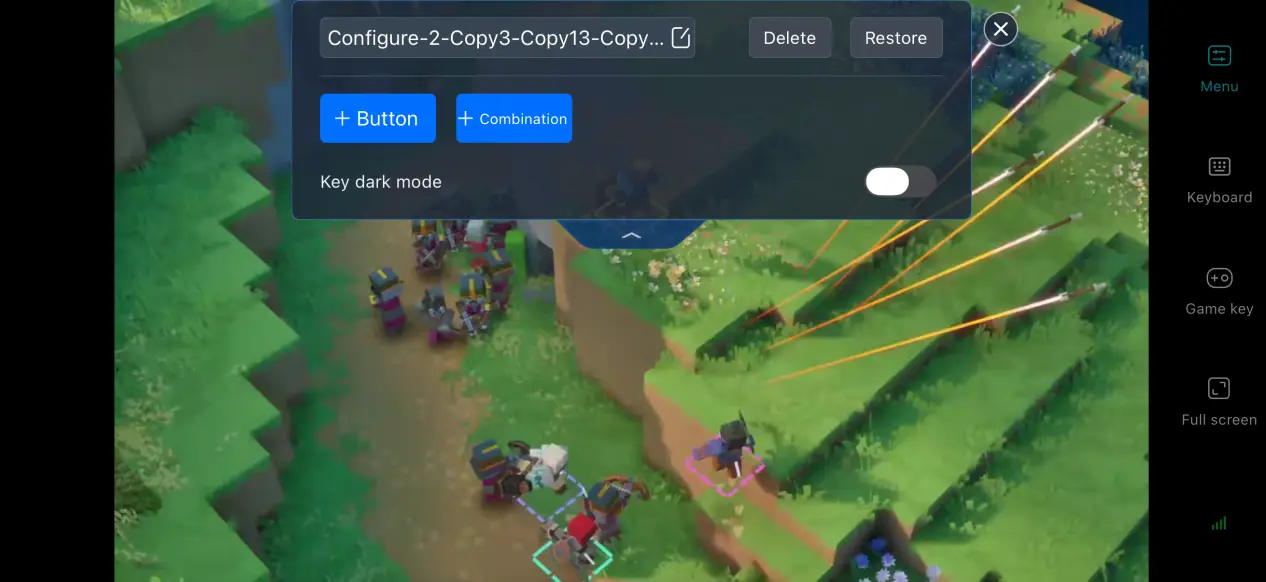
Step 3: Once the game screen has loaded, open the side toolbar and switch to the dedicated game mode. Select the preset virtual control layout for action ARPGs, then adjust the button layout to match your preferences. You can also connect external controllers. Once everything is set up, you can clear dungeons, pick up loot, and manage your character's gear directly from your phone.
4. Benefits of Playing Minecraft Dungeons II on Mobile
Adventure Without Being Tied to One Location
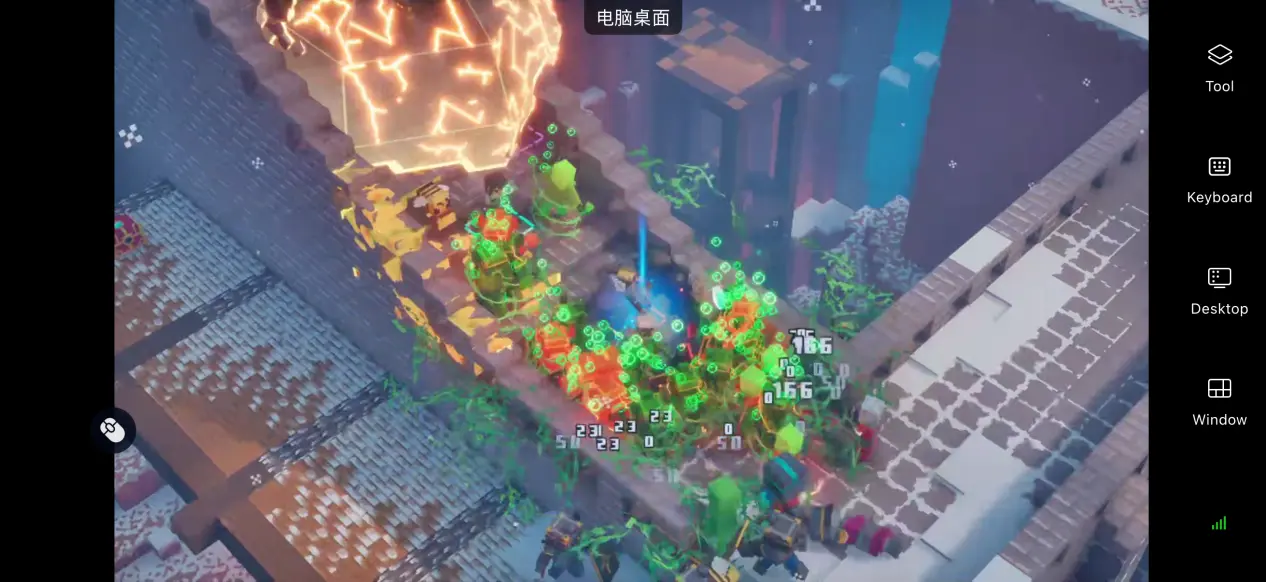
As long as your PC stays powered on and connected to the internet, your phone can establish a streaming connection over either Wi-Fi or a mobile network. This lets you continue your progress while you're out and about, without having to stay at your computer.
No Need to Use Your Phone's Storage
All game files and save data remain stored on your PC's hard drive. Your mobile device only receives the streamed video frames and sends back touch input. Even phones with limited storage or older hardware can still be used to play the game.
Multiplayer Room Collaboration
OSLink includes a room-sharing feature that allows the host to create a dedicated room and share an invitation link or code with others. Participants can enter the room using the invitation details and watch the game screen in sync, allowing multiple people to watch and assist with controls.
5. Ways to Optimize Your Minecraft Dungeons II Experience with OSLink
60 FPS PC Game Mode
Enable 60 FPS PC Game Mode to let the software optimize its encoding settings for action games. This helps reduce motion trails during battles with large numbers of enemies on screen and rapid map transitions, while also shortening the delay between input and on-screen feedback. Dodges, attacks, and skill activations can feel more responsive.
Custom Control Layout
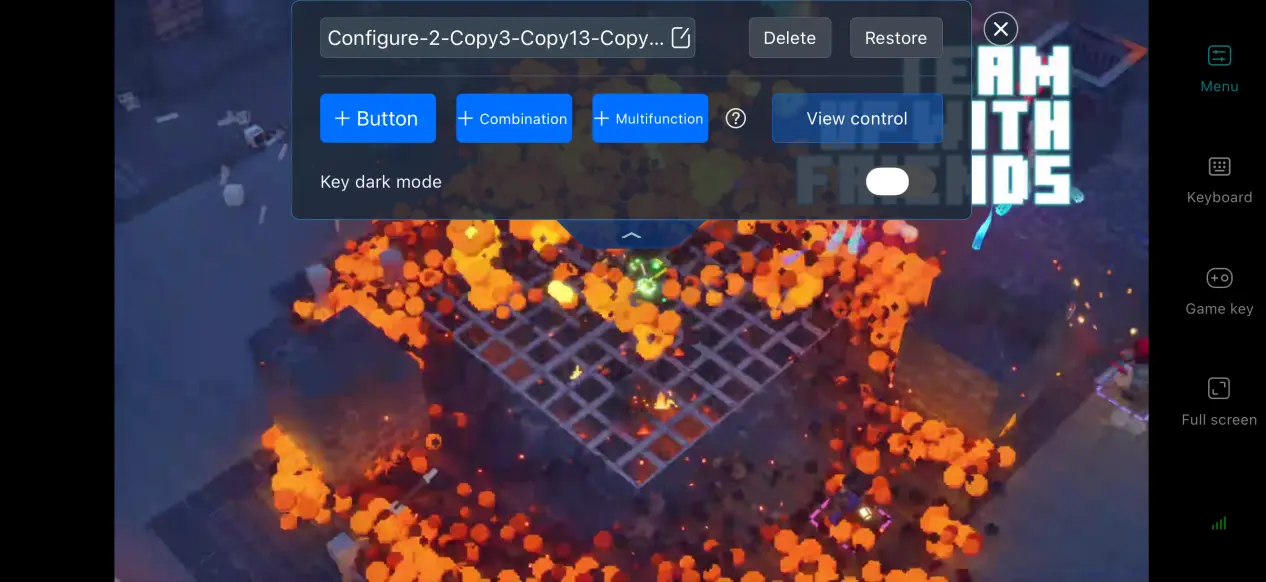
The software allows you to freely add or remove virtual touch buttons and adjust their size, transparency, and position. For this game, you can place frequently used actions such as dodging, basic attacks, skill activation, and gear interactions within easy reach. Multiple control layouts can also be saved, making it easy to switch between dungeon combat and inventory management.
Adjust Streaming Settings
You can manually adjust the streaming bitrate. When the network connection is stable, increasing the bitrate appropriately can preserve more visual detail. When the connection becomes unstable, lowering the bitrate can help maintain a smoother stream. The software also supports automatic network detection and can dynamically adjust output quality to balance image clarity and connection stability.
Support for Multiple External Devices
For a more precise control experience, OSLink supports most wired and Bluetooth controllers, keyboards, mice, and other common peripherals. Connecting a controller can reduce accidental touches on the screen, making it better suited to intense dungeon combat.
6. Frequently Asked Questions
Q: What is Minecraft Dungeons II release time?
A: Minecraft Dungeons II release date is September 29, 2026. It will be available on PC through Steam and the Microsoft Store, as well as on PS5, Xbox Series X|S, and Switch 2. There is currently no official native mobile version.
Q: What PC hardware is required to run Minecraft Dungeons II?
A: Minimum requirements: Windows 10 64-bit, an i3-8100 / R3-2200G processor, 8GB of RAM, and a GTX 1050 or RX 560 graphics card. Make sure enough SSD storage space is available.
Recommended requirements: Windows 10 64-bit, an i5-8400 / R5-2600 processor, 16GB of RAM, and a GTX 1060 or RX 580 graphics card. Installing the game on an SSD is recommended.
Q: Can I Play Minecraft Dungeons II on Android or iOS devices?
A: There is no official native Android or iOS installer. You can use OSLink to stream from a PC to run the game.
Summary
Minecraft Dungeons II is a top-down ARPG focused on dungeon crawling and loot. Players can take on different dungeons solo or with a party, collect legendary gear, experiment with different combat builds, and enjoy the thrill of dungeon exploration. The game is currently available only on PC and home consoles, with no native mobile client. With OSLink's remote streaming solution, players can stream the full PC game to their phones, breaking free from location restrictions and enjoying the complete loot-and-dungeon experience even while on the go.
 Download