English
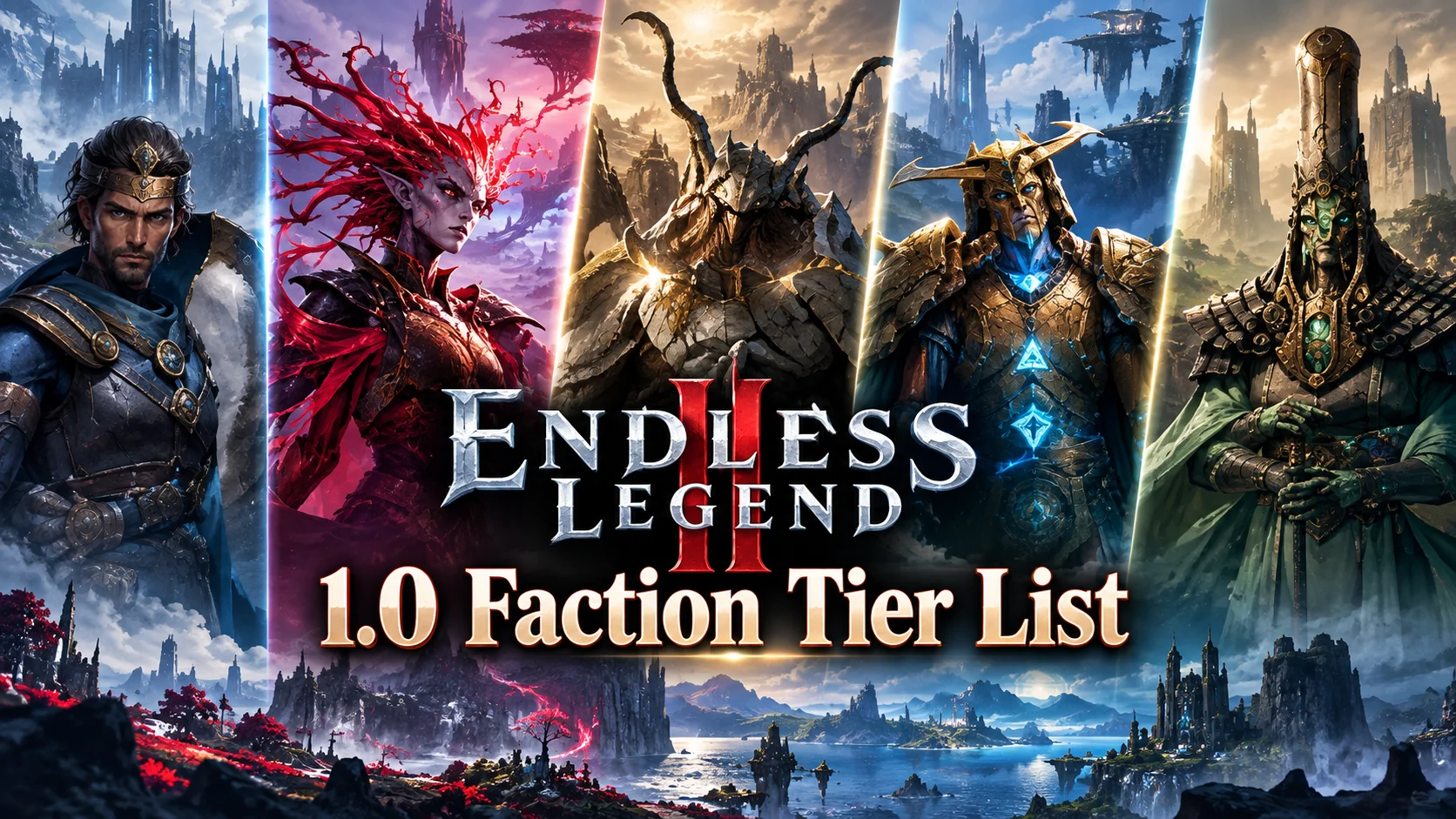
 As a 4X fantasy turn-based strategy game, ENDLESS Legend™ 2 features distinct factions, a complex diplomacy system, and a vast world to explore. The full game is available on PC, and there is currently no native mobile version, so the struggle for control of Sayada cannot be taken directly to your phone. This guide walks you through a practical remote streaming setup, covering everything from getting the game and installing the required software to pairing your devices and fine-tuning the experience. Follow the steps below to break free from your desk and enjoy the game wherever you are.
OSLink supports the remote-play needs of demanding PC strategy games like ENDLESS Legend™ 2. The entire setup requires no complicated system-level changes to your computer or phone. Once everything is configured, the complete game screen from your PC can be streamed to your phone in real time.
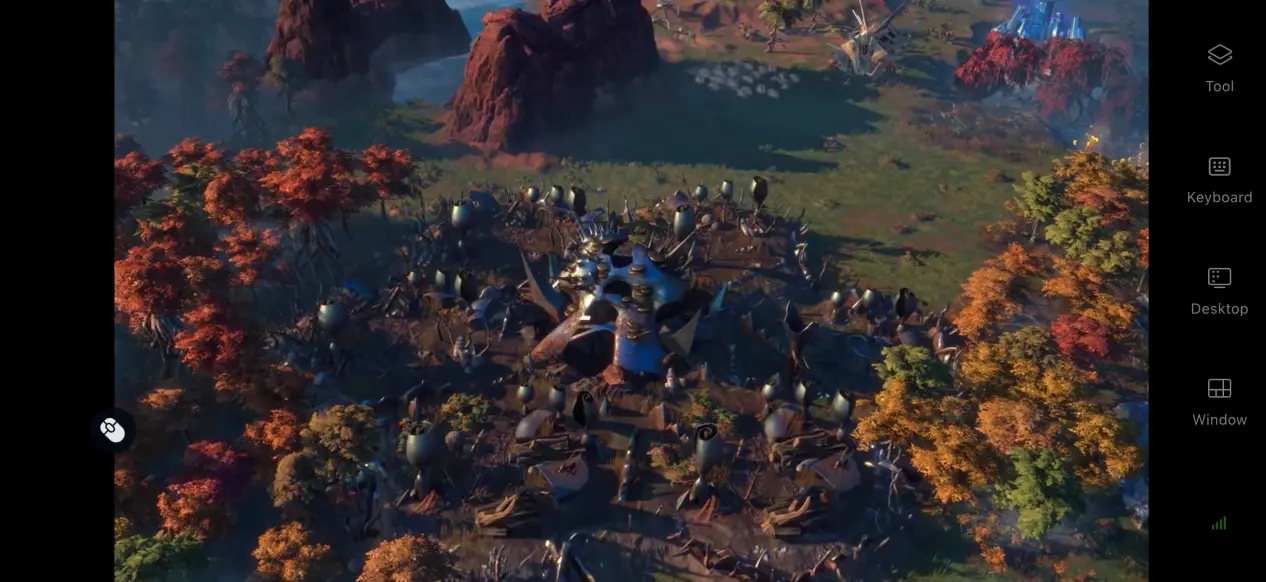
1. How to Play ENDLESS Legend™ 2
The PC version is officially available through two major digital storefronts: Steam and Epic Games Store. Open the Steam client, search for ENDLESS Legend™ 2 on the store page, check the version information, complete your purchase, and then download the game from your library.
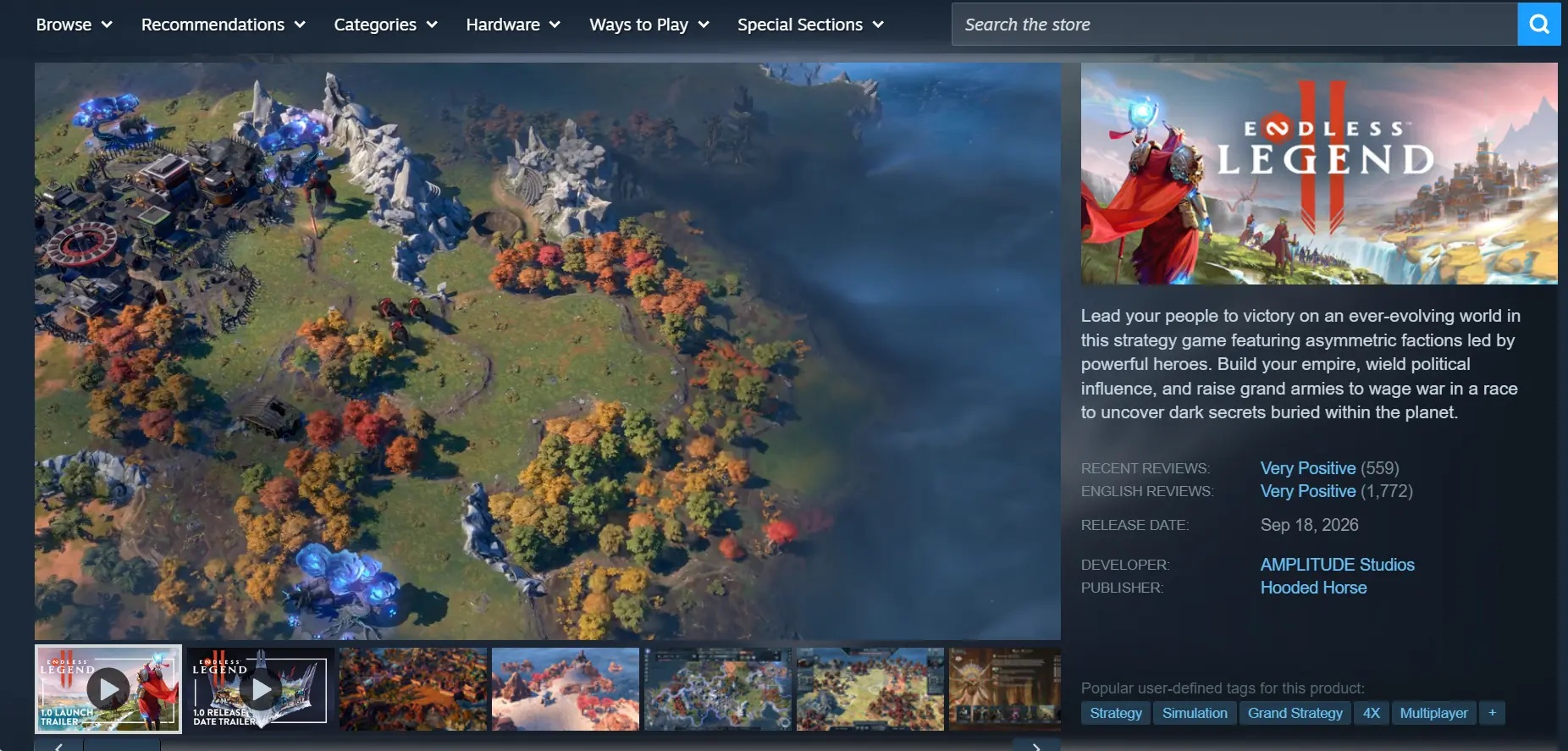
Once the download is complete, launch the game directly on your PC first. Make sure your saves load properly and that features such as diplomacy interactions work as expected. Check that there are no crashes, visual glitches, or other issues before moving on to the remote-streaming setup.
2. How to Install OSLink on PC and Mobile
Windows PC Setup
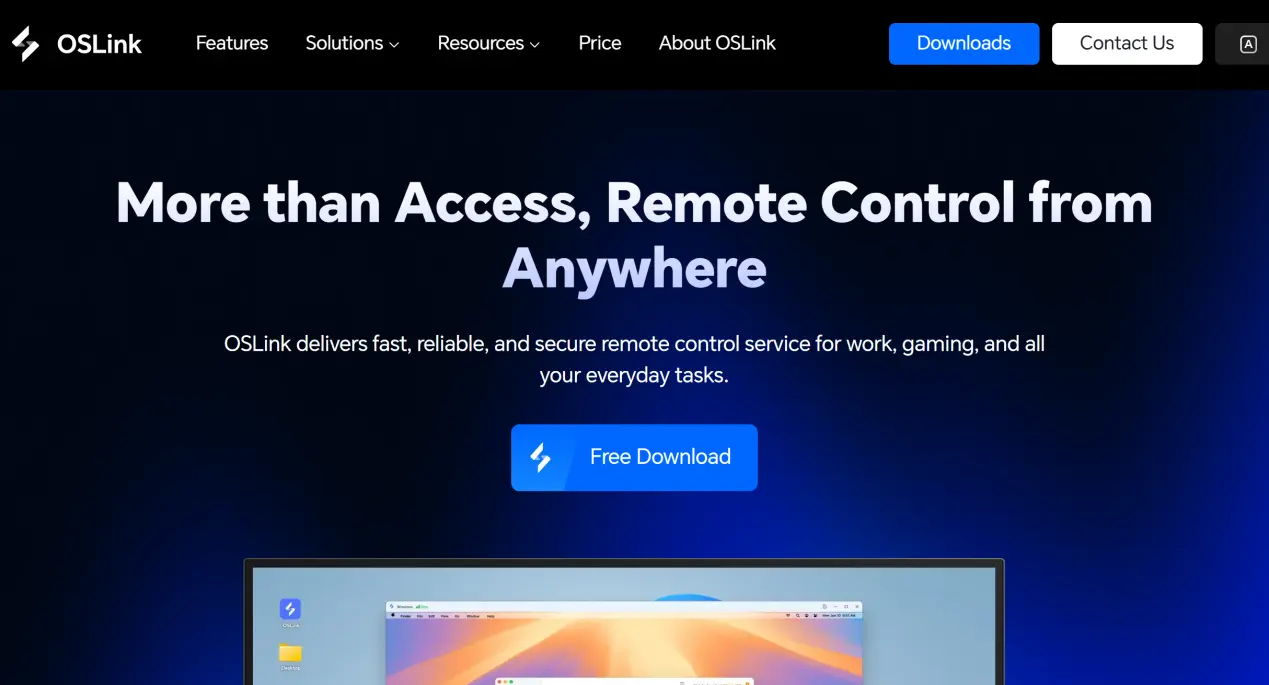
Visit the official OSLink website through your browser and download the installer for Windows. Follow the on-screen instructions to complete the installation. Once installed, add the software to Windows' background process allowlist to prevent the system's background optimization from shutting down the process and unexpectedly breaking the streaming connection.
Mobile Client Setup
Android users can download the APK installer from the official website or search for the app in their preferred app store. iOS users can open the App Store, search for OSLink, and download the app directly.
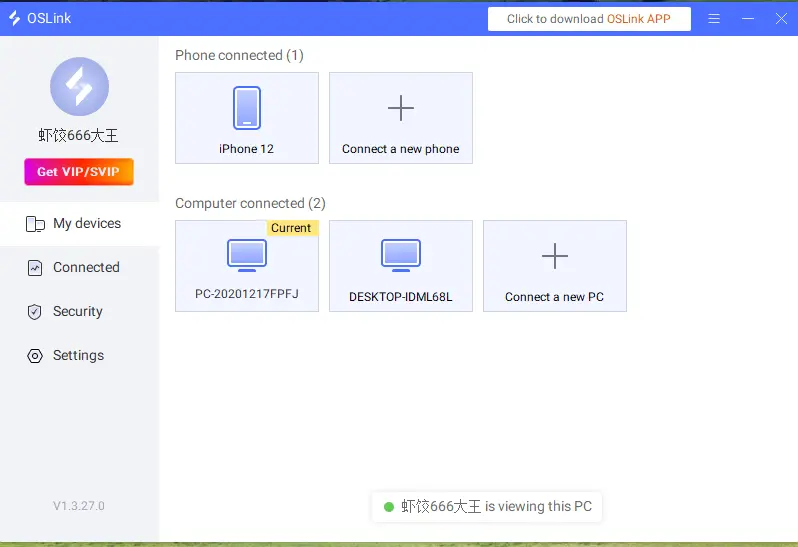
After installing OSLink on both devices, sign in to the same account on your computer and phone. Once the account verification is complete, the software will automatically establish an encrypted connection between the two devices, completing the initial pairing setup.
3. How to Run ENDLESS Legend™ 2 Through OSLink on Mobile
1. Keep OSLink running in the background on your PC. Disable automatic system sleep and hard drive sleep, then launch ENDLESS Legend™ 2 through Steam. Wait for the game to finish loading and leave it on the main menu or inside an existing saved game.
2.Open OSLink on your phone. The device list will show computers that are signed in to the same account and currently online. Tap the target PC to send a connection request. Once the connection is established, switch the streaming preview window to full-screen mode, and your PC display will be mirrored to your phone.
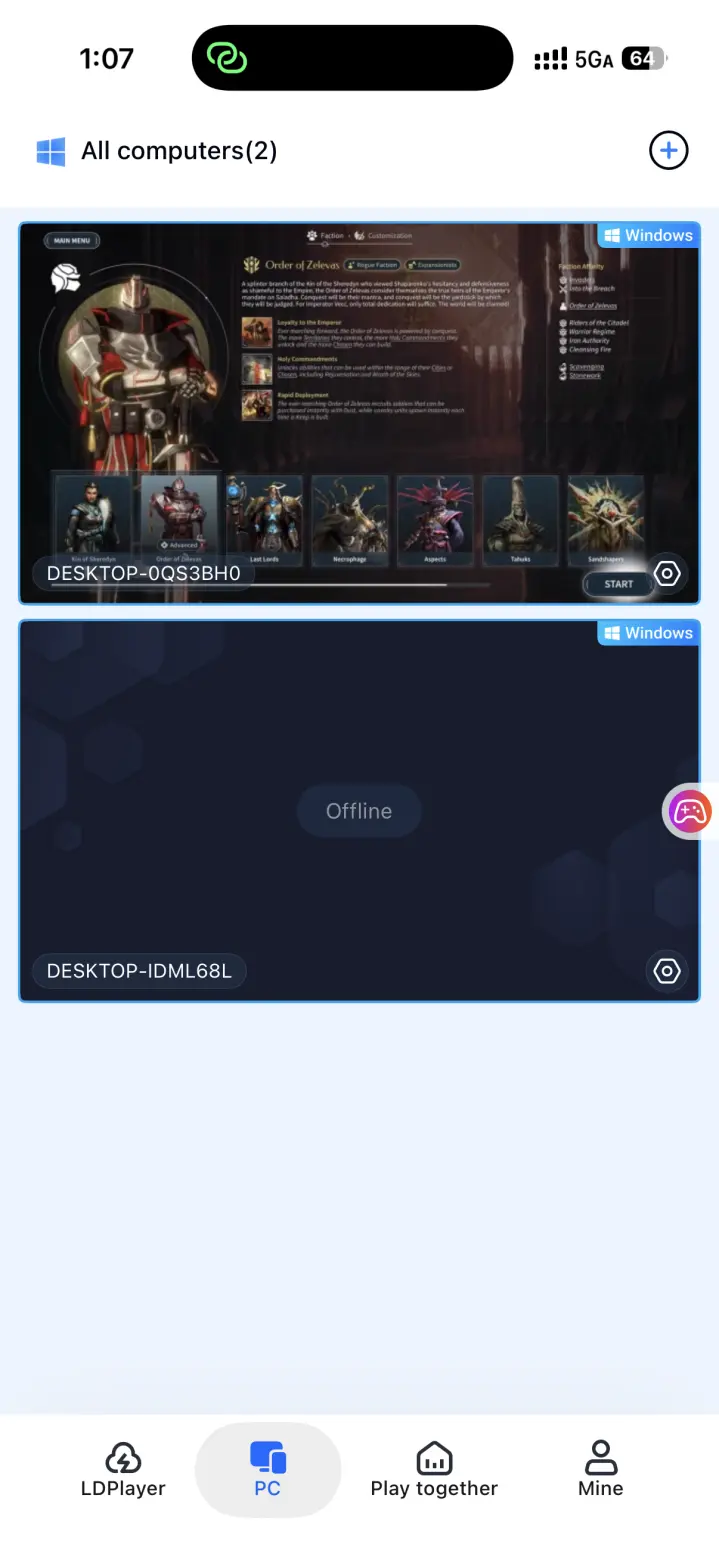
3. Once the screen is mirrored, open the toolbar on the side of your phone and enable the streaming mode optimized for strategy games. After setup is complete, you can enjoy the full game on your phone, including city building, diplomatic negotiations, and other gameplay features.
4. Benefits of Playing ENDLESS Legend™ 2 on Mobile
Start a Game Anywhere, Anytime
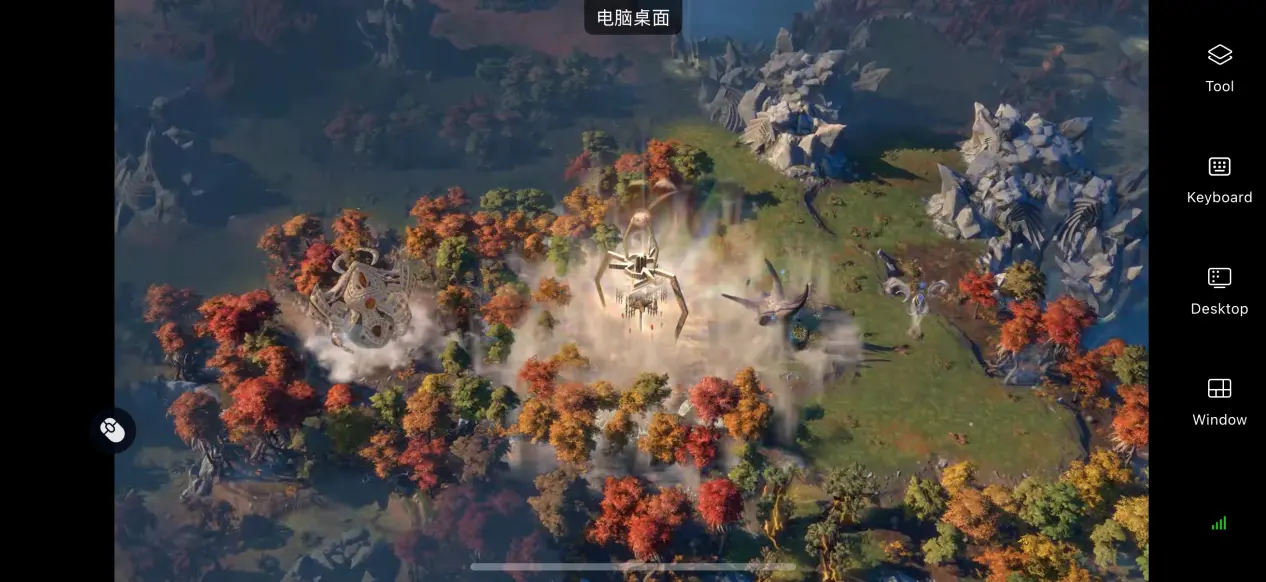
As long as your network connection is good enough, your phone and PC can connect from virtually anywhere without needing to be on the same local network. During your commute or a quick break while you're out, you can pick up an existing save, adjust city production queues, manage diplomatic agreements, and plan military movements without being tied to your desk.
No Heavy Storage Load on Your Phone
All game files remain stored on your PC's hard drive. Your phone only receives the streamed video and sends your controls back to the computer, so there is no need to download a large game package to your mobile device. Since your phone does not have to handle the game's rendering workload, even devices with limited storage or older hardware can still run the game normally through remote streaming.
Multiplayer Room Mode
The software includes a room feature that lets you share an active ENDLESS Legend™ 2 game session from your PC with other accounts. Multiple players can interact with the game screen running on the same computer, making it useful for reviewing a match together or discussing strategic plans with friends.
5. How to Optimize Your OSLink Gaming Experience
Custom Key Mapping
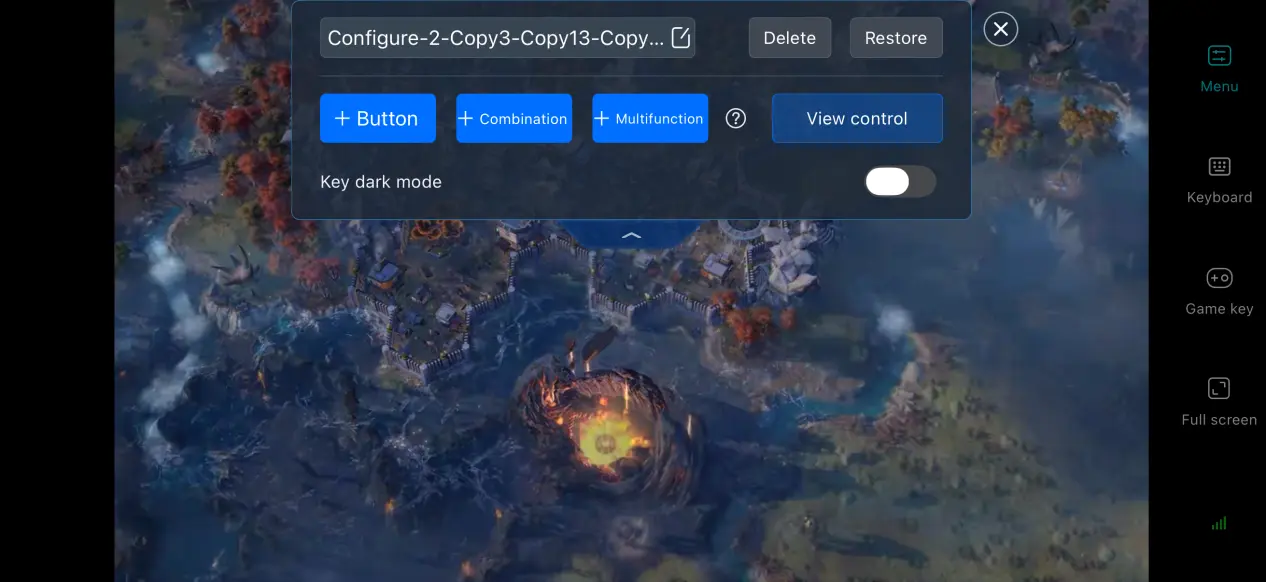
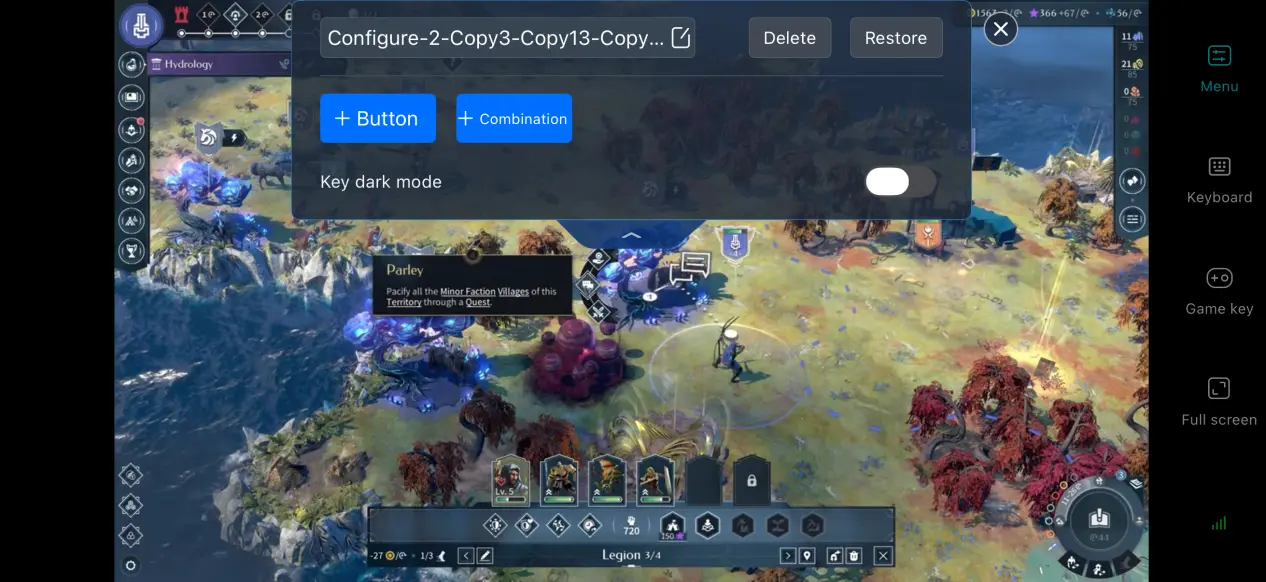
For frequent actions in ENDLESS Legend™ 2, such as dragging across the map and managing the technology tree, we recommend using the custom key mapping feature. You can add or modify virtual buttons and shortcut combinations, as well as reposition the controls to better suit your play style. This makes the game's many menus and interactions more comfortable to use on mobile.
High Frame Rate, Low Latency Game Mode
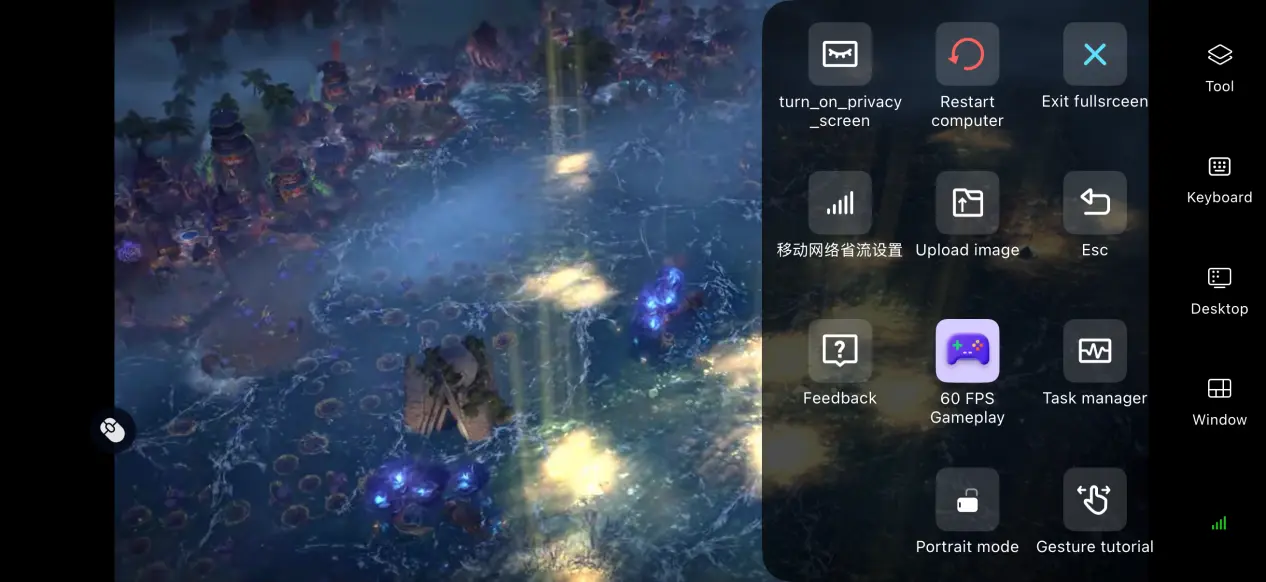
After enabling 60 FPS PC Game Mode, the software reallocates bandwidth resources to prioritize the transmission of control commands. This helps reduce stuttering and input delay when quickly dragging across the map or moving large numbers of units around the world map. If your network connection fluctuates noticeably, you can lower the streaming bitrate slightly to prioritize smoother controls.
Mobile Screen Mirroring Optimization
After switching to full-screen mode, OSLink automatically hides the phone's status bar and gesture area. When the game's resolution or aspect ratio does not match your phone's display, the mirrored screen automatically scales to fit. This helps keep black bars to a reasonable size while preserving the original aspect ratio and ensuring that menus and other interface elements remain fully visible.
Excellent Peripheral Compatibility
OSLink offers broad support for external peripherals. You can connect most mainstream controllers, Bluetooth keyboards, and mice to your phone. A keyboard and mouse can reproduce the familiar PC control layout, while a controller can be mapped to various menu shortcuts. Choose whichever peripherals best match your preferred way to play.
6. Frequently Asked Questions About Playing ENDLESS Legend™ 2 on OSLink
Q: What is ENDLESS Legend™ 2 release time?
A: ENDLESS Legend™ 2 release date is September 17, 2026. There is currently no native mobile version.
Q: What are the PC system requirements for ENDLESS Legend™ 2?
A: Minimum requirements: Windows 10 64-bit, 8 GB RAM, GTX 960 graphics card, i5-4430 processor, and 20 GB of available SSD storage. Recommended requirements: Windows 11 64-bit, 12 GB RAM, GTX 1070 graphics card, i7-6700 processor, and at least 20 GB of available SSD storage.
Q: Can I play ENDLESS Legend™ 2 directly on Android or iOS?
A: There is no official native Android or iOSinstaller, so ENDLESS Legend™ 2 cannot be installed and run directly on Android. You can use OSLink remote streaming to connect to a PC that already has the game installed and play it remotely.
Conclusion
ENDLESS Legend™ 2 does not currently have an official native mobile client. To enjoy the full game on your phone, you need to stream it from a PC. OSLink provides a straightforward remote-streaming solution with a simple setup and smooth device connection, making it easy to bring the full PC experience to your mobile device. You no longer have to stay at your desk, making better use of the short play sessions that turn-based strategy games naturally lend themselves to.
 Download