English
 Playing Free Fire on a phone can sometimes feel restrictive, especially during intense battle royale fights where quick reactions and precise aiming are essential. When dozens of players are fighting inside a shrinking safe zone, spotting distant enemies and reacting quickly becomes much harder on a small screen.
Touch controls can also feel awkward during fast-paced combat. Trying to move, aim, and fire at the same time may easily lead to missed shots or accidental inputs, causing you to lose critical fights at the worst moment.
Table of Contents
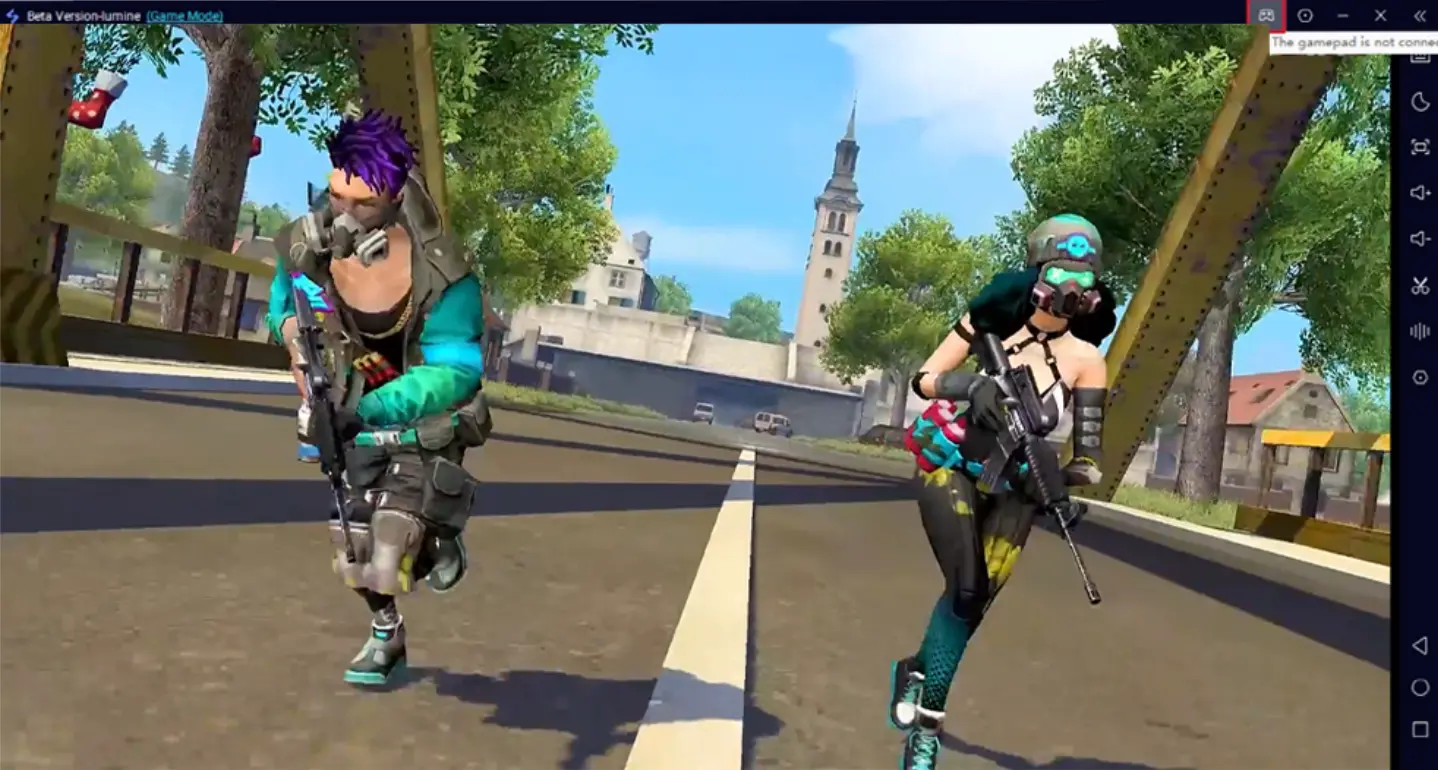
With OSLink, you can mirror your game screen to a PC and play using a keyboard, mouse, or controller for smoother and more precise controls. A larger view of the battlefield also makes it easier to spot enemies and react quickly, helping you gain an edge in intense Free Fire matches.
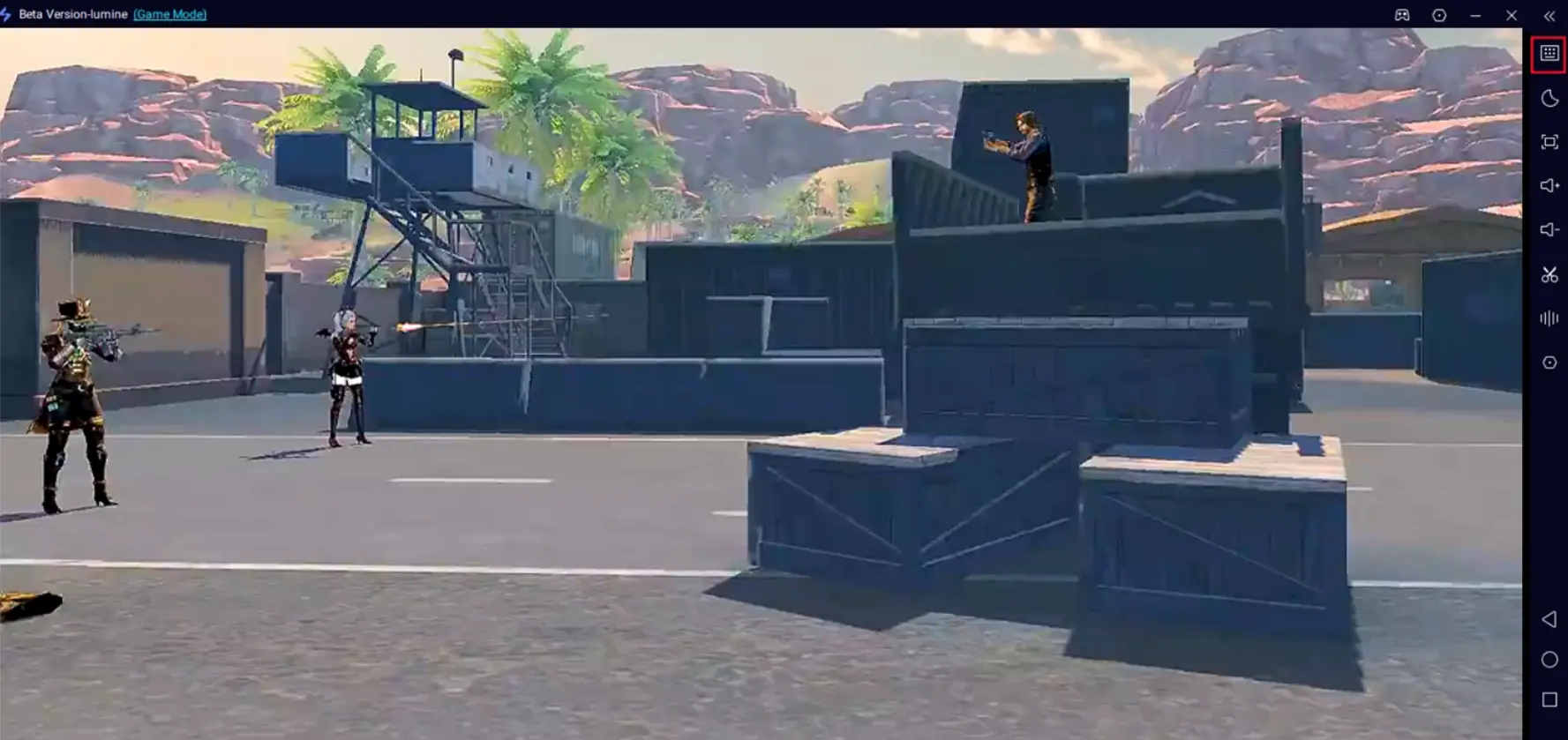
Here are the detailed steps:
How to Play Free Fire on PC
1. Install the game on your phone
Open Google Play or the App Store.
Search for "Free Fire".
If you can't download the game in your region, get the installation file from a trusted third-party source.
2. Install OSLink on your PC and phone
Go to the official OSLink website.
Download the app for both PC and your phone.
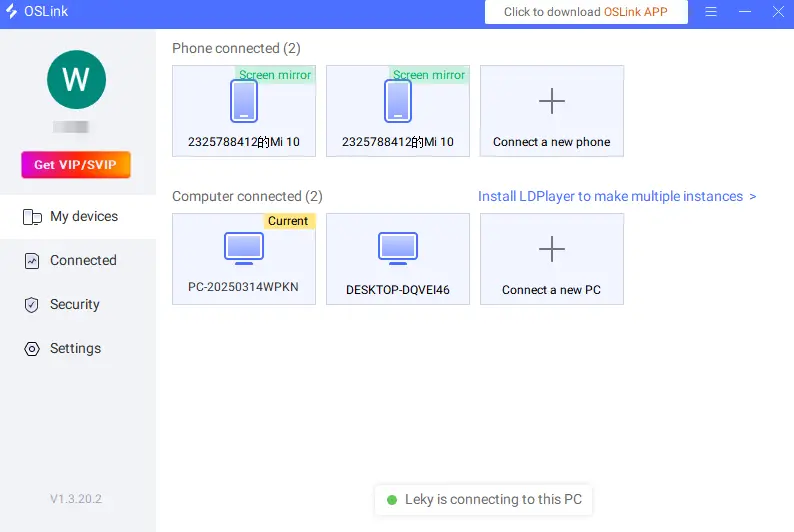
3. Connect your phone to your PC
Launch OSLink on both devices.
- Log in with the same email account.
- Use a USB cable to connect your phone to your PC.
- Select your device in the PC version of OSLink.
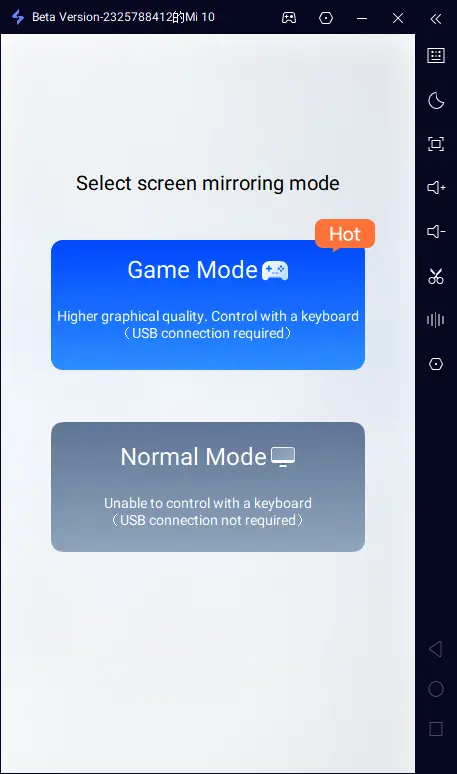
4. Choose "Game Mode" for the best performance
When prompted:
- Select Game Mode (this requires a USB connection).
- Tap "Start Mirroring" on your phone.
- Enable Game Mode with OSLink
5. Enable Developer Options and USB Debugging
If this is your first time using this feature:
Enable Developer Mode in OSLink. Follow the below:
- Go to Settings > About Phone.
- Tap the Build Number 7 times in a row. This will unlock developer mode.
- Enter your device passcode if needed.
- Search for USB Debugging and turn it on.
6. Start screen mirroring
Go back to OSLink and confirm.
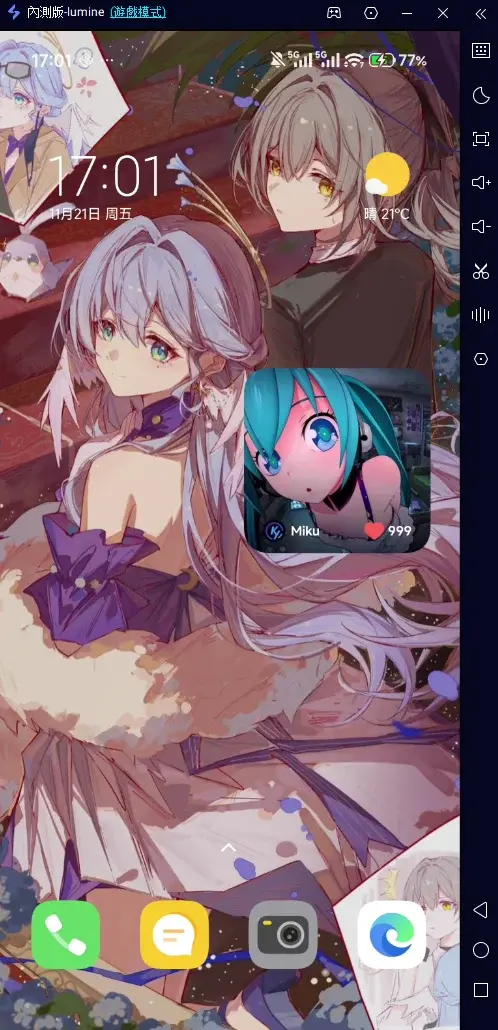
Your phone screen should now appear on your PC. Start Screen Mirroring with OSLink.
Keyboard & Mouse Settings for Free Fire
After mirroring is done: Click the keyboard icon on OSLink's sidebar.
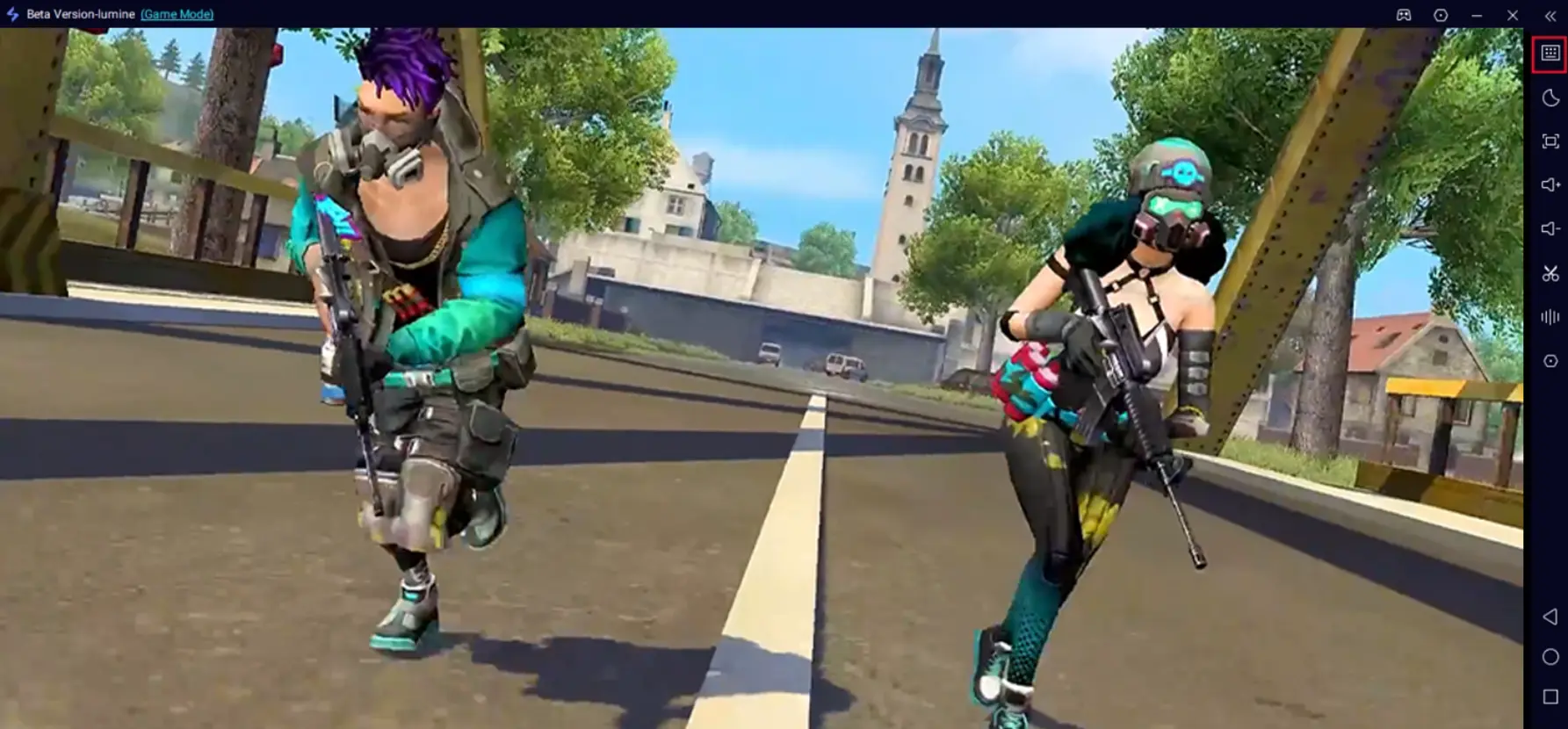
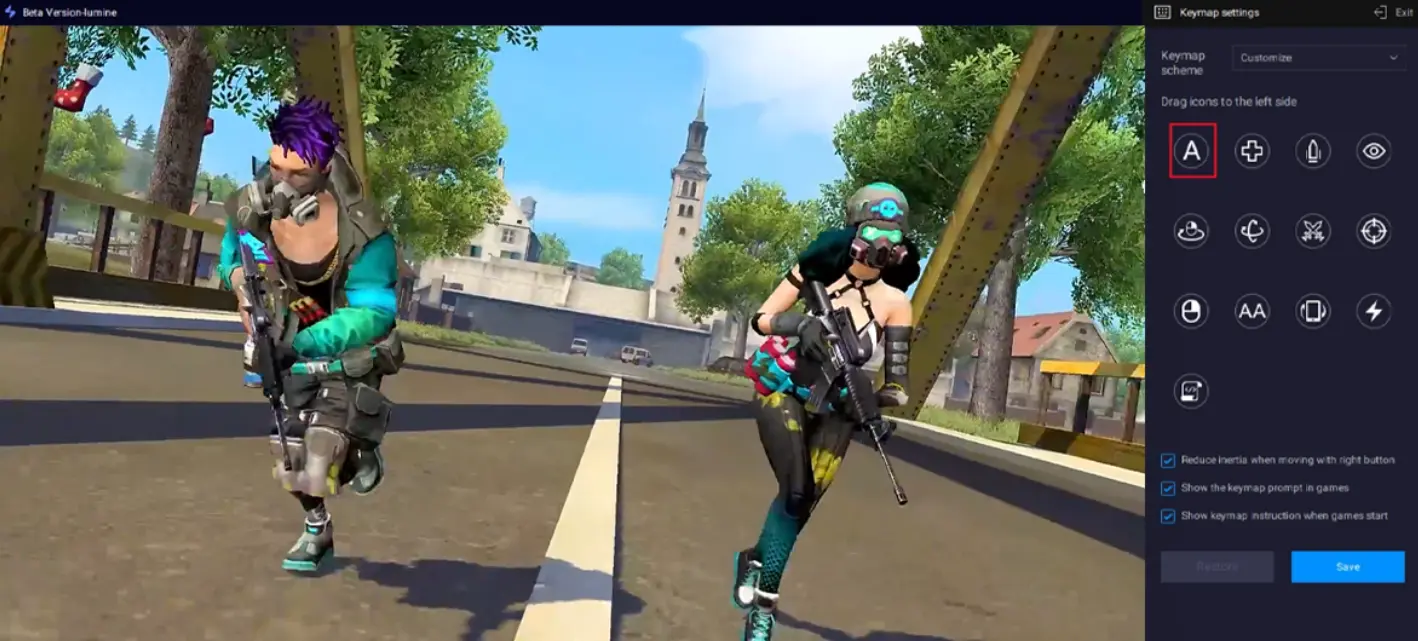
This will open the key mapping editor.
Drag and align the virtual buttons.Match them to the corresponding in-game controls.
These include the movement joystick, fire button, jump, crouch, weapon switch, and aim down sights.
You can add extra buttons from the panel if you need to.
If you prefer using a controller, OSLink supports external controllers too. You can play with a gamepad for a more console-like experience.
Also, remember to adjust the FPS and resolution based on your device. This ensures smooth matches without lag.
Important Tips
For the smoothest experience:
- Use a high-quality USB cable. USB 3.0 or above is recommended.
- Avoid low-quality charge-only cables. They can cause input lag. This will slow down your reaction time in matches.
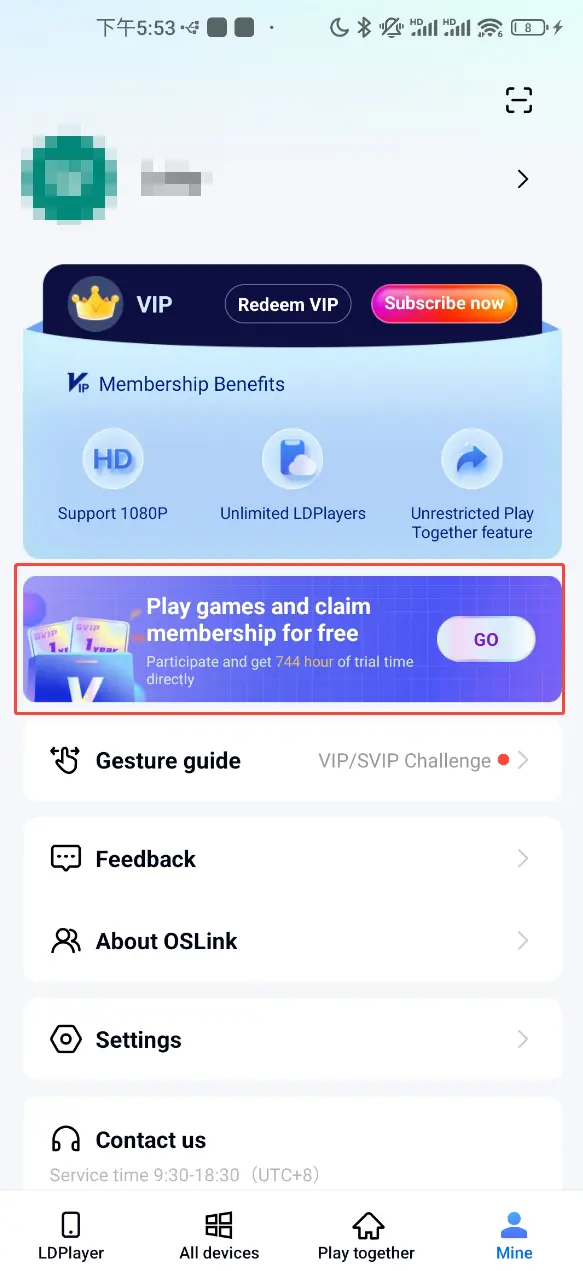
- In OSLink App, tap "Mine". You can earn free usage time by watching ads or completing tasks.
Frequently Asked Questions
Q: When was Free Fire globally released?
A: The game officially launched globally in December 2017. It is mainly supported on mobile platforms.
Q: What are the system requirements for Free Fire?
A: To ensure stable performance, your mobile device should meet these requirements:
Storage: The game needs about 2GB of space. We recommend leaving extra space for updates and cache.
RAM: It supports a minimum of 1GB RAM. We recommend at least 3GB RAM for smooth gameplay.
Android: Android 4.4 or higher.
iOS: iOS 11.0 or higher, compatible with iPhone 6s and newer models.
For a smoother experience, we strongly recommend using a higher-end device.
Q: Can I play Free Fire on PC?
A: There is no official PC version right now. But you can use OSLink to mirror your phone to your computer. This lets you play on a bigger screen with better controls.
Summary
Through OSLink, you can enjoy FreeFire in a brand-new way. A larger screen, better control, and smoother performance will make a significant difference in fast-paced battle royale matches. You can complete the setup in just a few steps, elevating your gaming experience to a higher level—whether you're striving to climb the ranks in competitive matches or simply having fun playing with friends in private sessions.
 Download