English
 Total War: SHOGUN 2 - Complete Edition combines turn-based strategy with real-time battles, set during Japan’s turbulent Sengoku period. Players must manage their territories, handle diplomacy, and coordinate their armies while commanding large-scale real-time battles. However, the game is only available on PC, leaving many players looking for a way to break free from their desks and use spare moments to manage their armies and plan their formations. This guide walks you through the complete process of streaming the PC version to your mobile device, covering everything from getting the game and setting up the software to adjusting key settings. If you want to give it a try, simply follow the steps below.
If you want an easier way to play PC strategy games on your phone, OSLink is a practical option. For a game like Total War: SHOGUN 2 - Complete Edition, which requires frequent map clicks and constant army positioning, OSLink supports flexible key mapping. OSLink lets you map PC controls to customizable touchscreen buttons, making it easier to manage your armies and navigate the battlefield from your phone.
1. How to Get Total War: SHOGUN 2 - Complete Edition
Getting the Official Version
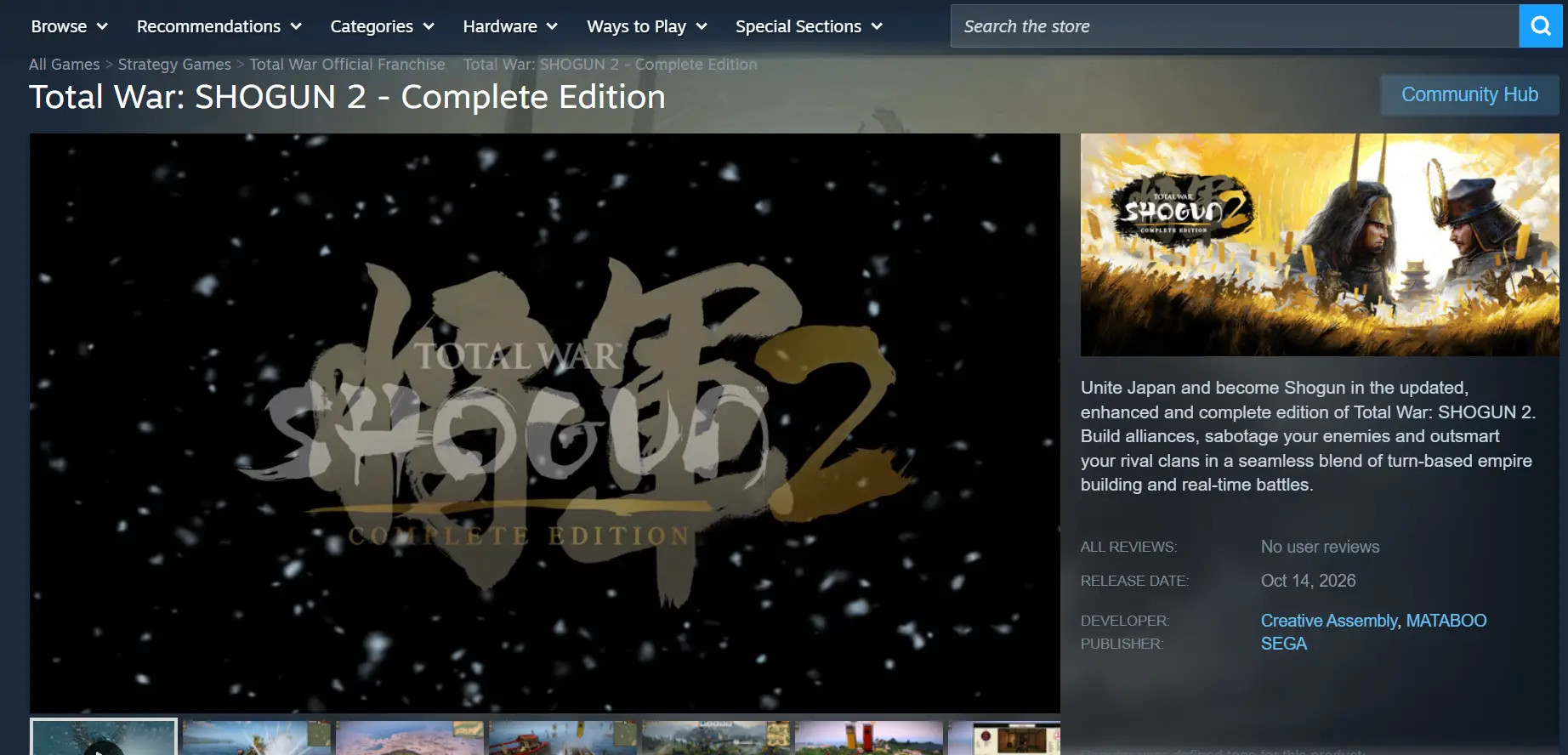
The main source for the official PC version is the Steam Store. Open the Steam client, enter the full game title in the store search bar, and go to the game page to complete your purchase. Once the purchase is complete, open your Steam Library, select a storage location, and download the game.
Installation and File Verification
After the download is complete, it is recommended to verify the integrity of the game files. Before setting up remote streaming, make sure you can access the main menu and that the single-player campaign and any installed DLC content load properly.
2. How to Install and Set Up OSLink on Both Devices
PC Installation and Setup
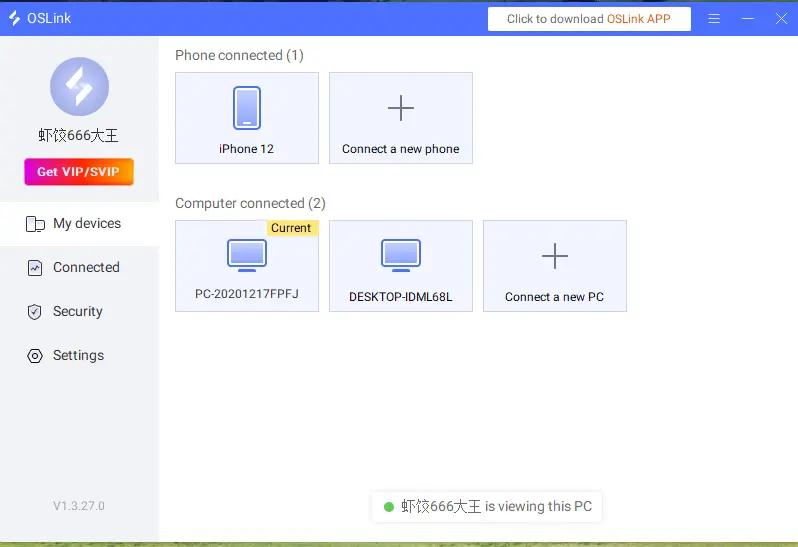
Open a browser and visit the official OSLink website to download the Windows installer. Follow the installation wizard to complete the setup. After launching the client, register or sign in with your phone number or email address. Once you are signed in, the program will automatically link the current PC to your account, and the computer will appear in your device list.
Mobile Installation and Setup
Android users can search for OSLink in the official app store and download the app. iOS users can search for the same app in the App Store and install it. Once installation is complete, open the app and sign in with the same account used on the PC. OSLink will automatically pair the two devices, and the linked computer will appear in your mobile device list.
3. How to Launch Total War: SHOGUN 2 - Complete Edition with OSLink on Mobile
Step 1: Make sure the PC is powered on and OSLink is running in the background. You can launch Total War: SHOGUN 2 - Complete Edition in advance and leave it at the main menu to reduce loading time after starting the stream. A stable network connection is recommended to avoid stuttering caused by network fluctuations.
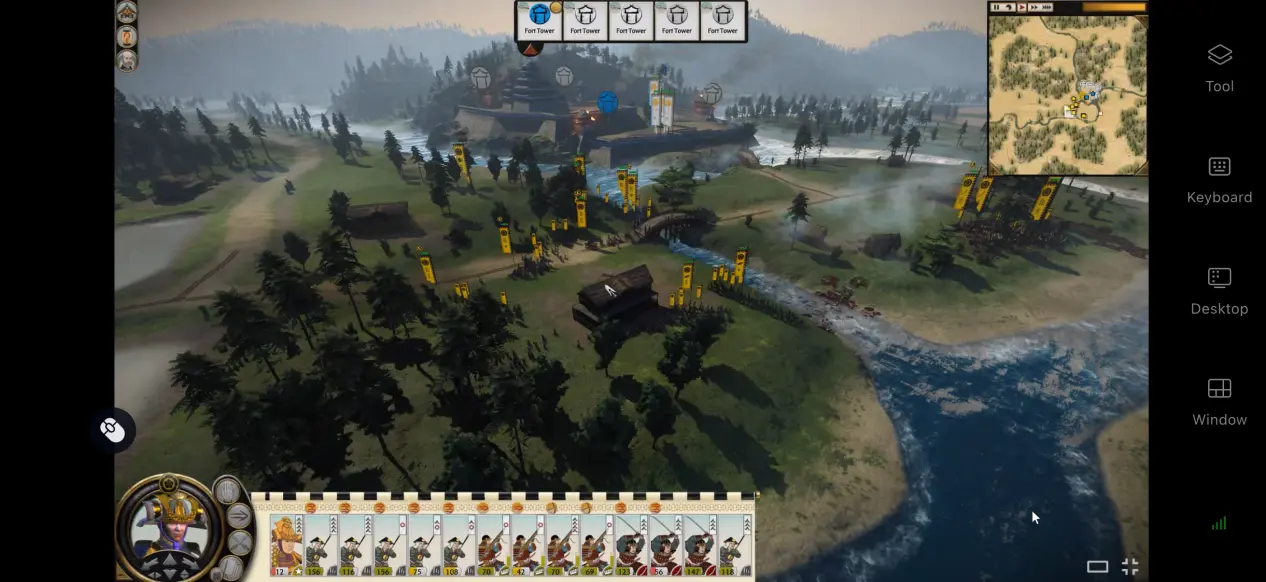
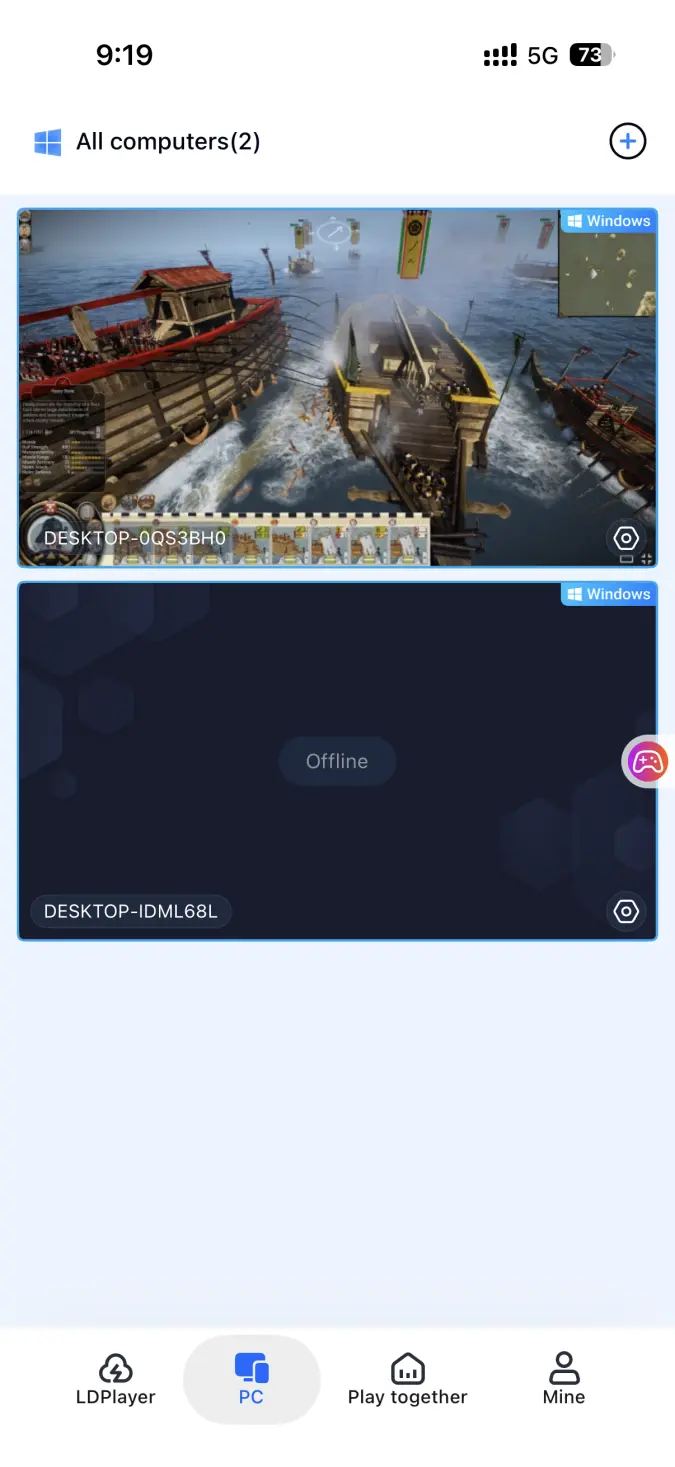
Step 2: Open OSLink on your phone and tap the paired computer in the device list. Once the remote desktop loads, your PC screen will appear on your phone in real time. Wait for the game window to appear before adjusting your controls.
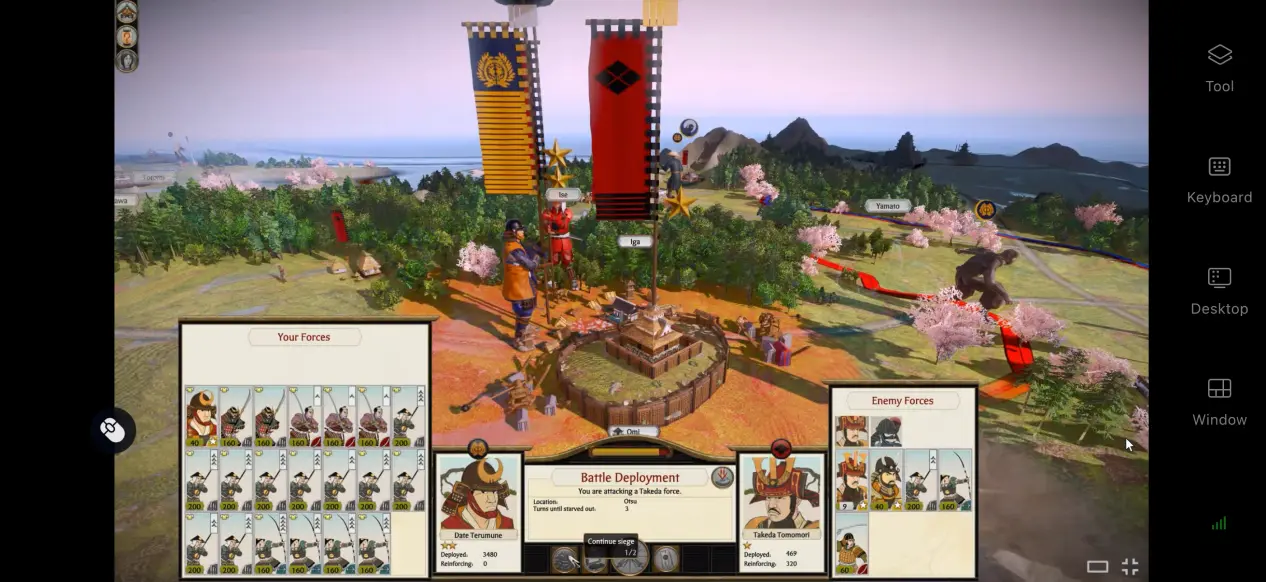
Step 3: When connecting for the first time, it is recommended to enable display adaptation and adjust the aspect ratio so the entire game interface fits properly on your phone. Once this is done, you can use touch controls or customized virtual buttons to start playing the campaign.
4. Why Play Total War: SHOGUN 2 - Complete Edition on Mobile?
Play Without Being Tied to Your Desk
As long as your phone and PC have a stable network connection, you can establish a remote streaming session whenever you want. Total War battles and turn-based actions can take different amounts of time, so you can make progress during short breaks without having to stay in front of your computer. Whether you are managing your territory or moving your armies, you can play from almost anywhere.
Low Storage Requirements on Mobile
All of the game's main resources are stored on the PC's hard drive, while your phone only needs the lightweight OSLink client. Even phones with limited storage or older hardware can connect to the PC, since all graphics rendering and game processing are handled by the computer.
Shared Multiplayer Sessions
OSLink includes a "Play Together" feature that lets you share your PC desktop in a room session and invite multiple friends to join. Players can take turns controlling the PC, working together to plan faction development and command armies in battle. This makes it a convenient option for friends who want to discuss and experiment with different strategies together.
5. How to Improve Your Mobile Gaming Experience with OSLink
Enable the 60 FPS PC Gaming Mode
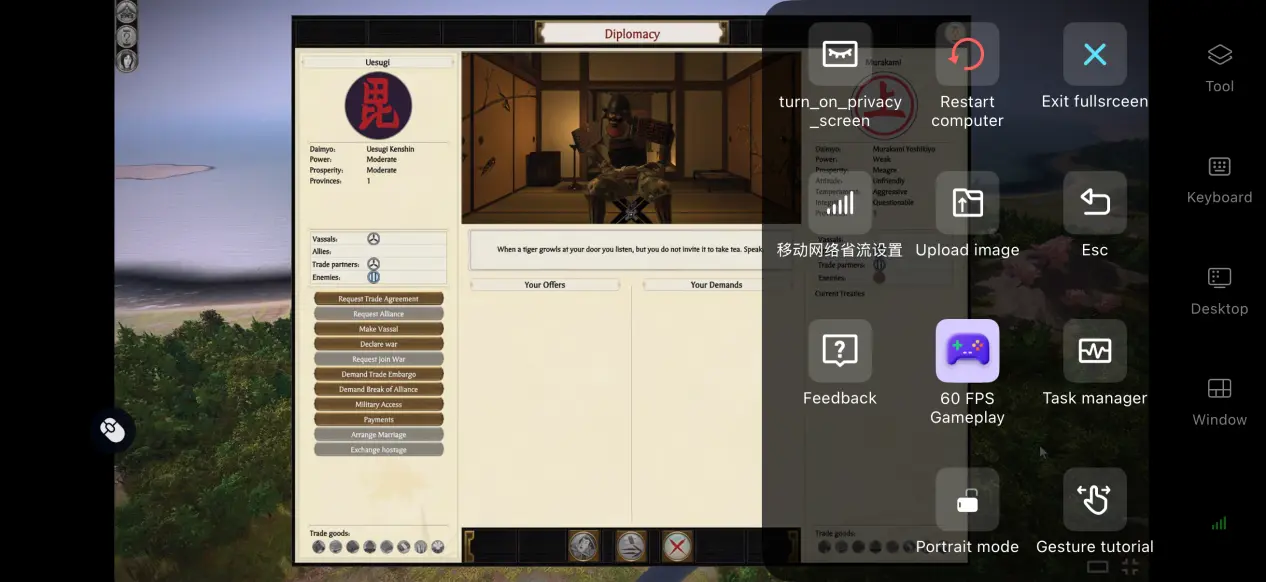
You can switch to 60 FPS PC Gaming Mode from the software's side toolbar. Once enabled, OSLink adjusts its encoding settings to improve visual smoothness and reduce input latency. When the network becomes unstable, it can switch to a balanced setting and automatically adjust the bitrate to keep the stream running smoothly.
Customize the Controls
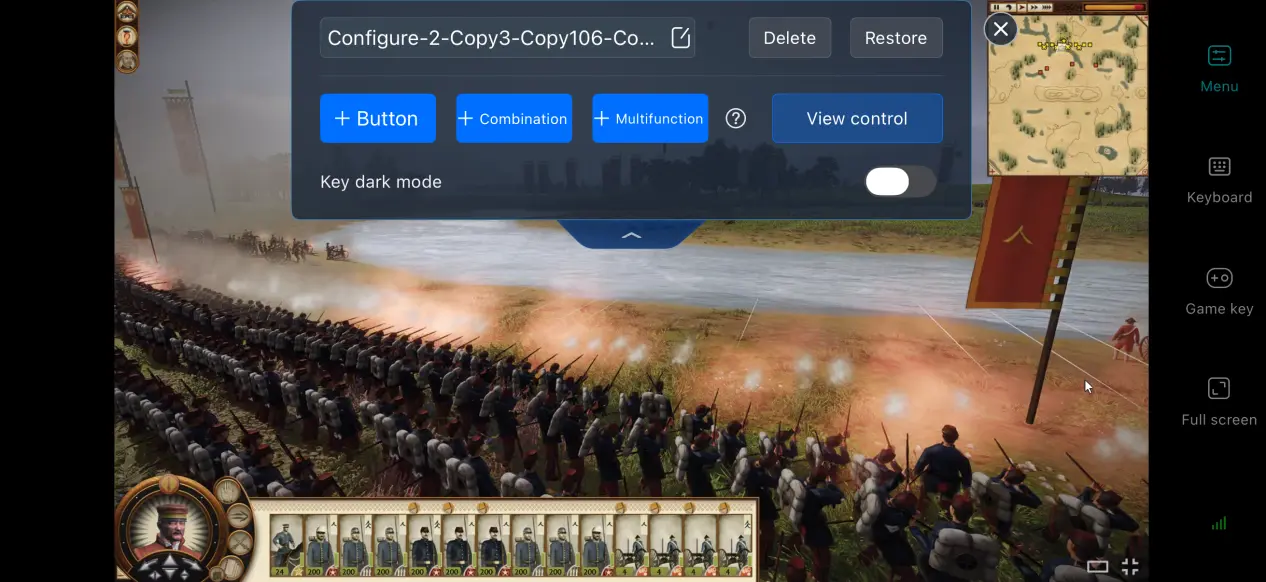
Players can open the key editor and add virtual touch buttons as needed. Button size, transparency, and position can all be adjusted. It is recommended to place frequently used functions, such as selecting units, opening the diplomacy panel, and zooming or moving the map view, within easy reach. This makes the layout more comfortable for touchscreen controls.
Adjust Screen Mapping for Mobile
OSLink allows you to adjust the scaling of the screen mapping. For strategy games with many buttons and small icons, this helps prevent important control areas from being compressed or stretched. You can adjust the display to fit your phone's screen more effectively, making on-screen controls easier to use and helping reduce accidental touches.
Support for Various External Controllers
The software supports most mainstream external controllers and can automatically detect connected hardware. A controller's analog stick can be used to move the map view more freely, which can be more comfortable than relying entirely on touch controls during longer sessions.
6. Frequently Asked Questions
Q: What is Total War: SHOGUN 2 - Complete Edition release time?
A: Total War: SHOGUN 2 - Complete Edition release date is October 13th, 2026. It was developed by Creative Assembly, and there is still no official native mobile version of the game.
Q: What PC hardware is required to run Total War: SHOGUN 2 - Complete Edition?
A: Minimum requirements: Windows XP/Vista, a 2GHz dual-core processor, 1GB of RAM, a DirectX 9-compatible graphics card, and 20GB of available hard drive space. Recommended requirements: a quad-core processor, 4GB of RAM, a mid-range dedicated graphics card, and more than 20GB of available storage. Most home PCs should be able to handle the game.
Q: Can I Play Total War: SHOGUN 2 - Complete Edition directly on Android or iOS?
A: The game does not have a native Android or iOS client. To experience the full game on Android, you can connect to the PC through OSLink remote streaming. The game itself cannot be installed directly on the phone.
Conclusion
Total War: SHOGUN 2 - Complete Edition is a classic strategy game that combines territory management, diplomatic maneuvering, and large-scale real-time battles. Although the game was released only for PC and does not have a native mobile version, OSLink provides an accessible way to stream it to your phone without complicated network configurations. With the PC handling all the heavy processing, you can continue your campaign from your mobile device and enjoy the strategic depth of this classic Total War title wherever you go.
 Download