English
 As a PC title built around fast-paced competitive gameplay, Deadlock has attracted plenty of attention with its intense firefights, varied maps, and team-based strategy. However, the game currently only has a PC client, with no official native mobile version planned. This guide provides a practical remote streaming solution, covering everything from getting the game and setting up the software to controls, performance tweaks, and common questions, so you can follow the steps and get everything ready.
Still looking for a convenient, all-around remote play solution? OSLink streams your PC game screen to your phone while sending touch inputs back to the computer. This makes it a good fit for competitive PC games like Deadlock, where quick responses matter, letting you enjoy the action without being tied to your desk.
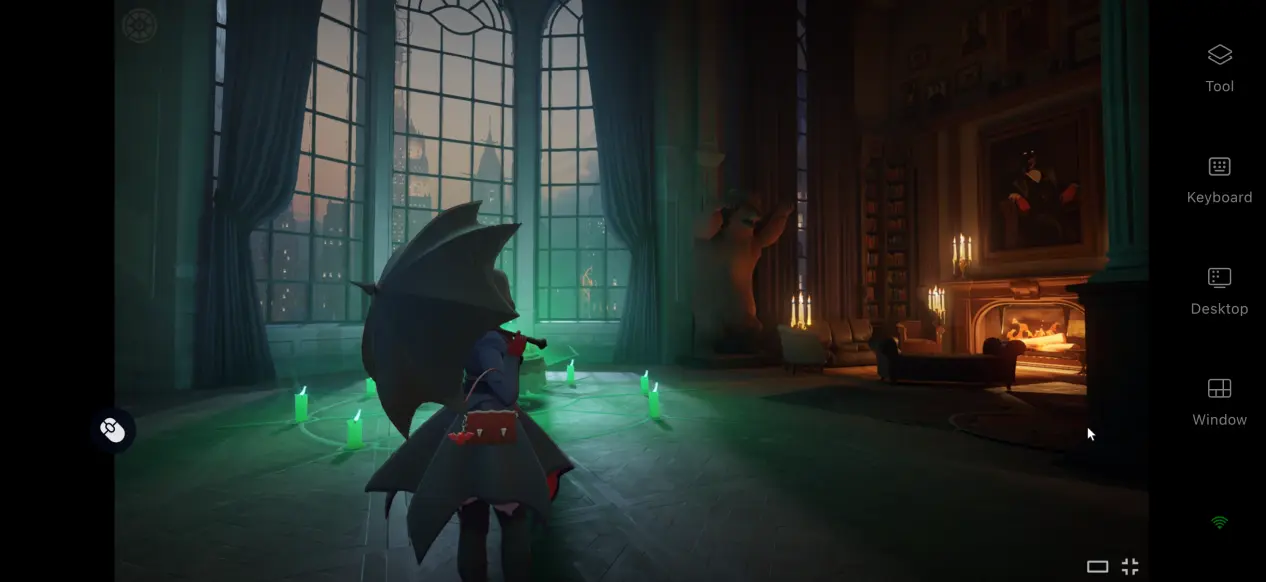
1. Get Deadlock
Where to Download and Purchase the Game
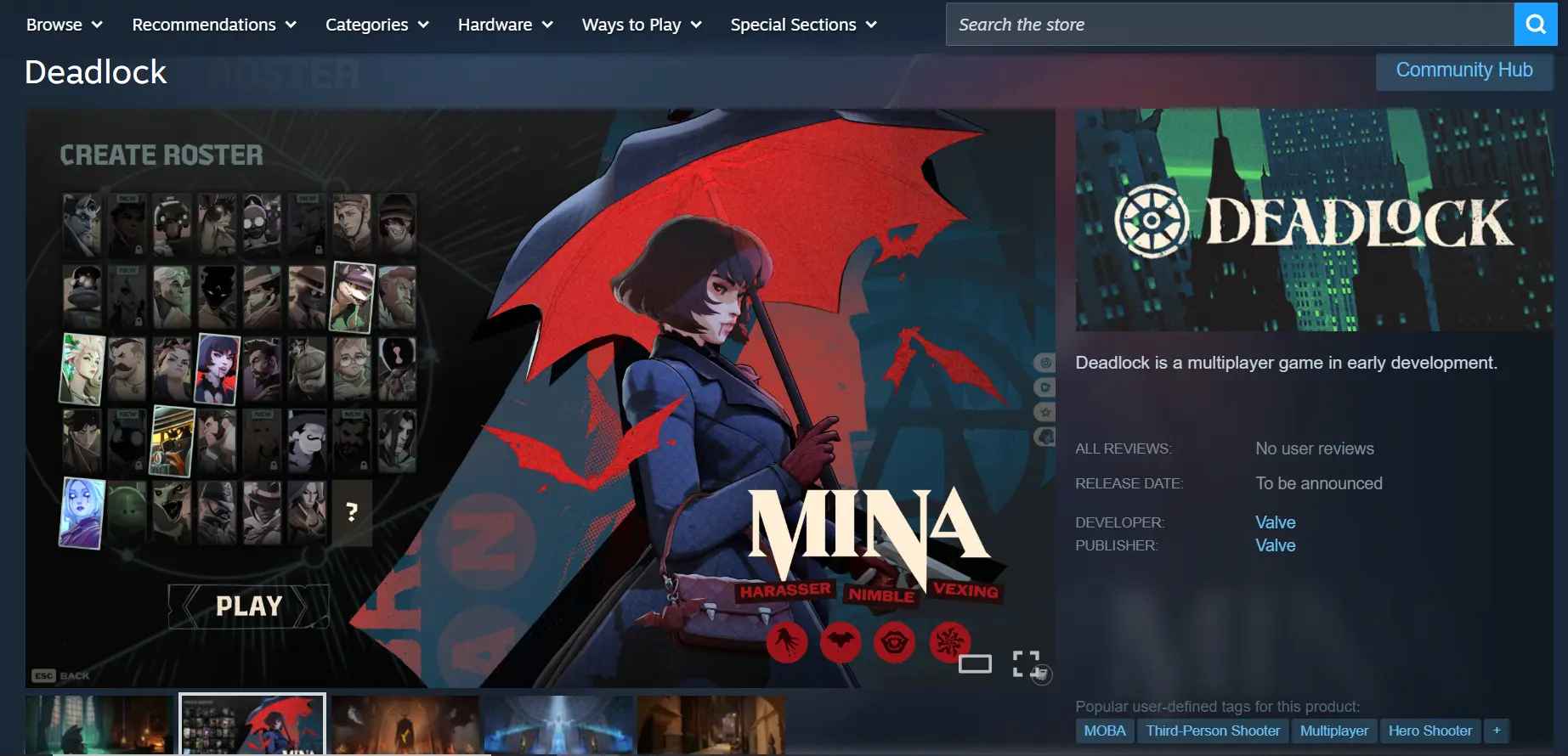
Remote streaming requires the full, legitimate version of the game to already be installed on your PC. Deadlock is available through Steam. Open the Steam client and search for Deadlock in the store. Follow the available instructions to access the game, then download and install it from your Steam library.
Once all game files have finished downloading, it's recommended to launch the game manually at least once. Enter a match or the training area and check whether character movement, weapon firing, and scene loading all work normally. Make sure there are no crashes, screen tearing, or other issues before moving on to the remote streaming setup.
2. Install OSLink on Your PC and Mobile Device
Windows PC Setup
Open your browser and visit the official OSLink website. Download the installer that matches your version of Windows and complete the installation. Afterward, create an account and sign in.
Since the software needs to stay running in the background for extended periods, it's recommended to open your PC's power settings and disable automatic system sleep and network adapter sleep. This helps prevent network interruptions while the computer is idle and keeps it ready for your phone to connect at any time.
Mobile Setup
Android users can search for OSLink in the Google Play Store and install the app. iOS users can open the App Store and search for the same app.
Make sure you sign in on your phone with the same account used on your PC. OSLink can automatically detect online devices linked to the same account, so there's no need to manually enter a long device ID. The devices will be paired automatically.
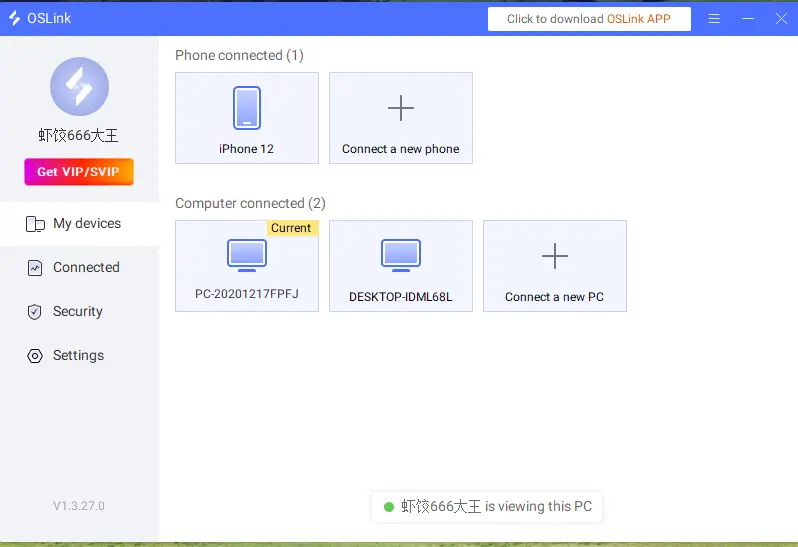
3. How to Play Deadlock on Mobile with OSLink
1. Open Steam on your PC and launch Deadlock. Enter the training area or a match lobby, and keep the game window open. Do not minimize it while setting up your remote connection.
2. Open the OSLink client on your phone. Your device list will show the PC currently online under the same account. Tap the corresponding computer to establish the streaming connection.
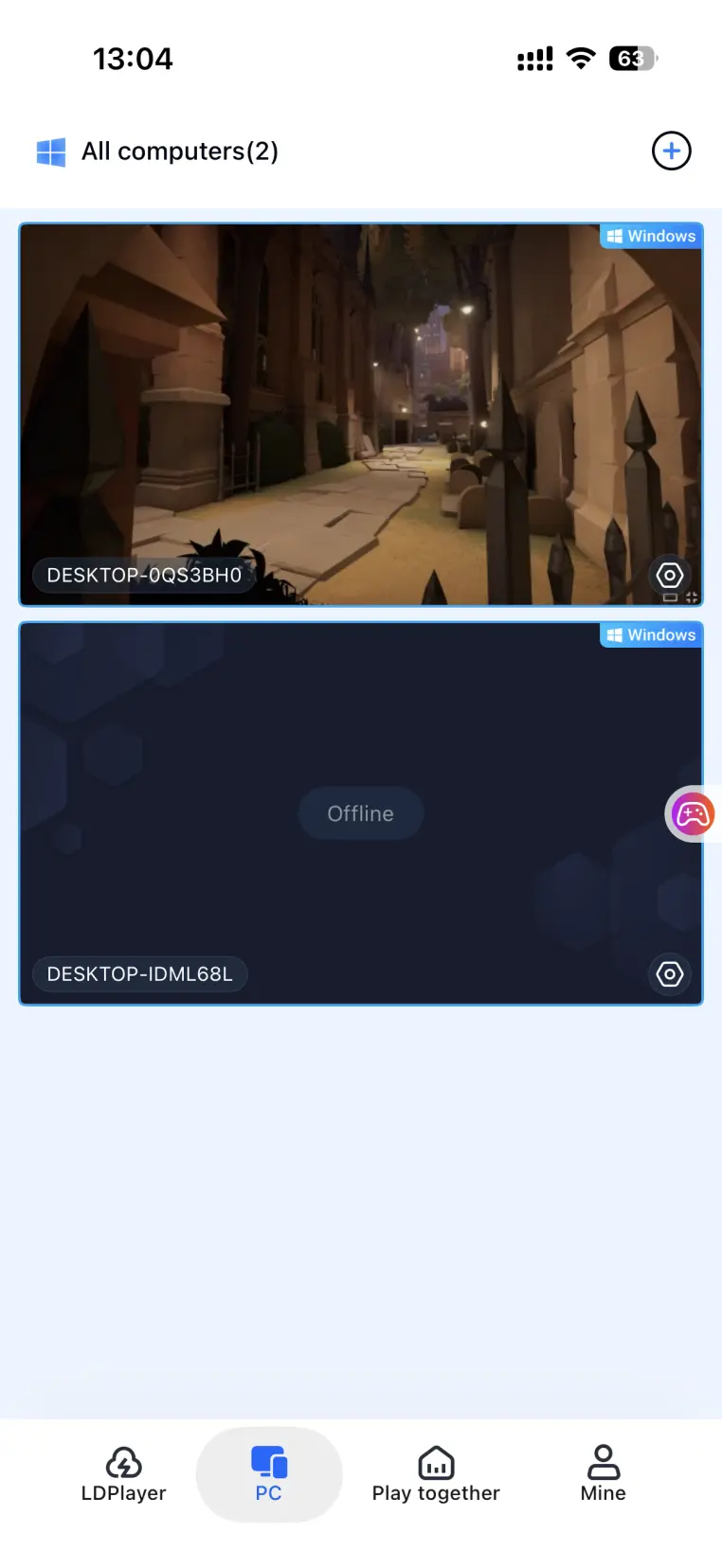
3. Once the PC desktop appears on your phone, open the side toolbar and switch to Game Mode. You can apply the preset virtual controls for competitive games or connect an external controller. Once the controls are configured, you can perform all the essential in-game actions on your phone, including moving, shooting, and switching weapons.
4. Benefits of Playing Deadlock on Mobile
Play Without Being Tied to One Location
As long as your PC remains powered on and connected to the internet, you can establish a stream whether your phone is connected to home Wi-Fi or mobile data. This means you can use spare time while commuting or waiting to check your stats or jump into a quick match without being limited to your desktop setup.
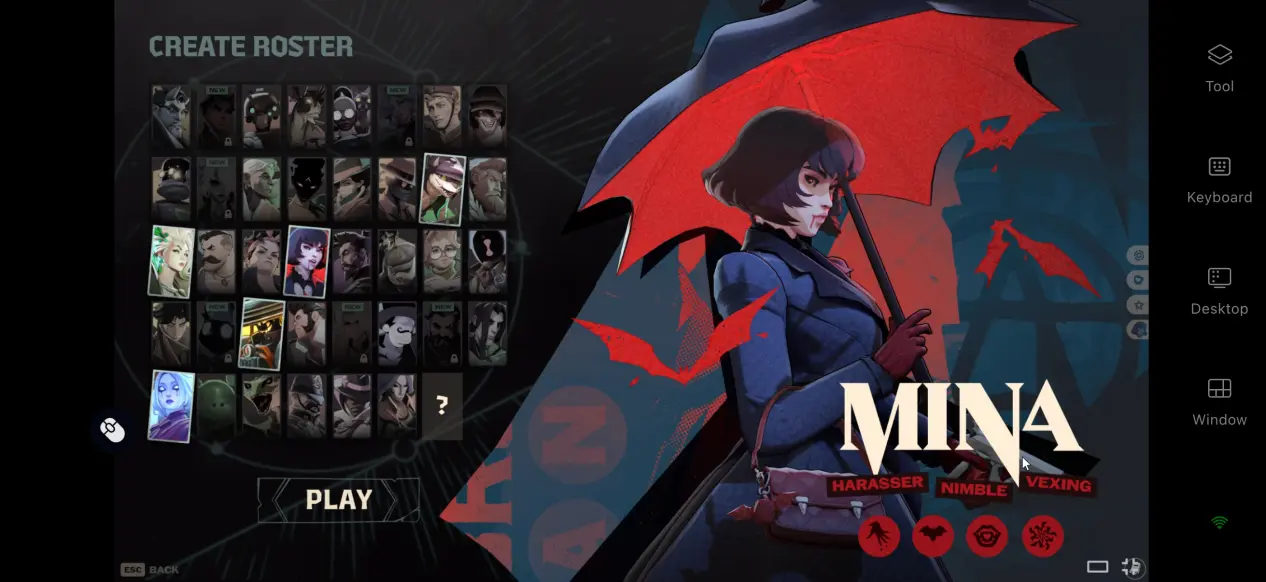
No Need to Use Up Your Phone's Storage
The game installation, update files, and all local save data remain stored on your PC's hard drive. Your phone only receives the streamed video and sends your control inputs back to the computer. Even phones with limited storage or modest hardware can still be used to play normally.
Share Game Sessions with Multiple Users
The software includes a session-sharing feature that lets you share an active PC game session with other users in a room. Multiple users can connect at the same time. Even if your friends don't have the game installed locally, they can join the session to take part in a match or watch a gameplay demonstration.
5. Ways to Improve Your Deadlock Experience with OSLink
60 FPS PC Game Mode
After enabling 60 FPS PC Game Mode, the software optimizes the encoding of PC game footage. During fast camera movements or graphically demanding scenes, this mode can help maintain smoother visuals and reduce perceived input delay, making aiming and shooting feel more responsive.
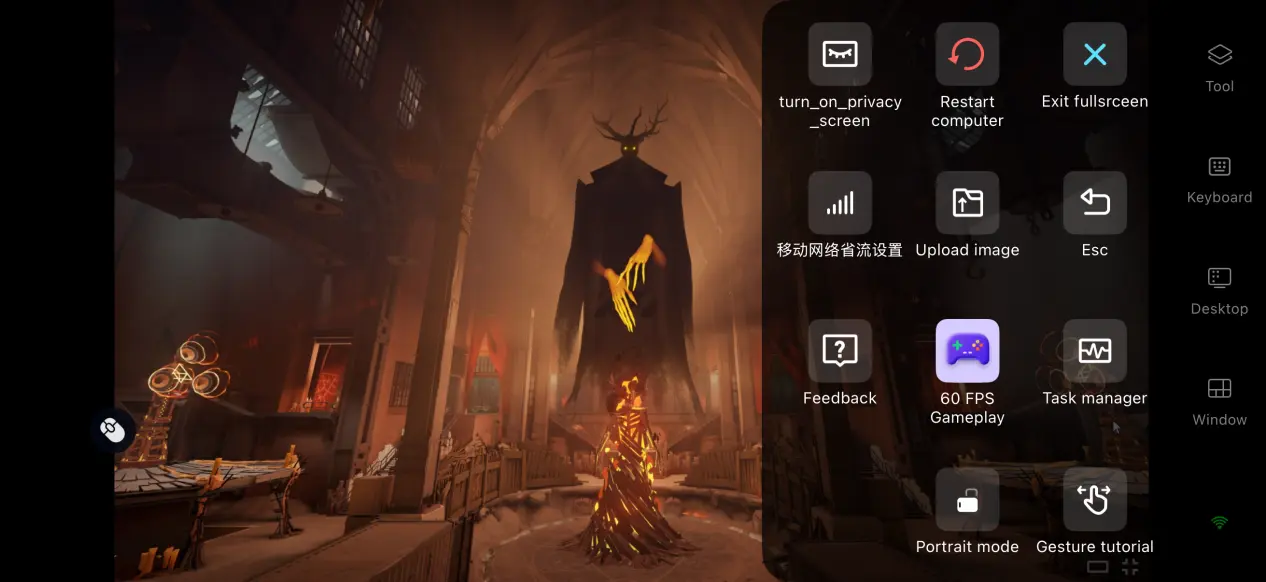
Customizable Virtual Controls
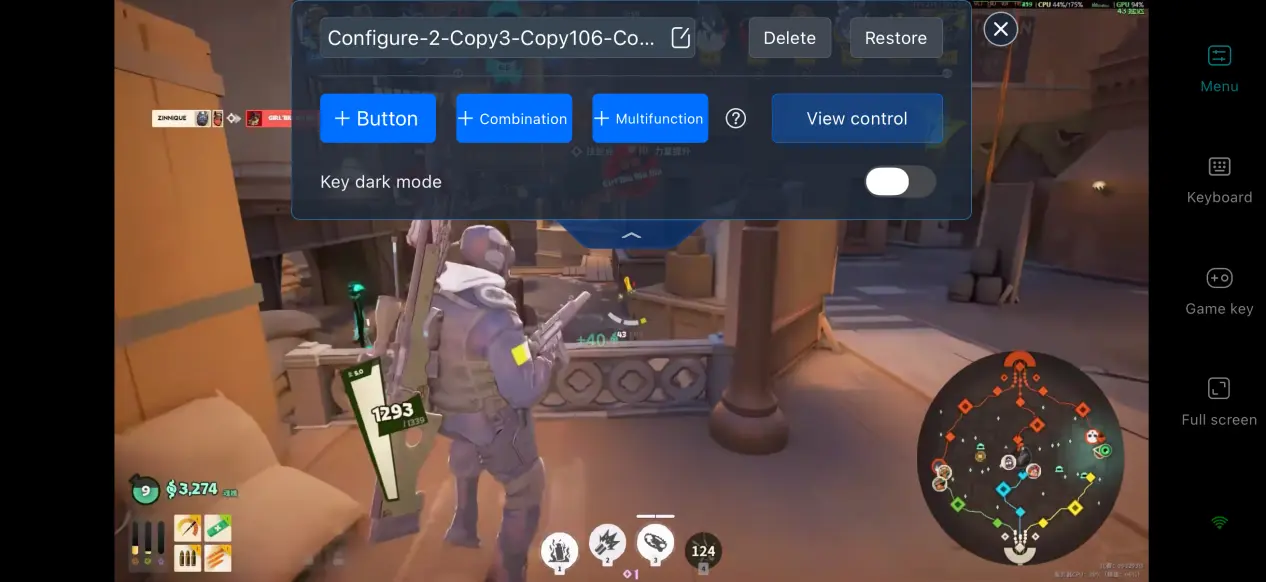
You can add or remove virtual touch buttons and adjust their size, transparency, and position. For Deadlock, frequently used controls such as firing, reloading, and switching items can be placed within easy reach. You can also save multiple control layouts and quickly switch between setups for training and actual matches.
Mobile Screen Mapping
If the game doesn't display properly on a smaller screen, you can use the screen mapping feature to adjust the crop and display ratio. This lets you better adapt the game to a phone's tall screen, preventing the image from being stretched or distorted and making the battlefield and crosshair UI look more natural on a mobile display.
Support for Multiple External Devices
OSLink supports mainstream wired and Bluetooth game controllers. Once a controller is connected, the software automatically adapts the input controls, helping reduce accidental touches caused by touchscreen controls. For matches that require precise aiming and frequent movement, a controller can noticeably improve the overall handling.
6. FAQ
Q: What is Deadlock release time?
A: Deadlock release date has not been confirmed yet. The game is currently in its testing phase, and the developer has not announced a specific launch date.
Q: What PC hardware is required to run Deadlock?
A: Minimum requirements: Windows 10 64-bit, an i5-8600K/R5 3500 processor, 16GB of RAM, a GTX 1060 6GB/RX 590 graphics card, and 30GB of available hard drive space.
Recommended requirements: Windows 10 64-bit, an i5-12400/R5 5600X processor, 16GB of RAM, an RTX 3070 Ti/RX 6750 XT graphics card, and 30GB of available SSD space.
Q: Can I play Deadlock directly on an Android or iOS device?
A: There is currently no official native Android or iOS client. You can run the game remotely through OSLink by streaming it from a PC.
Conclusion
Deadlock is a PC game focused on fast-paced competitive action, with its matches and map design providing plenty of depth. At present, the game only supports PC gameplay. For players who want to experience the full game on a mobile device, OSLink remote streaming provides a practical solution.With this setup, you can take your gaming beyond the desktop and make better use of spare moments throughout the day, allowing you to jump into intense matches whenever and wherever you want.
 Download