English
 The Sims 4 is one of the most popular sandbox life simulation games developed by Maxis and published by EA. With its open-ended gameplay and high level of player freedom, you can create unique Sims in Create A Sim (CAS), design dream homes in Build Mode, develop careers, build relationships, and shape multi-generational families. Thanks to a wide range of Expansion Packs, Gameplay Mods, and Custom Content (CC), every save file can evolve into a completely different story.
Although The Sims 4 is officially available on PC, Mac, and consoles, there is currently no native Android or iOS version. If you'd like to continue managing your household while commuting, traveling, or away from home, OSLink lets you remotely stream your PC directly to your mobile device without affecting your save files.
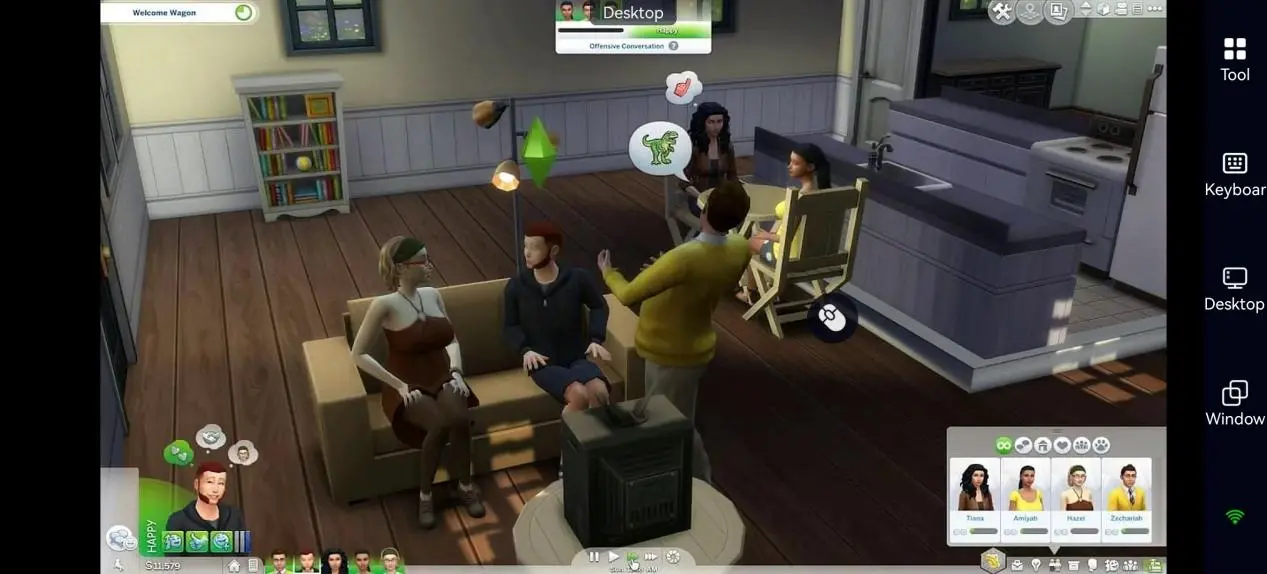
Since the game continues running on your home PC, all rendering and processing are handled by your computer while your phone simply displays the game and sends your controls. This allows you to preserve your graphics settings, DLC, Mods, CC, and save progress exactly as they are on your PC.
How to Play The Sims 4 on Mobile
1. Install The Sims 4 on Your PC
The Sims 4 can be downloaded through EA App, Steam, and other supported platforms. The base game is free to play, while additional gameplay can be expanded through Expansion Packs, Game Packs, Stuff Packs, and Kits.
Since the game runs entirely on your PC during remote play, make sure your computer can run The Sims 4 smoothly. If you use large numbers of Gameplay Mods, Script Mods, or high-resolution Custom Content, sufficient RAM and storage space are recommended to ensure stable streaming performance.
2. Install OSLink on Your PC and Mobile Device
To stream The Sims 4 to your phone, install OSLink on both devices.
On PC
Visit the official OSLink website, download the Windows client, install it, and sign in to your account.
On Mobile
iPhone / iPad: Download OSLink from the App Store.
Android: Download OSLink from Google Play or install the APK from the official website.
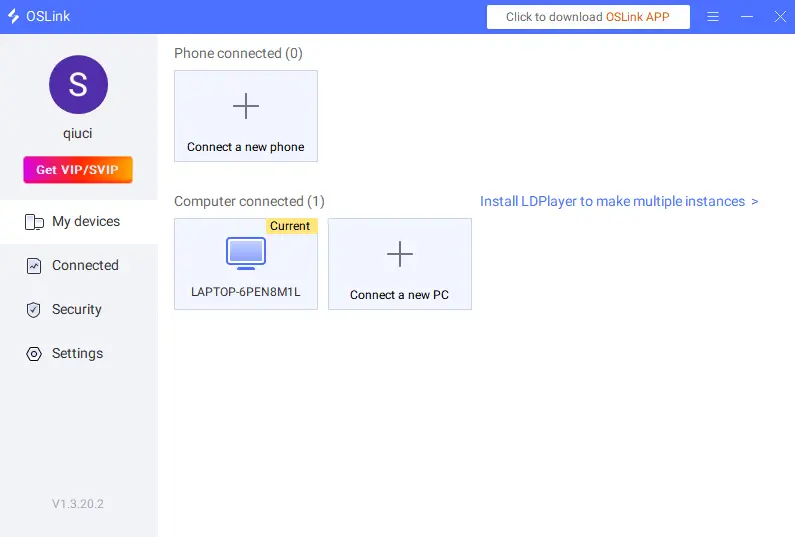
Sign in with the same OSLink account on both devices. OSLink automatically establishes an encrypted connection without requiring manual IP configuration or device pairing.
3. Launch The Sims 4 Remotely
After opening OSLink on your PC, select your connected computer in the mobile app to establish a remote desktop connection.
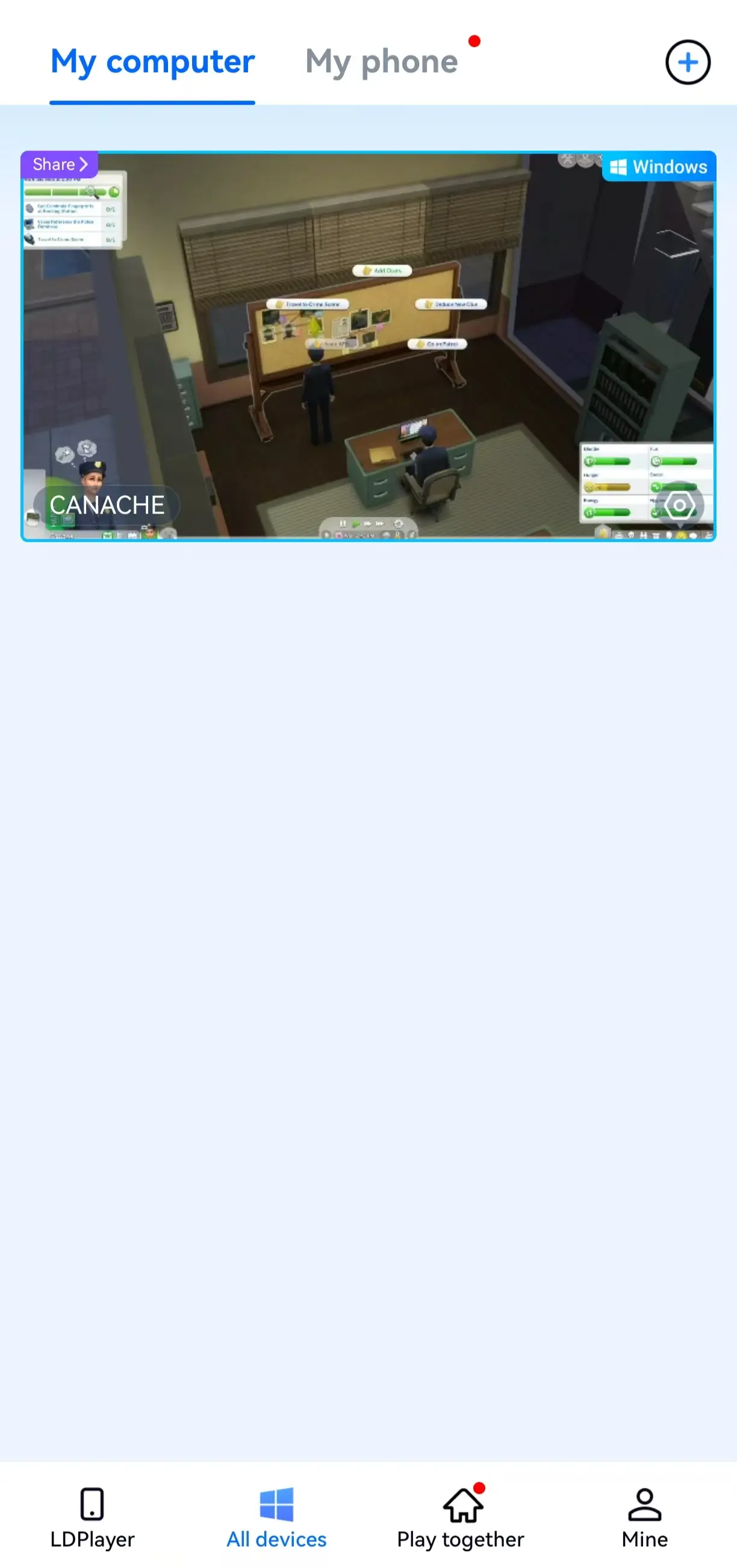
Once connected, you can:
- Launch EA App or Steam directly from your phone and start The Sims 4.
- Use OSLink's built-in game shortcut to launch the game with one tap.
For the best experience, enable 60fps PC Game Mode before playing. This helps reduce input latency, making furniture placement, camera movement, Build Mode navigation, and Live Mode interactions feel much smoother.
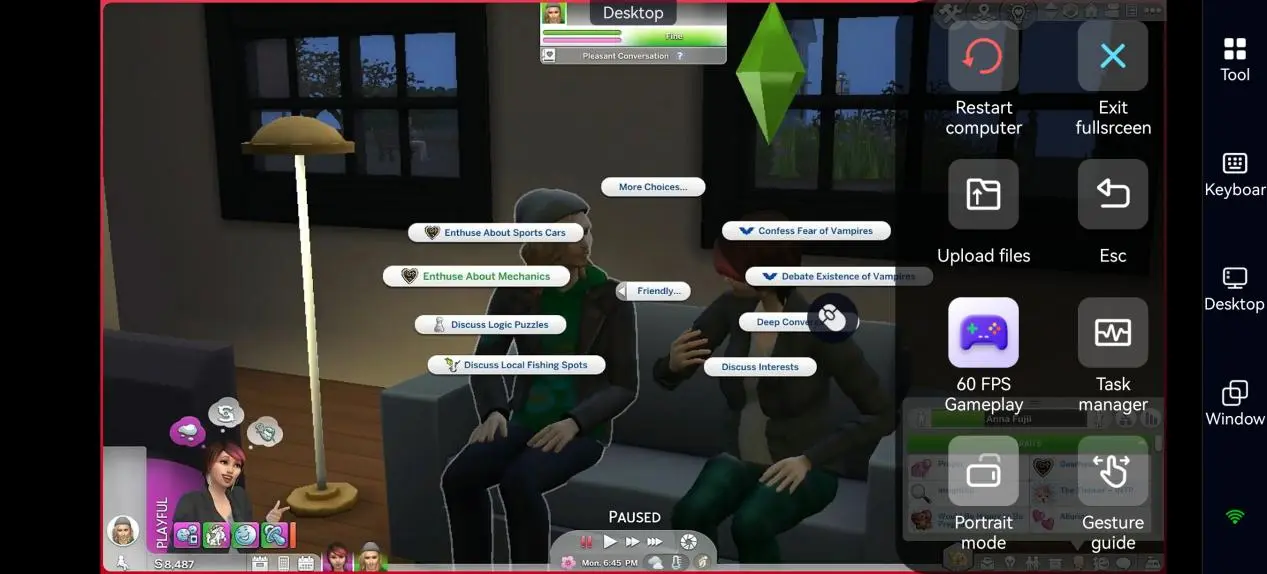
Why The Sims 4 Is Perfect for Mobile Remote Play
Unlike competitive games, The Sims 4 focuses on creativity, planning, and long-term progression, making it ideal for short gaming sessions throughout the day.
Continue Your Save Anytime
Whether you're decorating a luxury mansion, managing a Legacy family, or running a successful restaurant, OSLink allows you to resume your existing PC save instantly without transferring files or creating duplicate saves.
Build Mode on the Go
Many players spend more time in Build Mode than actually playing in Live Mode. During your commute or breaks, you can redesign floor plans, decorate interiors, experiment with landscaping, or browse community creations from the Gallery whenever inspiration strikes.
Full DLC and Mod Support
Since the game still runs on your PC, everything you've already installed remains fully available, including:
- Expansion Packs
- Game Packs
- Stuff Packs
- Kits
- Custom Content (CC)
- Gameplay Mods
- Script Mods
Your mobile device simply mirrors the complete PC experience without sacrificing content or visual quality.
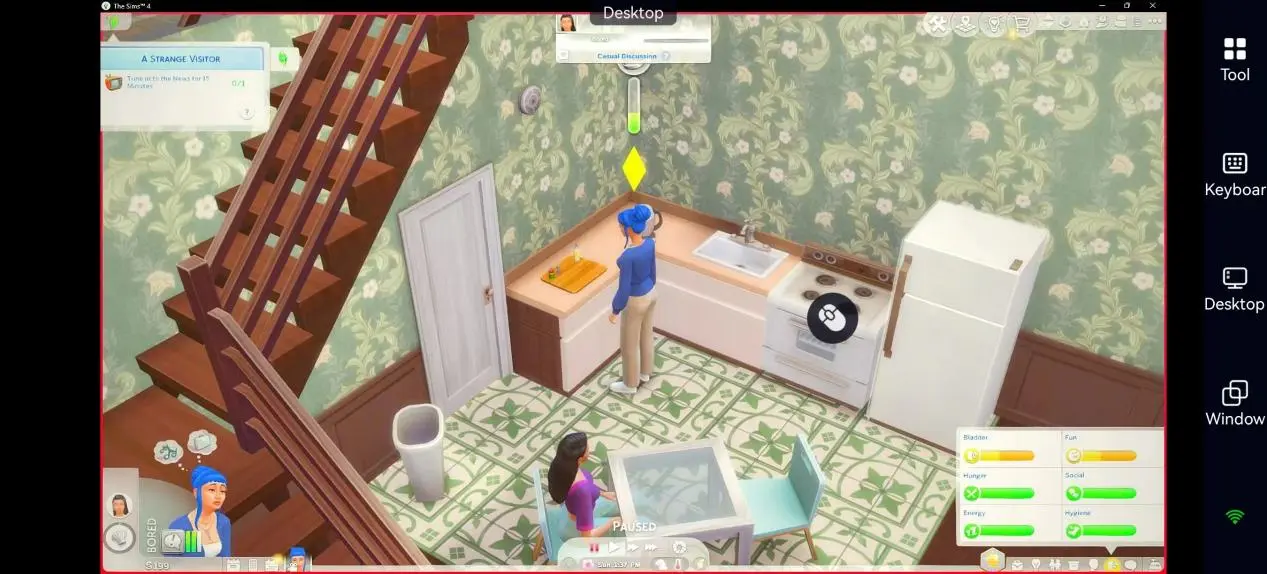
OSLink Features That Improve The Sims 4 Experience
Custom Virtual Key Mapping
Because The Sims 4 relies heavily on mouse controls, OSLink includes customizable virtual controls that can be tailored for different gameplay scenarios.
Recommended Control Layout
|
Function |
Recommended Control |
Purpose |
|
Camera Controls |
Drag, Zoom |
Rotate and navigate the world |
|
Mouse Actions |
Left Click, Right Click |
Build, select Sims, interact with objects |
|
Build Mode |
Build Shortcuts |
Place, rotate, and move furniture |
|
Time Controls |
Pause, Speed Up, Slow Down |
Manage gameplay speed |
|
Navigation |
Scroll, Interface Switching |
Browse menus and household management |
You can freely adjust button size, position, and transparency to create a layout that fits your personal playstyle.
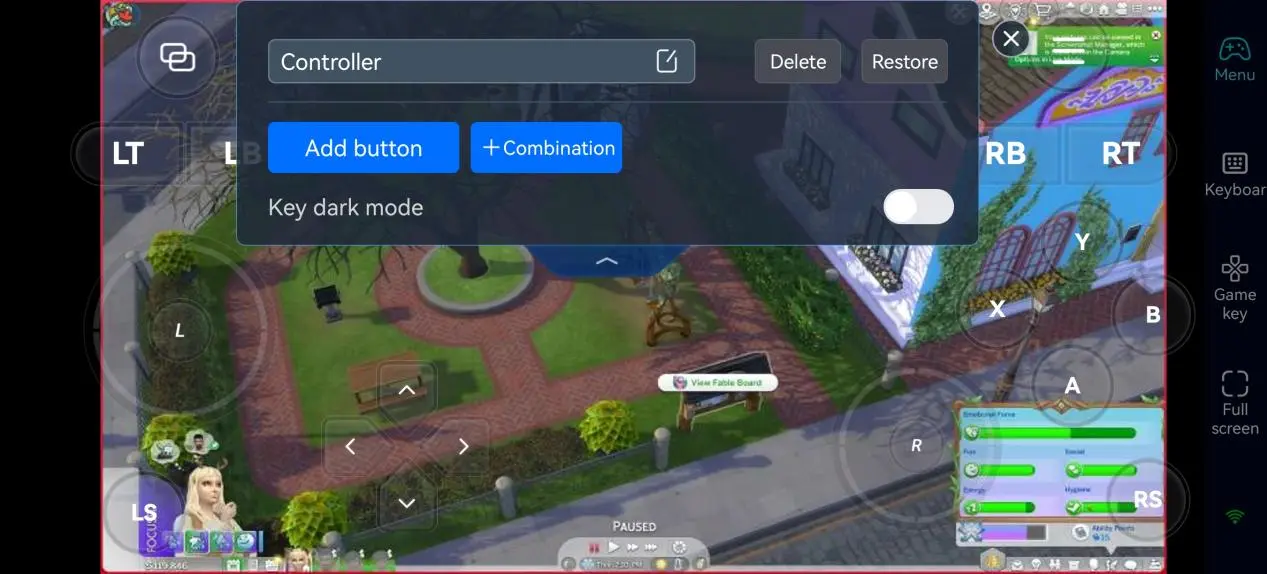
Support for External Keyboard, Mouse, and Controllers
For players who enjoy detailed building projects, OSLink also supports Bluetooth keyboards, mice, and game controllers. Your mobile device automatically forwards all inputs to your PC, making complex building tasks significantly more efficient.
High-Quality, Low-Latency Streaming
All graphics are rendered on your home PC in real time while your phone streams the gameplay. Even if your save includes extensive Mods, high-resolution texture packs, or numerous Expansion Packs, you can still enjoy the original graphics quality with smooth remote performance.
FAQ
Q: What is The Sims 4 release date?
A: The Sims 4 was officially released on September 2, 2014, for Windows PC and later expanded to macOS and major gaming consoles. The base game is now free to play, while additional content is available through Expansion Packs, Game Packs, Stuff Packs, and Kits.
Q: What are the PC system requirements for The Sims 4?
A: According to EA's official requirements, the minimum specifications include Windows 10 64-bit, an Intel Core i3-3220 / AMD Ryzen 3 1200 (or equivalent), 4 GB RAM, and an NVIDIA GTX 650 (or equivalent) graphics card. For smoother gameplay—especially when using multiple DLCs or Mods—a modern multi-core processor, 8 GB or more RAM, an SSD, and a mid-range graphics card are recommended.
Q: Can I play The Sims 4 on Android?
A: There is no official Android version of The Sims 4. However, with OSLink remote streaming, you can access and play the full PC version on your Android device without using your phone's storage space, while keeping your existing saves, DLC, Mods, and Custom Content.
Q: Can I play The Sims 4 on iOS?
A: There is no native iPhone or iPad version of The Sims 4. By using OSLink, you can remotely connect to your home PC from your iOS device and enjoy the complete PC experience without worrying about your device overheating, since the game runs entirely on your computer.
Conclusion
With its open-ended gameplay and endless creativity, The Sims 4 remains one of the most popular life simulation games. Using OSLink remote streaming, you can continue your PC save on your phone anytime, with full support for your DLC, Mods, and graphics settings. Build, manage, and tell your Sims' stories wherever you are.

 Download