English
 Culdcept BEGINS is a PC card game focused on deck building and turn-based strategy. With a large card pool, branching storylines, and competitive battles, it has attracted plenty of card game fans. However, the game is currently available only on PC and does not have a native mobile client. If you want to enjoy deck building on your phone, you can use remote streaming to play the PC version on your mobile device. This guide covers everything from getting the game and setting up the required tools to connecting your devices and adjusting the experience, so you can follow along and get everything running smoothly.
OSLink streams the Culdcept BEGINS game screen from your PC to your mobile device in real time, while touch controls from your phone are sent back to the computer almost instantly. The entire setup is straightforward, and the controls remain responsive even when performing precise actions such as selecting cards, editing decks, or taking turns in battle.
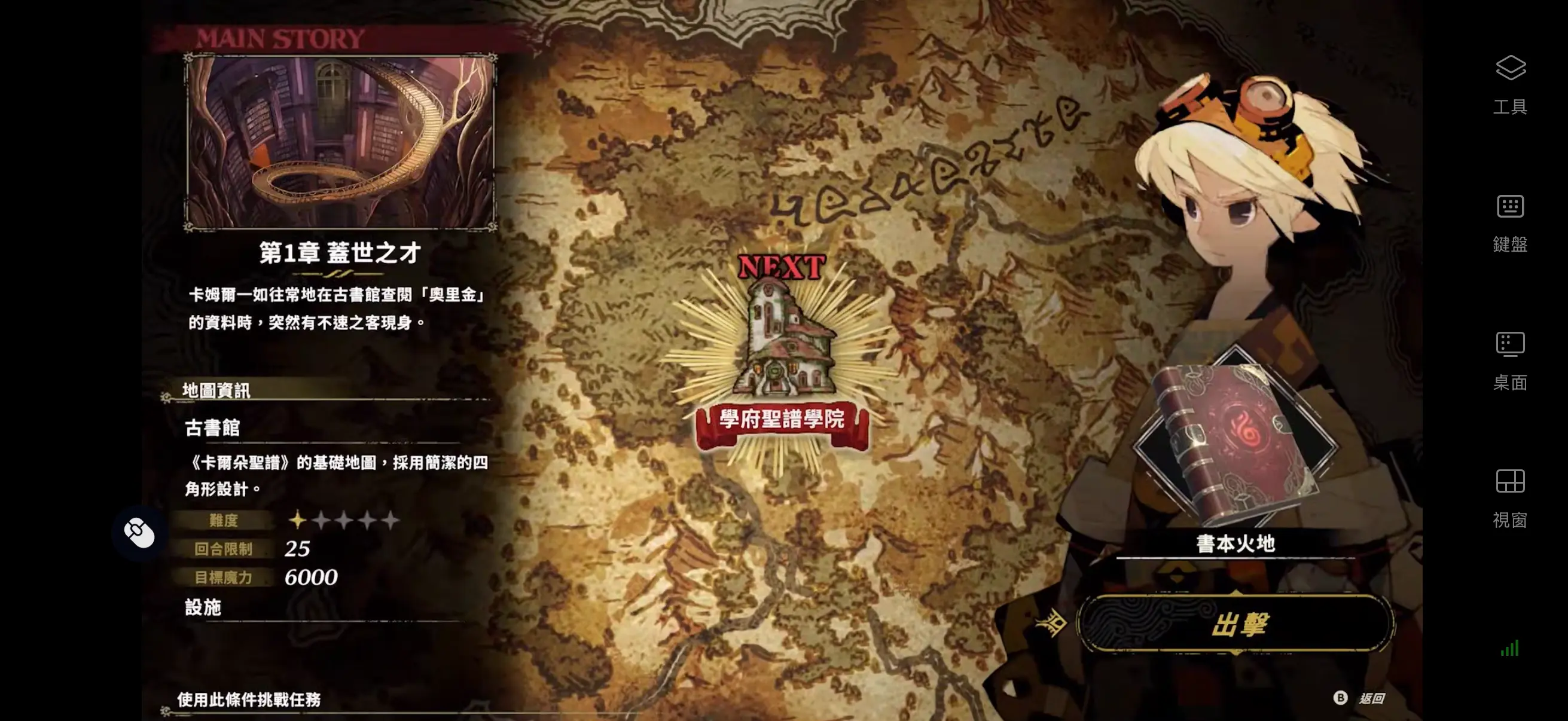
1. How to Play Culdcept BEGINS
Remote streaming requires a complete, legitimate copy of the game to already be installed on your PC. Culdcept BEGINS is available on Steam. Open the Steam client on your computer, search for the full game title in the store, purchase it, and add it to your library before downloading and installing it.
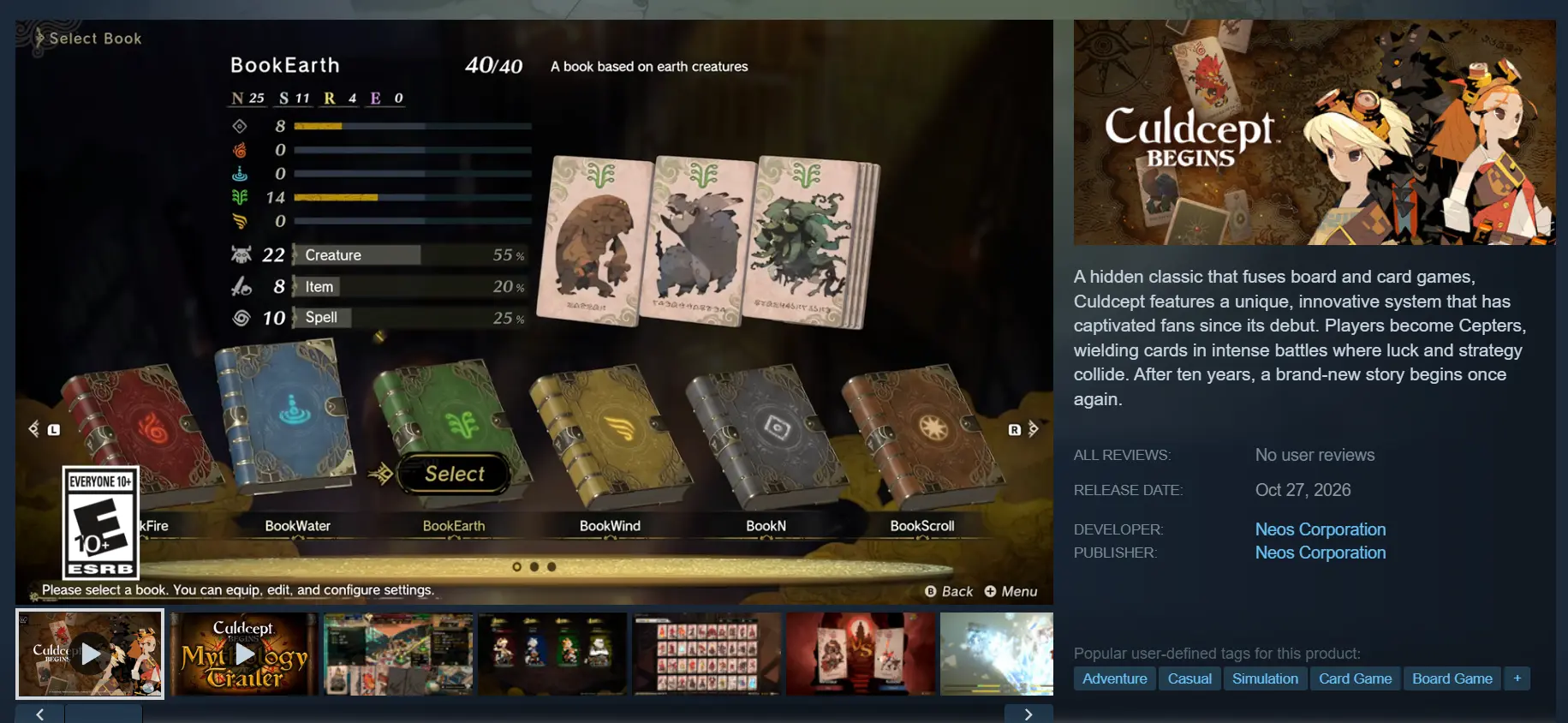
Once installation is complete, launch the game on your PC at least once to make sure there are no crashes, display issues, or other problems. After confirming that the game runs properly locally, you can move on to setting up the streaming tools.
2. How to Install OSLink on PC and Mobile
Windows PC Setup
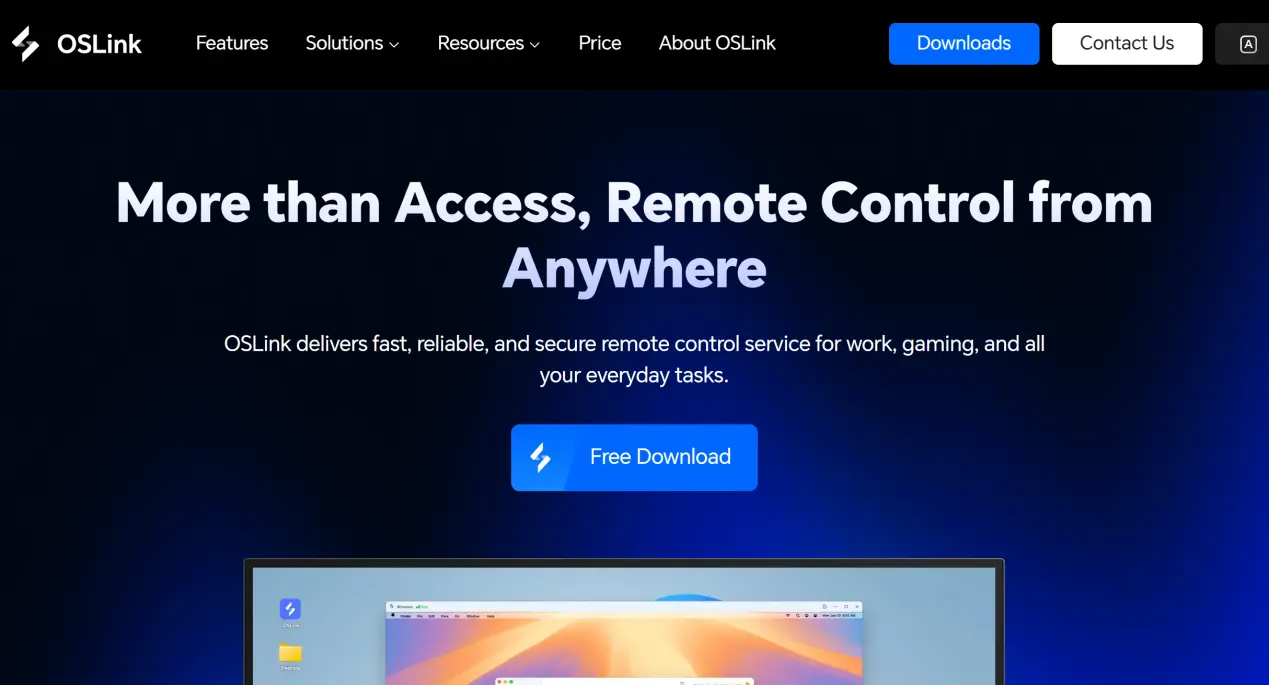
Open the OSLink official website in your browser and download the installer for Windows. Once installation is complete, create an account and sign in.
To keep the connection stable, adjust your computer's power settings and adjust the power-saving settings for your network adapter and hard drive. This helps prevent the network connection from dropping while the computer is idle, allowing your phone to connect whenever you need it.
Mobile App Setup
Android users can search for OSLink on the Google Play Store and install the app. iOS users can open the App Store, search for the same app, and download it.
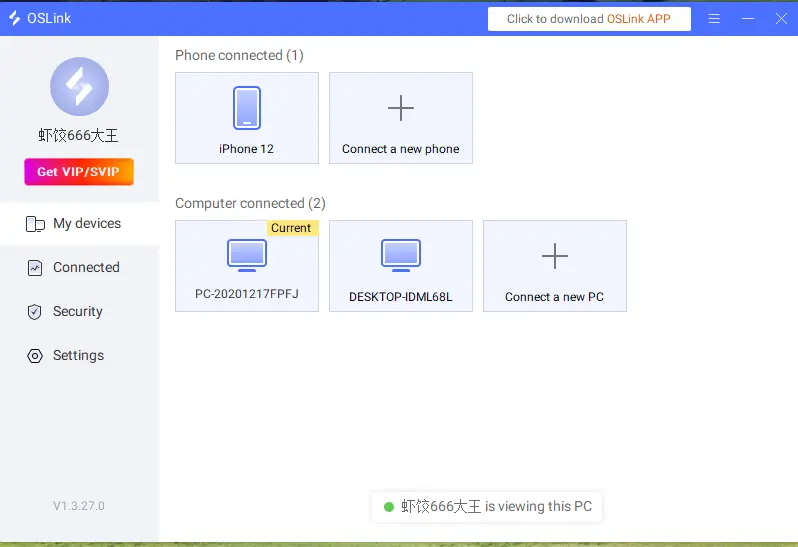
Make sure the account signed in on your phone is the same one used on your PC. OSLink will automatically detect online computers linked to the same account, so you can skip entering a pairing code and quickly link your devices.
3. How to Run Culdcept BEGINS Through OSLink on Mobile
Open Steam on your PC and launch Culdcept BEGINS. Enter the deck-building screen or a battle, and keep the game window running in the foreground. Keep the game window open and avoid minimizing it.
Open the OSLink mobile app. The device list will show computers that are online under the same account. Tap your PC's name to establish a remote connection.
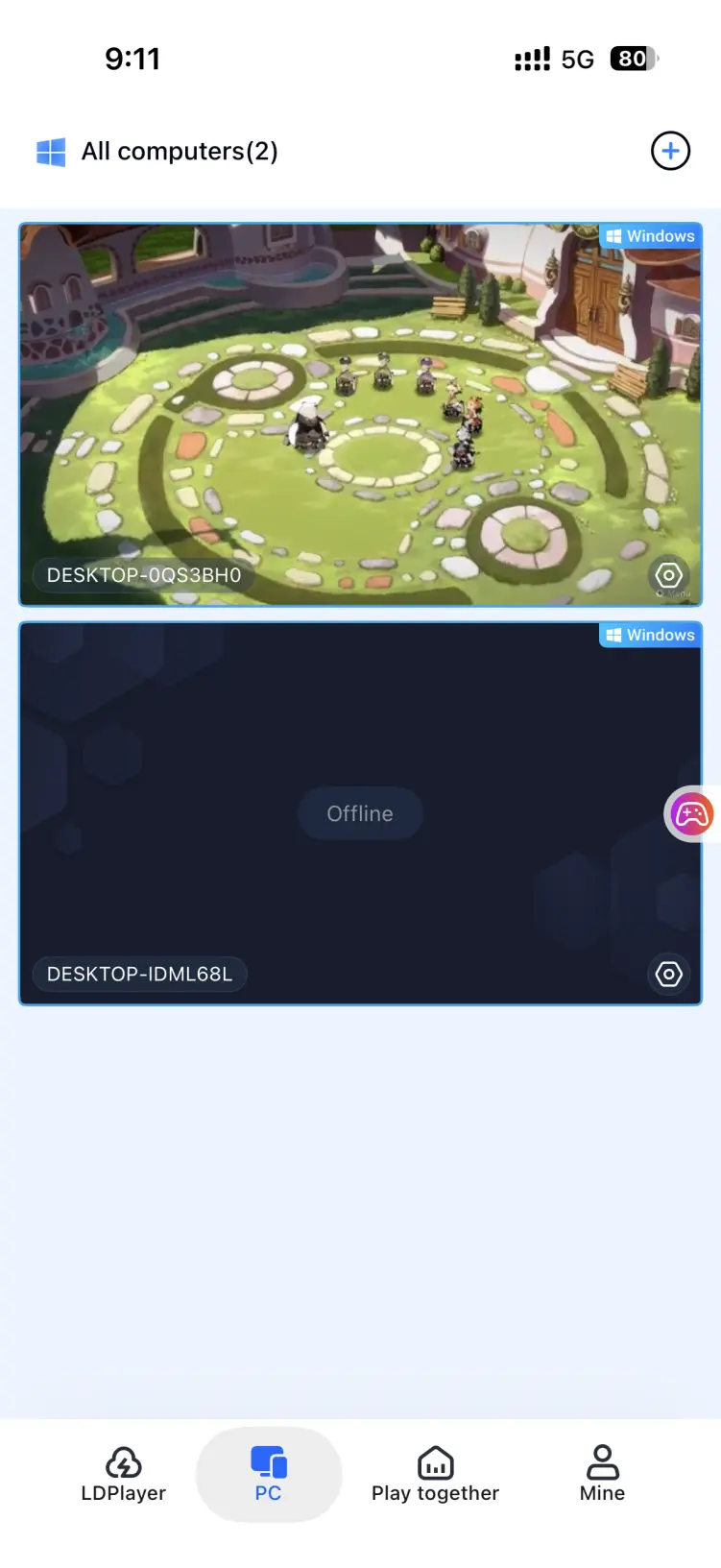
Once the PC screen loads successfully, open the side toolbar and switch to the dedicated game mode. You can use the default control layout for card games or connect an external controller. After adjusting the settings, you can select cards, adjust your deck, take turns, and perform other in-game actions directly from your phone.
4. Benefits of Playing Culdcept BEGINS on Mobile
Play Anywhere, Anytime
As long as your computer stays powered on and connected to the internet, you can stream the game whether your phone is connected to home Wi-Fi or mobile data. Whether you're waiting for a ride or taking a break, you can tweak your deck or jump into online battles during those spare moments, giving you more freedom over when and where you play.
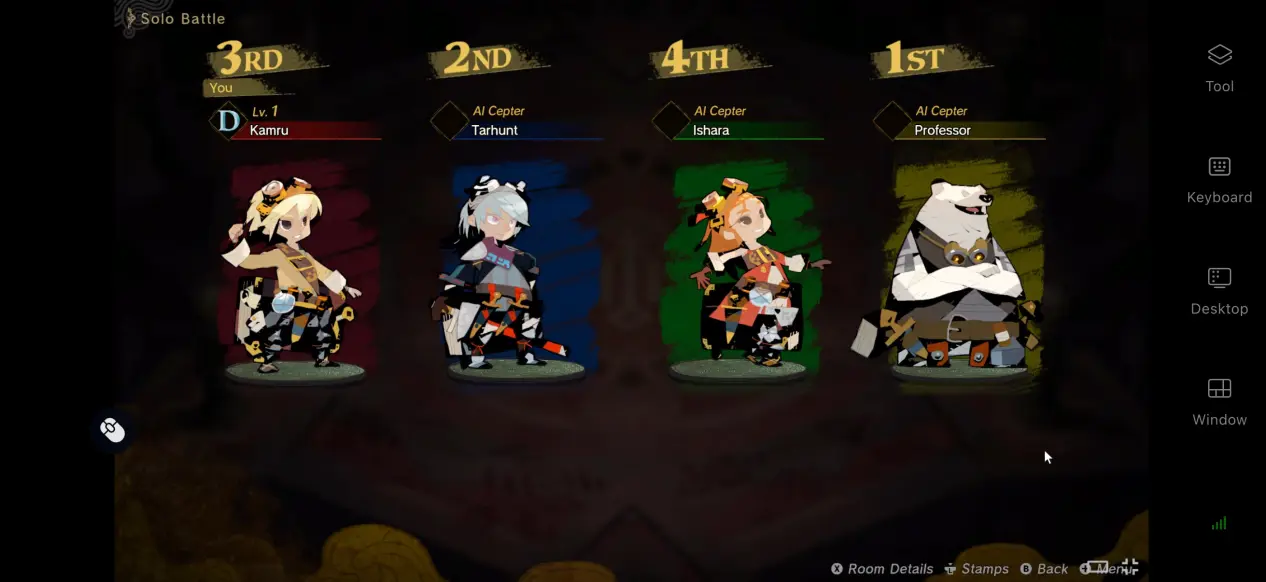
No Need to Use Up Your Phone's Storage
The game files, updates, and custom deck saves are all stored on your computer's hard drive. Your phone only receives the game stream and sends your controls back to the PC. Even phones with limited storage or modest hardware can still handle the full card-battle experience smoothly.
Multiplayer Room Feature
OSLink has a built-in room feature that lets you share your Culdcept BEGINS gameplay with others in a room and invite other people to join. Multiple players can take turns controlling the same game client, making it useful for discussing deck ideas with friends or watching battle demonstrations together.
5. How to Improve Your Culdcept BEGINS Experience with OSLink
Low-Latency, High-Frame-Rate Game Mode
After enabling the 60 FPS PC Game Mode, OSLink optimizes the encoding of PC game footage. This helps reduce visual artifacts when many cards appear on screen or when menus change rapidly, while also shortening the delay between a tap and the corresponding on-screen response. Card selection and card-effect activation feel more responsive as a result.
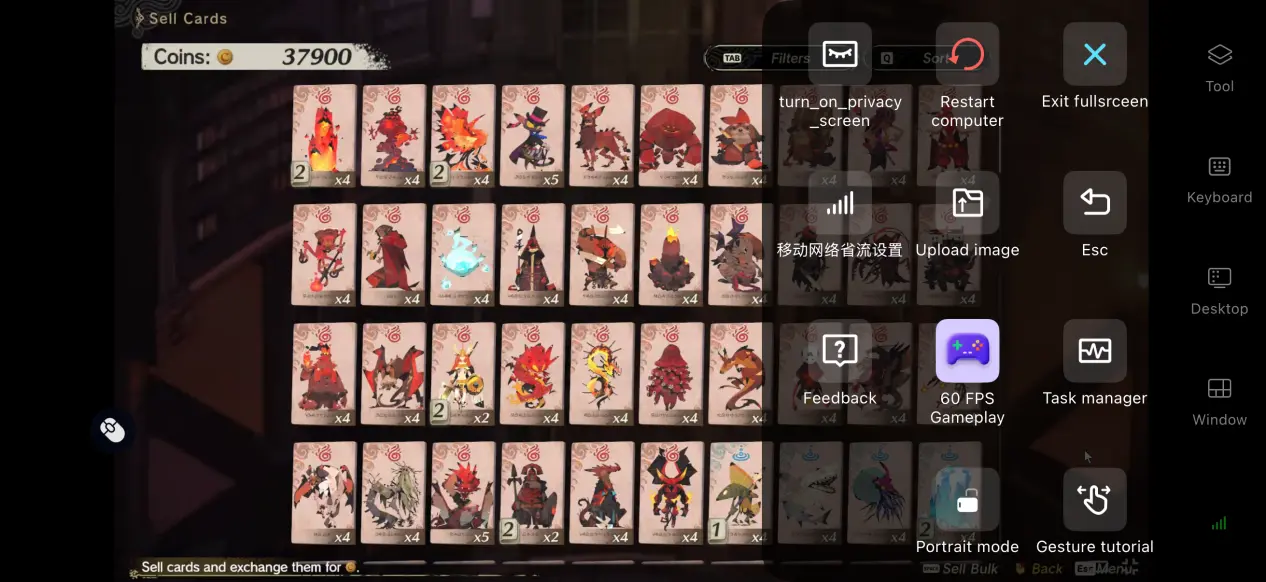
Custom Control Layouts
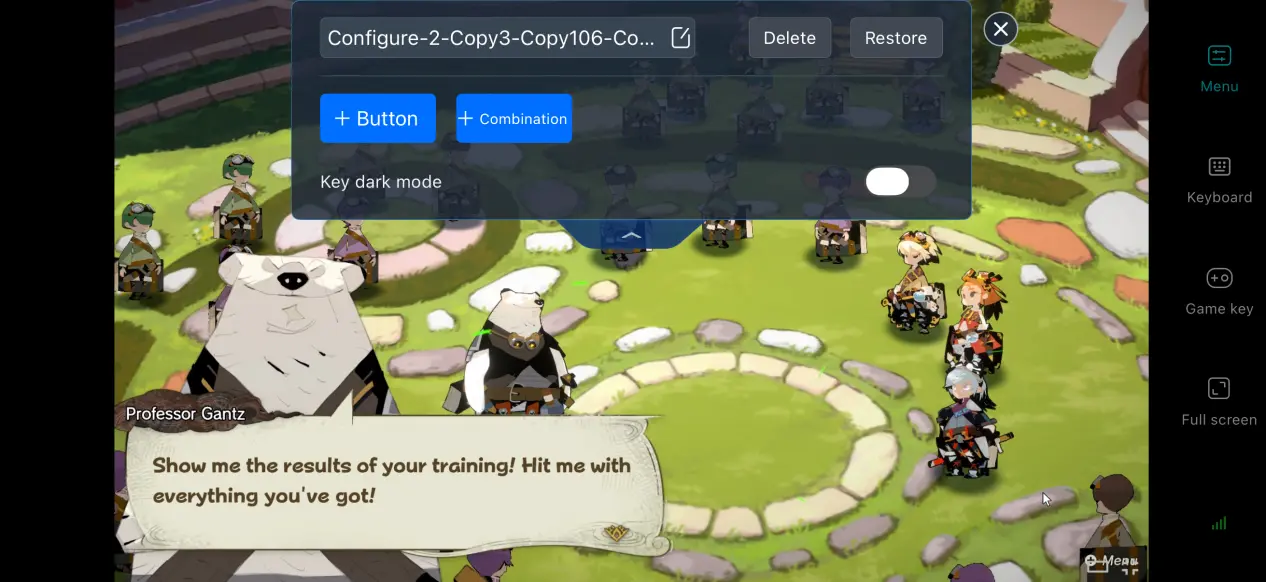
You can freely add or remove virtual touch buttons and adjust their size, transparency, and position. For card games, place frequently used actions such as switching decks, confirming a card play, and undoing an action within easy reach. You can also save multiple control layouts for different situations, such as deck editing and actual battles.
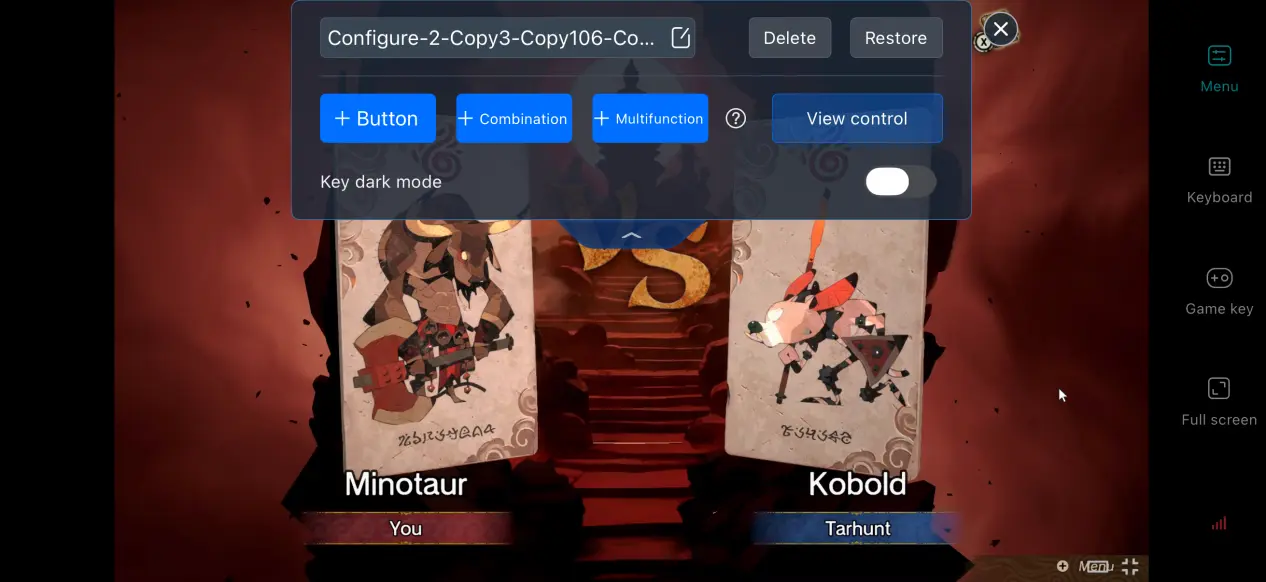
Screen Mapping for Mobile Devices
If the screen looks stretched or the UI layout appears out of place, use the screen mapping feature to adjust the crop and display ratio for your phone's long screen. This makes the card panels and battle screen look more natural on mobile, while also making it more comfortable to browse the battle interface for extended periods.
Support for Multiple Peripherals
OSLink supports most mainstream Bluetooth and wired controllers, as well as keyboards and mice. Once a peripheral is connected, input controls are automatically adapted. Players who prefer physical controls can use external devices for more precise inputs.
6. Frequently Asked Questions
Q: What is Culdcept BEGINS release time?
A: Culdcept BEGINS release date is September 2026. The PC version officially launched in September 2026, and the developers have not announced plans for a native mobile version at this time.
Q: What PC specs does Culdcept BEGINS require?
A: Minimum requirements: Windows 10 64-bit, an i5-8400 / R5 2600 processor, 16 GB of RAM, a GTX 1050 Ti / RX 570 graphics card, and 35 GB of available hard drive space.
Recommended requirements: Windows 10 64-bit, an i5-12400 / R5 5600 processor, 16 GB of RAM, an RTX 3060 / RX 6600 graphics card, and 35 GB of available SSD space.
Q: Can I play Culdcept BEGINS on Android?
A: There is no native Android version of the game. However, by remotely streaming the PC version through OSLink, you can play the full game on Android phones and tablets.
Q: Can I play Culdcept BEGINS on iOS?
A: There is no native version for iPhone or iPad. You can use OSLink to stream the game from your home PC and enjoy deck building and online battles on your Apple mobile device as well.
Conclusion
Culdcept BEGINS is a PC card game built around strategic decision-making. Its flexible deck-building system and story-driven battles give card game fans plenty of reasons to explore different strategies. Since the game does not have a native mobile version, players who want to play on a mobile device can use OSLink's remote streaming solution. There is no need to modify any game files. With your existing PC and mobile device, you can bring the full card game experience to your phone and jump into strategic battles whenever you want.
 Download