English
 Langrisser: Sea of Sword is the latest entry in the series from BlackJackStudio. It keeps the classic tactical system of commanding heroes and troops while adding dual-hero and dual-unit combinations, destructible terrain, and a seamless open map. Traditional linear stage progression has evolved into an RPG experience that combines strategic depth with the freedom to explore. However, the game is currently only available on Steam for PC, so it cannot be played directly on mobile. This guide explains how to remotely connect to your PC and run Langrisser: Sea of Sword on your phone for a more convenient way to play.
If you want an easier way to set up remote PC gaming on your phone, OSLink is worth considering. Install the app on both devices and sign in with the same account to pair them automatically. There is no need to manually configure ports or forwarding rules. Once connected, you can control your PC from your phone and launch Langrisser: Sea of Sword with a single tap.
1. Get Langrisser: Sea of Sword
Search for and install the game through Steam
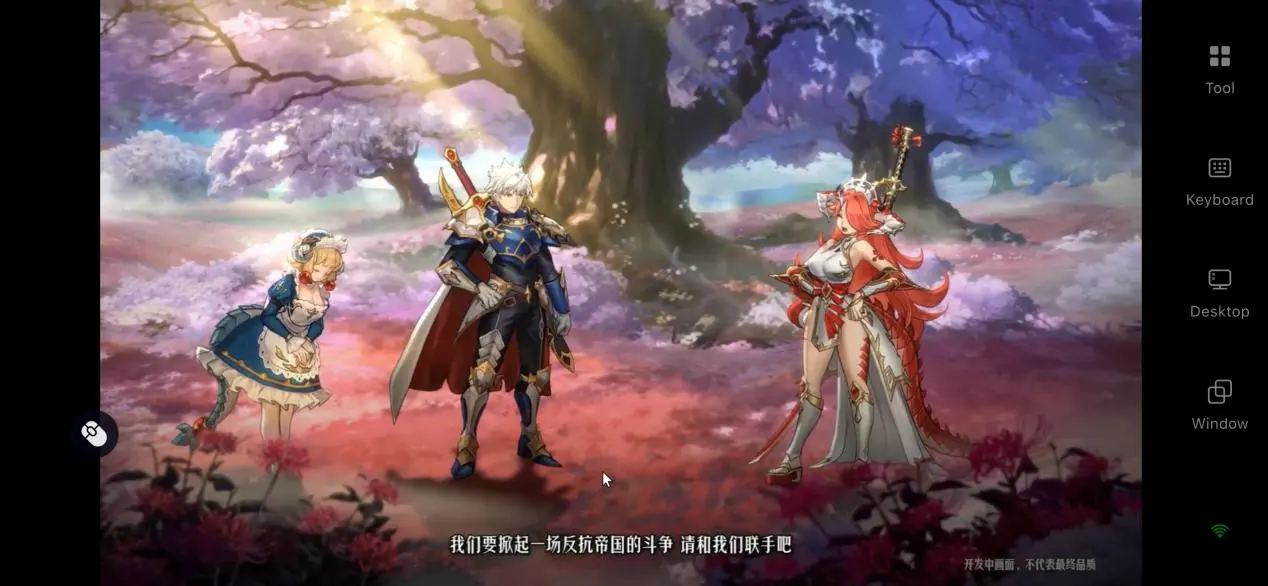
Steam is the official channel for obtaining the legitimate PC client. Open the Steam Store and enter “Langrisser: Sea of Sword” in the search bar to open the game's product page. Click “Add to Account” to claim it, as the game is free to play. Once it appears in your library, choose an installation location and download the game. After the download is complete, verify the integrity of the files and make sure there are no errors and that the game can reach the title screen before proceeding with the remote connection.
2. Install OSLink on Both Devices
PC Setup
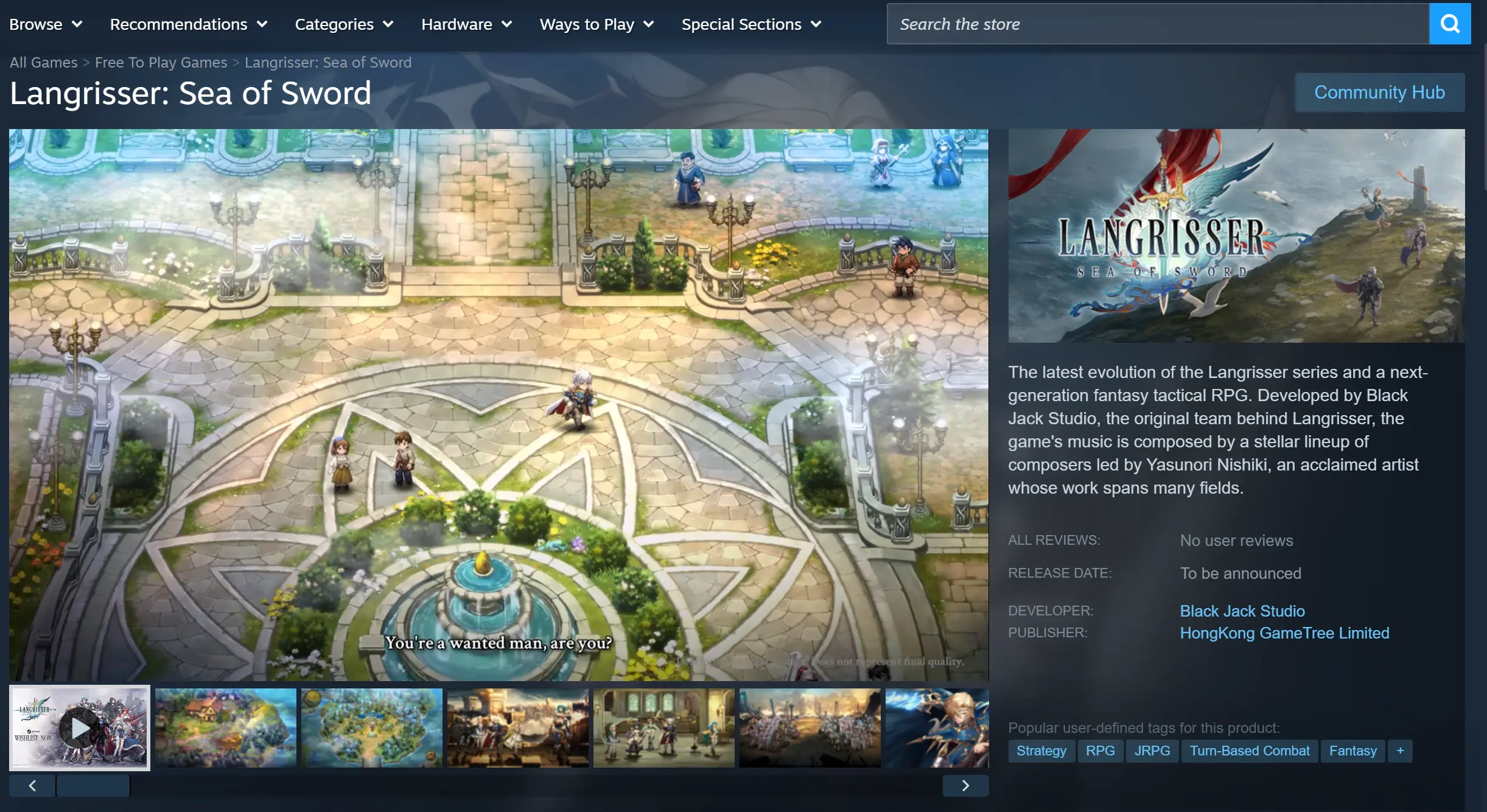
Search for OSLink in your browser and visit the official website to download the Windows installer. Run the setup wizard and follow the instructions to complete the installation. Launch the client, then register and sign in with your phone number or email address. After signing in, the client will automatically bind the current PC to your account, and the PC name will appear in the device list.
Mobile Setup
Android users can search for “OSLink” on Google Play and download the app. iOS users can search for the same app on the App Store and install it.
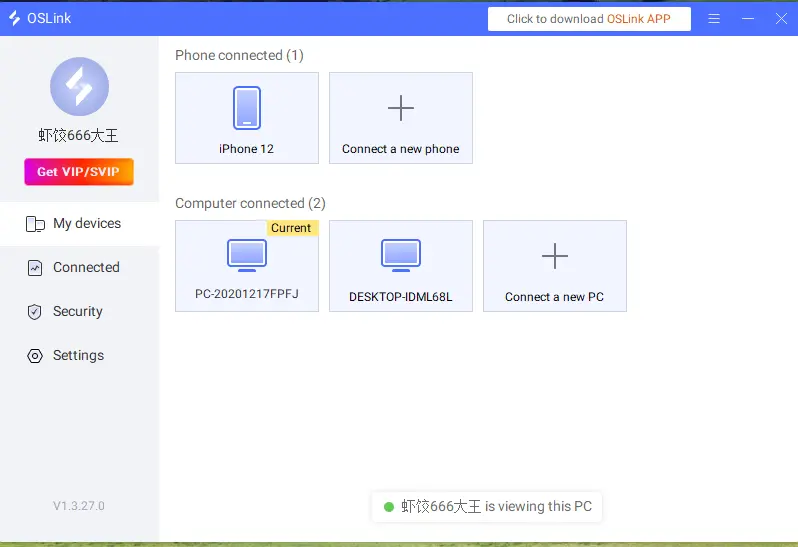
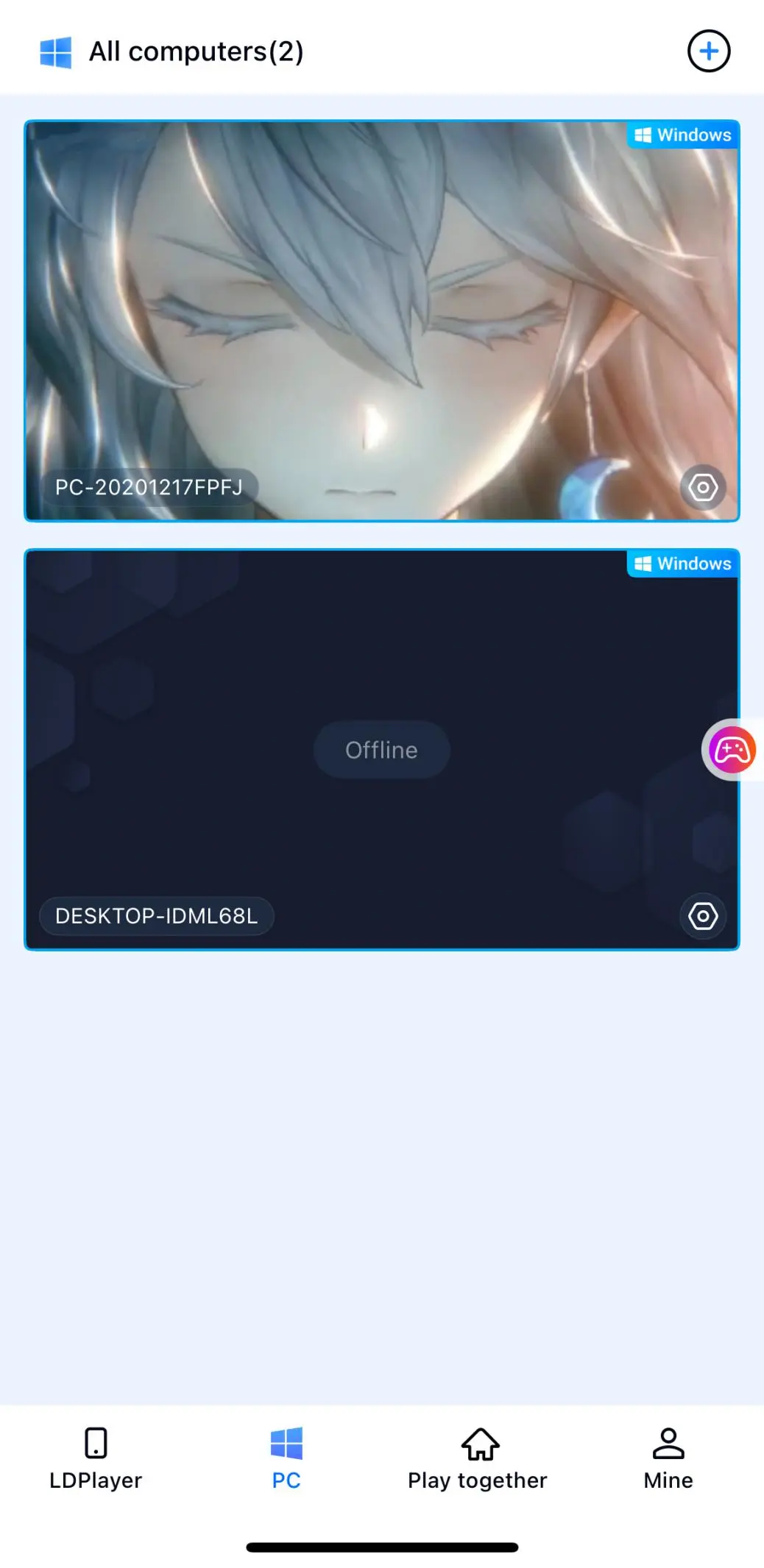
Once the installation is complete, open the app and sign in with exactly the same account used on the PC. The system will automatically pair the two devices, and the bound PC will appear in the device list on your phone.
3. How to Launch Langrisser: Sea of Sword on Mobile
Check Before Connecting
Make sure your PC is powered on and the OSLink client is running in the background. You can launch Langrisser: Sea of Sword in advance and leave it on the title screen or main menu. Your phone should also have a stable network connection. A 5GHz Wi-Fi network or 5G mobile connection is recommended to prevent bandwidth fluctuations on public Wi-Fi from affecting streaming quality.
Enter the Game Remotely
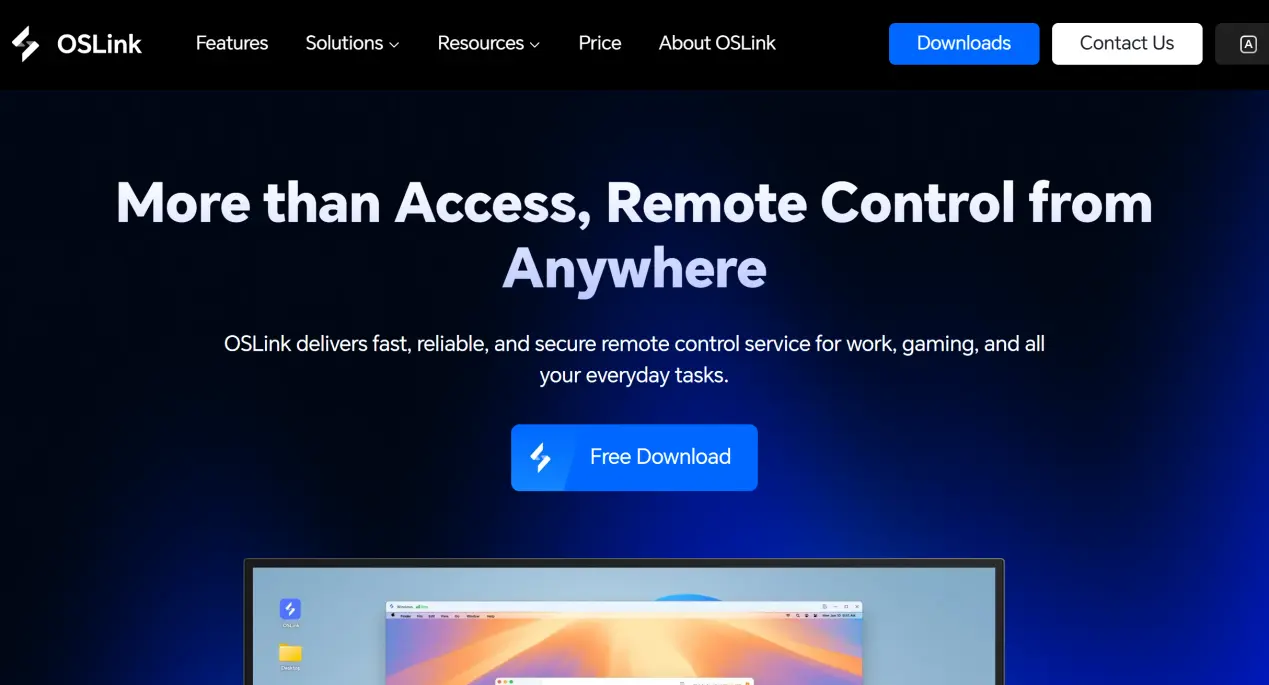
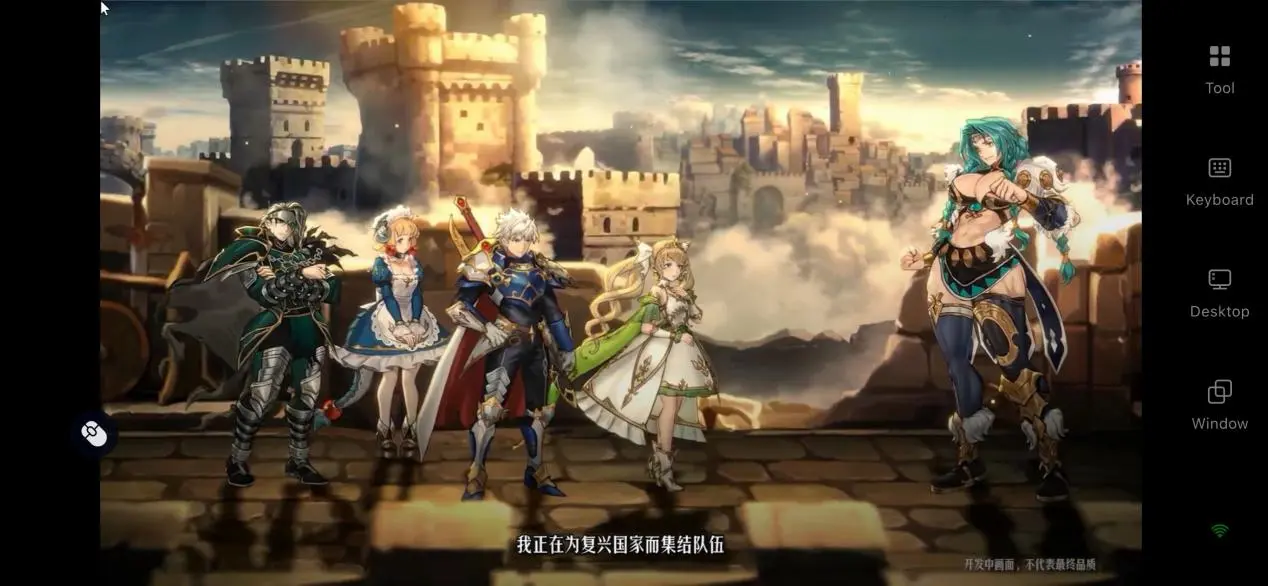
Open OSLink on your phone and tap the paired PC in the device list to enter the remote desktop. Your phone screen will then mirror the PC desktop in real time. Find the Langrisser: Sea of Sword window and bring it to the foreground.
Adjust the Mobile Controls
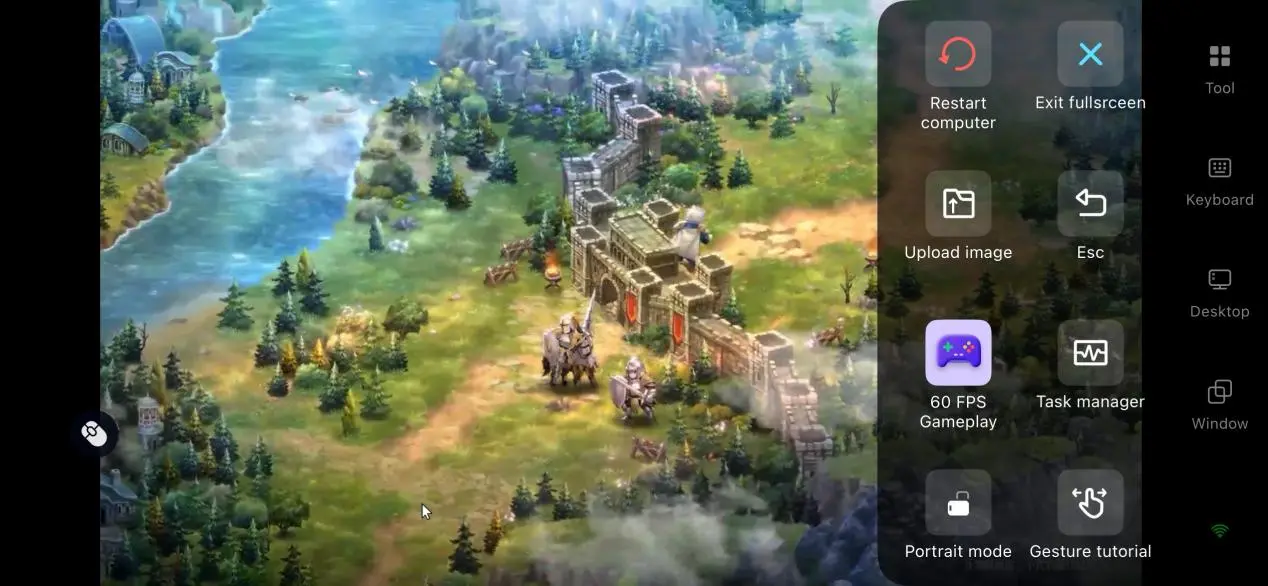
For your first connection, it is recommended to enable “60 FPS PC Gaming” from the toolbar on the right. This mode adjusts encoding settings for strategy game menus and battle scenes, helping reduce input response delay. You can also enable fullscreen mode to better fit the mobile screen. Once you enter the game, you can use the touchscreen or virtual controls to command your troops.
4. Key Advantages of Playing Langrisser: Sea of Sword on Mobile
Break Free from Your Desk
You can keep progressing through the campaign even when you are away from your PC. Adjust unit formations during your commute, clear daily tasks during your lunch break, or manage your territory while you are out. Even short periods of free time can turn into actual progress. Since switching between two heroes and using skills follows a turn-based rhythm without demanding quick reactions, the difference between remote and local controls is further reduced.
No Game Storage Taken Up on Your Phone
The game itself and all resource packages remain stored on your PC's hard drive. Your phone only needs the relatively small OSLink client, so there is no need to set aside dozens of gigabytes of storage. Even older phones with limited storage can connect smoothly, while the PC handles the game's performance load.
5. How to Optimize Your Langrisser: Sea of Sword Experience with OSLink
High Frame Rate, Low Latency Mode
OSLink's right-side toolbar provides several streaming modes. You can enable “60 FPS PC Gaming” to increase the encoding frame rate, making battles and menu navigation feel more responsive. When the network is unstable, switching to Balanced Mode automatically lowers the bitrate in exchange for a more consistent connection, keeping the game smoother and clearer.
Peripheral Support
Mainstream Bluetooth controllers such as Xbox and PlayStation controllers can be connected to your phone. Once detected by OSLink, there is no need to manually map the controller buttons. For strategy games, using an analog stick to move the cursor is more precise than tapping the screen. Shoulder buttons can also be assigned to zoom the camera or switch menus, making them easier to use. For longer sessions of commanding your troops, the experience is noticeably more comfortable than relying entirely on touch controls.
Fullscreen and Aspect Ratio Support
You can enter fullscreen mode on your phone with a single tap, hiding the top status bar and bottom gesture bar so the game fills the entire display. If the PC game's resolution does not match your phone's aspect ratio, you can choose “Fit to Screen” in the settings to stretch the image automatically, or keep the original aspect ratio with black bars to prevent characters and UI elements from appearing distorted.
Flexible Virtual Controls
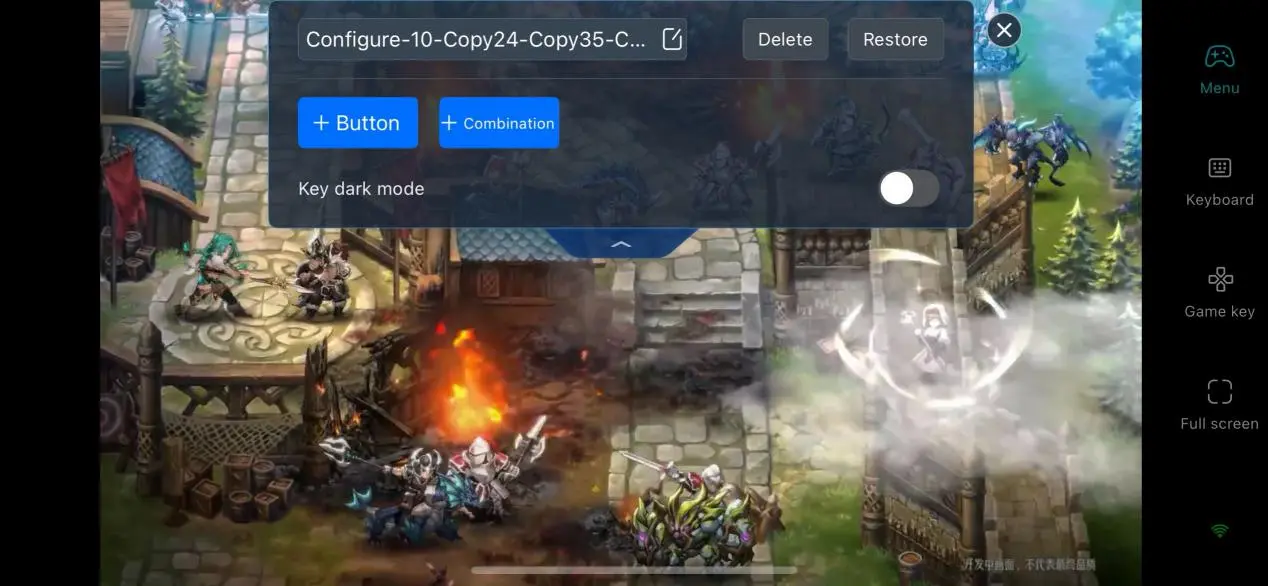
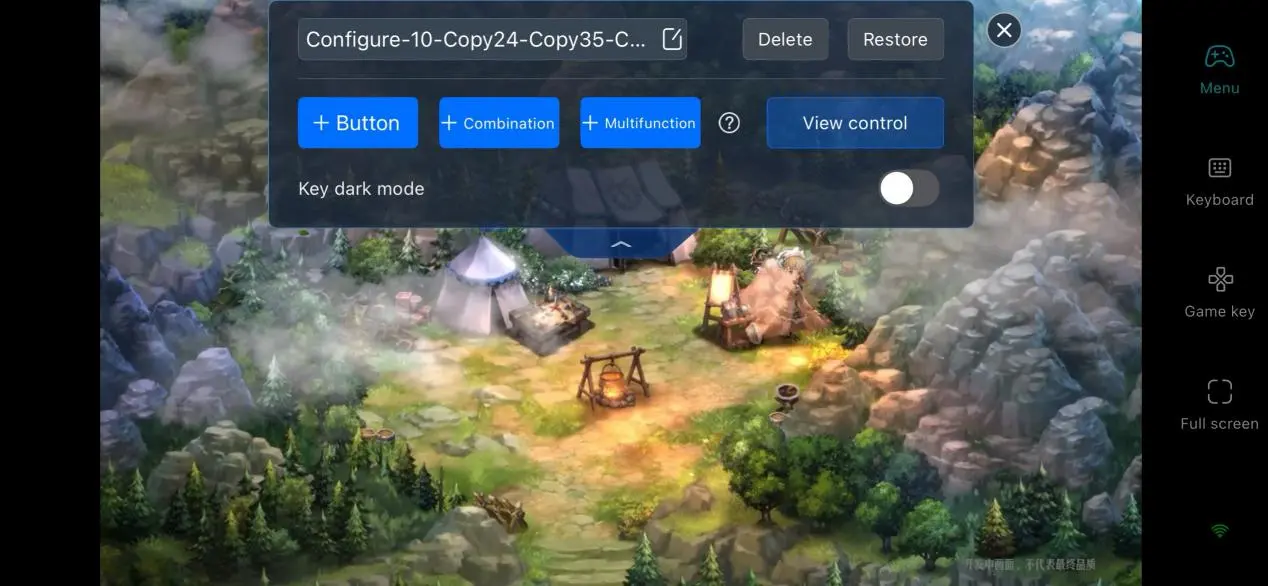
After entering the control editing mode, you can freely add virtual buttons and assign them to keyboard or mouse actions. The size, position, and transparency of each button can be adjusted separately. Since Langrisser: Sea of Sword mainly relies on menu navigation and tactical commands, it is recommended to place the directional controls within reach of your left thumb and put confirm, cancel, and skill shortcuts on the right. Keeping the two sides clear of the battlefield makes the controls easier to learn, even when switching between different mobile devices.
6. Frequently Asked Questions
Q: When will Langrisser: Sea of Sword be released?
A: The Steam product page currently lists the release date as “To Be Announced”, and the official launch date has not yet been revealed. The “First Voyage Test” began on August 20, 2026. Players can obtain a test slot by completing the registration questionnaire through the official WeChat public account.
Q: What PC specifications are required for Langrisser: Sea of Sword?
A:Minimum requirements: Windows 10, Intel Core i5-9400F or AMD Ryzen 5 3500X, 8GB RAM, NVIDIA GTX 1050 Ti or AMD RX 5600 XT, and 12GB of storage.
Recommended requirements: Windows 10, Intel Core i5-12400F or AMD Ryzen 5 5600, 16GB RAM, NVIDIA RTX 2060 or AMD RX 6700 XT, and 16GB of storage. The game uses a hand-drawn art style, which puts relatively manageable demands on the GPU, so a mainstream gaming PC should be able to run it smoothly.
Q: Can iOS devices play the game directly?
A: Langrisser: Sea of Sword is planned for release on iOS, but the mobile and PC versions use different clients. If you want to experience the full PC version on an iOS device, including higher graphics settings and keyboard-and-mouse or controller support, you still need to use OSLink to remotely connect to and run the game on your PC.
Conclusion
As the latest entry in the series, Langrisser: Sea of Sword is expected to continue adding story chapters, new characters, and limited-time events. Character progression and daily tasks are designed as long-term activities. If you do not want to sit in front of your PC every time you play, OSLink provides a convenient way to play remotely. This guide has covered the setup process from start to finish, giving interested players a straightforward reference for bringing the game to mobile devices. Use spare moments to progress through the campaign and manage your territory, and let your journey across the misty sea go beyond the limits of your desktop.
 Download