English
 As a PC game combining rhythm gameplay with RPG elements, Hololive Dreams has attracted many players with its complete rhythm system, interactive stages across different scenes, and multiplayer live performance features. If you want to enjoy the PC version of Hololive Dreams on your phone with PC-quality graphics and smooth high frame rates, remote streaming is the best solution. To help you get started, this guide will explain how to use remote streaming tools to connect your mobile device directly to your local PC and run Hololive Dreams remotely. From game installation, software pairing, actual operation, performance optimization, and troubleshooting, every step will be explained in detail, allowing even players without previous remote control experience to get started quickly.
If you want to avoid complicated network configuration, port forwarding, and other technical setup steps, OSLink is a lightweight remote control tool that is highly suitable for this type of progression-focused PC game. You do not need to stay on the same local network. After keeping the software running on your PC, simply log in to the same account on your mobile device to connect directly to your local Hololive Dreams client with one click. This allows you to continue your progression anytime with only your phone. Compared with similar remote control tools, it provides better stability for long-term idle progression and daily gameplay management.
1. How to Download Hololive Dreams on PC
Official Game Purchase Platform
The PC version of this title is available exclusively on three official distribution platforms: Google Play, Steam, and Epic. Players can download the game directly from the corresponding client store pages.
Using third-party installation packages is not recommended, as they may cause issues such as save data loss or program crashes. Please download the game through the official platforms to ensure a stable experience.
After completing the purchase, find the game in your platform library and start the download.
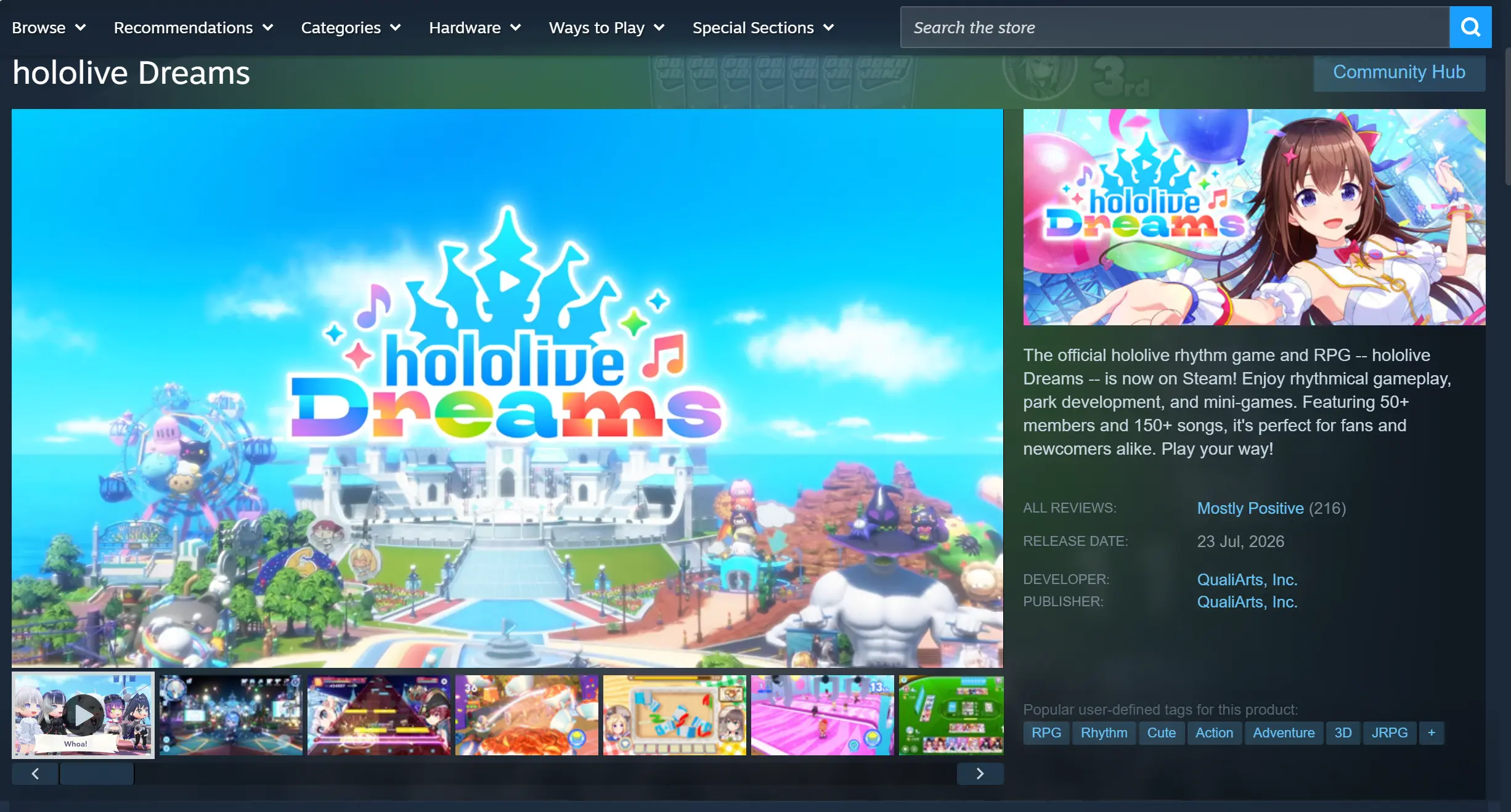
Google Play Download Page Installation Path and Storage Requirements
The complete installation size is approximately 72GB. It is recommended to install the game on an SSD partition, which can greatly reduce loading times when switching performance stages or entering character progression menus. The installation folder should use English names throughout. If the path contains other languages or special symbols, the game may crash or display a black screen when launching.
2. PC & Mobile OSLink Installation Process
Windows PC Installation Steps
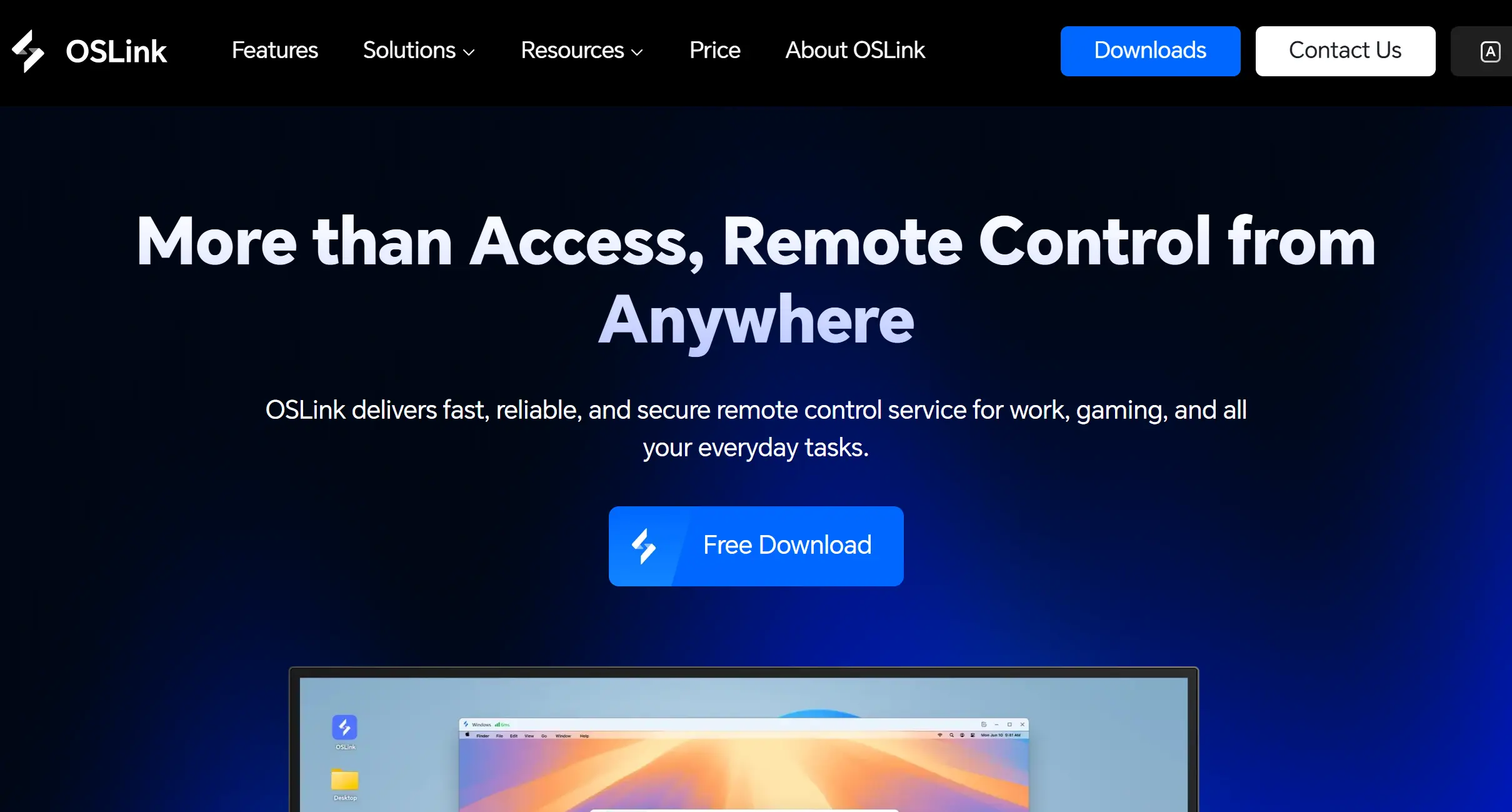
Open your browser and visit the official OSLink download page. Select the Windows-specific installation package and use an English-only folder path during installation. After installation is complete, launch the program, finish registration and login, and keep the software running in the background. Next, open your computer’s power settings and disable automatic sleep mode and scheduled screen shutdown to prevent the remote connection from being interrupted.
Mobile Installation and Login Process
Android users can search for the software name in the Google Play Store and download it.
iOS users can search for the same client in the App Store and complete the installation.
After the download is complete, open the mobile application and log in with exactly the same account used on the computer. The system will automatically detect all online computer devices linked to the same account, without requiring manual input of pairing codes.
3. Steps to Launch Hololive Dreams PC Version on Mobile
First, open the game client on your computer and enter the main game screen. Switch the game to windowed mode and adjust the window size to match the display style of your mobile device, whether using portrait or landscape orientation. Do not use fullscreen mode.
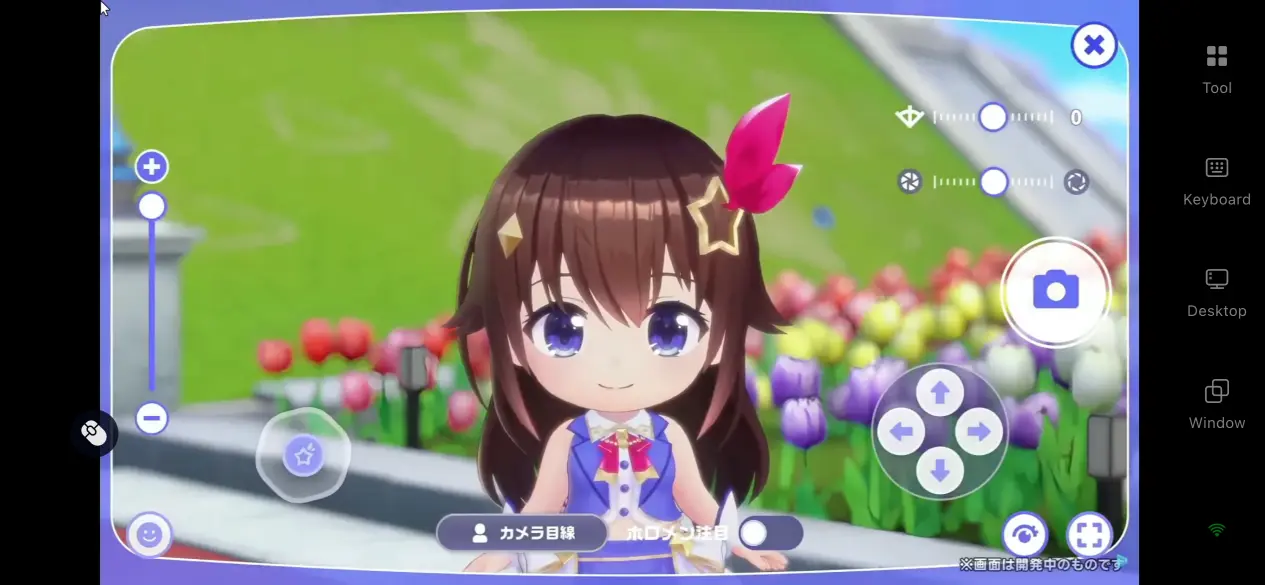
Open OSLink on your mobile device, select the computer that is already logged in from the device list, and tap the connection button to establish a remote desktop mirror connection.
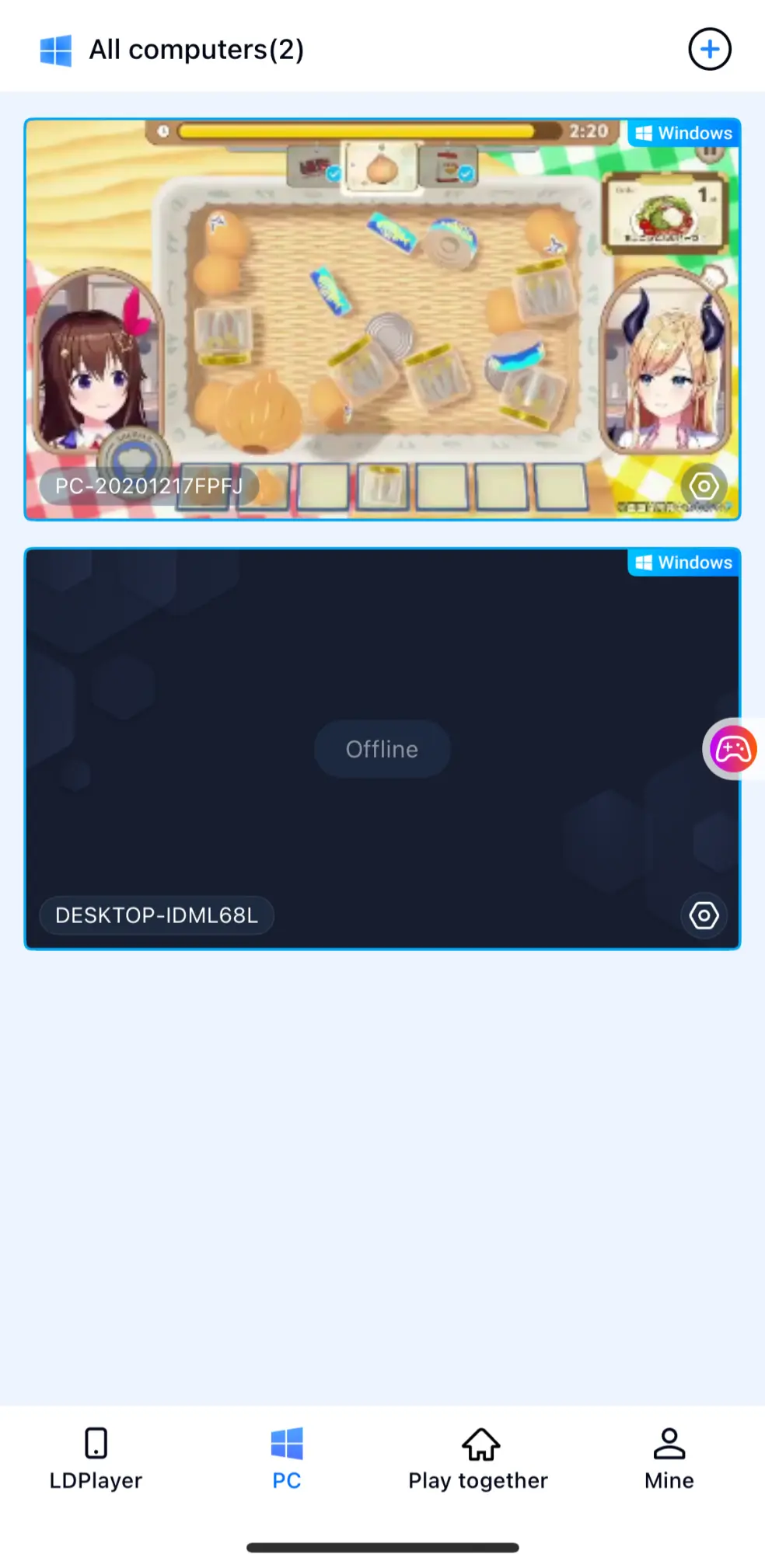
After the connection is established, the mobile screen will instantly synchronize with the computer desktop. Simply tap the game window on your phone to control the character.
4. Main Advantages of Running Hololive Dreams Remotely on Mobile
Continue Character Progression During Fragmented Time
There is no need to stay in front of the computer for long periods. During waiting times, lunch breaks, or other short free moments, players can quickly log in to complete daily training, collect items, and finish single-player performance missions without missing daily limited progression rewards.
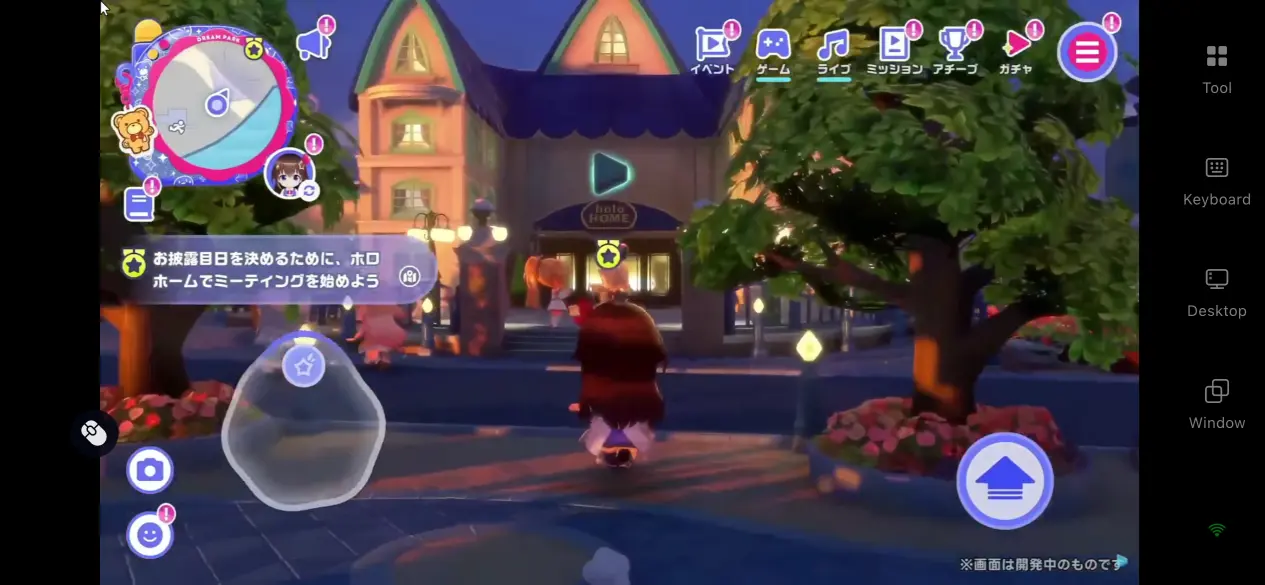
No Need to Use Mobile Storage Space
The complete 72GB game resources remain stored on the computer’s SSD. The mobile device only receives the game stream and sends control commands. Even older entry-level smartphones can run remote streaming normally, without needing to clear storage space for installation.
Multi-device Room Connection and Synchronized Control
OSLink provides room features that allow players to invite others to join the remote gaming experience. The PC can keep multiplayer performance rooms online, while mobile remote control allows players to directly take over their characters and participate in cooperative matches. In some situations, even friends without high-performance computers can use mobile devices to join the same game screen and interact together.
5. Practical OSLink Settings
Dedicated 60 FPS Game Streaming Mode
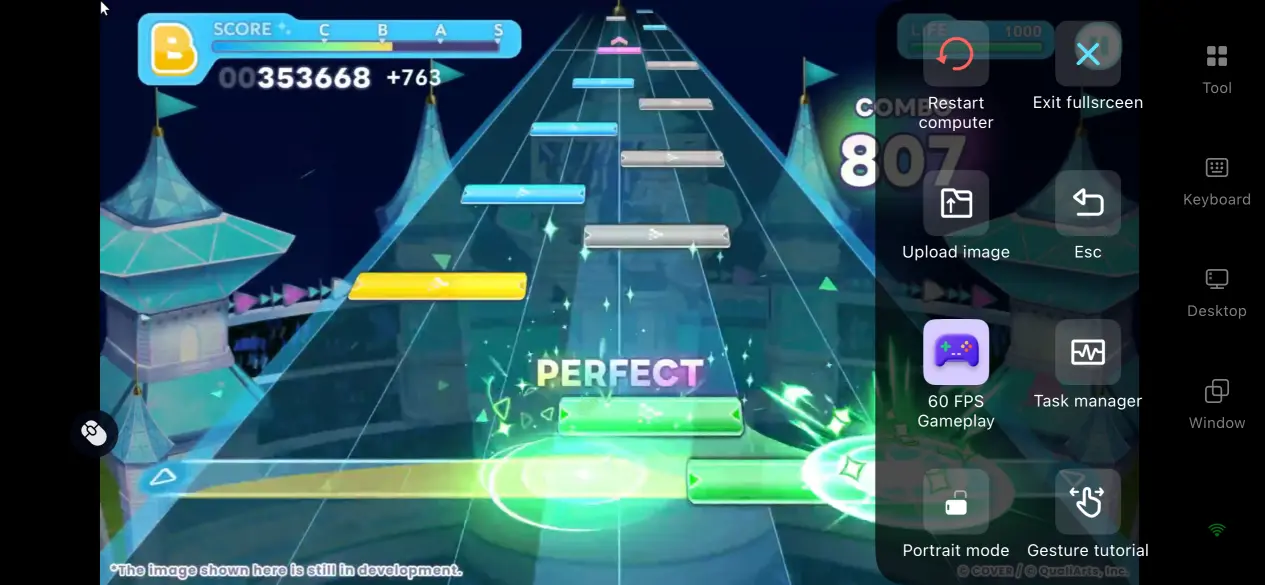
Players who want a smoother and more responsive gameplay experience can enable the 60 FPS PC game mode with one click from the right-side toolbar. The software will automatically adjust the video transmission bitrate, reduce operation delays when moving the camera or navigating dialogue sequences, and prevent image trails when frequently switching between character progression menus and performance stages.
Automatic Peripheral Connection Recognition
After connecting Bluetooth or wired Xbox and PlayStation controllers, the software will automatically match the game’s original control layout. The joystick can be used to adjust character positions, while trigger buttons can activate skills. Compared with touchscreen controls, this provides more precise and flexible operation, recreating the native PC control experience and reducing fatigue during long play sessions.
Custom Virtual Button Layout
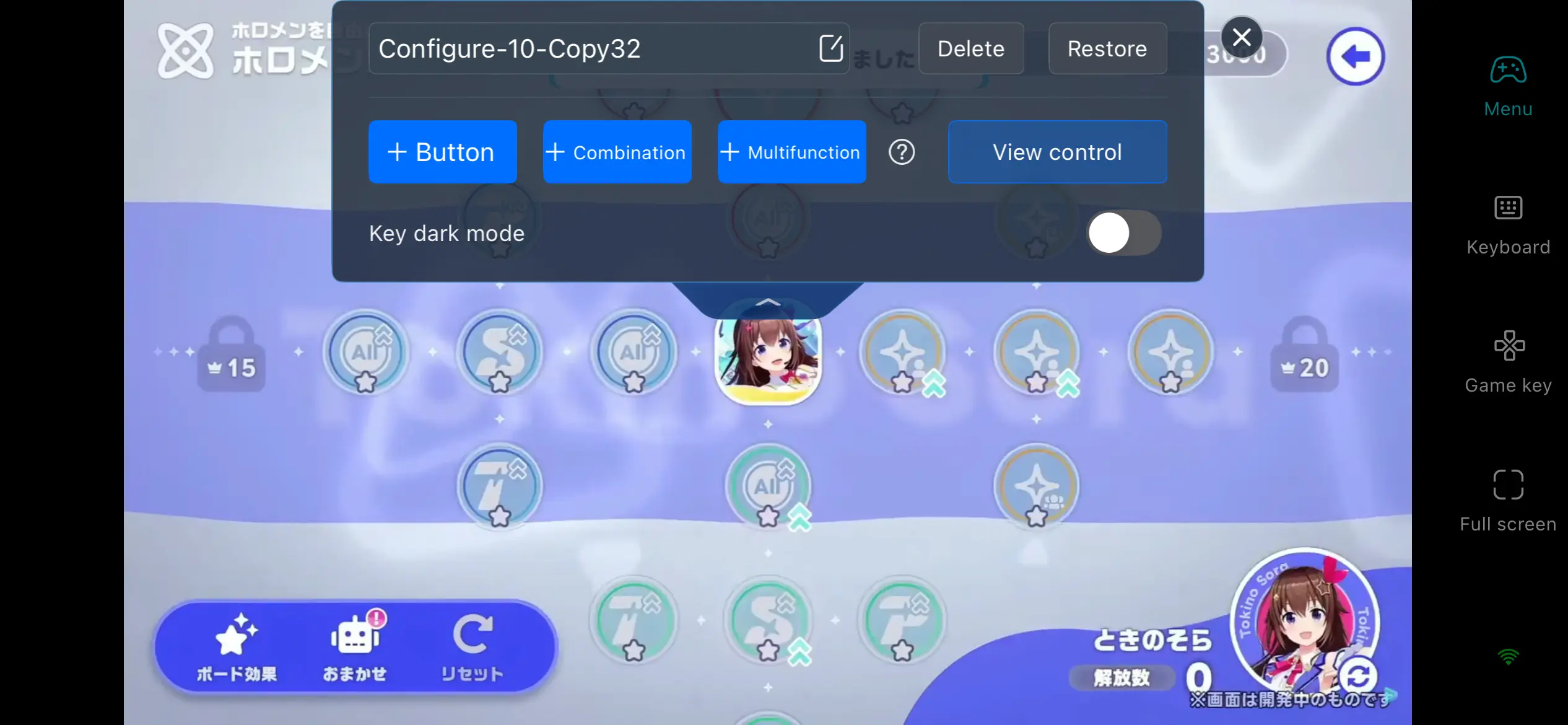
OSLink allows players to freely adjust the size, transparency, and position of virtual buttons, while supporting multiple saved configuration profiles. In daily progression menus, players can enlarge buttons such as “Training” and “Claim Rewards”. During multiplayer performance stages, skill shortcut buttons can be moved to both sides of the screen. Different layouts can be loaded instantly when switching between gameplay modes.
6. Frequently Asked Questions
Q: When does Hololive Dreams launch?
A: The game launches worldwide on July 23, 2026, with simultaneous releases on iOS, Android, and Steam for PC. Official service begins on July 23, while pre-downloads for all platforms become available on July 22.
Q: Does running Hololive Dreams on PC require specific hardware?
A: The game has its own standalone PC hardware requirements. The minimum specifications are Windows 10 64-bit, an AMD Ryzen 5 3600 or Intel Core i7-8700, 16 GB dual-channel RAM, and an NVIDIA GeForce GTX 1660 6 GB. This setup is sufficient for stable 1080p at 30 FPS during core progression gameplay. For the best experience, an RTX 3060 is recommended, allowing multiplayer concert stages to run at a stable 60 FPS. Remote streaming software does not require any additional hardware. As long as your PC can launch the game locally, OSLink can stream it reliably. If your PC falls below the game's minimum requirements, you may still encounter frame drops and slow loading while streaming remotely.
Q: Is there an iPhone or iPad version of Hololive Dreams?
A: Yes. The game is available to download from official mobile app stores. However, if you want to enjoy the complete PC version with PC-quality graphics and the full gameplay experience, you can use OSLink to remotely stream the game from your computer.
Conclusion
For players who want to enjoy the game during spare moments without purchasing additional devices, mobile remote streaming is a convenient solution. After connecting the computer through OSLink, the game itself continues to run on the PC, while the mobile device only handles screen reception and control input. With the computer kept online and basic settings completed, players can launch Hololive Dreams from their phones at any time and enjoy a more flexible gaming experience.
 Download