English
 GRIME II is a fast-paced action metroidvania focused on exploration, reactive combat, and ability-based gameplay. You’ll constantly adapt your playstyle by absorbing enemies, unlocking new powers, and navigating dangerous environments.
If you want to keep progressing without being tied to your PC, OSLink lets you stream the game directly to your phone. It’s perfect for short sessions—whether you're exploring new areas, practicing mechanics, or retrying tough encounters.
Quick Setup Tutorial for Playing GRIME II on Mobile
Step 1: Download OSLink and Connect Devices
PC Side:
Visit the OSLink official website to download the software and complete the installation.
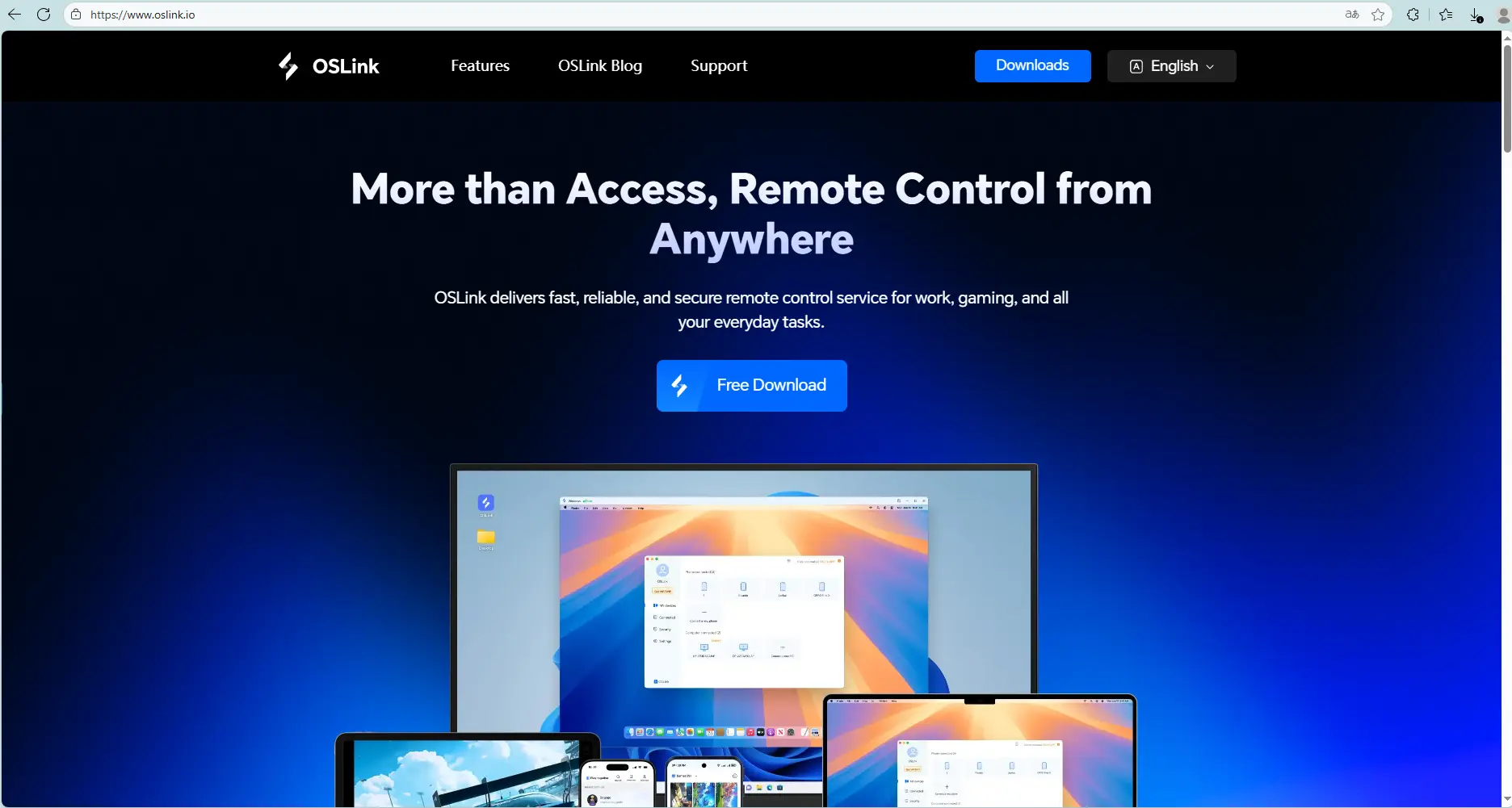
Mobile Side:
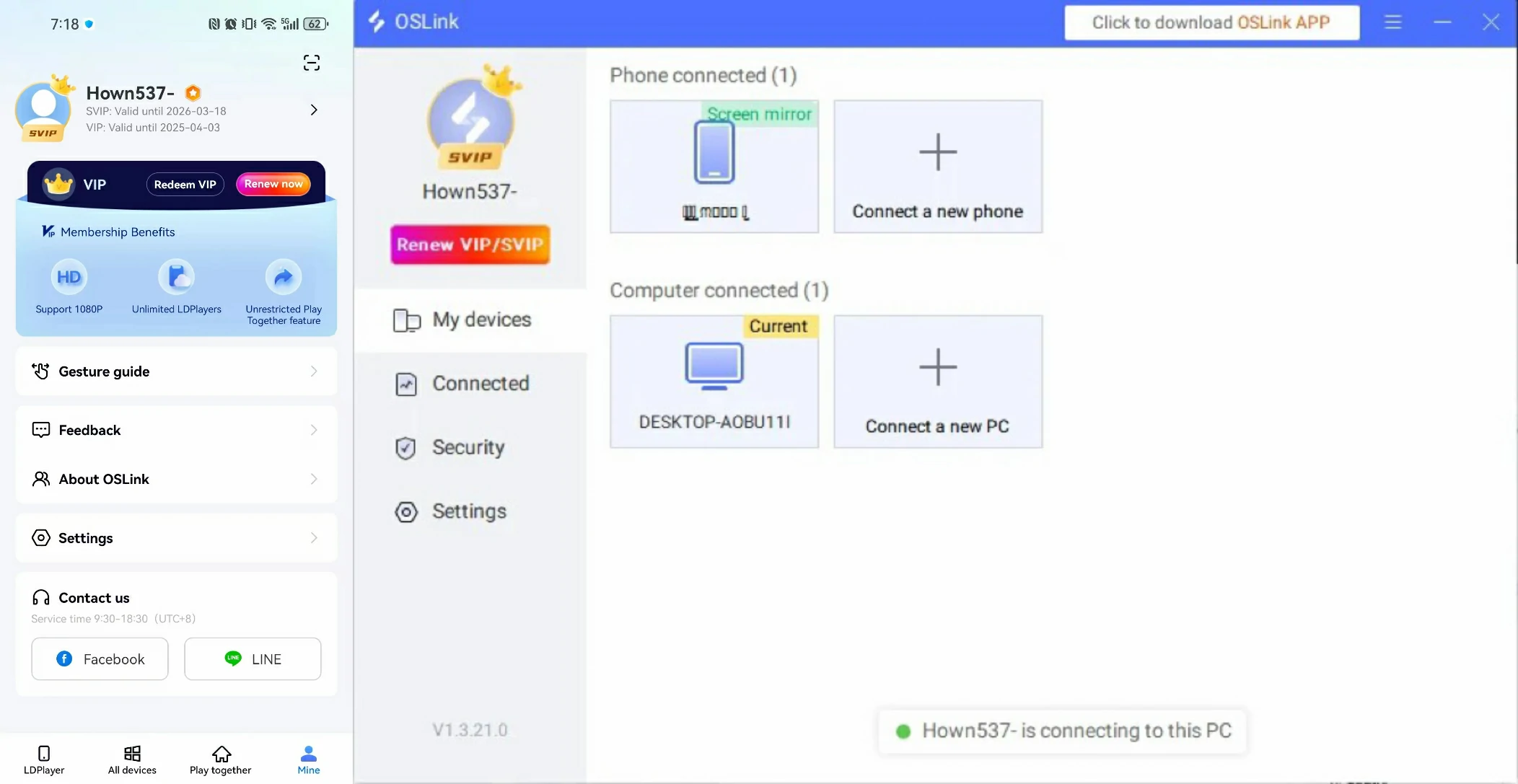
Download the OSLink App from the App Store or Google Play; the official website also offers APK downloads.
Log in with the same account as on the PC side to automatically connect.
Step 2: Control Optimization
1. Launch the Game
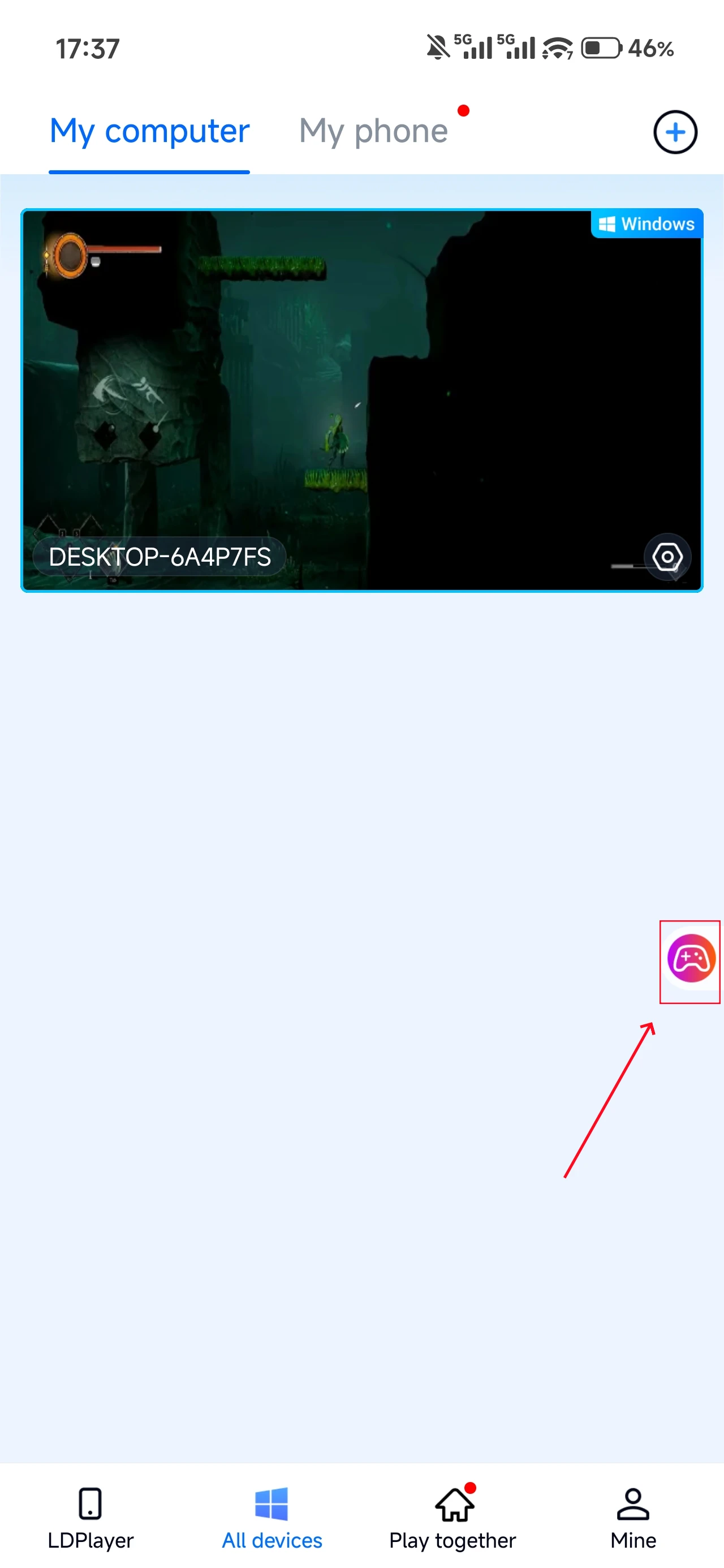
Open GRIME II on your PC, and the mobile side can connect directly; if GRIME II hasn't been launched on the PC yet, click the game icon on the mobile side for quick startup.
2. Control Mode
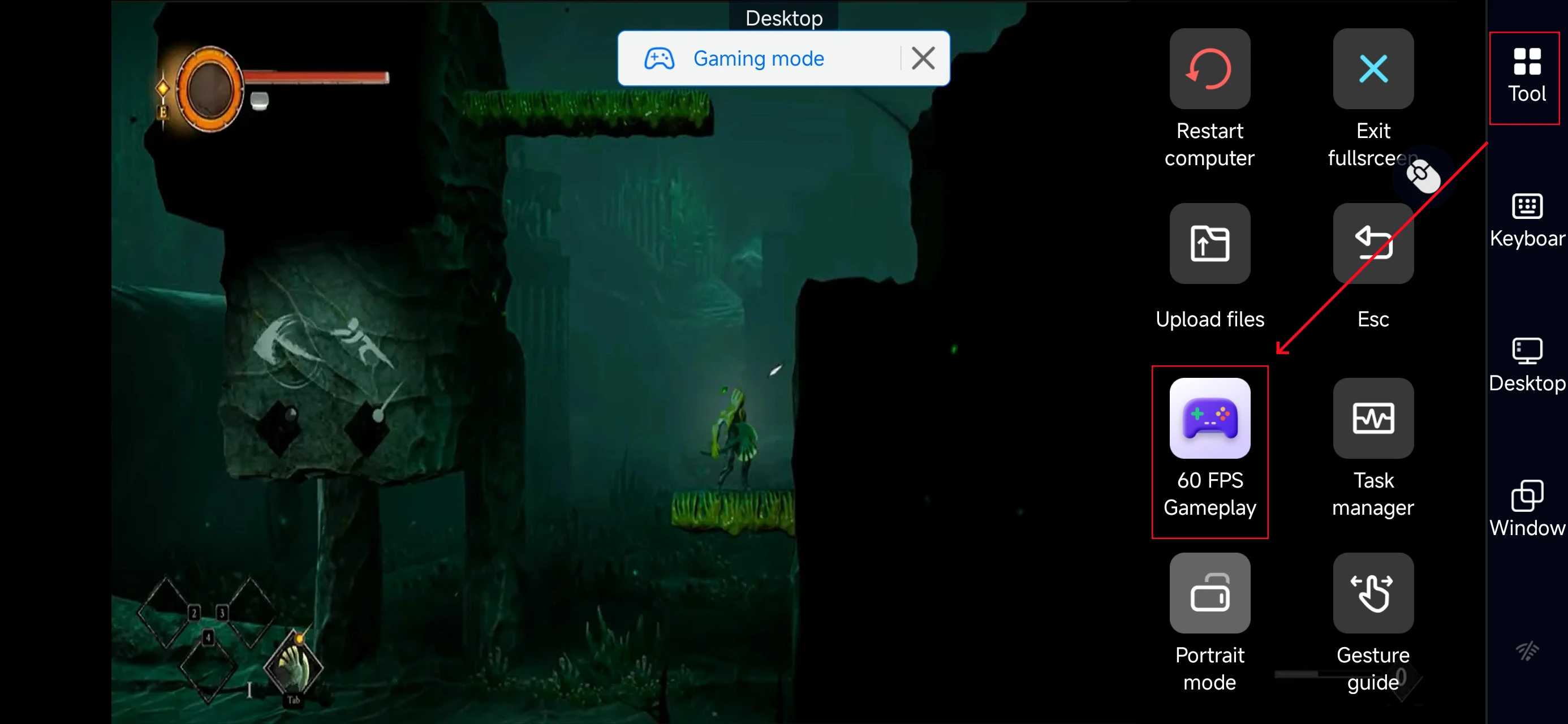
Click the toolbar on the right side of the mobile app, enter "60 FPS Gameplay," and choose key mode or link a controller based on your gaming preferences.
3. Customize key bindings
GRIME II requires precise movement and quick reactions, so your control setup matters a lot. Prioritize:
-
Movement and directional control
-
Attack
-
Skill usage and ability switching
-
Dodge / repositioning
-
Interaction (environment, traversal, mechanisms)
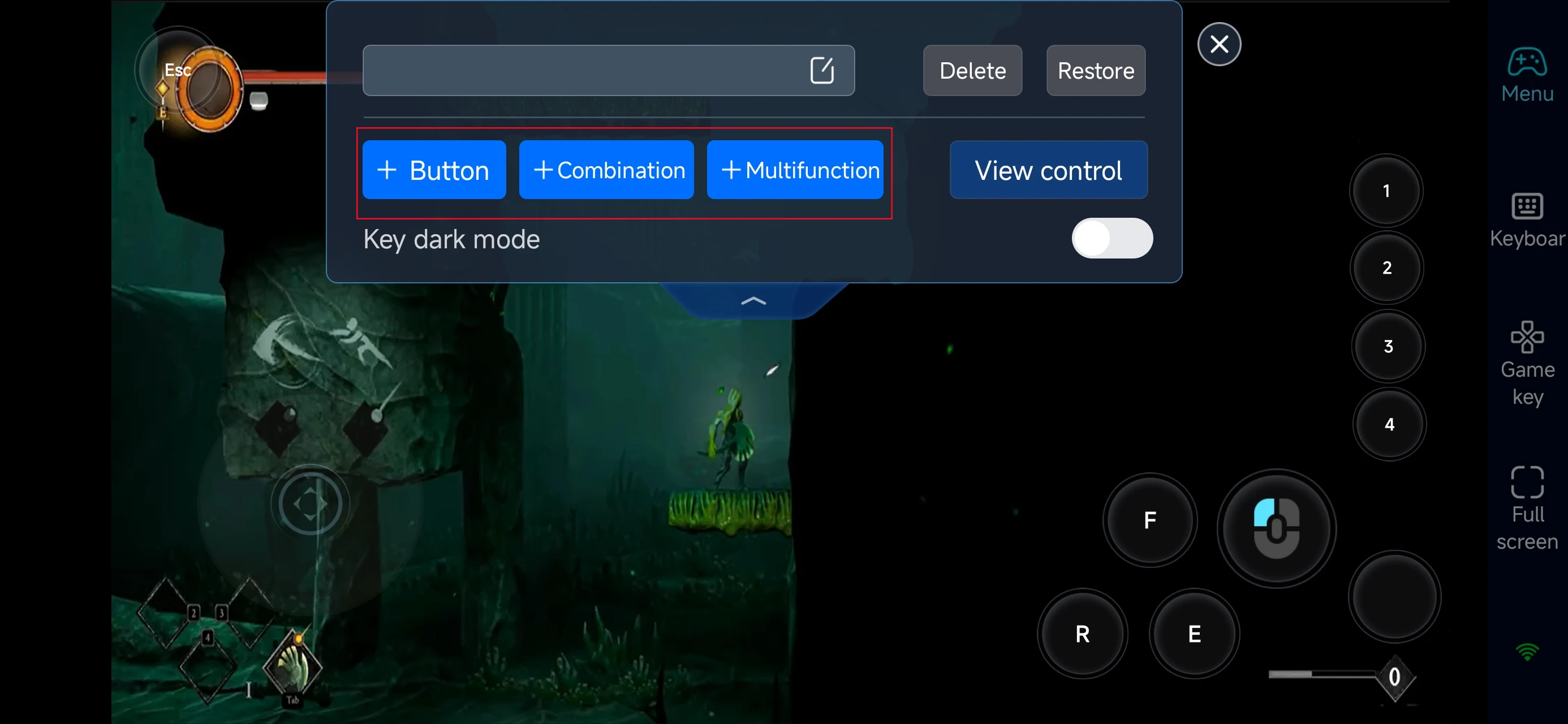
4.Connect external devices
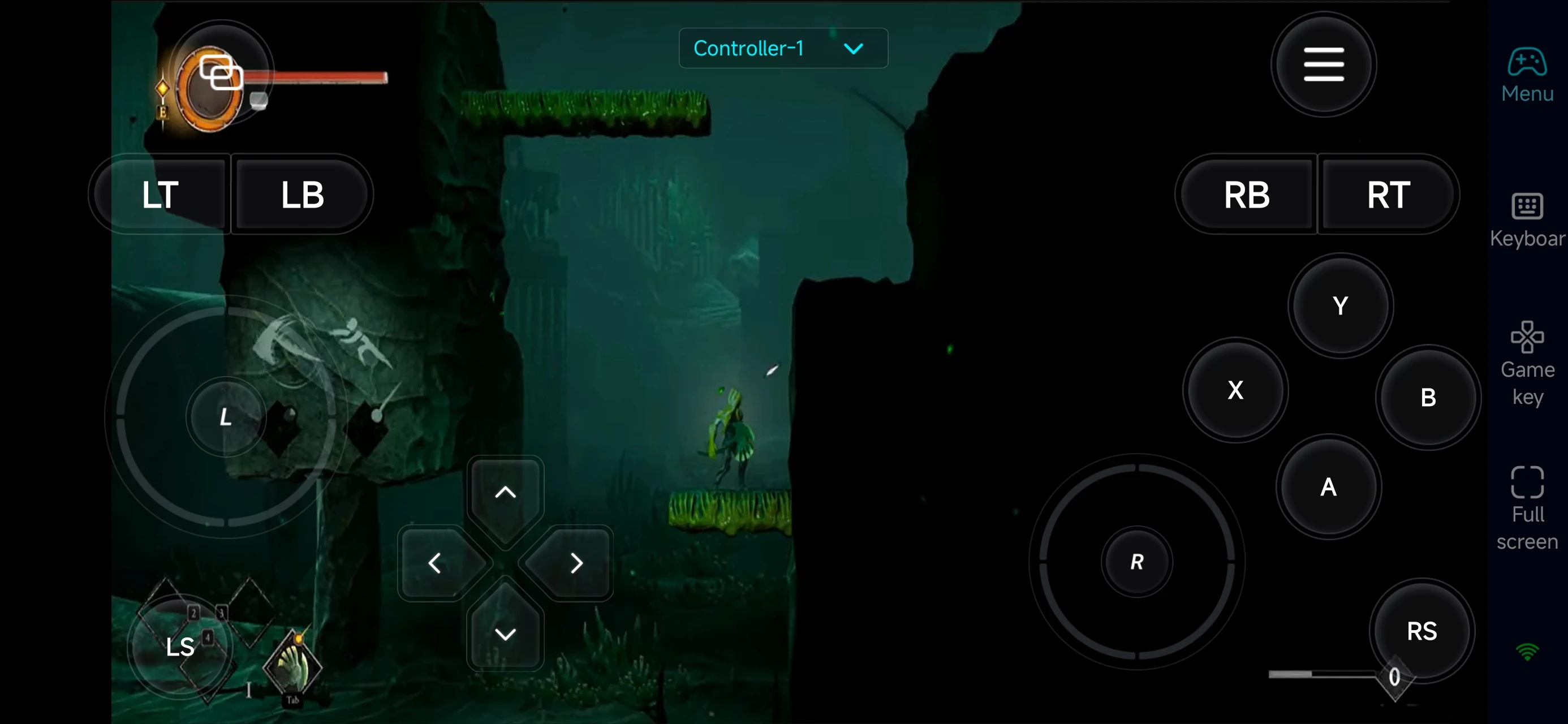
Beyond customizable buttons, OSLink supports a variety of external devices such as Bluetooth controllers and mobile gamepads clipped to your phone. This compatibility frees you from touchscreen limitations and offers a wider range of control options.
Step 3: Play Anywhere, Anytime
Once everything is set up, your phone becomes a portable GRIME II platform. You can use short sessions to:
-
Explore new zones
-
Learn enemy patterns and boss mechanics
-
Experiment with different abilities
-
Practice movement and combat timing
-
Progress through smaller sections of the map
Why Use OSLink for GRIME II?
1. Play Anywhere, Keep Progress Moving
Whether you're at home or on the go, you can jump in anytime and continue exploring.
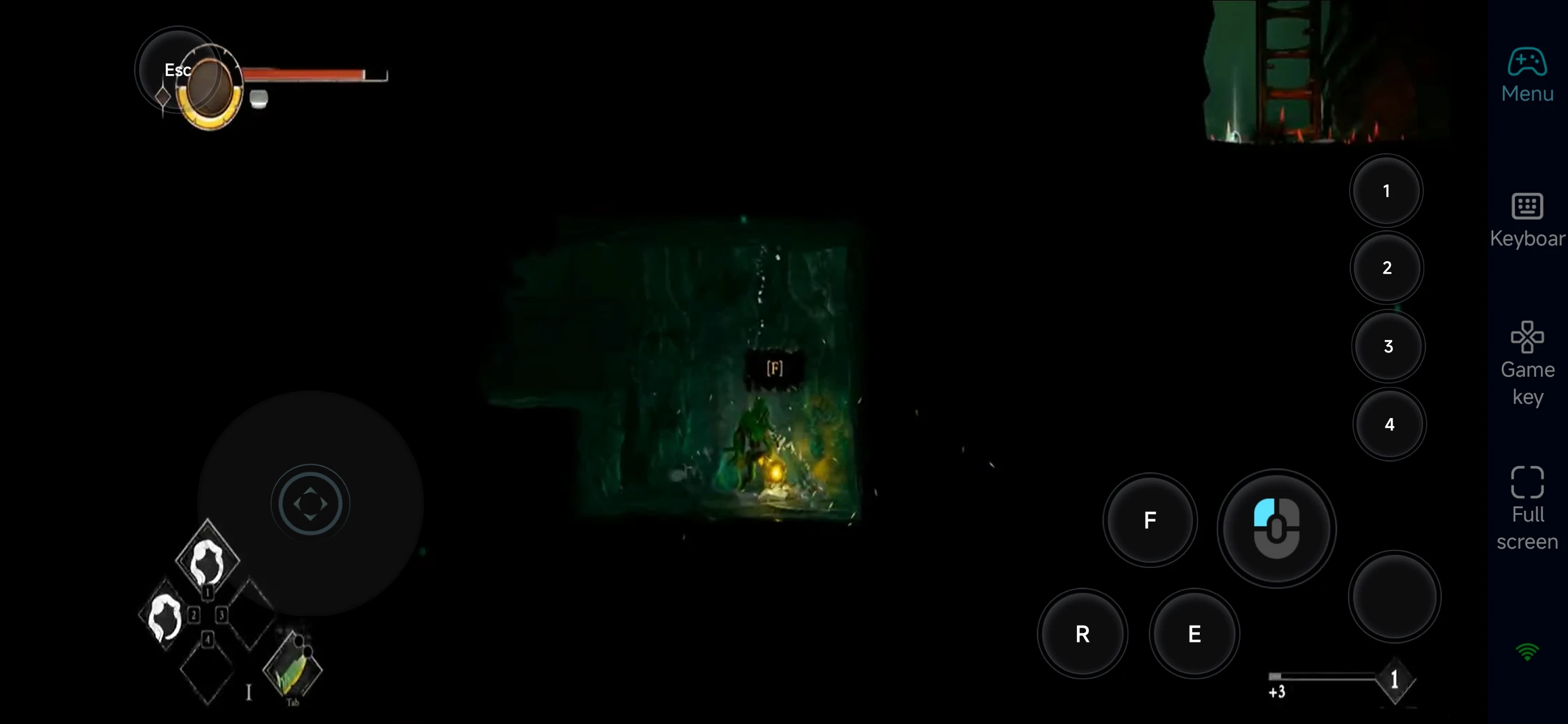
2. Smooth Controls for Fast Combat
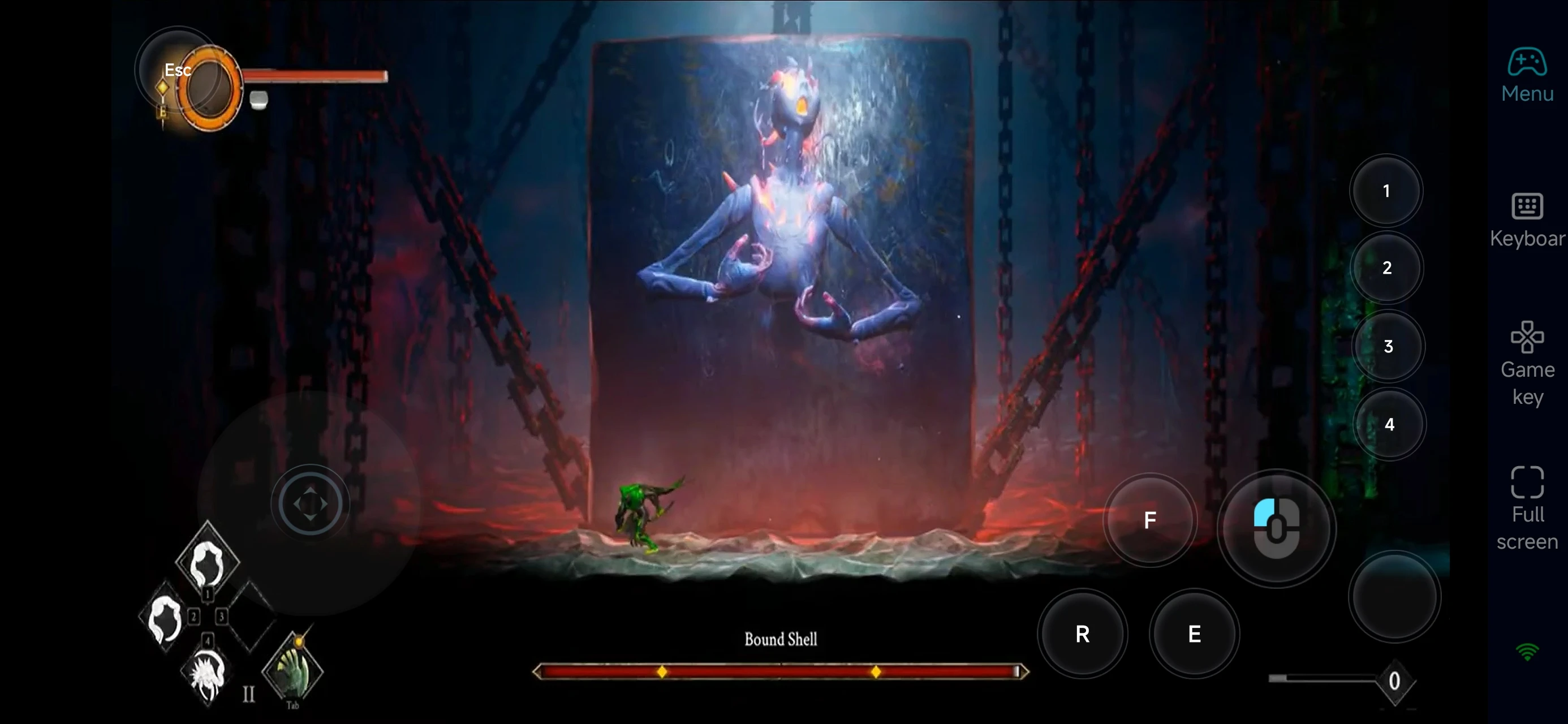
With custom key mapping and controller support, you can maintain responsive gameplay even on mobile.
This is especially important for:
-
Absorb timing
-
Dodging and positioning
-
Ability chaining
3. Make Use of Short Play Sessions
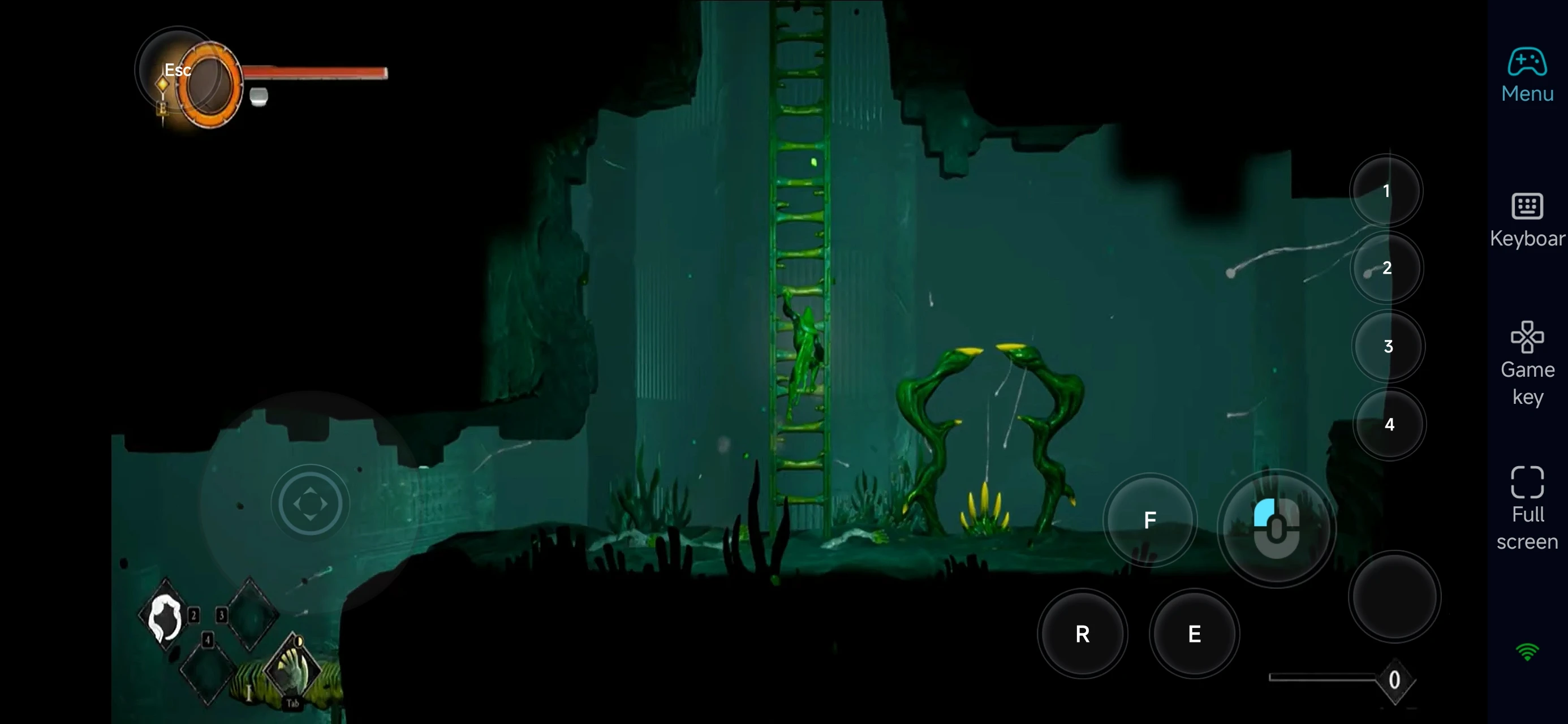
GRIME II works great in short bursts. With OSLink, you can:
-
Retry boss fights
-
Test new builds or abilities
-
Progress bit by bit without sitting at your desk
FAQ
Q: What is the release date of GRIME II ?
A: The game was officially released on March 31, 2026, for PC and major consoles.
Q: What are the minimum PC requirements for GRIME II?
Here are the minimum system requirements:
-
OS: Windows 10 (64-bit)
-
Processor: Intel Core i5-6600K / AMD Ryzen 3 1200
-
Memory: 8 GB RAM
-
Graphics: NVIDIA GeForce GT 1030 / AMD Radeon RX 550
-
DirectX: Version 11
-
Storage: 20 GB available space
For smoother performance, a higher-end setup is recommended.
Q: Can I play GRIME II on mobile?
A: There’s no official mobile version. However, you can play the PC version on your phone using OSLink remote access.
Q: Is GRIME II available on iPhone or iPad?
A: There’s no native iOS version, but you can stream the PC version to your iPhone or iPad using OSLink.
Conclusion
With OSLink, you can turn your phone into a portable way to play GRIME II. Whether you're exploring new areas, mastering mechanics, or retrying tough fights, remote play gives you the freedom to enjoy the game anytime—without being stuck at your desk.
 Download