English
  Blog Game Guide Play Astro Arena: 3vs3 Battle PvP on PC with OSLink | Bigger Screen & Custom Controls
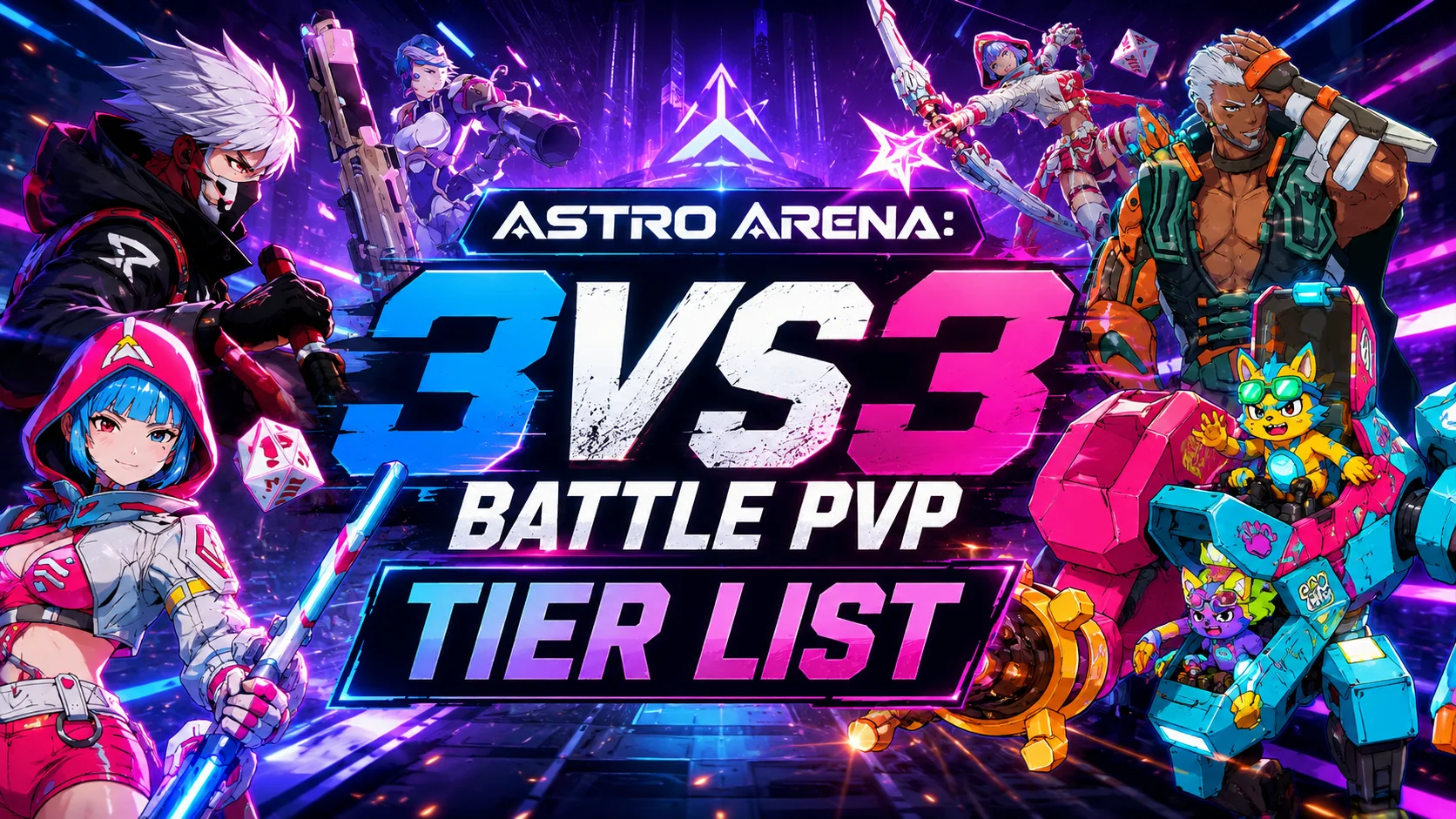
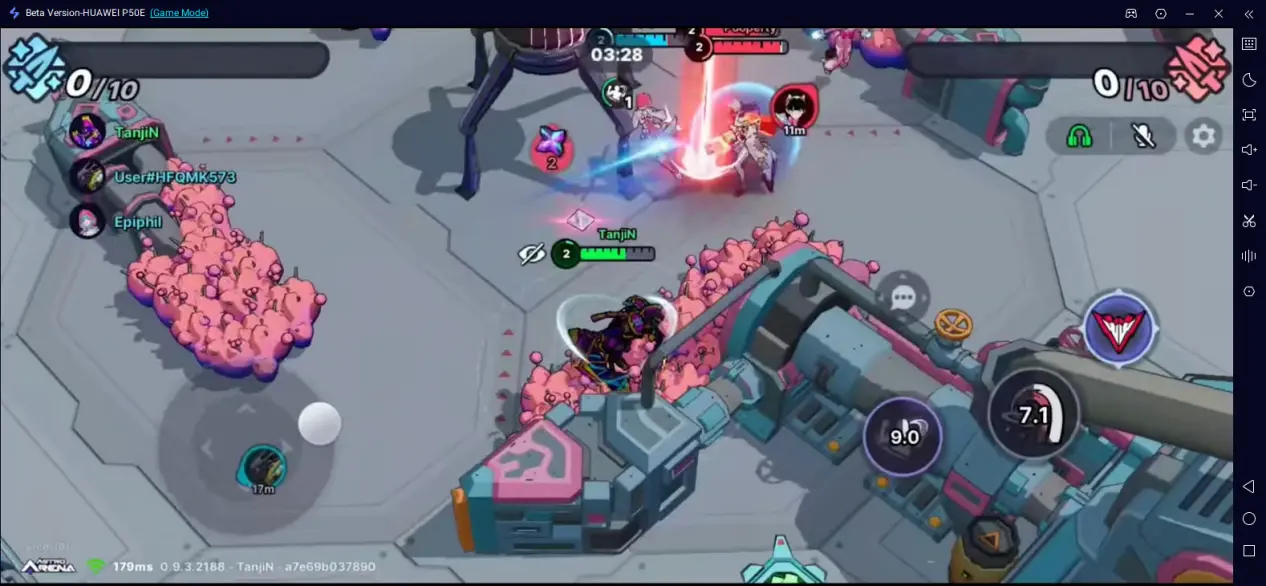
Astro Arena: 3vs3 Battle PvP is a fast-paced 3v3 multiplayer arena game developed by KRAFTON, combining MOBA strategy, hero-based combat, and roguelike Power-ups into action-packed five-minute matches. Every game emphasizes teamwork, objective control, and adapting your strategy as different upgrades become available.
While the game is designed for mobile devices, touchscreen controls can become a challenge during intense battles. Limited screen space and virtual buttons make it harder to track enemy movements and execute skills accurately, especially when every second counts in competitive matches.
OSLink provides a simple solution by mirroring your phone directly to your computer while keeping the game running on your mobile device. A larger monitor gives you a much clearer view of the battlefield, and customizable keyboard, mouse, or controller support allows you to perform skills more comfortably during high-pressure matches. Whether you're capturing objectives in Domination or escorting the payload in Cargo Push, a clearer screen and more consistent controls can help you stay focused on the game instead of fighting against touchscreen limitations.
How to Play Astro Arena: 3vs3 Battle PvP on PC Using OSLink
Step 1: Install Astro Arena on Your Mobile Device
Download Astro Arena: 3vs3 Battle PvP from Google Play or the App Store. If the game has not yet launched in your region, Android users can install the official APK from trusted distribution channels.
Step 2: Install OSLink on Your PC and Mobile Device
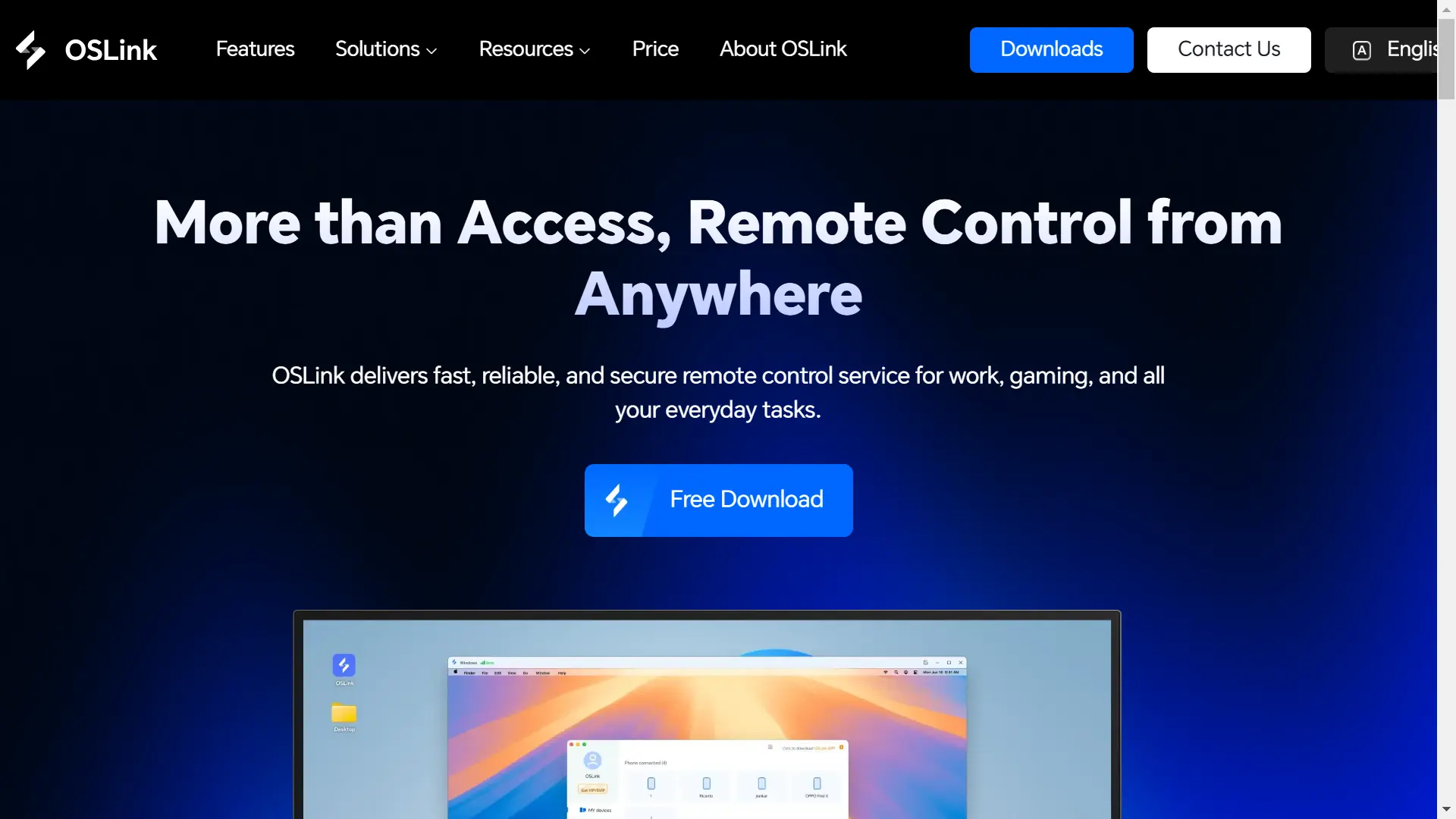
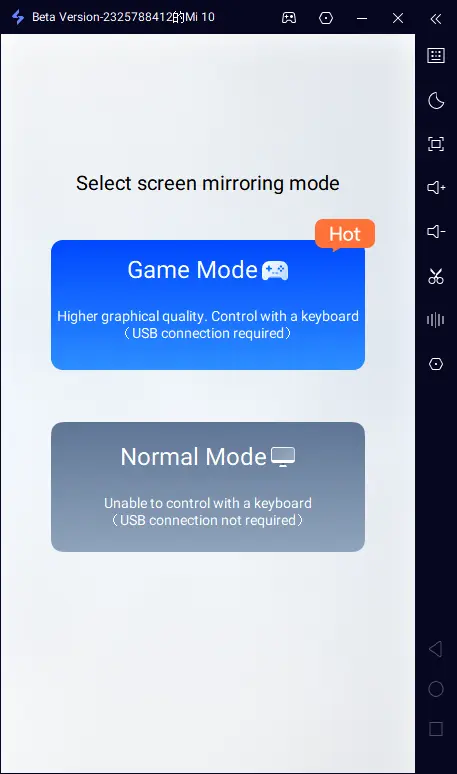
Visit the official OSLink website and install both the Windows client and the mobile application. OSLink supports secure screen mirroring and remote control, offering both Normal Mode for everyday device access and Game Mode, which is optimized for low-latency gaming over a USB connection.
Step 3: Connect Your Phone to the Computer
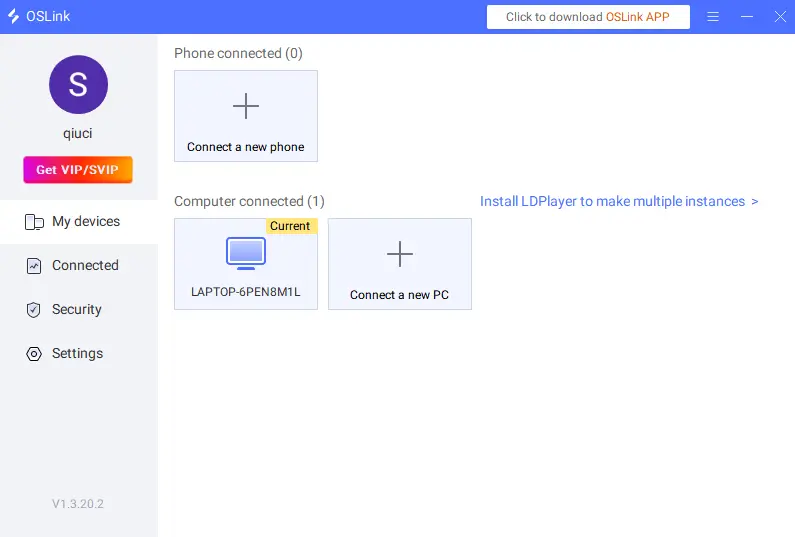
Launch OSLink on both devices and sign in using the same account. Connect your phone to the PC with a USB data cable, then select your mobile device from the OSLink desktop client to establish the connection. Once paired, you'll be able to manage connected devices, configure software settings, and start screen mirroring with just a few clicks.
Step 4: Switch to Game Mode
Select Game Mode after your phone is detected. This mode is specifically designed for gaming and minimizes input latency through a stable USB connection. Confirm the mirroring request on your mobile device to continue.
Step 5: Enable USB Debugging (Android Only)
If you're using an Android device for the first time, you'll need to enable Developer Options and turn on USB Debugging. Open Settings > About Phone, tap Build Number seven times, then return to Developer Options and enable USB Debugging. Approve the authorization request when prompted. iPhone users only need to grant screen recording permission after connecting.
Step 6: Start Playing
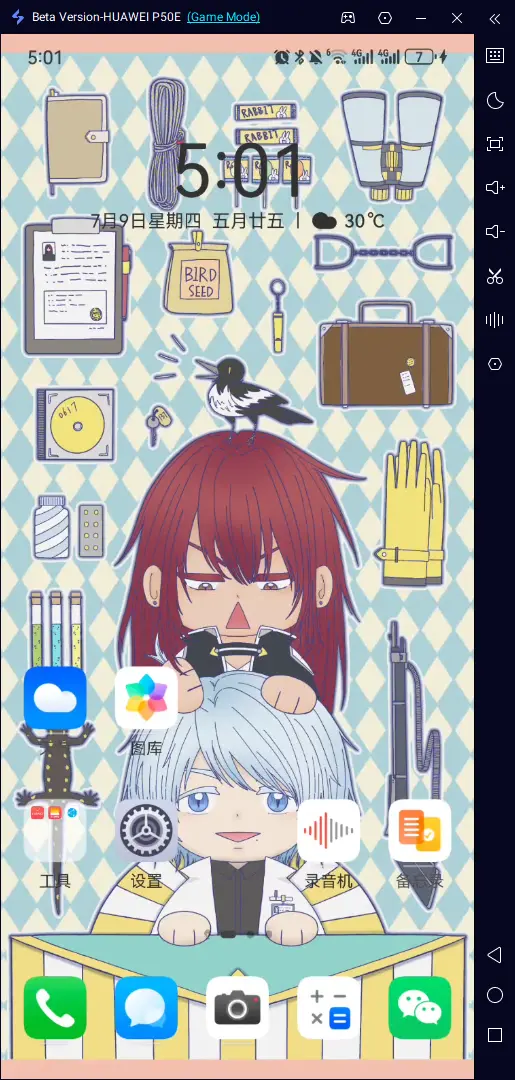
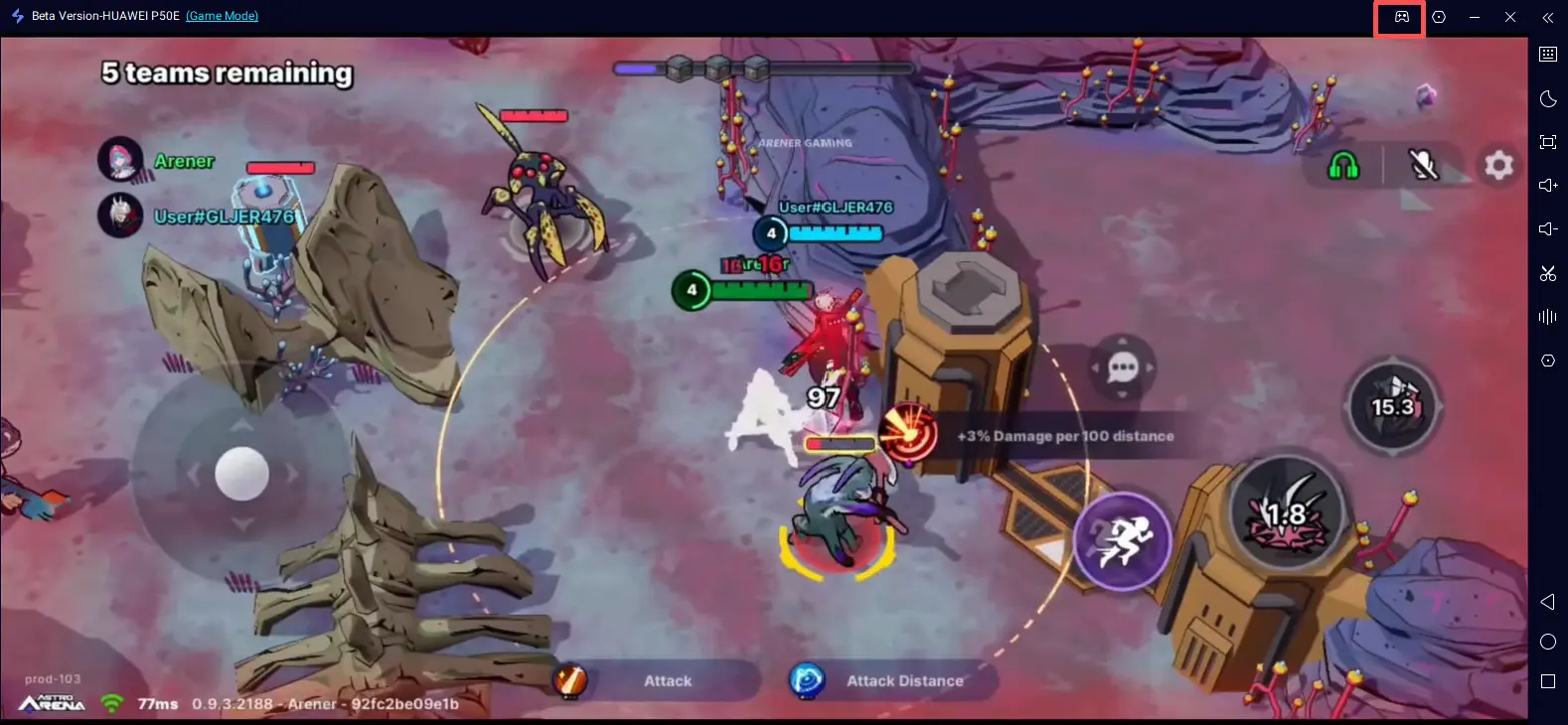
Once everything is configured, your phone's display will appear on your computer instantly. Launch Astro Arena: 3vs3 Battle PvP as usual and begin playing on a larger screen while keeping all of your game progress on your original mobile device.
Customize Keyboard & Mouse Controls
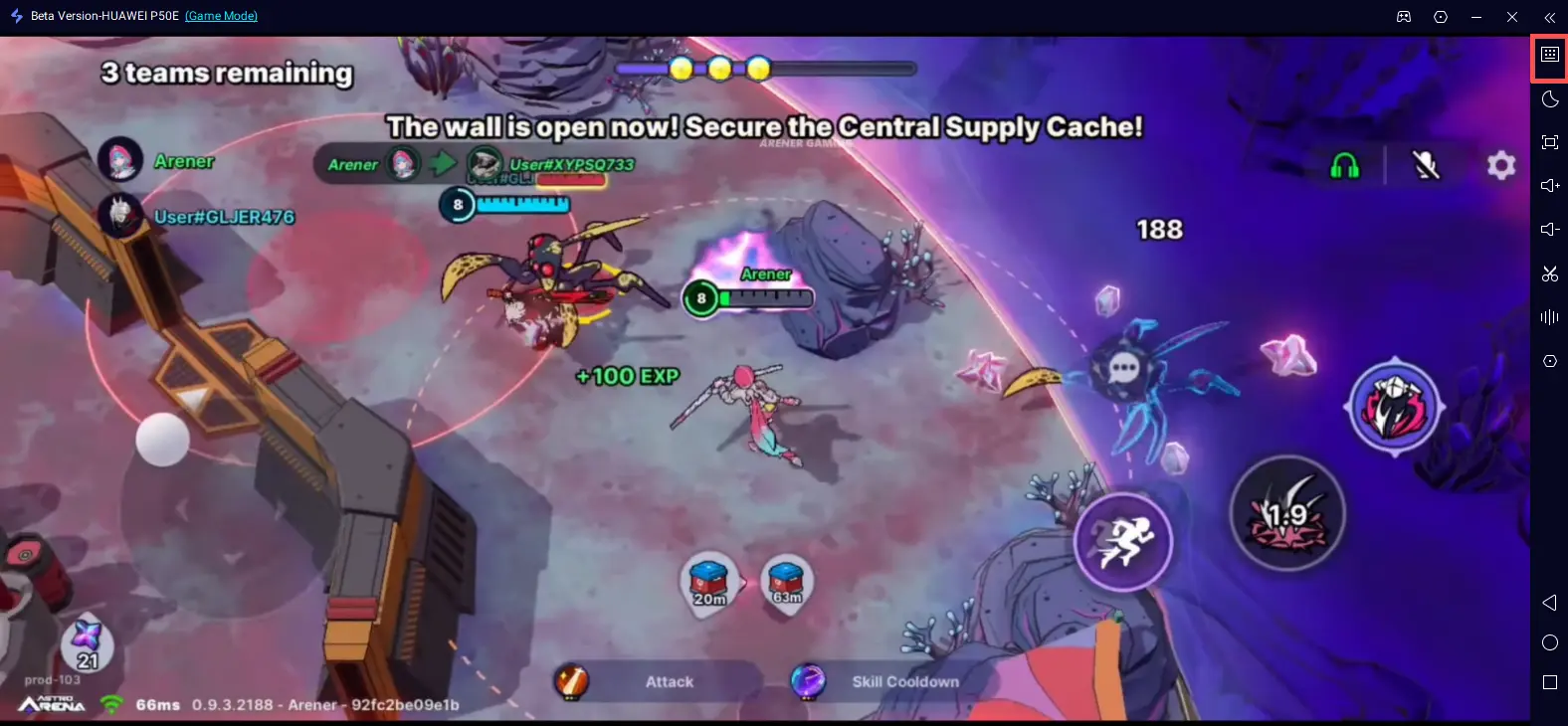
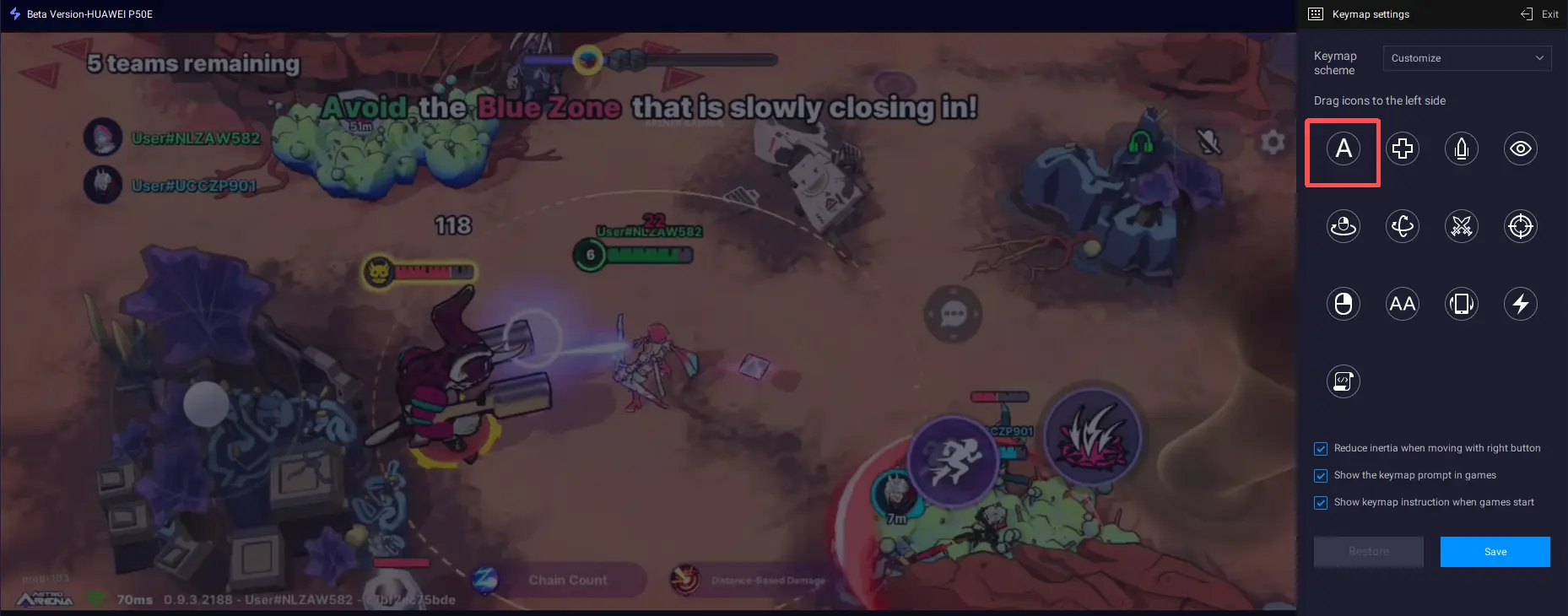
After screen mirroring begins, click the keyboard icon on the OSLink sidebar to open the Key Mapping Editor. You can freely drag virtual buttons onto the game's control areas and assign keyboard shortcuts that match your preferred playstyle.
|
Action |
Recommended Key |
|
Move |
W / A / S / D |
|
Basic Attack |
Left Mouse Button |
|
Skill 1 |
Q |
|
Skill 2 |
E |
|
Ultimate |
R |
|
Dash / Mobility Skill |
Space |
|
Ping |
F |
|
Scoreboard |
Tab |
Unlike touchscreen controls, a customized keyboard layout makes it much easier to activate skills consistently during hectic team fights. If you regularly switch between Tanks, Supports, and DPS heroes, it's worth creating separate control profiles for each role. Since different heroes rely on different skill rotations, dedicated key layouts can help reduce mistakes and improve overall comfort. Once saved, your preferred mappings can be loaded automatically whenever you launch Game Mode.
Controller Support for a Console-Like Experience
If you prefer playing action games with a controller, OSLink also supports most wired and Bluetooth gamepads. After connecting your controller, you can customize button assignments for movement, attacks, abilities, and Ultimate skills according to your preferences.
This setup works particularly well for players who are already familiar with console shooters or action games. Combined with adjustable resolution and frame rate settings, it delivers a smooth and responsive gameplay experience during long ranked sessions.
Tips for a Better Astro Arena Experience on PC
For the best performance, use a high-quality USB data cable when playing in Game Mode, as charging-only cables cannot transmit data properly and may lead to connection issues or higher input latency. A larger monitor also makes it easier to track objectives, teammates, and enemy movements, giving you better map awareness during fast-paced 3v3 matches.
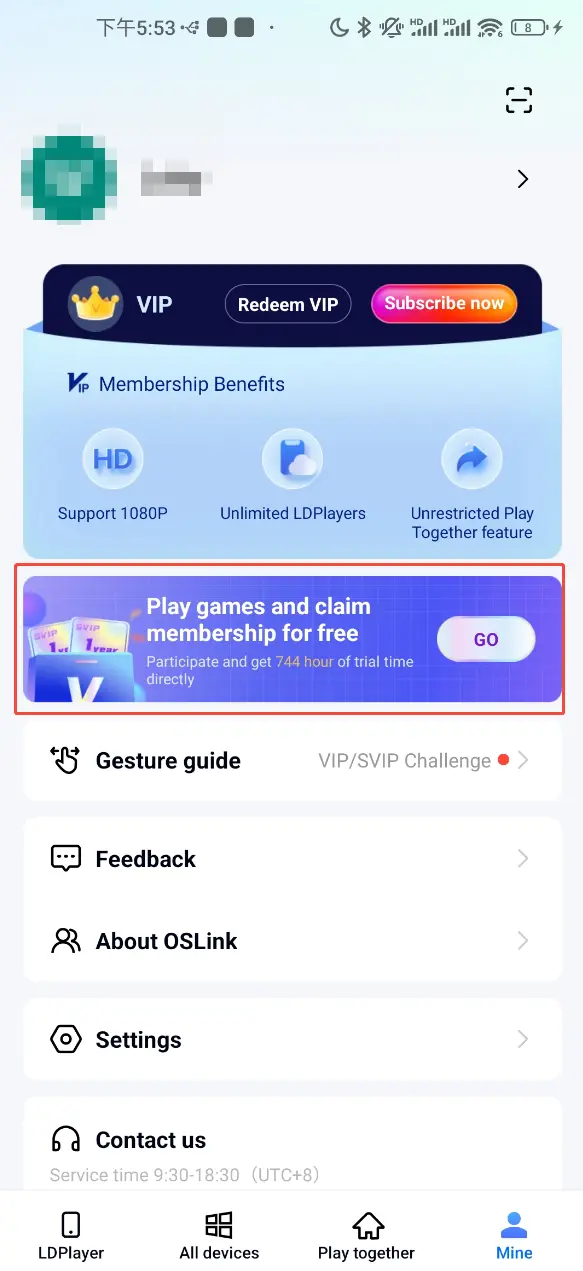
If you play different hero roles regularly, consider creating multiple key mapping profiles so you can switch layouts instantly without reconfiguring your controls before every game. Free Usage Time: You can also watch ads or complete simple tasks in the Me section of the OSLink mobile app to earn free service hours and continue enjoying high-quality screen mirroring at no extra cost.
FAQ
Q: Does Astro Arena: 3vs3 Battle PvP have an official PC version?
A: No. Astro Arena: 3vs3 Battle PvP is currently available only for Android and iOS devices. There is no official Windows client or Steam version at this time.
Q: Can I play Astro Arena on my computer using OSLink?
A: Yes. OSLink mirrors your mobile device directly to your PC, allowing you to play on a larger screen with customizable keyboard, mouse, or controller controls while using your existing mobile account.
Q: Will my game progress be affected?
A: No. Because the game continues running on your phone, all progress, purchases, and account data remain exactly the same as when playing normally on your mobile device.
Q: Can I use a game controller?
A: Yes. OSLink supports a wide range of USB and Bluetooth controllers, giving players the flexibility to enjoy a console-style control experience with fully customizable button mappings.
Q: What devices are required to run Astro Arena smoothly?
A: Astro Arena is available for Android and iOS devices. For the best experience, it's recommended to use a device with sufficient free storage, at least 4GB of RAM, and a stable internet connection, especially when playing competitive online matches.
Summary
Although Astro Arena: 3vs3 Battle PvP doesn't have an official PC version, that doesn't mean you're limited to a small mobile screen. With OSLink, you can mirror the game to your computer in just a few minutes and enjoy a larger display, flexible keyboard mapping, and controller support without changing your account or game progress. Whether you're coordinating team fights, securing objectives, or adapting to new Power-ups each match, a clearer view and more comfortable controls can help you play with greater confidence and consistency throughout every battle.
 Download