English
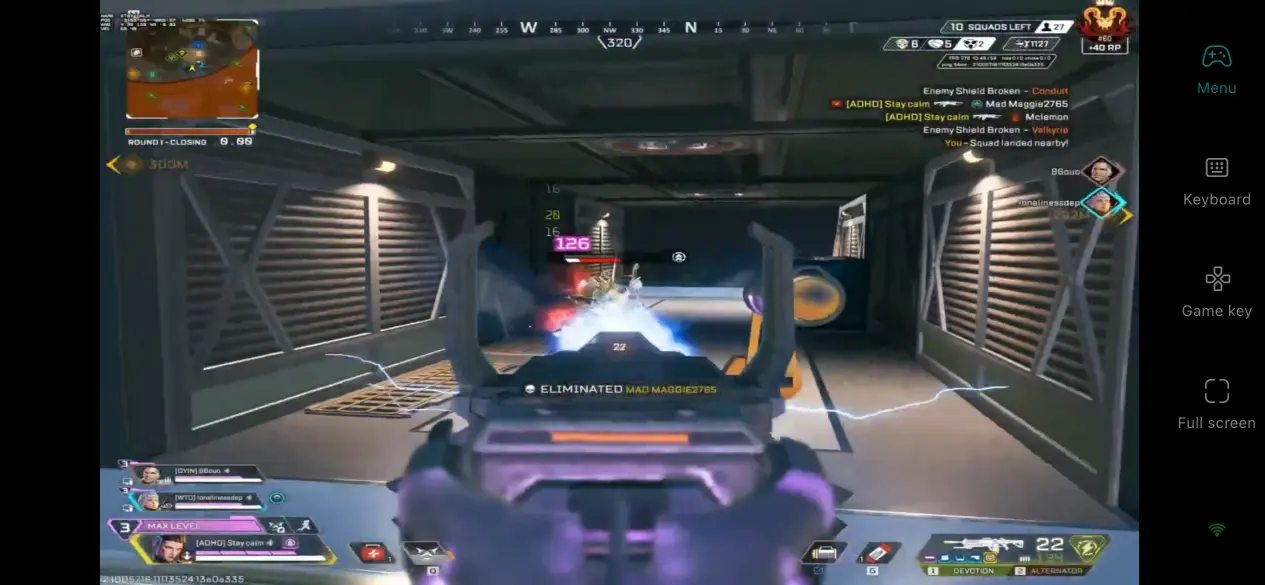
 With its fast-paced movement, unique Legend abilities, and intense tactical battles, Apex Legends™ has always maintained a large and stable player base. Many players still prefer experiencing the game on PC to enjoy higher frame rates, more precise controls, and complete visual quality.However, for players who frequently travel, go on business trips, or cannot stay in front of their computers for long periods, gaming time is often limited by device availability. So, is there a way to play Apex Legends™ through a phone?This guide will introduce how to run Apex Legends™ on your phone, covering everything from game installation and device preparation to connection steps and performance optimization. If you are interested, keep reading.
To achieve smooth remote play of Apex Legends™ on phones, OSLink is a lightweight remote streaming tool optimized for PC shooters. The entire game processing workload is handled by your computer hardware, while your phone only receives the streamed image and sends control inputs. Even older devices with lower specifications and limited memory can run the service smoothly, making cross-device gaming easier and accessible for different types of players.
1. Prepare Apex Legends™ on Your PC
Apex Legends™ can be downloaded for free on three major PC platforms. All platforms require an EA Account to unlock the complete game content:
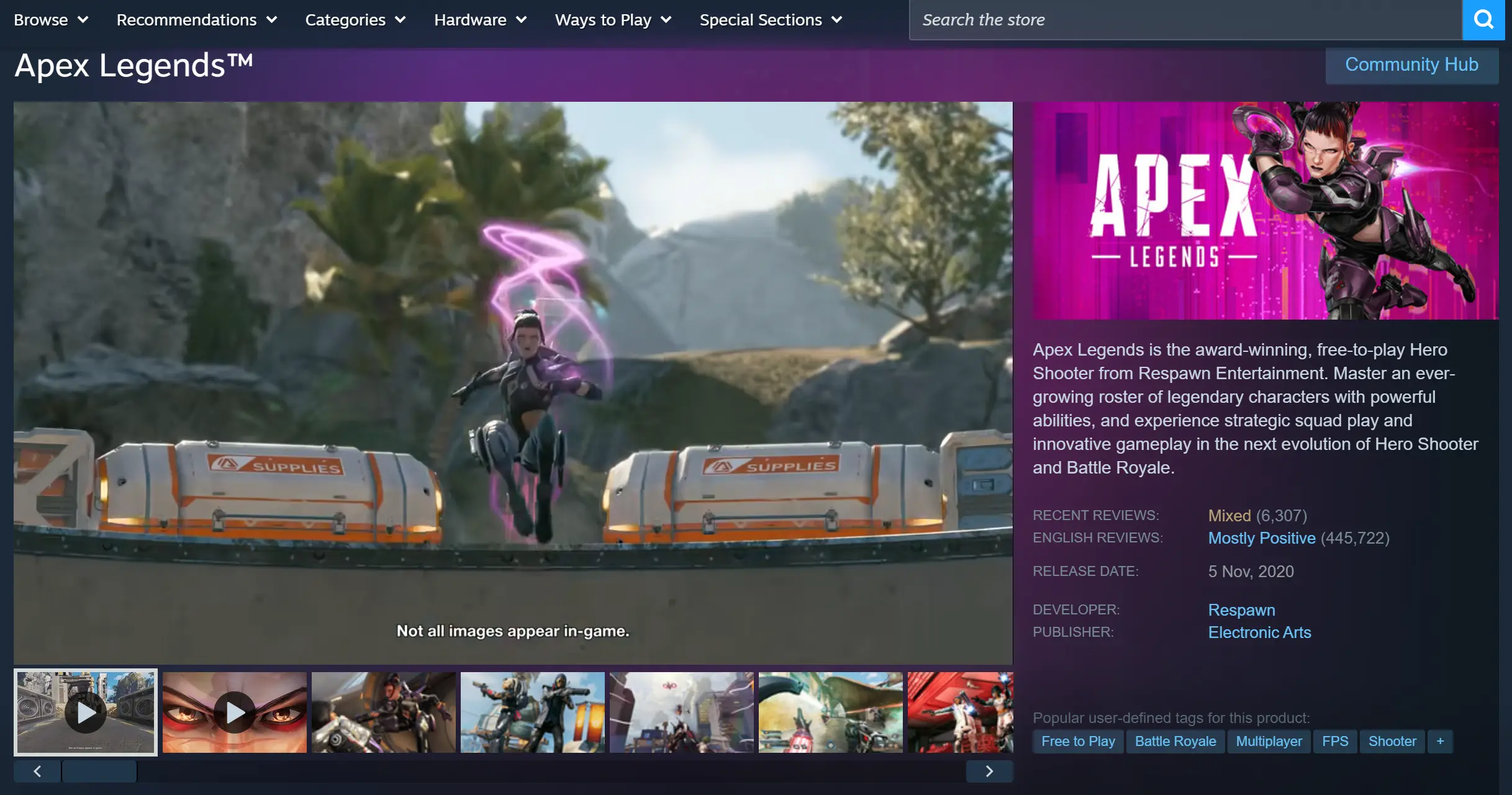
1. Steam Platform:
Search for “Apex Legends” in the Steam client, click Free Install, and link your EA Account after installation is completed.
2. EA App Client:
EA's official gaming platform. After logging into your account, download the game directly from your library. It supports all version updates.
3. Epic Games Store:
Search for the game title in the store and add it to your library. EA Account cross-save support is also available.
Apex Legends System Requirements
Minimum Requirements (only suitable for basic game launching, possible frame drops during matches):
64-bit Windows 10 system, Intel i3-6300 / AMD FX-4350 processor, 6GB RAM, GTX 950 / HD 7790 graphics card.
Recommended Smooth Performance Setup (stable 60 FPS remote streaming):
Ryzen 5 equivalent CPU, 8GB RAM or above, GTX 970 / R9 290 graphics card.
Keep the monitor powered on during use to prevent the graphics card from entering low-power mode, which may affect streaming output performance.
2. Install OSLink
On PC
Visit the official OSLink website and download. Run the installer, choose a custom installation path if needed, and launch the software after installation.
Register or log into your dedicated account. Keep the software running in the background and avoid closing the program window to ensure your device remains online and discoverable.
On Mobile
Android Devices:
Search for OSLink in the built-in app store and download the application. For third-party channels, visit the official website to obtain the authorized installation package.
iOS Devices:
Open the App Store, search for OSLink, and complete the download.
After installation is complete, players need to log in using the same account as the PC device.
The software will automatically scan available online devices. No manual pairing code input is required, and the connection can be completed automatically.
3. Launch Apex Legends Remotely on Mobile
Step 1
After turning on your computer, open Steam or EA App and enter the main menu of Apex Legends™.
Simply stay on the lobby screen. There is no need to enter matchmaking. Keep the game running in the foreground.
Step 2
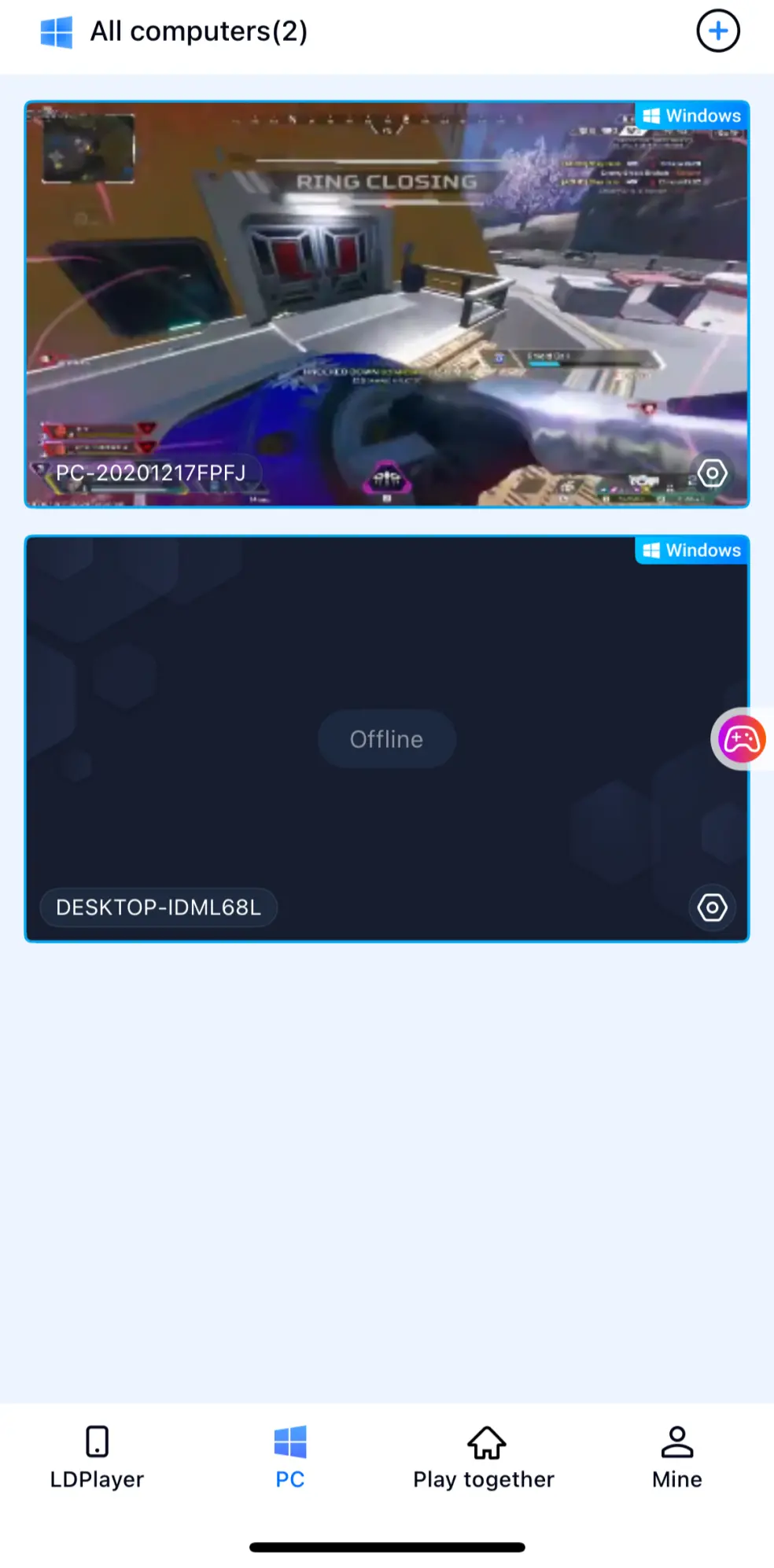
Open the OSLink mobile application. The device list on the homepage will display computers logged into the same account.
Select the corresponding device to start the connection. Within a few seconds, your desktop screen will be synchronized and streamed to your phone.
Step 3
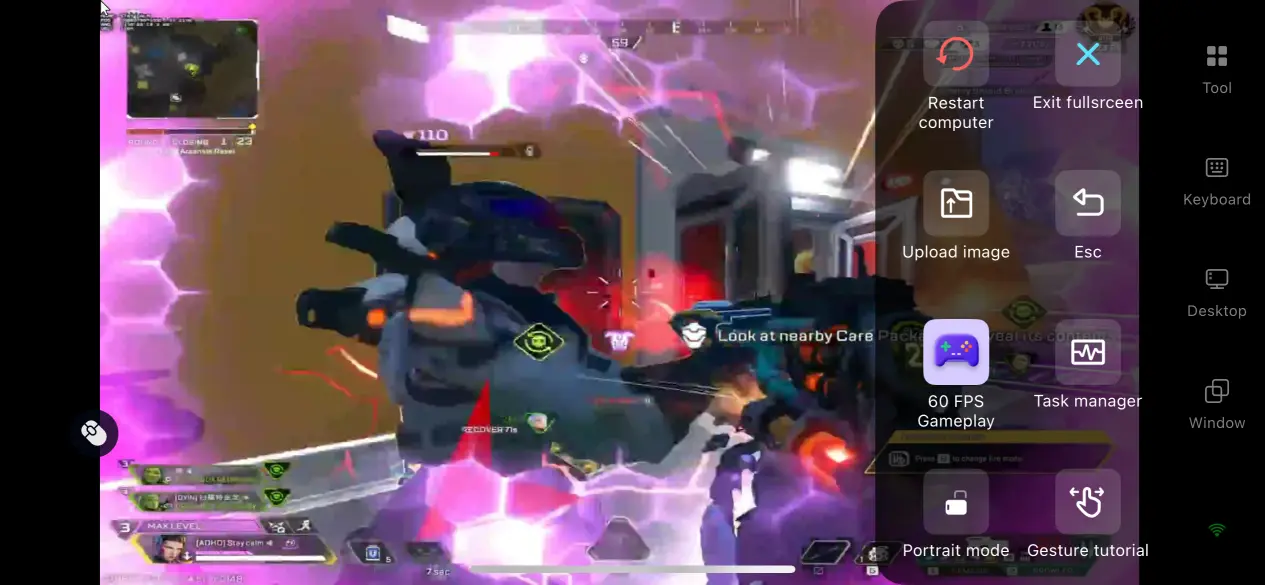
After successful screen streaming, you can click the side toolbar and select the 60 FPS PC Game Mode. The software will automatically optimize image encoding settings for shooter games.
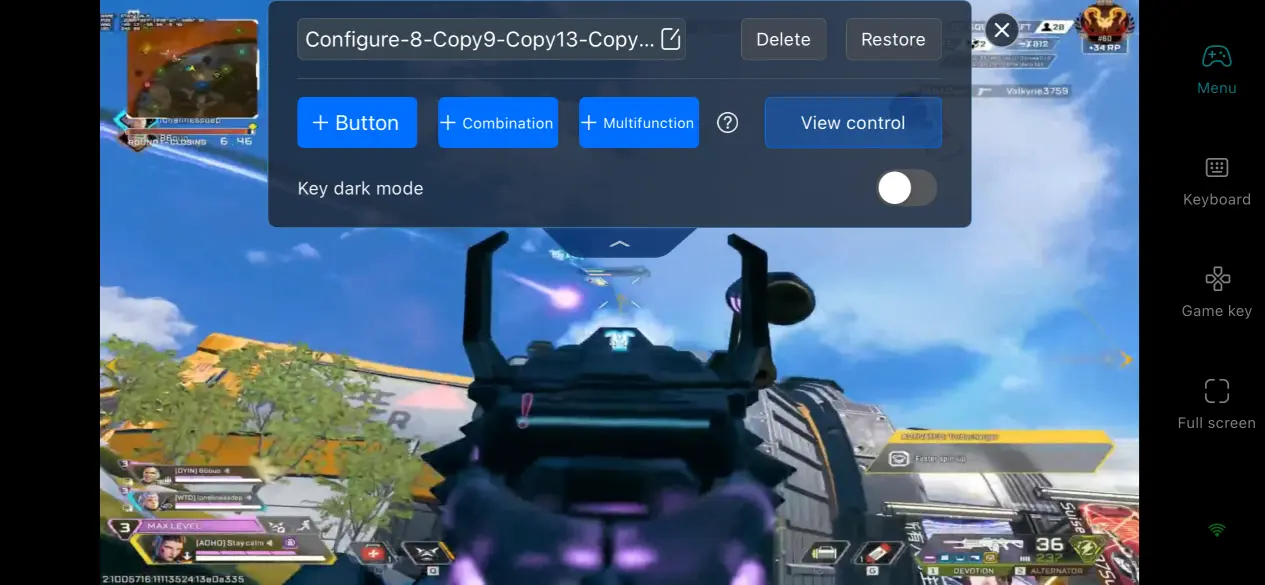
You can also select preset virtual button layouts, or manually adjust button positions. After completing the setup, you can directly operate the game and start matchmaking from the lobby.
4. Advantages of Playing Apex Legends on Mobile
Start Matches Anytime with Flexible Access
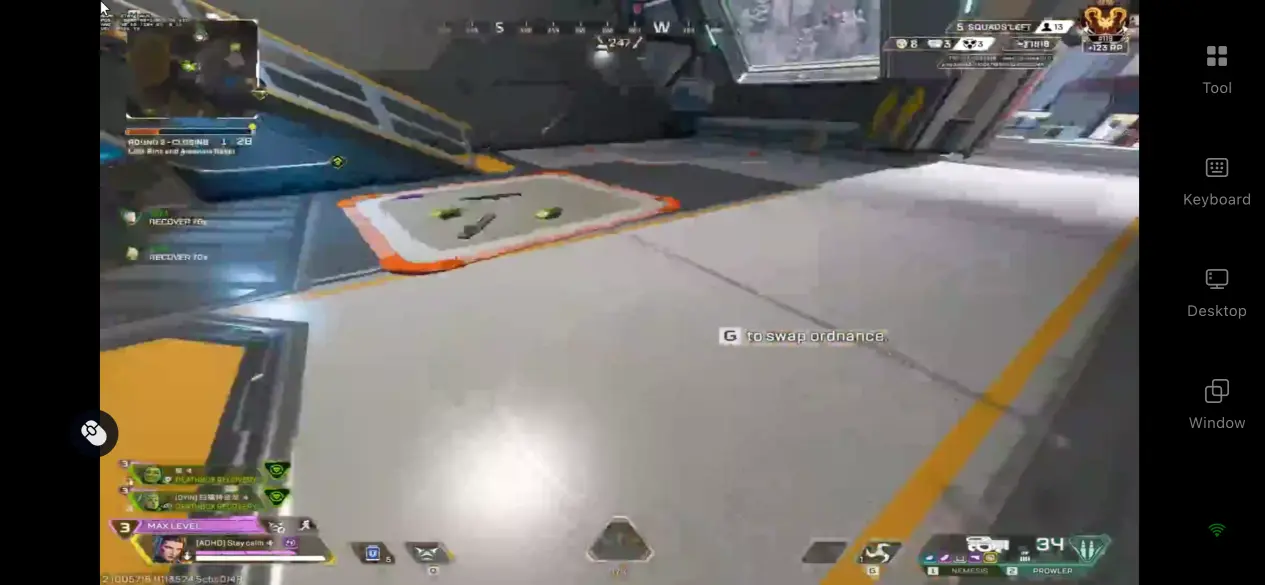
You are no longer limited by the physical location of your PC. During short breaks outside, you can quickly connect to your computer to complete daily Battle Pass missions, claim limited-time store rewards, or team up with friends for matchmaking. Make full use of fragmented free time without needing to stay beside your computer for long periods.
Zero Local Storage Usage on Mobile
The complete game installation files, Legend data, and high-quality resources remain stored on your computer's hard drive. Your phone only receives the streamed visuals and sends control commands. There is no need to clear your photo albums or delete applications to free up storage space. Even older low-spec phones can smoothly stream and play the game.
High Compatibility with External Devices
The software supports Bluetooth keyboards and mice, as well as wired or wireless controllers. After connecting peripherals to your phone, you can closely replicate the PC control experience.Remote combat actions such as aiming, slide movement, and using Legend abilities become much more accurate and responsive.
5. Introduction to OSLink Built-in Assistance Features
High Frame Rate & Low Latency Mode
After enabling the 60 FPS Game Mode, the software dynamically optimizes encoding for fast movement, quick aiming, and large-area slide movements. It reduces motion blur and shortens the delay between input commands and visual feedback. Close-range fights remain smooth without obvious stuttering or noticeable latency.
Fully Customizable Virtual Controls
Players can freely add or remove controls such as movement joysticks, aiming, throwing items, ability activation, and slide actions. Each button can be individually adjusted, including size, transparency, and position.
Different Legends and weapons can have customized layouts based on personal preferences, reducing the time needed to adapt to mobile controls.
Multiplayer Room Feature
OSLink includes a dedicated multiplayer collaboration room system.
Players can create their own game rooms and generate unique invitation codes. Sharing the code with friends allows multiple users to remotely control the same PC running Apex Legends™. Room permissions can be adjusted freely. Up to five mobile users can connect simultaneously, allowing friends in different locations to cooperate, explore maps, or review matches together without owning their own gaming PCs.
6. FAQs
Q: Can I play Apex Legends on Android?
A: Yes. There is currently no official Android version of the PC version of Apex Legends™. However, with OSLink remote streaming, you can access and play the full PC version on your Android phone by connecting to your computer.
Q: Can I play Apex Legends on iPhone?
A: Yes. While the PC version of Apex Legends™ cannot be installed directly on iPhone or iPad, you can use OSLink to remotely connect to your PC and play the full game on your iOS device. The game files, updates, and save data remain stored on your computer, while your phone only handles screen streaming and controls, helping save mobile storage space.
Q: Do my PC and phone need to be connected to the same Wi-Fi network?
A: No. Your PC and phone do not need to use the same network. As long as your computer remains powered on and connected to the internet, you can remotely access Apex Legends™ from your phone through OSLink. For a smoother experience, a stable network connection is recommended on both devices.
Conclusion
For players who want to experience the PC version of Apex Legends™ anytime, remote streaming provides a more flexible way to play.
Whether you are at home or away, as long as your PC remains online, your phone can quickly connect and launch Apex Legends™matches anytime, anywhere.
 Download