English
 As a co-op survival horror game set in the world of Poppy Playtime, Escape from Playtime has drawn plenty of attention with its dynamically generated factory maps and multiplayer escape mechanics. However, the game is only available on PC, leaving many players looking for a way to break free from their usual setup, continue playing during commutes or breaks, or invite friends to jump into a factory escape session anytime. This mobile remote play solution offers a practical way to play the PC version remotely. The guide below covers everything from getting the game and pairing your devices to optimizing the overall experience, making it easy to follow along.
OSLink makes it easier to bring PC games to your phone without changing any low-level system settings. It streams the full screen of Escape from Playtime running on your computer directly to your phone. Whether you're sneaking through the factory alone to search for supplies or teaming up with friends to avoid monsters, you can still enjoy responsive controls and a relatively smooth gameplay experience.
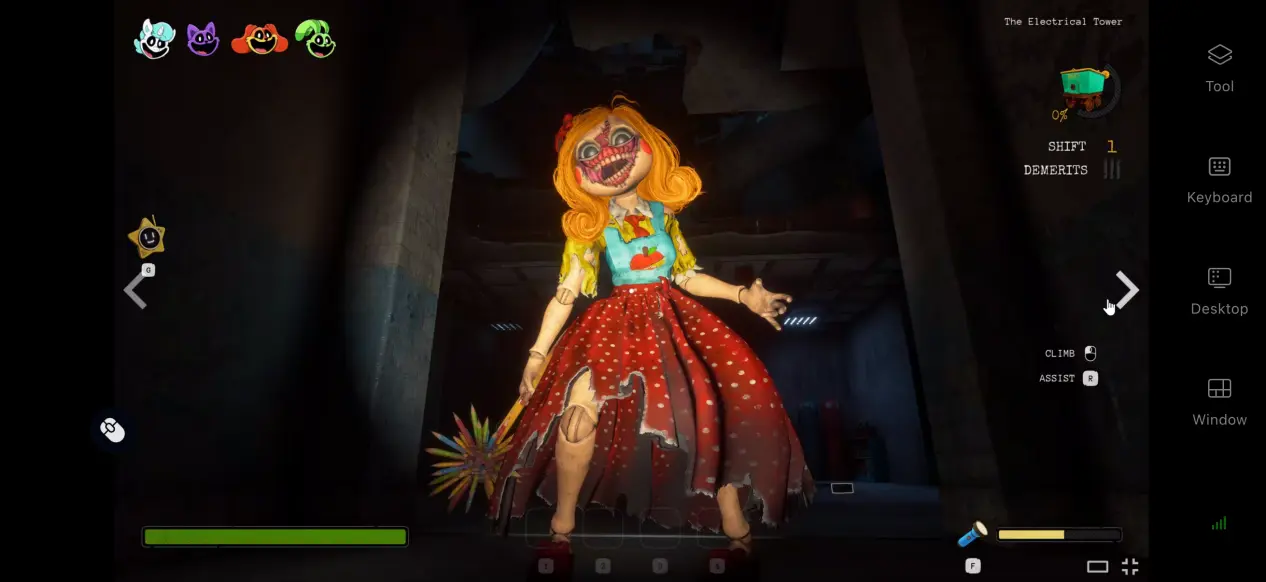
1. How to Play Escape from Playtime
Getting the Game
The PC version is primarily available on Steam and is released as an Early Access title. Open the Steam Store and search for the full game title. After checking the game description and version information, complete the purchase. Once the purchase is complete, the game will be added to your Steam library.
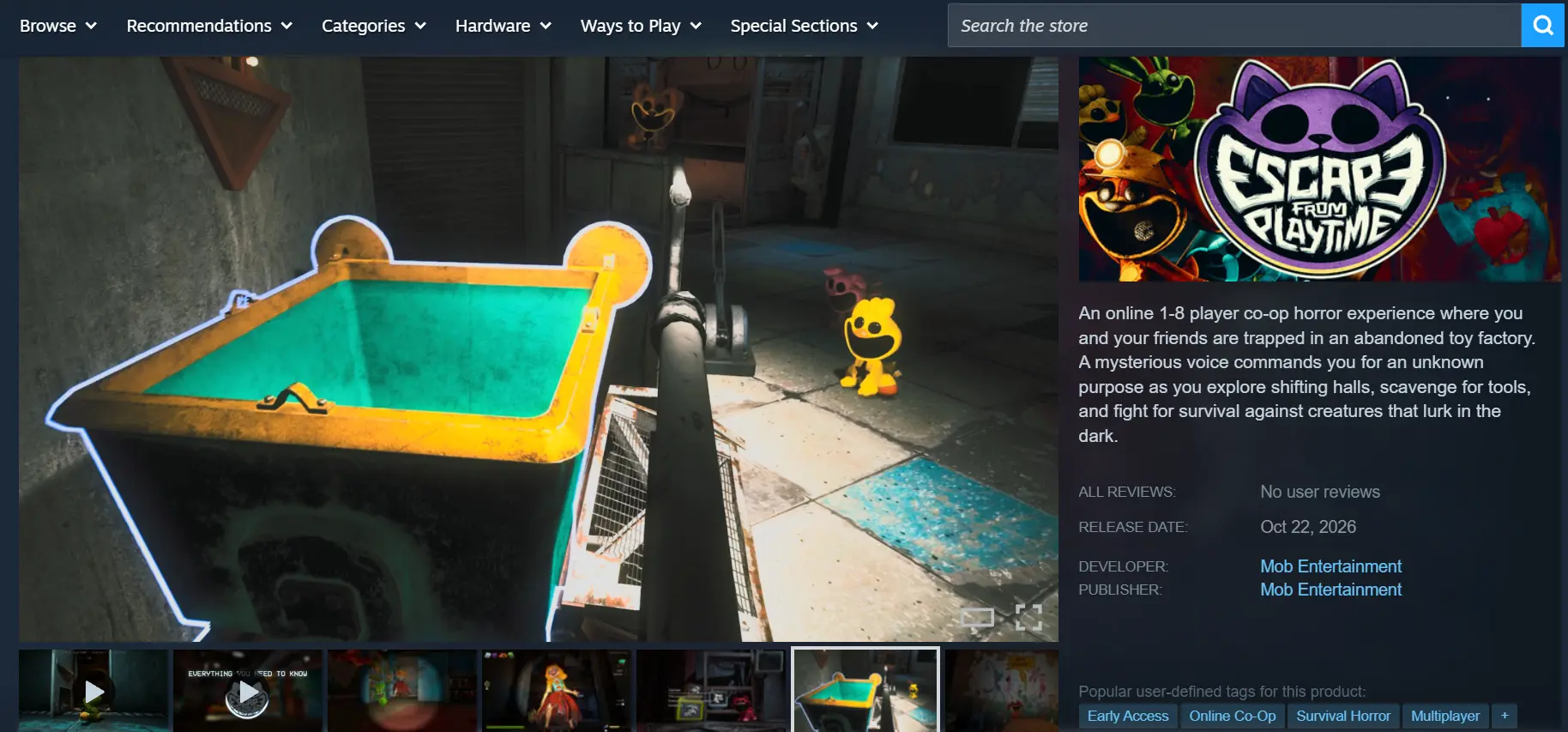
After installation, it's recommended to launch the game on your PC first and make sure there are no crashes, missing textures, or other issues. Once the game runs normally on the computer, you can move on to setting up remote streaming. This helps prevent problems with the local installation from being confused with streaming issues later on.
2. How to Install OSLink
PC Setup
Visit the official OSLink website through your browser and download the appropriate Windows client installer. Complete the installation, then sign in to your account and leave the software running in the background.
Before starting a streaming session, disable your computer's automatic sleep and hard drive sleep settings. Sleep mode can interrupt the connection and cause the stream on your phone to disconnect. Also, make sure your PC has a stable network connection to prevent connection issues during device pairing.
Mobile Setup
Android users can download the APK installer from the official website or search for OSLink through a trusted app store. iOS users can find and install the client through the App Store.
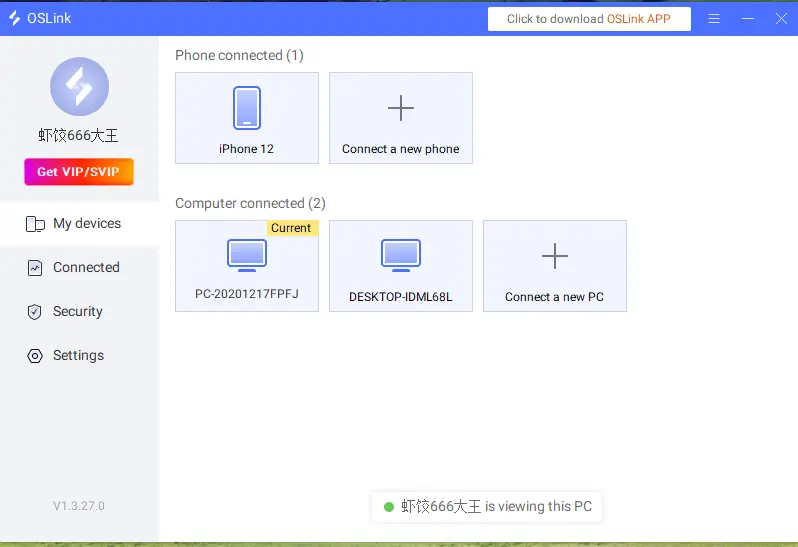
The account signed in on your phone must be the same one used on your PC. When both devices are connected to the same local network, OSLink can automatically detect the computer you're signed in to, eliminating the need to manually enter a device code and making the pairing process much easier.
3. How to Run Escape from Playtime on OSLink Mobile
Keep OSLink running in the background on your PC, then launch Escape from Playtime locally and stay on the game's main menu while the required resources finish loading.
Open OSLink on your phone. The device list will show computers under your account that are currently online. Select the target PC and send a connection request. OSLink will then mirror the computer's screen to your phone in real time.
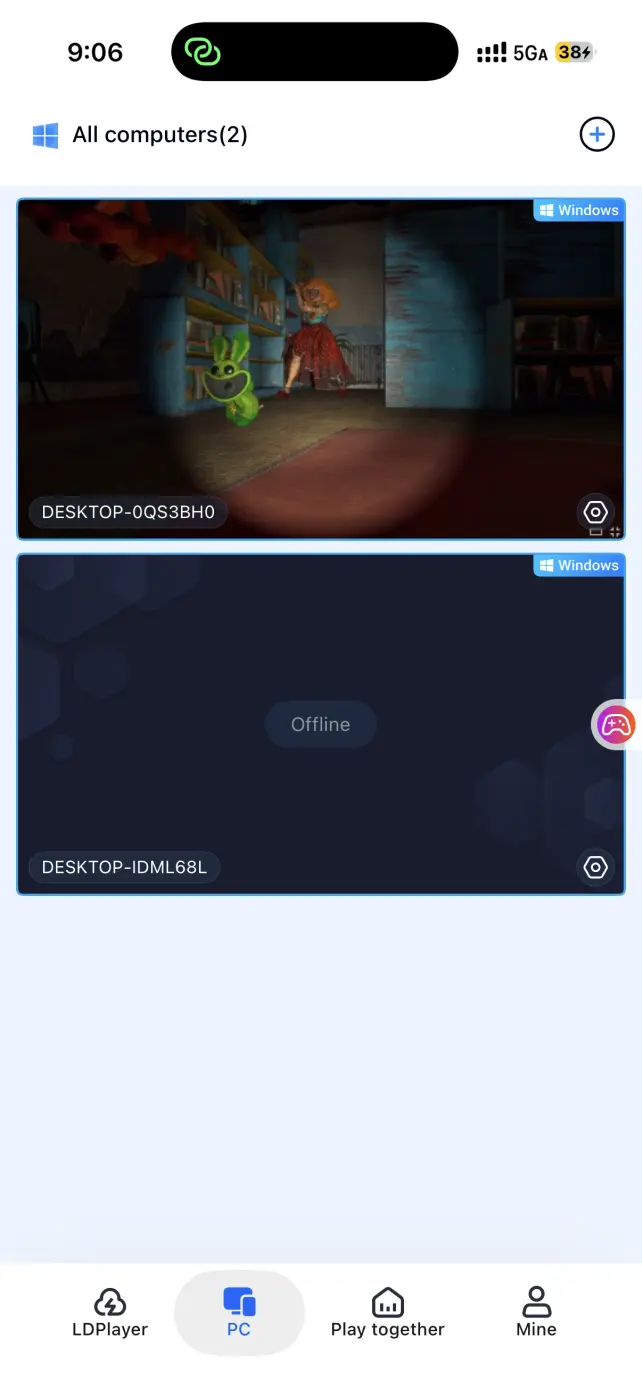
Once the connection is established, open the side toolbar and enable the dedicated game streaming mode. This mode adjusts encoding priorities to better handle the game's fast turns, quick hiding, and item pickup actions. After completing the setup, you can start a solo session or join a multiplayer room and begin your escape from the factory.
4. Benefits of Playing Escape from Playtime on Mobile
Play Without Being Tied to Your PC
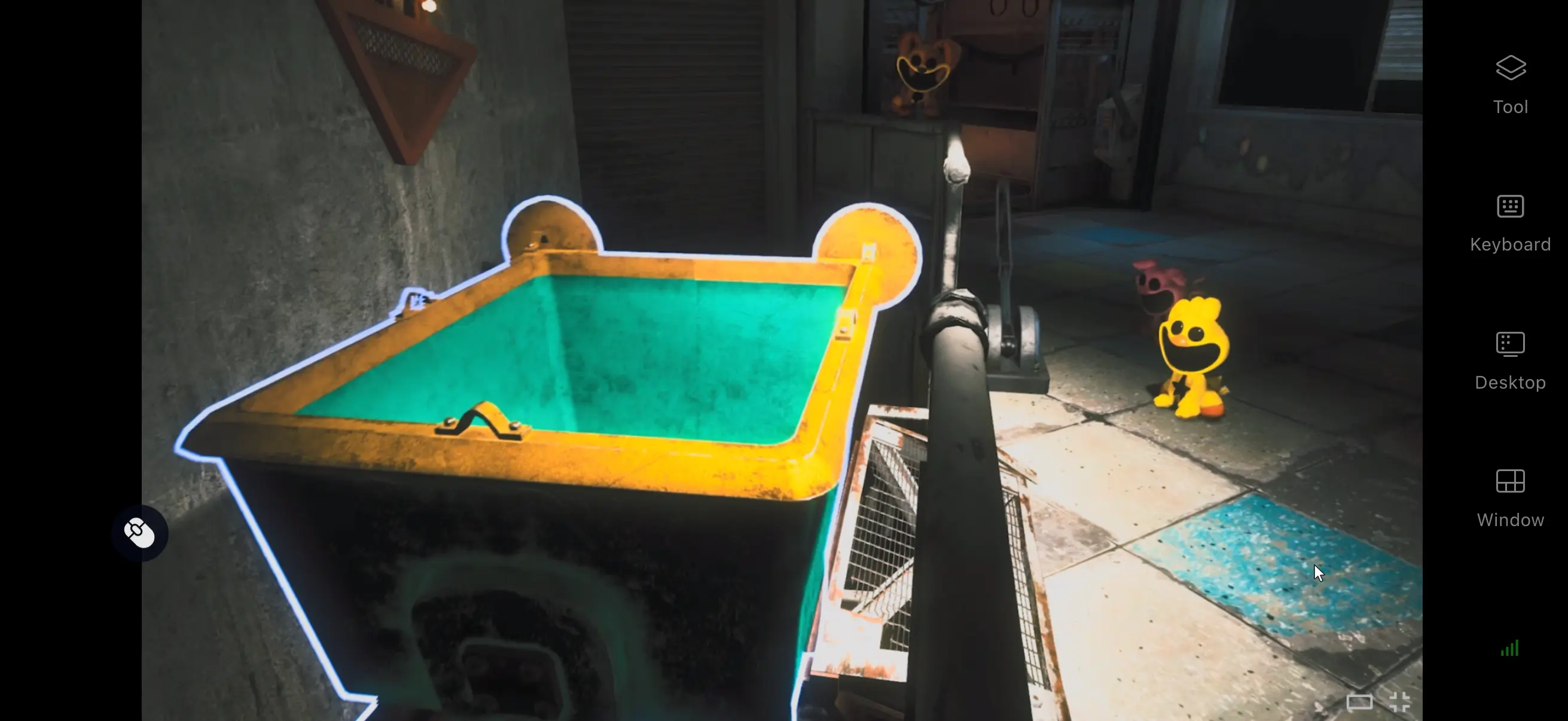
With a suitable network connection, your phone and PC don't have to be on the same local network to use remote streaming. Even when you're away from your computer, as long as the PC stays powered on and running, you can continue from your previous session and jump into another factory survival match whenever you want. Your gameplay is no longer limited to a fixed location.
No Need to Use Up Your Phone's Storage
All of the game's files remain stored on your PC's hard drive. Your phone only receives the video stream and sends your control inputs back to the computer, so it doesn't handle the game's rendering. Even if your phone has limited free storage or older hardware, you can still enjoy the full game.
Room-Based Co-op Controls
If you want to experience the game's horror atmosphere with friends, you can use OSLink's room-sharing feature. Create a dedicated room and share the game screen from the PC with other users. Devices connected to the room can be assigned control permissions. Even if your friends don't own Escape from Playtime, they can still join the room, watch the gameplay, and share control of the game.
5. How to Optimize Your OSLink Gaming Experience
Customize Your Controls
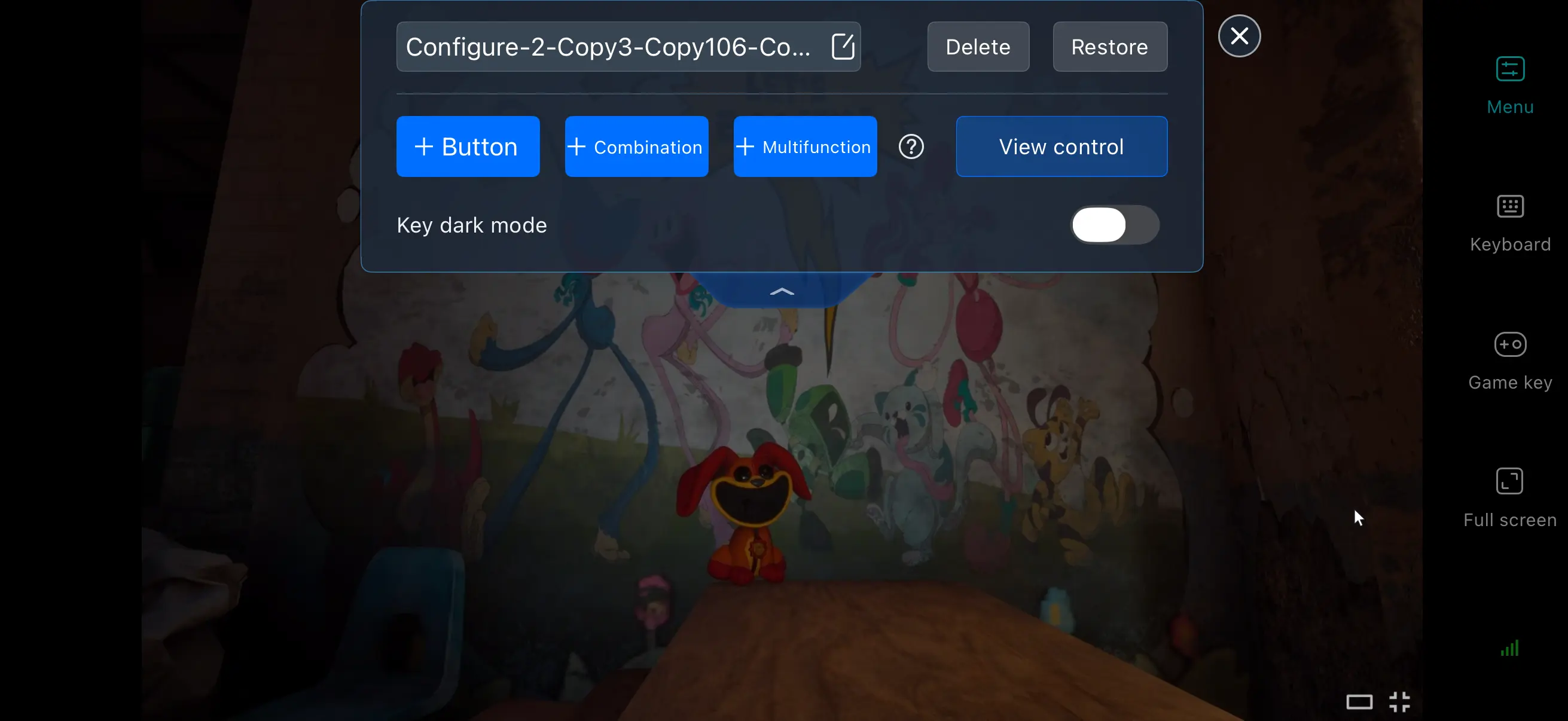
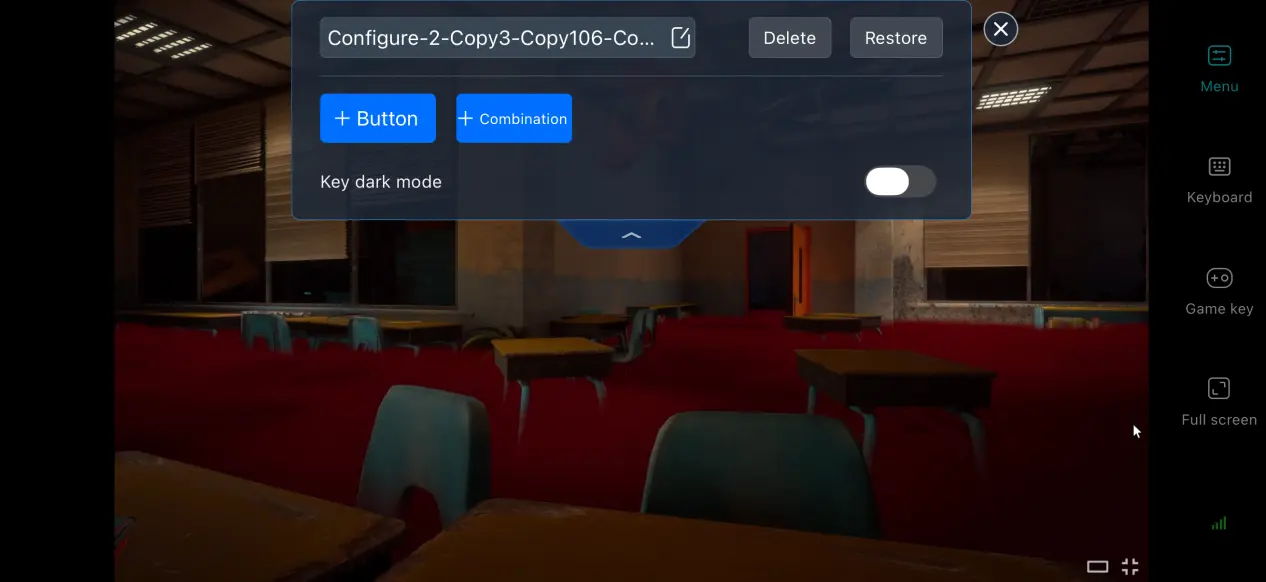
For frequently used actions such as turning, picking up items, crouching, hiding, and quick voice commands, you can add or modify virtual buttons and button combinations, as well as freely adjust their positions. Arrange the touch controls according to your own preferences to make playing on a smaller screen feel more natural.
Wide Range of Peripheral Support
OSLink offers strong compatibility with mainstream Bluetooth peripherals. Your phone can connect to popular Bluetooth controllers as well as portable keyboards and mice. Once connected, these peripherals can closely reproduce the native PC control setup, helping you improve control accuracy during multiplayer escape sessions.
60 FPS PC Gaming Mode
Once enabled, this feature reallocates bandwidth resources with priority given to control input transmission. During scenes with rapid visual changes, such as monster chases or quick camera movements, this mode can help reduce input latency. In environments with unstable network conditions, lowering the video bitrate slightly can help maintain smoother overall gameplay.
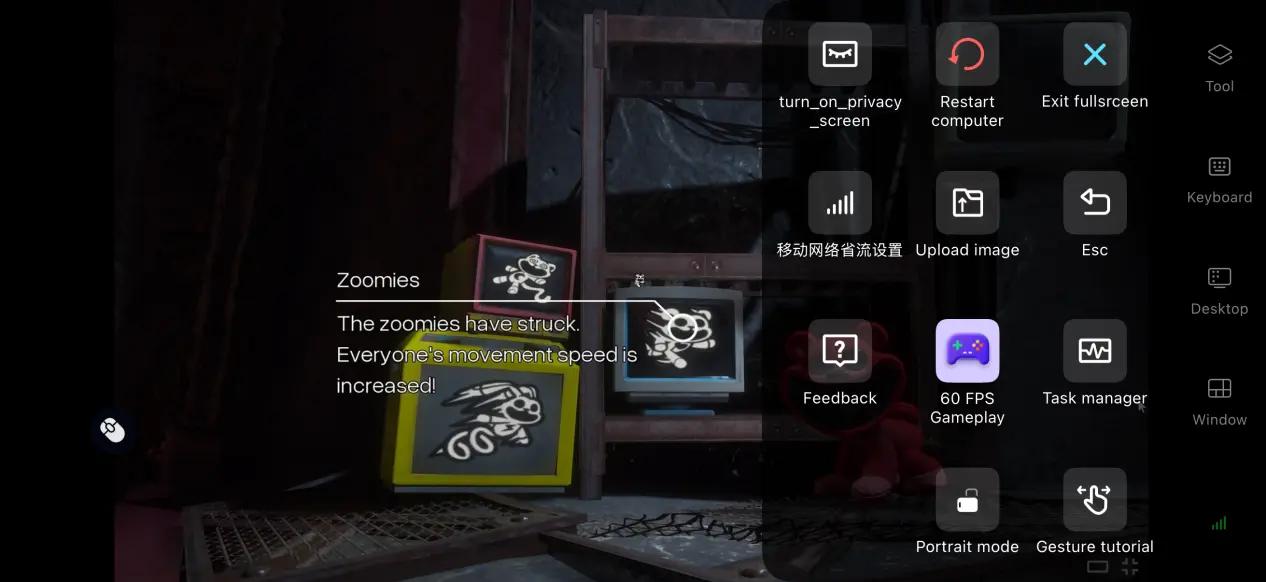
Mobile Screen Mirroring Adaptation
When full-screen mode is enabled, the software automatically hides the phone's status bar and gesture area. If the game's resolution has a different aspect ratio from your phone's screen, the image is automatically scaled while maintaining its original proportions, reducing the visual distraction caused by unnecessary black bars.
6. Frequently Asked Questions
Q: what is Escape from Playtime release time?
A: Escape from Playtime release date is October 21, 2026. Mob Entertainment announced that the game will launch on Steam in Early Access, with only the PC version available at launch.
Q: What PC specifications are required to play Escape from Playtime?
A: The minimum requirements listed on Steam are a 64-bit Windows 10/11 system, an Intel Core i3-9100 or Ryzen 5 3500 processor, 8 GB of RAM, a GTX 1650 or RX 470-class graphics card, and DirectX 12. The recommended specifications are an Intel Core i9-11900K or Ryzen 9 5900X processor and 16 GB of RAM for stable performance at higher graphics settings.
Q: Can I play Escape from Playtime on an Android device?
A: The official game does not have a native Android version, so Android phones cannot run it independently. With OSLink, you can remotely connect to your PC, letting the computer handle the game's processing while your phone handles the display and controls, allowing you to experience the full game remotely.
Q: Can I play Escape from Playtime on an iOS device?
A: The game is not available on the App Store, so iOS devices cannot launch it directly. You can use OSLink's streaming solution to mirror the game running on your PC to your iPhone, giving you a way to play it on a mobile device.
Conclusion
Escape from Playtime is a co-op survival horror PC game set in an abandoned toy factory. Players need to gather resources, avoid hostile toy creatures, and complete escape challenges either by sneaking through the factory alone or working together with teammates. As a mature remote streaming solution, OSLink creates a connection between your phone and PC, allowing you to move beyond the limitations of playing at your computer desk. With just a few simple settings, you can enjoy solo challenges or multiplayer survival sessions on a mobile device, giving you a more flexible way to play.
 Download