English
 As a classic tactical battle royale game, PUBG: BATTLEGROUNDS has attracted countless players with its realistic shooting mechanics, intense multiplayer battles, and highly flexible combat environments. Players who want better graphics quality and a wider field of view often choose to experience the game on PC.However, starting a match anytime usually requires sitting in front of a computer, which can be inconvenient for players who frequently travel or have irregular schedules. This guide will explain in detail how to remotely play the PC version of PUBG: BATTLEGROUNDS using a mobile phone, including game installation, OSLink setup, connection configuration, and ways to improve the overall experience, allowing players to enter the exciting battlefield of PUBG: BATTLEGROUNDS whenever they want.
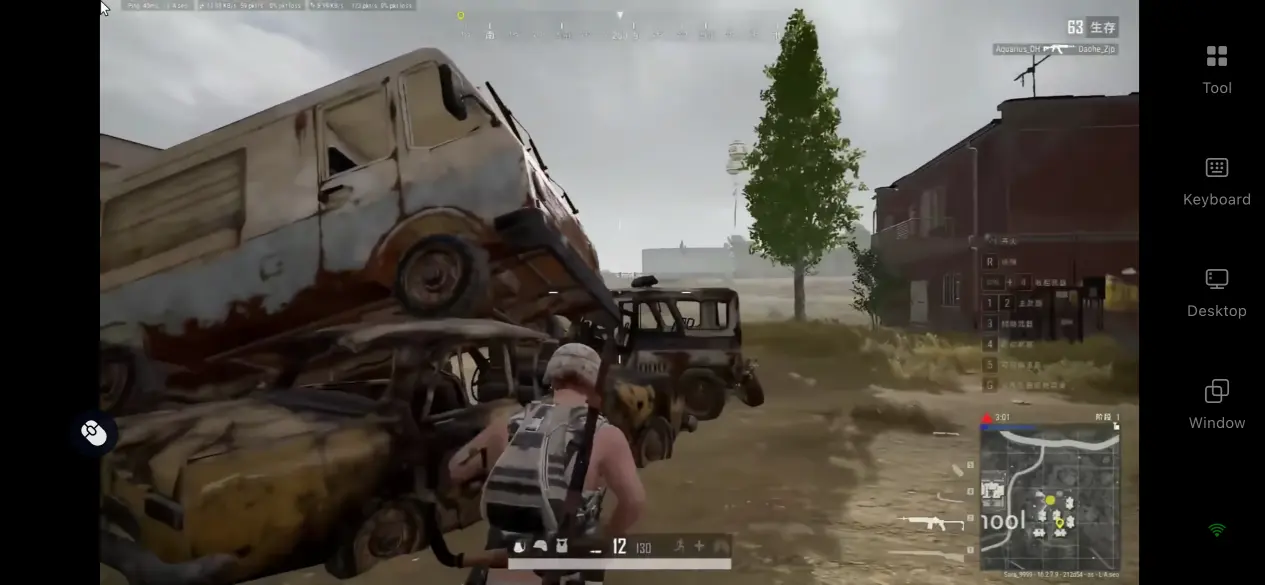
Want to play anytime but don't want the game to take up too much storage space on your phone? OSLink provides a more convenient remote solution for players who want to play the PC version of PUBG: BATTLEGROUNDS on mobile devices.The game is processed by your computer and streamed to your phone through the network. There is no need to install large game files on your mobile device. You can keep the complete PC version experience while reducing the hardware load on your phone. Even devices with lower specifications or limited storage space can enjoy smooth gameplay.
1. Before You Start
Download the PUBG: BATTLEGROUNDS
To remotely play the game on your phone, you first need to install the complete PC version of PUBG: BATTLEGROUNDS on your computer.
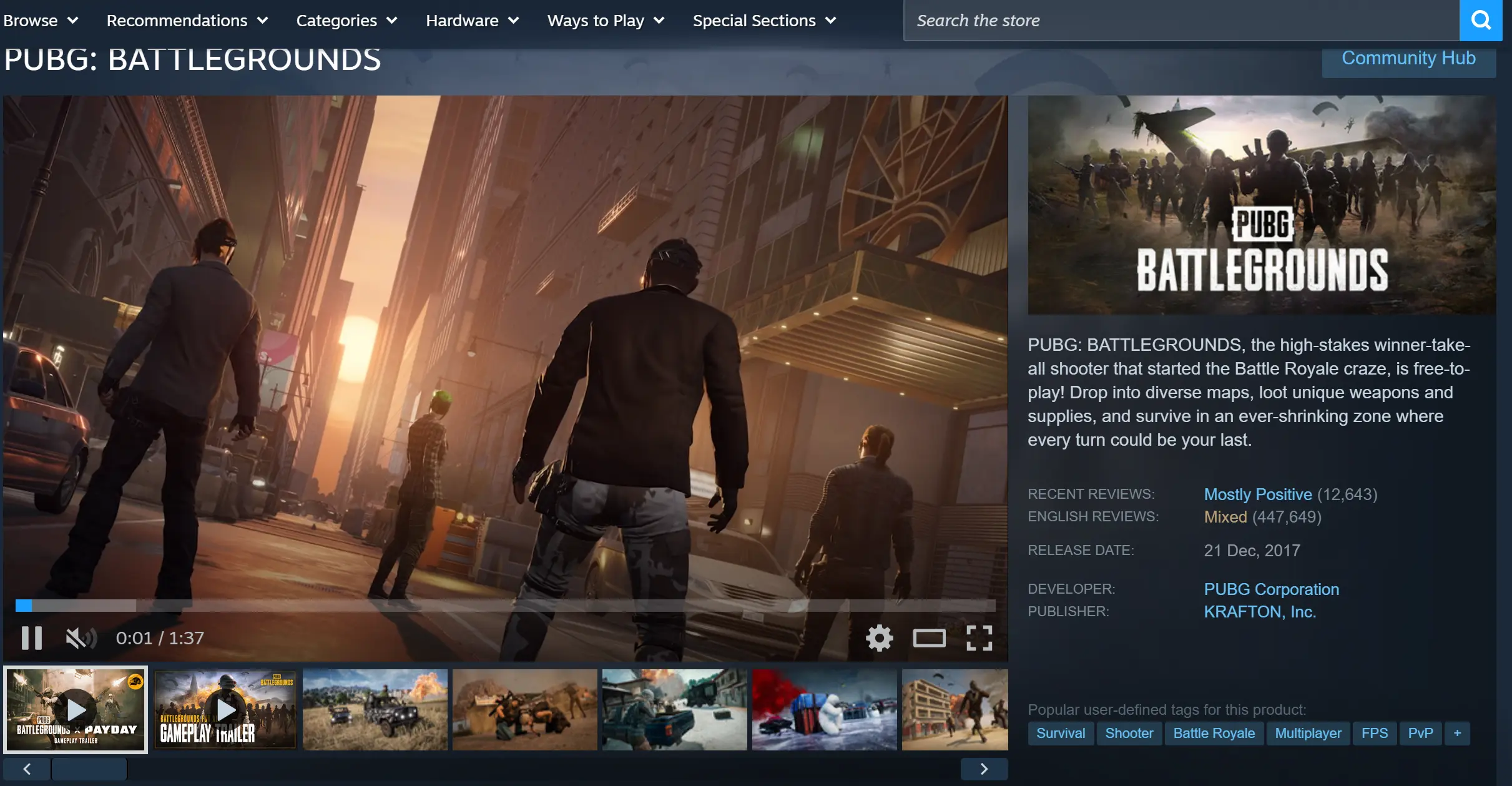
Players can search for PUBG: BATTLEGROUNDS through the Steam platform, complete the purchase or download process, and then install the game client.
After installation is complete, launch the game for the first time and confirm that all game features are working properly before continuing with the following steps.
Download OSLink
Installing OSLink on PC
First, download the OSLink client on your computer and complete the installation process. After installation, log in to your account.Keep the program running and make sure your computer remains powered on, so your phone can establish a remote connection smoothly.
Installing OSLink on Mobile Devices
For Android devices, search for the OSLink app in the app store and download it. iOS users can install it through the App Store.
The mobile device must log in with the exact same account used on the computer. The software will automatically detect computers that are online under the same account. There is no need to manually enter a pairing code. Simply select the device name to establish the basic streaming connection.
2. How to Play PUBG: BATTLEGROUNDS on Mobile via OSLink
Step 1: Launch the Game on Your Computer
Open Steam on your computer and enter the main interface of PUBG: BATTLEGROUNDS.
Once the game is running, no additional settings are required. OSLink will automatically synchronize the computer screen to your mobile device.
Step 2: Connect Your Phone to the Computer
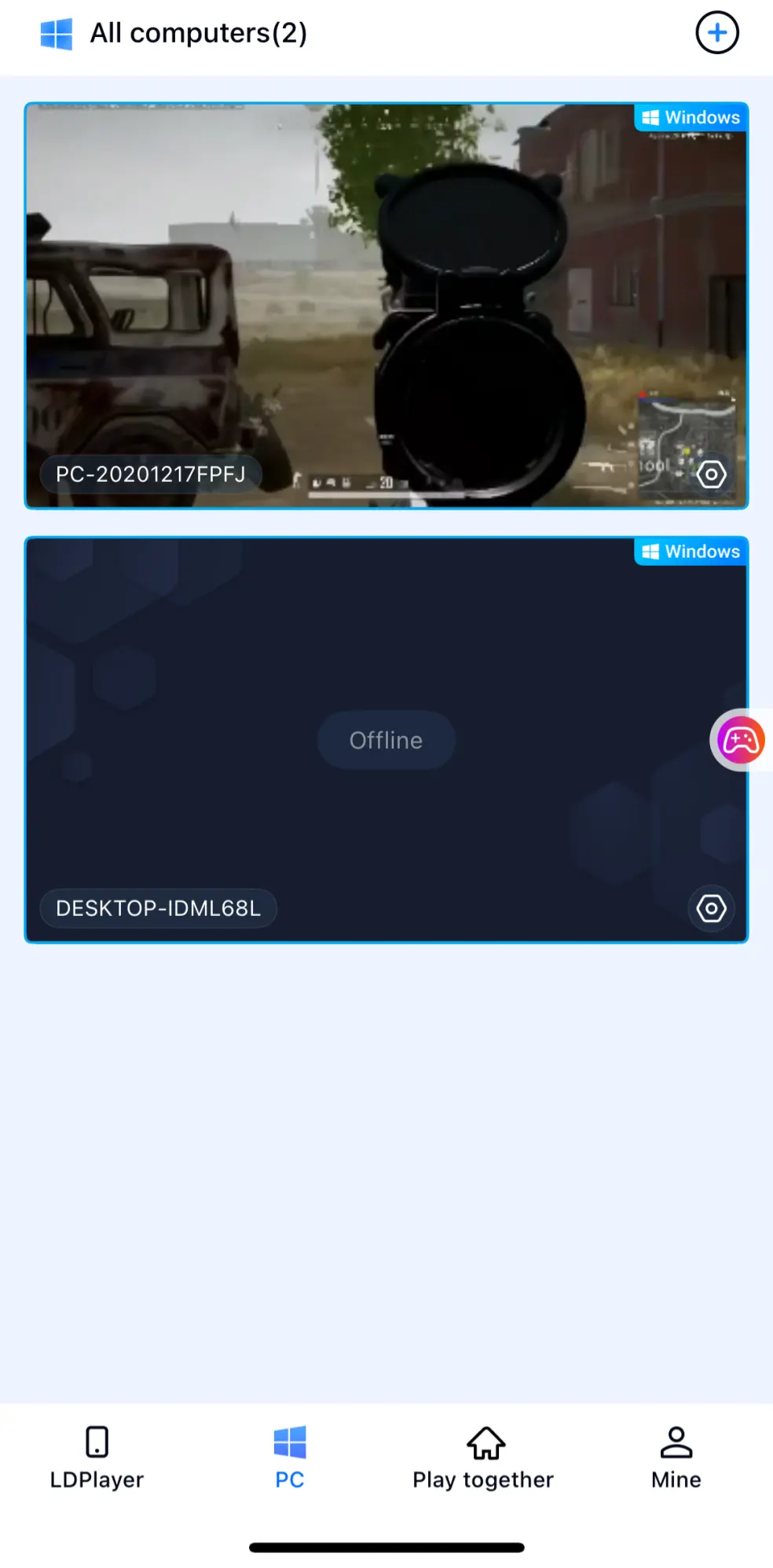
Open the OSLink app on your phone and find the computer that is logged into the same account in the device list.
Tap the device name to start connecting. After the connection is successful, your phone screen will display the synchronized content from your computer desktop.
Step 3: Enable PC Game Mode
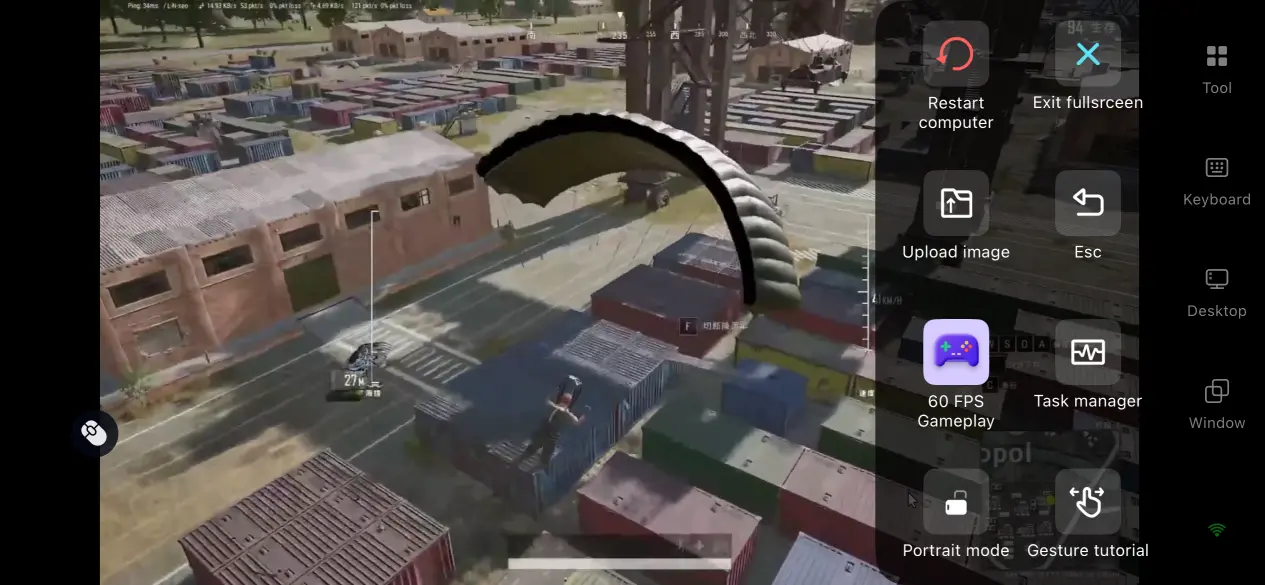
After entering the game interface, players using OSLink for the first time can enable the built-in 60 FPS game mode feature.
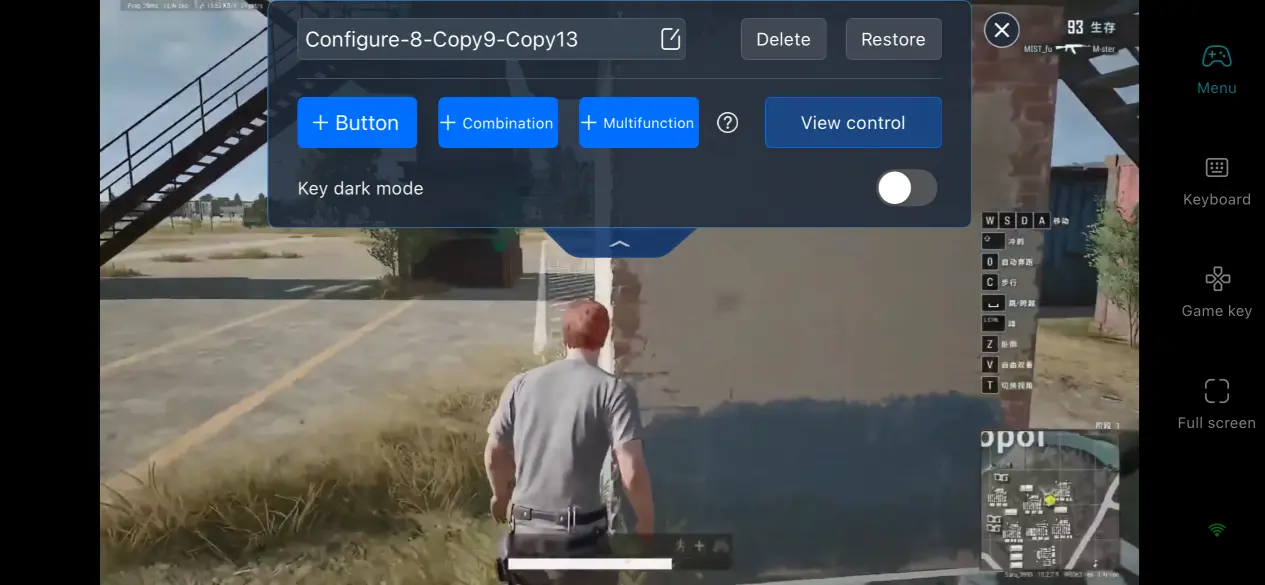
Adjust the key layout and other assist functions according to personal preferences before starting gameplay.
3. Advantages of Playing PUBG: BATTLEGROUNDS on Mobile
Launch the Game Anytime with Your Phone
The biggest advantage of remote connection is that it removes device limitations.Players no longer need to stay in front of their computer for long periods.
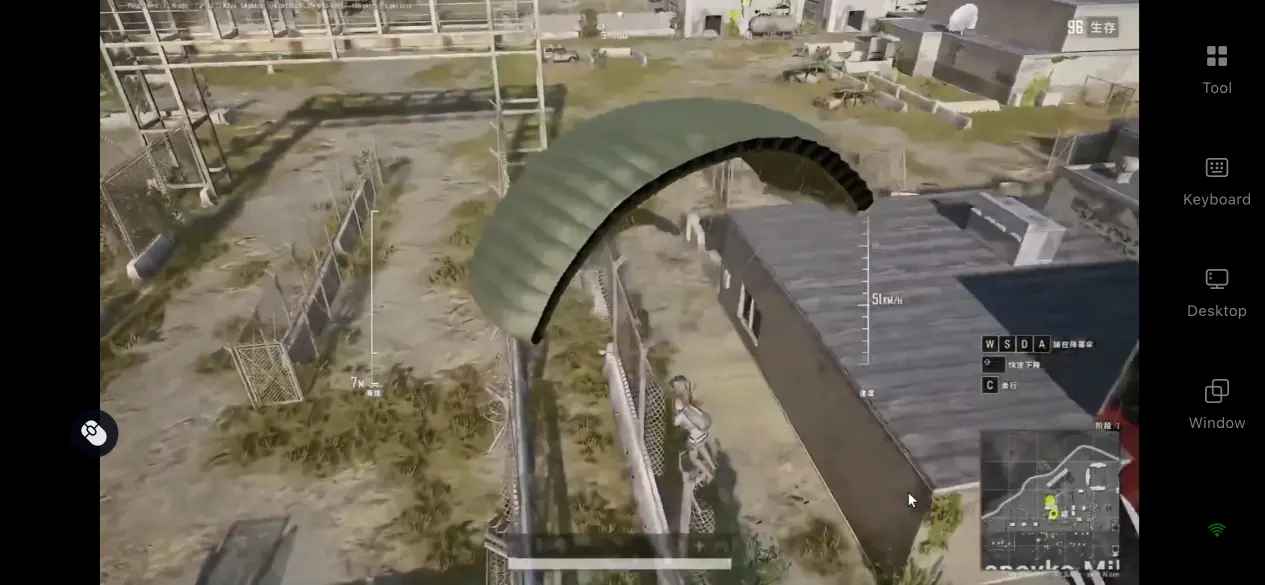
Whether waiting outside, taking a short break, or having some spare time, they can instantly check their game status through their phone.For players who need to quickly log in, check events, or complete daily tasks, this method provides a more convenient and effortless experience.
Supports Remote Operation in Multiplayer Rooms
OSLink includes a multiplayer shared room feature.
Players can create a room, generate a dedicated invitation code, and share it with friends. After installing the software, logging into their accounts, and entering the invitation code, up to five players can control the same game screen simultaneously.
Even friends who are far away from each other can work together to collect supplies and coordinate their battles remotely.
Does Not Take Up Large Amounts of Mobile Storage Space
The complete game installation files, account data, and other resources are stored on the computer's hard drive.Your phone only needs to receive the streamed image and send control commands. There is no need to clear local storage space on your mobile device.Simply open OSLink and you can quickly start playing.
4. How to Optimize the OSLink Gaming Experience
60 FPS Low-Latency Streaming Mode
OSLink features a dedicated high-frame-rate streaming mode.After enabling game mode, OSLink automatically optimizes image encoding for the fast movement and rapid shooting scenes in PUBG: BATTLEGROUNDS.This helps reduce the delay between input actions and screen feedback. Whether running across the map or engaging in close-range fights, the image remains smooth and clear with reduced motion blur and stuttering, making it suitable for competitive matches.
Custom Virtual Keyboard and Mouse Mapping
OSLink allows players to independently adjust the size, transparency, and position of each control button.When playing PUBG: BATTLEGROUNDS, players can map WASD movement controls to the joystick area on the left side of the screen, while placing shooting, aiming, throwing, crouching, and other shortcut buttons on the right side.If certain buttons block the view, their transparency can also be reduced.
Players can customize the control layout based on their own gameplay habits, creating an experience that feels closer to playing on a computer.
FAQ
Q: Does PUBG: BATTLEGROUNDS Require High PC Specifications?
A: PUBG: BATTLEGROUNDS has certain hardware requirements. If you want stable graphics quality and smooth frame rates, it is recommended to use a 64-bit Windows 10 or Windows 11 system.A processor such as Intel Core i5-6600K, AMD Ryzen 5 1600, or a higher-level model is recommended, along with at least 16GB of RAM.
For the graphics card, NVIDIA GeForce GTX 1060 (6GB) or AMD Radeon RX 580 and above are recommended. You should also reserve approximately 50GB of available storage space.
Q: What Should I Do If Streaming Keeps Lagging or Has High Latency?
A: Check your computer's network upload speed. A stable bandwidth of at least 5Mbps is recommended, and connecting to a 5GHz WiFi network is preferred.Avoid turning off the computer monitor, as a powered-off display may cause the graphics card to enter a low-power mode and reduce streaming performance.Close background programs that consume GPU resources or network bandwidth.If your computer only meets the minimum hardware requirements, continuous frame drops may occur during high-quality streaming. In this case, lowering the in-game graphics settings is recommended.
Q: Can I Connect to My Computer Remotely When I Am Away From Home?
A: Yes, but you need to make sure that your computer remains powered on and connected to the internet.Your phone also needs to maintain a stable network connection.
Conclusion
OSLink lets you access the full PC version of PUBG: BATTLEGROUNDS from your phone without installing large game files or sacrificing graphics. Whether you're checking in during a break or jumping into a quick match, remote play makes it easy to stay connected wherever you are.
 Download