English
 Call of Duty: Modern Warfare 4 has built a huge player base with its realistic gunplay, varied multiplayer modes, and story-driven campaign. However, the game does not have an official native mobile version. If you want to jump into a match anytime, remote streaming is a practical option. This guide walks you through the entire process, from getting the game and setting up the software to actually playing and optimizing the experience. There are no complicated steps, and even devices with average hardware or limited memory can be set up.
For a shooter like Call of Duty: Modern Warfare 4, where quick aim tracking and split-second turns are essential, OSLink streams your PC screen directly to your phone while keeping the image clear and stable. Touch controls are also sent back to the PC with minimal delay. The connection process is straightforward, and streaming remains smooth even during effect-heavy scenes with intense firefights and explosions, allowing you to aim, shoot, dodge, and handle other combat actions directly from your phone.

1. How to Play Call of Duty: Modern Warfare 4
Remote streaming requires you to already have a complete, properly working copy of the game installed on your computer.
Get the Game
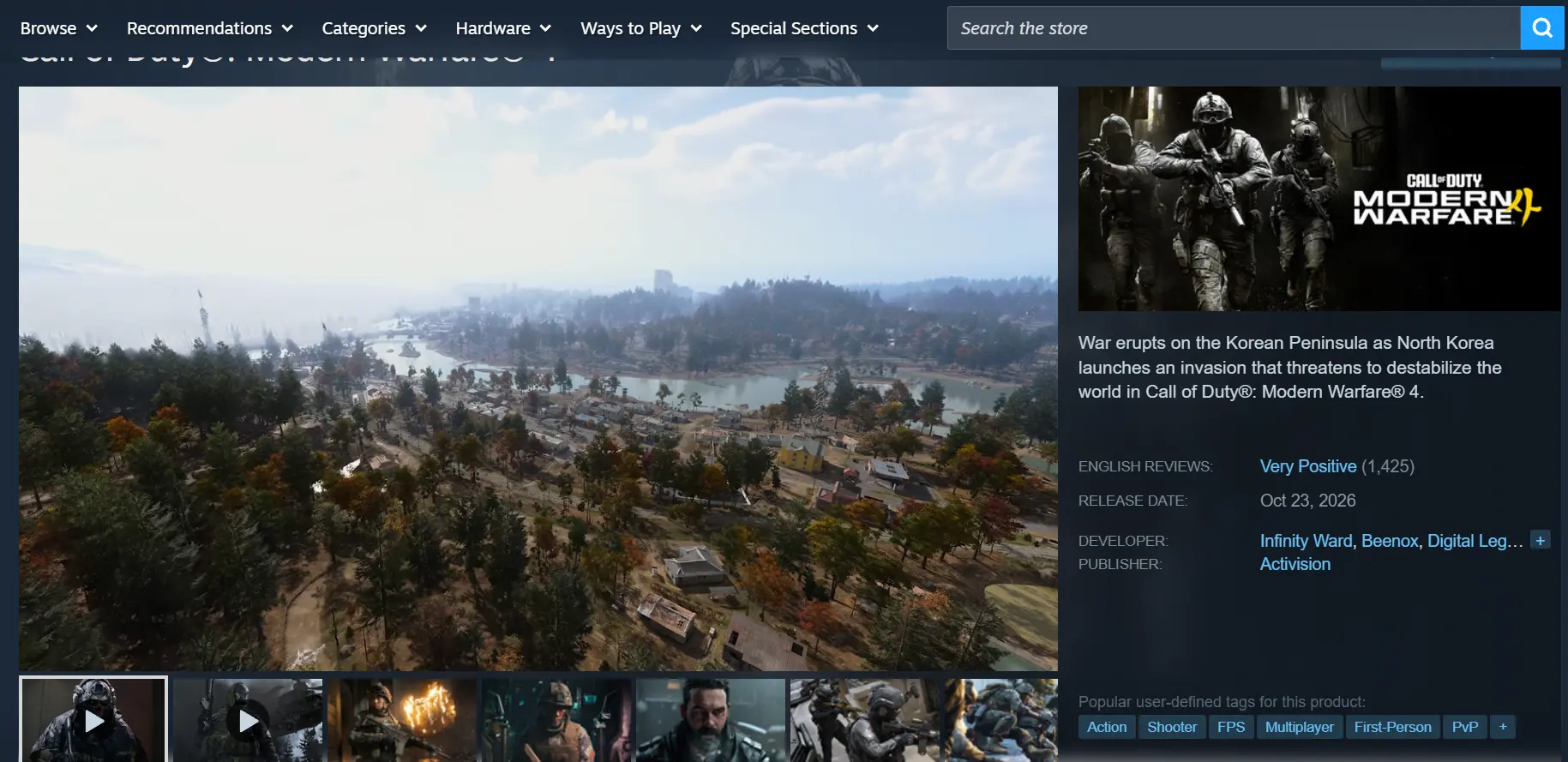
The game is available on Steam. Open the Steam client on your PC, enter the full game title in the store search bar, purchase the game, and add it to your library. Then download and install it.
Prepare Before Streaming
Once all game files have been installed, launch the game on your PC at least once to make sure it runs normally without crashes or unexpected shutdowns. Complete this local test before setting up the streaming software.
2. Install OSLink on Your PC and Phone
Windows PC Setup
Open a browser and visit the official OSLink website to download the Windows installer. Complete the installation, then register and sign in to your account. To keep the connection stable, open your system power settings and disable automatic sleep for the hard drive and network adapter. This helps prevent network interruptions while the PC is idle and allows your phone to connect whenever needed.
Mobile App Setup
Android users can search for OSLink on the Google Play Store and install it. iOS users can open the App Store, search for the same app, and download it.
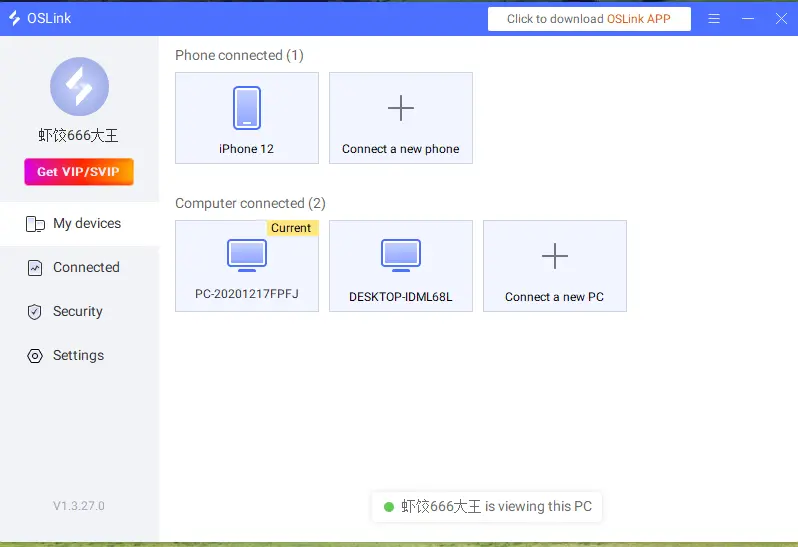
Note: You must sign in to OSLink on your phone and PC using the same account. The software will automatically detect online devices, so you can skip entering a pairing code and quickly link the two devices.
3. How to Run Call of Duty: Modern Warfare 4 on OSLink
On your PC, open Steam and launch Call of Duty: Modern Warfare 4. Enter the training area, multiplayer lobby, or campaign level, and keep the game running in the foreground instead of minimizing it to the background.
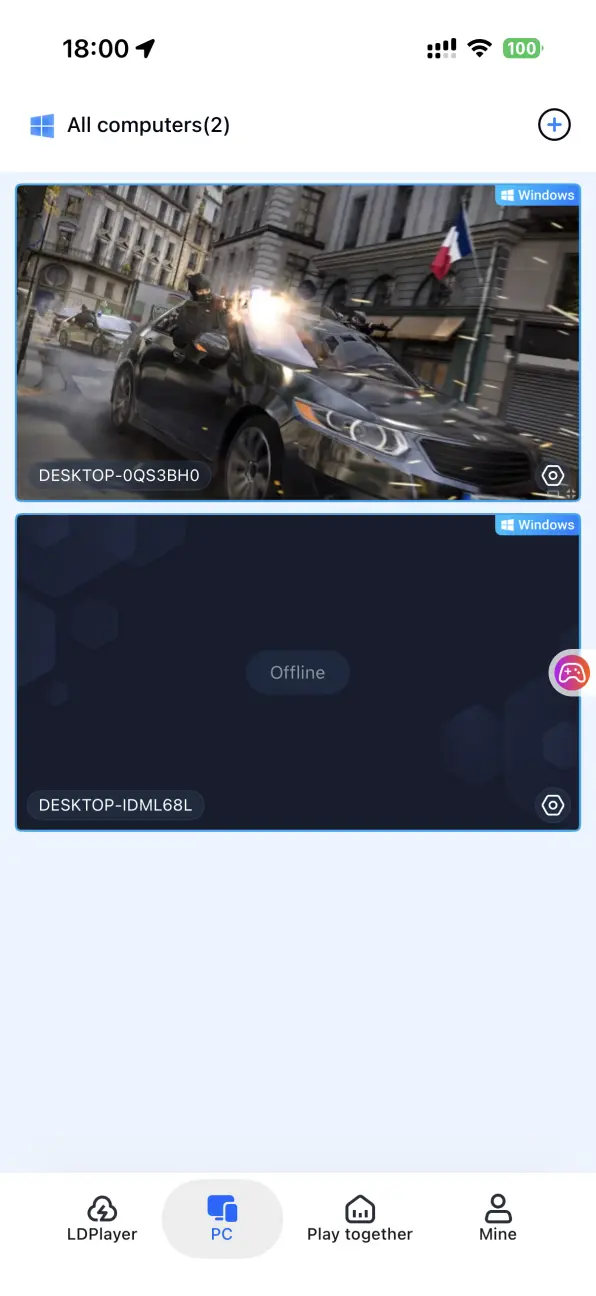
Open the OSLink client on your phone. The device list will show PCs that are online under the same account. Tap the name of the corresponding PC to start the streaming connection.
Once the PC screen has loaded successfully, open the toolbar on the right and switch to Game Mode. You can either apply the preset controls for shooting games or connect an external controller. After adjusting the settings, you can aim, shoot, switch weapons, slide, and perform all other in-game actions directly from your phone.
4. Benefits of Playing Call of Duty: Modern Warfare 4 on Mobile
Room Sharing for Multiplayer Sessions
OSLink includes a room-sharing feature that allows users to share their PC game sessions with others in the same room. Participants can connect to the session and take turns controlling the game, making it convenient to watch gameplay together or tackle challenging sections with friends.
Play Anywhere Without Being Tied to One Location
As long as your PC remains powered on and connected to the internet, you can stream the game using either home Wi-Fi or mobile data on your phone. Whether you're waiting outside or taking a short break, you can jump into a match without being tied to your PC.
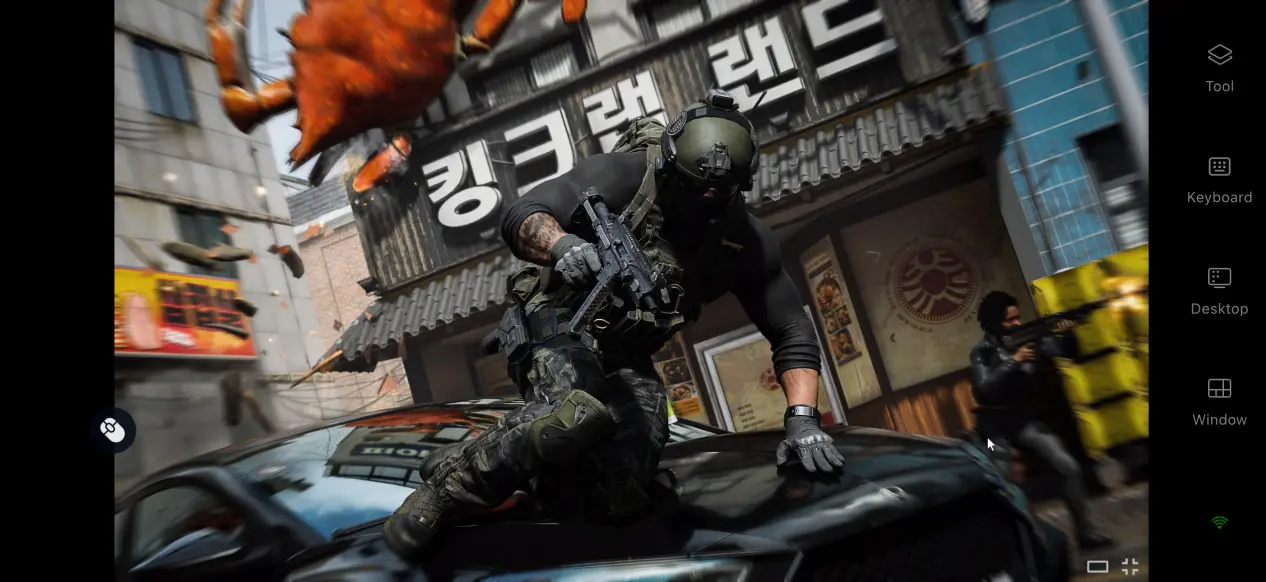
No Need to Use Up Your Phone's Storage
The game installation files, updates, and save data are all stored on your PC's hard drive. Your phone only receives the streamed visuals and sends your controls back to the computer. Even phones with limited storage or average hardware can still access the full game experience.
5. How to Optimize Your Call of Duty: Modern Warfare 4 Experience on OSLink
Customize Your Controls
OSLink lets you add or remove virtual touch buttons and adjust their size, transparency, and position. For this shooter, you can place frequently used controls for firing, aiming, sliding, and switching weapons within easy reach of your fingers. You can also save multiple control layouts for different situations, such as team battles and sniper-focused matches.
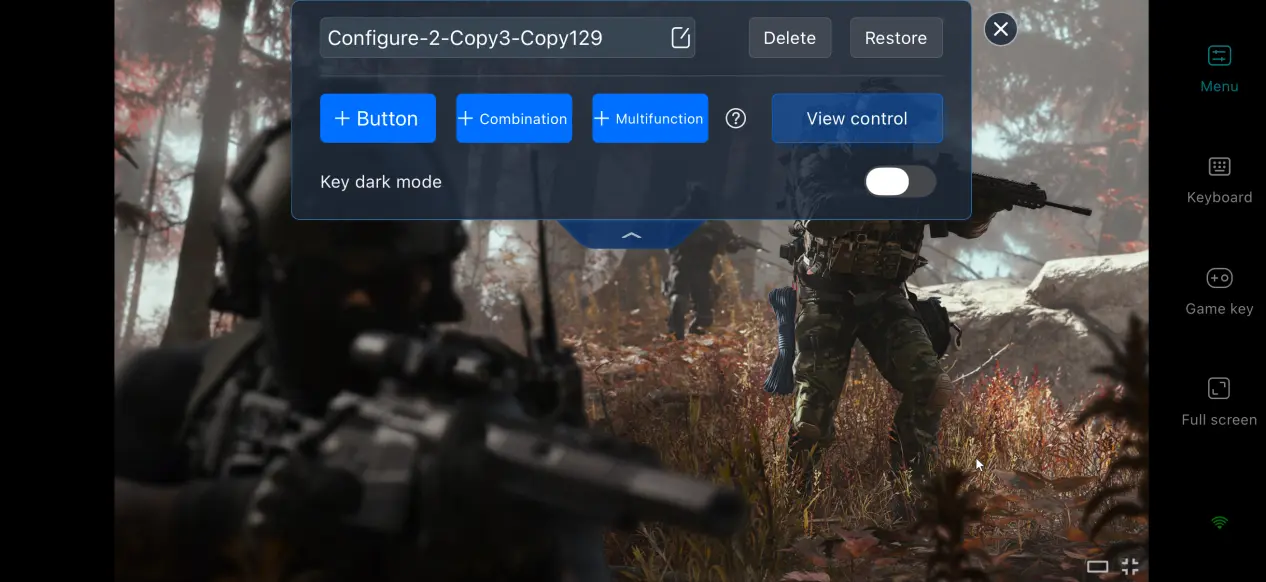
Support for Multiple External Devices
OSLink supports mainstream Bluetooth and wired game controllers, as well as keyboard and mouse setups. Once a controller is connected, input mapping is handled automatically. During intense multiplayer firefights, an external controller can provide more precise control and reduce mistakes caused by touchscreen input.
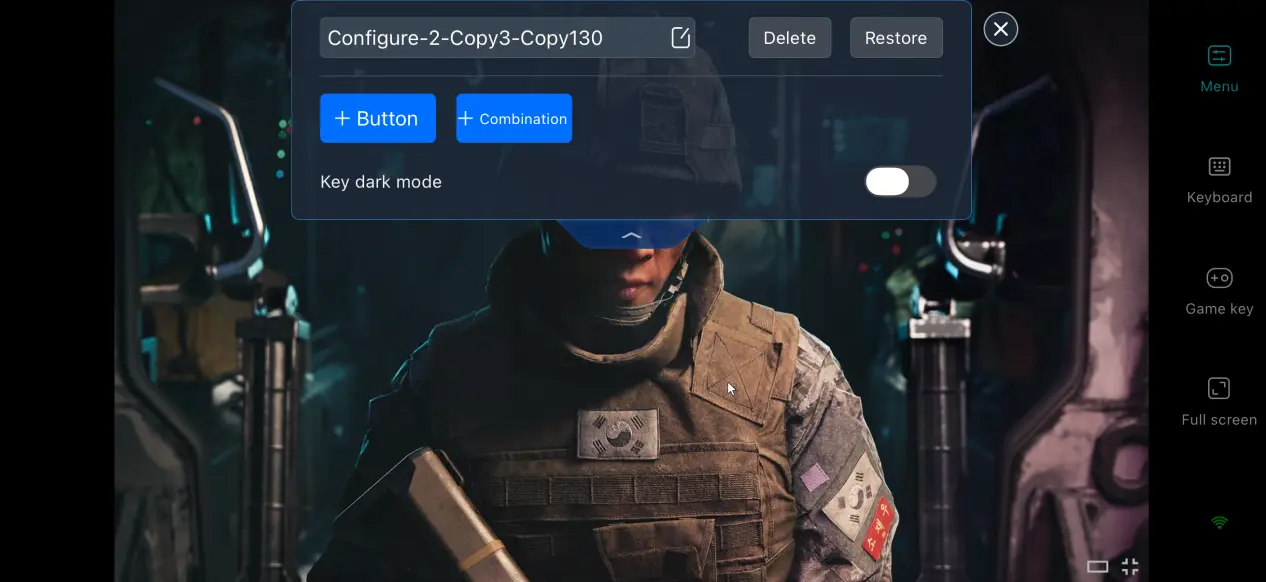
Enable 60 FPS PC Game Mode
Enable 60 FPS PC Game Mode to optimize how PC game footage is encoded. During combat scenes with frequent explosions and heavy visual effects, this mode helps reduce motion blur and shorten the delay between your input and the on-screen response, making actions such as aiming down sights and stopping to fire feel more responsive.
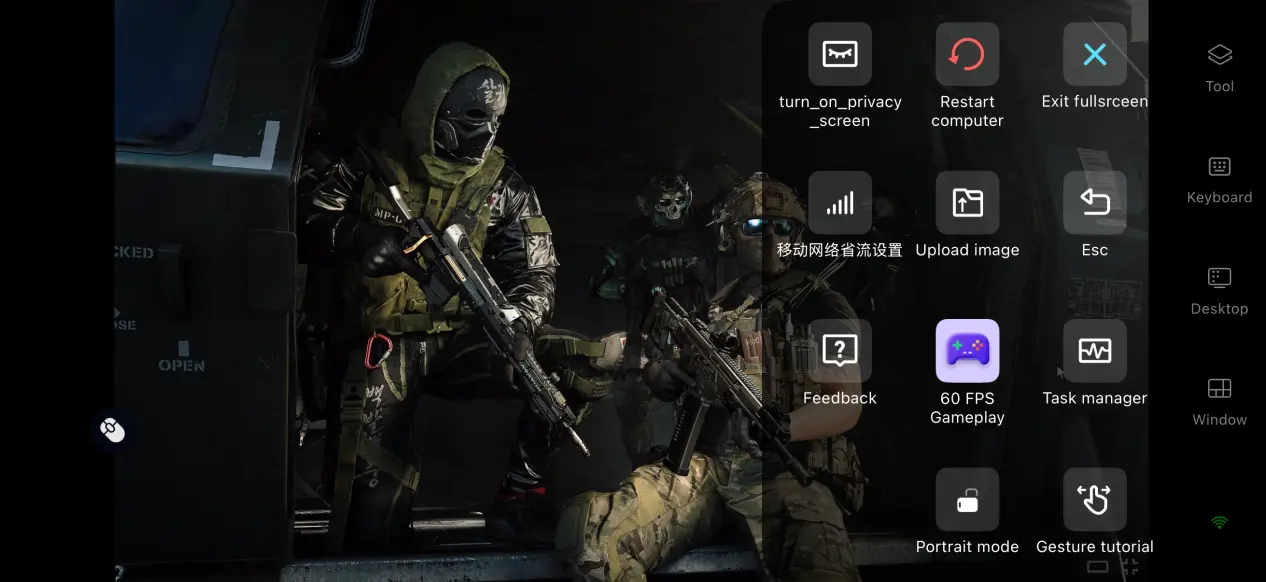
Adjust Mobile Screen Mapping
If the image looks stretched or the UI appears misaligned, use the screen mapping feature to adjust the crop and display ratio. This helps the game fit long-screen phones properly, keeping the crosshair, ammo count, minimap, and other information positioned correctly for a more comfortable experience during longer sessions.
6. Frequently Asked Questions About Playing Call of Duty: Modern Warfare 4 on OSLink
Q:what is Call of Duty: Modern Warfare 4 release time?
A:Call of Duty: Modern Warfare 4 release date is October 2026. The official team has not announced plans for a native mobile version at this time.
Q:What PC specifications does Call of Duty: Modern Warfare 4 require?
A:Minimum requirements: Windows 10 64-bit, an i5-8400 / R5 2600 processor, 16 GB of RAM, a GTX 1050 Ti / RX 570 graphics card, and 45 GB of available hard drive space.Recommended requirements: Windows 10 64-bit, an i5-12400 / R5 5600 processor, 16 GB of RAM, an RTX 3060 / RX 6600 graphics card, and 45 GB of available SSD space.
Q:Can I play Call of Duty: Modern Warfare 4 on an Android device?
A:There is no native Android game client. By remotely streaming the game from your own PC through OSLink, you can play the full game on Android phones and tablets.
Q:Can I play Call of Duty: Modern Warfare 4 on an iOS device?
A:There is no native version for iOS either. With OSLink remote streaming from your home PC, you can enjoy the full multiplayer and campaign experience on iPhone and iPad.
Summary
Call of Duty: Modern Warfare 4 is a major PC shooter focused on realistic gunplay. Since there is currently no official native mobile version, you can use OSLink's remote streaming solution to enjoy the full game on a mobile device. There is no need to modify the game files. With your existing PC and phone hardware, you can stream the complete game to your mobile device, giving you more freedom over where you play and letting you jump into intense firefights whenever you want.
 Download