English
 Blue Archive is a campus-themed turn-based RPG. Daily gameplay requires repeated stage farming for materials, event rewards and new character leveling. Managing multiple alt accounts for resource storage or rerolling new starter accounts takes significant manual effort. This tutorial combines LDPlayer emulator and OSLink remote control software. You can control PC-based emulators remotely via mobile to run auto-farming across multiple game instances and cut repetitive daily work.
Table of Contents
Pre-setup Installation
Download Required Software
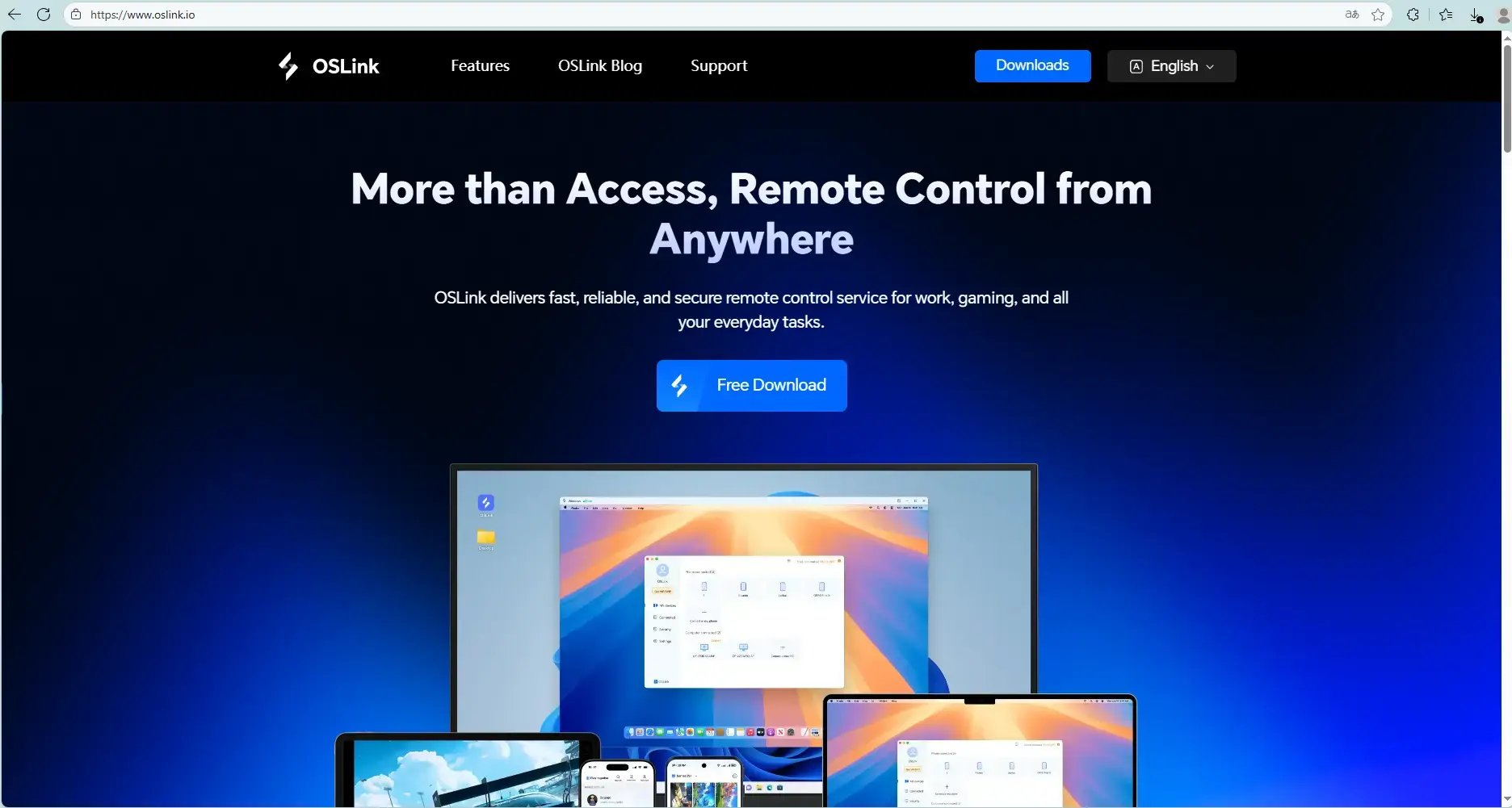
Get OSLink from its official site (https://www.oslink.io) and LDPlayer from (https://www.ldplayer.net/?lang=en). Install both programs on your PC.
Install Blue Archive
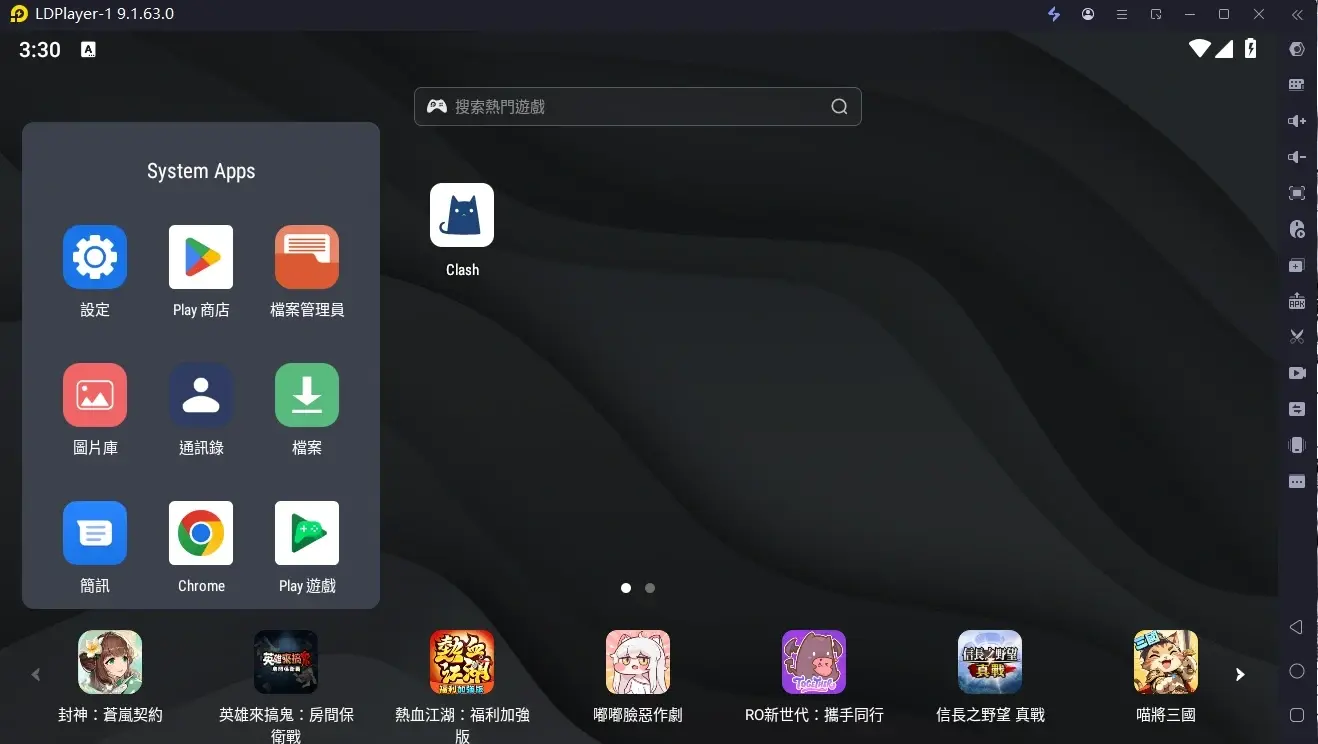
Launch LDPlayer. Download Blue Archive via the emulator’s built-in app store or Google Play.
Mobile Remote Connection Setup
Install OSLink on Mobile
Download OSLink on iOS from App Store or on Android via Google Play. Android users can also install the APK file directly from the official website.
Complete Device Pairing
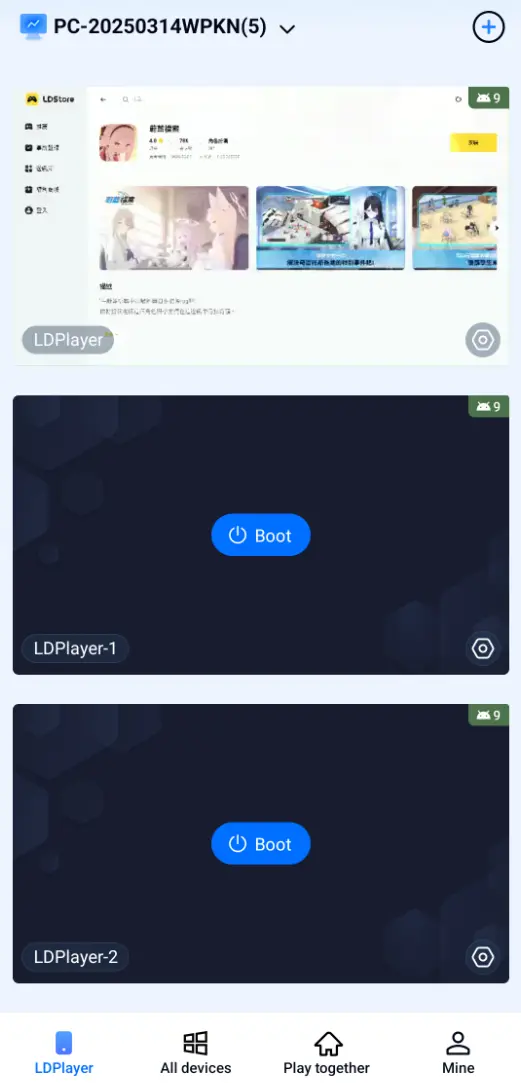
Log into the same OSLink account on your phone and PC. Select your online PC device inside the mobile OSLink app to finish pairing. After connection, your phone screen displays the emulator feed and enables full in-game control.
Auto AFK & Multi-Account Sync Operation
Auto Stage Farming for Daily Materials, Events & Academy Exploration
Daily farming for coins, EXP and upgrade items relies on repeated stage runs. Use OSLink’s auto-click feature for unattended farming:
1. Connect to your PC emulator through mobile OSLink and open Blue Archive.
2. Open the OSLink auto-click tool. Record a full workflow: start combat, replay the stage, or return to the stage selection screen after battles end.Set cycle duration and run counts. Activate the script for automated resource farming.

Synced Multi-Instance Control for Bulk Account Management
Follow these steps to handle multiple resource and starter accounts in batches:
1. Open separate emulator windows in LDPlayer and log into different Blue Archive accounts per window.
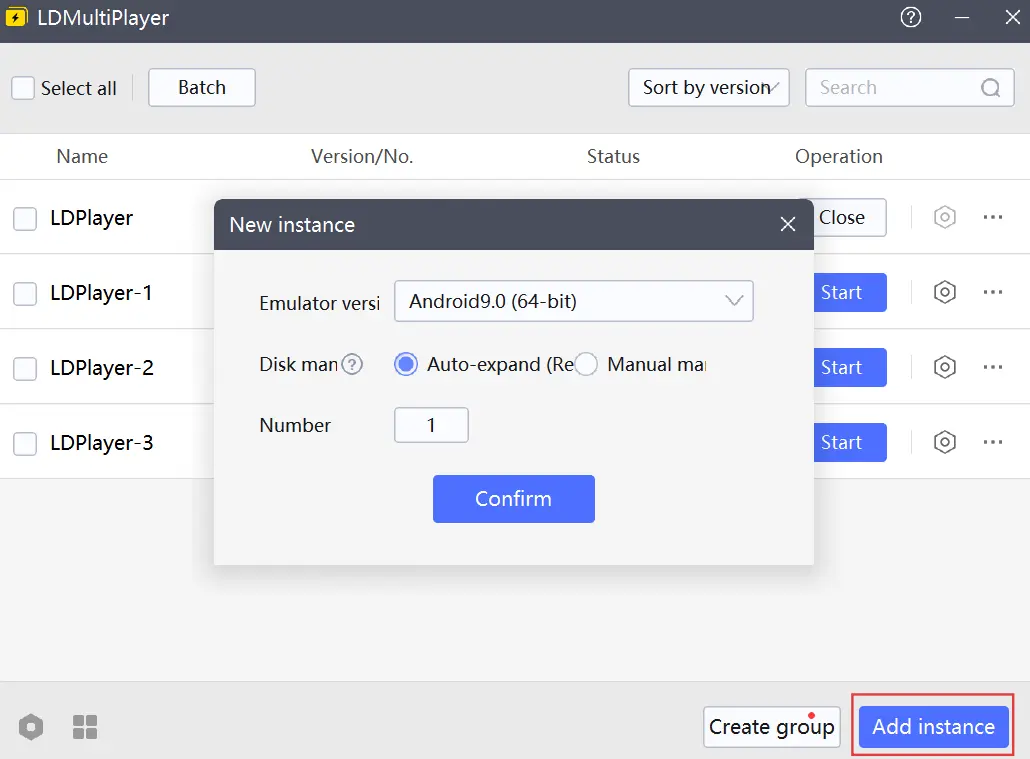
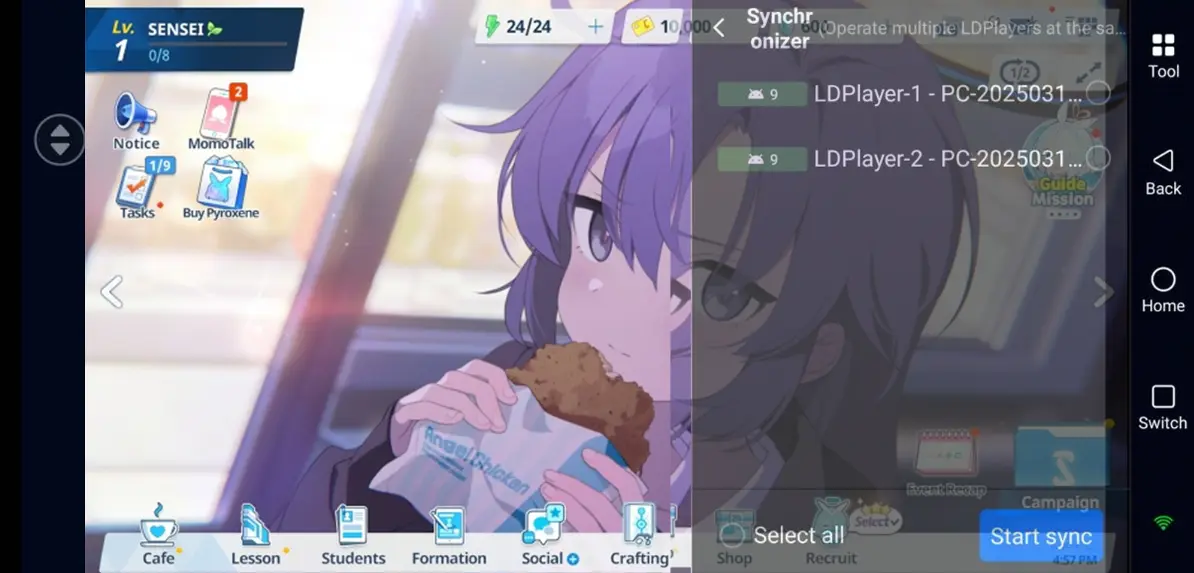
2. Turn on sync control mode inside mobile OSLink and tick all target emulator instances.
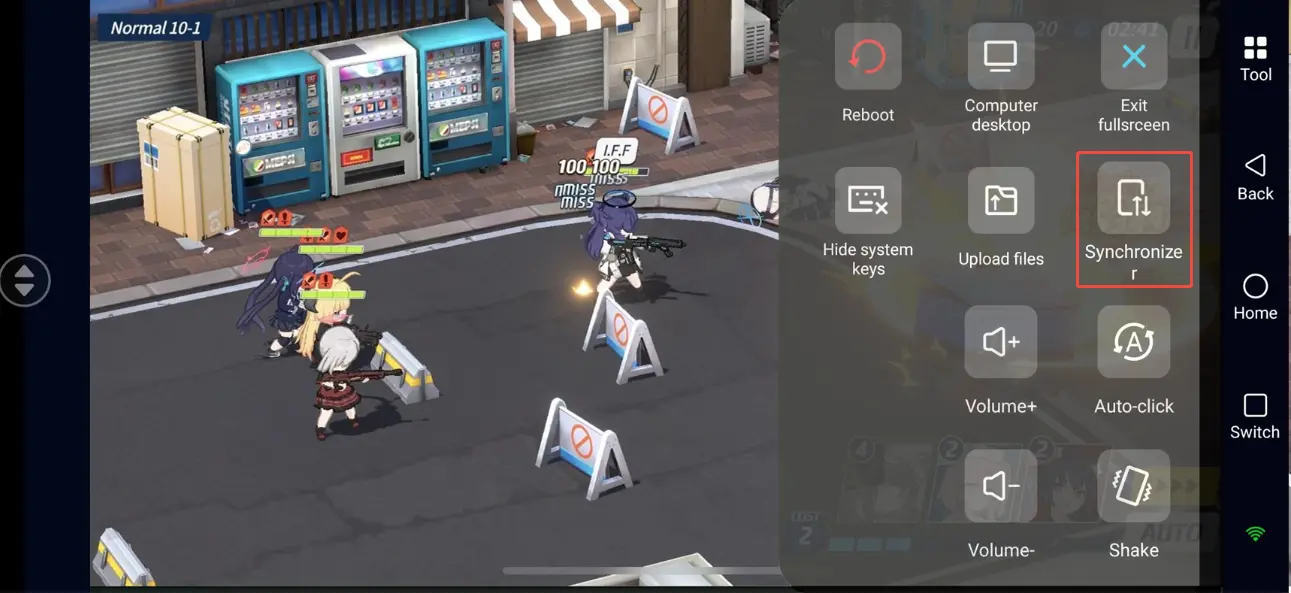
3. Any single tap on daily claim, stamina purchase or team setup applies to all selected emulators. Complete all accounts’ daily tasks in one go.
Frequently Asked Questions
Q: What is the launch date of Blue Archive?
A: The global server went live on November 9, 2021.
Q: Minimum PC specs for multi-instance emulator runs?
A: Minimum specs: 64-bit Windows 7, 4th-gen Intel i3 CPU, 8GB RAM, GTX750Ti GPU, 15GB free storage. Recommended specs: Windows 10/11, Intel i5 or higher CPU, GTX1650 or better GPU for smooth multi-instance performance.
Q: How many Blue Archive instances can one PC run?
A: The game has no official per-device account cap. Instance limit depends on PC hardware. Mid-range PCs with 16GB of RAM can typically run 2–3 instances smoothly. High-end devices with 32GB+ RAM support 5 or more instances. Adjust quantity based on CPU and RAM usage to avoid crashes.
Q: Can iPhones run multiple game copies directly?
A: Native iOS blocks duplicate app installs on one device. Use OSLink remote access to control PC multi-instance emulators and manage multiple accounts indirectly via iPhone.
Final Notes
Pair LDPlayer with OSLink to remotely access and control multiple Blue Archive instances on your PC anytime. Trigger auto-farming remotely during commutes or work breaks to bulk process daily tasks and farm limited event materials across all accounts. Adjust instance numbers based on your PC hardware and follow the game’s user agreement for legitimate gameplay.
 Download