English
 The open-world RPG The Blood of Dawnwalker has won over many players with its day-and-night dual-form system, branching story paths, and gritty medieval dark-fantasy setting. The PC version delivers the full visual presentation and combat system, but there is currently no native mobile client. Many players want to enjoy the game without being tied to a desktop setup. This guide walks through a practical setup from start to finish, covering everything from getting the game and installing the required software to fine-tuning the experience, so you can enjoy a more convenient way to play.
If you're looking for a reliable way to stream your PC games, OSLink works well for remotely playing The Blood of Dawnwalker. There is no need to make major changes to your computer or phone. Once everything is set up, you can stream the full PC game display to your mobile device and continue your medieval adventure from your phone.
1. How to Play The Blood of Dawnwalker
Get the Game
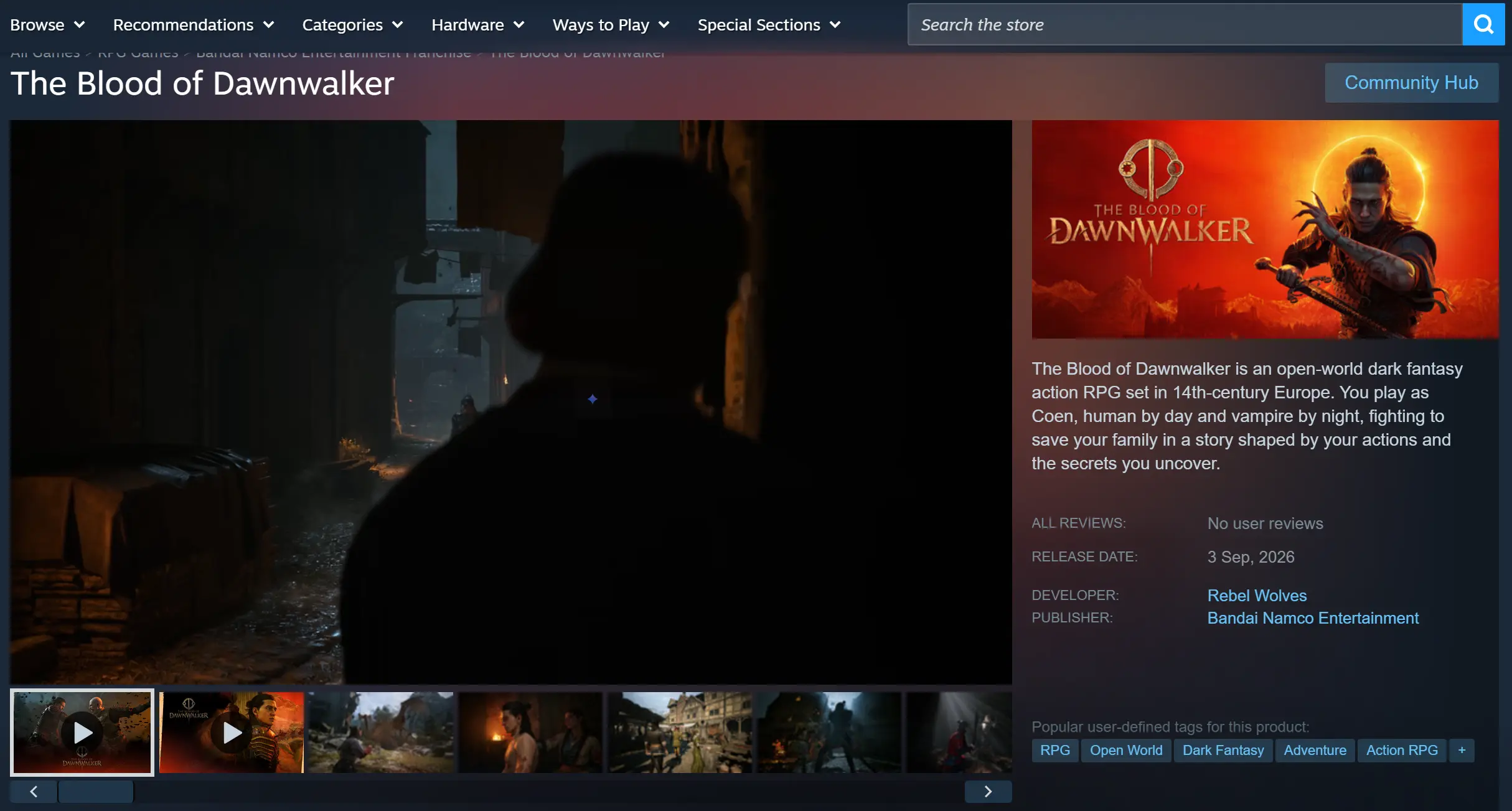
The PC version is officially available through Steam and the Microsoft Store, with Steam recommended for purchasing and downloading the game. Open the Steam client, search for The Blood of Dawnwalker in the store, choose between the Standard Edition and Eclipse Collector's Edition, and complete the purchase. Once the purchase is finished, the game will be added to your library automatically. Click download to get the complete game files.
After all game files have finished downloading, launch the game on your PC first. Make sure the game loads properly and that combat interactions and save-data reading and writing work normally before moving on to the next steps.
2. How to Install OSLink on PC and Mobile
Install the Windows Client
Visit the official OSLink website through your browser and download the installer for Windows. Follow the on-screen instructions to complete the installation. Once installed, allow the program to run in the background to prevent the system from closing the program while it is running in the background.
Install the Mobile Client
Android users can download the APK installation package from the official website or search for the app by name in an app store.
iOS users can open the App Store and search for the corresponding app to download it.
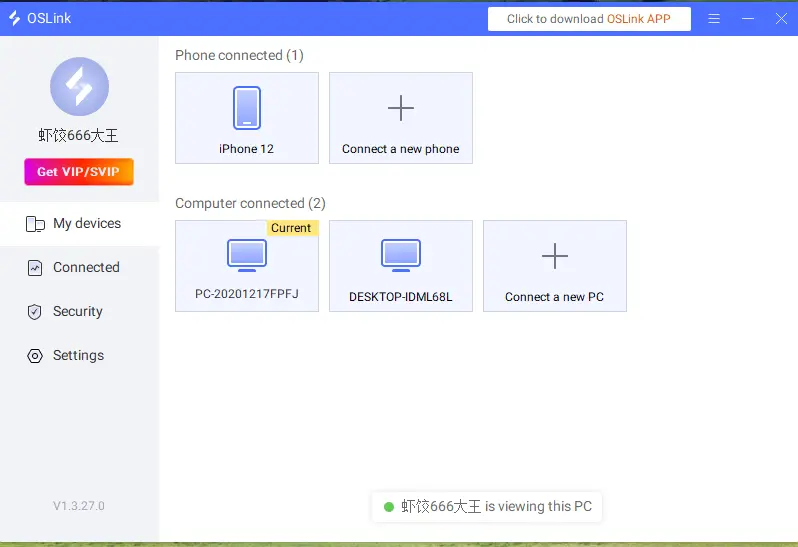
After installing OSLink on both devices, sign in to the exact same account on your computer and phone. Once the account verification is complete, the software will automatically establish an encrypted connection, completing the initial device-pairing setup.
3. How to Run The Blood of Dawnwalker on Mobile with OSLink
Keep OSLink running in the background on your PC and disable automatic system sleep to prevent sleep mode from interrupting the connection. Launch The Blood of Dawnwalker on your computer, wait for the game to finish loading, and stay on the main menu.
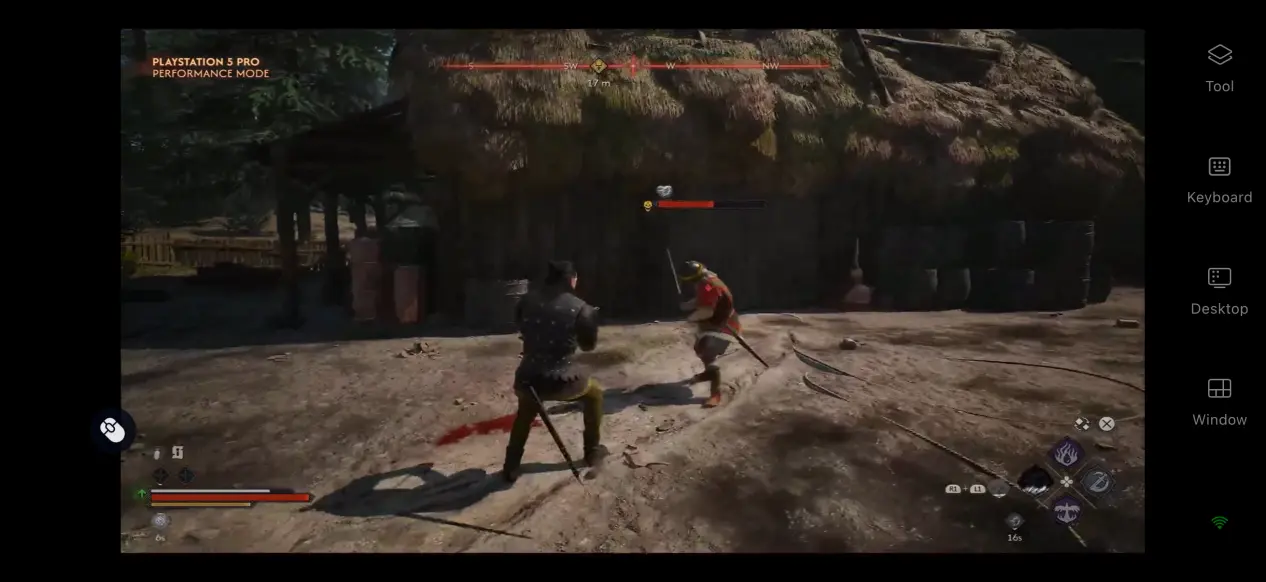
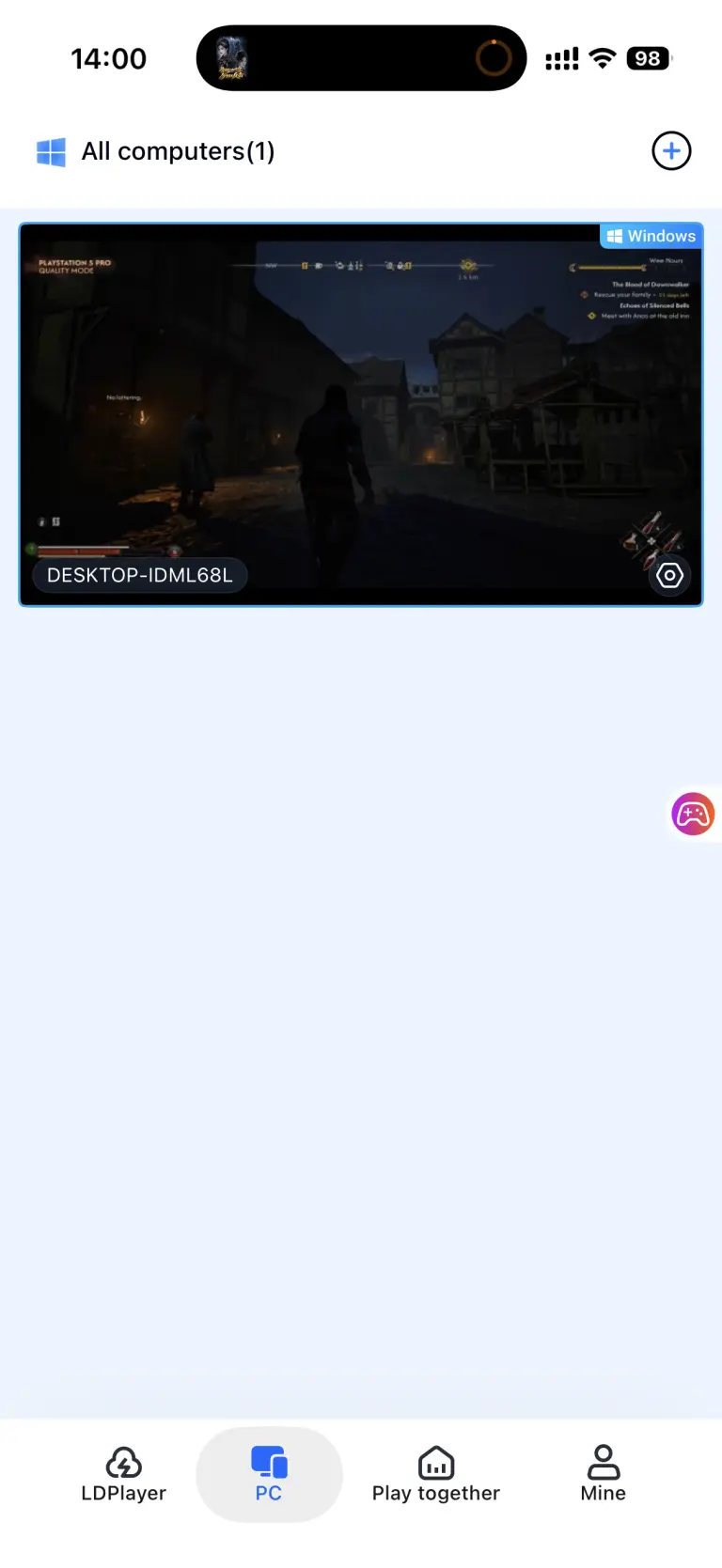
Open OSLink on your phone. The device list will show the available computer connected to the same account. Tap the target computer to send a connection request. Once the connection is established, tap the streaming preview window to switch to full-screen mode, and the PC display will be streamed directly to your phone.
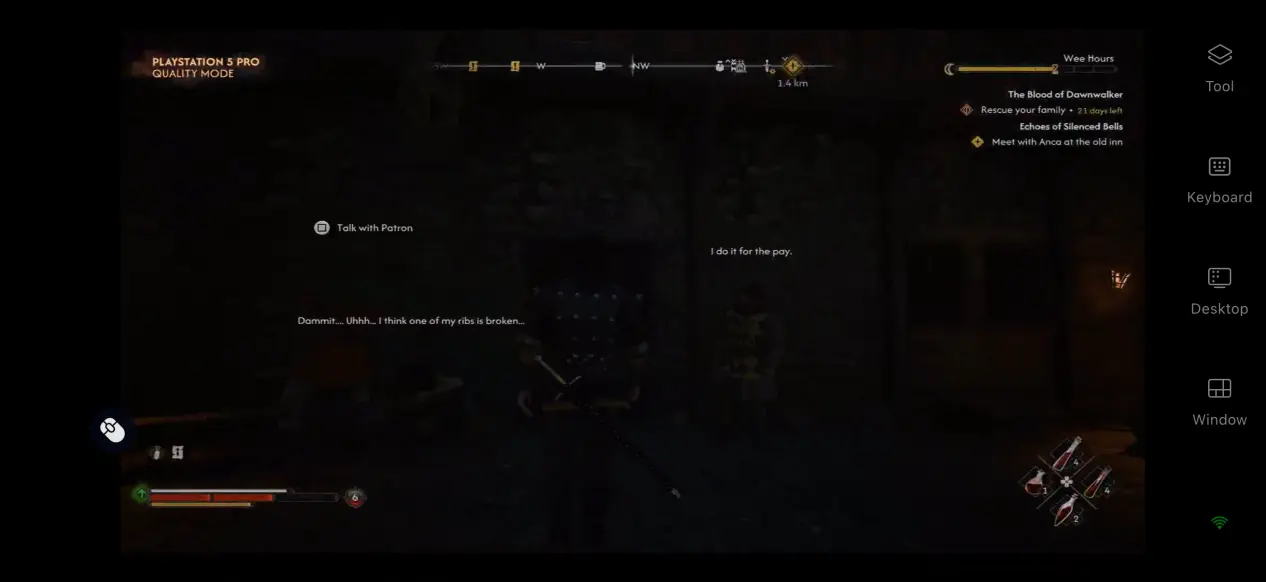
Once the screen mapping is complete, open the toolbar on the side of the mobile screen and switch to the dedicated game streaming mode. This mode adjusts encoding priorities to reduce input latency and better match the pace of RPG exploration and real-time combat. After completing the setup, you can control and play the game directly from your phone.
4. Benefits of Playing The Blood of Dawnwalker on Mobile
No Restrictions on Where or When You Play
As long as your network meets the required conditions, your phone does not need to be on the same local network as your computer. You can pick up where you left off while you're out, explore the medieval open world, and continue your character's story without being tied to your desk.
No Need to Use Your Phone's Storage
All game files are stored on your computer's hard drive. Your phone only receives the streamed video signal, so it does not need to download a large game package. Since the phone does not handle the game's rendering workload, even devices with limited storage or older hardware can run the game without putting much strain on the phone.
Supports Various External Devices
The software provides solid support for peripherals, allowing you to connect a controller, keyboard, or mouse to your phone. A controller can provide an experience closer to console gaming, while a keyboard and mouse can replicate the original PC controls. Choose the setup that best matches your own preferences.
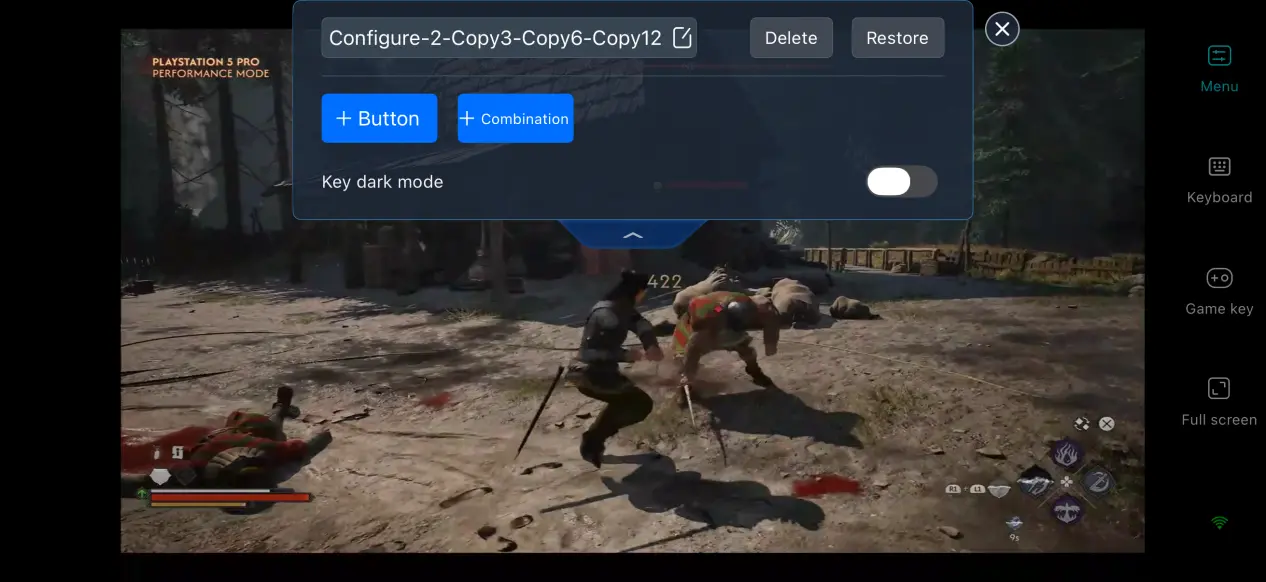
5. How to Optimize Your OSLink Gaming Experience
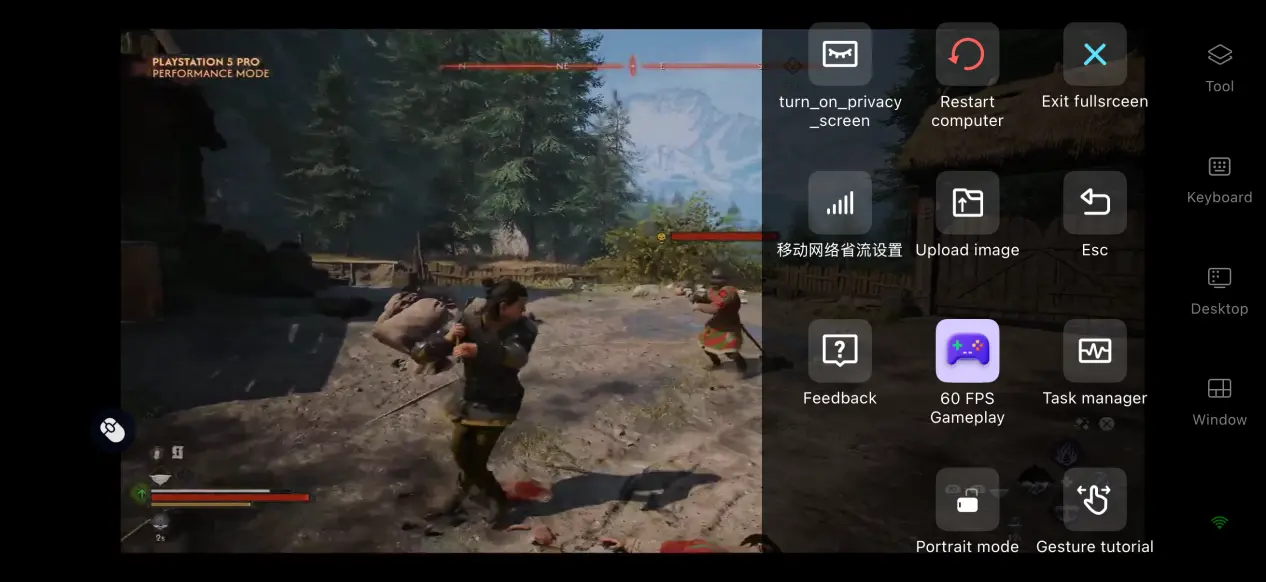
60 FPS PC Gaming Mode
When enabled, this feature reallocates bandwidth resources and prioritizes the transmission of control inputs. During fast-moving combat scenes, it helps reduce input delay. If your network connection is unstable, you can lower the streaming bitrate slightly to prioritize overall smoothness.
Custom Key Mapping
For frequent actions such as movement, skill use, and dialogue interactions, OSLink's custom key mapping lets you add or edit virtual buttons and combination keys according to your preferred controls. You can also adjust their positions on the screen to make the transition from PC controls to mobile controls more comfortable.
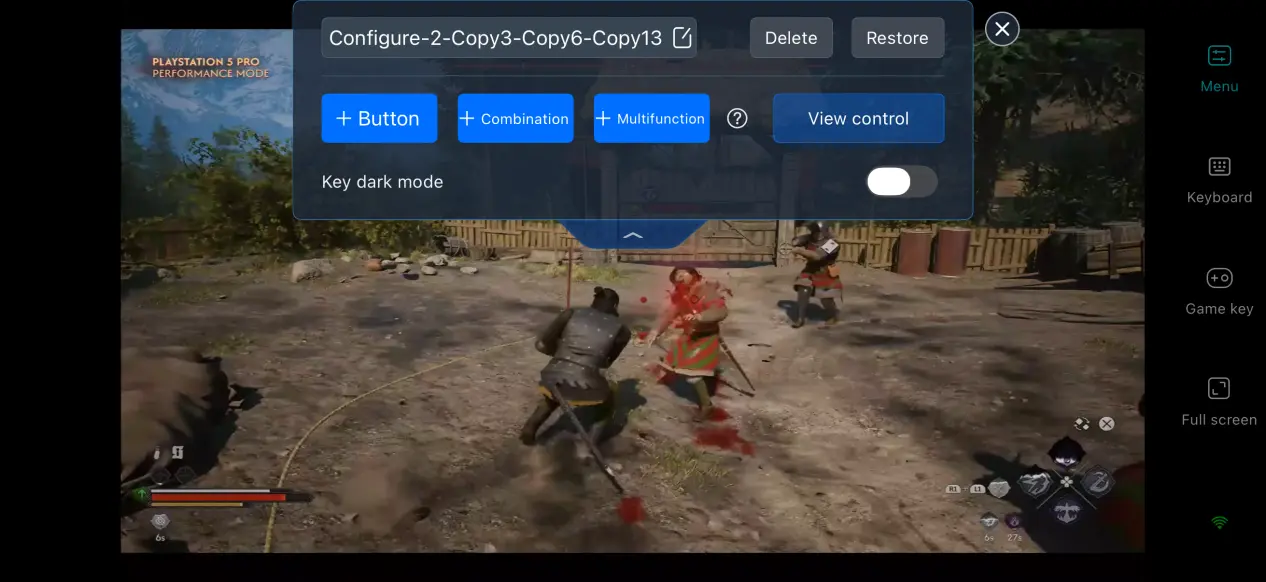
Mobile Screen Mapping
After switching to full-screen mode, the software automatically hides the phone's status bar and gesture area. When the game's resolution does not match your phone's aspect ratio, the display is automatically scaled while keeping the original proportions, reducing the visual distraction caused by black bars.
6. Frequently Asked Questions About Playing The Blood of Dawnwalker on OSLink
Q: When will The Blood of Dawnwalker be released?
A: The game officially launches on September 3, 2026. The PC version will be available on Steam, and there is currently no native mobile version.
Q: What PC specifications does The Blood of Dawnwalker require?
A: Minimum requirements: Windows 10 64-bit, 16 GB RAM, GTX 1060 graphics card, i5-11400F processor, and 60 GB of free space on an SSD. Recommended requirements: Windows 10 64-bit, 16 GB RAM, RTX 4060 graphics card, i7-11700K processor, and at least 60 GB of free space on an SSD.
Q: Can I play The Blood of Dawnwalker directly on an Android or iOS device?
A: There is no official native game installation package for Android and iOS, so The Blood of Dawnwalker cannot be installed and run directly on mobile. You need to use OSLink remote streaming to connect to a computer with the game installed and play it remotely on your phone.
Conclusion
The Blood of Dawnwalker is an open-world action RPG set in a medieval dark-fantasy world. Although there is currently no native mobile version, OSLink's remote streaming solution makes it possible to play the game comfortably on a mobile device. If you want to experience this medieval adventure on the go, follow the steps above to complete the setup and fine-tune your remote-play experience.
 Download