English
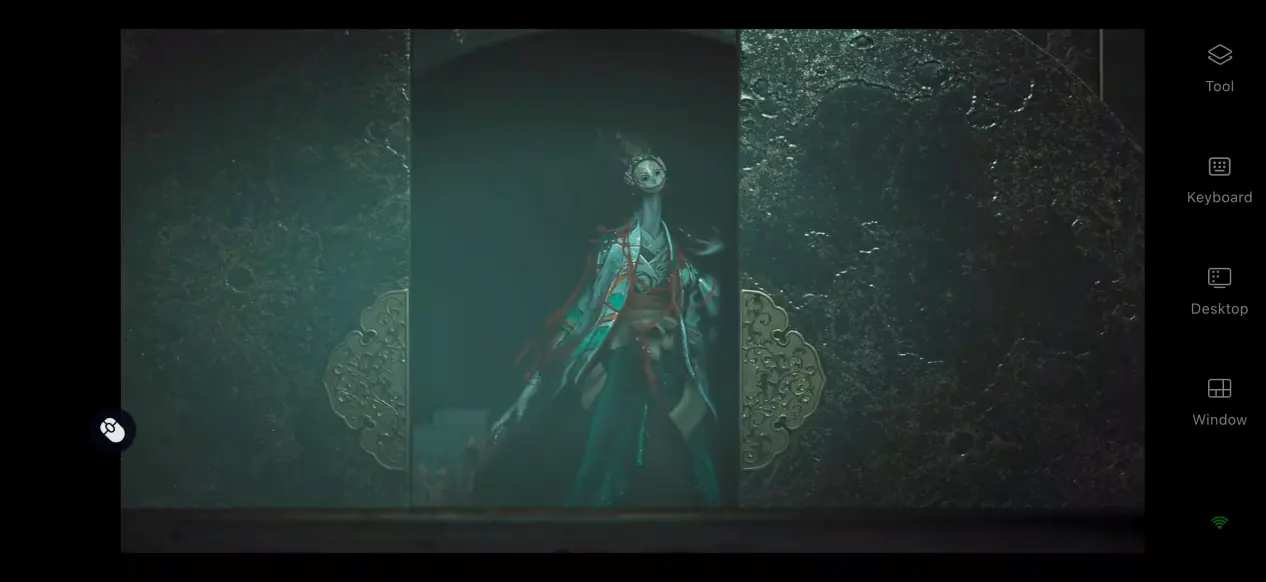
 Capcom’s Onimusha: Way of the Sword, the series’ long-awaited mainline return, has drawn plenty of attention from action game fans with its iconic Issen mechanic, hard-hitting samurai combat, and an Edo-period world threatened by Genma. However, there is no native Android or iOS version available, so most players still need to stay in front of a PC to progress through the story. This guide walks through the entire setup, from getting the game and installing the required software on both devices to optimizing the experience and dealing with common questions. Follow the steps below to get everything ready.
If you are looking for a streaming tool that works well with demanding action games like Onimusha: Way of the Sword, OSLink is a lightweight option that fits the job. Once its dedicated game mode is enabled, the streaming connection is optimized to shorten input response times, helping reduce the sense of delay during clashes and critical Issen moments. No additional hardware upgrades are required, so even a regular smartphone can be used to play.
1. How to Get Onimusha: Way of the Sword
Where to Get the Game
The PC version of Onimusha: Way of the Sword is mainly available through Steam and the Epic Games Store. Open the corresponding store client, search for the full game title, and purchase it to start the download from your library. Game saves are synced through the platform’s cloud service, so you can still access your existing progress when signing in with the same account on another PC.
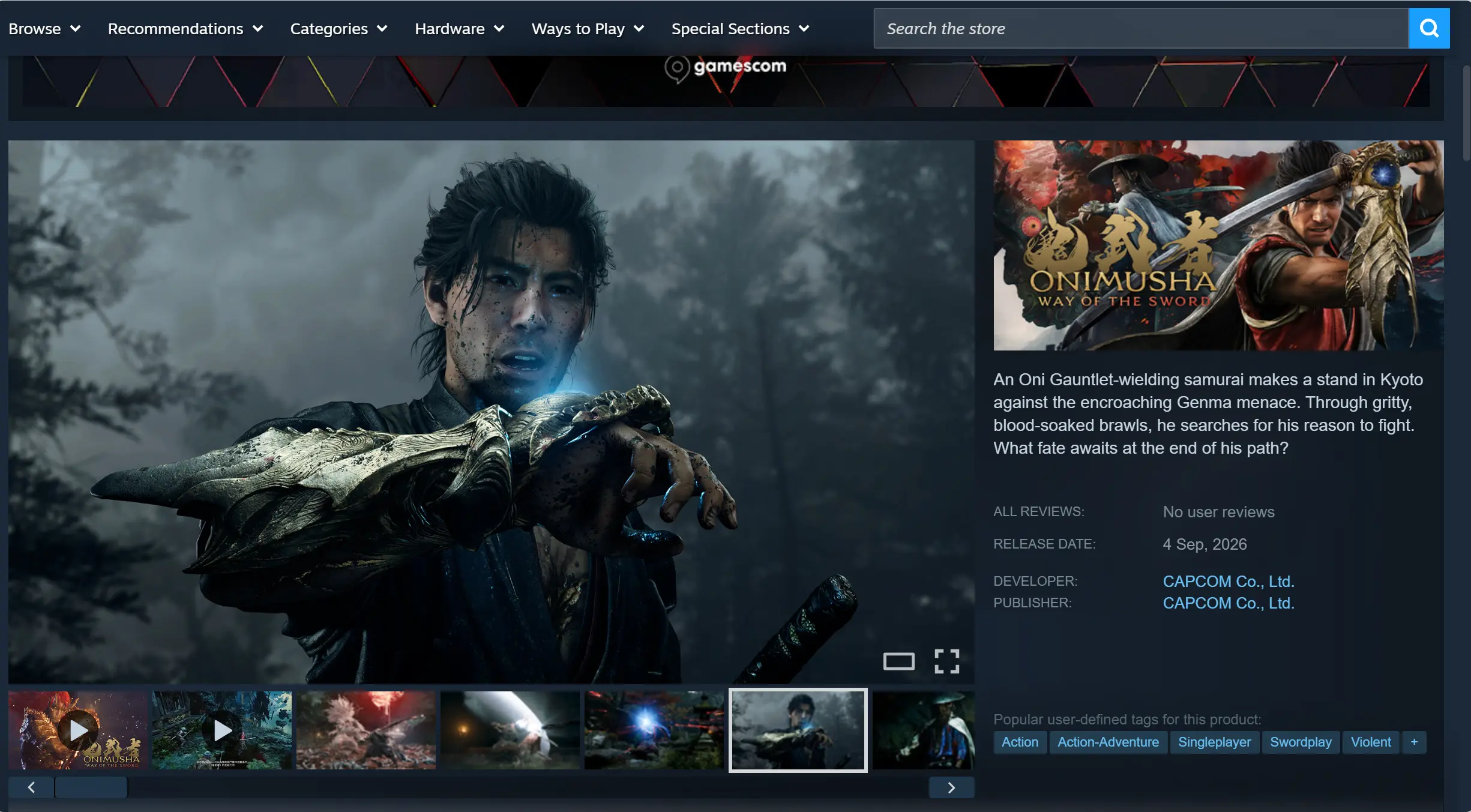
Once the download is complete, it is recommended that you launch the game once and make sure it reaches the main menu normally. Check that there are no display issues, stuttering, crashes, or other problems before moving on to the streaming setup.
2. How to Install OSLink on PC and Mobile
Installing on Windows PC
Visit the official OSLink website through your browser and download the installer for Windows. After installation, launch the software, create an account, and sign in. The program needs to keep running in the background, so disable automatic sleep and power-saving settings for your network adapter. This helps prevent unexpected disconnections when the computer is idle and allows your phone to connect whenever needed.
Installing and Setting Up on Mobile
Android users can search for OSLink in the Google Play Store and install it from there. iOS users can open the App Store, search for the corresponding client, and download it.
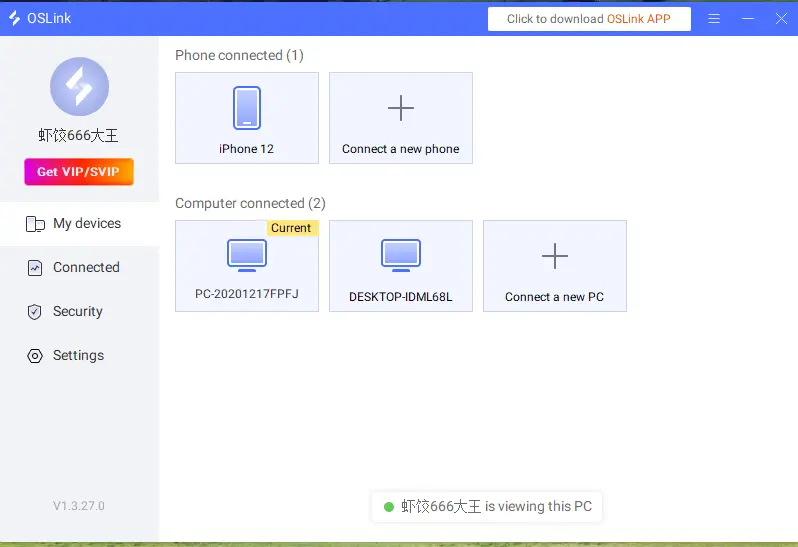
The account signed in on your phone must be the same one used on your PC. OSLink can detect the host computer on the same local network and can also pair the devices automatically over the internet, so there is no need to manually enter a device ID.
3. How to Run Onimusha: Way of the Sword on Mobile with OSLink
Step 1: Open the Steam or Epic client on your PC and launch Onimusha: Way of the Sword. Stay on the game’s main menu and keep the game window running in the foreground. Do not minimize it to the background.
Step 2: Open OSLink on your phone. The device list will show available PCs signed in to the same account. Tap the corresponding PC to establish the streaming connection.
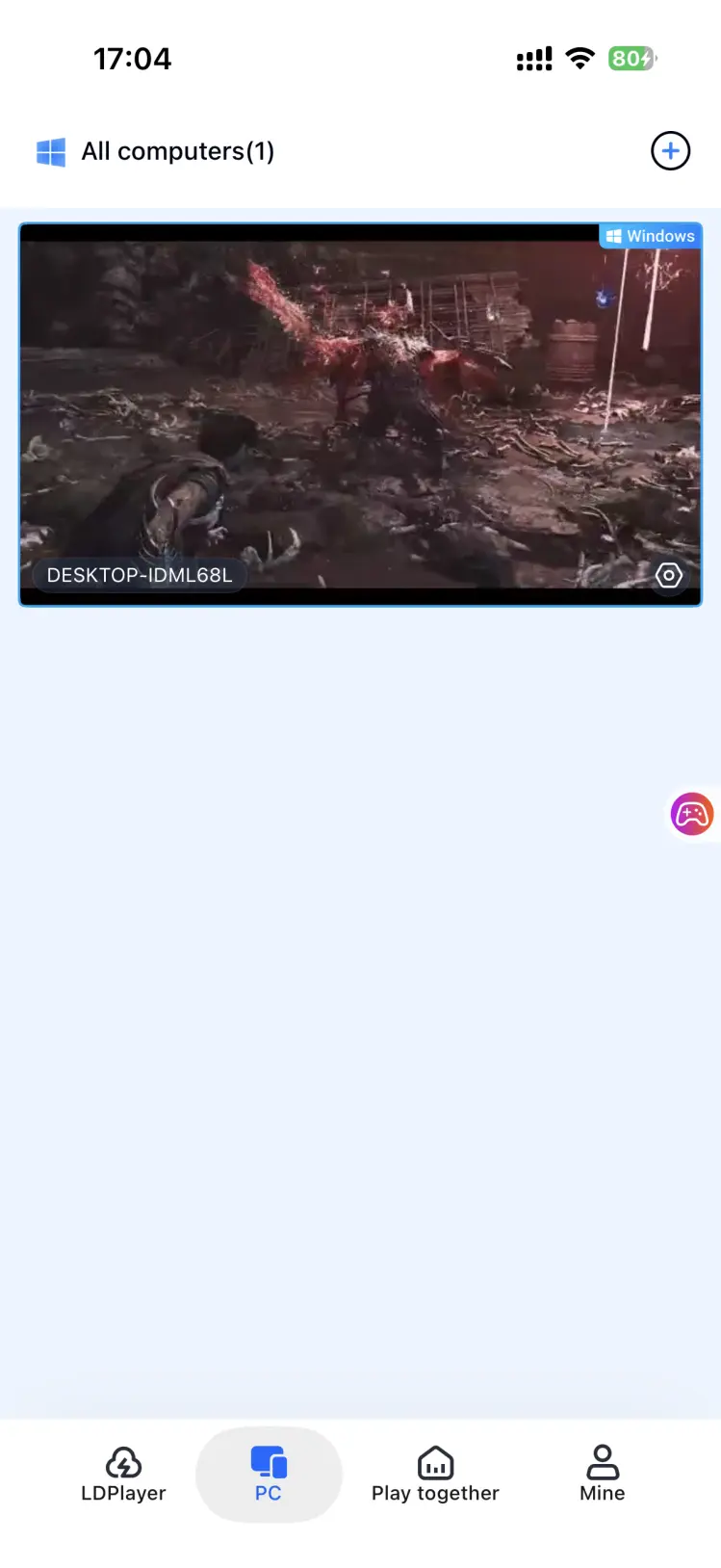
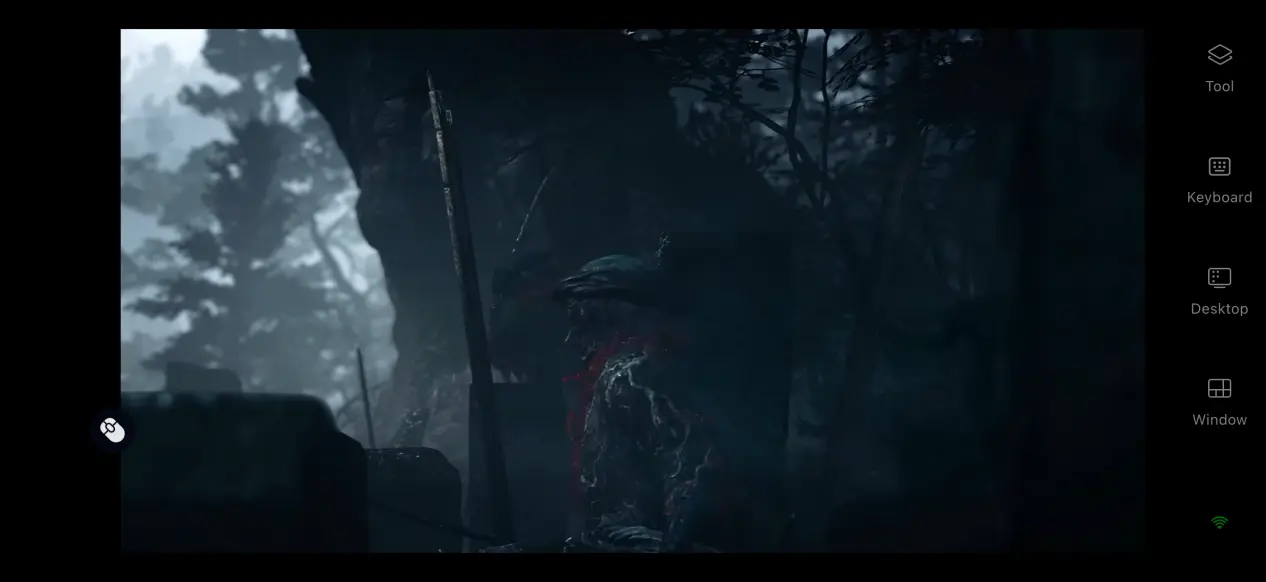
Step 3: Once the PC screen is successfully streamed to your phone, first-time users are advised to open the side toolbar and switch to Game Mode. This loads a basic virtual control layout designed for action games.
Step 4: You can adjust the control layout based on your preferred play style or connect external devices. Once everything is set up, you can play through stages on your mobile device and fight the Genma directly.
4. Benefits of Playing Onimusha: Way of the Sword on Mobile
Continue Your Progress During Free Time
As long as your PC stays powered on and connected to the internet, your phone can connect to it over either Wi-Fi or mobile data. Whether you are waiting somewhere or taking a short trip, you can pick up where you left off, farm enemy materials, or take on bosses without having to stay at your computer.
Works with Common External Controllers
OSLink supports Bluetooth and wired connections for controllers, keyboards, and mice. Once a controller is connected, the system automatically adapts the game’s input scheme. Timing-based actions such as parries and Issen attacks can feel much closer to playing locally on PC, helping overcome the limitations of touchscreen controls.
No Need to Use Your Phone’s Storage
The game’s 50 GB of resources and save data remain stored on your PC’s hard drive. Your phone only receives the streamed game display, so there is no need to download the large game files. Even phones with older hardware can be used without clearing local storage to make room.
5. How to Optimize the OSLink Gaming Experience
Customize the Control Layout
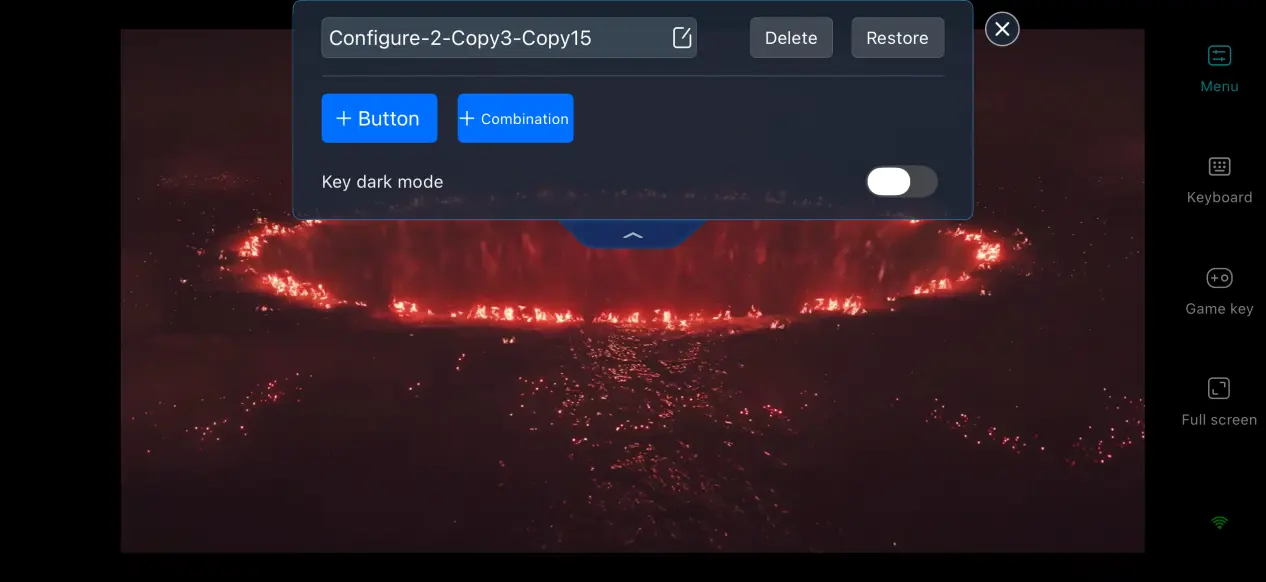
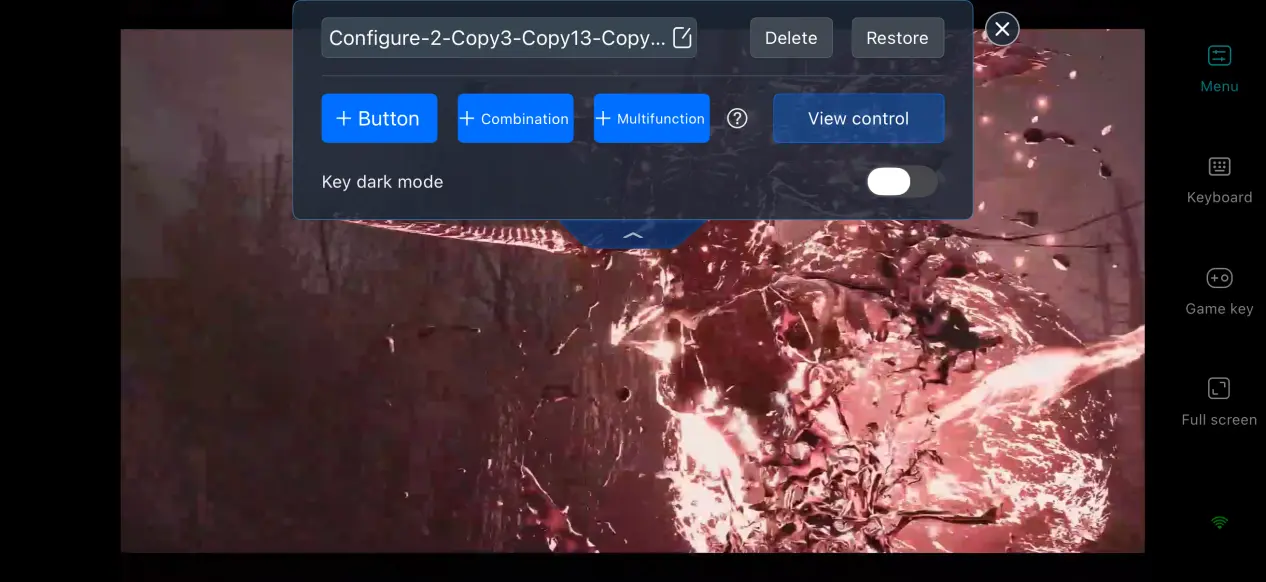
OSLink lets you freely add or remove virtual touch buttons and adjust their size, transparency, and position individually. For Onimusha: Way of the Sword, high-frequency actions such as Issen, parries, and dodges can be placed within easy reach. You can also save multiple control layouts and switch between them quickly for boss fights and exploration.
Connection History
The software keeps a record of previous device connections, so you do not have to search for your PC every time. Previously connected computers can be accessed quickly to start streaming, cutting down on repeated pairing steps.
Low-Latency, High-Frame-Rate Game Mode
OSLink’s built-in 60 FPS PC Game Mode uses encoding optimized for action games. It helps reduce motion blur when quickly turning the camera or fighting multiple Genma on screen, while shortening the gap between input commands and visual feedback for more responsive counterattacks during sword clashes.
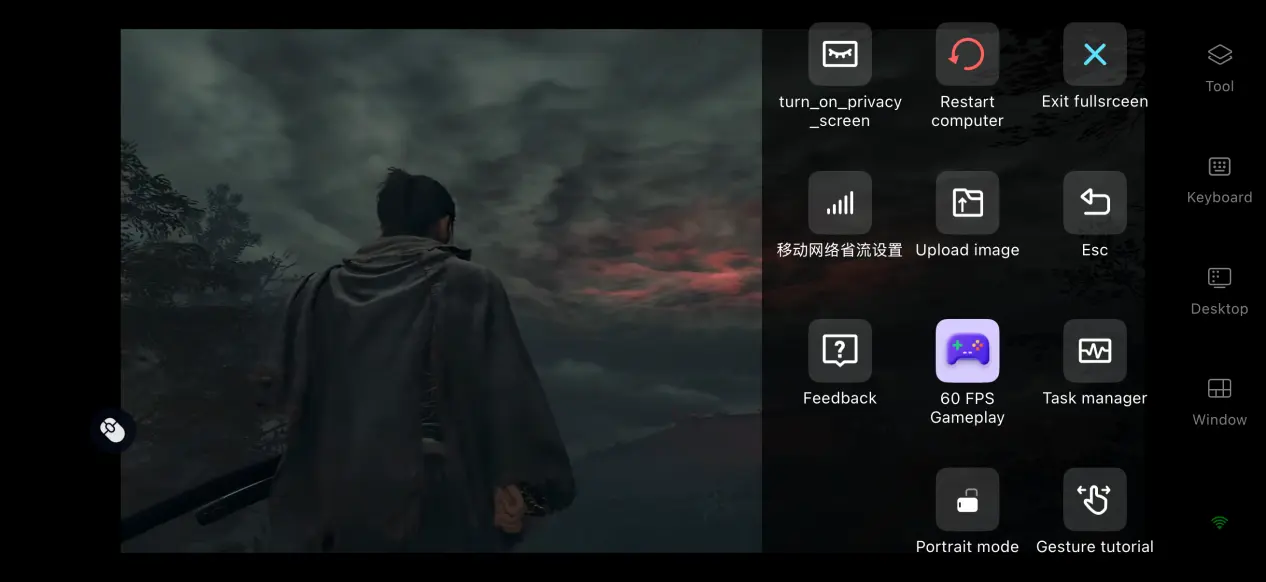
Optimized Screen Streaming for Mobile
OSLink allows you to adjust the streaming bitrate manually. When the network connection is strong, you can raise the bitrate to preserve more detail in the game image. When the connection becomes unstable, lowering the bitrate helps keep the stream smooth. The system can also detect network quality automatically and adjust the output quality dynamically, balancing image clarity with connection stability.
6. Frequently Asked Questions About Playing Onimusha: Way of the Sword on OSLink
Q: What's the release date of Onimusha: Way of the Sword?
A: Onimusha: Way of the Sword is officially scheduled to release on September 4, 2026. The PC version will launch on Steam and Epic, while PS5, Xbox Series X|S, and Switch 2 versions will also be released. There is no native mobile version.
Q: What are the PC system requirements for Onimusha: Way of the Sword?
A: Minimum requirements: Windows 11, an i5-8400/Ryzen 3 3100 processor, 16 GB of memory, a GTX 1660 6 GB graphics card, and a 50 GB SSD. Recommended requirements: Windows 11, an i5-10400/R5-3600 processor, 16 GB of memory, an RTX 2060 Super graphics card, and a 50 GB SSD. A mechanical hard drive is not recommended for running the game.
Q: Can I play the game directly on an iOS device?
A: There is no official native iOS or Android version. iOS devices can only run the game through OSLink’s remote streaming connection to a PC, so the game itself cannot be downloaded and installed directly.
Conclusion
Onimusha: Way of the Sword carries on the series’ signature Issen combat system and follows a samurai’s adventure against Genma monsters in the Edo period. The game is currently available for PC and consoles, with no native mobile version. For players who want to experience it on a phone, OSLink provides a practical way to stream the game remotely. With the PC handling all of the game’s processing and rendering, the phone serves as the display and input device, allowing players to continue their progress during commutes or while away from home and enjoy the full samurai-versus-Genma adventure.
 Download