English
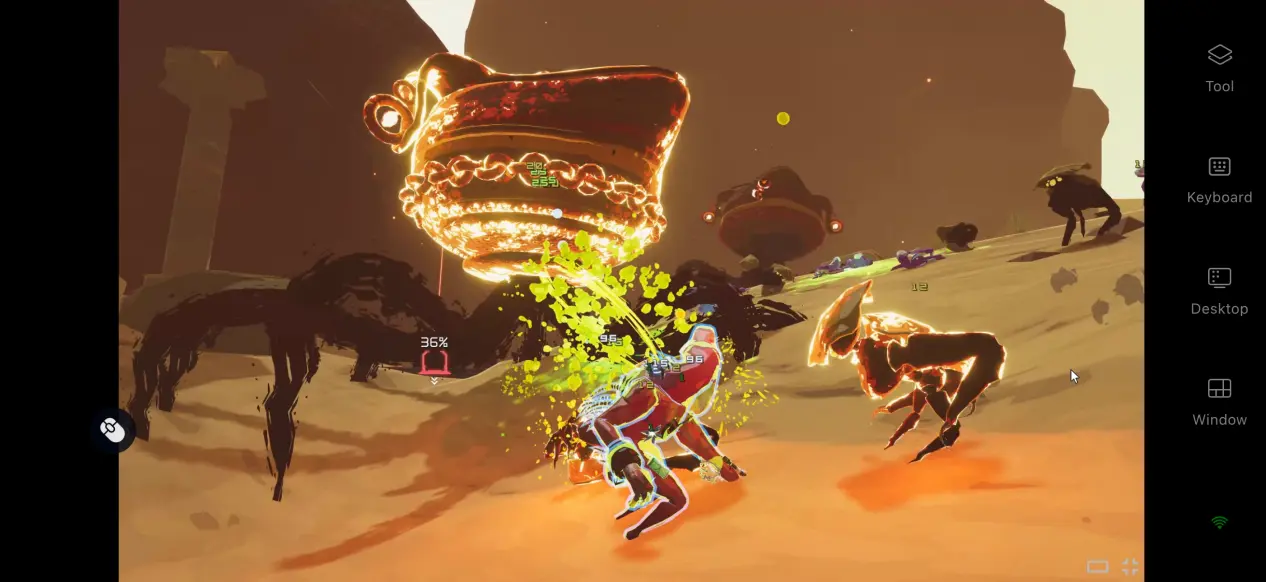
 Risk of Rain 2 is a long-running third-person roguelike looter shooter, loved for its dynamic difficulty, huge item pool, and fast-paced combat loop. Its latest DLC, Risk of Rain 2: Hallowed Concepts, launched on October 9, 2026, bringing fresh content to the game. The game is currently available only on PC and consoles, but if you want to enjoy the full Risk of Rain 2 experience on mobile, this guide has you covered. We’ll walk through a practical remote streaming setup that brings the full PC experience to your phone, from getting the game and setting up the required tools to connecting and fine-tuning everything. Follow along and give it a try.
If you want an easier way to play PC games from your phone, OSLink is a solid option. For action shooters like Risk of Rain 2, it supports custom key mapping, allowing you to map frequently used actions such as sprinting and item switching to touch controls. Its streaming connection is also optimized for gaming, helping reduce input latency so you can play PC games smoothly on your phone.
1. Get Risk of Rain 2
The official PC version of the game is available through the Steam Store. Open the Steam client and search for “Risk of Rain 2” to go to the game’s store page and purchase it. After payment, open your Steam Library, choose an installation location, and start the download.
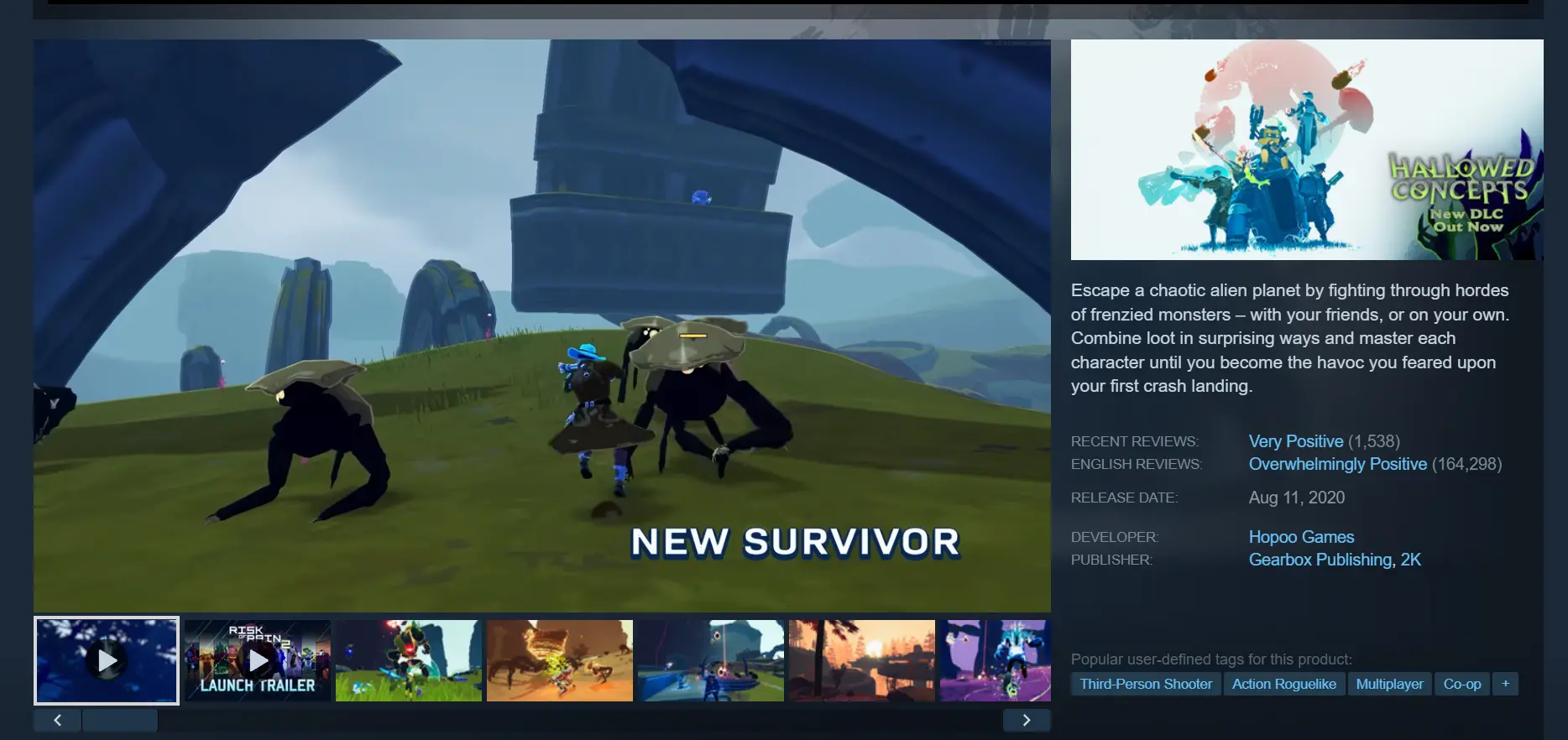
Once the download is complete, verify the local files to make sure everything is intact and the game runs properly before setting up remote access. You can add DLC later based on your needs; the base game alone includes the full core experience.
2. Set Up OSLink on Both Devices
PC Setup
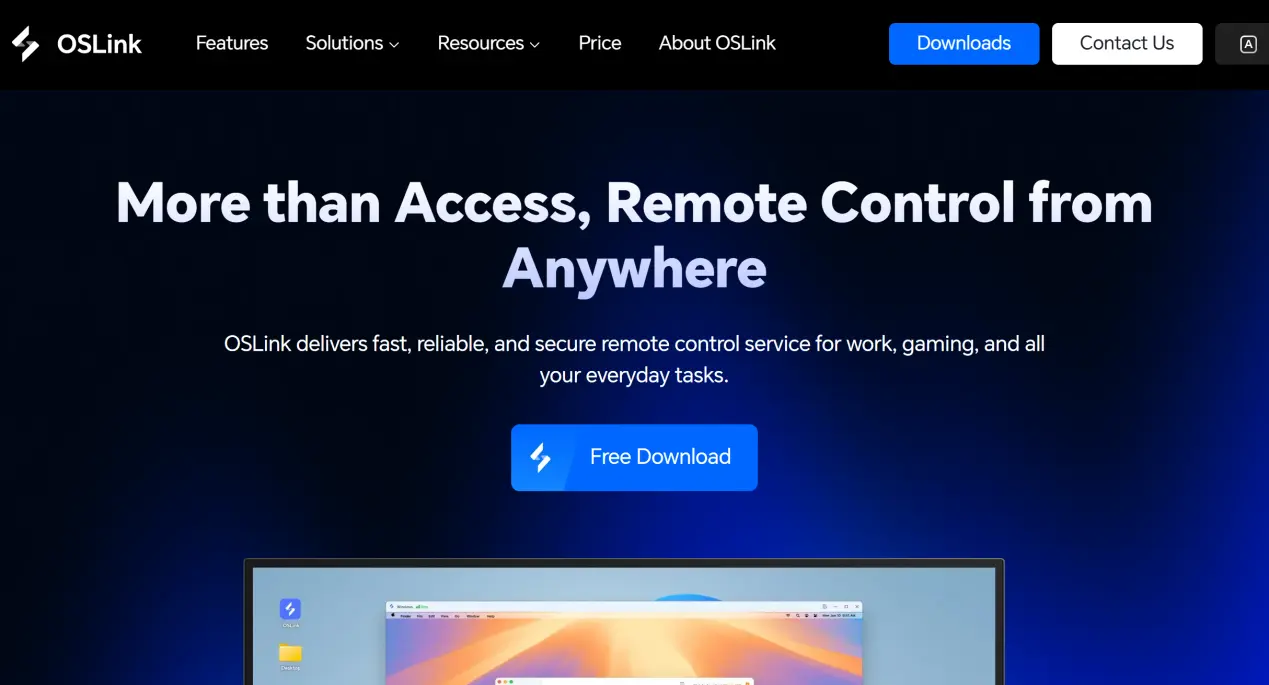
Search for OSLink in your browser and open the official website to download the Windows installer. Run the installer and follow the setup wizard. After launching the client, create an account using your email address or phone number, then sign in. Once you’re signed in, the software will automatically link your current PC to your account, and the device will appear in your device list.
Mobile Setup
Android users can search for “OSLink” in their app store and install it. iOS users can open the App Store and search for the same app.
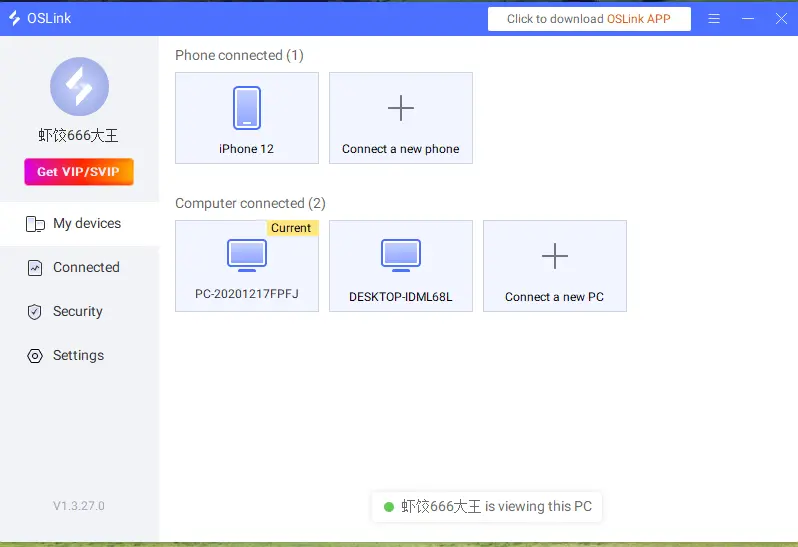
After installation, open the app and sign in with the same account details used on your PC. The system will automatically pair the two devices, and the computer you linked will appear in the mobile device list.
3. Launch Risk of Rain 2 on Mobile with OSLink
Pre-Connection Check
Make sure your PC is powered on and OSLink is running in the background. You can also launch Risk of Rain 2 in advance and leave it on the title screen or main menu.
Connect to Your PC Remotely
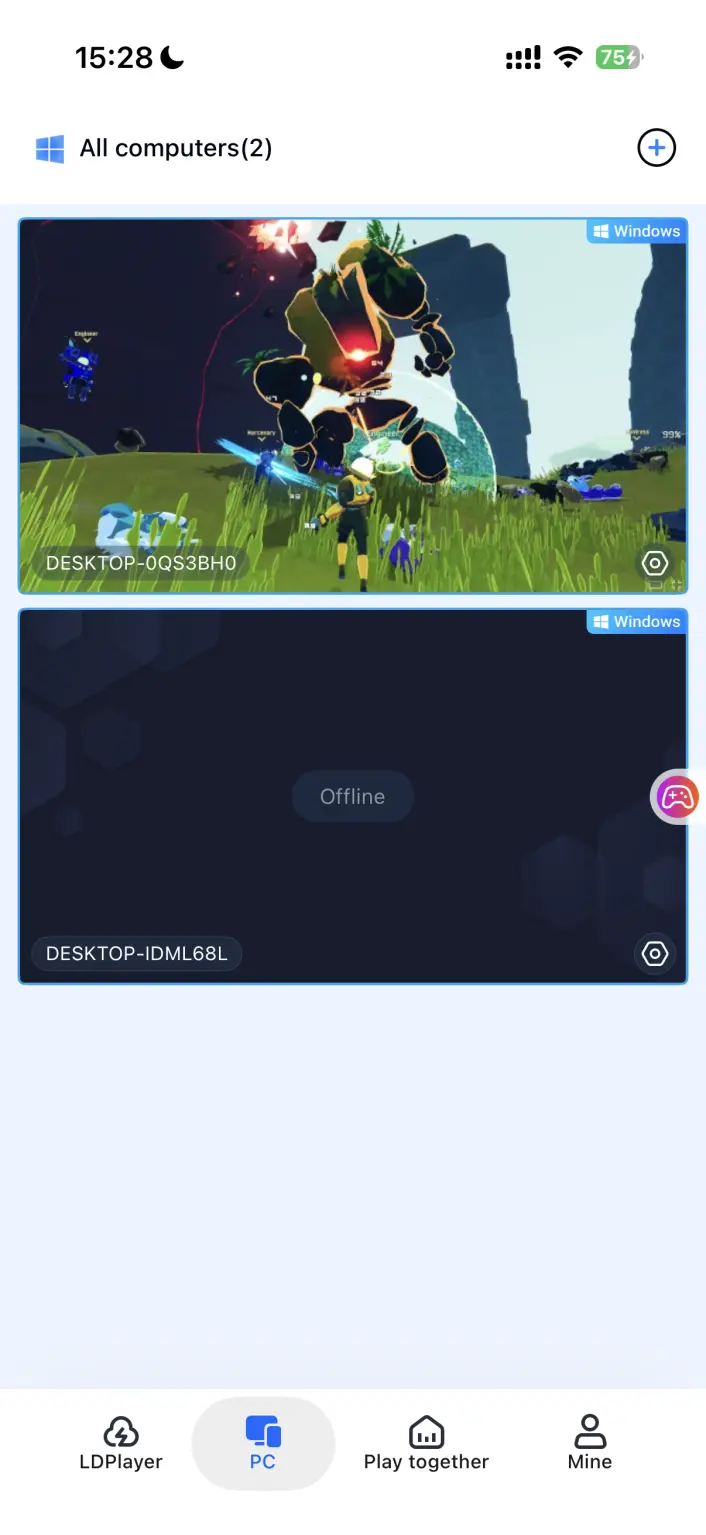
Open OSLink on your phone and tap the paired PC in the device list to load the remote desktop. Your phone will then mirror the PC screen in real time, with the Risk of Rain 2 window displayed on your mobile device.
Adjust Mobile Settings
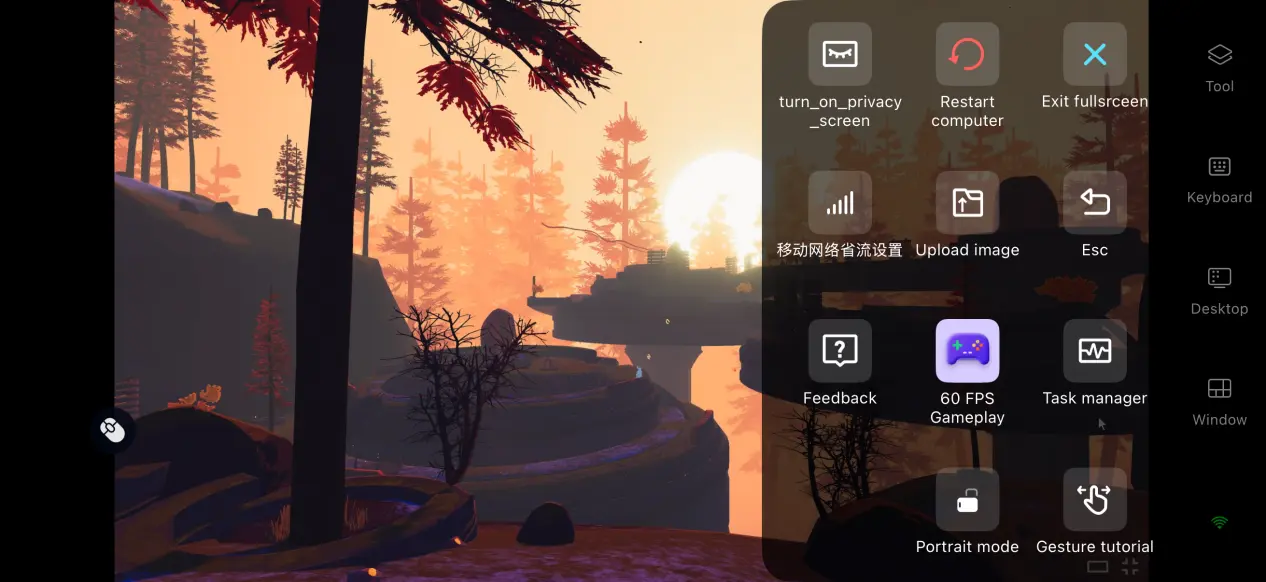
For your first connection, we recommend enabling the dedicated “60 FPS PC Gaming” mode from the side toolbar. It optimizes streaming settings for action games and helps reduce input latency. You can also enable full-screen display to better fit your phone’s screen. Once everything is adjusted, you can play using touch controls or custom virtual buttons.
4. Benefits of Playing Risk of Rain 2 on Mobile
Play Without Being Tied to Your Desk
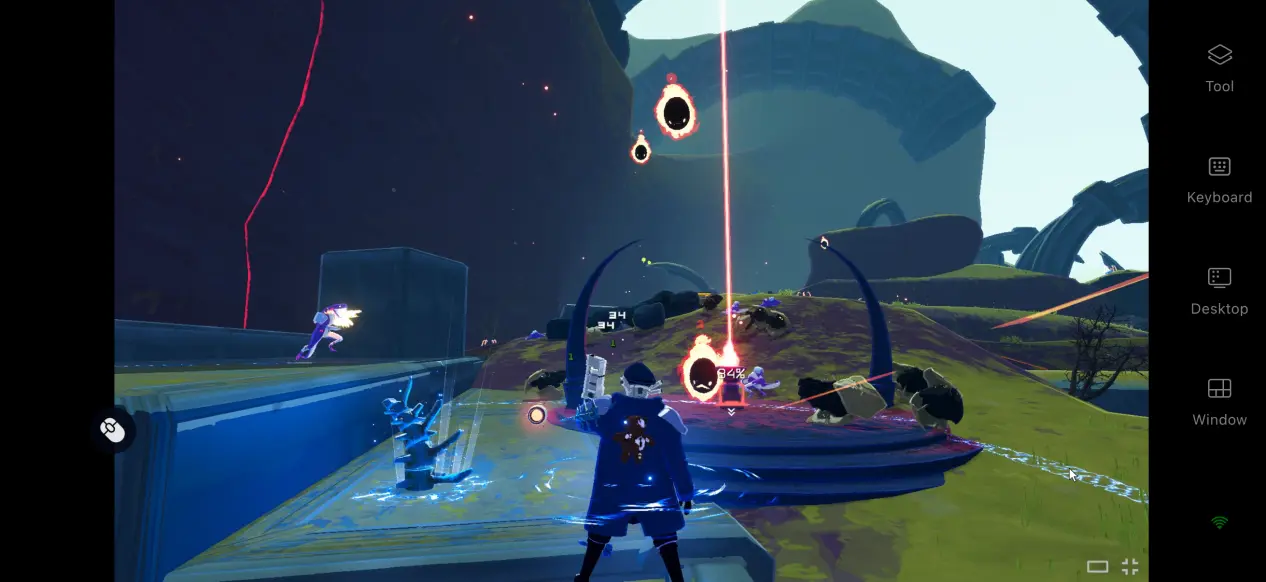
As long as your PC and phone have a stable network connection, you can start playing whenever you want without having to stay at your computer. Roguelike runs can fit easily into short breaks, making Risk of Rain 2 a good match for spare time during a commute or lunch break.
Room Sharing for Multiplayer Sessions
OSLink includes a room-sharing feature that lets you share your PC desktop with multiple participants. Players can take turns controlling Risk of Rain 2 and work together remotely, making it a convenient way to enjoy runs with friends.
No Need to Use Your Phone’s Storage
The game and all of its DLC are stored on your PC, while your phone only needs the lightweight OSLink client. There’s no need to free up a large amount of storage, and even older phones with modest hardware can connect and play because all the heavy processing is handled by the PC.
5. Fine-Tune Your Risk of Rain 2 Experience with OSLink
Customize Your Virtual Controls
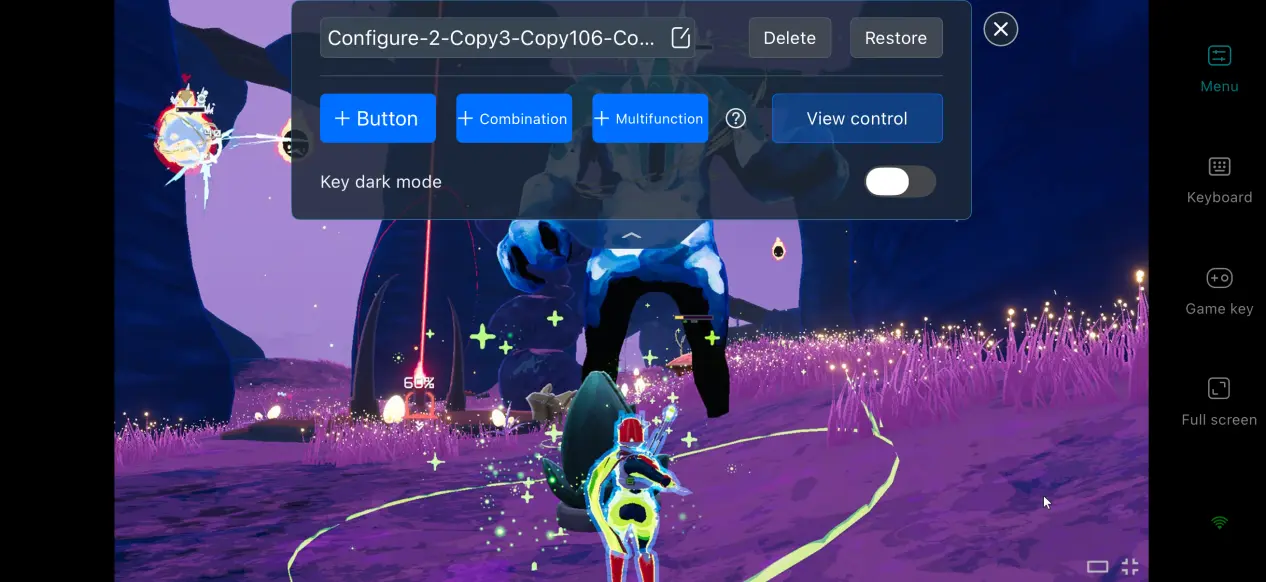
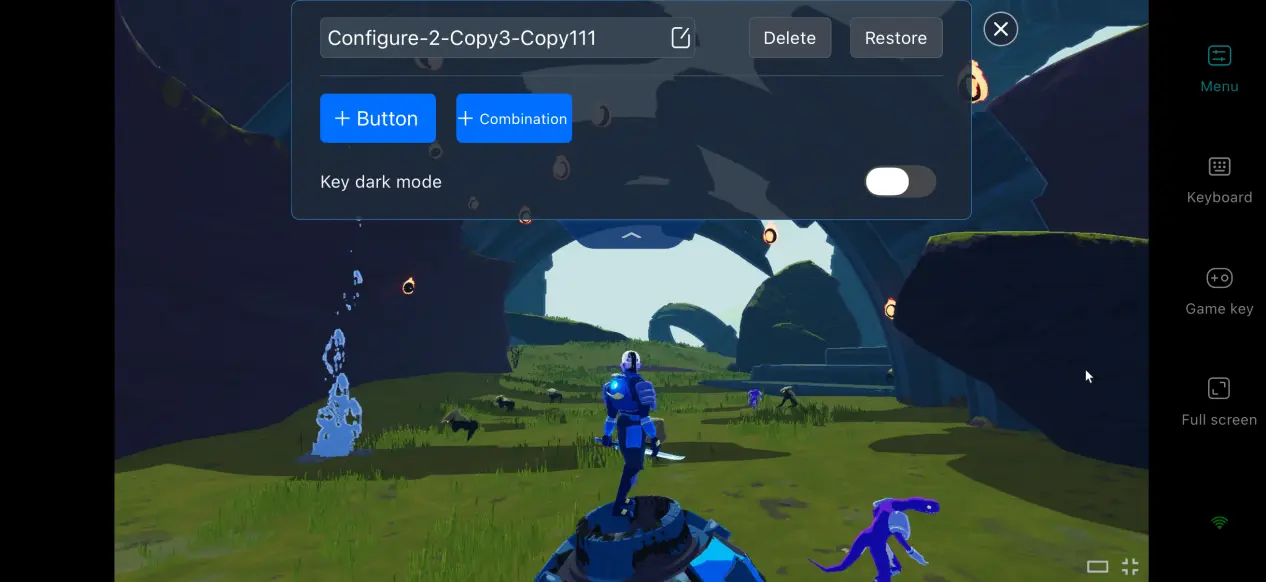
Open OSLink’s dedicated button editor to add virtual buttons and adjust their size, position, and transparency independently. We recommend placing frequent actions such as shooting, sprinting, and item switching within easy reach of your thumbs for a more natural touch-control layout.
Keep Records of Your Streaming Sessions
Every remote streaming session is automatically recorded, allowing you to check the session duration and image quality setting used. If you run into stuttering or unusual latency, these records can also help you trace the issue back to your network or streaming settings.
Support for External Game Controllers
OSLink supports connecting most Bluetooth game controllers to your phone, including Xbox and PlayStation controllers, and the software will automatically detect the connected device. Using an analog stick to control the camera can be more precise than using touchscreen controls, and a controller can make longer gaming sessions more comfortable.
Dedicated 60 FPS Gaming Mode
The tool’s side toolbar includes several streaming presets. Enable 60 FPS PC Gaming mode to raise the streaming frame rate and make combat feel more responsive. When your network conditions get worse, switch to the balanced preset to automatically adjust the bitrate and keep the stream smooth.
6. Frequently Asked Questions
Q: What is Risk of Rain 2 officially release time?
A: Risk of Rain 2 release date is March 2019, and the dlc Risk of Rain 2: Hallowed Concepts release date is October 9th, 2026. The game was developed by Hopoo Games, and there is currently no native mobile version planned.
Q: What PC hardware is required to run Risk of Rain 2?
A: Minimum requirements: 64-bit Windows 7, Intel i3-6100 / AMD FX-8350 processor, 4GB RAM, a GTX 580-class graphics card, and 4GB of available storage. Recommended requirements: Intel i5-4670K / Ryzen 5 1500X processor, 4GB RAM, and a GTX 680 graphics card. The overall hardware requirements are relatively low, so a typical home PC should be able to run the game reliably.
Q: Can I Play Risk of Rain 2 on iOS or Android?
A: Risk of Rain 2 does not have a native iOS or Android client. To enjoy the full PC version on an Apple device, you can stream the game remotely from your PC with OSLink.
Conclusion
Risk of Rain 2 is a roguelike looter shooter built around surviving in a hostile alien world. The game is available only on PC and consoles, but remote streaming is a highly practical option if you want to fit runs into your spare time. With no complicated network setup required, you can enjoy the full game on your phone whenever and wherever you want, making the experience more flexible and convenient.
 Download