English
 Lumi Master features a huge collection of Lumi, home building, item crafting, and more. If you want to collect rare pets, you’ll need to repeatedly visit different outdoor areas to catch them. Upgrading your home and crafting items also takes plenty of basic materials. Many players choose to run multiple accounts, trying different catching routes on each one to build up their pet collection. With an emulator and a remote-control tool, you can leave repetitive resource farming to the tools and spend more time on things that are actually fun, such as fine-tuning your pet lineup and exploring the open world.
If you want to avoid spending hours on repetitive farming, OSLink can handle the entire remote AFK setup. You don’t have to stay in front of your computer all the time. Just use your phone to check the catching progress and material output of multiple accounts whenever you want. You can remotely keep an eye on pet catching and stock up on upgrade materials, making it easier to manage multiple accounts even when you only have a few spare minutes.
1. Setting Up the Basic Environment
1. Download LDPLAYER on PC
Search for “LDPLAYER” in your browser and make sure you visit the official LDPLAYER website to download the installer for your PC.
2. Download OSLink and the Game on PC
Likewise, download and install the OSLink desktop client from the official OSLink website, then create an account and sign in.
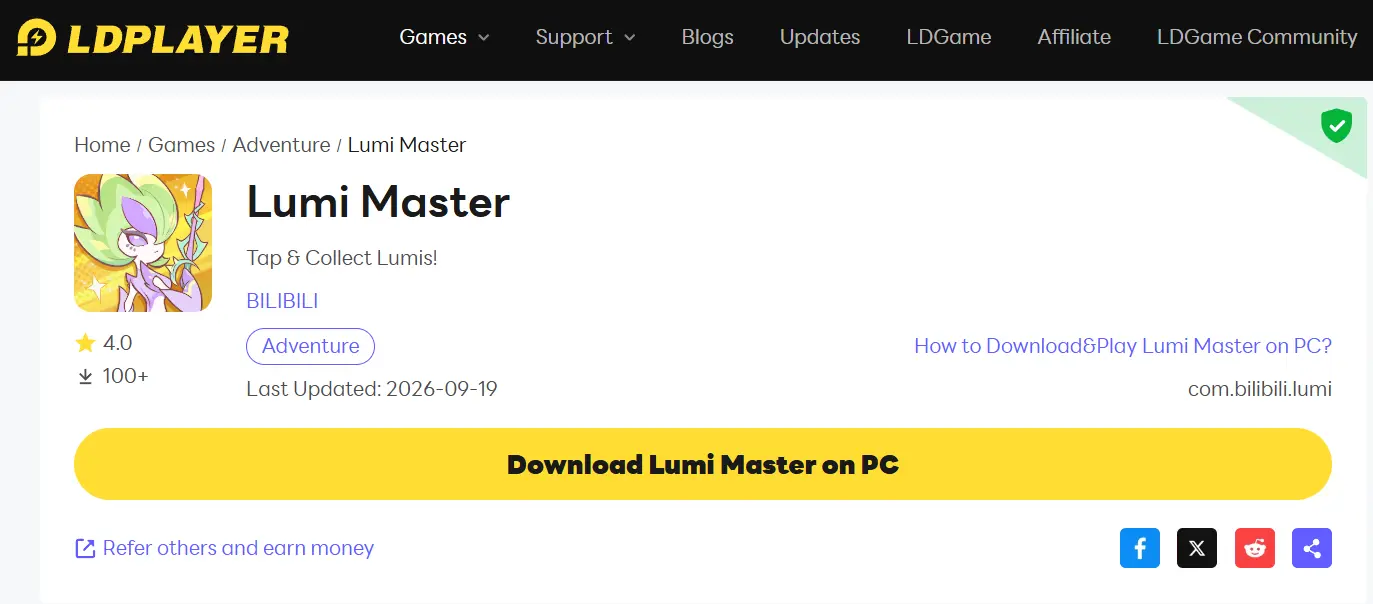
Open LDPLAYER and search for Lumi Master in its built-in game center to install the game. Wait until all game resources have been fully extracted, then launch the game and make sure basic features such as logging in, entering dungeons, and gathering work properly before setting up multiple instances.
3. Download OSLink on Mobile
Android users can search for OSLink in their app store and install it.
iOS users can download the appropriate version from the App Store.
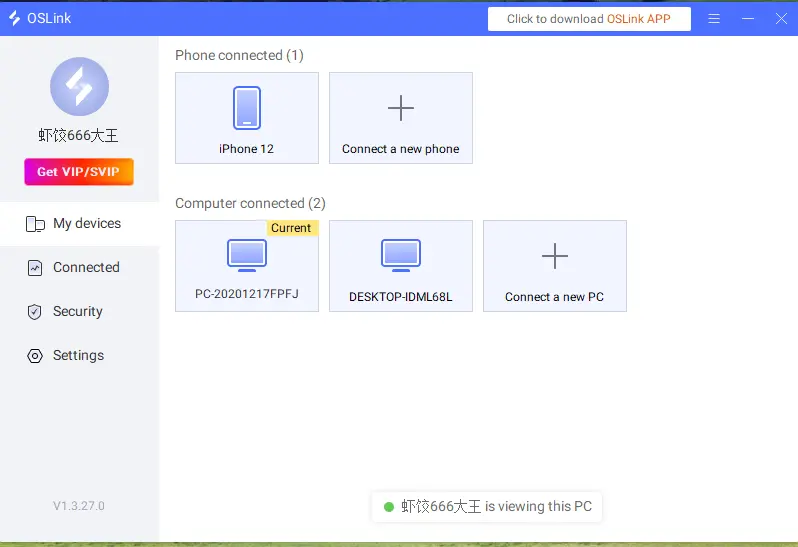
Note: You need to sign in to the mobile version with the exact same OSLink account used on your PC. The system will automatically detect computers that are online and signed in to the same account, so there’s no need for complicated manual setup.
2. Connect PC and Mobile to Run the Game
Keep LDPLAYER and the OSLink desktop client running in the background on your PC. Open Lumi Master and leave it on the main game screen.
Open OSLink on your phone, select the computer running the emulator from the device list, and establish a remote connection.
Once the connection is established, the emulator’s game screen will be streamed directly to your phone.
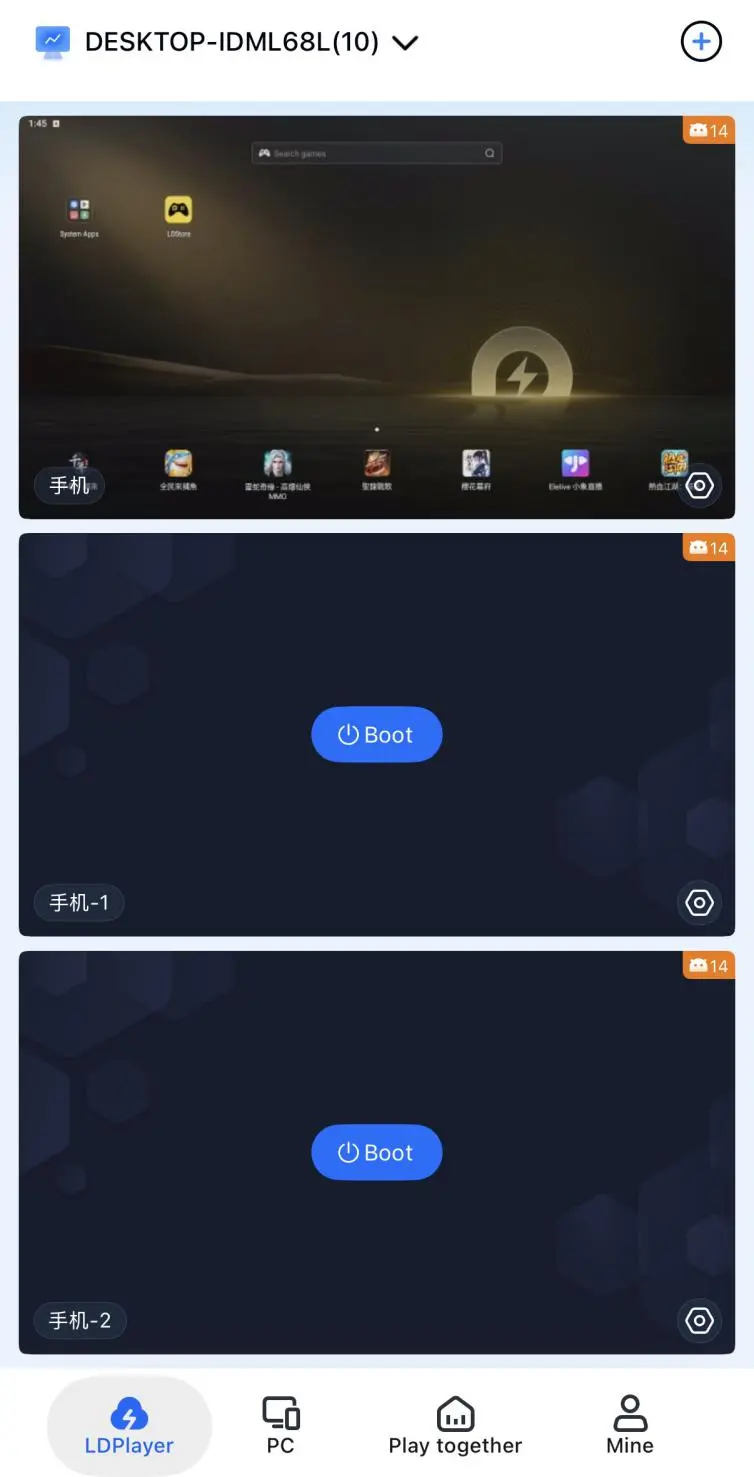
You can resize the game screen to fit your phone display. Touch commands on your phone are sent directly to the PC emulator, allowing you to switch freely between different emulator windows and check the game status of different accounts.
3. Multi-Instance AFK Setup
1. Create Multiple Emulator Instances
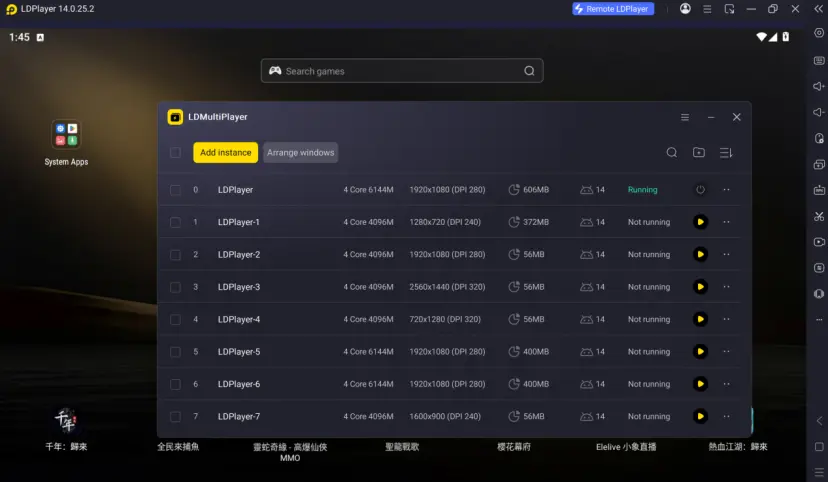
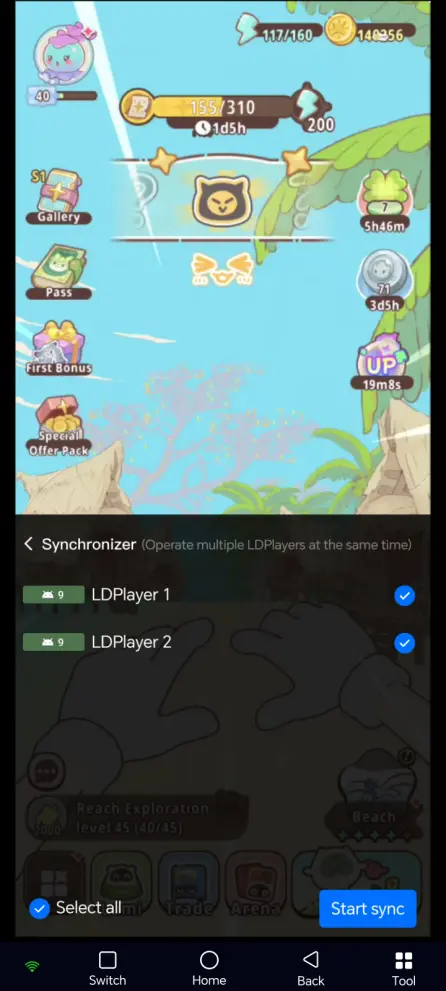
Open LDPLAYER and click the “Multi-instance” option on the right-side toolbar to create several emulator instances. Log into a separate game account on each instance, then move each character to a pet-catching spot in the wild or an area where home resources are produced.
2. Record the AFK Routine
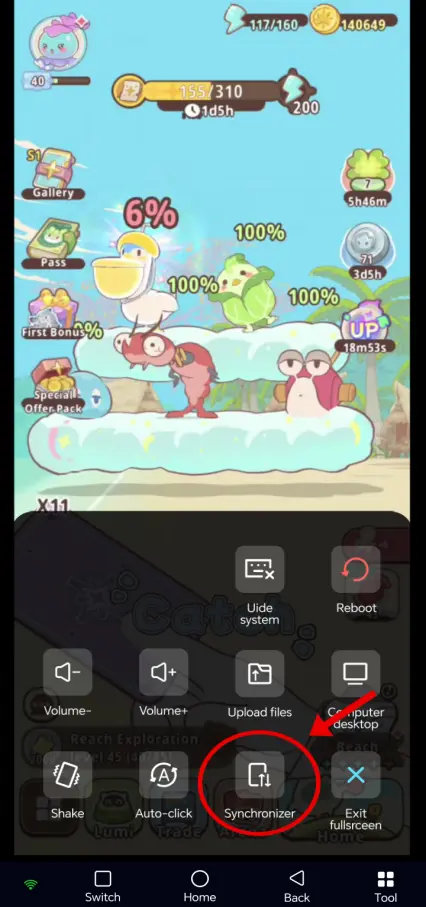
Use OSLink on your phone to connect to the corresponding emulator window, then enable the Sync Operations feature from the toolbar. Record a complete pet-catching or resource-gathering loop, including entering the target area, throwing Lumi Cards, collecting the rewards, and repeating the entire process.
3. Adjust the Settings and Start AFK
Save the recorded script. Based on the game's loading speed, set the number of loops and the delay between actions. Once everything is set, start the script to automatically repeat the farming routine. You can also switch to your phone at any time to check the AFK status.
4. Automatic AFK Farming
Many daily stages, event stages, and new map exploration activities in the game require repeated farming for resources, EXP materials, and progression items. With OSLink's auto-click feature, you can handle these tasks while AFK.
After successfully connecting your phone to your computer through OSLink, launch Lumi Master in LDPLAYER. Open OSLink's auto-click tool and record a standard routine: select the stage tab → choose the target farming map → start the battle → after the battle ends, repeat the challenge or return to the stage screen.
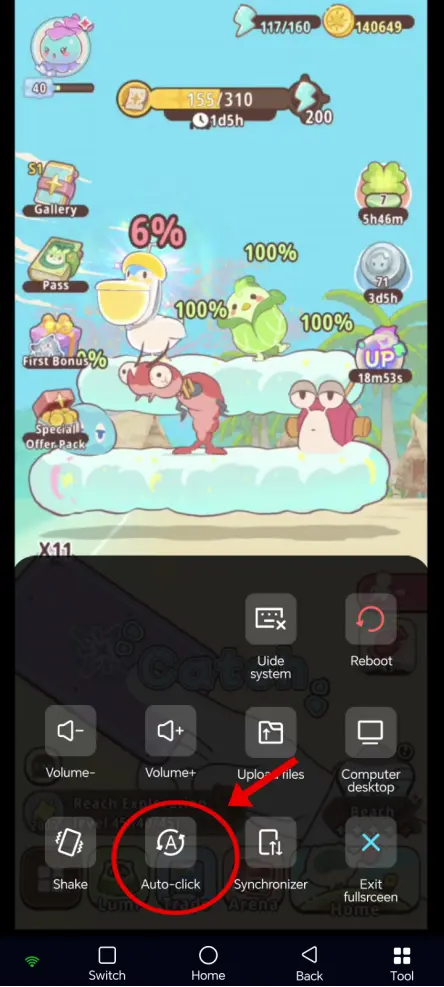
Set the loop duration and number of runs, then start the automation script. The game will automatically farm stages around the clock, allowing you to stock up on various progression materials while AFK.
5. Frequently Asked Questions
Q: When does the game’s official open beta start?
A: Lumi Master launched its open beta across all platforms on September 17, 2026.
Q: What PC hardware specifications are recommended for the game?
A: Running multiple instances at the same time uses CPU and memory resources. If you plan to run 3-4 emulator instances simultaneously, 16 GB of RAM or more is recommended, along with a mainstream desktop processor from recent years to keep the game running smoothly.
Q: Can iOS devices run multiple game instances directly?
A: iOS does not support native app cloning, so you cannot directly run multiple game accounts on the same device. You can instead use OSLink to remotely control PC emulator instances and manage multiple accounts.
Conclusion
Lumi Master’s extensive collection and home-building systems involve plenty of repetitive tasks.
Using LDPLAYER together with OSLink lets you run multiple game accounts on your PC in batches while remotely checking and managing their status from your phone, avoiding the hassle of constantly switching between accounts on mobile.
 Download