English
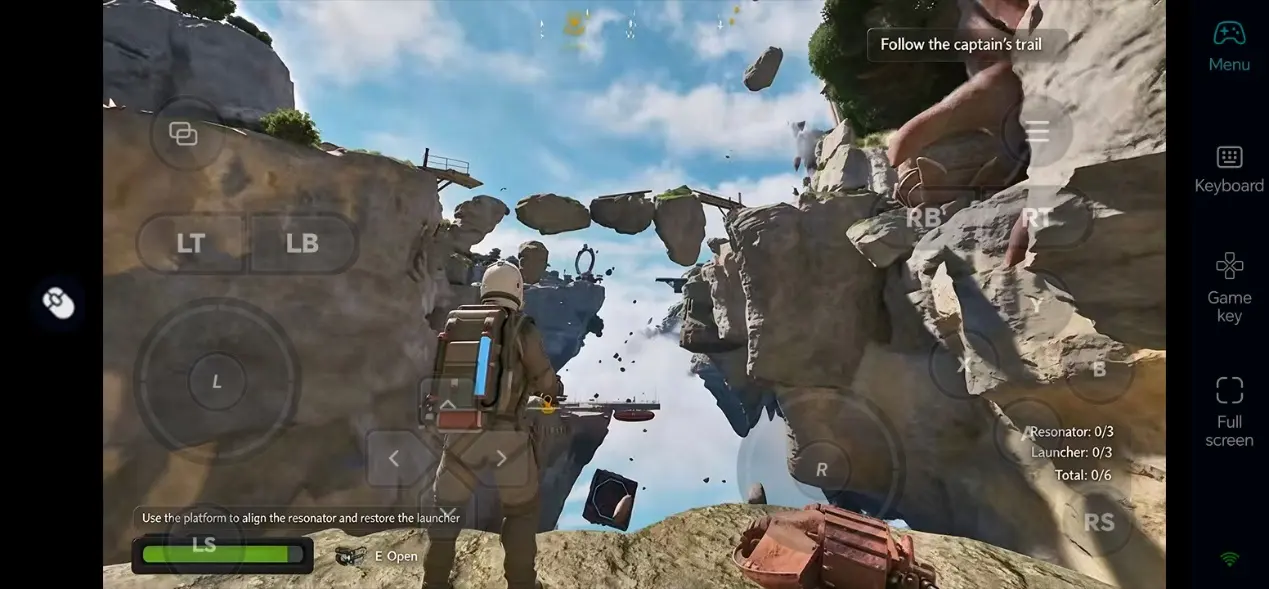
ATMOSFAR is a survival exploration game set on floating islands. Players must pilot sky-skiffs through the skies, manage cloud patrol bases, and gather resources on the planet Tycos to combat environmental threats. The PC version is already in Early Access on Steam, but there is currently no native iOS or Android version.
If you want to continue your adventure on your phone, you can use OSLink to remotely connect back to your own Windows PC, letting your phone handle the display and controls while the game itself still runs on the PC. Here is the complete setup process:
Step 1: Install OSLink on Both Devices and Pair
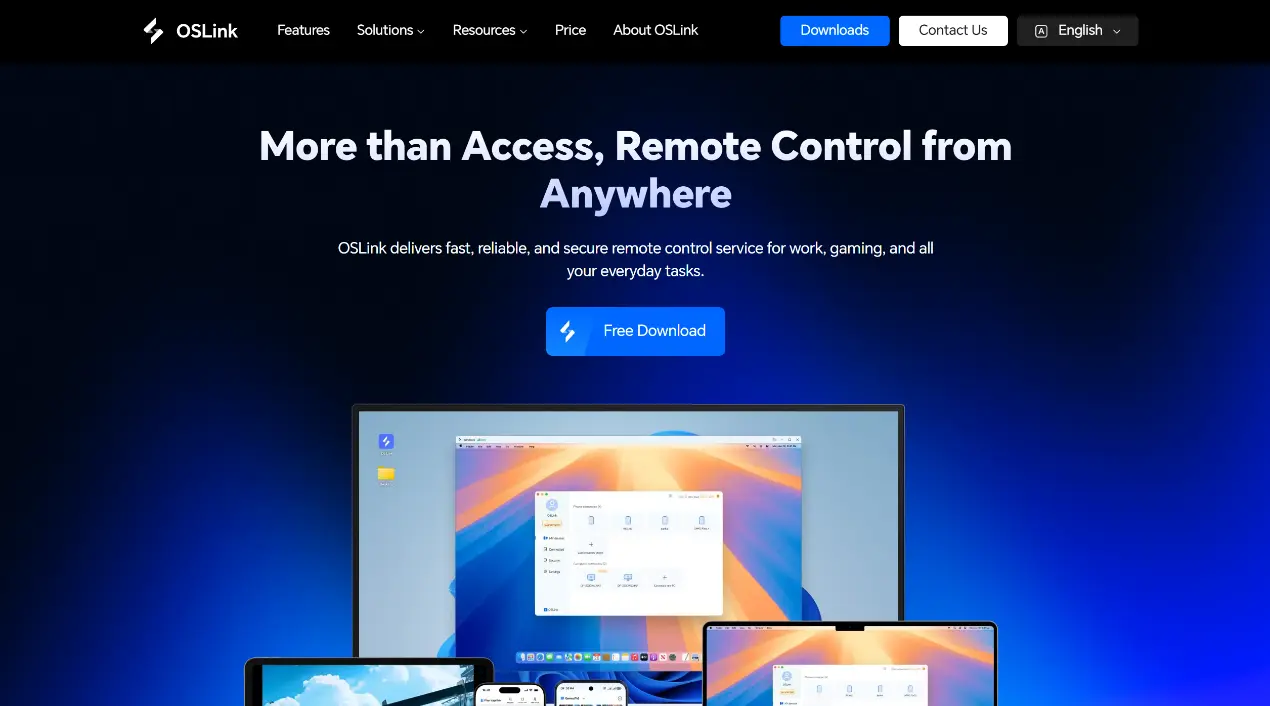
PC: Go to the OSLink official website (https://www.oslink.io) and install OSLink.
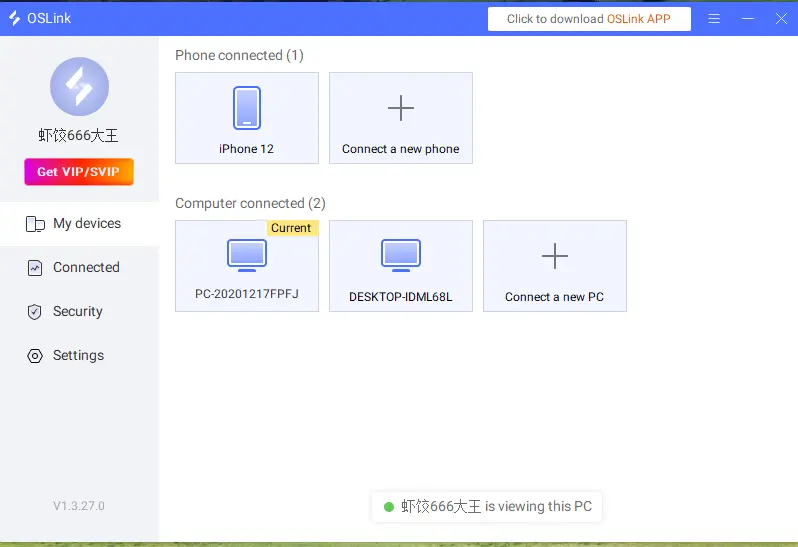
Mobile: Search for "OSLink" on the App Store or Google Play to download. Android users can also get the APK from the official website. Log in with the same account on both devices, and the system will automatically pair them. You can then connect to your PC with a single tap.
Step 2: Launch the Game and Optimize Display
First, launch ATMOSFAR on your PC and confirm that you are logged in and the screen is displaying properly. Keep OSLink running. Then open OSLink on your phone and select your paired PC from the device list to establish a connection. Once the connection is established, you can see your PC screen on your phone.
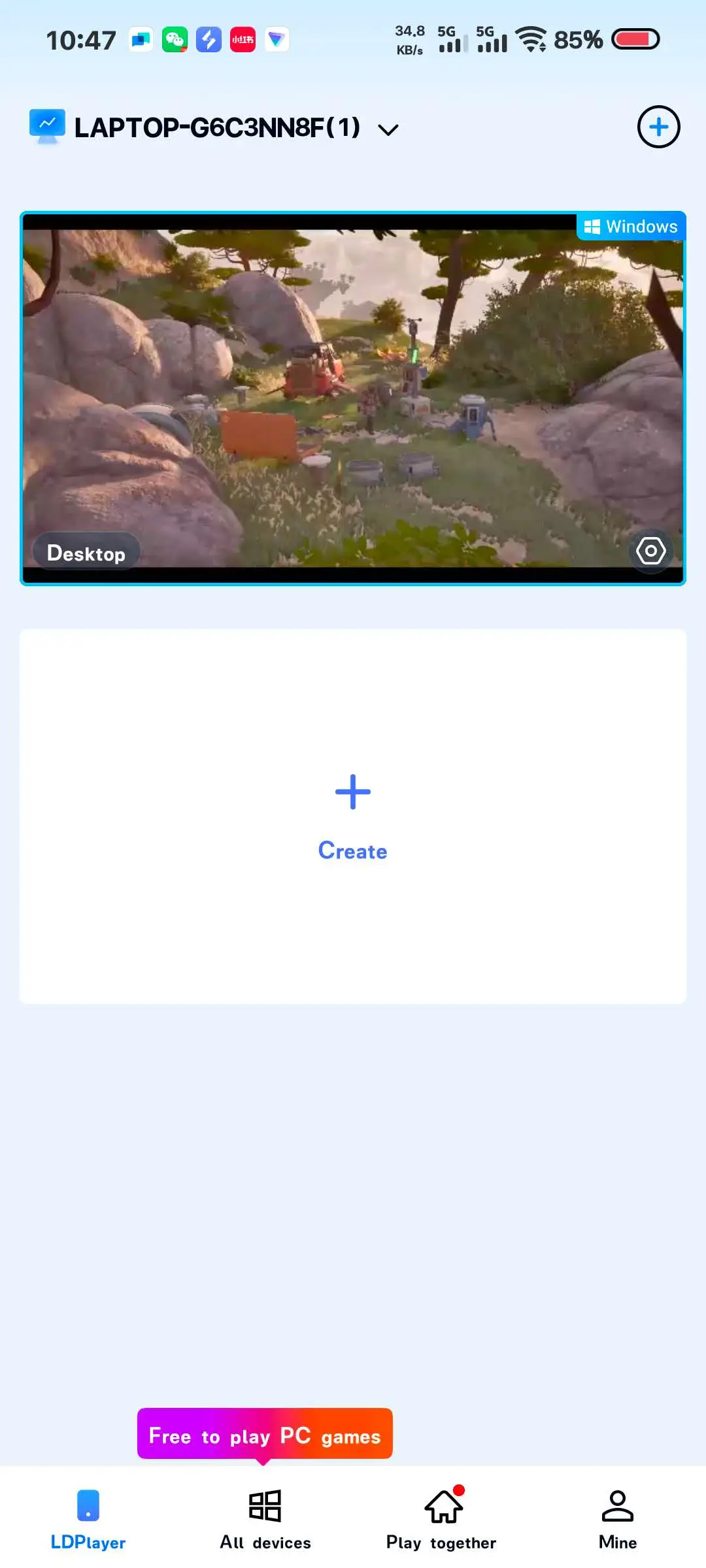
After entering the remote screen, switch to "60 FPS PC Game" mode in the OSLink toolbar. This game involves both flight controls and ground exploration, with a lot of dynamic movement. Enabling this mode will noticeably improve smoothness. Actual performance still depends on your PC's specs and network quality.
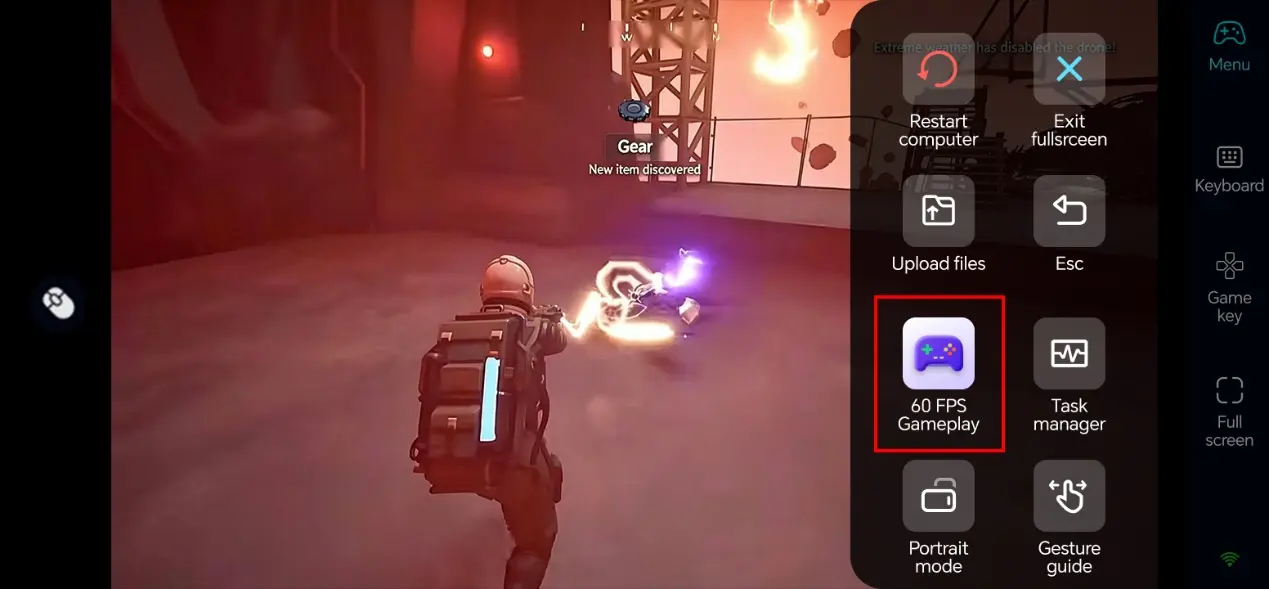
Step 3: Customize Virtual Keys
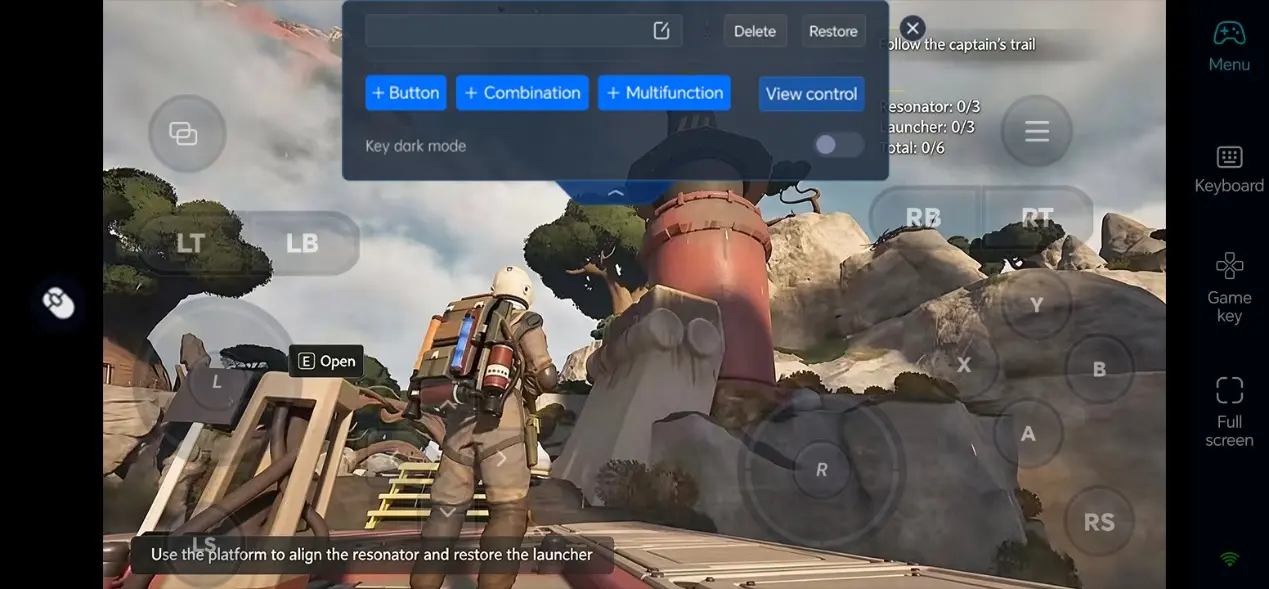
ATMOSFAR's controls cover piloting vehicles, ground movement, resource gathering, and base building. It is recommended to configure them according to your playstyle.
Flight Section: Set the left side for vehicle steering and altitude control, and the right side for acceleration, deceleration, interaction, and camera switching. Since you will frequently switch between hovering and cruising in the sky-skiff, enlarge commonly used buttons and place them within easy reach of your thumbs.
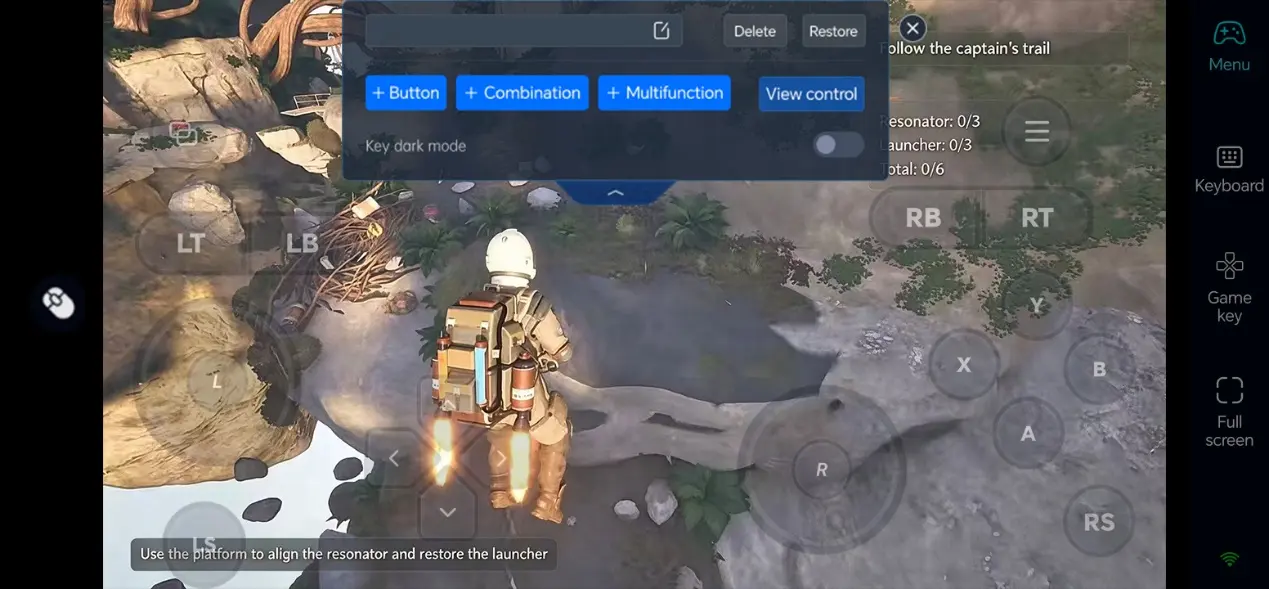
Ground Exploration: Movement, jumping, gathering, and opening the backpack are high-frequency actions—concentrate them on the lower half of the screen. Low-frequency functions like the build menu and mission log can be moved to the edges to reduce obstruction.
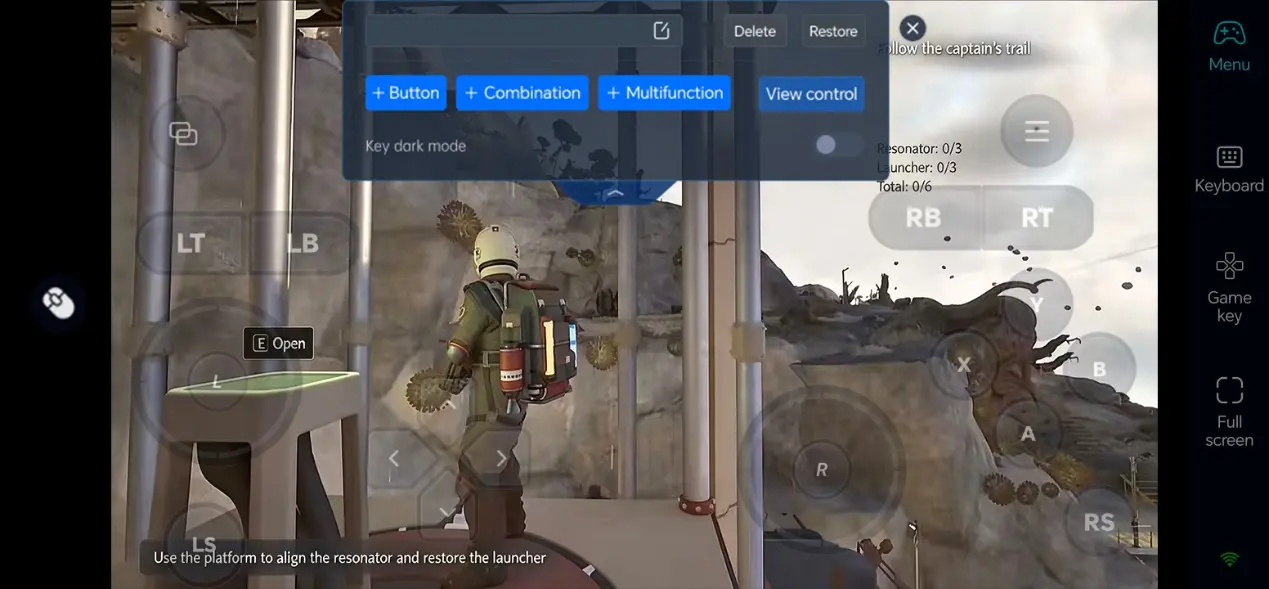
Remember to save your configuration after finishing. You can quickly switch between different setups later.
Step 4: External Controller (Optional)
If you need to pilot the sky-skiff for extended periods or perform exploration requiring precision, you can connect a Bluetooth controller supported by OSLink to your phone. Physical joysticks make it easier to control the sky-skiff's orientation and move around on the ground, while also reducing the screen space occupied by virtual buttons. For first-time use, it is recommended to test the key mapping in a safe area before entering high-risk zones.
FAQ
Q: What is ATMOSFAR's release time?
A: ATMOSFAR's release date is October 29, 2026 (Steam Early Access).
Q: Can I play ATMOSFAR directly on Android?
A: No. There is currently no native Android version of ATMOSFAR. To play on an Android phone, you need to use OSLink to remotely connect to a PC running the game.
Q: Can I play ATMOSFAR directly on iOS?
A: No. There is currently no native iOS version of ATMOSFAR. To play on an iPhone, you need to use OSLink to remotely connect to a PC running the game.
Q: What network conditions are needed for remote play?
A: It is recommended to use a wired connection for the PC and a stable Wi-Fi or 5G connection for the phone. If you notice obvious lag, try closing other apps that are using bandwidth.
Summary
With OSLink, players can use their phone to remotely connect back to their own PC and continue playing ATMOSFAR. After pairing both devices, simply configure the 60 FPS streaming mode and virtual keys, or connect an external controller according to your needs. When you need remote play, download OSLink and start setting up.
 Download