English
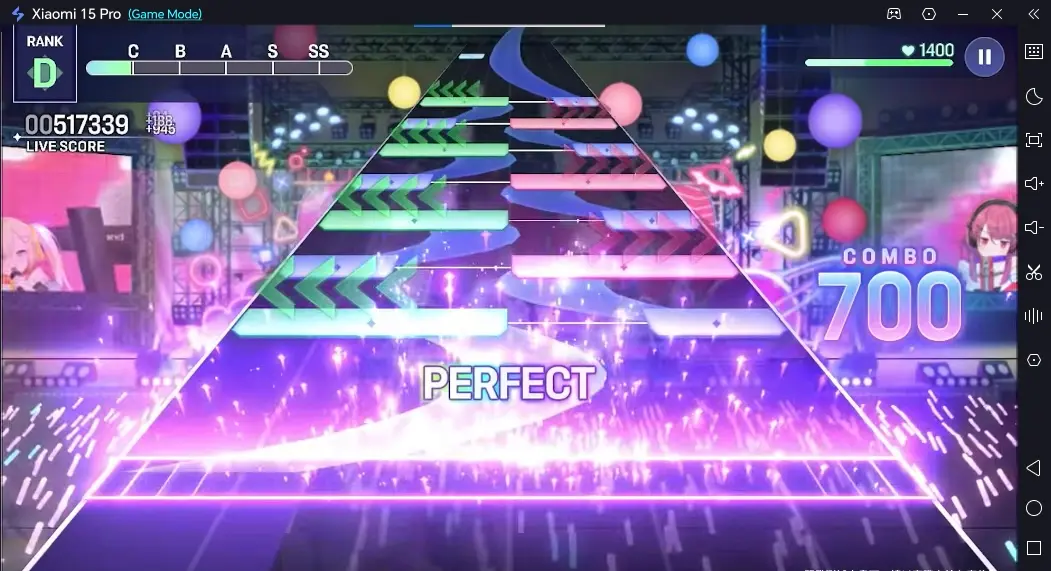
 BanG Dream! Our Notes has attracted plenty of rhythm game fans with its multi-band storylines, large music library, and falling-note gameplay. Rhythm games place high demands on screen visibility and input response, so many players want to move away from a small phone screen and use a PC monitor instead. A larger display makes notes easier to see and can reduce the pressure of reading difficult charts. This guide walks through the complete setup for playing mobile games remotely on a PC, including details that are easy to overlook during setup, so rhythm game players can enjoy songs, story content, and online ensemble play more comfortably on a computer monitor.
OSLink lets you remotely control a physical smartphone from a PC. The game continues to run on the phone's actual hardware, while the computer handles the display output and input forwarding, making it well suited for playing BanG Dream! Our Notes.
The software also includes game-specific key mapping. You can assign default keys to falling notes and menu controls to suit the rapid multi-point tapping required by rhythm games and reduce performance issues caused by touch input delays.
1. Get BanG Dream! Our Notes
Official Game Installation
BanG Dream! Our Notes is currently available only on mobile devices, so there is no PC version that can be downloaded and run directly. Players can search for the game in the appropriate official app store and complete the download on their mobile device.
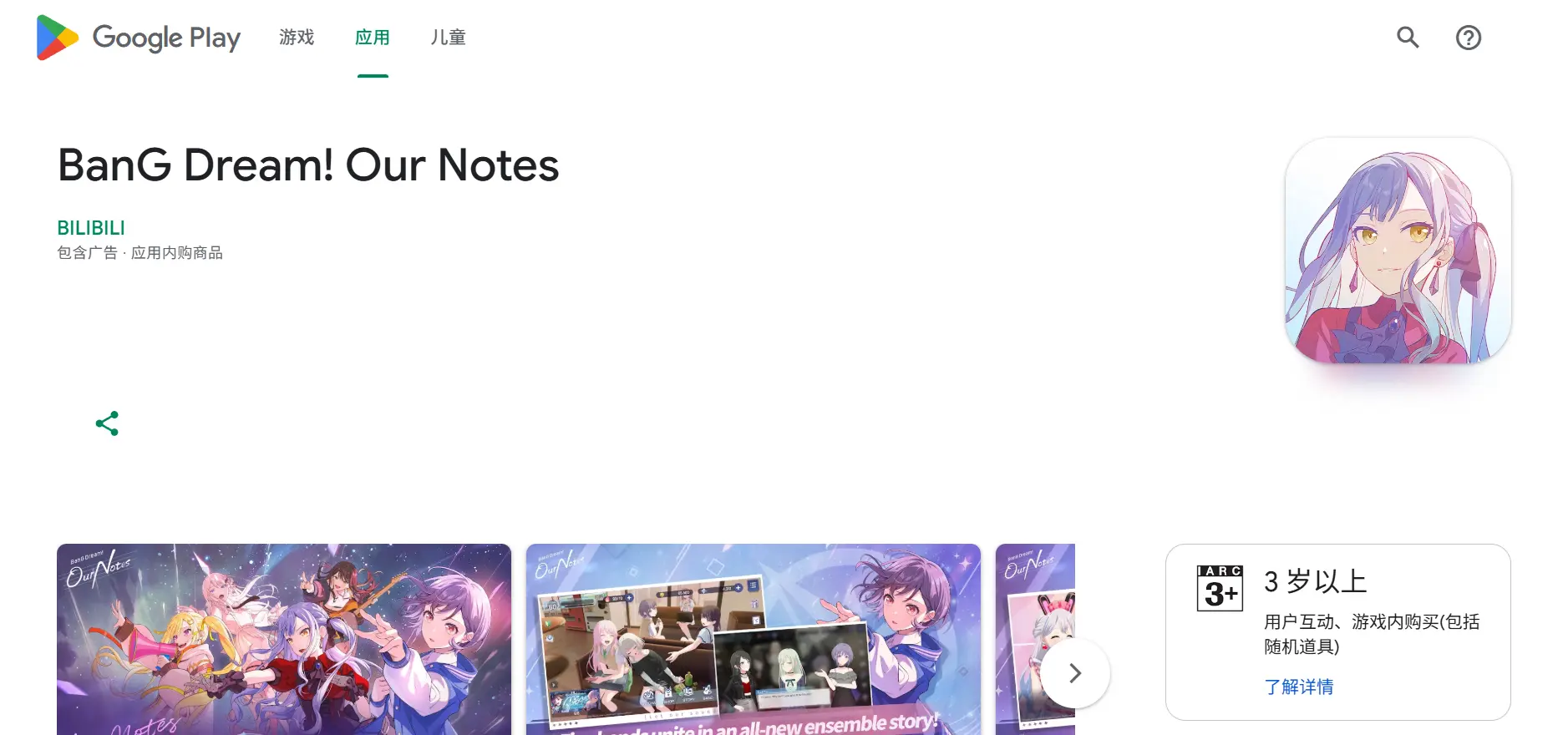
After the download is complete, launch the game and wait for the game resources to unpack and update. Sign in to your account and enter the main interface. Make sure the story and performance modes load normally without missing resources or crashes before moving on to the streaming setup.
2. Install OSLink on Your PC and Phone
Install the App on Both Devices
Players need to install the OSLink client on both their computer and mobile device.
On the PC, visit the official download page and download the installer that matches your operating system, then complete the standard installation process.
On your mobile device, search for OSLink in the app store according to your device type. Android users can download the corresponding client from the app store, while iOS users can get the client through the App Store. After installing OSLink on your phone, sign in with the same account used on the PC so the two devices can be paired.
After installation, don't launch the software just yet. Prepare a USB cable that supports data transfer to establish the physical connection between the devices.
Enable Developer Options and USB Debugging
When establishing a USB connection for the first time, you need to configure the required permissions on your phone. Open the OSLink PC client and click Enable Developer Mode. The software will provide step-by-step instructions.
Follow the instructions to open Settings → About Phone on your phone, then tap the Build Number seven times in a row. When a notification appears confirming that Developer Mode has been enabled, this step is complete. If you see a lock-screen password prompt, enter your device password to confirm the change. Then return to Settings, search for USB Debugging, and enable it.
If you don't follow the software's instructions and configure the settings manually, keep in mind that some customized Android systems may have additional permission restrictions. When authorization prompts appear, select Allow for all of them. If the required permissions aren't enabled correctly, the computer may not be able to detect your phone.
3. Run BanG Dream! Our Notes on PC
Step 1
Connect your phone to the computer with a USB data cable and make sure both ends are firmly plugged in. A loose connection can cause the streaming screen to disconnect.
Step 2
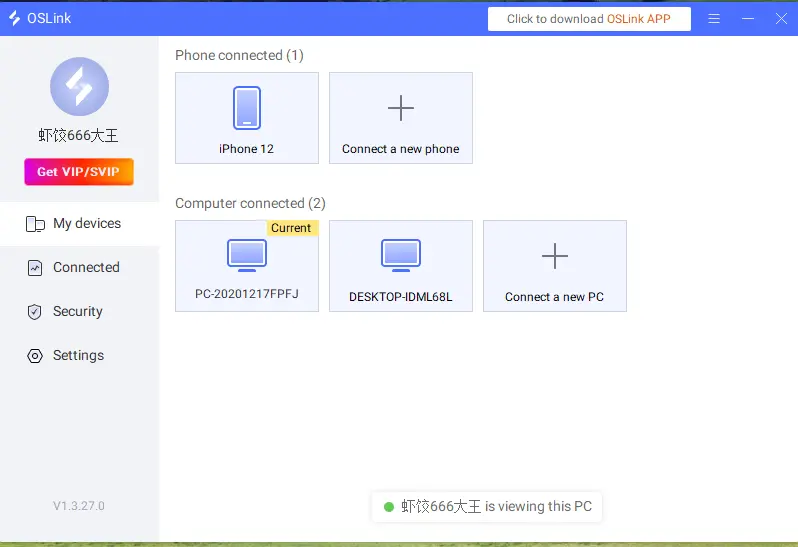
Open OSLink on your computer. The software will automatically scan for connected hardware. Select your connected phone from the device list.
Step 3
OSLink will display two projection modes: Normal Mode and Game Mode. For rhythm games, Game Mode is recommended. This mode is specifically optimized for display latency and input response, but the USB data cable must remain connected throughout use.
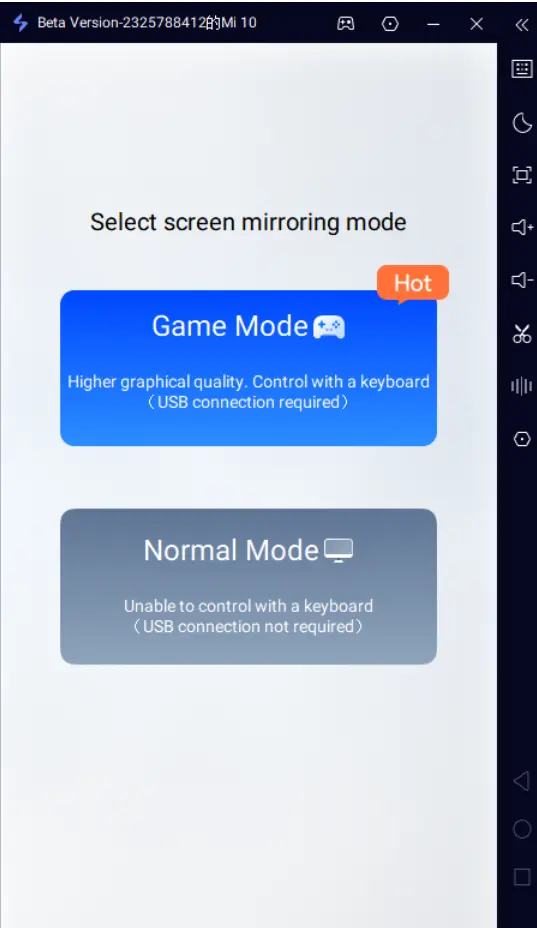
Step 4
After selecting a mode, a confirmation window will appear on your phone asking you to start mirroring. Tap Start Mirroring, and your phone's screen will be displayed on the computer monitor.
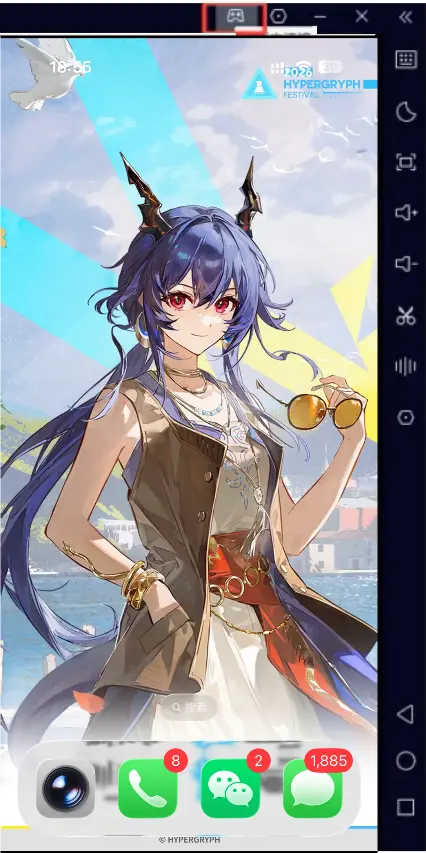
Step 5
Find the BanG Dream! Our Notes icon on the mirrored phone screen on your computer and click it to launch the game. If a USB debugging authorization prompt appears on your phone during the process, select Allow. Denying permission will immediately terminate the screen-mirroring connection.
4. Optimize BanG Dream! Our Notes on PC
Customize Keyboard Controls
When you first enter the game, the default touch mapping may not make full use of the keyboard. Rhythm game performances involve many simultaneous taps, while menu navigation and song selection also require frequent inputs, so the key layout may need to be adjusted manually.
In OSLink's Game Mode sidebar, click the keyboard icon to open the key editor.
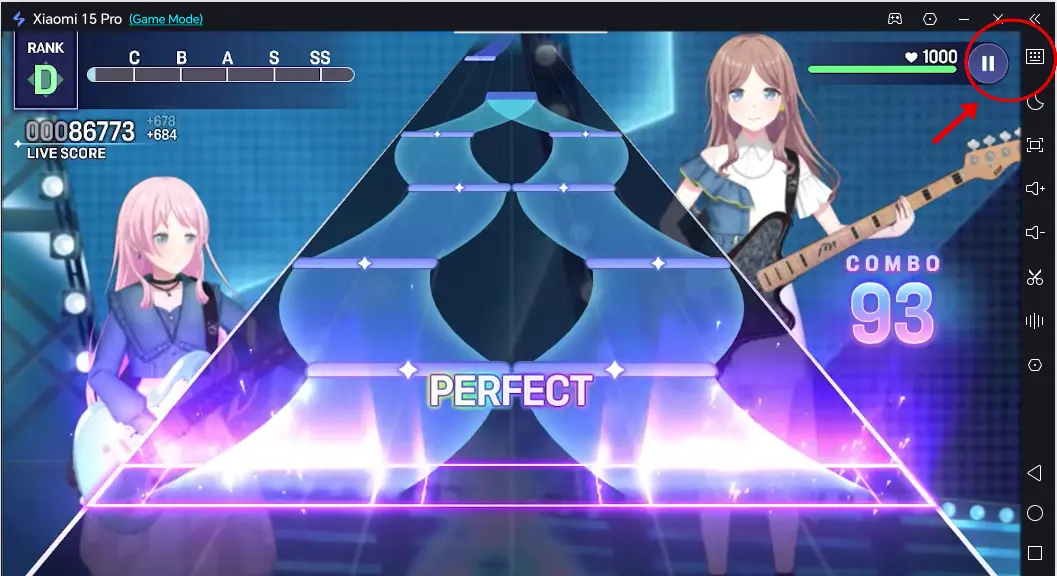
The editor provides draggable key components. Drag each key icon into alignment with the corresponding controls in the game interface, such as performance hit points, song confirmation, page back buttons, and buttons used to move through band story scenes.
Once the layout is finished, save it as a custom key profile. The next time you enter Game Mode, you can load the saved configuration directly instead of arranging the controls again.
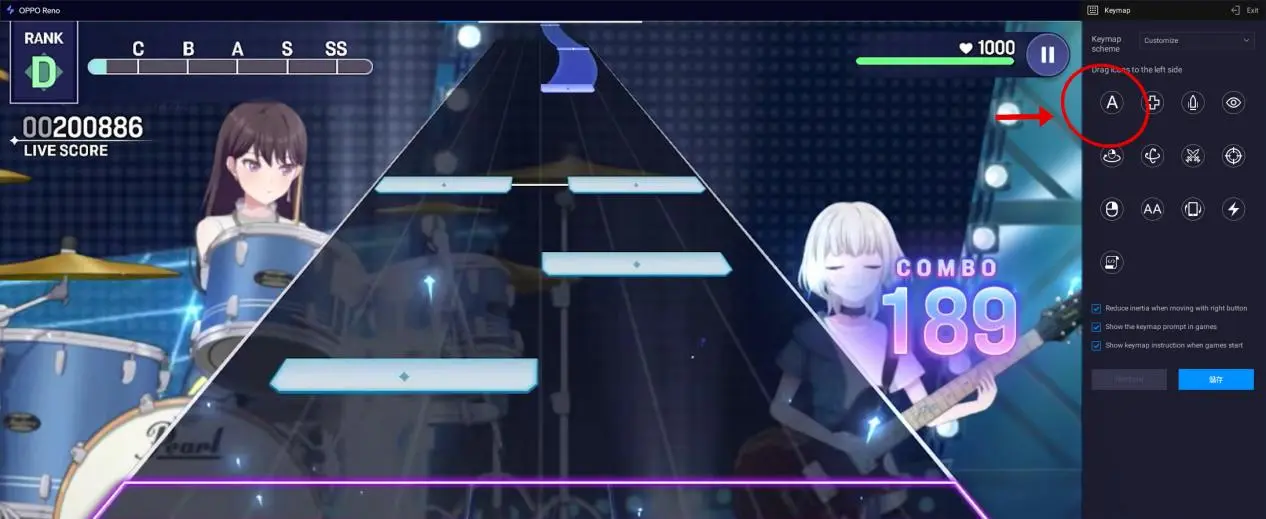
Practical Tip: During performances in BanG Dream! Our Notes, you may need to hit several notes at the same time. Assigning the main performance points to nearby keys on the keyboard can reduce finger movement and help prevent input mistakes on difficult charts.
Adjust FPS
Rhythm games are highly sensitive to visual smoothness. FPS fluctuations can directly affect how smoothly notes appear to move and may indirectly affect hit timing. You can open the OSLink settings panel and find the FPS adjustment option.
On devices with enough performance headroom, setting FPS to a higher level can keep falling notes moving smoothly and reduce motion trails. For older phones with weaker hardware, however, it's not recommended to force a high frame rate. Lowering the FPS slightly can improve overall streaming stability and help avoid stuttering and frame drops.
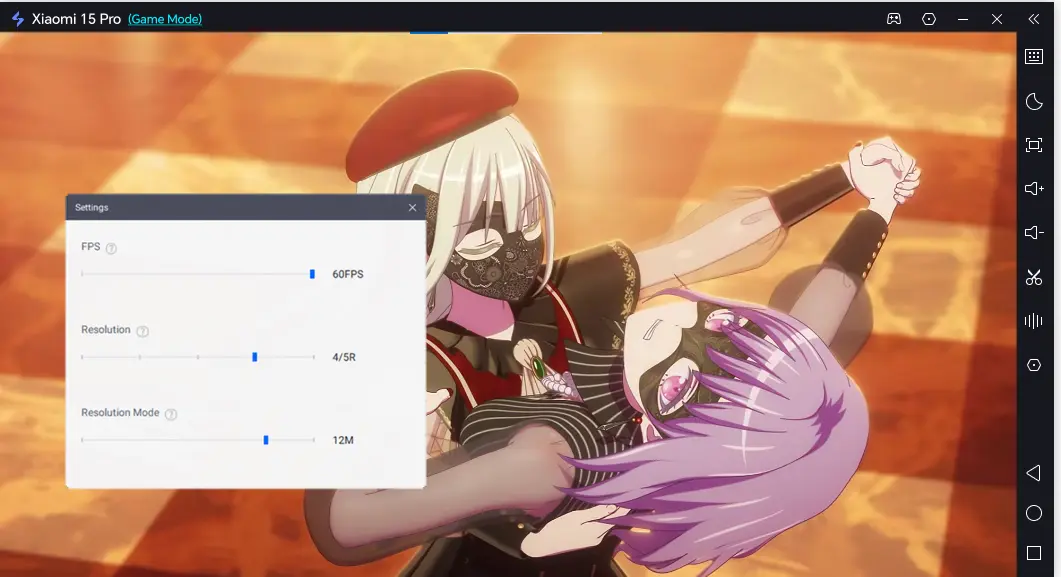
After changing the settings, make sure to test them in an actual performance stage. Watch how the notes move and confirm that there is no stuttering or frame skipping before taking on high-difficulty charts.
5. Choosing the Right USB Data Cable
The entire streaming connection relies on the USB cable for signal transmission. Basic cables that only support charging can provide power but cannot handle data communication.
It's recommended to use the original cable that came with your device whenever possible, or another reputable cable that clearly states it supports data transfer. After connecting the cable, check the notification on your phone and make sure the device is recognized in File Transfer/Data Transfer mode rather than Charge Only mode.
Conclusion
BanG Dream! Our Notes is a falling-note rhythm game built around band-focused storytelling, but the game does not provide an official PC client. OSLink's PC remote streaming solution lets you play the mobile game through your phone without relying on an emulator, avoiding compatibility issues that can come with emulation. The setup itself is straightforward. As long as you use a suitable data cable, enable the required permissions, and adjust the key mapping settings step by step, you can enjoy a more comfortable gaming experience. Whether you're taking on high-difficulty charts or settling in to read the story, playing BanG Dream! Our Notes through a PC display offers a different way to enjoy the game.
 Download