English
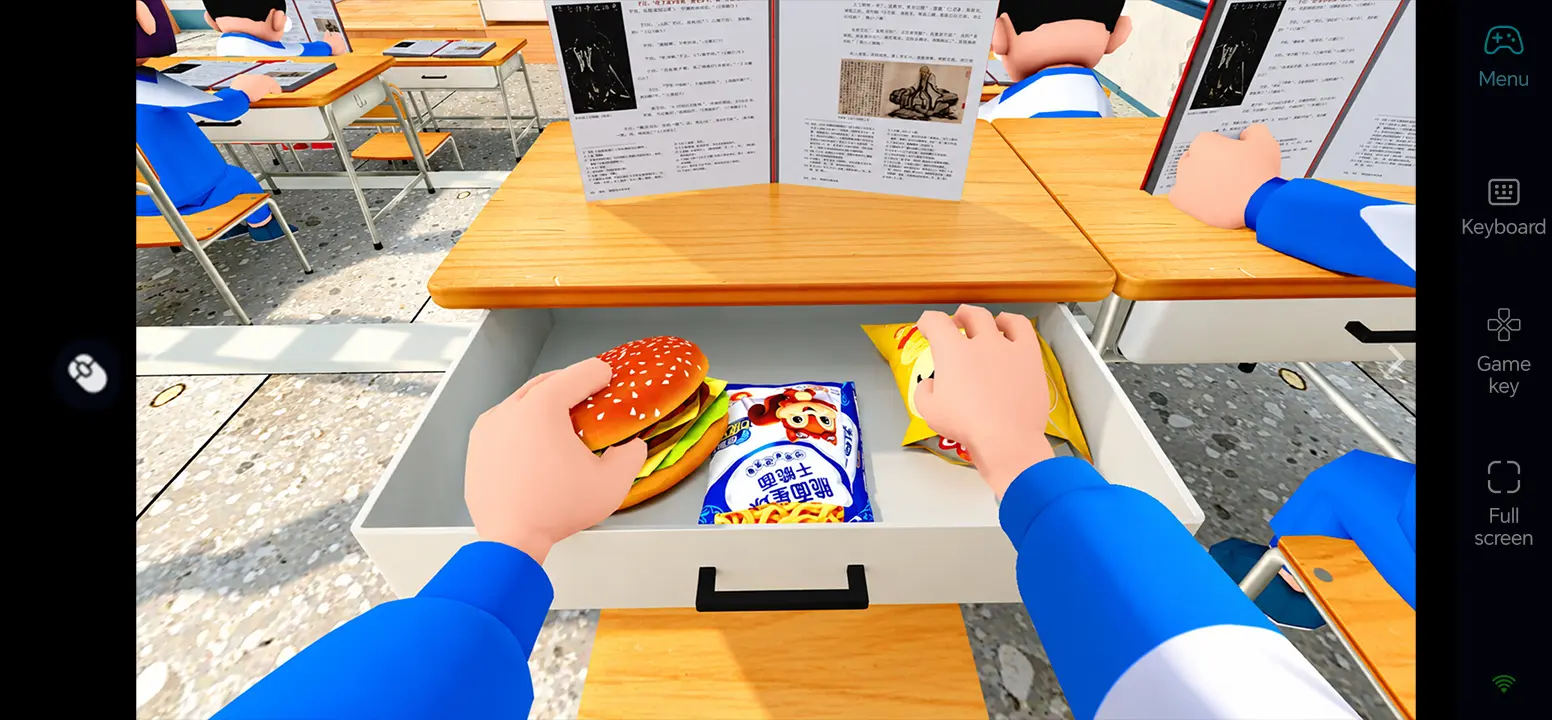
Worst Class Ever is an asymmetric party game for up to eight players. One strict teacher searches a classroom for seven troublemaking students, while the students blend in with NPC classmates and sneak snacks, pass notes, or play on their phones. Different classrooms offer new hiding spots and prank tasks. Observation and timing matter, and joining friends for a quick match can be difficult when you are away from your PC.
OSLink lets an Android phone or iPhone control the game running on your own Windows PC. This guide covers the Steam download, a local check, device pairing, 60 FPS PC gaming mode, and control layouts for both roles.
Download Worst Class Ever on PC
Buy on Steam and Test Locally
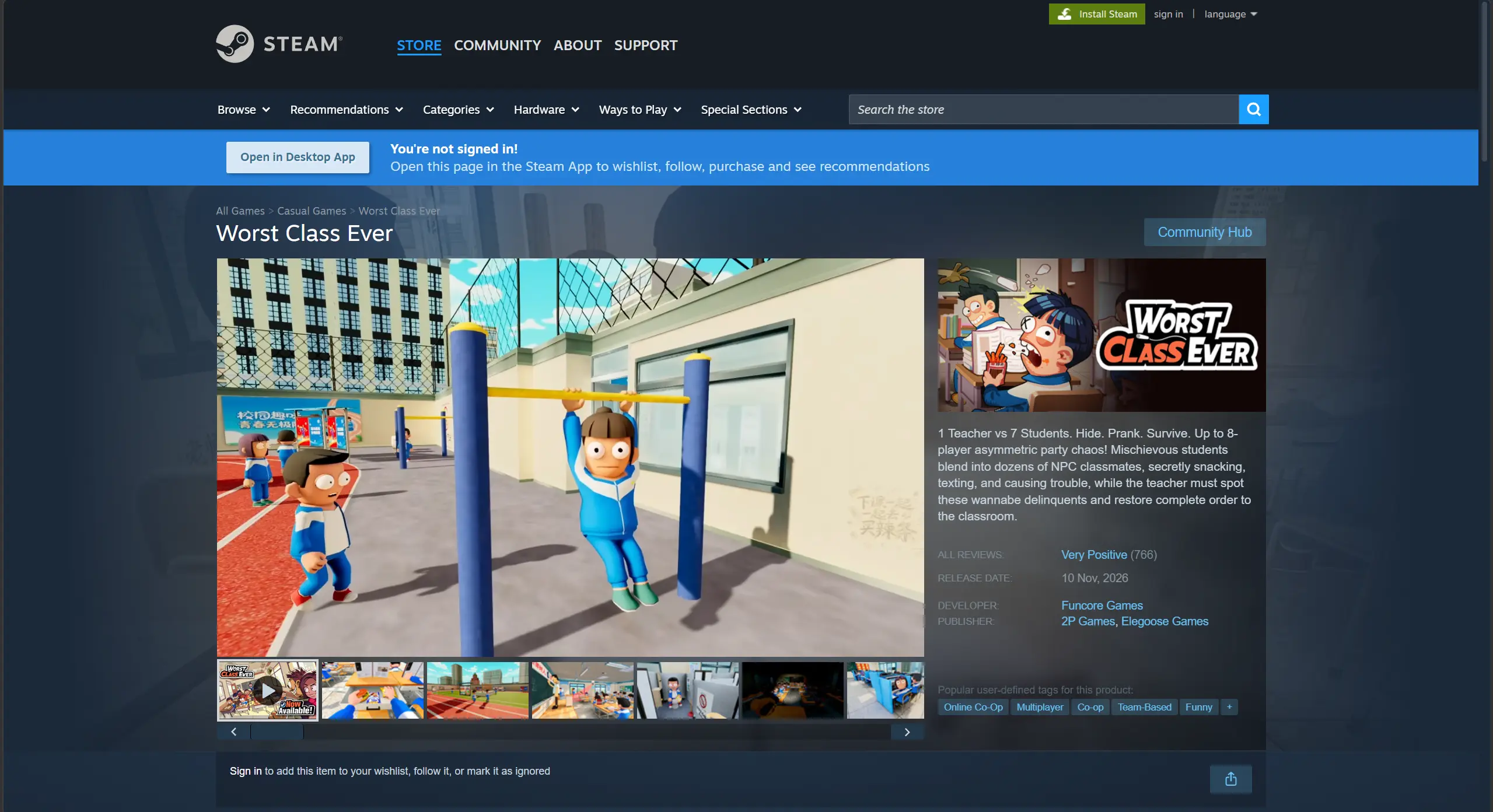
Search for Worst Class Ever on Steam, confirm that Funcore Games is the developer, then buy and install the Windows version. Launch it on your PC first and check that the game launches properly and that the visuals, movement, interactions, and online matchmaking work correctly before setting up remote play.
Once the game works locally, use OSLink to stream the game to your phone and control it remotely.
Play Worst Class Ever Remotely on Mobile
Step 1: Install OSLink on Both Devices
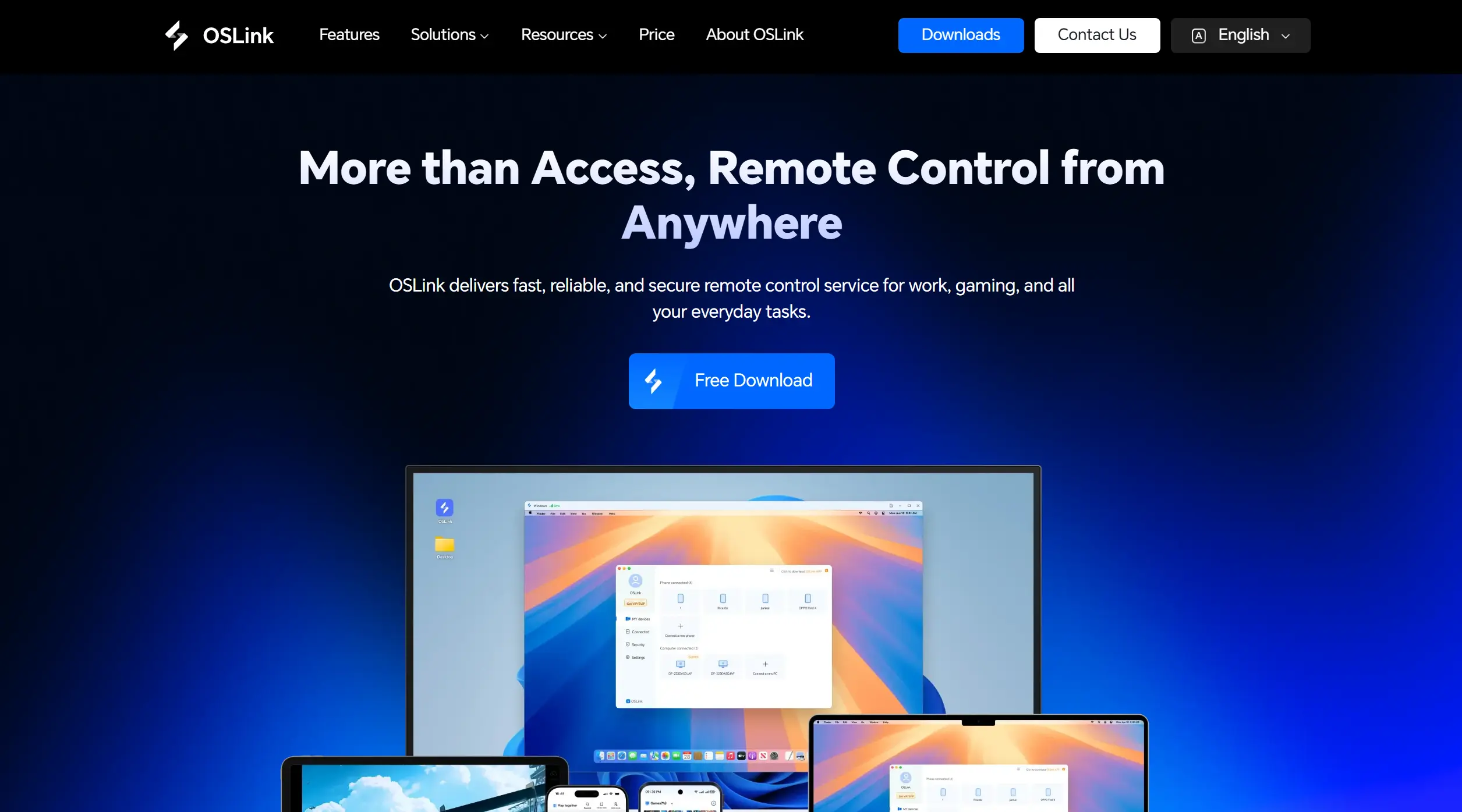
Install OSLink on the Windows PC
Download the Windows client from the OSLink website and sign in on the PC that runs Worst Class Ever. Keep that computer powered on, signed in, and connected to a stable network during remote play.
Install OSLink on Your Phone
Install OSLink from Google Play on Android or the App Store on iPhone. Sign in with the same account, then select your online PC from the device list.
Step 2: Tune Controls for Both Roles
1. Launch the Game on the Host PC
Start Worst Class Ever from Steam on the host PC. Enter the main menu or a safe test area and check audio, picture, and network access.
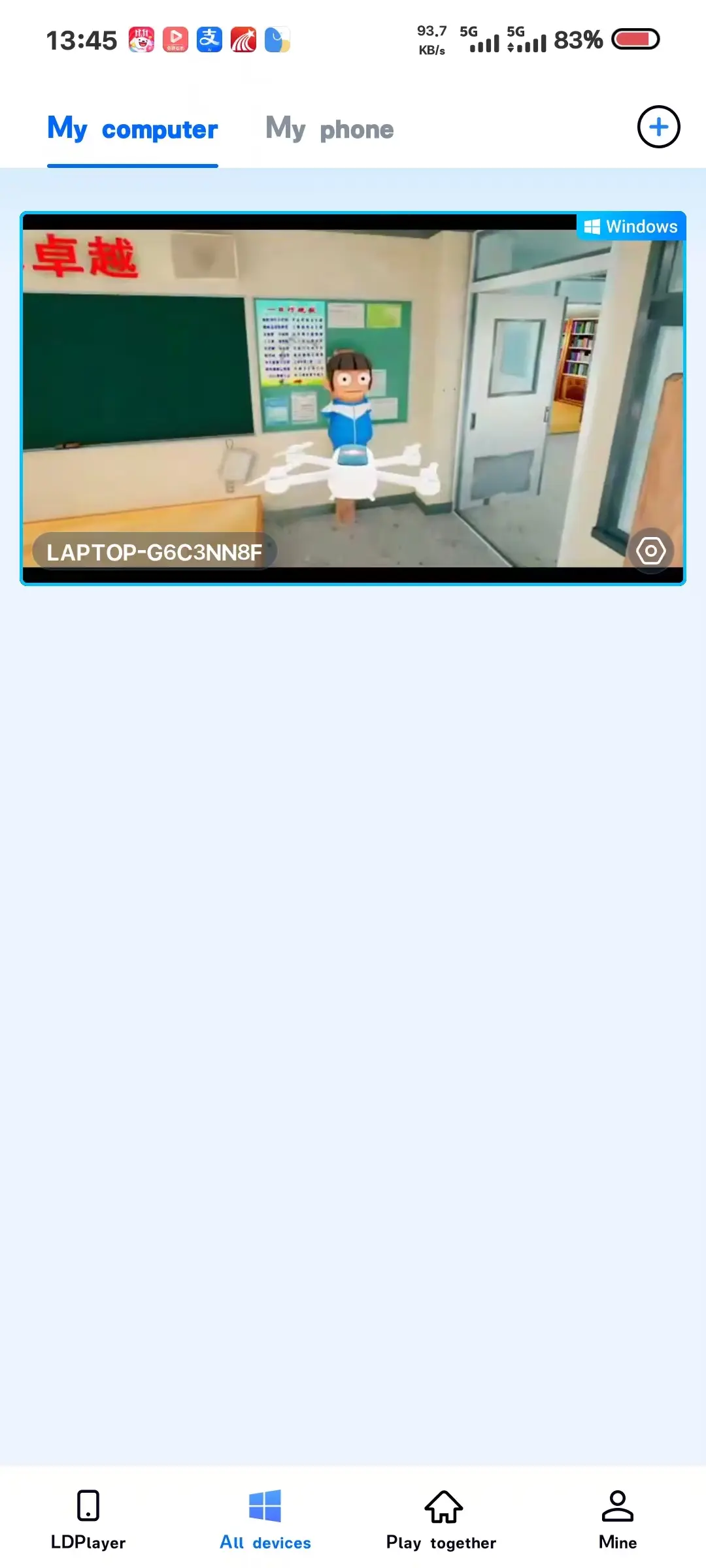
2. Pair Devices and Test Input
Open the remote desktop on your phone. Test movement, camera, interaction, items, and menus. As a student, check your prank actions; as a teacher, check observation and capture controls.
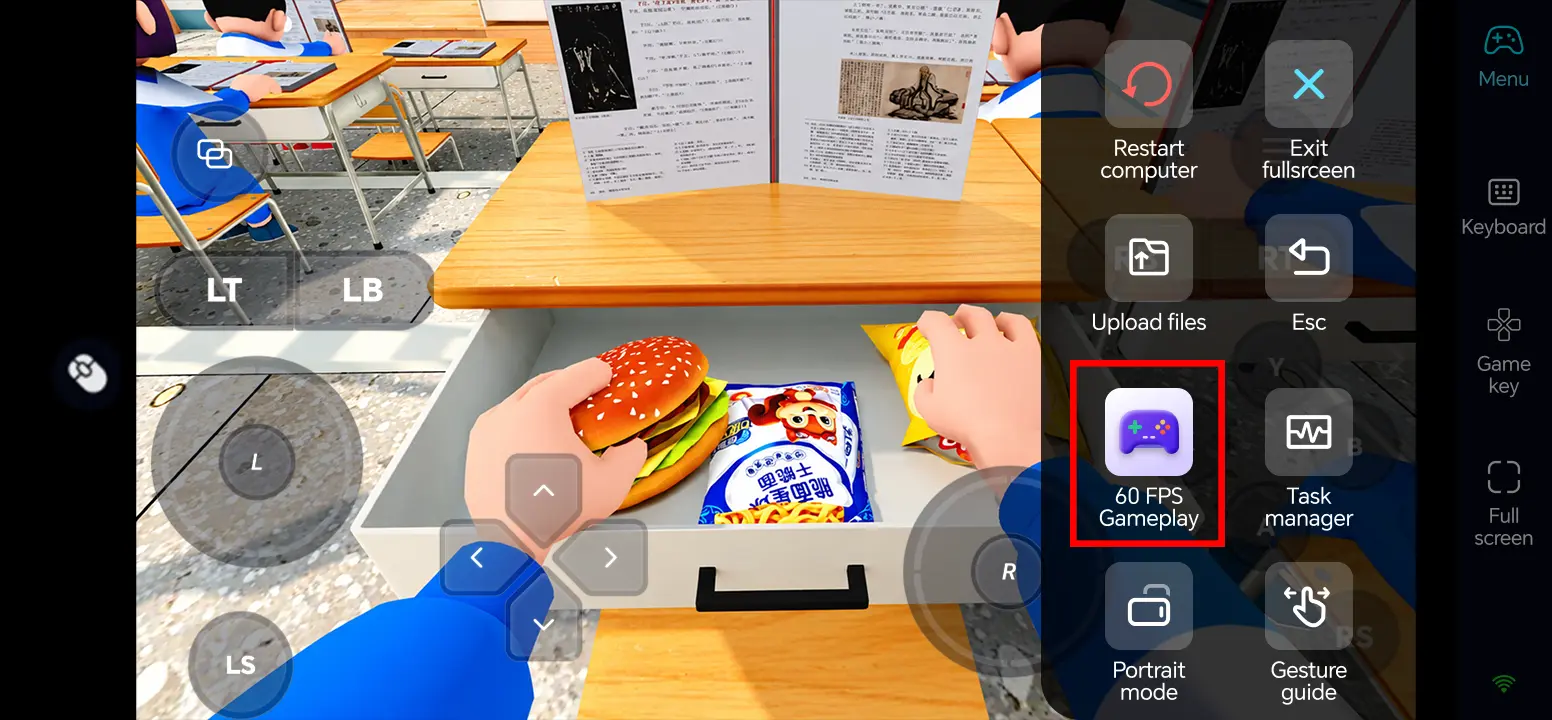
3. Enable 60 FPS PC Gaming Mode
In the full-screen remote desktop, choose Tools > Play PC games at 60 FPS. Actual frame rate and input response still depend on the PC, game settings, and network.
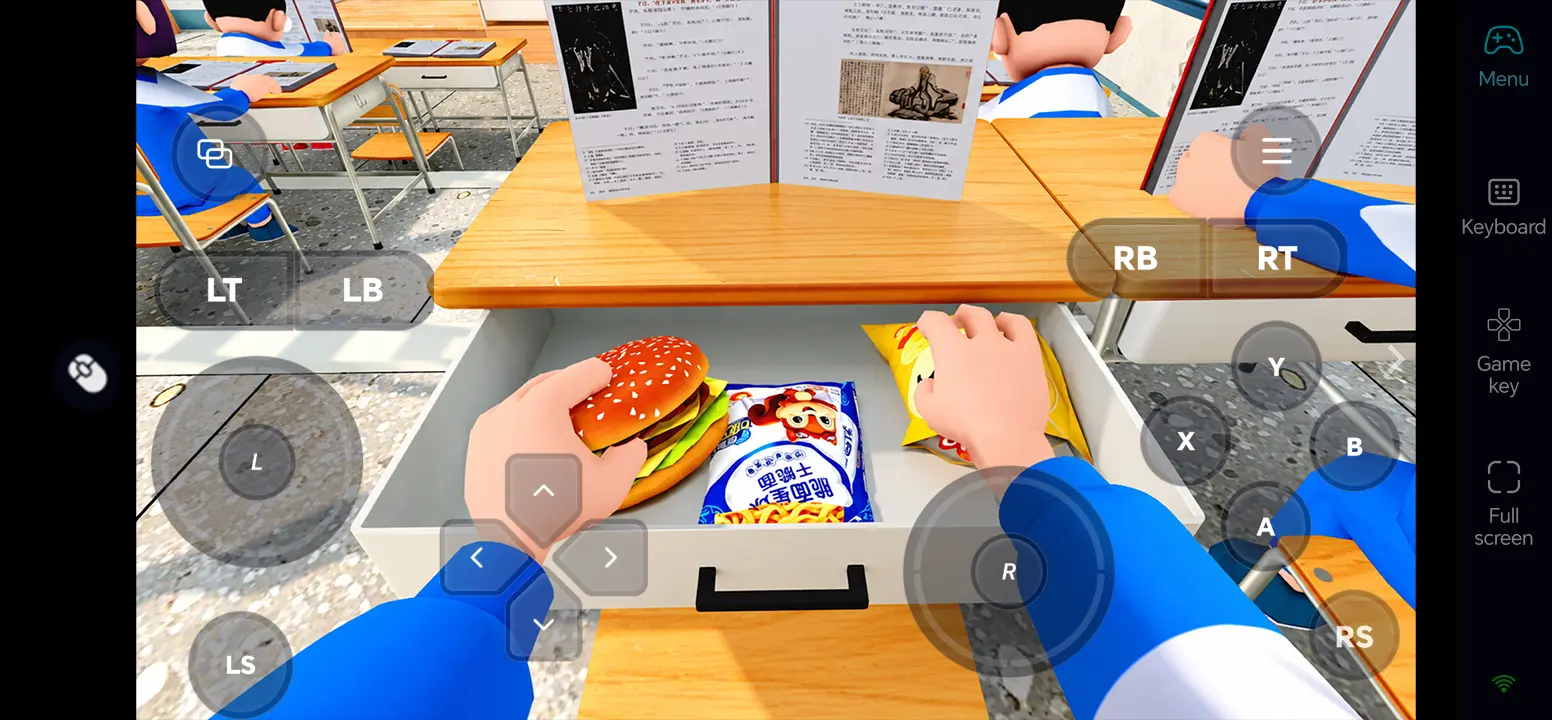
4. Customize Touch Controls
Open Game Button, then tap the edit icon. Separate movement, camera, interaction, and item controls. Leave a clear view for the teacher to spot suspicious behavior, and position the student's prank buttons so they do not obstruct the game view. Save and test a match.
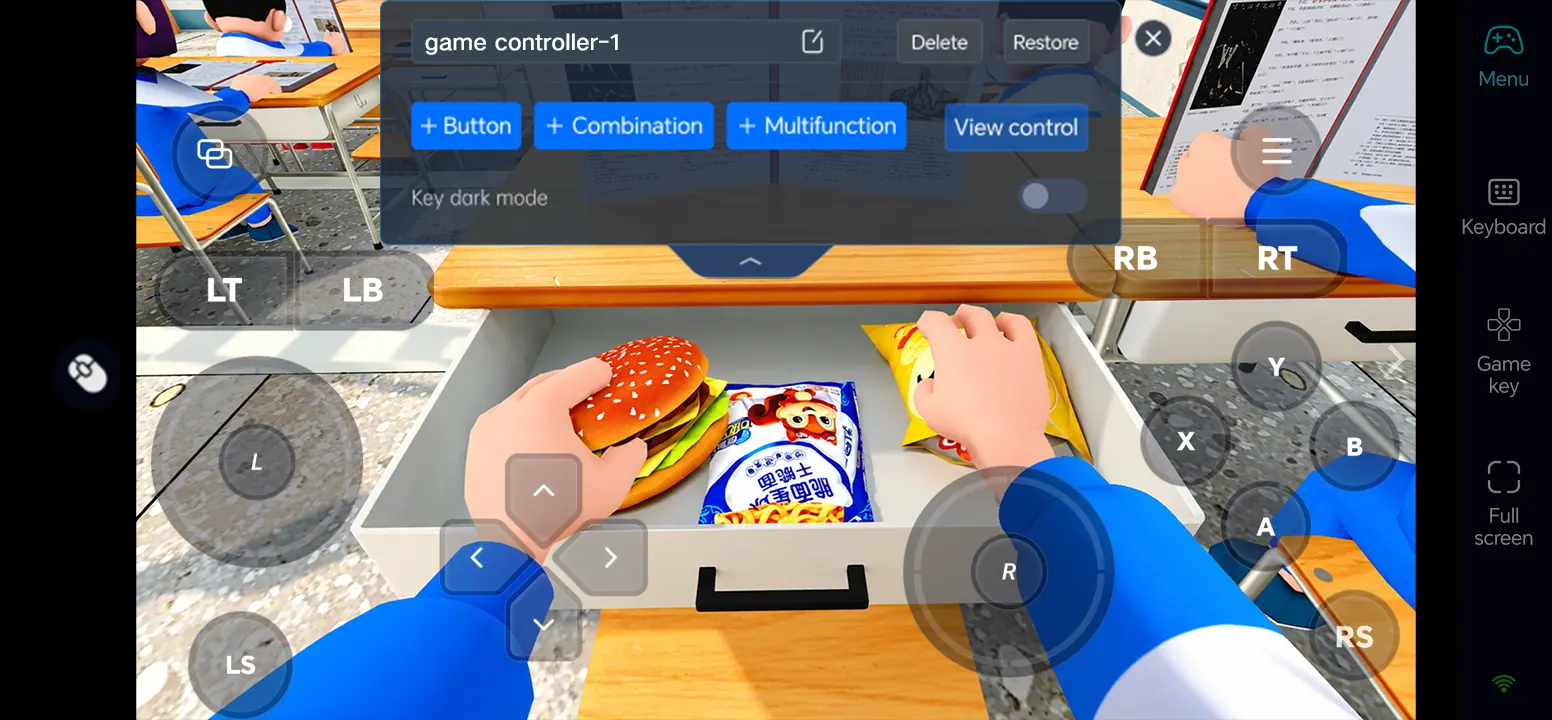
5. Connect External Controls
For precise turns or quick item use, connect a compatible Bluetooth controller or keyboard and mouse to your phone. Test every binding before joining a multiplayer match.
What You Can Do After Setup
As a student, blend into the NPC crowd, eat snacks, pass notes, or use your phone when the teacher looks away, and complete prank tasks.
Play the teacher, watch for unusual movements, identify real players, and stop their pranks.
Adapt hiding and search tactics across daytime classrooms, night study halls, and computer labs, using available items such as smoke bombs or drones.
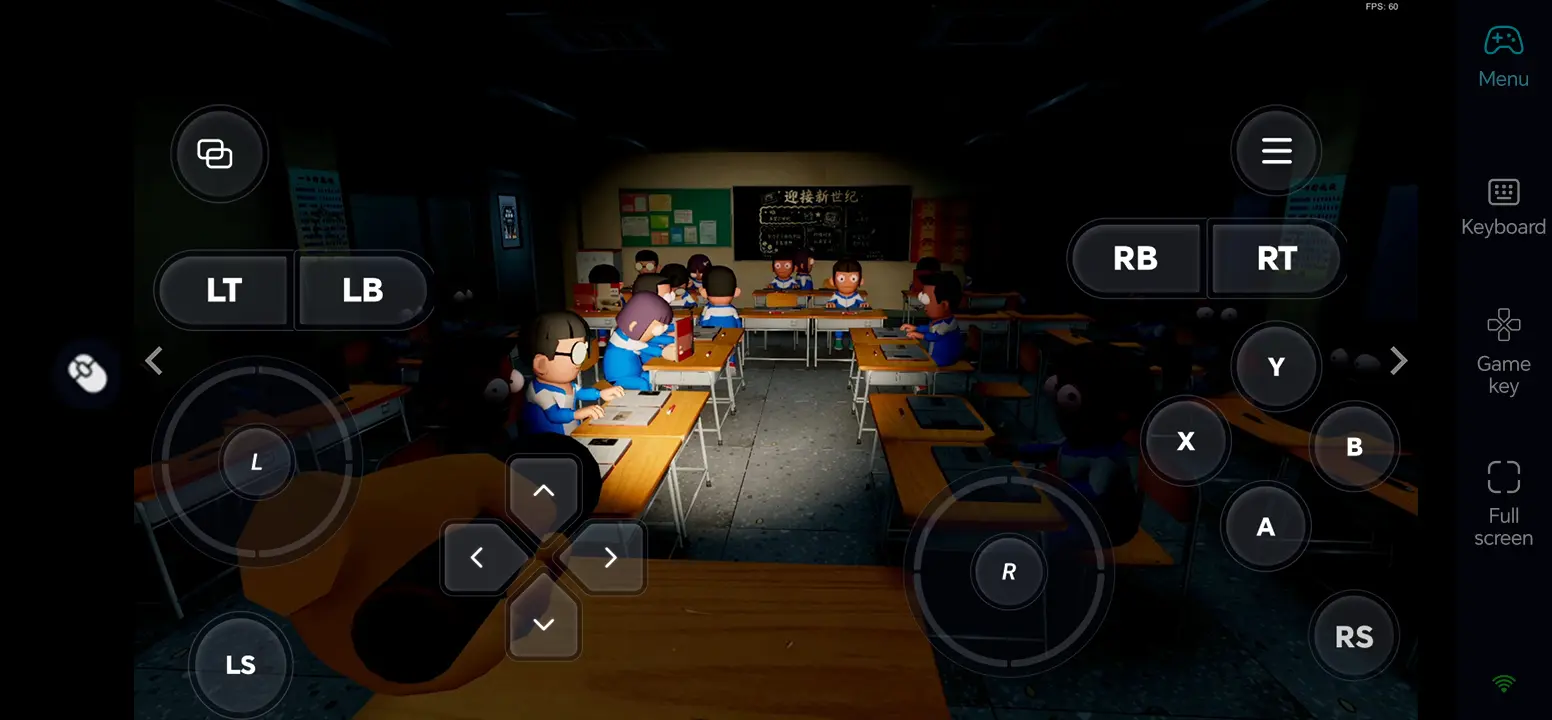
Three OSLink Benefits for Worst Class Ever
1. Join a spontaneous match away from your desk
When friends invite you, your phone can connect to the game on your own PC. A stable network still matters for multiplayer.
2. Make a layout for each role
Give students easy access to pranks and items while keeping the teacher’s observation area visible.
3. Use familiar input for quick reactions
A compatible controller or keyboard and mouse can help with camera turns and item use during searches or escapes.
Frequently Asked Questions
Q1: What is the release date of Worst Class Ever?
The release date of Worst Class Ever is November 9, 2026, according to Steam. The Windows version is available to buy.
Q2: Can I play Worst Class Ever directly on Android?
The official Steam page lists a Windows game and does not list a native Android edition. To play the full PC game on Android, you can run it on your own Windows computer and control that PC through OSLink.
Q3: Can I play Worst Class Ever directly on iOS?
The official Steam page does not list a native iOS edition. OSLink can show and control the Windows PC version on an iPhone while the game continues to run on your own computer.
Q4: What PC specifications does Worst Class Ever require?
Steam minimum: Windows 10 64-bit, Intel Core i3-3240 or AMD FX-4300, 4 GB RAM, GeForce GTX 750 Ti 2 GB, DirectX 11, 4 GB storage, and broadband internet. Recommended: Intel Core i5-3470, 16 GB RAM, and GeForce GTX 1050-class graphics.
Conclusion
Install and test Worst Class Ever on your PC, then connect your phone with OSLink. Turn on PC gaming mode and tailor controls to the teacher or student role so you can join a classroom showdown away from your desk.
 Download