English

Ever needed to quickly transfer a file from your main PC to your workstation, make a quick adjustment, or access your computer while you're away from home? Whether it's for work or gaming, having remote access to your PC without complicated setups or extra hardware can come in handy. That's where OSLink comes in. This remote desktop software lets you control your PC from your phone, play PC games remotely, and manage connected devices wherever you are. Want to see what it can do? Let's dive in!
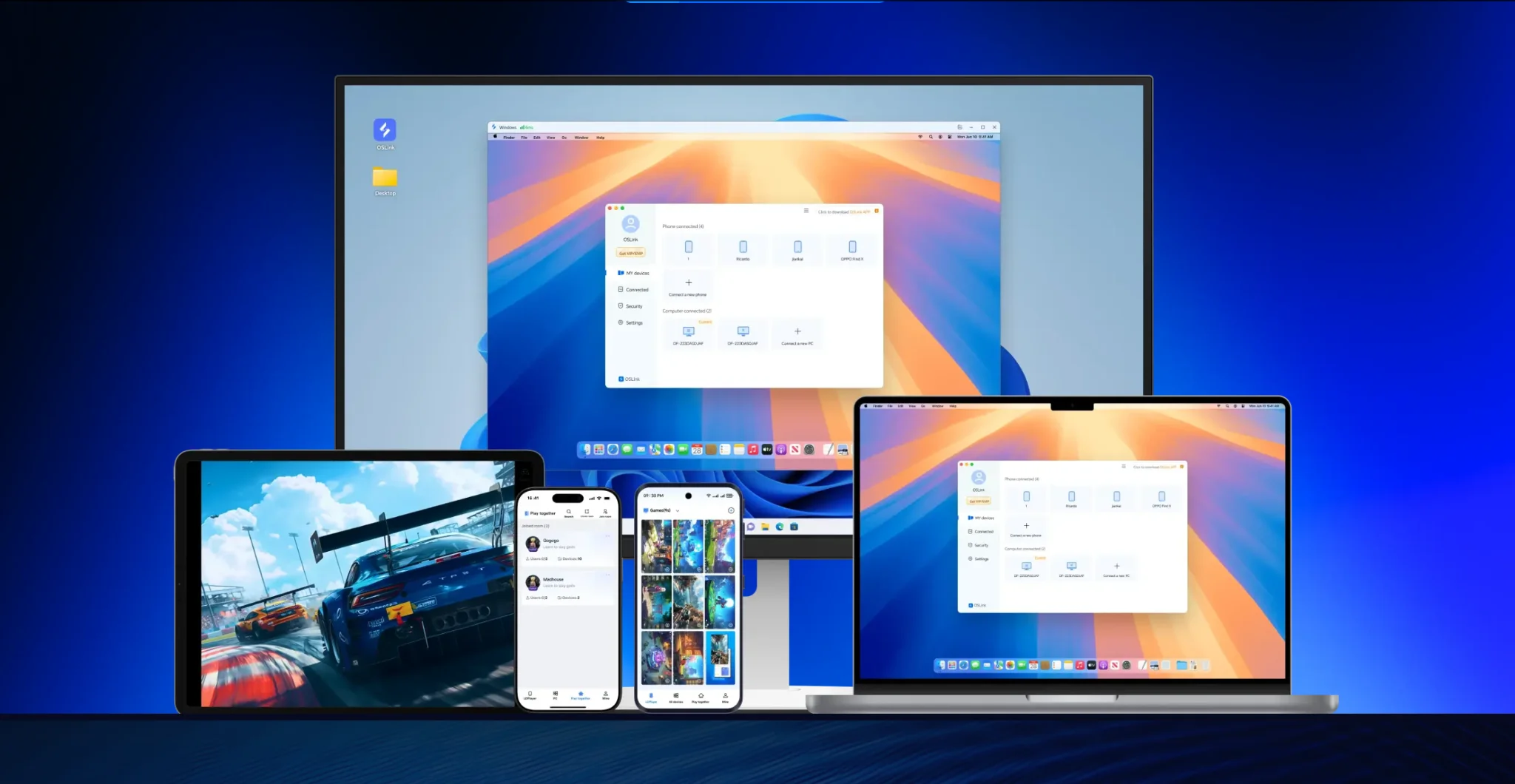
What Is OSLink?
OSLink is a remote desktop tool that lets you access and control your PC from your phone, whether you're at home or away. With a built-in keyboard, mouse controls, and touch gestures, OSLink makes it easier to navigate your desktop and perform everyday tasks from a smaller screen.
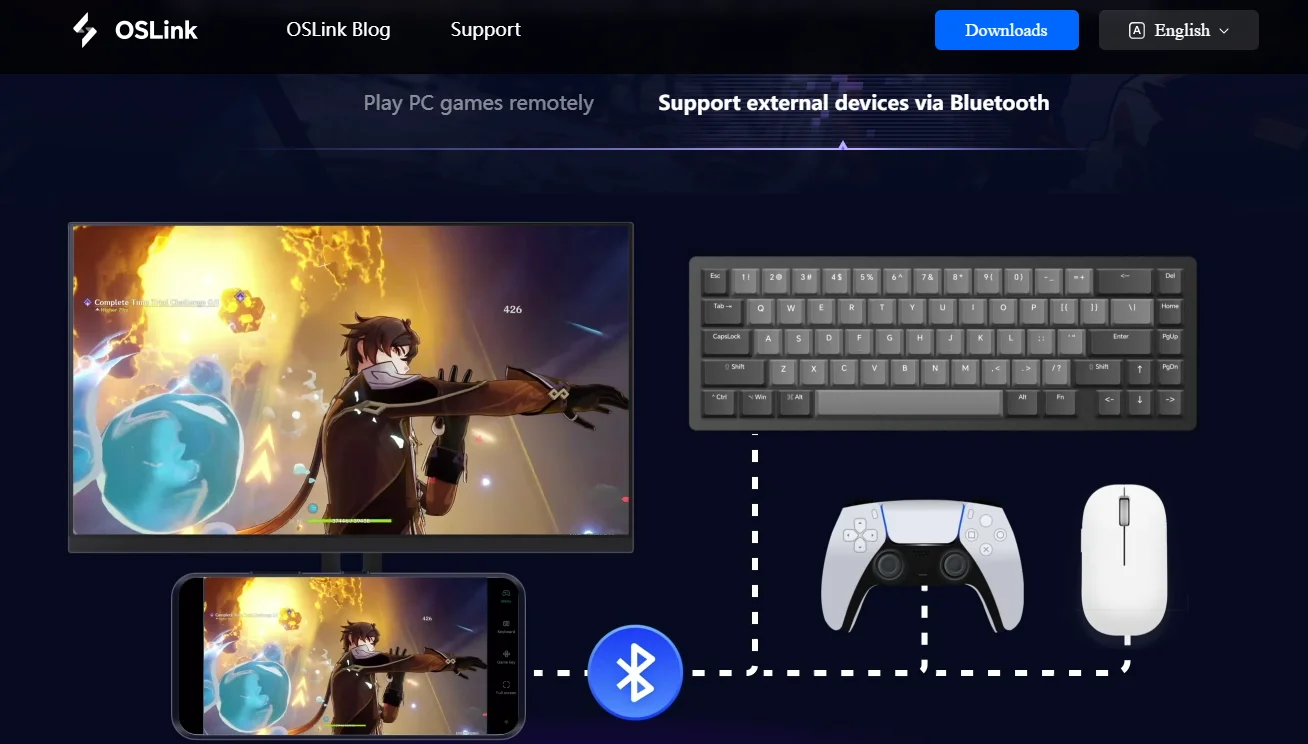
But OSLink isn't limited to remote PC access. You can also use it to stream PC games to your phone, control multiple Android devices, automate repetitive tasks, and share gaming sessions with friends through Play Together.
Supported devices and platforms:
-
PC: Windows
-
Mobile: Android and iOS
-
Upcoming support: PC-to-PC remote control, including Mac support, is planned for a future update.
Is OSLink Safe to Use?
Since OSLink provides remote access to your devices, it's reasonable to have questions about security and privacy. OSLink streams your screen and inputs in real time, allowing you to control another device without recording and storing videos of your desktop.
OSLink Remote Desktop uses TLS encryption for data transmission, along with access controls and authentication measures to protect personal information. The service processes certain screen, input, and device information to provide remote-control functionality. Recording content is only processed when you enable the screen-recording feature.
You also remain in control of your remote sessions. When you're finished working or gaming, simply disconnect to end remote access. As with any remote desktop software, protect your account credentials and only connect devices you trust.
How to Use OSLink for Work?
OSLink turns your phone into a remote control for your desktop, letting you access your PC, manage files, and switch between connected computers or monitors without a physical mouse or keyboard. Its built-in virtual mouse, keyboard, and touch gestures make everyday remote tasks easier.
Touch Accessibility and Mouse Gestures
OSLink offers two ways to control your PC from your phone: use the built-in virtual mouse to click, drag, and select items, or interact directly with your desktop using touch gestures. Here are some useful controls:
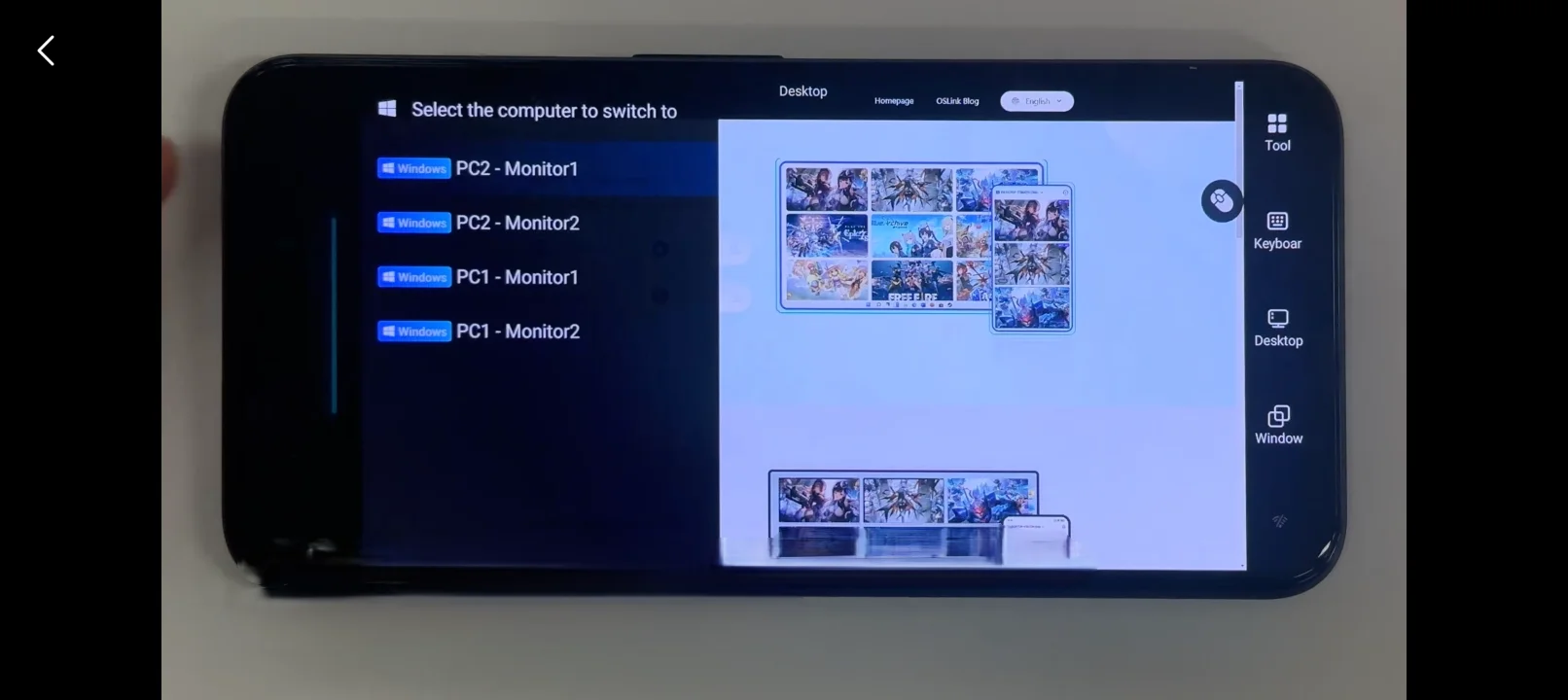
- Switch Between Monitors: Press and hold the middle-left edge of your screen, then slide right to switch between connected monitors.
-
Switch Between PCs: Install OSLink on your other computers and sign in using the same email account. On your phone, press and hold the middle-left edge of the screen, then slide right to open the device list and select another PC.
-
Right-click: Press and hold the top-left corner of the black bar, then tap an item to open its context menu. You can use this to rename files, check properties, or create folders.
-
Shortcut Menu: Press and hold the top-left corner of the black bar, then slide left to access shortcuts such as copy, paste, cut, undo, and select all.
-
Scroll Up and Down: Press the middle of the left black bar and slide your finger up or down to scroll through webpages, documents, and File Explorer windows.
-
Zoom In and Out: Press and hold the left black bar, then pinch with two fingers to zoom in or spread them apart to zoom out.
One limitation is that selecting multiple files using Ctrl + Click isn't directly supported through touch controls. As a workaround, open File Explorer's folder options and enable Use check boxes to select items. You can then select multiple files using checkboxes instead.
Control Multiple Phones from One Phone with OSLink
You don't need a powerful PC to build a multi-device setup with OSLink. If you have a few spare Android phones, you can turn them into dedicated devices for gaming, automation, or other tasks and control them remotely using your main phone.
For example, you could leave one phone running a mobile game, dedicate another to an AI agent like OpenClaw, and keep your main phone free for everyday use. You can switch between connected devices whenever you need to check their progress or interact with them, without having to pick up each phone.
How to Connect and Control Multiple Phones
Getting started is straightforward. You'll need OSLink installed on your main phone and every secondary Android phone you want to control.
-
Install OSLink: Download and install the OSLink app on all your phones from Google Play, App Store, or the official website.
-
Sign In with the Same Account: Open OSLink on each device and log in using the same account to connect them.
-
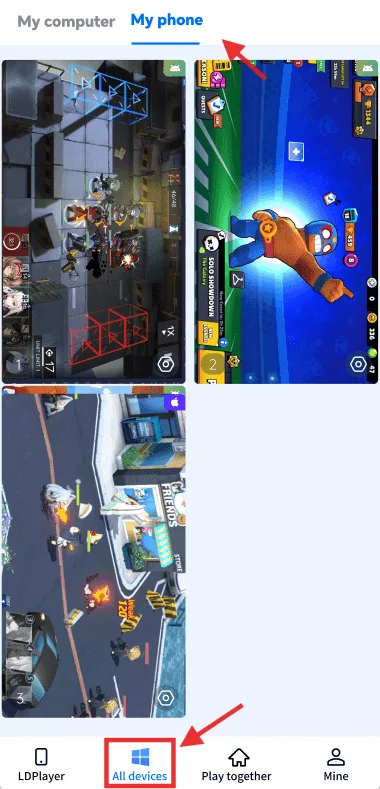
Find Your Connected Phones: On your main phone, open OSLink and navigate to All Devices > My Phone. Your connected secondary devices should appear in the list.
-
Connect and Take Control: Select the phone you want to access. Once connected, you can interact with it through your main phone's touchscreen, just as if you were holding the secondary device yourself.
Each phone needs a stable internet connection and sufficient power to remain accessible. OSLink handles the remote control, while games and other tasks continue running on the connected devices.
How to Use OSLink for Gaming
Beyond remote work and desktop access, OSLink also lets you enjoy your PC games from your phone. Whether you want to continue playing away from your desk or try PC games on a mobile device, you can stream games directly from your computer and control them using touchscreen controls or external peripherals.
Play PC Games on Mobile
Want to play your favorite PC games on your phone without downloading their mobile versions? OSLink remote access lets you stream games directly from your PC to your Android device, giving you access to your existing PC game library. Your computer handles the game processing while your phone streams the gameplay and sends back your controls.
To get started, download the OSLink for PC from the official website and sign in using the same account as your mobile app. Keep OSLink running on your PC, which must remain powered on and connected to the internet. Disabling automatic sleep mode can help prevent unexpected disconnections.
Next, open OSLink on your phone and select your PC from the device list. You can then access your desktop and launch any installed PC game remotely. Since games run on your computer, you don't need to download large game files or own a powerful phone.
Here are three ways to improve your remote gaming experience:
-
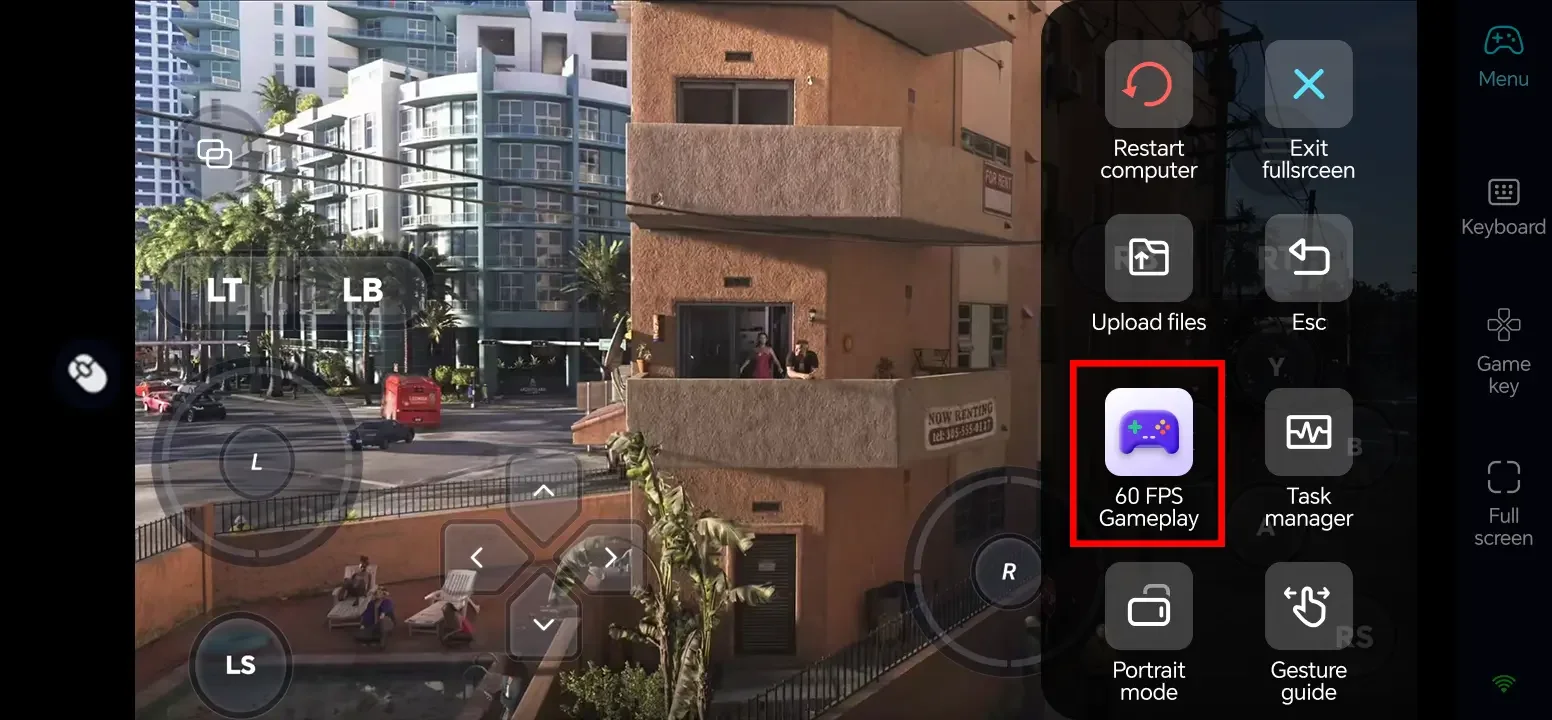
Enable PC Gaming Mode: Open the OSLink toolbar and enable 60 FPS PC Gaming Mode to activate dedicated gaming controls and optimize streaming. Actual performance depends on your PC and network connection.
-
Customize On-Screen Controls: OSLink can automatically load preset layouts for supported games. You can also create custom layouts by adding virtual buttons, assigning keyboard keys, and adjusting their positions and sizes.
-
Connect External Controllers and Peripherals: Pair a compatible Bluetooth controller, keyboard, or mouse with your phone for more comfortable gameplay. Controllers work well for action games, while keyboards and mice are useful for strategy games and titles requiring precise inputs.
Play Mobile Games on PC
Want to enjoy mobile games on a bigger screen with keyboard and mouse controls? OSLink lets you mirror your Android phone to your PC and control games without needing a native PC version. It's particularly useful for games like PUBG Mobile, Call of Duty Mobile, Free Fire, and MOBA titles.
To get started, connect your Android phone to your PC using a USB data cable. Open OSLink on your computer, select your connected phone, and choose Game Mode. Then, accept the screen-mirroring request on your phone.
If you're connecting for the first time, you may need to enable Developer Options and USB Debugging. Go to Settings > About Phone, tap Build Number seven times, then find and enable USB Debugging in Developer Options. Follow OSLink's prompts to authorize the connection.
Once connected, you can configure your gaming experience with these settings:
-
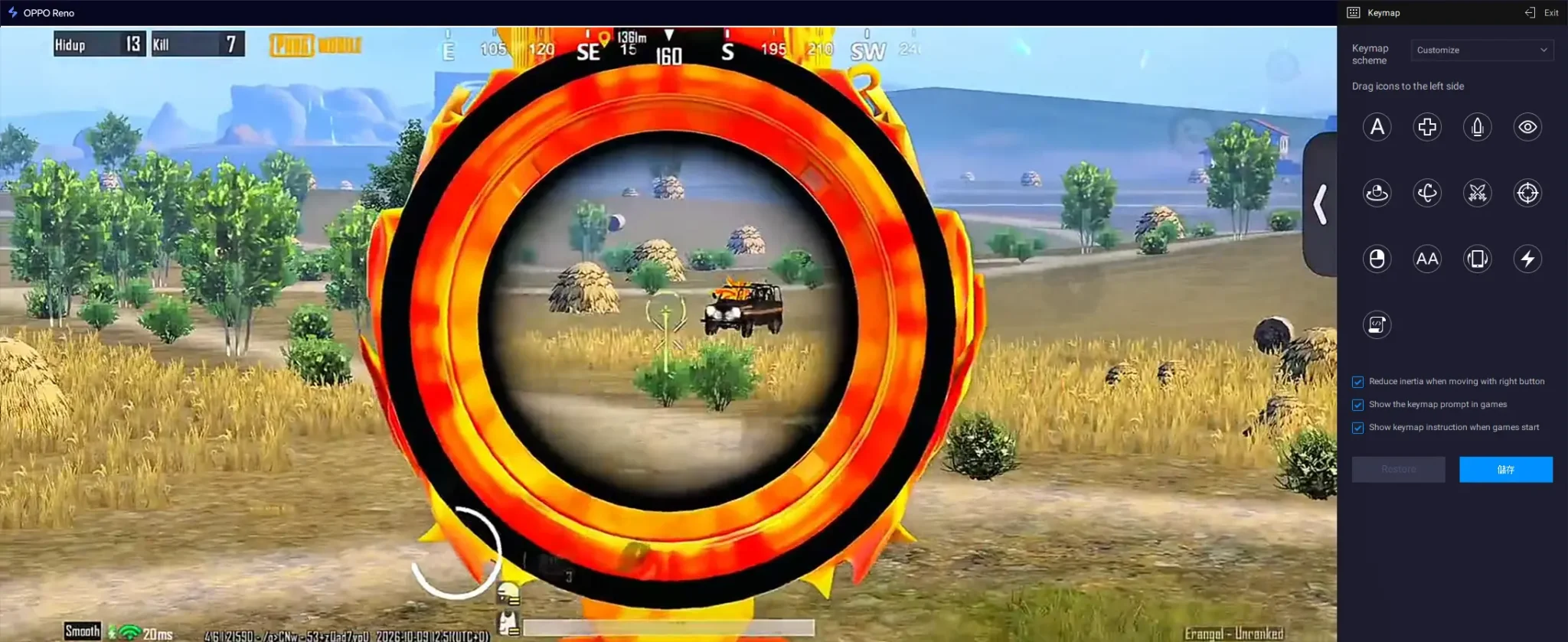
Configure Keyboard and Mouse Controls: Click the keyboard icon on the OSLink toolbar to open the key-mapping editor. Adjust existing key assignments or add new ones for actions like aiming, shooting, jumping, and using abilities.
-
Adjust Resolution and FPS: Set your preferred display resolution and frame rate based on your phone's capabilities and PC display.
-
Use a Reliable USB Cable: Choose a quality USB data cable, preferably USB 3.0 or better. Avoid charging-only cables, as they don't support data transfer.
Once everything is configured, launch your game and enjoy playing on your PC with keyboard and mouse controls while the game continues running on your Android phone.
AFK Farm 24/7 and Reroll Mobile Games with Ease
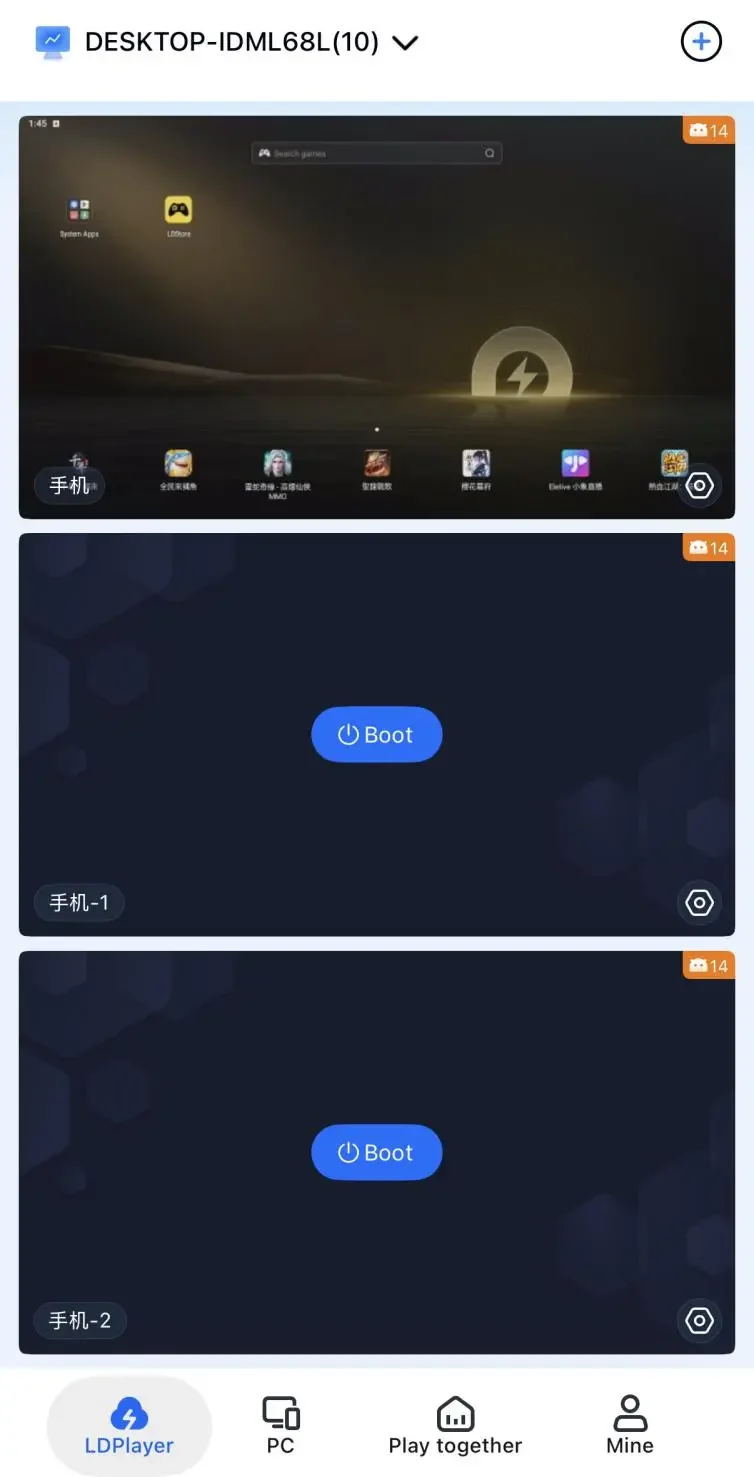
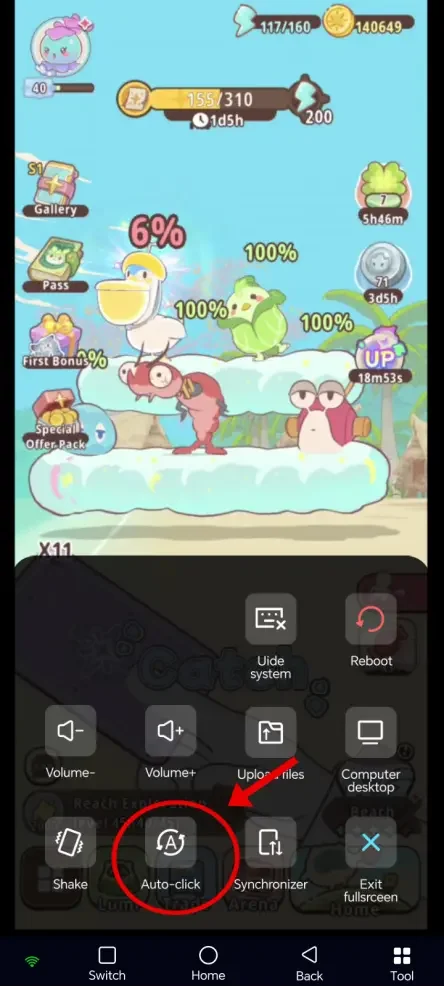
Tired of repetitive rerolling and farming? Combine LDPlayer's Multi-Instance feature with OSLink's Synchronizer and Auto Click tools to manage multiple game accounts, automate farming tasks, and control everything remotely from your phone.
First, install LDPlayer on your PC, set up your game, and connect to your computer using OSLink remote control. Keep your PC powered on and disable automatic sleep mode to prevent interruptions.
Here are two ways to use this setup:
Reroll Multiple Accounts with Multi-Instance
Use LDPlayer's Multi-Instance feature to run several game accounts simultaneously. Install the game on each instance, log in with separate accounts, and use OSLink's Synchronizer to repeat actions across them. This makes rerolling, completing tutorials, and performing summons faster. You can also monitor and control your instances remotely through OSLink.
Automate Farming with Auto Click
Once you've secured your desired account, use OSLink's Auto Click tool to automate repetitive activities. Record a sequence of actions, such as entering a dungeon, starting a battle, and collecting rewards. Set the repeat interval, save your recording, and start automation. Include enough waiting time for loading screens and animations, and check occasionally for interruptions.
Tip: Running multiple emulator instances requires additional RAM and CPU resources. Adjust the number of instances based on your PC's performance.
Play Together with Friends Using OSLink
OSLink's Play Together feature lets you share your PC gaming sessions with friends. They can join your room, watch your gameplay, and take turns controlling the game. It's a convenient way to help a friend through a difficult boss fight or let others try a game even if they don't own a powerful gaming PC.
However, this isn't traditional multiplayer co-op. Everyone shares the same game session, and only one person's active input can be registered at a time. You'll need to take turns rather than controlling separate characters simultaneously.
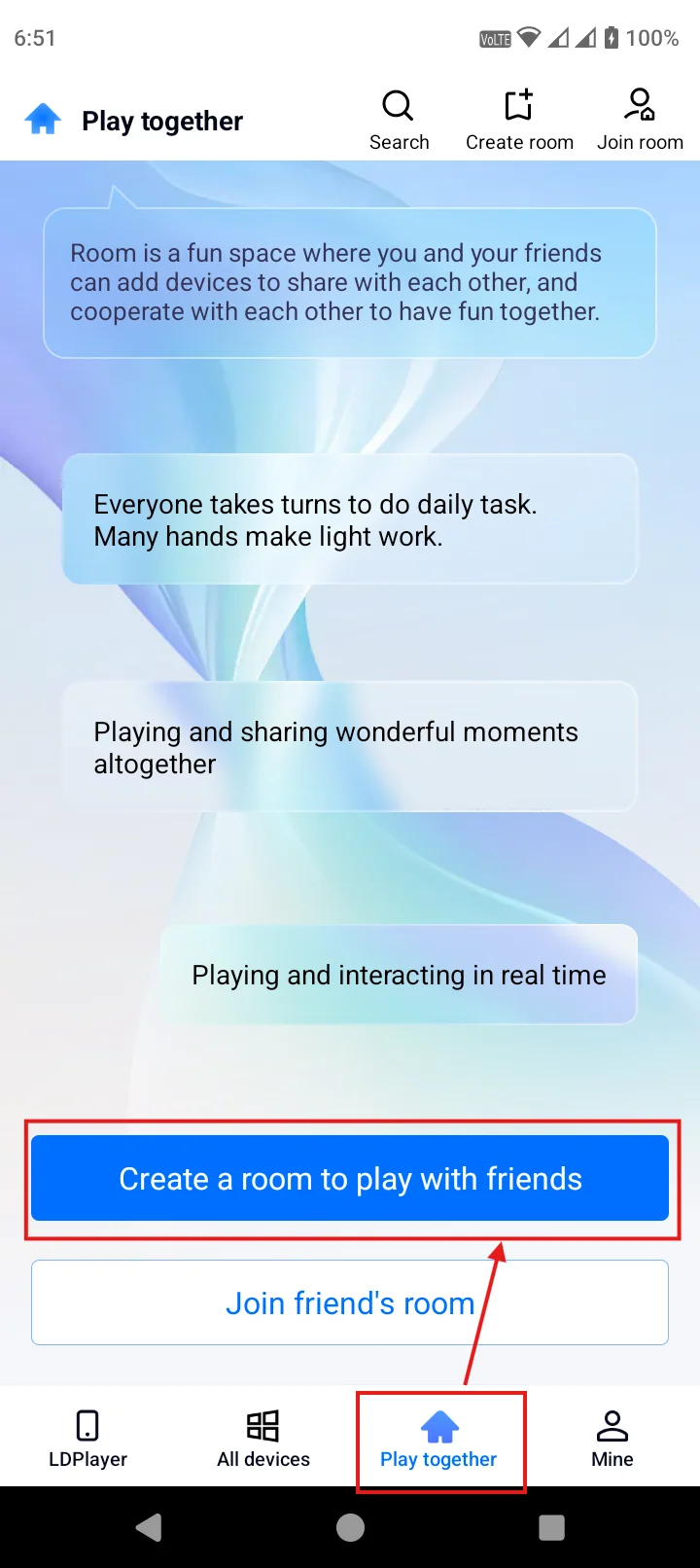
To get started, launch the PC game you want to share and open OSLink. Then, navigate to Play Together, enter a room name, and select Create Room. Once the room is ready, choose Add My Device to add your running game session.
Here are the main things you can do with Play Together:
-
Invite Friends to Your Room: Share your room password through Discord, WhatsApp, or another messaging app. Your friends need to have OSLink installed on their devices. They can open the app, select Join a Room, and enter the password to join your session.
-
Communicate While Playing: Once everyone has joined, you can use OSLink's built-in chat or voice features to communicate. This makes it easier to coordinate when someone wants to take control or needs help with a particular section.
-
Share Control and Take Turns: Your friends can watch your game and take control when they want to help or try something themselves. You can pass control around during exploration, boss fights, or other challenging sections.
Frequently Asked Questions
1. Is OSLink a Cloud Gaming Service?
No. OSLink streams games from your own PC or mobile device rather than hosting them on cloud servers. Your host device must remain powered on and connected to the internet while you're using it remotely.
2. Is OSLink Free to Use?
Yes. OSLink is free to download and offers basic remote-access features. However, some features and usage limits depend on your membership plan. Paid VIP and SVIP subscriptions provide additional remote-control and sharing benefits.
3. Do Both Devices Need to Be on the Same Wi-Fi Network to Use OSLink?
No. OSLink supports remote connections over different networks, so you can connect using Wi-Fi or mobile data.
4. Does OSLink Support Remote File Transfer Between Devices?
Yes. OSLink supports file transfers between connected devices, allowing you to move documents, photos, and other files remotely. You can also transfer APK files from your phone to LDPlayer without downloading them again.
5. What Is the Difference Between OSLink VIP and SVIP?
Both VIP and SVIP support unlimited LDPlayer instances, but they differ in remote-control limits, streaming quality, and sharing features.
-
VIP: Supports remote control of the first two LDPlayer instances, with streaming quality up to 720p. Room creation and shared device control are not included.
-
SVIP: Supports remote control of multiple LDPlayer instances, depending on your PC's capacity. It also includes room creation and shared device control, with streaming quality up to 1080p under suitable network conditions.
Choose VIP if you only need to control two instances remotely. SVIP is more suitable for managing multiple instances or sharing access with others.
Conclusion
Whether you want to play PC games on your phone, control mobile games from your PC, automate repetitive tasks, or manage multiple devices from one place, OSLink gives you plenty of ways to make your setup more flexible. You don't need to stay glued to your desk or rely on a single powerful device to get things done. Ready to put your spare devices to work and make remote access part of your daily routine? Download OSLink and give it a try!
 Download